turn signal BUICK TERRAZA 2007 Owner's Guide
[x] Cancel search | Manufacturer: BUICK, Model Year: 2007, Model line: TERRAZA, Model: BUICK TERRAZA 2007Pages: 562, PDF Size: 2.96 MB
Page 259 of 562
Notice:Before adding any sound equipment
to your vehicle, such as an audio system,
CD player, CB radio, mobile telephone,
or two-way radio, make sure that it can be
added by checking with your dealer. Also,
check federal rules covering mobile radio and
telephone units. If sound equipment can be
added, it is very important to do it properly.
Added sound equipment may interfere with the
operation of your vehicle’s engine, radio, or
other systems, and even damage them.
Your vehicle’s systems may interfere with the
operation of sound equipment that has
been added.
Notice:The chime signals related to safety
belts, parking brake, and other functions
of your vehicle operate through the
radio/entertainment system. If that equipment
is replaced or additional equipment is added
to your vehicle, the chimes may not work.
Make sure that replacement or additional
equipment is compatible with your vehicle
before installing it. SeeAccessories and
Modifications on page 400.Your vehicle has a feature called Retained
Accessory Power (RAP). With RAP, the audio
system can be played even after the ignition
is turned off. SeeRetained Accessory
Power (RAP) on page 130for more information.
Setting the Time
Press the H or the M button to enter clock mode.
Press and hold H until the correct hour appears
on the display. Press and hold M until the correct
minute appears on the display.
To change the time default setting from 12 hour to
24 hour, press either the H or the M button to
enter the clock mode, then press the tune knob to
select between the 12 or 24 hour display format.
The clock mode will automatically time out with
the changed display format set as the current
default setting.
259
Page 262 of 562
MUTE:Press this button to silence the system.
Press this button again to turn the sound on.
This button is not available on the Radio
with Six-Disc CD.
Finding a Station
BAND:Press this button to switch between
FM1, FM2, AM, or XM1 or XM2 (if equipped).
The display shows the selection.
O/e(Tune):Turn this knob to select radio
stations.
tSEEKu:Press the right or the left arrow
to go to the next or to the previous station and stay
there.
The radio only seeks stations with a strong signal
that are in the selected band.
tSCANu:Press and hold either arrow for
two seconds until FREQUENCY SCAN appears on
the display. The radio goes to a station, plays
for a few seconds, then goes to the next station.
Press either arrow again to stop scanning.To scan preset stations, press and hold either arrow
for four seconds until PRESET SCAN appears on
the display. The radio goes to the next preset
station, plays for a few seconds, then goes to the
next preset station. Press either scan arrow again
or one of the pushbuttons to stop scanning presets.
The radio only scans stations with a strong signal
that are in the selected band.
Setting Preset Stations
Up to 30 stations (six FM1, six FM2, and six AM,
six XM1 and six XM2 (if equipped)), can be
programmed on the six numbered pushbuttons,
by performing the following steps:
1. Turn the radio on.
2. Press BAND to select FM1, FM2, AM, or XM1
or XM2.
3. Tune in the desired station.
4. Press AUTO EQ to select the equalization.
5. Press and hold one of the six numbered
pushbuttons until you hear a beep. Whenever
that numbered pushbutton is pressed, the
station that was set returns and the equalization
that was selected is stored for that pushbutton.
6. Repeat the steps for each pushbutton.
262
Page 280 of 562
XM Radio Messages
Radio Display Message Condition Action Required
XL (Explicit Language
Channels)XL on the radio display,
after the channel name,
indicates content with
explicit language.These channels, or any others, can be blocked at a
customer’s request, by calling 1-800-852-XMXM (9696).
Updating Updating encryption code The encryption code in the receiver is being updated, and
no action is required. This process should take no longer
than 30 seconds.
No Signal Loss of signal The system is functioning correctly, but the vehicle is in a
location that is blocking the XM™ signal. When you move
into an open area, the signal should return.
Loading XM Acquiring channel audio
(after 4 second delay)The audio system is acquiring and processing audio and
text data. No action is needed. This message should
disappear shortly.
CH Off Air Channel not in service This channel is not currently in service. Tune to another
channel.
CH Unavail Channel no longer
availableThis previously assigned channel is no longer assigned.
Tune to another station. If this station was one of the
presets, choose another station for that preset button.
No Info Artist Name/Feature
not availableNo artist information is available at this time on this channel.
The system is working properly.
280
Page 283 of 562
Before You Drive
The RSE is designed for rear seat passengers
only. The driver cannot safely view the video
screen while driving and should not try to do so.
The RSE system will play DVD, CD, and MP3
discs. You can also connect an auxiliary device to
the RSE system to play games, watch videos,
look at pictures, etc.
Normal operation may be limited under extremely
low or high temperatures, in order to protect
the system from damage. Operate the RSE system
under normal or comfortable cabin temperature
ranges.
Headphones
Wireless Headphones
The RSE system may include two sets of wireless
headphones (batteries are included).
The wireless headphones have an ON/OFF
switch, a channel select switch, and a volume
control. To use the headphones, turn the switch
to ON. An indicator light on the headphones
will illuminate. If the light does not illuminate, the
batteries may need to be replaced.See “Battery Replacement” later in this section for
more information. Switch the headphones to
OFF when not in use.
The headphones will shut off automatically to save
the battery power if the RSE system is shut off
or if the headphones are out of range of the
transmitters for more than three minutes. The
transmitters are located next to the DVD faceplate.
If you move too far forward or step out of the
vehicle, the headphones will lose the audio signal.
DVD and auxiliary audio will always be found
on channel (CHA or CH1) of the wireless
headphones. RSA audio is dedicated to CHB or
CH2 of the wireless headphones.
To adjust the volume on the wireless headphones,
use the volume control.
Notice:Do not store the headphones in heat
or direct sunlight. This could damage the
headphones and repairs will not be covered by
your warranty. Keep the headphones stored
in a cool, dry place.
If there is a decreased audio signal during CD,
MP3, or DVD play, there may be a low hissing
noise through the speakers and/or headphones.
283
Page 290 of 562
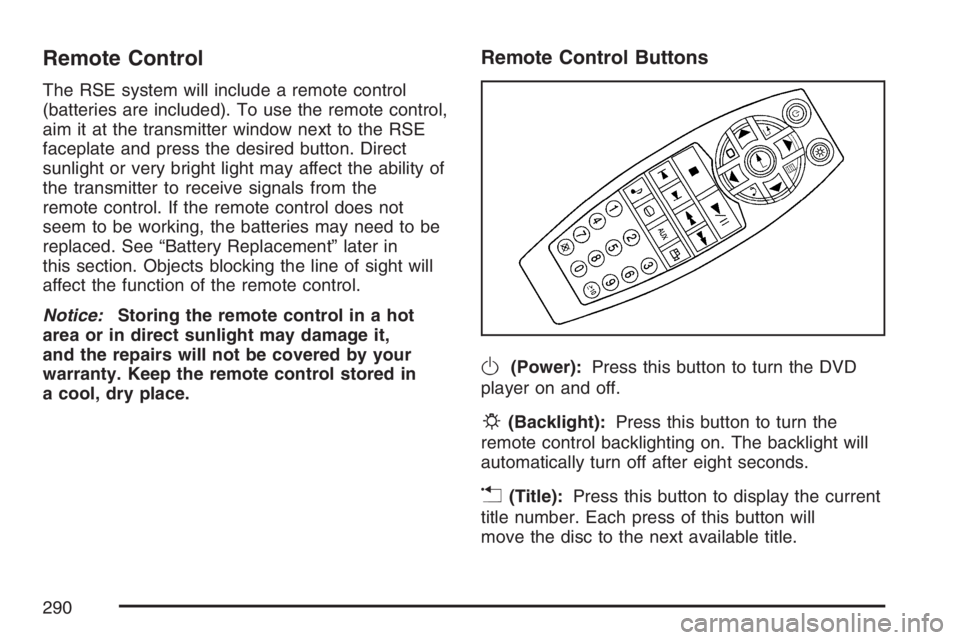
Remote Control
The RSE system will include a remote control
(batteries are included). To use the remote control,
aim it at the transmitter window next to the RSE
faceplate and press the desired button. Direct
sunlight or very bright light may affect the ability of
the transmitter to receive signals from the
remote control. If the remote control does not
seem to be working, the batteries may need to be
replaced. See “Battery Replacement” later in
this section. Objects blocking the line of sight will
affect the function of the remote control.
Notice:Storing the remote control in a hot
area or in direct sunlight may damage it,
and the repairs will not be covered by your
warranty. Keep the remote control stored in
a cool, dry place.
Remote Control Buttons
O(Power):Press this button to turn the DVD
player on and off.
P(Backlight):Press this button to turn the
remote control backlighting on. The backlight will
automatically turn off after eight seconds.
v(Title):Press this button to display the current
title number. Each press of this button will
move the disc to the next available title.
290
Page 299 of 562
Wireless Headphones
The RSE system may include two sets of wireless
headphones (batteries may be included with
the headphone sets).
The wireless headphones have an ON/OFF
switch, a channel select switch, and a volume
control. To use the headphones, turn the ON/OFF
switch to ON. An indicator light on the headphones
will come on. If the light does not come on, the
batteries may need to be replaced. See “Battery
Replacement” later in this section for more
information. Switch the headphones to OFF
when not in use.
The headphones will shut off automatically to
save the battery power if the RSE system is off
or if the headphones are out of range of the
transmitters for more than three minutes.
The transmitters are located next to the DVD
faceplate. If you move too far forward or step out
of the vehicle, the headphones will lose the
audio signal.
DVD and auxiliary audio will always be found on
channel (CHA or CH1) of the wireless headphones.
RSA audio is dedicated to CHB or CH2 of the
wireless headphones.To adjust the volume on the wireless headphones,
use the volume control located on the headphones.
If there is a decreased audio signal during CD,
MP3, or DVD play, there may be a low hissing
noise through the speakers and/or headphones.
If the hissing sound in the wireless headphones
seems excessive, make sure that the headphone
batteries are fully charged. Some amount of
hissing is normal.
Both sets of rear seat headphones may include
foam ear pads that can be replaced.
Foam ear pads on these headphones may become
worn or damaged. The headphone foam ear pads
can become damaged if they are not handled or
stored properly. If the foam ear pads do become
damaged or worn out, the pads can be replaced
separately from the headphone set. It is not
necessary to replace the complete headphone set.
The headphone replacement foam ear pads can
be ordered in pairs. See your dealer for more
information.
299
Page 301 of 562
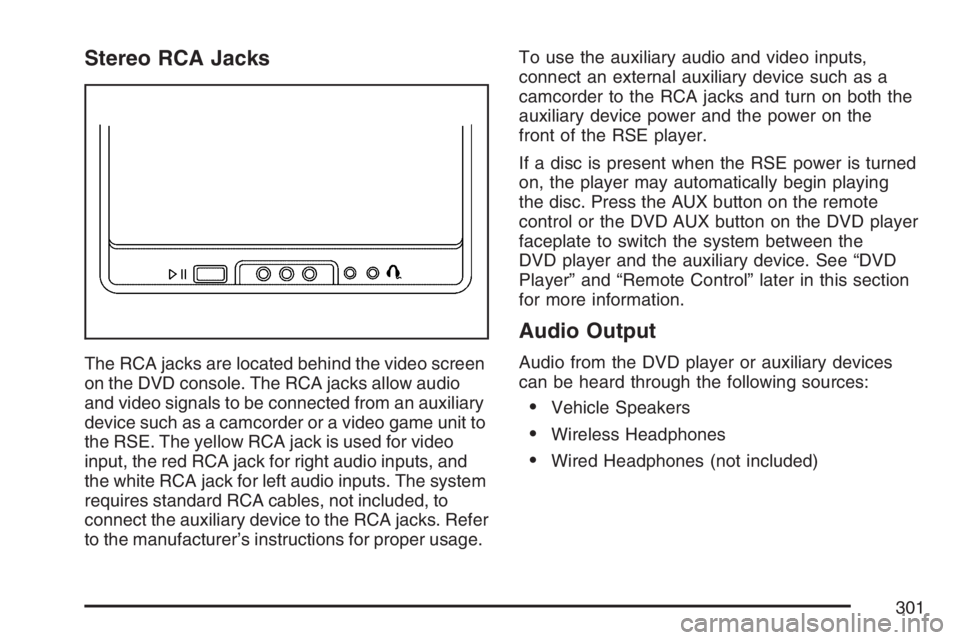
Stereo RCA Jacks
The RCA jacks are located behind the video screen
on the DVD console. The RCA jacks allow audio
and video signals to be connected from an auxiliary
device such as a camcorder or a video game unit to
the RSE. The yellow RCA jack is used for video
input, the red RCA jack for right audio inputs, and
the white RCA jack for left audio inputs. The system
requires standard RCA cables, not included, to
connect the auxiliary device to the RCA jacks. Refer
to the manufacturer’s instructions for proper usage.To use the auxiliary audio and video inputs,
connect an external auxiliary device such as a
camcorder to the RCA jacks and turn on both the
auxiliary device power and the power on the
front of the RSE player.
If a disc is present when the RSE power is turned
on, the player may automatically begin playing
the disc. Press the AUX button on the remote
control or the DVD AUX button on the DVD player
faceplate to switch the system between the
DVD player and the auxiliary device. See “DVD
Player” and “Remote Control” later in this section
for more information.
Audio Output
Audio from the DVD player or auxiliary devices
can be heard through the following sources:
Vehicle Speakers
Wireless Headphones
Wired Headphones (not included)
301
Page 306 of 562
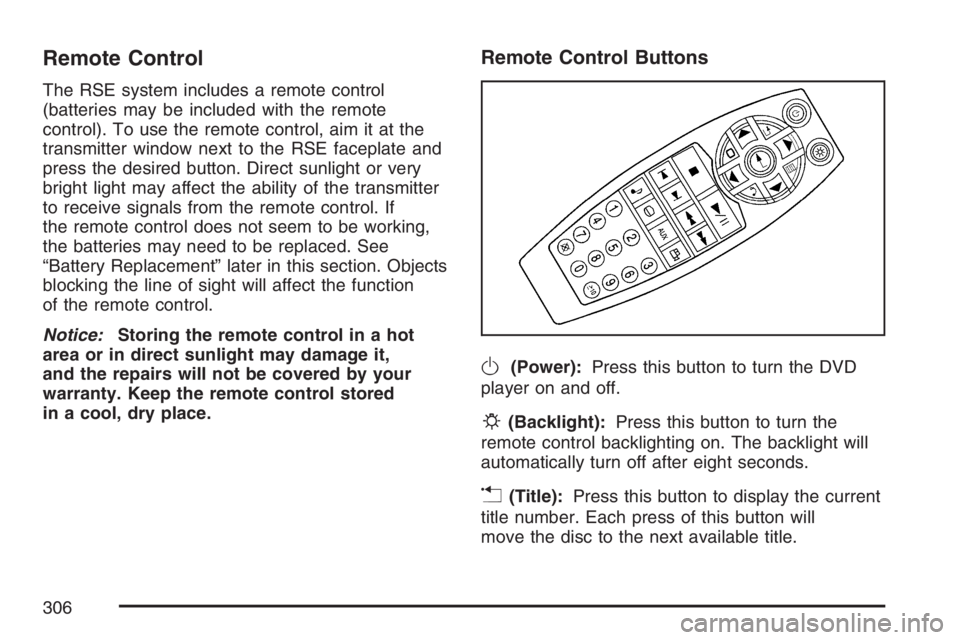
Remote Control
The RSE system includes a remote control
(batteries may be included with the remote
control). To use the remote control, aim it at the
transmitter window next to the RSE faceplate and
press the desired button. Direct sunlight or very
bright light may affect the ability of the transmitter
to receive signals from the remote control. If
the remote control does not seem to be working,
the batteries may need to be replaced. See
“Battery Replacement” later in this section. Objects
blocking the line of sight will affect the function
of the remote control.
Notice:Storing the remote control in a hot
area or in direct sunlight may damage it,
and the repairs will not be covered by your
warranty. Keep the remote control stored
in a cool, dry place.
Remote Control Buttons
O(Power):Press this button to turn the DVD
player on and off.
P(Backlight):Press this button to turn the
remote control backlighting on. The backlight will
automatically turn off after eight seconds.
v(Title):Press this button to display the current
title number. Each press of this button will
move the disc to the next available title.
306
Page 342 of 562
1-6:Press this button to scan the stations that
are programmed on the radio preset pushbuttons.
The radio will go to the next preset station
stored on the pushbuttons, play for a few seconds,
then go on to the next preset station. Press this
button again to stop scanning. The radio will
only scan preset stations with a strong signal that
are in the selected band.
$(Mute):Press this button to silence the system.
Press this button again, to turn the sound on.
r(Play):When listening to the radio, press this
button to play a CD.
wux(Volume):Press the up or down arrow
to increase or decrease the volume.
Radio Reception
You may experience frequency interference and
static during normal radio reception if items
such as cellphone chargers, vehicle convenience
accessories, and external electronic devices
are plugged into the accessory power outlet.
If there is interference or static, unplug the item
from the accessory power outlet.
AM
The range for most AM stations is greater than for
FM, especially at night. The longer range can
cause station frequencies to interfere with each
other. For better radio reception, most AM
radio stations will boost the power levels during
the day, and then reduce these levels during
the night. Static can also occur when things like
storms and power lines interfere with radio
reception. When this happens, try reducing the
treble on your radio.
342
Page 361 of 562
So here are some tips for passing:
Drive ahead. Look down the road, to the
sides, and to crossroads for situations
that might affect your passing patterns. If you
have any doubt whatsoever about making
a successful pass, wait for a better time.
Watch for traffic signs, pavement markings,
and lines. If you can see a sign up ahead
that might indicate a turn or an intersection,
delay your pass. A broken center line
usually indicates it is all right to pass, providing
the road ahead is clear. Never cross a solid
line on your side of the lane or a double solid
line, even if the road seems empty of
approaching traffic.
Do not get too close to the vehicle you want
to pass while you are awaiting an opportunity.
For one thing, following too closely reduces
your area of vision, especially if you are
following a larger vehicle. Also, you will not
have adequate space if the vehicle ahead
suddenly slows or stops. Keep back a
reasonable distance.
When it looks like a chance to pass is coming
up, start to accelerate but stay in the right lane
and do not get too close. Time your move so
you will be increasing speed as the time comes
to move into the other lane. If the way is clear to
pass, you will have a running start that more
than makes up for the distance you would lose
by dropping back. And if something happens to
cause you to cancel your pass, you need only
slow down and drop back again and wait for
another opportunity.
If other vehicles are lined up to pass a slow
vehicle, wait your turn. But take care that
someone is not trying to pass you as you pull
out to pass the slow vehicle. Remember to
glance over your shoulder and check the
blind spot.
Check your vehicle’s mirrors, glance over your
shoulder, and start your left lane change signal
before moving out of the right lane to pass.
When you are far enough ahead of the passed
vehicle to see its front in your vehicle’s inside
mirror, activate the right lane change signal and
move back into the right lane. Remember that
your vehicle’s passenger side outside mirror is
convex. The vehicle you just passed may seem
to be farther away from you than it really is.
361