radio BUICK TERRAZA 2007 Workshop Manual
[x] Cancel search | Manufacturer: BUICK, Model Year: 2007, Model line: TERRAZA, Model: BUICK TERRAZA 2007Pages: 562, PDF Size: 2.96 MB
Page 322 of 562
Selecting Your Mobile Digital Media as the
Active Source
Your radio and rear seat entertainment system
communicate with the GM Mobile Digital Media
system, as one compact unit that can be accessed
by everyone seated inside the vehicle. The GM
Mobile Digital Media system can hold thousands of
songs, hours of videos, and hundreds of games.
To help use this system, see the following
“Quick Start” information:
Front seat driver and passenger, use the radio
and steering wheel controls to access the music
collection with PhatNoise Voice Index™
technology. The preset buttons can be used to
select the browsing category. The Next,
Previous, and Seek buttons can be used to
browse within a browsing category. Browse the
music collection by artist, album, genre, or
custom playlist as the system uses the voice
mode to announce these selections. See “Using
the GM Mobile Digital Media System for Front
Seat Audio Entertainment” later in this manual.
Rear seat passengers, use the wireless DVD
remote control to navigate the menu displayed
on the overhead DVD video screen, then selectto play music, videos, or games. A dedicated
game controller is included with the Mobile
Digital Media package. See “Using the GM
Mobile Digital Media System for Rear Seat
Entertainment” later in this manual.
Your vehicle may have audio steering wheel
controls. Some audio controls can be adjusted at
the steering wheel. SeeAudio Steering Wheel
Controls on page 341in your owner manual.
If your vehicle has the OnStar
®/Mute audio
steering wheel control, read the following
instructions.
For vehicles with OnStar
®:
Press and hold the mute button to activate
OnStar®.
Press and release this button once again
to deactivate OnStar®mode and go to
mute mode.
Press this button twice to return to sound from
the GM Mobile Digital Media system.
For vehicles without OnStar
®:
Press the mute button to silence the system,
press and release this button once again to
turn the sound back on.
322
Page 323 of 562
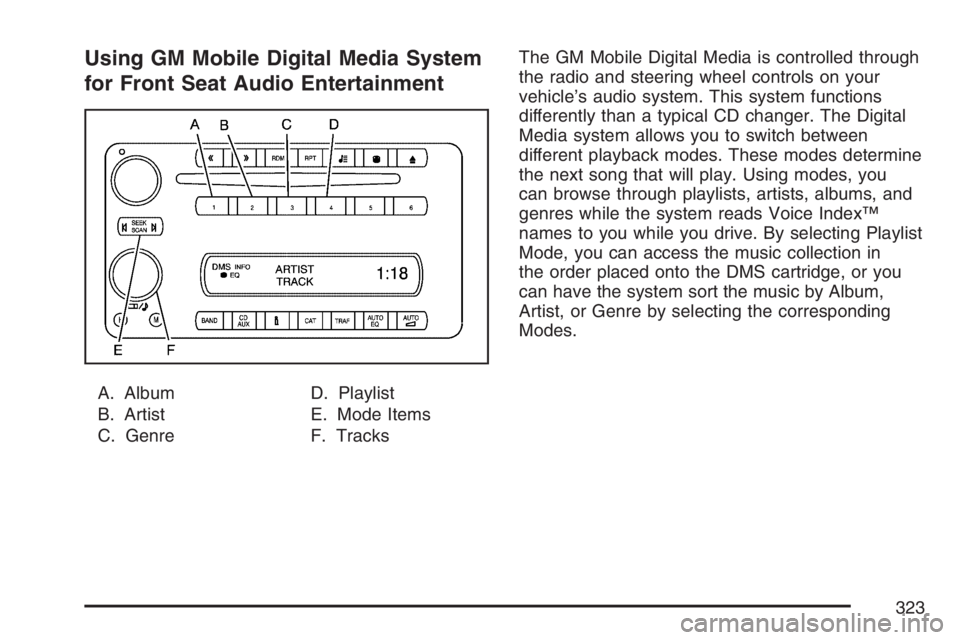
Using GM Mobile Digital Media System
for Front Seat Audio Entertainment
A. Album
B. Artist
C. GenreD. Playlist
E. Mode Items
F. TracksThe GM Mobile Digital Media is controlled through
the radio and steering wheel controls on your
vehicle’s audio system. This system functions
differently than a typical CD changer. The Digital
Media system allows you to switch between
different playback modes. These modes determine
the next song that will play. Using modes, you
can browse through playlists, artists, albums, and
genres while the system reads Voice Index™
names to you while you drive. By selecting Playlist
Mode, you can access the music collection in
the order placed onto the DMS cartridge, or you
can have the system sort the music by Album,
Artist, or Genre by selecting the corresponding
Modes.
323
Page 324 of 562
Starting the System for Front Seat
Entertainment
The GM Mobile Digital Media system is available
through the DMS mode of your radio. This
system will power on and off automatically and
resume where the system last stopped.
To begin playback, follow the instructions
listed below:
1. Insert the DMS cartridge into the GM Mobile
Digital Media player.
2. Turn on your radio and switch to the DMS
mode by pressing the CD/AUX button on
your radio.
3. Press any of the rst four pushbuttons (A-D)
to select different browse modes.
4. Press the left or right SEEK/SCAN arrow (E)
to navigate through the mode items.
5. Turn the tune knob (F) to navigate through
songs in a song list.
Modes Overview
The numbered preset buttons one through four
are used to change the order tracks are grouped
and played. For example, in artist mode, all
tracks are grouped by artist names. Artist names
are listed alphabetically.
The SEEK/SCAN arrows are used to change the
mode item. For example, in Album Mode this will
change to the next or previous album. The mode list
name will display for ve seconds, time-out, then
update to show which list the GM Mobile Digital
Media system is currently playing.
The tune knob is used to change the song within
the current category. For example, while in a
playlist (Playlist Mode) turning the tune knob to
the right will change from track 1 to track 2.
tSEEK/SCANu:Once a mode has been set,
navigate through the categories within that mode
by pressing the right or left SEEK/SCAN arrow.
The category items will display for ve seconds,
time-out, then update to show which category the
Digital Media system is currently playing.
To change the song that is currently playing, press
the right or left SEEK/SCAN arrow to navigate
through the songs.
324
Page 334 of 562
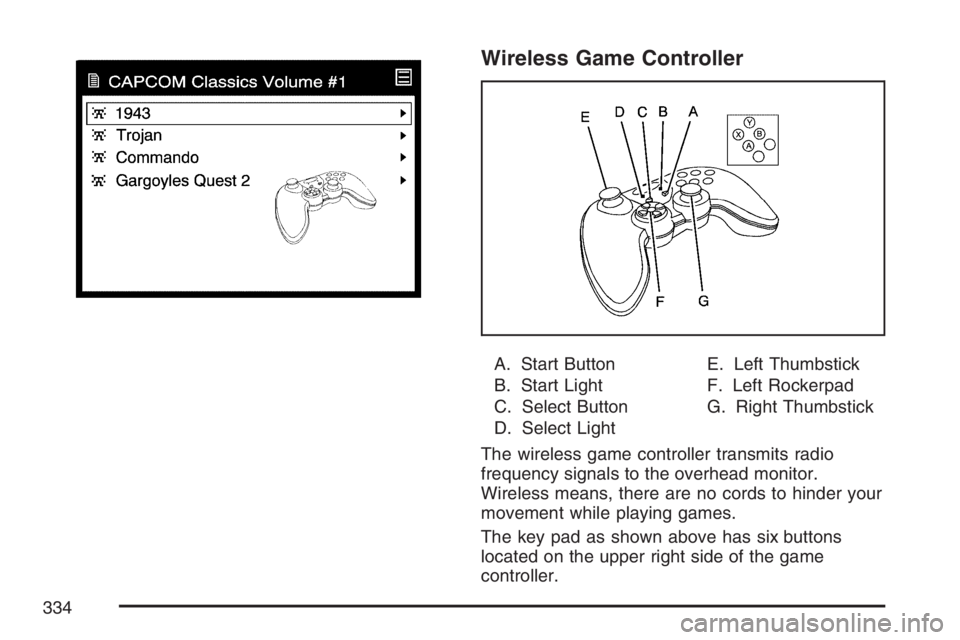
Wireless Game Controller
A. Start Button
B. Start Light
C. Select Button
D. Select LightE. Left Thumbstick
F. Left Rockerpad
G. Right Thumbstick
The wireless game controller transmits radio
frequency signals to the overhead monitor.
Wireless means, there are no cords to hinder your
movement while playing games.
The key pad as shown above has six buttons
located on the upper right side of the game
controller.
334
Page 335 of 562
Wireless Game Controller Synchronization
In the event that your GM Mobile Digital Media
game controller needs to be re-synchronized with
your vehicle, open the battery compartment
and remove a battery. As soon as the battery is
replaced, the game controller will synchronize with
the vehicle during the next ignition cycle.
Wireless Game Controller Play Mode
The functionality of your GM Mobile Digital Media
Game Controller is dependant upon the game
being played. In cases where there are two player
options for a game, you may desire to have a
second controller in your vehicle which may
be purchased through your dealer.
Wireless Game Controller Power
Saving Mode
Your GM Mobile Digital Media Game Controller
has a built-in power saving mode to conserve
battery life. When not in use, the game controller
will automatically go into “Sleep” mode. The
game controller can be awakened at any time by
pressing the “Start” button.
Important Safety and Handling
Instructions
This equipment has been tested and found to
comply with the limits for a Class B digital device,
pursuant to Part 15 of the FCC Rules. These
limits are designed to provide reasonable
protection against harmful interference in a
residential installation. This equipment may cause
harmful interference to radio communications,
if it is not installed and used in accordance with
the instructions provided. However, there is
no guarantee that interference will not occur in
a particular installation. If this equipment does
cause harmful interference to radio or television
reception, which can be determined by turning
the equipment off and on, consult the dealer
for help.
This device also complies with RSS-210 of
Industry Canada. Operation is subject to the
following two conditions:
1. This device may not cause interference.
2. This device must accept any interference
received, including interference that may
cause undesired operation of the device.
335
Page 340 of 562
Tips and Troubleshooting Chart (cont’d)
Problem Cause and Solution
Voice prompts are missing in the vehicle. Check your voice prompt settings on your desktop
computer:
Insert the DMS.
Open the Device view and select the DMS.
Press the Hardware Options button.
Open the DMS Database/Voice Prompts tab and
click Fix Voice Prompts.
Customer Assistance Center
For customer assistance in the United States,
call 1-877-GM-PHATN (877-467-4286) or contact
the Customer Assistance Center through the
internet at gmmobilemediasupportgedas.com
For customer assistance in Canada, see
the Customer Assistance Offices in the index of
your vehicle’s owner manual.
Theft-Deterrent Feature
THEFTLOCK®is designed to discourage theft
of your vehicle’s radio. The feature works
automatically by learning a portion of the Vehicle
Identication Number (VIN). If the radio is
moved to a different vehicle, it will not operate and
LOCKED will appear on the display.
With THEFTLOCK
®activated, the radio will not
operate if stolen.
340
Page 341 of 562
Audio Steering Wheel Controls
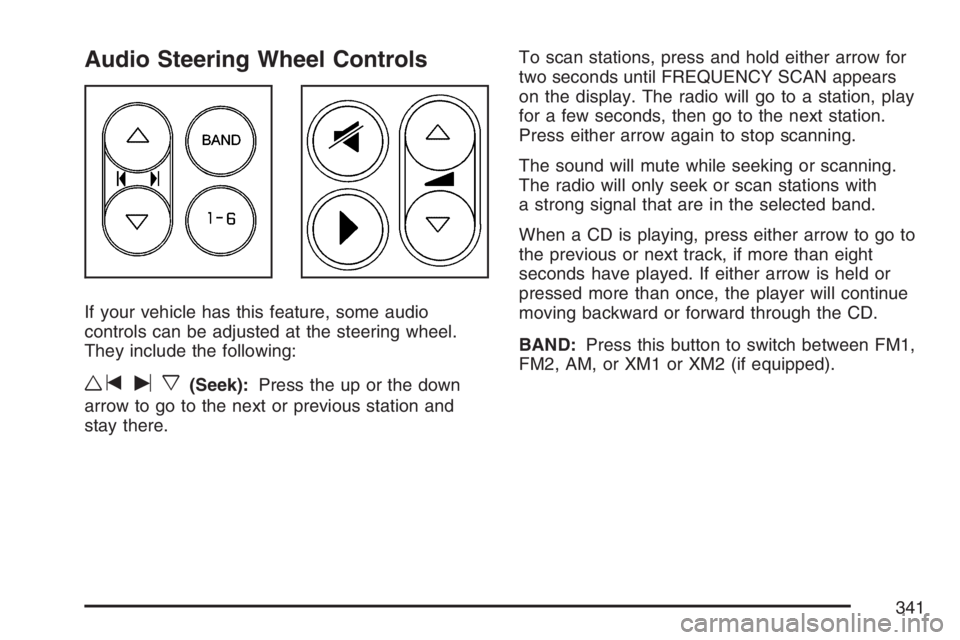
If your vehicle has this feature, some audio
controls can be adjusted at the steering wheel.
They include the following:
wtux(Seek):Press the up or the down
arrow to go to the next or previous station and
stay there.To scan stations, press and hold either arrow for
two seconds until FREQUENCY SCAN appears
on the display. The radio will go to a station, play
for a few seconds, then go to the next station.
Press either arrow again to stop scanning.
The sound will mute while seeking or scanning.
The radio will only seek or scan stations with
a strong signal that are in the selected band.
When a CD is playing, press either arrow to go to
the previous or next track, if more than eight
seconds have played. If either arrow is held or
pressed more than once, the player will continue
moving backward or forward through the CD.
BAND:Press this button to switch between FM1,
FM2, AM, or XM1 or XM2 (if equipped).
341
Page 342 of 562
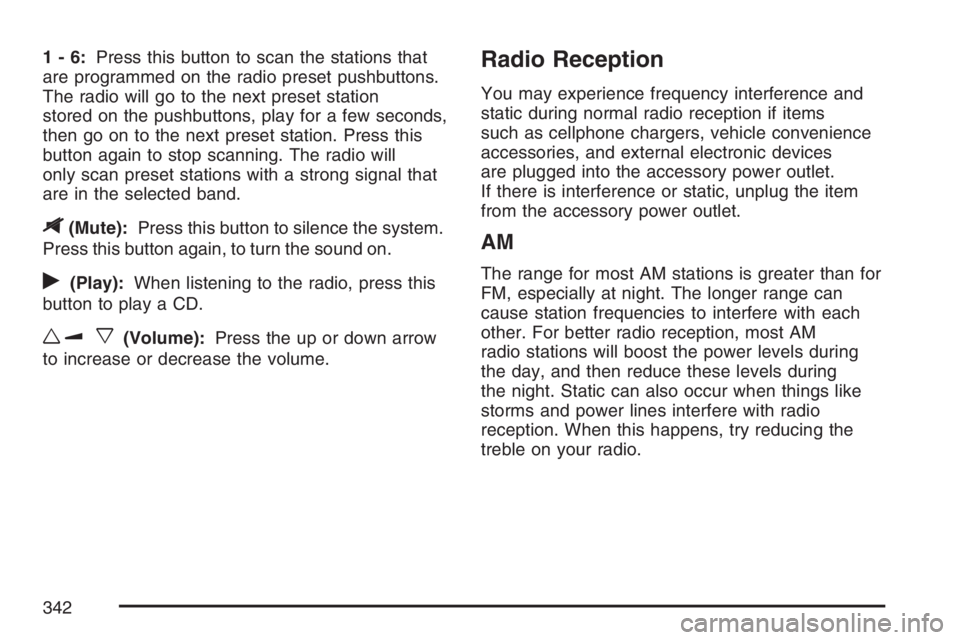
1-6:Press this button to scan the stations that
are programmed on the radio preset pushbuttons.
The radio will go to the next preset station
stored on the pushbuttons, play for a few seconds,
then go on to the next preset station. Press this
button again to stop scanning. The radio will
only scan preset stations with a strong signal that
are in the selected band.
$(Mute):Press this button to silence the system.
Press this button again, to turn the sound on.
r(Play):When listening to the radio, press this
button to play a CD.
wux(Volume):Press the up or down arrow
to increase or decrease the volume.
Radio Reception
You may experience frequency interference and
static during normal radio reception if items
such as cellphone chargers, vehicle convenience
accessories, and external electronic devices
are plugged into the accessory power outlet.
If there is interference or static, unplug the item
from the accessory power outlet.
AM
The range for most AM stations is greater than for
FM, especially at night. The longer range can
cause station frequencies to interfere with each
other. For better radio reception, most AM
radio stations will boost the power levels during
the day, and then reduce these levels during
the night. Static can also occur when things like
storms and power lines interfere with radio
reception. When this happens, try reducing the
treble on your radio.
342
Page 343 of 562
FM Stereo
FM stereo will give the best sound, but FM signals
will reach only about 10 to 40 miles (16 to 65 km).
Tall buildings or hills can interfere with FM
signals, causing the sound to fade in and out.
XM™ Satellite Radio Service
XM™ Satellite Radio Service gives digital radio
reception from coast-to-coast in the 48 contiguous
United States, and in Canada. Just as with FM,
tall buildings or hills can interfere with satellite
radio signals, causing the sound to fade in and out.
In addition, traveling or standing under heavy
foliage, bridges, garages, or tunnels may cause
loss of the XM™ signal for a period of time.
The radio may display NO SIGNAL to indicate
interference.
Care of Your CDs and DVDs
Handle CDs carefully. Store them in their original
cases or other protective cases and away from
direct sunlight and dust. The CD player scans the
bottom surface of the disc. If the surface of a
CD is damaged, such as cracked, broken,
or scratched, the CD will not play properly or not
at all. If the surface of a CD is soiled, take a
soft, lint free cloth or dampen a clean, soft cloth in
a mild, neutral detergent solution mixed with
water, and clean it. Make sure the wiping process
starts from the center to the edge.
Do not touch the bottom side of a CD while
handling it; this could damage the surface. Pick up
CDs by grasping the outer edges or the edge of
the hole and the outer edge.
Care of the CD and DVD Player
The use of CD lens cleaners for CDs is not
advised, due to the risk of contaminating the lens
of the CD optics with lubricants internal to the
CD mechanism.
343
Page 344 of 562
Fixed Mast Antenna
The xed mast antenna can withstand most car
washes without being damaged. If the mast should
ever become slightly bent, straighten it out by
hand. If the mast is badly bent, replace it.
Check occasionally to make sure the mast is still
tightened to the antenna base located on the
hood of the vehicle. If tightening is required, tighten
by hand.
XM™ Satellite Radio Antenna
System
The XM™ Satellite Radio antenna is located on
the roof of your vehicle. Keep this antenna clear of
snow and ice build up for clear radio reception.
Loading items onto the roof of your vehicle
can interfere with the performance of the XM™
system. Make sure that the XM™ satellite antenna
is not obstructed.
Chime Level Adjustment
The radio is used to adjust the vehicle’s chime
level. To change the volume level of the chime,
press and hold pushbutton 6 with the ignition
on and the radio power off. The volume level will
change from the normal level to loud, and
LOUD will appear on the radio display. To change
back to the default or normal setting, press and
hold pushbutton 6 again. The volume level
will change from the loud level to normal, and
NORMAL will appear on the radio display.
Removing the radio and not replacing it with a
factory radio or chime module will disable
vehicle chimes.
344