phone CADILLAC ATS 2013 1.G User Guide
[x] Cancel search | Manufacturer: CADILLAC, Model Year: 2013, Model line: ATS, Model: CADILLAC ATS 2013 1.GPages: 450, PDF Size: 6.98 MB
Page 173 of 450
Black plate (1,1)Cadillac ATS Owner Manual - 2013 - CRC - 10/5/12
Infotainment System 7-1
Infotainment
System
Introduction
Infotainment . . . . . . . . . . . . . . . . . . . 7-1
Theft-Deterrent Feature . . . . . . . 7-2
Overview . . . . . . . . . . . . . . . . . . . . . . 7-3
Home Page . . . . . . . . . . . . . . . . . . . 7-4
Software Updates . . . . . . . . . . . . . 7-8
Radio
AM-FM Radio . . . . . . . . . . . . . . . . . 7-8
Satellite Radio . . . . . . . . . . . . . . . 7-11
Radio Reception . . . . . . . . . . . . . 7-12
Backglass Antenna . . . . . . . . . . 7-12
Multi-Band Antenna . . . . . . . . . . 7-13
Audio Players
CD Player . . . . . . . . . . . . . . . . . . . 7-13
USB Port . . . . . . . . . . . . . . . . . . . . 7-16
SD Card Reader . . . . . . . . . . . . . 7-19
Auxiliary Jack . . . . . . . . . . . . . . . . 7-20
Phone
Bluetooth (Overview) . . . . . . . . 7-21
Bluetooth (InfotainmentControls) . . . . . . . . . . . . . . . . . . . 7-23
Bluetooth (Voice Recognition) . . . . . . . . . . . . . . . 7-27
Trademarks and License
Agreements
Trademarks and LicenseAgreements . . . . . . . . . . . . . . . . 7-33
Introduction
Infotainment
Read the following pages to
become familiar with the
infotainment system featured in this
owner manual.
{WARNING
Taking your eyes off the road
for too long or too often while
using any infotainment features
can cause a crash resulting in
injury or death. Do not give
extended attention to
infotainment tasks while
driving. Focus your attention
on driving and limit glances to
the instrument cluster or center
stack screens. Use voice
guidance whenever possible.
Page 174 of 450
Black plate (2,1)Cadillac ATS Owner Manual - 2013 - CRC - 10/5/12
7-2 Infotainment System
The infotainment system has built-in
features intended to help with this
by disabling some functions when
driving. A grayed-out function is not
available when the vehicle is
moving. All functions are available
when the vehicle is parked.
Before driving:
.Become familiar with the
infotainment system operation
and buttons on the faceplate.
.Set up the audio by presetting
favorite stations, setting the
tone, and adjusting the
speakers.
.Set up phone numbers in
advance so they can be called
easily by pressing a single
button or by using a single voice
command for vehicles equipped
with phone capability.See
Defensive Driving on page 9‑3.
This vehicle’s infotainment system
may be equipped with a noise
reduction system, which can work
improperly if the audio amplifier,
engine calibrations, exhaust system,
microphones, radio, or speakers are
modified or replaced. This could
result in more noticeable engine
noise at certain speeds.
The vehicle has Retained
Accessory Power (RAP). With RAP,
the audio system can be played
even after the ignition is turned off.
See Retained Accessory Power
(RAP) on page 9‑21. The base radio is included in this
manual. See the CUE infotainment
manual for information on the CUE
radio, audio players, phone,
navigation system, and voice or
speech recognition. There is also
information on settings and
downloadable applications (if
equipped).
Theft-Deterrent Feature
TheftLock®is designed to
discourage theft of the vehicle's
radio by learning a portion of the
Vehicle Identification Number (VIN).
The radio does not operate if it is
stolen or moved to a different
vehicle.
Page 176 of 450
Black plate (4,1)Cadillac ATS Owner Manual - 2013 - CRC - 10/5/12
7-4 Infotainment System
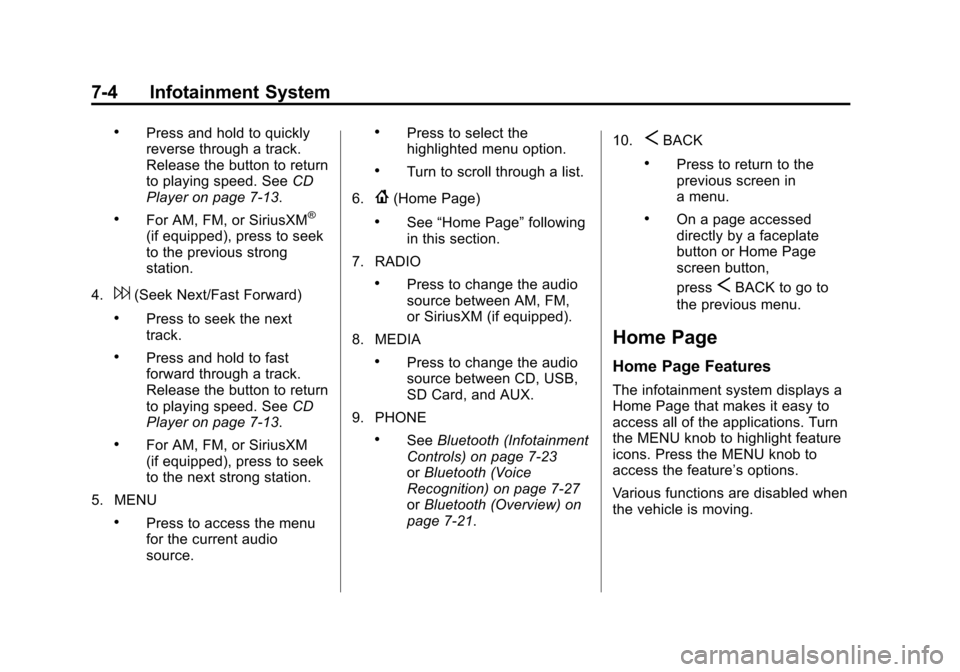
.Press and hold to quickly
reverse through a track.
Release the button to return
to playing speed. SeeCD
Player on page 7‑13.
.For AM, FM, or SiriusXM®
(if equipped), press to seek
to the previous strong
station.
4.
6(Seek Next/Fast Forward)
.Press to seek the next
track.
.Press and hold to fast
forward through a track.
Release the button to return
to playing speed. See CD
Player on page 7‑13.
.For AM, FM, or SiriusXM
(if equipped), press to seek
to the next strong station.
5. MENU
.Press to access the menu
for the current audio
source.
.Press to select the
highlighted menu option.
.Turn to scroll through a list.
6.
{(Home Page)
.See “Home Page” following
in this section.
7. RADIO
.Press to change the audio
source between AM, FM,
or SiriusXM (if equipped).
8. MEDIA
.Press to change the audio
source between CD, USB,
SD Card, and AUX.
9. PHONE
.See Bluetooth (Infotainment
Controls) on page 7‑23
or Bluetooth (Voice
Recognition) on page 7‑27
or Bluetooth (Overview) on
page 7‑21. 10.
SBACK
.Press to return to the
previous screen in
a menu.
.On a page accessed
directly by a faceplate
button or Home Page
screen button,
press
SBACK to go to
the previous menu.
Home Page
Home Page Features
The infotainment system displays a
Home Page that makes it easy to
access all of the applications. Turn
the MENU knob to highlight feature
icons. Press the MENU knob to
access the feature’s options.
Various functions are disabled when
the vehicle is moving.
Page 177 of 450
Black plate (5,1)Cadillac ATS Owner Manual - 2013 - CRC - 10/5/12
Infotainment System 7-5
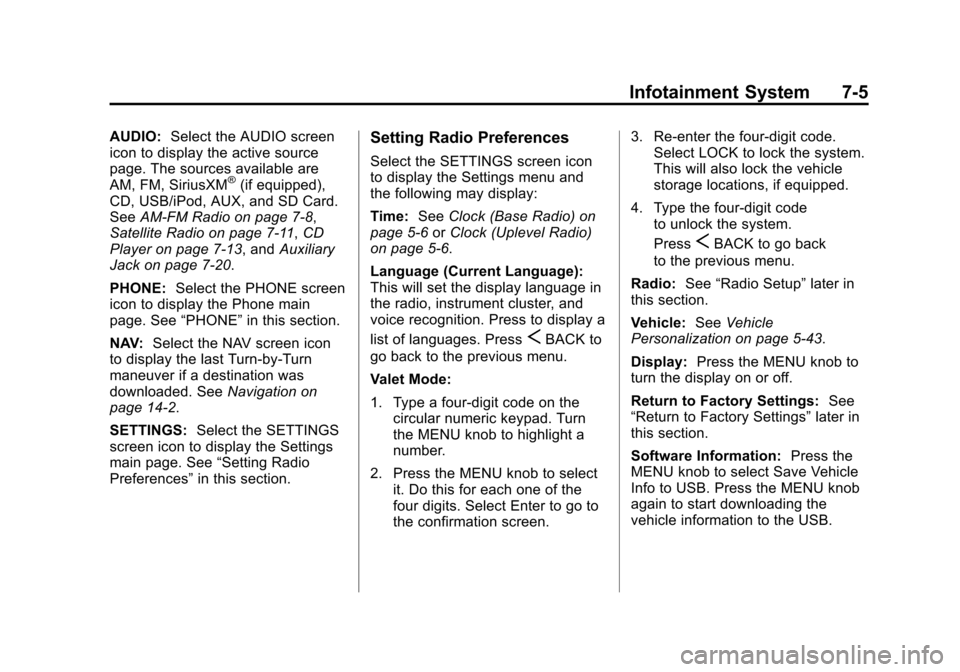
AUDIO:Select the AUDIO screen
icon to display the active source
page. The sources available are
AM, FM, SiriusXM
®(if equipped),
CD, USB/iPod, AUX, and SD Card.
See AM-FM Radio on page 7‑8,
Satellite Radio on page 7‑11, CD
Player on page 7‑13, and Auxiliary
Jack on page 7‑20.
PHONE: Select the PHONE screen
icon to display the Phone main
page. See “PHONE”in this section.
NAV: Select the NAV screen icon
to display the last Turn-by-Turn
maneuver if a destination was
downloaded. See Navigation on
page 14‑2.
SETTINGS: Select the SETTINGS
screen icon to display the Settings
main page. See “Setting Radio
Preferences” in this section.
Setting Radio Preferences
Select the SETTINGS screen icon
to display the Settings menu and
the following may display:
Time:SeeClock (Base Radio) on
page 5‑6 orClock (Uplevel Radio)
on page 5‑6.
Language (Current Language):
This will set the display language in
the radio, instrument cluster, and
voice recognition. Press to display a
list of languages. Press
SBACK to
go back to the previous menu.
Valet Mode:
1. Type a four-digit code on the circular numeric keypad. Turn
the MENU knob to highlight a
number.
2. Press the MENU knob to select it. Do this for each one of the
four digits. Select Enter to go to
the confirmation screen. 3. Re-enter the four-digit code.
Select LOCK to lock the system.
This will also lock the vehicle
storage locations, if equipped.
4. Type the four-digit code to unlock the system.
Press
SBACK to go back
to the previous menu.
Radio: See“Radio Setup” later in
this section.
Vehicle: SeeVehicle
Personalization on page 5‑43.
Display: Press the MENU knob to
turn the display on or off.
Return to Factory Settings: See
“Return to Factory Settings” later in
this section.
Software Information: Press the
MENU knob to select Save Vehicle
Info to USB. Press the MENU knob
again to start downloading the
vehicle information to the USB.
Page 184 of 450
Black plate (12,1)Cadillac ATS Owner Manual - 2013 - CRC - 10/5/12
7-12 Infotainment System
XM Radio ID:If tuned to station 0,
this message displays with the XM
radio eight-digit radio ID label. This
label is needed to activate the
service.
Check Antenna: If this message
does not clear within a short period
of time, the receiver could have a
fault. Consult with your dealer.
Radio Reception
Frequency interference and static
can occur during normal radio
reception if items such as phone
chargers, vehicle convenience
accessories, and external electronic
devices are plugged into the
accessory power outlet. If there is
interference or static, unplug the
item from the accessory power
outlet.
FM
FM signals only reach about 16 to
65 km (10 to 40 mi). Although the
radio has a built-in electronic circuit
that automatically works to reduce interference, some static can occur,
especially around tall buildings or
hills, causing the sound to fade in
and out.
AM
The range for most AM stations is
greater than for FM, especially at
night. The longer range can cause
station frequencies to interfere with
each other. Static can also occur
when things like storms and power
lines interfere with radio reception.
When this happens, try reducing the
treble on the radio.
SiriusXM Satellite Radio
Service
SiriusXM Satellite Radio Service
provides digital radio reception.
Tall buildings or hills can interfere
with satellite radio signals, causing
the sound to fade in and out. In
addition, traveling or standing under
heavy foliage, bridges, garages,
or tunnels may cause loss of the
SiriusXM signal for a period of time.
Cell Phone Usage
Cell phone usage, such as making
or receiving phone calls, charging,
or just having the phone on may
cause static interference in the
radio. Unplug the phone or turn it off
if this happens.
Backglass Antenna
The AM-FM antenna is integrated
with the rear window defogger in the
rear window. Do not scratch the
inside surface or damage the lines
in the glass. If the inside surface is
damaged, it could interfere with
radio reception. For proper radio
reception, the antenna connector
needs to be properly attached to the
post on the glass.
If attaching a cell phone antenna to
the glass, attach it between the grid
lines.
Page 191 of 450
Black plate (19,1)Cadillac ATS Owner Manual - 2013 - CRC - 10/5/12
Infotainment System 7-19
4. To begin playback, select a songfrom the album.
Albums:
1. Turn the MENU knob to highlight and press to view the albums
stored on the iPod.
2. Turn the MENU knob to highlight and press to select an album
name to view a list of all songs
on the album.
3. Turn the MENU knob to highlight and press to select the song
from the list to begin playback.
Genres:
1. Turn the MENU knob to highlight and press to view the genres
stored on the iPod.
2. Turn the MENU knob to select a genre name to view a list of
artists of that genre.
3. Turn the MENU knob to highlight an artist and press to select to
view albums by that artist. 4. Turn the MENU knob to highlight
and press to select an album to
view songs.
5. Turn the MENU knob to highlight and press to select the song
from the list to begin playback.
Songs:
1. Turn the MENU knob to highlight and press to view a list of all
songs stored on the iPod.
2. Turn the MENU knob to highlight and press to select the song
from the list to begin playback.
Playing from an iPhone®
or iPad®
This feature supports iPhone 3G,
iPhone 3GS, iPhone 4, and iPad.
Follow the same instructions as
stated earlier for using an iPod.
SD Card Reader
This vehicle has an SD card reader
in the center console.
Set up any SD card while the
vehicle is in P (Park).
1. Plug the SD card into the reader.
2. Press the MEDIA button toselect the SD device.
If an SD card has already been
connected, but a different source is
currently active, press the MEDIA
screen button repeatedly to cycle
through all of the available audio
source screens, until the SD card
screen is selected.
Playing Music from the SD Card
An SD card is played the same way
a USB device is played. See USB
Port on page 7‑16.
Page 192 of 450
Black plate (20,1)Cadillac ATS Owner Manual - 2013 - CRC - 10/5/12
7-20 Infotainment System
Auxiliary Jack
This vehicle has an AUX port in the
center console under the armrest
and in the center stack storage bin.
Possible auxiliary audio sources
include:
.Laptop computer
.Audio music player
This jack is not an audio output. Do
not plug headphones into the
auxiliary input jack. Auxiliary
devices should be set up while the
vehicle is in P (Park).
Connect a 3.5 mm (1/8 in) cable
from the auxiliary device to the
auxiliary input jack. If an auxiliary device has already
been connected, but a different
source is currently active, press the
MEDIA faceplate button repeatedly
to scroll through all of the available
audio source screens, until the AUX
source screen is selected.
Playing from the AUX Port
An auxiliary device is played
through the audio system and
controlled through the device itself.
AUX Menu
Press the MENU knob to display the
AUX menu and the following may
display:
Tone Settings:
Select to adjust
Bass, Midrange, Treble, Balance,
Fade, and EQ (Equalizer). See
“Tone Settings” under“Playing an
Audio CD.” Auto Volume:
If equipped, see
“Playing an Audio CD.”
Bose
®AudioPilot®: If equipped,
this feature can be turned on or off.
See “Bose
®AudioPilot®”in AM-FM
Radio on page 7‑8.
EQ (Equalizer) Settings:
If equipped, this feature adjusts the
pre-defined EQ modes. See “EQ
(Equalizer) Settings” inAM-FM
Radio on page 7‑8.
DSP Modes: If equipped with a
Bose
®Surround Sound System, this
feature adjusts the DSP modes.
See “DSP Modes” inAM-FM Radio
on page 7‑8.
Page 193 of 450
Black plate (21,1)Cadillac ATS Owner Manual - 2013 - CRC - 10/5/12
Infotainment System 7-21
Phone
Bluetooth (Overview)
Instructions for using the cell phone
may differ between infotainment
systems. For vehicles with the CUE
infotainment system, see the CUE
infotainment manual.
Bluetooth-capable systems can
interact with many cell phones,
allowing:
.Placement and receipt of calls in
a hands-free mode.
.Sharing of the cell phone’s
address book or contact list with
the vehicle.
To minimize driver distraction,
before driving, and with the vehicle
parked:
.Become familiar with the
features of the cell phone.
Organize the phone book and
contact lists clearly and delete duplicate or rarely used entries.
If possible, program speed dial
or other shortcuts.
.Review the controls and
operation of the infotainment
system.
.Pair cell phone(s) to the vehicle.
The system may not work with
all cell phones. See
“Pairing”in
this section.
.If the cell phone has voice
dialing capability, learn to use
that feature to access the
address book or contact list. See
“Voice Pass-Thru” in this
section.
.See “Storing and Deleting Phone
Numbers” in this section.
{WARNING
When using a cell phone, it can
be distracting to look too long or
too often at the screen of the
phone or the infotainment
(Continued)
WARNING (Continued)
(navigation) system. Taking your
eyes off the road too long or too
often could cause a crash
resulting in injury or death. Focus
your attention on driving.
Vehicles with a Bluetooth system
can use a Bluetooth-capable cell
phone with a Hands-Free Profile to
make and receive phone calls. The
infotainment system and voice
recognition are used to control the
system. The system can be used
while in ON/RUN or ACC/
ACCESSORY. The range of the
Bluetooth system can be up to 9.1 m
(30 ft). Not all phones support all
functions and not all phones work
with the Bluetooth system. See
www.gm.com/bluetooth for more
information about compatible
phones.
Page 194 of 450
Black plate (22,1)Cadillac ATS Owner Manual - 2013 - CRC - 10/5/12
7-22 Infotainment System
Bluetooth Controls
Use the buttons on the faceplate
and the steering wheel to operate
the Bluetooth system.
Steering Wheel Controls
g(Push to Talk):Press to answer
incoming calls, confirm system
information, and start voice
recognition.
c(End Call): Press to end a call,
reject a call, or cancel an operation.
Press to mute or unmute the
infotainment system.
Infotainment System Controls
For information about how to
navigate the menu system using the
infotainment controls, see Overview
on page 7‑3.
MENU: Turn to scroll through the
phone menu, including Contact,
Recent Calls, Keypad, and
Bluetooth Devices. Press to select
an entry and dial when appropriate.
{(Home Page): Press to go to the
Home Page. See Home Page on
page 7‑4.
PHONE: Press to enter the phone
main menu. See Bluetooth
(Infotainment Controls) on
page 7‑23 orBluetooth (Voice
Recognition) on page 7‑27 or
Bluetooth (Overview) on page 7‑21.
Voice Recognition
The voice recognition system uses
commands to control the system
and dial phone numbers.
Noise: The system may not
recognize voice commands if there
is too much background noise.
When to Speak: A tone sounds to
indicate that the system is ready for
a voice command. Wait for the tone
and then speak.
How to Speak: Speak clearly in a
calm and natural voice.
Audio System
When using the Bluetooth system,
sound comes through the vehicle's
front audio system speakers and
overrides the audio system. Use the
Oknob during a call to change the
volume level. The system maintains
a minimum volume level.
Bluetooth Audio Quality
Turn off the Echo and Noise
cancellation feature on your phone,
if supported, for the best hands-free
performance.
See www.gm.com/bluetooth.
Other Information
The Bluetooth®word mark and
logos are owned by the Bluetooth®
SIG, Inc. and any use of such marks
by General Motors is under license.
Other trademarks and trade names
are those of their respective owners.
Page 195 of 450
Black plate (23,1)Cadillac ATS Owner Manual - 2013 - CRC - 10/5/12
Infotainment System 7-23
Bluetooth (Infotainment
Controls)
For information about how to
navigate the menu system using the
infotainment controls, seeOverview
on page 7‑3.
Switching to Handset or
Handsfree Mode
To switch between handset mode,
use the OnStar command,
“transfer call.”
Pairing
A Bluetooth-enabled cell phone
must be paired to the Bluetooth
system and then connected to the
vehicle before it can be used. See
your cell phone manufacturer's user
guide for Bluetooth functions before
pairing the cell phone. If a Bluetooth
phone is not connected, calls can
be made using OnStar Hands-Free
Calling, if available. SeeOnStar
Overview on page 14‑1. Pairing Information
.Up to five cell phones can be
paired to the Bluetooth system.
.The pairing process is disabled
when the vehicle is moving.
.Pairing only needs to be
completed once, unless the
pairing information on the cell
phone changes or the cell phone
is deleted from the system.
.Only one paired cell phone can
be connected to the Bluetooth
system at a time.
.If multiple paired cell phones are
within range of the system, the
system connects to the first
available paired cell phone in the
order that they were newly
paired to the system. To link to a
different paired phone, see
“Connecting to a Different
Phone”
after in this section. Pairing a Phone or Device
1. From the Home Page, turn the
MENU knob to access the
PHONE screen button, then
press the MENU knob to select
the PHONE screen button. If a
device has been previously
paired, the main Phone menu
will be shown. If no devices
have been paired, Step two can
be skipped.
2. Turn the MENU knob and press to select Manage Phones.
3. Press the area just above the chrome bar and below the PAIR
screen button. A four-digit
Personal Identification Number
(PIN) appears on the display.
The PIN is used in Step 5.
4. Start the pairing process on the cell phone to be paired to the
vehicle. See the cell phone
manufacturer's user guide for
information on this process.