light CADILLAC ATS 2013 1.G Manual Online
[x] Cancel search | Manufacturer: CADILLAC, Model Year: 2013, Model line: ATS, Model: CADILLAC ATS 2013 1.GPages: 450, PDF Size: 6.98 MB
Page 182 of 450
Black plate (10,1)Cadillac ATS Owner Manual - 2013 - CRC - 10/5/12
7-10 Infotainment System
EQ (Equalizer) Settings:For
vehicles equipped with a Bose
Sound System the available choices
are Manual and Talk.
DSP Modes: If equipped with a
Bose
®Surround Sound System, it
will have the following four DSP
modes:
.Normal: Adjusts the audio to
normal mode. This provides the
best sound quality for all seating
positions.
.Driver: Adjusts the audio to give
the driver the best possible
sound quality.
.Rear: Adjusts the audio to give
the rear seat occupants the best
possible sound quality.
.Centerpoint®: Turns on Bose
Centerpoint®surround
technology.
Centerpoint creates a surround
sound from nearly any audio
source; existing CD collection,
satellite radio, and audio players. Options for SiriusXM Only
XM View:
XM view allows the
channel list to be viewed by channel
name, artist playing on channel,
or song playing on channel. Turn
the MENU knob to highlight XM
view and press the MENU knob to
select. Press
SBACK to go to the
previous menu.
Channel List: Select to display a
list of SiriusXM stations. Turn
the MENU knob to highlight and
press the MENU knob to select.
Press
SBACK to go to the
previous menu.
Also see the radio settings common
for all sources earlier in this section.
Finding a Station
Seeking a Station
Press
7or6to search for the
previous or next strongest station. Tuning a Station
Turn the MENU knob to manually
find a station.
Storing Radio Station Presets
Favorites are stored in the favorites
area at the bottom of the screen.
Up to 25 preset stations can be
stored under the following:
AM, FM, or SiriusXM (if
equipped):
While on the active
source main page, such as AM, FM,
and SiriusXM (if equipped), press
and hold the area just above the
chrome bar and below one of the
preset screen buttons to save the
current station as a favorite. Press
the area just above the chrome bar
to recall a favorite station.
Favorites
Favorites can be stored including
radio stations and media.
To display the favorites page, press
the FAV button on the radio
faceplate.
Page 183 of 450
Black plate (11,1)Cadillac ATS Owner Manual - 2013 - CRC - 10/5/12
Infotainment System 7-11
From the Settings menu press the
MENU knob to select Manage
Favorites. The Manage Favorites
feature has the option of moving or
deleting a favorite. See“Manage
Favorites” underHome Page on
page 7‑4.
Satellite Radio
SiriusXM®Satellite Radio
Service
Vehicles with a SiriusXM satellite
radio tuner and a valid SiriusXM
satellite radio subscription can
receive SiriusXM programming.
SiriusXM is a satellite radio service
based in the 48 contiguous United
States and 10 Canadian provinces.
SiriusXM satellite radio has a wide
variety of programming and
commercial-free music, coast to
coast, and in digital-quality
sound. A service fee is required
to receive the SiriusXM service. See www.siriusxm.com or call
1-866-635-2349 in the U.S. In
Canada, see www.siriusxmradio.ca
or call 1-877-209-0079.
When SirisuXM is active, the
channel name and number, song
title, and artist display on the
screen.
Browsing SiriusXM Channels
To browse the SiriusXM channels:
1. While XM is the active source,
press the MENU knob.
2. Turn the MENU knob to highlight XM Channel List. Press the
MENU knob to select.
3. Turn the MENU knob to highlight All XM Channels. Press the
MENU knob to select and
display all channels or select a
category.
SiriusXM Messages
XL (Explicit Language
Channels): These stations, or any
others, can be blocked by request,
by calling 1-866-635-2349 in the
U.S., and 1-877-209-0079 in
Canada.
Loading XM: The audio system is
acquiring and processing audio and
text data. No action is needed.
Channel Off Air: This station is not
currently in service.
Channel Unauth: This station is
blocked or cannot be received.
Channel Not Available: This
previously assigned station is no
longer assigned.
No XM Signal/Reception May Be
Blocked: The vehicle may be in a
location where the SiriusXM signal
is being blocked. When the vehicle
is moved into an open area, the
signal should return.
Page 190 of 450
Black plate (18,1)Cadillac ATS Owner Manual - 2013 - CRC - 10/5/12
7-18 Infotainment System
iPod music information displays on
the radio’s display and begins
playing through the vehicle’s audio
system.
The iPod battery recharges
automatically while the vehicle is on.
When the vehicle is off while an
iPod is connected using the iPod
USB cable, the iPod battery stops
charging and the iPod automatically
turns off.
If the iPod is an unsupported model,
it can still be listened to in the
vehicle by connecting to the
auxiliary input jack using a standard
3.5 mm (1/8 in) stereo cable.
iPod Menu
Press the MENU knob to display the
iPod Menu and the following may
display:
Browse:Select to display the files
or songs on the iPod. See “Browse
iPod Media” later in this section. Tone Settings:
Select to adjust
Bass, Midrange, Treble, Balance,
Fade, and EQ (Equalizer). See
“Tone Settings” under“Playing an
Audio CD.”
Auto Volume: If equipped, see
“Playing an Audio CD.”
Bose
®AudioPilot®: If equipped,
this feature can be turned on or off.
See “Bose
®AudioPilot®”in AM-FM
Radio on page 7‑8.
EQ (Equalizer) Settings:
If equipped, this feature adjusts the
pre-defined EQ modes. See “EQ
(Equalizer) Settings” inAM-FM
Radio on page 7‑8.
DSP Modes: If equipped with a
Bose
®Surround Sound System, this
feature adjusts the DSP modes.
See “DSP Modes” inAM-FM Radio
on page 7‑8. Browse iPod Media
Use the following to browse:
Playlists:
1. Turn the MENU knob to highlight
and press to view the playlists
stored on the iPod.
2. Turn the MENU knob to highlight and press to select a playlist
name to view a list of all songs
in the playlist.
3. Turn the MENU knob to highlight and press to select the song
from the list to begin playback.
Artists:
1. Turn the MENU knob to highlight and press to view the artists
stored on the iPod.
2. Turn the MENU knob to highlight and press to select an artist
name to view a list of all albums
by the artist.
3. Turn the MENU knob to highlight and press to select the album
from the list.
Page 191 of 450
Black plate (19,1)Cadillac ATS Owner Manual - 2013 - CRC - 10/5/12
Infotainment System 7-19
4. To begin playback, select a songfrom the album.
Albums:
1. Turn the MENU knob to highlight and press to view the albums
stored on the iPod.
2. Turn the MENU knob to highlight and press to select an album
name to view a list of all songs
on the album.
3. Turn the MENU knob to highlight and press to select the song
from the list to begin playback.
Genres:
1. Turn the MENU knob to highlight and press to view the genres
stored on the iPod.
2. Turn the MENU knob to select a genre name to view a list of
artists of that genre.
3. Turn the MENU knob to highlight an artist and press to select to
view albums by that artist. 4. Turn the MENU knob to highlight
and press to select an album to
view songs.
5. Turn the MENU knob to highlight and press to select the song
from the list to begin playback.
Songs:
1. Turn the MENU knob to highlight and press to view a list of all
songs stored on the iPod.
2. Turn the MENU knob to highlight and press to select the song
from the list to begin playback.
Playing from an iPhone®
or iPad®
This feature supports iPhone 3G,
iPhone 3GS, iPhone 4, and iPad.
Follow the same instructions as
stated earlier for using an iPod.
SD Card Reader
This vehicle has an SD card reader
in the center console.
Set up any SD card while the
vehicle is in P (Park).
1. Plug the SD card into the reader.
2. Press the MEDIA button toselect the SD device.
If an SD card has already been
connected, but a different source is
currently active, press the MEDIA
screen button repeatedly to cycle
through all of the available audio
source screens, until the SD card
screen is selected.
Playing Music from the SD Card
An SD card is played the same way
a USB device is played. See USB
Port on page 7‑16.
Page 196 of 450
Black plate (24,1)Cadillac ATS Owner Manual - 2013 - CRC - 10/5/12
7-24 Infotainment System
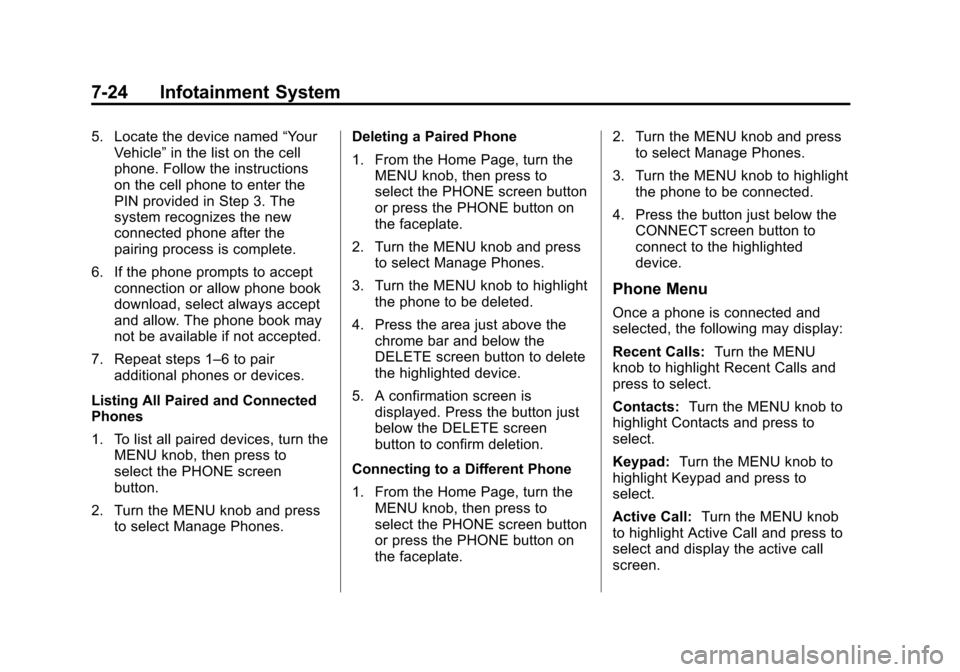
5. Locate the device named“Your
Vehicle” in the list on the cell
phone. Follow the instructions
on the cell phone to enter the
PIN provided in Step 3. The
system recognizes the new
connected phone after the
pairing process is complete.
6. If the phone prompts to accept connection or allow phone book
download, select always accept
and allow. The phone book may
not be available if not accepted.
7. Repeat steps 1–6 to pair additional phones or devices.
Listing All Paired and Connected
Phones
1. To list all paired devices, turn the MENU knob, then press to
select the PHONE screen
button.
2. Turn the MENU knob and press to select Manage Phones. Deleting a Paired Phone
1. From the Home Page, turn the
MENU knob, then press to
select the PHONE screen button
or press the PHONE button on
the faceplate.
2. Turn the MENU knob and press to select Manage Phones.
3. Turn the MENU knob to highlight the phone to be deleted.
4. Press the area just above the chrome bar and below the
DELETE screen button to delete
the highlighted device.
5. A confirmation screen is displayed. Press the button just
below the DELETE screen
button to confirm deletion.
Connecting to a Different Phone
1. From the Home Page, turn the MENU knob, then press to
select the PHONE screen button
or press the PHONE button on
the faceplate. 2. Turn the MENU knob and press
to select Manage Phones.
3. Turn the MENU knob to highlight the phone to be connected.
4. Press the button just below the CONNECT screen button to
connect to the highlighted
device.
Phone Menu
Once a phone is connected and
selected, the following may display:
Recent Calls: Turn the MENU
knob to highlight Recent Calls and
press to select.
Contacts: Turn the MENU knob to
highlight Contacts and press to
select.
Keypad: Turn the MENU knob to
highlight Keypad and press to
select.
Active Call: Turn the MENU knob
to highlight Active Call and press to
select and display the active call
screen.
Page 197 of 450
Black plate (25,1)Cadillac ATS Owner Manual - 2013 - CRC - 10/5/12
Infotainment System 7-25
Manage Phones:Turn the MENU
knob to highlight Manage Phones
and press to select.
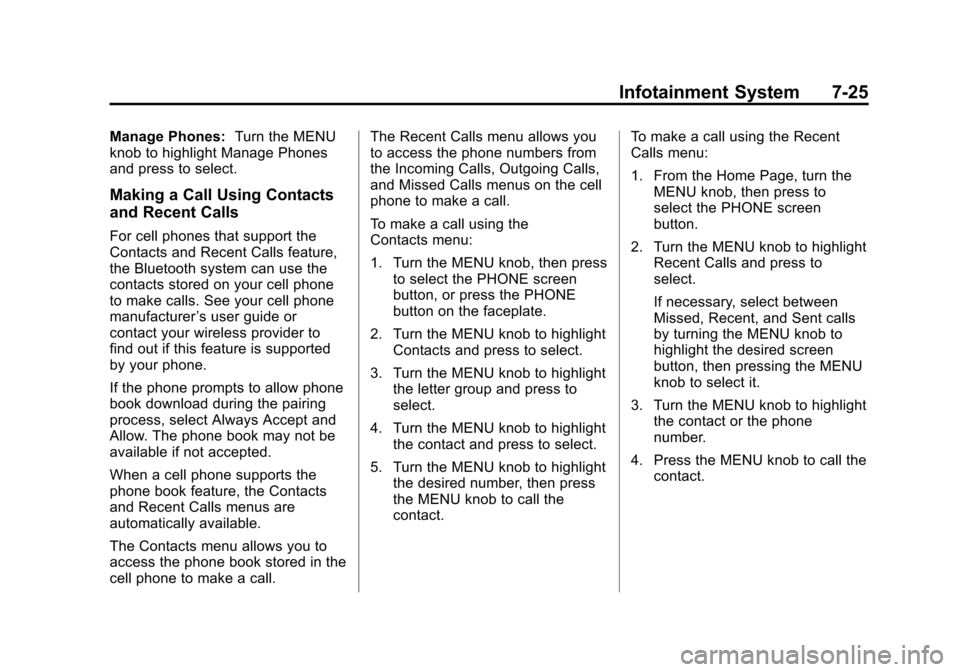
Making a Call Using Contacts
and Recent Calls
For cell phones that support the
Contacts and Recent Calls feature,
the Bluetooth system can use the
contacts stored on your cell phone
to make calls. See your cell phone
manufacturer ’s user guide or
contact your wireless provider to
find out if this feature is supported
by your phone.
If the phone prompts to allow phone
book download during the pairing
process, select Always Accept and
Allow. The phone book may not be
available if not accepted.
When a cell phone supports the
phone book feature, the Contacts
and Recent Calls menus are
automatically available.
The Contacts menu allows you to
access the phone book stored in the
cell phone to make a call. The Recent Calls menu allows you
to access the phone numbers from
the Incoming Calls, Outgoing Calls,
and Missed Calls menus on the cell
phone to make a call.
To make a call using the
Contacts menu:
1. Turn the MENU knob, then press
to select the PHONE screen
button, or press the PHONE
button on the faceplate.
2. Turn the MENU knob to highlight Contacts and press to select.
3. Turn the MENU knob to highlight the letter group and press to
select.
4. Turn the MENU knob to highlight the contact and press to select.
5. Turn the MENU knob to highlight the desired number, then press
the MENU knob to call the
contact. To make a call using the Recent
Calls menu:
1. From the Home Page, turn the
MENU knob, then press to
select the PHONE screen
button.
2. Turn the MENU knob to highlight Recent Calls and press to
select.
If necessary, select between
Missed, Recent, and Sent calls
by turning the MENU knob to
highlight the desired screen
button, then pressing the MENU
knob to select it.
3. Turn the MENU knob to highlight the contact or the phone
number.
4. Press the MENU knob to call the contact.
Page 198 of 450
Black plate (26,1)Cadillac ATS Owner Manual - 2013 - CRC - 10/5/12
7-26 Infotainment System
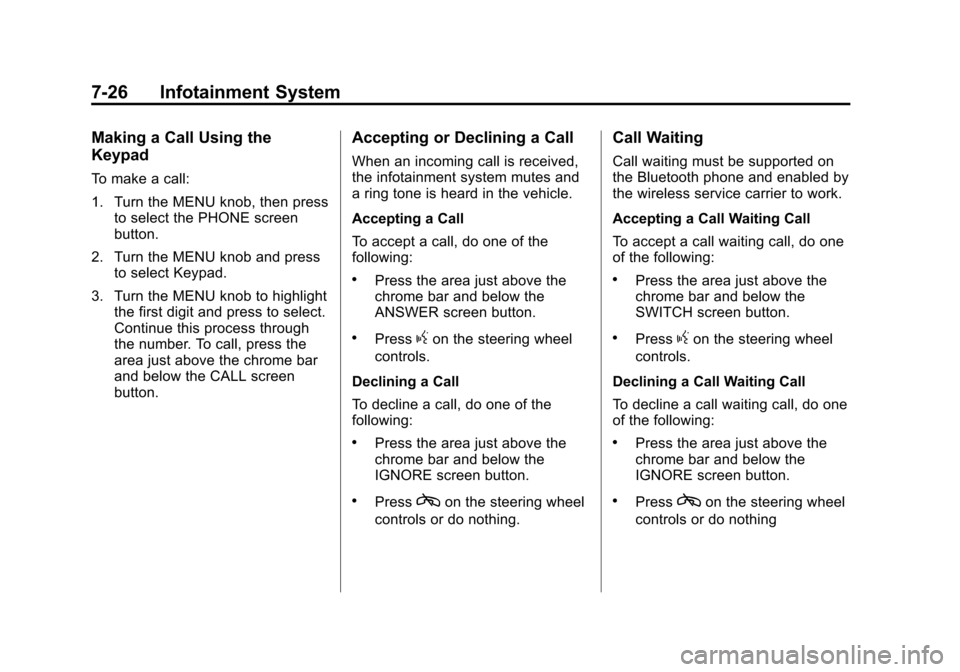
Making a Call Using the
Keypad
To make a call:
1. Turn the MENU knob, then pressto select the PHONE screen
button.
2. Turn the MENU knob and press to select Keypad.
3. Turn the MENU knob to highlight the first digit and press to select.
Continue this process through
the number. To call, press the
area just above the chrome bar
and below the CALL screen
button.
Accepting or Declining a Call
When an incoming call is received,
the infotainment system mutes and
a ring tone is heard in the vehicle.
Accepting a Call
To accept a call, do one of the
following:
.Press the area just above the
chrome bar and below the
ANSWER screen button.
.Pressgon the steering wheel
controls.
Declining a Call
To decline a call, do one of the
following:
.Press the area just above the
chrome bar and below the
IGNORE screen button.
.Presscon the steering wheel
controls or do nothing.
Call Waiting
Call waiting must be supported on
the Bluetooth phone and enabled by
the wireless service carrier to work.
Accepting a Call Waiting Call
To accept a call waiting call, do one
of the following:
.Press the area just above the
chrome bar and below the
SWITCH screen button.
.Pressgon the steering wheel
controls.
Declining a Call Waiting Call
To decline a call waiting call, do one
of the following:
.Press the area just above the
chrome bar and below the
IGNORE screen button.
.Presscon the steering wheel
controls or do nothing
Page 199 of 450
Black plate (27,1)Cadillac ATS Owner Manual - 2013 - CRC - 10/5/12
Infotainment System 7-27
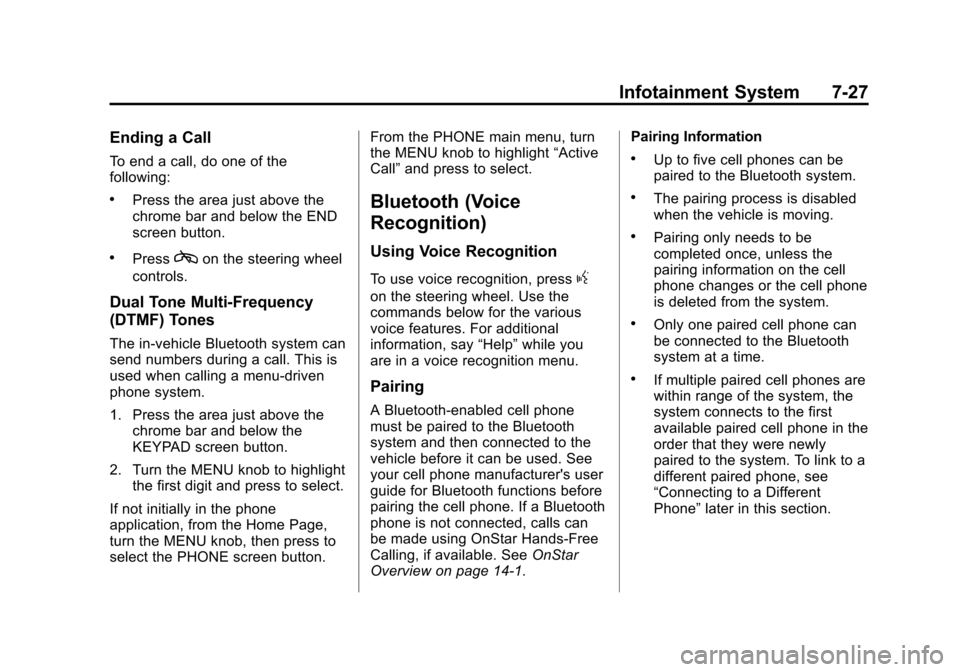
Ending a Call
To end a call, do one of the
following:
.Press the area just above the
chrome bar and below the END
screen button.
.Presscon the steering wheel
controls.
Dual Tone Multi-Frequency
(DTMF) Tones
The in-vehicle Bluetooth system can
send numbers during a call. This is
used when calling a menu-driven
phone system.
1. Press the area just above the chrome bar and below the
KEYPAD screen button.
2. Turn the MENU knob to highlight the first digit and press to select.
If not initially in the phone
application, from the Home Page,
turn the MENU knob, then press to
select the PHONE screen button. From the PHONE main menu, turn
the MENU knob to highlight
“Active
Call” and press to select.
Bluetooth (Voice
Recognition)
Using Voice Recognition
To use voice recognition, pressg
on the steering wheel. Use the
commands below for the various
voice features. For additional
information, say “Help”while you
are in a voice recognition menu.
Pairing
A Bluetooth-enabled cell phone
must be paired to the Bluetooth
system and then connected to the
vehicle before it can be used. See
your cell phone manufacturer's user
guide for Bluetooth functions before
pairing the cell phone. If a Bluetooth
phone is not connected, calls can
be made using OnStar Hands-Free
Calling, if available. See OnStar
Overview on page 14‑1. Pairing Information
.Up to five cell phones can be
paired to the Bluetooth system.
.The pairing process is disabled
when the vehicle is moving.
.Pairing only needs to be
completed once, unless the
pairing information on the cell
phone changes or the cell phone
is deleted from the system.
.Only one paired cell phone can
be connected to the Bluetooth
system at a time.
.If multiple paired cell phones are
within range of the system, the
system connects to the first
available paired cell phone in the
order that they were newly
paired to the system. To link to a
different paired phone, see
“Connecting to a Different
Phone”
later in this section.
Page 208 of 450
Black plate (2,1)Cadillac ATS Owner Manual - 2013 - CRC - 10/5/12
8-2 Climate Controls
10. Rear Window Defogger
11. Recirculation
Automatic Operation
The system automatically controls
the fan speed, air delivery, air
conditioning, and recirculation in
order to heat or cool the vehicle to
the desired temperature.
When the indicator light is on or
AUTO is displayed on the screen,
the system is in full automatic
operation. If the air delivery mode or
fan setting is manually adjusted, the
auto indicator turns off and the
display will show the selected
settings.
For automatic operation:
1. Press AUTO.
2. Set the temperature. Allow thesystem time to stabilize. Then
adjust the temperature as
needed for best comfort.
To improve fuel efficiency and to
cool the vehicle faster, recirculation
may be automatically selected in warm weather. The recirculation
light will not come on. Press
@to
select recirculation; press it again to
select outside air.
English units can be changed to
metric units through the instrument
cluster. See “Settings”under
Instrument Cluster on page 5‑9.
OFF (Fan): Press to turn the fan on
or off. The temperature control and
air delivery mode can still be
adjusted.
w/x(Driver and Passenger
Temperature Controls): The
temperature can be adjusted
separately for the driver and the
passenger. Press to increase or
decrease the temperature. Press
and hold to rapidly increase or
decrease the temperature.
SYNC (Synchronized
Temperature): Press SYNC to link
all climate zone settings to the
driver settings. The SYNC indicator
will be lit. Adjust the driver side
temperature control to change the
linked temperature. When the passenger settings are adjusted, the
temperatures are unlinked and the
SYNC indicator turns off.
Manual Operation
z 9or9 y(Fan Control):
Press the fan control buttons to
increase or decrease the fan speed.
Press and hold the buttons to adjust
speed more quickly. The fan speed
setting displays. Pressing either
button cancels automatic fan control
and the fan can be controlled
manually. Press AUTO to return to
automatic operation. To turn off the
fan, press OFF.
z N y(Air Delivery Mode
Control): Press the air delivery
mode buttons to change the
direction of the airflow. Selecting
any of the air delivery modes
cancels automatic air delivery
control and the direction of the
airflow can be controlled manually.
Press AUTO to return to automatic
operation.
Page 209 of 450

Black plate (3,1)Cadillac ATS Owner Manual - 2013 - CRC - 10/5/12
Climate Controls 8-3
To change the current mode, select
one of the following:
Y(Vent):Air is directed to the
instrument panel outlets.
\(Bi-Level): Air is divided
between the instrument panel
outlets and the floor outlets.
[(Floor): Air is directed to the
floor outlets, with some air to the
windshield and side windows.
-(Defog): Clears the windows of
fog or moisture. Air is directed to the
windshield, side windows and floor
outlets. Some air may go to the rear
floor outlets.
0(Defrost): Press the0button
to turn on or off. This clears the
windshield of fog or frost more
quickly. Air is directed to the
windshield and side windows, with
some air to the rear floor. A/C (Air Conditioning):
Press to
turn the air conditioning on or off.
If the fan is turned off or the outside
temperature falls below freezing, the
air conditioner will not run.
Press AUTO to return to automatic
operation and the air conditioner
runs as needed. When the indicator
light is on, the air conditioner runs
automatically to cool the air inside
the vehicle or to dry the air needed
to defog the windshield faster.
Automatic Air Recirculation:
When the AUTO indicator light is
on, the air is automatically
recirculated as needed to help
quickly cool the inside of the
vehicle.
@(Recirculation): Press to
alternate between recirculating air
inside the vehicle or pulling in
outside air. The indicator light on the
button is lit when recirculation mode
is active. This helps to quickly cool
the air inside the vehicle or prevent
outside air and odors from entering. Pressing this button cancels
automatic recirculation. Press AUTO
to return to automatic operation;
recirculation runs automatically as
needed.
Manual recirculation mode is not
available when in Defrost or Defog
modes.
Auto Defog:
The climate control
system may have a sensor to
automatically detect high humidity
inside the vehicle. When high
humidity is detected, the climate
control system may adjust to
outside air supply and turn on the
air conditioner. If the climate control
system does not detect possible
window fogging, it returns to normal
operation. To turn Auto Defog off or
on, see “Climate and Air Quality”
under Vehicle Personalization on
page 5‑43.