steering CADILLAC ATS 2014 Owner's Guide
[x] Cancel search | Manufacturer: CADILLAC, Model Year: 2014, Model line: ATS, Model: CADILLAC ATS 2014Pages: 434, PDF Size: 5.61 MB
Page 133 of 434
Black plate (25,1)Cadillac ATS Owner Manual (GMNA-Localizing-U.S./Canada/Mexico-
6014430) - 2014 - 2nd Edition - 8/23/13
Instruments and Controls 5-25
Adaptive Cruise Control Light
This light in the Driver Information
Center (DIC) comes on when the
Adaptive Cruise Control (if
equipped) is active. SeeAdaptive
Cruise Control on page 9-40.
Information Displays
Driver Information
Center (DIC)
The DIC displays are shown in the
left and right interactive display
zones on the instrument cluster. The
displays show the status of many
vehicle systems. The controls for
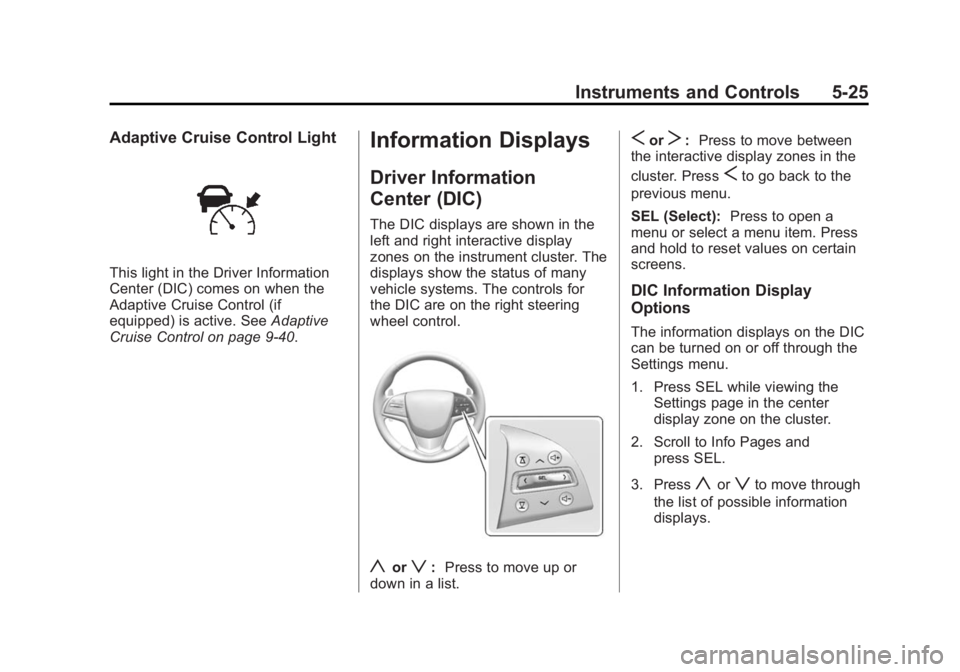
the DIC are on the right steering
wheel control.
yorz: Press to move up or
down in a list.
SorT: Press to move between
the interactive display zones in the
cluster. Press
Sto go back to the
previous menu.
SEL (Select): Press to open a
menu or select a menu item. Press
and hold to reset values on certain
screens.
DIC Information Display
Options
The information displays on the DIC
can be turned on or off through the
Settings menu.
1. Press SEL while viewing the Settings page in the center
display zone on the cluster.
2. Scroll to Info Pages and press SEL.
3. Press
yorzto move through
the list of possible information
displays.
Page 137 of 434
Black plate (29,1)Cadillac ATS Owner Manual (GMNA-Localizing-U.S./Canada/Mexico-
6014430) - 2014 - 2nd Edition - 8/23/13
Instruments and Controls 5-29
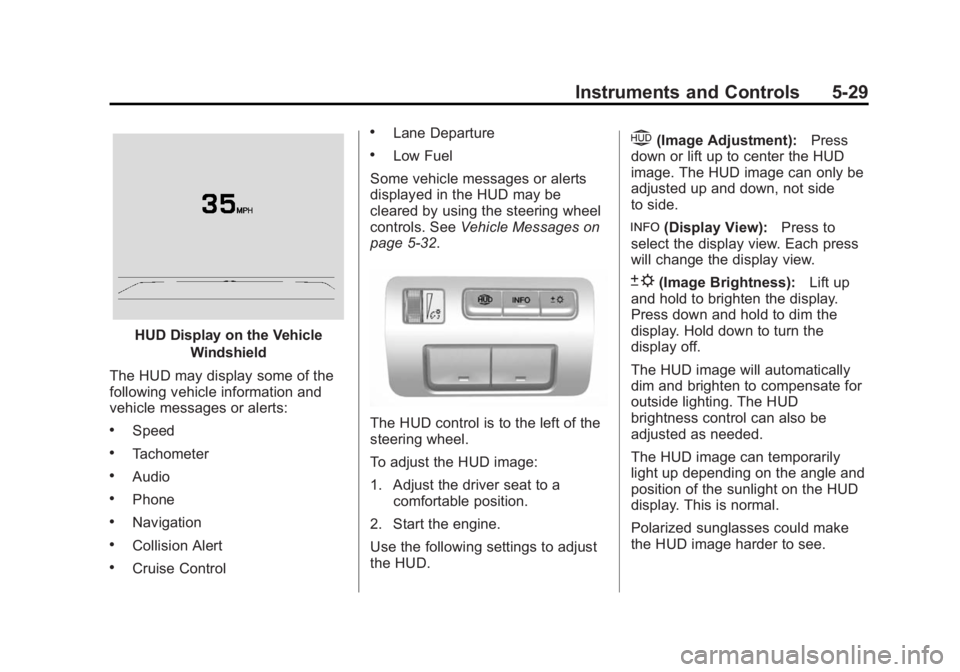
HUD Display on the VehicleWindshield
The HUD may display some of the
following vehicle information and
vehicle messages or alerts:
.Speed
.Tachometer
.Audio
.Phone
.Navigation
.Collision Alert
.Cruise Control
.Lane Departure
.Low Fuel
Some vehicle messages or alerts
displayed in the HUD may be
cleared by using the steering wheel
controls. See Vehicle Messages on
page 5-32.
The HUD control is to the left of the
steering wheel.
To adjust the HUD image:
1. Adjust the driver seat to a
comfortable position.
2. Start the engine.
Use the following settings to adjust
the HUD.
$(Image Adjustment): Press
down or lift up to center the HUD
image. The HUD image can only be
adjusted up and down, not side
to side.
!(Display View): Press to
select the display view. Each press
will change the display view.
D(Image Brightness): Lift up
and hold to brighten the display.
Press down and hold to dim the
display. Hold down to turn the
display off.
The HUD image will automatically
dim and brighten to compensate for
outside lighting. The HUD
brightness control can also be
adjusted as needed.
The HUD image can temporarily
light up depending on the angle and
position of the sunlight on the HUD
display. This is normal.
Polarized sunglasses could make
the HUD image harder to see.
Page 138 of 434
Black plate (30,1)Cadillac ATS Owner Manual (GMNA-Localizing-U.S./Canada/Mexico-
6014430) - 2014 - 2nd Edition - 8/23/13
5-30 Instruments and Controls
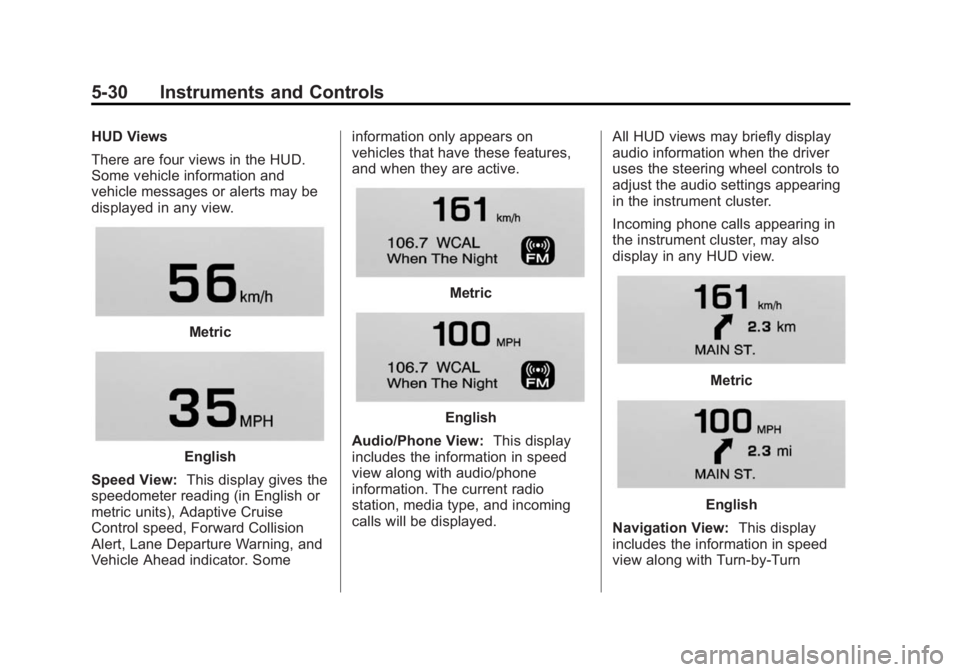
HUD Views
There are four views in the HUD.
Some vehicle information and
vehicle messages or alerts may be
displayed in any view.
Metric
English
Speed View: This display gives the
speedometer reading (in English or
metric units), Adaptive Cruise
Control speed, Forward Collision
Alert, Lane Departure Warning, and
Vehicle Ahead indicator. Some information only appears on
vehicles that have these features,
and when they are active.
Metric
English
Audio/Phone View: This display
includes the information in speed
view along with audio/phone
information. The current radio
station, media type, and incoming
calls will be displayed. All HUD views may briefly display
audio information when the driver
uses the steering wheel controls to
adjust the audio settings appearing
in the instrument cluster.
Incoming phone calls appearing in
the instrument cluster, may also
display in any HUD view.
Metric
English
Navigation View: This display
includes the information in speed
view along with Turn-by-Turn
Page 148 of 434

Black plate (40,1)Cadillac ATS Owner Manual (GMNA-Localizing-U.S./Canada/Mexico-
6014430) - 2014 - 2nd Edition - 8/23/13
5-40 Instruments and Controls
SERVICE TRACTION
CONTROL
This message displays when there
is a problem with the Traction
Control System (TCS). SeeTraction
Control/Electronic Stability Control
on page 9-33.
TRACTION CONTROL OFF
This message may display when the
Traction Control System (TCS) has
been turned off. See Traction
Control/Electronic Stability Control
on page 9-33.
TRACTION CONTROL ON
This message may display when the
Traction Control System (TCS) has
been turned on. See Traction
Control/Electronic Stability Control
on page 9-33.
Airbag System Messages
SERVICE AIRBAG
This message displays if there is a
problem with the airbag system.
Take the vehicle to your dealer for
service.
Security Messages
THEFT ATTEMPTED
This message displays if the vehicle
detects a tamper condition.
Service Vehicle Messages
SERVICE AC SYSTEM
This message displays if there is a
problem with the air conditioning
system. Take the vehicle to your
dealer for service.
SERVICE POWER STEERING
This message displays if there is a
problem with the power steering
system. Take the vehicle to your
dealer for service.
SERVICE STEERING
COLUMN LOCK
This message displays if there is a
problem with the steering column
lock. Take the vehicle to your dealer
for service.
SERVICE VEHICLE SOON
This message displays if there is a
problem with the vehicle. Take the
vehicle to your dealer for service.
Starting the Vehicle
Messages
PRESS BRAKE TO START
VEHICLE
This message is displayed when
attempting to start the vehicle
without first pressing the brake
pedal.
Page 149 of 434
Black plate (41,1)Cadillac ATS Owner Manual (GMNA-Localizing-U.S./Canada/Mexico-
6014430) - 2014 - 2nd Edition - 8/23/13
Instruments and Controls 5-41
SERVICE KEYLESS START
SYSTEM
This message is displayed if there is
a problem with the pushbutton start
system. Take the vehicle to your
dealer for service.
TURN STEERING WHEEL
START VEHICLE AGAIN
This message may display when
you try to start the vehicle, but the
column remains locked. Try turning
the steering wheel while starting the
vehicle to unlock the steering
column. If the vehicle still does not
start, turn the steering wheel the
other way, and try starting the
vehicle again.
Tire Messages
SERVICE TIRE MONITOR
SYSTEM
This message displays if there is a
problem with the Tire Pressure
Monitor System (TPMS). SeeTire
Pressure Monitor Operation on
page 10-50.
TIRE LEARNING ACTIVE
This message displays when the
system is learning new tires. See
Tire Pressure Monitor Operation on
page 10-50.
TIRE LOW ADD AIR TO TIRE
This message displays when the
pressure in one or more of the tires
is low.
This message also displays LEFT
FRONT, RIGHT FRONT, LEFT
REAR, or RIGHT REAR to indicate
the location of the low tire.
The low tire pressure warning light
will also come on. See Tire
Pressure Light on page 5-22. If a tire pressure message appears
on the DIC, stop as soon as you
can. Inflate the tires by adding air
until the tire pressure is equal to the
values shown on the Tire and
Loading Information label. See
Tires
on page 10-40, Vehicle Load Limits
on page 9-11, and Tire Pressure on
page 10-47.
You can receive more than one tire
pressure message at a time. The
DIC also shows the tire pressure
values. See Driver Information
Center (DIC) on page 5-25.
Transmission Messages
SERVICE TRANSMISSION
This message displays if there is a
problem with the transmission. See
your dealer.
SHIFT DENIED
This message displays when using
the Driver Shift Control (DSC) and
attempting to shift to a gear not
appropriate for the vehicle speed
Page 168 of 434
Black plate (6,1)Cadillac ATS Owner Manual (GMNA-Localizing-U.S./Canada/Mexico-
6014430) - 2014 - 2nd Edition - 8/23/13
6-6 Lighting
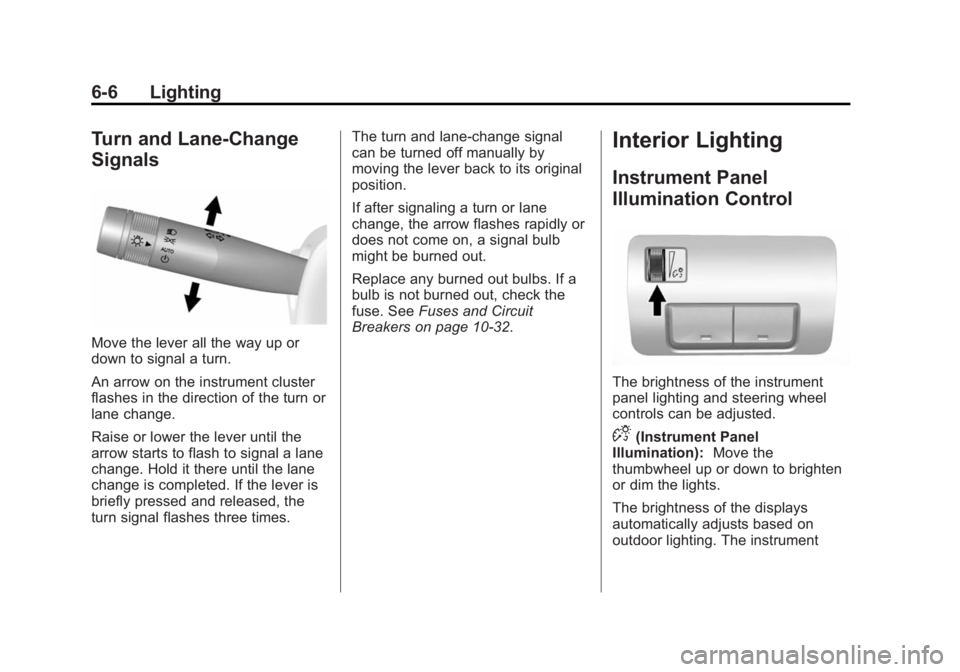
Turn and Lane-Change
Signals
Move the lever all the way up or
down to signal a turn.
An arrow on the instrument cluster
flashes in the direction of the turn or
lane change.
Raise or lower the lever until the
arrow starts to flash to signal a lane
change. Hold it there until the lane
change is completed. If the lever is
briefly pressed and released, the
turn signal flashes three times.The turn and lane-change signal
can be turned off manually by
moving the lever back to its original
position.
If after signaling a turn or lane
change, the arrow flashes rapidly or
does not come on, a signal bulb
might be burned out.
Replace any burned out bulbs. If a
bulb is not burned out, check the
fuse. See
Fuses and Circuit
Breakers on page 10-32.
Interior Lighting
Instrument Panel
Illumination Control
The brightness of the instrument
panel lighting and steering wheel
controls can be adjusted.
D(Instrument Panel
Illumination): Move the
thumbwheel up or down to brighten
or dim the lights.
The brightness of the displays
automatically adjusts based on
outdoor lighting. The instrument
Page 173 of 434
Black plate (3,1)Cadillac ATS Owner Manual (GMNA-Localizing-U.S./Canada/Mexico-
6014430) - 2014 - 2nd Edition - 8/23/13
Infotainment System 7-3
Overview
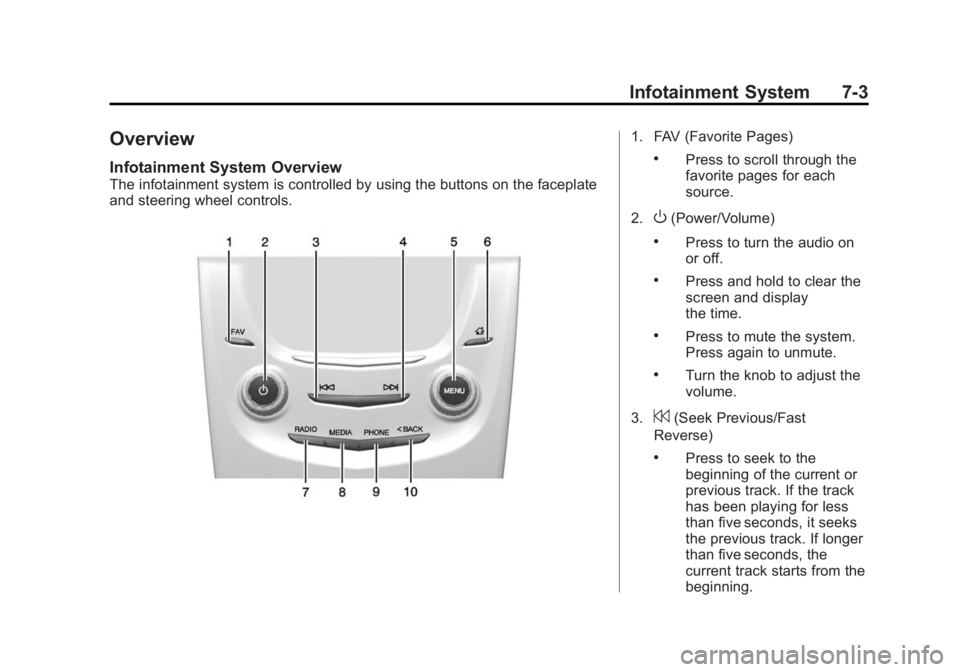
Infotainment System Overview
The infotainment system is controlled by using the buttons on the faceplate
and steering wheel controls.
1. FAV (Favorite Pages)
.Press to scroll through the
favorite pages for each
source.
2.
O(Power/Volume)
.Press to turn the audio on
or off.
.Press and hold to clear the
screen and display
the time.
.Press to mute the system.
Press again to unmute.
.Turn the knob to adjust the
volume.
3.
7(Seek Previous/Fast
Reverse)
.Press to seek to the
beginning of the current or
previous track. If the track
has been playing for less
than five seconds, it seeks
the previous track. If longer
than five seconds, the
current track starts from the
beginning.
Page 191 of 434
Black plate (21,1)Cadillac ATS Owner Manual (GMNA-Localizing-U.S./Canada/Mexico-
6014430) - 2014 - 2nd Edition - 8/23/13
Infotainment System 7-21
Bluetooth Controls
Use the buttons on the faceplate
and the steering wheel to operate
the Bluetooth system.
Steering Wheel Controls
g(Push to Talk):Press to answer
incoming calls and start voice
recognition.
c(End Call): Press to end a call,
reject a call, or cancel an operation.
Press to mute or unmute the
infotainment system.
Infotainment System Controls
For information about how to
navigate the menu system using the
infotainment controls, see Overview
on page 7-3.
MENU: Turn to scroll through the
phone menu, including Contact,
Recent Calls, Keypad, and
Bluetooth Devices. Press to select
an entry and dial when appropriate.
{(Home Page): Press to go to the
Home Page. See Home Page on
page 7-4. PHONE:
Press to enter the phone
main menu. See Bluetooth
(Infotainment Controls) on
page 7-21 orBluetooth (Voice
Recognition) on page 7-26 or
Bluetooth (Overview) on page 7-20.
Voice Recognition
The voice recognition system uses
commands to control the system
and dial phone numbers.
Noise: The system may not
recognize voice commands if there
is too much background noise.
When to Speak: A tone sounds to
indicate that the system is ready for
a voice command. Wait for the tone
and then speak.
How to Speak: Speak clearly in a
calm and natural voice.
Audio System
When using the Bluetooth system,
sound comes through the vehicle's
front audio system speakers and
overrides the audio system. Use the
Oknob during a call to change the
volume level. The system maintains
a minimum volume level.
Bluetooth Audio Quality
Turn off the Echo and Noise
cancellation feature on your phone,
if supported, for the best hands-free
performance.
See www.gm.com/bluetooth.
Other Information
The Bluetooth®word mark and
logos are owned by the Bluetooth®
SIG, Inc. and any use of such marks
by General Motors is under license.
Other trademarks and trade names
are those of their respective owners.
Bluetooth (Infotainment
Controls)
For information about how to
navigate the menu system using the
infotainment controls, see Overview
on page 7-3.
Page 195 of 434

Black plate (25,1)Cadillac ATS Owner Manual (GMNA-Localizing-U.S./Canada/Mexico-
6014430) - 2014 - 2nd Edition - 8/23/13
Infotainment System 7-25
the number. To call, press the
area just above the chrome bar
and below the CALL screen
button.
Accepting or Declining a Call
When an incoming call is received,
the infotainment system mutes and
a ring tone is heard in the vehicle.
Accepting a Call
To accept a call, do one of the
following:
.Press the area just above the
chrome bar and below the
ANSWER screen button.
.Pressgon the steering wheel
controls.
Declining a Call
To decline a call, do one of the
following:
.Press the area just above the
chrome bar and below the
IGNORE screen button.
.Presscon the steering wheel
controls or do nothing.
Call Waiting
Call waiting must be supported on
the Bluetooth phone and enabled by
the wireless service carrier to work.
Accepting a Call Waiting Call
To accept a call waiting call, do one
of the following:
.Press the area just above the
chrome bar and below the
SWITCH screen button.
.Pressgon the steering wheel
controls.
Declining a Call Waiting Call
To decline a call waiting call, do one
of the following:
.Press the area just above the
chrome bar and below the
IGNORE screen button.
.Presscon the steering wheel
controls or do nothing
Ending a Call
To end a call, do one of the
following:
.Press the area just above the
chrome bar and below the END
screen button.
.Presscon the steering wheel
controls.
Dual Tone Multi-Frequency
(DTMF) Tones
The in-vehicle Bluetooth system can
send numbers during a call. This is
used when calling a menu-driven
phone system.
1. Press the area just above the chrome bar and below the
KEYPAD screen button.
2. Turn the MENU knob to highlight the first digit and press to select.
If not initially in the phone
application, from the Home Page,
turn the MENU knob, then press to
select the PHONE screen button.
Page 196 of 434

Black plate (26,1)Cadillac ATS Owner Manual (GMNA-Localizing-U.S./Canada/Mexico-
6014430) - 2014 - 2nd Edition - 8/23/13
7-26 Infotainment System
From the PHONE main menu, turn
the MENU knob to highlight“Active
Call” and press to select.
Bluetooth (Voice
Recognition)
Using Voice Recognition
To use voice recognition, pressg
on the steering wheel. Use the
commands below for the various
voice features. For additional
information, say “Help”while you
are in a voice recognition menu.
Pairing
A Bluetooth-enabled cell phone
must be paired to the Bluetooth
system and then connected to the
vehicle before it can be used. See
your cell phone manufacturer's user
guide for Bluetooth functions before
pairing the cell phone. If a Bluetooth
phone is not connected, calls can
be made using OnStar Hands-Free
Calling, if available. See OnStar
Overview on page 14-1. Pairing a Phone
1. Press
g. The system responds
“Ready,” followed by a tone.
2. Say “Bluetooth.”
3. Say “Pair.”The system responds
with instructions and a four-digit
Personal Identification Number
(PIN). The PIN is used in Step 5.
4. Start the pairing process on the cell phone that you want to pair.
For help with this process, see
your cell phone manufacturer's
user guide.
5. Locate the device named “Your
Vehicle” in the list on the cell
phone. Follow the instructions
on the cell phone to enter the
PIN provided in Step 3. After the
PIN is successfully entered, the
system prompts you to provide a
name for the paired cell phone.
This name will be used to
indicate which phones are
paired and connected to the
vehicle. The system responds with
“
successfully paired” after the
pairing process is complete.
6. Repeat Steps 1−5 to pair additional phones.
Listing All Paired and Connected
Phones
The system can list all cell phones
paired to it. If a paired cell phone is
also connected to the vehicle, the
system responds with “is connected”
after that phone name.
1. Press
g. The system responds
“Ready,” followed by a tone.
2. Say “Bluetooth.”
3. Say “List.”
Deleting a Paired Phone
If the phone name to delete is
unknown, see “Listing All Paired
and Connected Phones.”
1. Press
g. The system responds
“Ready,” followed by a tone.
2. Say “Bluetooth.”