AUX CADILLAC ATS 2015 1.G CUE Manual
[x] Cancel search | Manufacturer: CADILLAC, Model Year: 2015, Model line: ATS, Model: CADILLAC ATS 2015 1.GPages: 138, PDF Size: 1.05 MB
Page 51 of 138
Black plate (51,1)Cadillac CUE Infotainment System (GMNA-Localizing-U.S./Canada-
7639728) - 2015 - CRC - 9/3/14
Infotainment System 51
USB/SD
This allows for video and audio
playback of supported media.
To use the USB and SD:
1. Insert the device in theappropriate slot.
2. Select the source via the rear screen menu with the remote
control MEDIA button.
3. Select the source via the front by pressing on the Video
application on the home screen.
Audio Output
Audio from a Blu-ray/DVD/CD
player or auxiliary inputs can be
heard through:
.Wireless headphones
.Vehicle speakers
.Vehicle wired headphone jack The RSE system transmits the
audio signal to the wireless
headphones if an audio signal is
available. See
“Headphones” earlier
in this section.
Wired Headphone Jack
Audio from the wired headphone
jack can be heard from the desired
source through the MENU button on
the remote and by selecting
Settings, then Headphones. The
headphone audio is selected based
on the audio associated with
screen 1 or screen 2.
The front seat passengers are able
to listen to playback from the A/V
jacks through the vehicle speakers
by selecting Rear A/V as the source
on the radio.
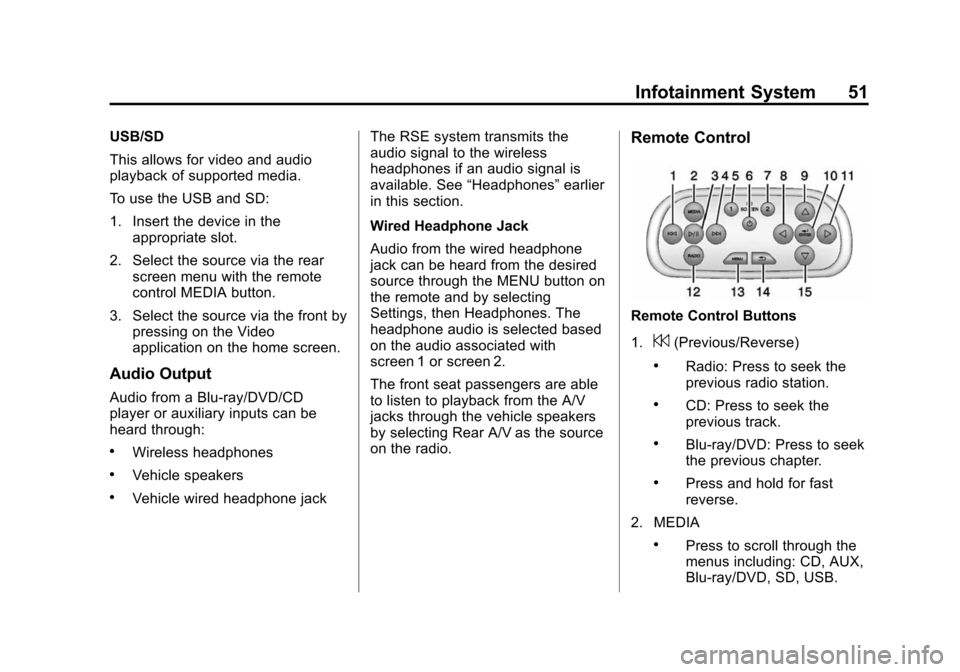
Remote Control
Remote Control Buttons
1.
7(Previous/Reverse)
.Radio: Press to seek the
previous radio station.
.CD: Press to seek the
previous track.
.Blu-ray/DVD: Press to seek
the previous chapter.
.Press and hold for fast
reverse.
2. MEDIA
.Press to scroll through the
menus including: CD, AUX,
Blu-ray/DVD, SD, USB.
Page 54 of 138
Black plate (54,1)Cadillac CUE Infotainment System (GMNA-Localizing-U.S./Canada-
7639728) - 2015 - CRC - 9/3/14
54 Infotainment System
Battery Replacement
To change the remote control
batteries:
1. Insert a coin or key to pull up therear cover on the remote control.
2. Replace the two AAA batteries in the compartment.
3. Replace the battery cover.
Remove the batteries from the
remote control if it will not be used
for an extended period of time.
RSE Troubleshooting
No power: The ignition might not
be in ON/RUN or ACC/
ACCESSORY.
The picture does not fill the
screen. There are black borders
on the top and bottom or on both
sides or it looks stretched out:
Press the MENU button on the
remote control to change the display
mode setting. In auxiliary mode, the picture
moves or scrolls:
Check the
auxiliary input connections at both
devices.
The remote control does not
work: Check to make sure the
remote control is programmed to the
correct screen. Make sure there is
no obstruction between the remote
control and the transmitter window
and check the batteries to make
sure they are not dead or installed
incorrectly.
There is no sound from the
headphones with the indicator
light on: If the batteries are good,
make sure the headphones are
programmed to the correct screen
and on the correct channel for the
screen being viewed.
The auxiliary source is running
but there is no picture or sound:
Check that the RSE video screen is
in the auxiliary source mode by
pressing the MEDIA button on the
remote control. Check the auxiliary
input connections at both devices. Sometimes the wireless
headphone audio cuts out or
buzzes:
Check for obstructions,
low batteries, reception range, and
interference from cell phone towers
or from cellular telephone use in the
vehicle. Check that the headphones
are on correctly using the L (Left)
and R (Right) on the headphones.
Check that the headphones are
positioned properly with the
headband across the top of
the head.
I lost the remote and/or the
headphones: See your dealer for
assistance.
The Blu-ray/DVD is playing, but
there is no picture or sound:
Check that the RSE video screen is
sourced to the Blu-ray/DVD player
by pressing the MEDIA button on
the remote control.
Page 55 of 138
Black plate (55,1)Cadillac CUE Infotainment System (GMNA-Localizing-U.S./Canada-
7639728) - 2015 - CRC - 9/3/14
Infotainment System 55
Video Display Error Messages
The video screen may display one
of the following:
Disc Error:There are disc load or
eject problems, the disc is inserted
with the disc label wrong side up,
the disc is damaged, or the disc is
not from the correct region.
No Disc Inserted: No disc is
present.
Disc Player Error: The
temperature is outside the operating
range of the RSE system. If the
temperature is within range, see
your dealer.
Video Distortion
Video distortion can occur when
operating cellular phones, scanners,
CB radios, Global Positioning
Systems (GPS), two-way radios,
mobile faxes, or walkie talkies.
It might be necessary to turn off the
video player when operating one of
these devices in or near the vehicle.
Rear Seat Entertainment
(RSE) System (Platinum)
Vehicles with an RSE system
include two head restraint video
display screens with integrated DVD
players, auxiliary inputs, two wired
headphones, and remote control.
This system works independently
from the vehicle's Overhead DVD
RSE system. See Rear Seat
Entertainment (RSE) System on
page 36 orRear Seat Entertainment
(RSE) System (Platinum) on
page 55 for information about the
Overhead DVD RSE system.
The vehicle has a feature called
Retained Accessory Power (RAP).
With RAP, the RSE system can be
played even after the ignition is
turned off. See “Retained Accessory
Accessory Power (RAP)” in the
owner manual.
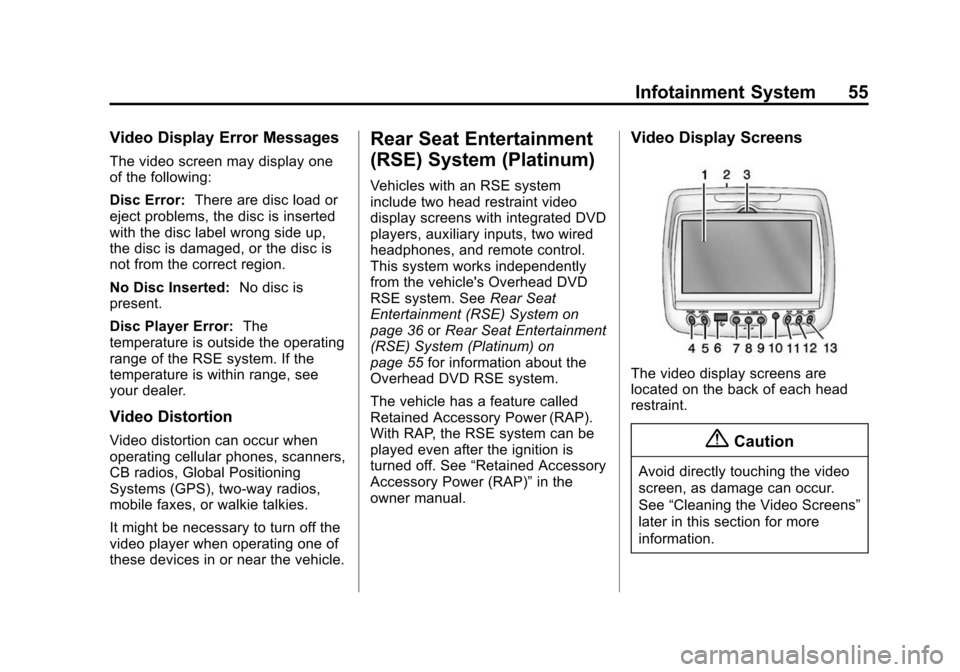
Video Display Screens
The video display screens are
located on the back of each head
restraint.
{Caution
Avoid directly touching the video
screen, as damage can occur.
See “Cleaning the Video Screens”
later in this section for more
information.
Page 58 of 138
Black plate (58,1)Cadillac CUE Infotainment System (GMNA-Localizing-U.S./Canada-
7639728) - 2015 - CRC - 9/3/14
58 Infotainment System
play. There is a play
position memory feature
for DVD and video CD
only. If the DVD player is
turned off and then turned
back on, the DVD player
resumes playback where
the disc stopped. The play
position memory is erased
if the disc is removed.
12. STOP
c
.Press once to stop playing
a DVD.
There is a pre-stop feature
for DVD and video CD
only. This feature resumes
playback of the disc where
it was stopped. Press the
stop button once during
disc playback and
c
displays on the DVD
startup screen. This icon
disappears after a few
seconds. Press the stop
button a second time,
or eject the disc, to cancel the pre-stop feature and to
clear the disc position
memory.
13. EJECT
X
.Press to eject a disc from
the DVD slot.
If a disc is ejected from
the player, but not
removed, it will
automatically reload into
the player. Another way to
reload a disc that has
been ejected, but not
removed from the DVD
player, is to press the
eject button or the play
button.
Infrared Remote Sensor: Located
in the top center of the video display
screen. Do not block the signal from
the remote to the sensor.
Infrared Transmitters: Located in
the top center of the video display
screen. Do not block the signal from
the headphones to the transmitter.
Using the RSE On-Screen
Display (OSD) Menus
Use the OSD setup display
menus for:
.General Setup
.Audio Setup
.Quality Setup
.Preference Setup
To use the OSD menus while using
the DVD player or an auxiliary
device:
1. Press the SETUP button on the remote control to display the
icons and pages on the display
screen.
2. Select the desired page by using the left/right navigation arrows to
move the cursor.
3. Press the SETUP button again on the remote control to cancel
use of the setup display.
Page 61 of 138
Black plate (61,1)Cadillac CUE Infotainment System (GMNA-Localizing-U.S./Canada-
7639728) - 2015 - CRC - 9/3/14
Infotainment System 61
The Rating settings are:
.Kid SAFE (Children)
.G
.PG
.PG 13
.PG R
.R
.NC 17
.ADULT
4. Press the left navigation arrow to confirm the selection.
If a disc is inserted into the DVD
compartment slot and it exceeds the
Parental Setting, the following
message appears on the display:
The Parental Setting of this player
prohibits play. Would you like to
allow this disc to play? If yes if selected, the six digit
password must be entered for the
disc to play. If the wrong password
is entered, the following message
appears:
This movie will not play due to the
Parental Setting of the player.
To create a six digit password, use
the numeric keypad on the remote
control. Press the ENTER button to
confirm.
The default password is
136900.
To change the Parental Control
Password:
1. Press the SETUP button on the remote control.
2. Navigate to the Password sub-menu under the Preference
Menu and press ENTER.
3. At the Old Password option, enter the old password or the
default password (136900).
4. At the New Password option, enter the new password (six
digits) using numeric buttons. 5. At the Confirm PWD option,
confirm the new password by
entering the new password
again.
6. Scroll to the OK button and press ENTER. The message
“Your password has been
changed” displays.
To reset the system back to the
factory default settings:
1. Press the SETUP button on the remote control.
2. Use the left/right and down navigation arrows on the remote
control to select the Default
sub-menu under the Preference
Page and press the ENTER
button to reset the settings. The
parental settings will not be
affected.
Vehicle Speakers
Audio from the DVD player or an
auxiliary device can be heard
through the vehicle speakers or the
wireless/wired headphones, while
the radio is tuned to one of the
Page 62 of 138
Black plate (62,1)Cadillac CUE Infotainment System (GMNA-Localizing-U.S./Canada-
7639728) - 2015 - CRC - 9/3/14
62 Infotainment System
many frequencies selected on the
Sound Around portion of the
system’s remote control. See
“Remote Control” later in this
section.
Only one audio source can be heard
through the vehicle’ s speakers at a
time. The audio source being used
is specified by the A/V (audio/video)
source selected on the driver side
head restraint video display screen.
To turn the RSE system audio
output to the vehicle’s speakers,
press Sound Around ON, on the
system’ s remote control. The audio
from the RSE system can be heard
through the wireless/wired
headphones and the vehicle’s
speakers at the same time. The
volume on the radio can vary when
switching between the radio, CD,
DVD, MP3, or an auxiliary device.
Wired Headphones
VOL0(Volume): Use to adjust
the volume on the headphones. 100 Channel FM-Modulation
Control
For Monitor
“A”Only:
To activate the FM modulation
feature, press the “Sound Around
On/Off ”button on the remote until
the text “FM CH XX.XMH2” is
dislpayed on the monitor.
On the remote, press the “Sound
Around Select” button to cycle
through a pre-established list of
6 channels (88.3MHz, 88.7MHz,
89.1MHz, 89.5MHz, 89.9MHz,
90.3MHz.)
If none of these stations are suitable
for FM Modulation, use the “Fine
Tune” Option. To “Fine Tune” the
modulator to a specific target station
while the display is active, press the
“Up” or“Down” keys on the remote
to change the channel by 0.2MHz.
Hold down the “Up or“Down” keys
to cycle quickly through the stations.
When the end (107.9MHz) or
beginning (87.5MHz) of the FM
band is reached, the channels will continue from the beginning
(87.5MHz) or end (107.9MHz),
respectively.
To deactivate the FM modulation
feature, press the
“Sound Around
On/Off ”button on the remote until
the text “FM OFF” is displayed on
the monitor.
{Caution
Do not store the headphones in
heat or direct sunlight. This could
damage the headphones and
repairs will not be covered by the
warranty. Storage in extreme cold
can weaken the batteries. Keep
the headphones stored in a cool,
dry place.
Remote Control
To use the remote control, aim at
the remote sensor on top center of
the video display screen and press
the desired button.
Page 135 of 138

Black plate (1,1)Cadillac CUE Infotainment System (GMNA-Localizing-U.S./Canada-
7639728) - 2015 - CRC - 9/3/14
INDEX i-1
A
Accepting or Declining a Call . . . 111
AM . . . . . . . . . . . . . . . . . . . . . . . . . . . . . . 22
AM-FM Radio . . . . . . . . . . . . . . . . . . . . 11
AntennaMulti-band. . . . . . . . . . . . . . . . . . . . . . . 23
Applications Tray . . . . . . . . . . . . . . . . . 8
Apps . . . . . . . . . . . . . . . . . . . . . . . . . . . . . . 7
Audio . . . . . . . . . . . . . . . . . . . . . . . . . . . . . 7
Bluetooth. . . . . . . . . . . . . . . . . . . . . . . . 34
Audio Output . . . . . . . . . . . . . . . . . . . . 51
Audio Players . . . . . . . . . . . . . . . . . . . 27
CD . . . . . . . . . . . . . . . . . . . . . . . . . . . . . . 27
Audio System . . . . . . . . . . . . . . . . . . . 109 Backglass Antenna. . . . . . . . . . . . . . 22
Radio Reception . . . . . . . . . . . . . . . . 22
Auxiliary Inputs . . . . . . . . . . . . . . . . . . 50
Auxiliary Jack . . . . . . . . . . . . . . . . . . . . 34
AVCHD . . . . . . . . . . . . . . . . . . . . . . . . . 125
AVCREC . . . . . . . . . . . . . . . . . . . . . . . 125
B
BDA . . . . . . . . . . . . . . . . . . . . . . . . . . . . 125
Before Driving . . . . . . . . . . . . . . . . . . . 36
Bluetooth . . . . . . . . . . . . . . . . . . 119, 125 Overview . . . . . . . . 108, 109, 113
Bluetooth Audio . . . . . . . . . . . . . . . . . 34
C
Call Waiting . . . . . . . . . . . . . . . . . . . . . 112
Canceling Voice Recognition . . . 102
Card Reader SD . . . . . . . . . . . . . . . . . . . . . . . . . . . . . . 33
CD Player . . . . . . . . . . . . . . . . . . . . . . . 27
Cell Phone Usage . . . . . . . . . . . . . . . 22
Character Handwriting
Recognition . . . . . . . . . . . . . . . . . . . . 81
Charging Wireless. . . . . . . . . . . . . . . . . . .115, 116
Cinavia . . . . . . . . . . . . . . . . . . . . . . . . . 125
Cleaning High Gloss Surfaces and Vehicle Information and
Radio Displays . . . . . . . . . . . . . . . . . 11
Cleaning the Components . . . . . . . 67 Cleaning the Video Screens . . . . . 67
Clearing the System . . . . . . . . . . . . 114
Climate . . . . . . . . . . . . . . . . . . . . . . . . . . . 8
Controls . . . . . . . . . . . . . . . . . . . . . . . . 108
Steering Wheel. . . . . . . . . . . . . . . . . . . 6
Customer Assistance . . . . . . . . . . . . . 4
D
Database Coverage Explanations . . . . . . . . . . . . . . . . . . 100
Destination, Navigation . . . . . . . . . . 79
Detailed Areas . . . . . . . . . . . . . . . . . . . 76
Display . . . . . . . . . . . . . . . . . . . . . 97, 119
Dolby . . . . . . . . . . . . . . . . . . . . . . . . . . . 124
Driver Teen . . . . . . . . . . . . . . . . . . . . . . . . . . 120
Driving on a Route . . . . . . . . . . . . . . . 78
DTS . . . . . . . . . . . . . . . . . . . . . . . . . . . . 124
Dual Tone Multi-Frequency (DTMF) Tones . . . . . . . . . . . . . . . . . 113
DVD Rear Seat EntertainmentSystem . . . . . . . . . . . . . . . . . . . . 36, 55
Page 136 of 138

Black plate (2,1)Cadillac CUE Infotainment System (GMNA-Localizing-U.S./Canada-
7639728) - 2015 - CRC - 9/3/14
i-2 INDEX
E
Ending a Call . . . . . . . . . . . . . . . . . . . 112
Energy (If Equipped) . . . . . . . . . . . . . . 7
English and Metric UnitConversion . . . . . . . . . . . . . . . . . . . . 120
Error Messages . . . . . . . . . . . . . . . . . 28
F
Finding a Station . . . . . . . . . . . . . . . . 13
FM . . . . . . . . . . . . . . . . . . . . . . . . . . . . . . 22
G
Global Positioning System (GPS) . . . . . . . . . . . . . . . . . . 98
H
Haptic Feedback . . . . . . . . . . . . . . . . . 9
HD Radio Technology . . . . . . . . . . . 15
Headphones . . . . . . . . . . . . . . . . . . . . . 49
Helpful Hints for SpeakingCommands . . . . . . . . . . . . . . . . . . . . 102
Home Page . . . . . . . . . . . . . . . . . . . . . . . 5
I
Infotainment . . . . . . . . . . . . . . . . . . . . . . 3
Infotainment Gestures . . . . . . . . . . . . 9
Infotainment System . . . . . . . . . . . . . . 4
Infotainment System Settings . . . . 11
Internet Radio Pandora. . . . . . . . . . . . . . . . . . . . . . . . . 23
J
Jack
Auxiliary. . . . . . . . . . . . . . . . . . . . . . . . . 34
Java . . . . . . . . . . . . . . . . . . . . . . . . . . . . 125
L
Language . . . . . . . . . . . . . . . . . . . . . . . 118
Launching Pandora . . . . . . . . . . . . . . 24
Loading and Ejecting Discs . . . . . . 27
Low Fuel Alert . . . . . . . . . . . . . . . . . . . 97
M
Making a Call . . . . . . . . . . . . . . . . . . . 113
Making a Call Using Contacts and Recent Calls . . . . 111
Making a Call Using the Keypad . . . . . . . . . . . . . . . . . . . . . . . . 111
Map Adjustments . . . . . . . . . . . . . . . . 75
Map Data Updates . . . . . . . . . . . . . . 100
Map End User License
Agreement . . . . . . . . . . . . . . . . . . . . 128
Maps . . . . . . . . . . . . . . . . . . . . . . . . . . . . 76
Menus and Features . . . . . . . . . . . . . 37
Messaging
Text . . . . . . . . . . . . . . . . . . . . . . . . . . . .114
Mixed-Audio Favorites . . . . . . . . . . . 13
MP3 Guidelines . . . . . . . . . . . . . . . . . 29
Multi-band Antenna . . . . . . . . . . . . . . 23
N
NAV/ OnStar NAV . . . . . . . . . . . . . . . . 7
Navigation Destination. . . . . . . . . . . . . . . . . . . . . . 79
Symbols. . . . . . . . . . . . . . . . . . . . . . . . . 77
Using the System . . . . . . . . . . . . . . . 68