phone CADILLAC ATS 2015 1.G CUE Manual
[x] Cancel search | Manufacturer: CADILLAC, Model Year: 2015, Model line: ATS, Model: CADILLAC ATS 2015 1.GPages: 138, PDF Size: 1.05 MB
Page 35 of 138
Black plate (35,1)Cadillac CUE Infotainment System (GMNA-Localizing-U.S./Canada-
7639728) - 2015 - CRC - 9/3/14
Infotainment System 35
Press[Back to go back to the
previous menu.
Manage Bluetooth Devices: Press
to go to the Bluetooth page to add
or delete devices or to pair.
When selecting Bluetooth audio, the
radio may not be able to launch the
audio player on the connected
device to start playing. When the
vehicle is not moving, use the
phone to begin playback.
All devices launch audio differently.
When selecting Bluetooth audio as
a source, the radio may show as
paused on the screen. Press play
on the device or press
ron the
screen to begin playback.
Some phones support sending
Bluetooth music information to
display on the radio. When the radio
receives this information, it will
check to see if any is available and
display it. For more information
about supported Bluetooth features,
see www.gm.com/bluetooth.
OnStar System
OnStar®with 4G LTE
If equipped with OnStar 4G LTE, up
to seven devices, such as
smartphones, tablets, and laptops,
can be connected to high-speed
Internet through the vehicle’s built-in
Wi-Fi
®hotspot. Call 1-888-4-ONSTAR
(1-888-466-7827) to connect to an
OnStar Advisor for assistance. See
www.onstar.com for a detailed
instruction guide, vehicle availability,
details, and system limitations.
Services and apps vary by make,
model, year, carrier, availability, and
conditions. 4G LTE service is
available in select markets. 4G LTE
performance is based on industry
averages and vehicle systems
design. Some services require a
data plan.
Page 36 of 138
Black plate (36,1)Cadillac CUE Infotainment System (GMNA-Localizing-U.S./Canada-
7639728) - 2015 - CRC - 9/3/14
36 Infotainment System
Rear Seat
Infotainment
Rear Seat Entertainment
(RSE) System
The vehicle may have an RSE
system. If equipped, the RSE
system includes Blu-ray/DVD/CD
player, USB, SD card reader, audio/
video jacks, wired headphone jack,
wireless headphones, and remote
control.
Before Driving
The RSE can only be viewed on the
front screen when the vehicle is in
P (Park). The driver cannot safely
view the video screen while driving.
In severe or extreme weather
conditions, the RSE system may
not work until the temperature is
within the operating range of
above−20°C (−4°F) and below
55°C (131°F).
System Operation
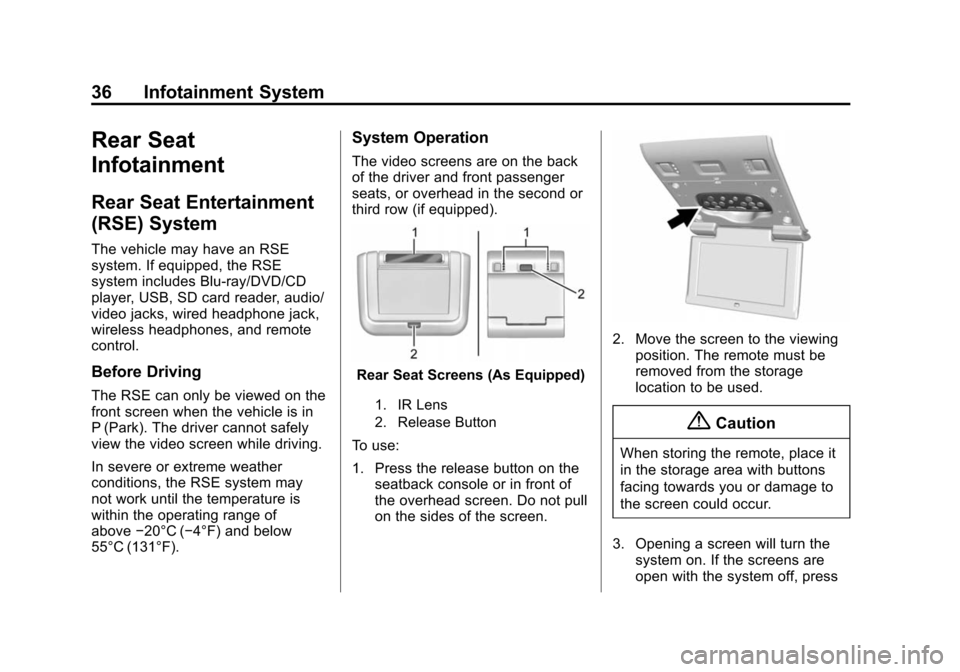
The video screens are on the back
of the driver and front passenger
seats, or overhead in the second or
third row (if equipped).
Rear Seat Screens (As Equipped)
1. IR Lens
2. Release Button
To use:
1. Press the release button on the seatback console or in front of
the overhead screen. Do not pull
on the sides of the screen.
2. Move the screen to the viewingposition. The remote must be
removed from the storage
location to be used.
{Caution
When storing the remote, place it
in the storage area with buttons
facing towards you or damage to
the screen could occur.
3. Opening a screen will turn the system on. If the screens are
open with the system off, press
Page 37 of 138
Black plate (37,1)Cadillac CUE Infotainment System (GMNA-Localizing-U.S./Canada-
7639728) - 2015 - CRC - 9/3/14
Infotainment System 37
the power button on the remote
to turn the system on. The
system can also be turned on
from the front infotainment
system by pressing the Video
icon on the Home Page.
Push the video screen into its
locked position when it is not in use.
The screen turns off automatically.
The audio may continue with the
screens down. This allows listening
to music without the screen on. To
turn the audio off, press the power
button on the remote or on the front
infotainment Video page.
{Caution
Avoid directly touching the video
screen, as damage may occur.
Sources
Sources, if equipped, include AM,
FM, BD, XM (if equipped), AUX,
Photos, CD/DVD/Blu-ray, USB, and
SD card.
Menus and Features
AM/FM Menu
Press the RADIO button on the
remote, then select AM or FM.
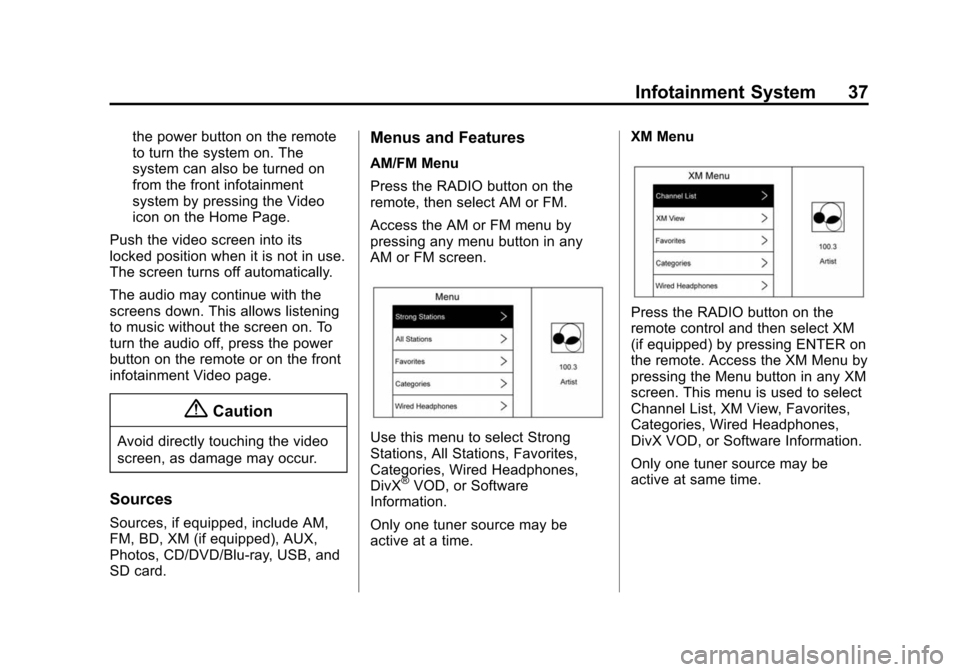
Access the AM or FM menu by
pressing any menu button in any
AM or FM screen.
Use this menu to select Strong
Stations, All Stations, Favorites,
Categories, Wired Headphones,
DivX
®VOD, or Software
Information.
Only one tuner source may be
active at a time. XM Menu
Press the RADIO button on the
remote control and then select XM
(if equipped) by pressing ENTER on
the remote. Access the XM Menu by
pressing the Menu button in any XM
screen. This menu is used to select
Channel List, XM View, Favorites,
Categories, Wired Headphones,
DivX VOD, or Software Information.
Only one tuner source may be
active at same time.
Page 38 of 138
Black plate (38,1)Cadillac CUE Infotainment System (GMNA-Localizing-U.S./Canada-
7639728) - 2015 - CRC - 9/3/14
38 Infotainment System
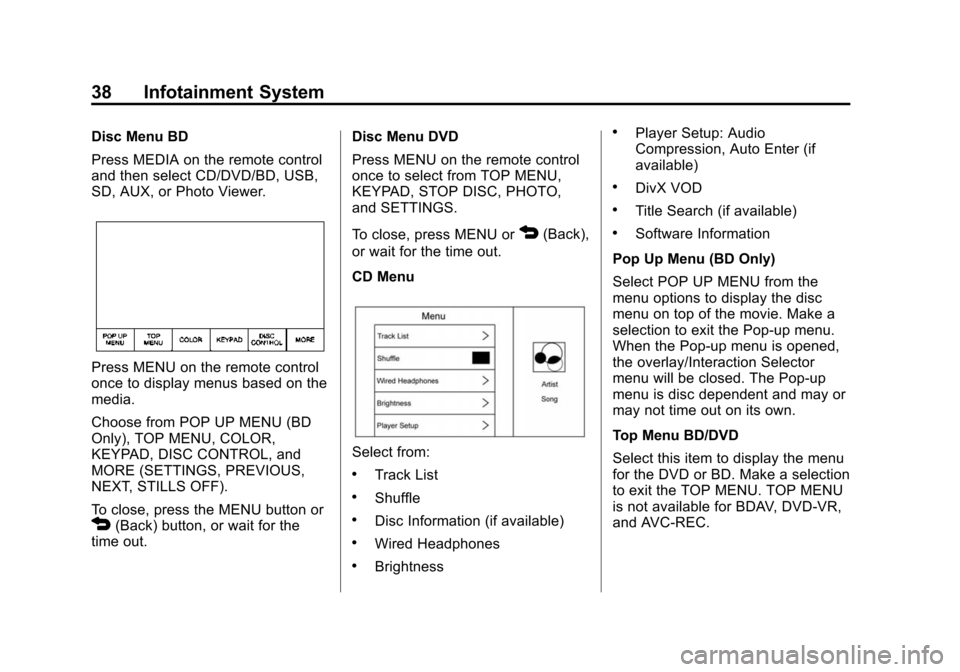
Disc Menu BD
Press MEDIA on the remote control
and then select CD/DVD/BD, USB,
SD, AUX, or Photo Viewer.
Press MENU on the remote control
once to display menus based on the
media.
Choose from POP UP MENU (BD
Only), TOP MENU, COLOR,
KEYPAD, DISC CONTROL, and
MORE (SETTINGS, PREVIOUS,
NEXT, STILLS OFF).
To close, press the MENU button or
4(Back) button, or wait for the
time out. Disc Menu DVD
Press MENU on the remote control
once to select from TOP MENU,
KEYPAD, STOP DISC, PHOTO,
and SETTINGS.
To close, press MENU or
4(Back),
or wait for the time out.
CD Menu
Select from:
.Track List
.Shuffle
.Disc Information (if available)
.Wired Headphones
.Brightness
.Player Setup: Audio
Compression, Auto Enter (if
available)
.DivX VOD
.Title Search (if available)
.Software Information
Pop Up Menu (BD Only)
Select POP UP MENU from the
menu options to display the disc
menu on top of the movie. Make a
selection to exit the Pop-up menu.
When the Pop-up menu is opened,
the overlay/Interaction Selector
menu will be closed. The Pop-up
menu is disc dependent and may or
may not time out on its own.
Top Menu BD/DVD
Select this item to display the menu
for the DVD or BD. Make a selection
to exit the TOP MENU. TOP MENU
is not available for BDAV, DVD-VR,
and AVC-REC.
Page 41 of 138
Black plate (41,1)Cadillac CUE Infotainment System (GMNA-Localizing-U.S./Canada-
7639728) - 2015 - CRC - 9/3/14
Infotainment System 41
.Title Search (AVCHD, DVD-V,
BDMV Only): This allows the
titles provided by the disc to be
searched. Select this option to
bring up a keypad to search for
specific titles.
.Restart Disc: Restarts the disc
from the beginning.
.Disc Information (if available)
.Audio Tracks
.Subtitles
.Angle (BDMV, DVD-V, DVD-A
Only): Select an angle by using
the up and down arrows to
highlight the option, and then
press ENTER or the right arrow.
.Screen Mode: Use Screen Mode
to adjust the framing on the RSE
display. Select Normal, Wide,
or Zoom. Screen Mode only
applies to video sources and
should be maintained if the disc
is ejected.
.Wired Headphones: Use Wired
Headphones to listen to audio
on the wired headphones. The
headphone audio plays
depending on which screen is
selected. The default is screen 1
audio.
.Brightness: Increase the
brightness by using the up or
right arrow and decrease the
brightness by using the down or
left arrow. Each screen
brightness can be adjusted
separately.
.Player Setup: See“Player
Setup” later in this section.
.DivX VOD
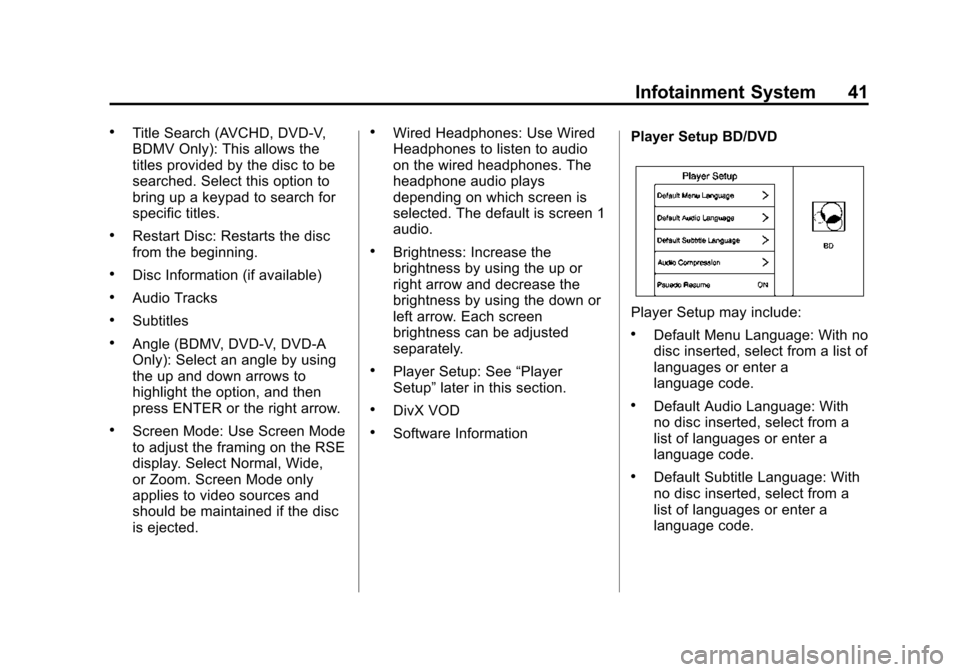
.Software Information Player Setup BD/DVD
Player Setup may include:
.Default Menu Language: With no
disc inserted, select from a list of
languages or enter a
language code.
.Default Audio Language: With
no disc inserted, select from a
list of languages or enter a
language code.
.Default Subtitle Language: With
no disc inserted, select from a
list of languages or enter a
language code.
Page 44 of 138
Black plate (44,1)Cadillac CUE Infotainment System (GMNA-Localizing-U.S./Canada-
7639728) - 2015 - CRC - 9/3/14
44 Infotainment System
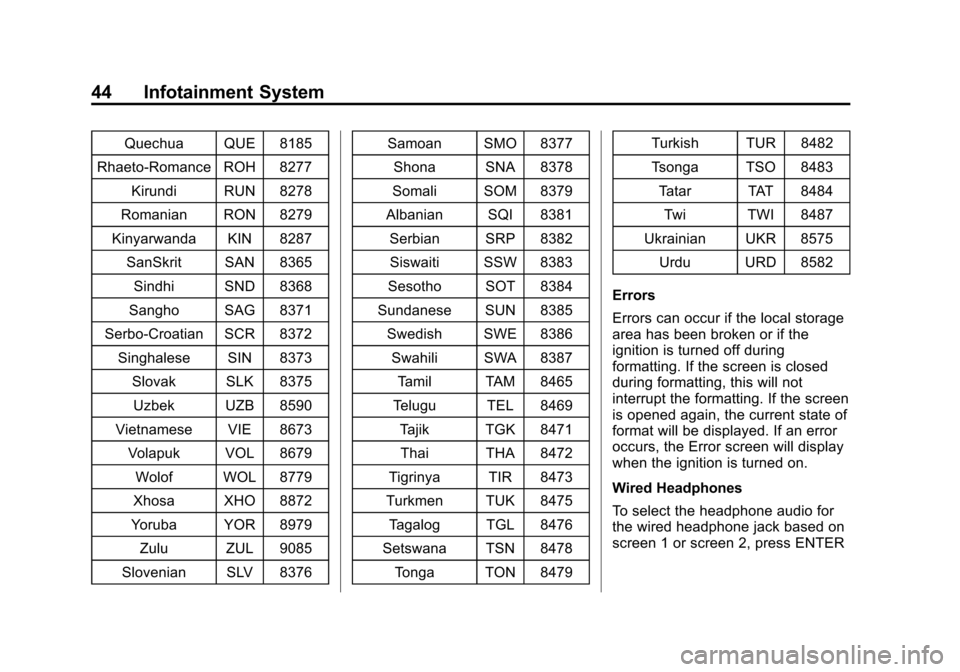
Quechua QUE 8185
Rhaeto-Romance ROH 8277 Kirundi RUN 8278
Romanian RON 8279
Kinyarwanda KIN 8287 SanSkrit SAN 8365
Sindhi SND 8368
Sangho SAG 8371
Serbo-Croatian SCR 8372 Singhalese SIN 8373
Slovak SLK 8375Uzbek UZB 8590
Vietnamese VIE 8673 Volapuk VOL 8679
Wolof WOL 8779
Xhosa XHO 8872
Yoruba YOR 8979
Zulu ZUL 9085
Slovenian SLV 8376 Samoan SMO 8377
Shona SNA 8378
Somali SOM 8379
Albanian SQI 8381 Serbian SRP 8382Siswaiti SSW 8383
Sesotho SOT 8384
Sundanese SUN 8385 Swedish SWE 8386Swahili SWA 8387
Tamil TAM 8465
Telugu TEL 8469 Tajik TGK 8471Thai THA 8472
Tigrinya TIR 8473
Turkmen TUK 8475 Tagalog TGL 8476
Setswana TSN 8478 Tonga TON 8479 Turkish TUR 8482
Tsonga TSO 8483
Tatar TAT 8484
Twi TWI 8487
Ukrainian UKR 8575 Urdu URD 8582
Errors
Errors can occur if the local storage
area has been broken or if the
ignition is turned off during
formatting. If the screen is closed
during formatting, this will not
interrupt the formatting. If the screen
is opened again, the current state of
format will be displayed. If an error
occurs, the Error screen will display
when the ignition is turned on.
Wired Headphones
To select the headphone audio for
the wired headphone jack based on
screen 1 or screen 2, press ENTER
Page 45 of 138
Black plate (45,1)Cadillac CUE Infotainment System (GMNA-Localizing-U.S./Canada-
7639728) - 2015 - CRC - 9/3/14
Infotainment System 45
or the right arrow on the remote.
Press the Back button to exit
the menu.
The headphones are linked to
screen 1 by default.
Player Setup (CD-DA Only)
This allows access to Audio
Compression and Auto Enter.
Title Search (CD-DA Only)
This displays a keypad. Press Stop
to close the overlay menu and open
the Disc Stopped screen. Press
Menu on the screen to open the
Disc Stopped menu. Select Title
Search.
Disc Information (CD-DA Only)
If the inserted disc is a BDMV,
BDAV, AVCHD, AVCREC,
DVD-Video, or DVD-VR, the disc
title should display. If the inserted
disc is DVD-Audio, DTS-CD, CDDA,
or Mixed-CD, the track number will
display.DivX®
This indicates the vehicle is
registered to play DivX media and
states how to obtain more
information.
Software Information
This allows access to Version
Information, Save Vehicle Info to
USB, and View Open Source.
Save Vehicle Info to USB allows the
current version to be saved to a
jump drive, which must be done
before an update can be performed.
View Open Source indicates where
software information can be found.
Changing Between SCREEN 1 and
SCREEN 2
For single overhead screen
systems only:
Although two audio sources can be
listened to at one time, only one
video source can be viewed on the
overhead screen at a time.Press the SCREEN 1 or SCREEN 2
button on the remote control to
change between which source will
display on the overhead screen.
When SCREEN 1 is being displayed
and the SCREEN 2 button on the
remote is pressed, the source for
SCREEN 2 will be displayed. The
audio for SCREEN 1 is available on
channel 1 of the headphones and
the audio for SCREEN 2 is available
on channel 2 of the headphones.
Change the channel on the
headphones to the desired screen
source.
One user can listen to the audio
from SCREEN 1 and view the
source on the overhead display
while another user can listen to a
separate audio source by changing
the channel on the wireless
headphones or setting their wired
headphones to SCREEN 2 in
the MENU.
Page 49 of 138
Black plate (49,1)Cadillac CUE Infotainment System (GMNA-Localizing-U.S./Canada-
7639728) - 2015 - CRC - 9/3/14
Infotainment System 49
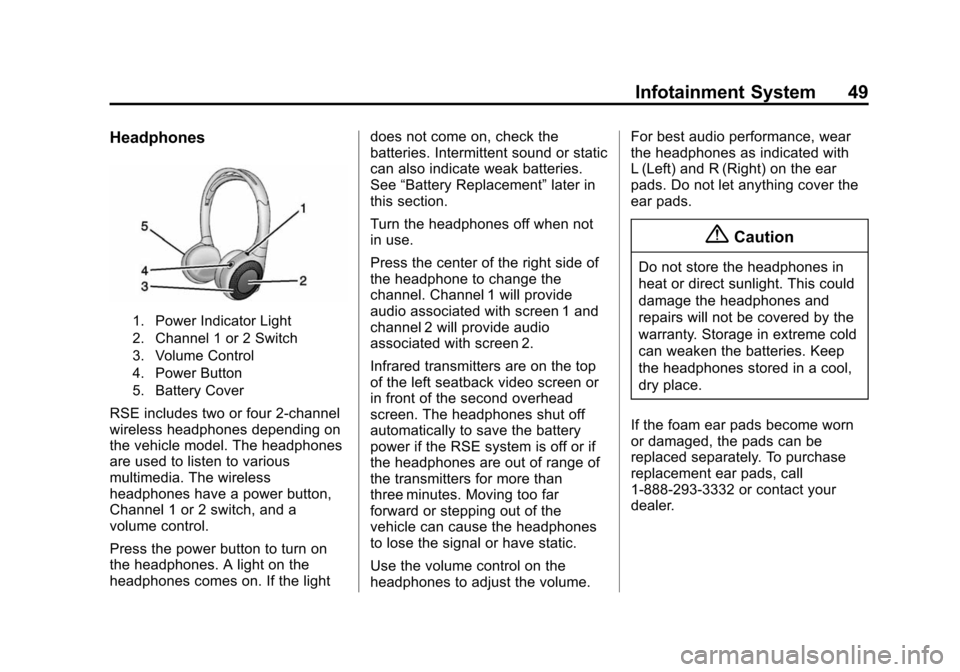
Headphones
1. Power Indicator Light
2. Channel 1 or 2 Switch
3. Volume Control
4. Power Button
5. Battery Cover
RSE includes two or four 2-channel
wireless headphones depending on
the vehicle model. The headphones
are used to listen to various
multimedia. The wireless
headphones have a power button,
Channel 1 or 2 switch, and a
volume control.
Press the power button to turn on
the headphones. A light on the
headphones comes on. If the lightdoes not come on, check the
batteries. Intermittent sound or static
can also indicate weak batteries.
See
“Battery Replacement” later in
this section.
Turn the headphones off when not
in use.
Press the center of the right side of
the headphone to change the
channel. Channel 1 will provide
audio associated with screen 1 and
channel 2 will provide audio
associated with screen 2.
Infrared transmitters are on the top
of the left seatback video screen or
in front of the second overhead
screen. The headphones shut off
automatically to save the battery
power if the RSE system is off or if
the headphones are out of range of
the transmitters for more than
three minutes. Moving too far
forward or stepping out of the
vehicle can cause the headphones
to lose the signal or have static.
Use the volume control on the
headphones to adjust the volume. For best audio performance, wear
the headphones as indicated with
L (Left) and R (Right) on the ear
pads. Do not let anything cover the
ear pads.
{Caution
Do not store the headphones in
heat or direct sunlight. This could
damage the headphones and
repairs will not be covered by the
warranty. Storage in extreme cold
can weaken the batteries. Keep
the headphones stored in a cool,
dry place.
If the foam ear pads become worn
or damaged, the pads can be
replaced separately. To purchase
replacement ear pads, call
1-888-293-3332 or contact your
dealer.
Page 50 of 138
Black plate (50,1)Cadillac CUE Infotainment System (GMNA-Localizing-U.S./Canada-
7639728) - 2015 - CRC - 9/3/14
50 Infotainment System
Battery Replacement
To change the batteries:
1. Loosen the screw to the batterydoor on the left side of the
headphones.
2. Slide the battery door open.
3. Replace the two AAA batteries.
4. Replace the battery door and tighten the screw.
Remove the batteries if the
headphones will not be used for a
long time.Auxiliary Inputs
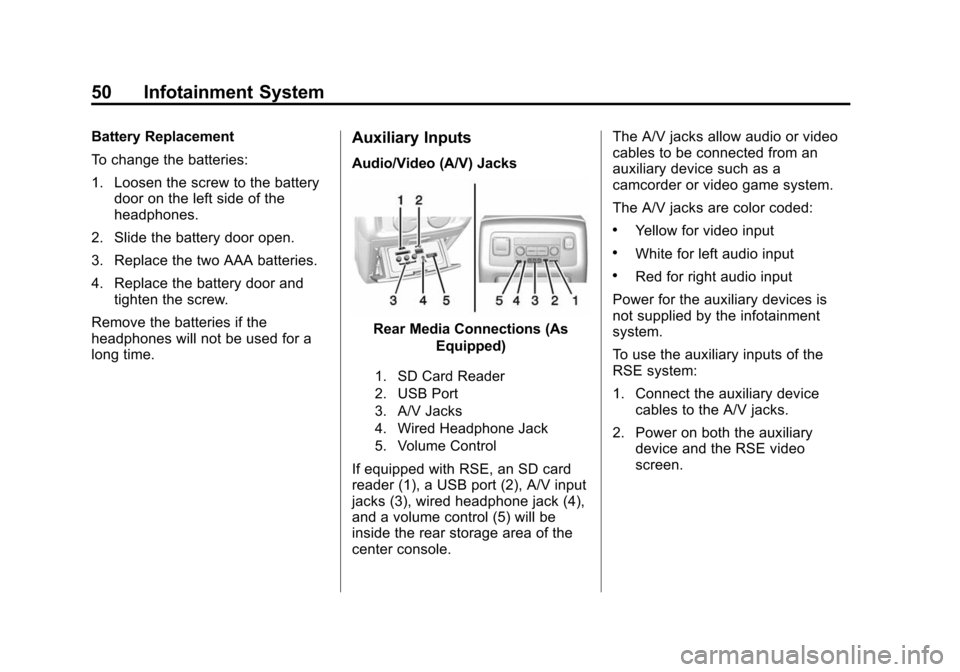
Audio/Video (A/V) Jacks
Rear Media Connections (As Equipped)
1. SD Card Reader
2. USB Port
3. A/V Jacks
4. Wired Headphone Jack
5. Volume Control
If equipped with RSE, an SD card
reader (1), a USB port (2), A/V input
jacks (3), wired headphone jack (4),
and a volume control (5) will be
inside the rear storage area of the
center console. The A/V jacks allow audio or video
cables to be connected from an
auxiliary device such as a
camcorder or video game system.
The A/V jacks are color coded:
.Yellow for video input
.White for left audio input
.Red for right audio input
Power for the auxiliary devices is
not supplied by the infotainment
system.
To use the auxiliary inputs of the
RSE system:
1. Connect the auxiliary device cables to the A/V jacks.
2. Power on both the auxiliary device and the RSE video
screen.
Page 51 of 138
Black plate (51,1)Cadillac CUE Infotainment System (GMNA-Localizing-U.S./Canada-
7639728) - 2015 - CRC - 9/3/14
Infotainment System 51
USB/SD
This allows for video and audio
playback of supported media.
To use the USB and SD:
1. Insert the device in theappropriate slot.
2. Select the source via the rear screen menu with the remote
control MEDIA button.
3. Select the source via the front by pressing on the Video
application on the home screen.
Audio Output
Audio from a Blu-ray/DVD/CD
player or auxiliary inputs can be
heard through:
.Wireless headphones
.Vehicle speakers
.Vehicle wired headphone jack The RSE system transmits the
audio signal to the wireless
headphones if an audio signal is
available. See
“Headphones” earlier
in this section.
Wired Headphone Jack
Audio from the wired headphone
jack can be heard from the desired
source through the MENU button on
the remote and by selecting
Settings, then Headphones. The
headphone audio is selected based
on the audio associated with
screen 1 or screen 2.
The front seat passengers are able
to listen to playback from the A/V
jacks through the vehicle speakers
by selecting Rear A/V as the source
on the radio.
Remote Control
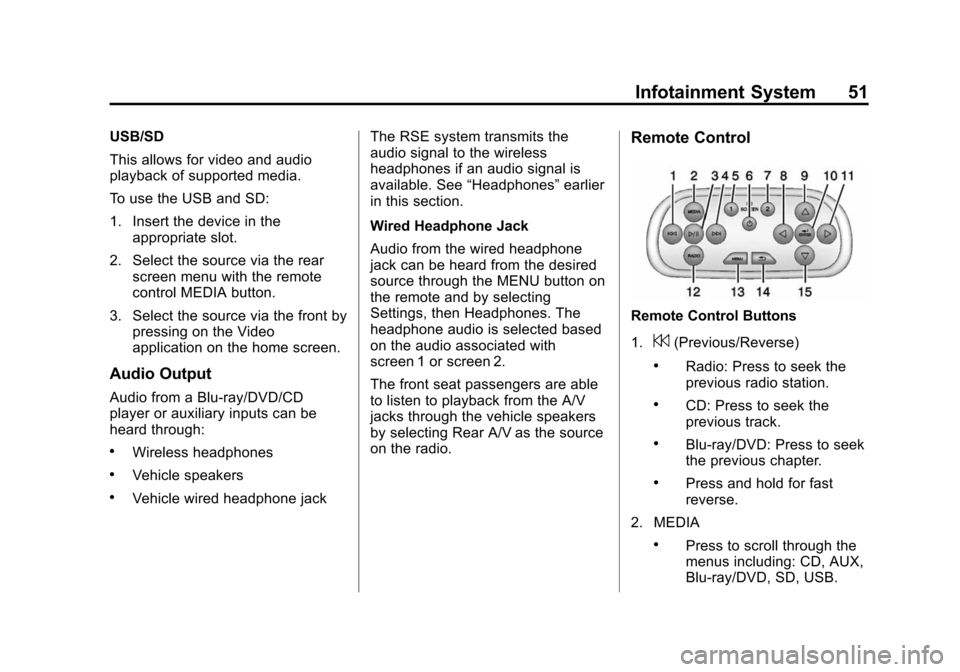
Remote Control Buttons
1.
7(Previous/Reverse)
.Radio: Press to seek the
previous radio station.
.CD: Press to seek the
previous track.
.Blu-ray/DVD: Press to seek
the previous chapter.
.Press and hold for fast
reverse.
2. MEDIA
.Press to scroll through the
menus including: CD, AUX,
Blu-ray/DVD, SD, USB.