phone CADILLAC ATS 2015 1.G CUE Manual
[x] Cancel search | Manufacturer: CADILLAC, Model Year: 2015, Model line: ATS, Model: CADILLAC ATS 2015 1.GPages: 138, PDF Size: 1.05 MB
Page 88 of 138
Black plate (88,1)Cadillac CUE Infotainment System (GMNA-Localizing-U.S./Canada-
7639728) - 2015 - CRC - 9/3/14
88 Infotainment System
Recalling a POI Category or
Chain
If a POI category or chain favorite is
recalled, the system displays a list
of matching results defaulting to
Nearby, but allows a search of other
locations. Press the Search Options
button to specify a different location.
Creating and Downloading
Predefined POIs (My POIs)
In addition to the POIs already
stored in the infotainment system,
predefined POIs can be created.
While creating a predefined POI, the
GPS coordinates for longitude and
latitude of the POI’s location and a
descriptive name will need to be
entered.
After creating the predefined POIs,
they can be downloaded to the
infotainment system from either a
USB stick or SD card.
Once downloaded, the POI data
becomes a selectable destination in
the My POIs menu.Creating a Text File with
Information
Create a text file by using a simple
text editor software. Save this file
with a name and extension of .csv,
for example,
“TomsPOI.csv.”
Enter the POI information into the
text file in the following format:
.Longitude coordinate, Latitude
coordinate, “Name of POI,”
“Additional information,” “Phone
number.”
Example: 7.0350000,
50.6318040, “Michaels Home,”
“123 Maple Lane,”
“02379234567.”
.The GPS coordinates must be
expressed in decimal degrees
and can be taken from a
geographical map. The
additional information and phone
number strings are optional.
.The POI name and the
additional information string may
not exceed 60 characters.
.POI information for each
destination address must be
entered in a single separate line.
Storing the POI on a USB Drive
In the root directory of a USB drive,
create a folder name “myPOIs”; for
example, “F:\”is the root directory of
the USB drive.
In the “myPOIs” folder, store the text
file with your POIs; for example,
“F:\myPOIs\TomsPOIs.csv.”
Downloading the POI to the
Infotainment System
Connect the USB drive or SD card
containing the POI information to
the USB port or SD card slot of the
infotainment system. A message
displays prompting whether or not to
download the POI information from
the USB stick. All POIs found are
saved even if they are in multiple
folders.
Subfolders can also be created to
organize the POIs into categories;
for example, “F:\myPOIs\
Restaurants\TomsPOIs.csv.”
Page 91 of 138

Black plate (91,1)Cadillac CUE Infotainment System (GMNA-Localizing-U.S./Canada-
7639728) - 2015 - CRC - 9/3/14
Infotainment System 91
Favorite Destinations
.Destinations can be saved as
Favorites for recall later.
Depending on the favorite, when
an address or POI favorite is
recalled, the Destination Details
View is shown.
.When a favorite address is being
routed to, it is shown active.
Press on the active favorite to
suspend that route.
.Save locations as Favorites for
recall later in the Destination
Details View.
.Save trips from the
Address Book.Storing Favorites from the Contact
Details List
A contact name or any of the
contact’
s information such as phone
number, e-mail address, or address
from Contact Details can be stored
as a Favorite.
.Press and drag up on the row of
Interaction Selector buttons to
reveal the Favorite buttons.
.Press and hold on the favorite
location while viewing a contact
on the Contact Details List. The
contact name and all contact
information can be stored.
.Press to save as a favorite. The
favorite label will be the name of
the contact.
.Press on the Favorite to display
the destination view. Storing Favorites from Map
Favorite locations can be stored
from the Map View.
If not under route guidance, the
current vehicle location will be
saved as a Favorite. If under route
guidance, the final destination will
be saved.
Press and drag up on the row of
Interaction Selector buttons to
reveal the Favorite buttons. Press
and hold on the favorite location
from the Map View to save it.
Page 97 of 138
Black plate (97,1)Cadillac CUE Infotainment System (GMNA-Localizing-U.S./Canada-
7639728) - 2015 - CRC - 9/3/14
Infotainment System 97
Date, Sport Mode, Language, Valet
Mode, or Radio. For setting options,
seeSettings on page 118.
A few of the setting options change
the way the navigation system
displays or reacts while in use.
1. Press the SETTINGS screen button on the Home Page.
2. Press the scroll bar until the desired option displays. Select
the desired settings to change.
Voice
Voice recognition allows for
hands-free operation within the
navigation, audio, phone, and
weather applications. See Voice
Recognition on page 100.
Press the voice screen button to
display the Voice menu.
Prompt Length: Press to change
the prompt length to Short or Long.
Audio Feedback Speed: Press to
change the audio feedback speed to
Slow, Medium, or Fast. Confidence Threshold:
Press to
change the sensitivity of the voice
recognition system.
Display
Mode: Press Mode to change the
screen background. This setting
controls map colors.
.The Auto setting adjusts the
screen background automatically
depending on the exterior
lighting conditions.
.The Day setting brightens the
map background.
.The Night setting darkens the
map background.
Calibrate Touchscreen: Press to
display the Touchscreen Calibration
Screen.
Turn Display Off: Press to turn the
Display option off.
Low Fuel Alert
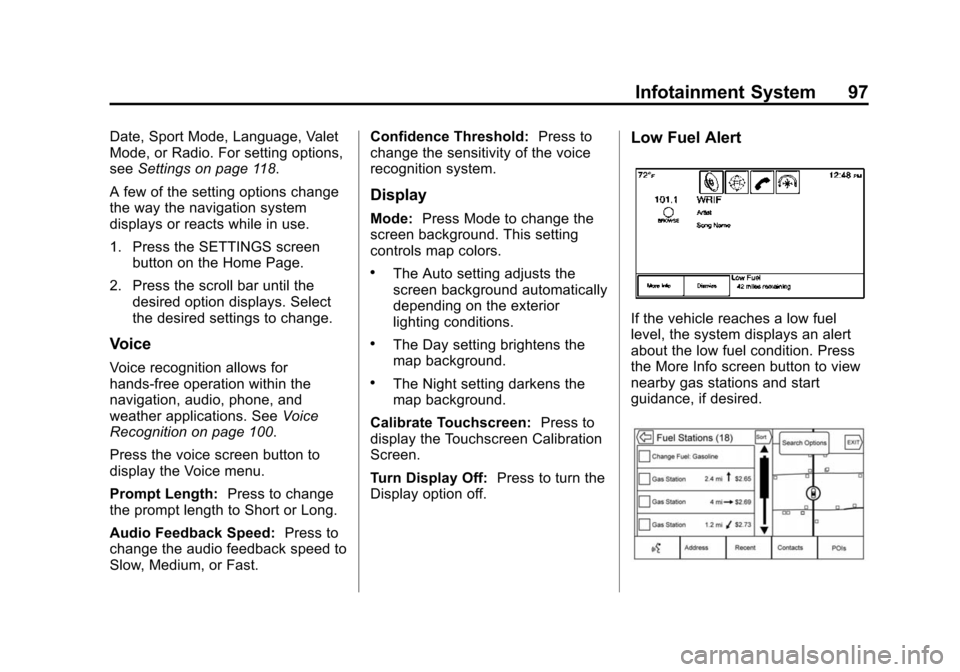
If the vehicle reaches a low fuel
level, the system displays an alert
about the low fuel condition. Press
the More Info screen button to view
nearby gas stations and start
guidance, if desired.
Page 100 of 138
Black plate (100,1)Cadillac CUE Infotainment System (GMNA-Localizing-U.S./Canada-
7639728) - 2015 - CRC - 9/3/14
100 Infotainment System
Map Data Updates
The map data in the vehicle is the
most up-to-date information
available when the vehicle was
produced. The map data is updated
periodically, provided that the map
information has changed.
For questions about the operation of
the navigation system or the update
process, contact the GM Nav Disc
Center toll-free phone number,
1-877-NAV-DISC (1-877-628-3472)
or go to the center’s website,
www.gmnavdisc.com. If updates are
needed, call the GM Nav Disc
Center or order online.
To order, have the vehicle’s Vehicle
Identification Number (VIN)
available. This helps the center
make sure that the correct and most
up-to-date map data for the vehicle
is received. See “Vehicle
Identification Number (VIN)” in the
owner manual.
Database Coverage
Explanations
Coverage areas vary with respect to
the level of map detail available for
any given area. Some areas feature
greater levels of detail than others.
If this happens, it does not mean
there is a problem with the system.
As the map data is updated, more
detail can become available for
areas that previously had limited
detail. See Map Data Updates on
page 100.
Voice Recognition
Voice recognition allows for
hands-free operation within the
navigation, audio, phone, and
weather applications. This feature
can be started by pressing either
the
gbutton on the steering wheel
or
gon the touchscreen display.
However, not all features within
these areas are supported by voice
commands. Generally, only complex
tasks that require multiple manual
interactions to complete are
supported by voice commands.
For example, tasks that take more
than one or two button presses such
as selecting a song or artist to play
from a media device would be
supported by voice commands.
Other tasks, like adjusting the
volume or seeking up or down, are
audio features that are easily
performed by pressing one or two
buttons, and are not supported by
voice commands.
Page 103 of 138
Black plate (103,1)Cadillac CUE Infotainment System (GMNA-Localizing-U.S./Canada-
7639728) - 2015 - CRC - 9/3/14
Infotainment System 103
.Speak the command naturally,
not too fast, not too slow. Use
direct commands without a lot of
extra words.
.Usually Phone and Audio
commands can be spoken in a
single command.
For example,“Call Dave Smith
at work,” “Play” followed by the
artist or song name, or “Tune”
followed by the radio station
number.
.Navigation destinations are too
complex for a single command.
First, state a command that
explains the type of destination
needed, such as I want
directions to an “Address,”
“Navigate to an intersection,” “I
need to find a Place of Interest
or POI,” or“Directions to a
Contact.” The system responds
with requesting more details.
After saying “Place of Interest,”
only major chains are available
by name. Chains are businesses
with at least 20 locations. For other POIs, say the name of
a category like
“Restaurants,”
“Shopping Malls,” or“Hospitals.”
Most languages do not support
natural language commands in
sentence form. For those
languages, use direct commands
like the examples shown on the
display.
There is no need to memorize
specific command words. Direct
commands might be more clearly
understood by the system. An
example of a direct command would
be “Call 555-1212.” Examples of
these direct commands are
displayed on most of the screens
while a voice session is active.
If “Phone” or“Phone Commands,” is
stated, the system understands that
a phone call is requested and will
respond with questions until enough
details are gathered. If the phone number has been
saved with a name and a place, the
direct command should include
both, for example
“Call Dave Smith
at work.”
Using Voice Recognition for
List Options
When a list is displayed, a voice
prompt will ask to confirm or select
an option from that list. A selection
can be made by manually selecting
the item, or by speaking the line
number for the item to select.
When a screen contains a list, there
may be options that are available
but not displayed. The list on a
voice recognition screen functions
the same as a list on other screens.
Scrolling or flinging can be used to
help display other entries from
the list.
Manually scrolling or paging the list
on a screen during a voice
recognition session suspends the
current voice recognition event and
plays the prompt “Make your
Page 107 of 138
Black plate (107,1)Cadillac CUE Infotainment System (GMNA-Localizing-U.S./Canada-
7639728) - 2015 - CRC - 9/3/14
Infotainment System 107
“Destination Address”:Begin a
dialog to enter a specific destination
address, which includes the entire
address consisting of the house
number, street name, and city and
state.
“Destination Intersection”: Begin
a dialog to enter a specific
destination intersection.
“Destination Place of Interest”:
Begin a dialog to enter a destination
Place of Interest category or major
brand name (if equipped).
Not all brand names of businesses
are available for voice entry. Most
major chains, such as chains with
more than 20 locations, should be
available to search for by name, but
the name must be precisely spoken.
Nicknames or short names for the
businesses will not likely be found.
Lesser known businesses might
have to be located by category,
such as fast food, hotels, or banks.
“Destination Contact”: Begin a
dialog to enter a specific destination
contact name. “Cancel Route”:
End route
guidance.
Voice Recognition for the
Phone
“Call
call to an entered contact. The
command may include location if
the contact has location numbers
stored.
“CallAt Home
“At Work,” “On Mobile,” or“On
Other”: Initiate a call to an entered
contact and location at home, at
work, on mobile device, or on
another phone.
“Call
call to a standard phone number
seven or 10 digits in length, and
also 911, 411, or 611.
“Pair Phone”: Begin the Bluetooth
pairing process. Follow instructions
on the radio display.
“Redial”: Initiate a call to the last
dialed number. “Switch Phone”:
Select a different
phone for outgoing calls.
“Voice Keypad”: Begin a dialog to
enter special numbers like
international numbers. The numbers
can be entered in groups of digits
with each group of digits being
repeated back by the system. If the
group of digits is not correct, the
command “Delete”will remove the
last group of digits and allow them
to be re-entered. Once the entire
number has been entered, the
command “Call”will start dialing the
number.
“Voice mail”: Initiate a call to voice
mail numbers.
Voice Pass-Thru
Voice pass-thru/Siri®Eyes Free
allows access to the voice
recognition commands on
the cell phone, for example,
Siri or Voice Command. See
the cell phone manufacturer's
user guide to see whether the
cell phone supports this feature.
Page 108 of 138
Black plate (108,1)Cadillac CUE Infotainment System (GMNA-Localizing-U.S./Canada-
7639728) - 2015 - CRC - 9/3/14
108 Infotainment System
To activate the phone voice
recognition system, press and hold
gon the steering wheel for a few
seconds.
This enhances the normal use of
Siri. Siri allows access to text
messages, calendars, and audio
sources such as Pandora or iTunes.
Voice Recognition for OnStar
(If Equipped)
“OnStar”: Begin OnStar Voice
Recognition.
Voice Recognition for Weather
(If Equipped)
“Weather”: Begin a dialog to enter
a weather location.
Phone
Bluetooth (Overview)
The Bluetooth-capable system can
interact with many cell phones,
allowing:
.Placement and receipt of calls in
a hands-free mode.
.Sharing of the cell phone’s
address book or contact list with
the vehicle.
To minimize driver distraction,
before driving, and with the vehicle
parked:
.Become familiar with the
features of the cell phone.
Organize the phone book and
contact lists clearly and delete
duplicate or rarely used entries.
If possible, program speed dial
or other shortcuts.
.Review the controls and
operation of the infotainment
system.
.Pair cell phone(s) to the vehicle.
The system may not work with
all cell phones. See “Pairing”in
this section.
Vehicles with a Bluetooth system
can use a Bluetooth-capable cell
phone with a Hands-Free Profile to
make and receive phone calls. The
infotainment system and voice
recognition are used to control the
system. The system can be used
while in ON/RUN or ACC/
ACCESSORY. The range of the
Bluetooth system can be up to 9.1 m
(30 ft). Not all phones support all
functions and not all phones work
with the Bluetooth system. See
www.gm.com/bluetooth for more
information about compatible
phones.
Controls
Use the buttons on the infotainment
system and the steering wheel to
operate the Bluetooth system.
Page 109 of 138
Black plate (109,1)Cadillac CUE Infotainment System (GMNA-Localizing-U.S./Canada-
7639728) - 2015 - CRC - 9/3/14
Infotainment System 109
Steering Wheel Controls
g(Push to Talk):Press to answer
incoming calls and start voice
recognition.
c(End Call): Press to end a call,
decline a call, or cancel an
operation. Press to mute or unmute
the infotainment system when not
on a call.
Infotainment System Controls
For information about how to
navigate the menu system using the
infotainment controls, see
Infotainment on page 3.
PHONE: Press this screen button
to enter the phone main menu.
Audio System
When using the Bluetooth phone
system, sound comes through the
vehicle's front audio system
speakers and overrides the audio
system. Press just above the
chrome volume bar during a call to
change the volume level. The adjusted volume level remains in
memory for later calls. The system
maintains a minimum volume level.
Bluetooth (Infotainment
Controls)
For information about how to
navigate the menu system using the
infotainment controls, see
Infotainment on page 3.
Pairing
A Bluetooth-enabled cell phone
must be paired to the Bluetooth
system and then connected to the
vehicle before it can be used. See
the cell phone manufacturer's user
guide for Bluetooth functions before
pairing the cell phone.
Pairing Information
.A Bluetooth phone with music
capability can be paired to the
vehicle as a phone and a music
player at the same time.
.Up to 10 devices can be paired
to the Bluetooth system.
.The pairing process is disabled
when the vehicle is moving.
.Pairing only needs to be
completed once, unless the
pairing information on the cell
phone changes or the cell phone
is deleted from the system.
.If multiple paired cell phones are
within range of the system, the
system connects to the paired
cell phone in the order that they
were last used in the system. To
link to a different paired phone,
see
“Linking to a Different
Phone” later in this section.
Pairing a Phone
1. Press the PHONE screen button.
2. Select PHONES and select Pair Device.
3. A four-digit Personal Identification Number (PIN)
appears on the display. The PIN,
if required, may be used in
Step 5.
Page 110 of 138
Black plate (110,1)Cadillac CUE Infotainment System (GMNA-Localizing-U.S./Canada-
7639728) - 2015 - CRC - 9/3/14
110 Infotainment System
4. Start the pairing process on thecell phone to be paired to the
vehicle. See the cell phone
manufacturer's user guide for
information on this process.
5. Locate “Cadillac CUE” on the
display. Follow the instructions
provided in Step 3 on the cell
phone to enter the PIN or
confirm the six-digit code shown
on the display. After the PIN is
successfully entered or the code
is confirmed, the system
responds with “
has been successfully paired”
when the pairing process is
complete.
6. If “Cadillac CUE” does not
appear, turn the phone off or
remove the phone battery and
retry.
7. If the phone prompts to accept connection or allow phone book
download, select Always Accept
and Allow. The phone book may
not be available if not accepted. 8. Repeat Steps 1−7 to pair
additional phones.
Listing All Paired and Connected
Phones
1. Press the PHONE screen button.
2. Select PHONES.
Disconnecting a Connected Phone
1. Press the PHONE screen button.
2. Select PHONES.
3. Press the
znext to the phone to
disconnect.
Deleting a Paired Phone
Only disconnected phones can be
deleted.
1. Press the PHONE screen button.
2. Select PHONES.
3. Press the
Mnext to the phone
to delete and follow the on
screen prompts. Linking to a Different Phone
To link to a different phone, the new
phone must be in the vehicle and
paired to the Bluetooth system.
1. Press the PHONE screen
button.
2. Select PHONES.
3. Select the new phone to link to from the not connected
device list.
Switching to Handset or
Handsfree Mode
To switch between handset or
handsfree mode, press the PHONE
icon on the Home Page to display
“Call View.”
.While the active call is
hands-free, press the Handset
screen button to switch to the
handset mode. The screen
button changes to Handsfree
once the Bluetooth device
confirms it is operating as
handset.
Page 111 of 138
Black plate (111,1)Cadillac CUE Infotainment System (GMNA-Localizing-U.S./Canada-
7639728) - 2015 - CRC - 9/3/14
Infotainment System 111
.While the active call is on the
handset, press the Handsfree
screen button to switch to the
hands-free mode. The screen
button changes to Handset once
the Bluetooth device confirms it
is operating as hands-free.
Making a Call Using Contacts
and Recent Calls
Calls can be made through the
Bluetooth system using personal
cell phone contact information for all
phones that support the Phone
Book feature. Become familiar with
the phone settings and operation.
Verify the cell phone supports this
feature.
When supported, the Contacts and
Recent Calls menus are
automatically available.
The Contacts menu accesses the
phone book stored in the cell phone.
The Recent Calls menu accesses
the recent call list(s) from your cell
phone.To make a call using the
Contacts menu:
1. Press the PHONE screen
button.
2. Select CONTACTS.
3. Select the name to call.
4. Select the desired contact number to call.
To make a call using the Recent
Calls menu:
1. Press the PHONE screen button.
2. Select RECENT.
3. Select the name or number to call.
4. If necessary, select between Missed, Recent, and Sent calls
by selecting the View button in
the top right corner of the list.
Making a Call Using the
Keypad
To make a call by dialing the
numbers:
1. Press the PHONE screenbutton.
2. Select KEYPAD and enter a phone number.
3. Select Call to start dialing the number.
Accepting or Declining a Call
When an incoming call is received,
the infotainment system mutes and
a ring tone is heard in the vehicle.
Accepting a Call
There are three ways to accept
a call:
.Pressgon the steering wheel
controls.
.Press Answer on the center
stack display.
.Press Answer on the instrument
cluster using the select button.