service CADILLAC ATS 2015 1.G CUE Manual
[x] Cancel search | Manufacturer: CADILLAC, Model Year: 2015, Model line: ATS, Model: CADILLAC ATS 2015 1.GPages: 138, PDF Size: 1.05 MB
Page 29 of 138
Black plate (29,1)Cadillac CUE Infotainment System (GMNA-Localizing-U.S./Canada-
7639728) - 2015 - CRC - 9/3/14
Infotainment System 29
MP3 Guidelines
.Sampling rate: 16 kHz,
22.05 kHz, 24 kHz, 32 kHz,
44.1 kHz, and 48 kHz.
.Bit rates supported: 8, 16, 24,
32, 40, 48, 56, 64, 80, 96, 112,
128, 144, 160, 192, 224, 256,
and 320 kbps.
.Recorded on a CD-R or CD-RW.
MP3 Folder Information
Press anywhere between the top
applications tray or the bottom menu
to display the browse screen.
Root Directory: To access, press
the screen anywhere in the central
area of the screen. The root
directory is treated as a folder. All
files contained directly under the
root directory are accessed prior to
any root directory folders.
No Folder: When the CD only
contains compressed audio files
without any folders or playlists, all
files are under the root folder. File System and Naming:
The
song titles, artists, albums, and
genres are taken from the file's ID3
tag and are only displayed if present
in the tag. If a song title is not
present in the ID3 tag, the radio
displays the file name as the
track name.USB/SD Port
Audio from videos stored on SD/
USB cards may be listened to while
the vehicle is in a forward gear.
Videos can be watched while the
vehicle is in P (Park). Use play/
pause or next/previous to control
the video or press the browse
screen to display a list of the current
video filters.
This vehicle may have two SD card
readers and three USB ports: one
SD card reader and one USB port in
the center console, one USB port in
the storage behind the climate
control system, and if equipped with
Rear Seat Entertainment (RSE), there may be one SD card reader
and one USB port in the rear media
console storage area.
Playing from a USB
A USB mass storage device can be
connected to the USB port.
Audio extensions supported by the
USB are:
.MP3
.WMA
.AAC
.OGG
.AIFF
.3GPP
Gracenote
®
When plugging in a USB device,
Gracenote service builds voice tags
for music. Voice tags allow artists,
albums with hard to pronounce
names, and nicknames to be used
to play music through voice
recognition.
Page 35 of 138
Black plate (35,1)Cadillac CUE Infotainment System (GMNA-Localizing-U.S./Canada-
7639728) - 2015 - CRC - 9/3/14
Infotainment System 35
Press[Back to go back to the
previous menu.
Manage Bluetooth Devices: Press
to go to the Bluetooth page to add
or delete devices or to pair.
When selecting Bluetooth audio, the
radio may not be able to launch the
audio player on the connected
device to start playing. When the
vehicle is not moving, use the
phone to begin playback.
All devices launch audio differently.
When selecting Bluetooth audio as
a source, the radio may show as
paused on the screen. Press play
on the device or press
ron the
screen to begin playback.
Some phones support sending
Bluetooth music information to
display on the radio. When the radio
receives this information, it will
check to see if any is available and
display it. For more information
about supported Bluetooth features,
see www.gm.com/bluetooth.
OnStar System
OnStar®with 4G LTE
If equipped with OnStar 4G LTE, up
to seven devices, such as
smartphones, tablets, and laptops,
can be connected to high-speed
Internet through the vehicle’s built-in
Wi-Fi
®hotspot. Call 1-888-4-ONSTAR
(1-888-466-7827) to connect to an
OnStar Advisor for assistance. See
www.onstar.com for a detailed
instruction guide, vehicle availability,
details, and system limitations.
Services and apps vary by make,
model, year, carrier, availability, and
conditions. 4G LTE service is
available in select markets. 4G LTE
performance is based on industry
averages and vehicle systems
design. Some services require a
data plan.
Page 69 of 138
Black plate (69,1)Cadillac CUE Infotainment System (GMNA-Localizing-U.S./Canada-
7639728) - 2015 - CRC - 9/3/14
Infotainment System 69
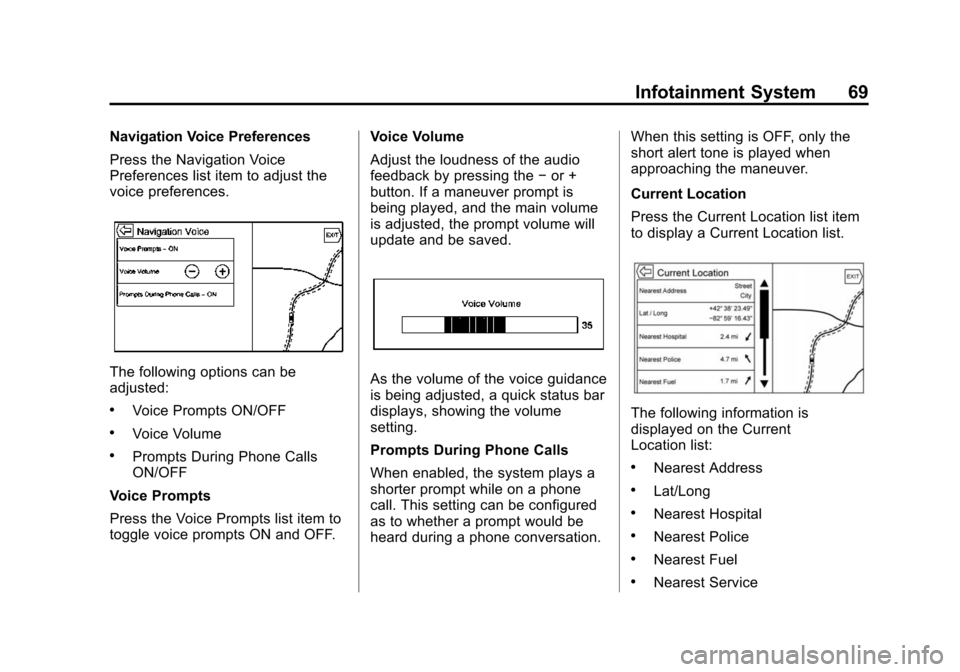
Navigation Voice Preferences
Press the Navigation Voice
Preferences list item to adjust the
voice preferences.
The following options can be
adjusted:
.Voice Prompts ON/OFF
.Voice Volume
.Prompts During Phone Calls
ON/OFF
Voice Prompts
Press the Voice Prompts list item to
toggle voice prompts ON and OFF. Voice Volume
Adjust the loudness of the audio
feedback by pressing the
−or +
button. If a maneuver prompt is
being played, and the main volume
is adjusted, the prompt volume will
update and be saved.
As the volume of the voice guidance
is being adjusted, a quick status bar
displays, showing the volume
setting.
Prompts During Phone Calls
When enabled, the system plays a
shorter prompt while on a phone
call. This setting can be configured
as to whether a prompt would be
heard during a phone conversation. When this setting is OFF, only the
short alert tone is played when
approaching the maneuver.
Current Location
Press the Current Location list item
to display a Current Location list.
The following information is
displayed on the Current
Location list:
.Nearest Address
.Lat/Long
.Nearest Hospital
.Nearest Police
.Nearest Fuel
.Nearest Service
Page 76 of 138
Black plate (76,1)Cadillac CUE Infotainment System (GMNA-Localizing-U.S./Canada-
7639728) - 2015 - CRC - 9/3/14
76 Infotainment System
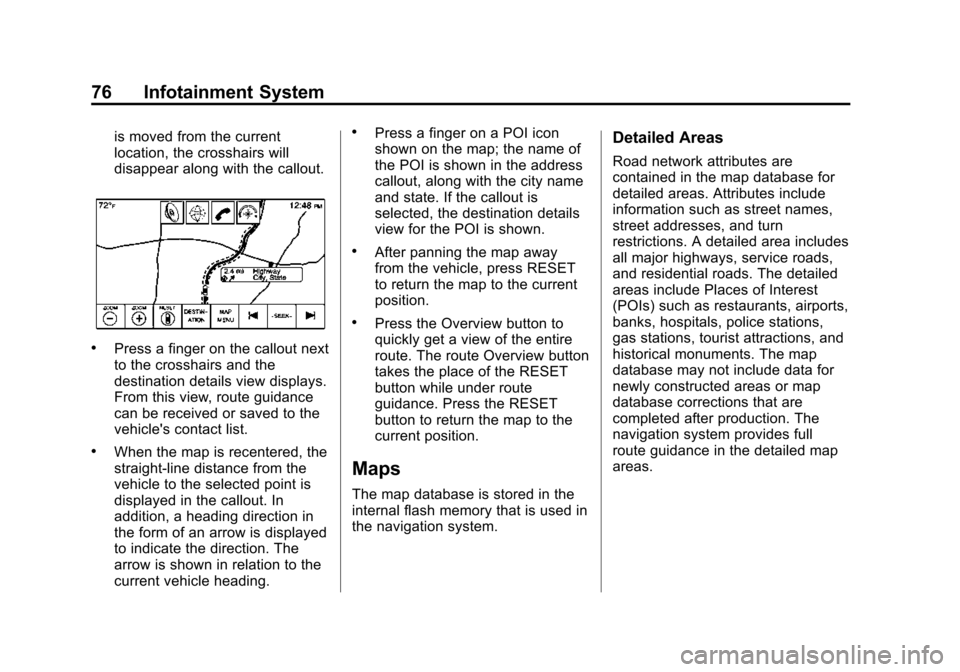
is moved from the current
location, the crosshairs will
disappear along with the callout.
.Press a finger on the callout next
to the crosshairs and the
destination details view displays.
From this view, route guidance
can be received or saved to the
vehicle's contact list.
.When the map is recentered, the
straight-line distance from the
vehicle to the selected point is
displayed in the callout. In
addition, a heading direction in
the form of an arrow is displayed
to indicate the direction. The
arrow is shown in relation to the
current vehicle heading.
.Press a finger on a POI icon
shown on the map; the name of
the POI is shown in the address
callout, along with the city name
and state. If the callout is
selected, the destination details
view for the POI is shown.
.After panning the map away
from the vehicle, press RESET
to return the map to the current
position.
.Press the Overview button to
quickly get a view of the entire
route. The route Overview button
takes the place of the RESET
button while under route
guidance. Press the RESET
button to return the map to the
current position.
Maps
The map database is stored in the
internal flash memory that is used in
the navigation system.
Detailed Areas
Road network attributes are
contained in the map database for
detailed areas. Attributes include
information such as street names,
street addresses, and turn
restrictions. A detailed area includes
all major highways, service roads,
and residential roads. The detailed
areas include Places of Interest
(POIs) such as restaurants, airports,
banks, hospitals, police stations,
gas stations, tourist attractions, and
historical monuments. The map
database may not include data for
newly constructed areas or map
database corrections that are
completed after production. The
navigation system provides full
route guidance in the detailed map
areas.
Page 98 of 138
Black plate (98,1)Cadillac CUE Infotainment System (GMNA-Localizing-U.S./Canada-
7639728) - 2015 - CRC - 9/3/14
98 Infotainment System
If the remaining driving distance is
available from the system, this is
included in the alert.
Global Positioning
System (GPS)
The position of the vehicle is
determined by using satellite
signals, various vehicle signals, and
map data.
At times, other interference such as
the satellite condition, road
configuration, condition of the
vehicle, and/or other circumstances
can affect the navigation system's
ability to determine the accurate
position of the vehicle.
The GPS shows the current position
of the vehicle using signals sent by
GPS satellites. When the vehicle is
not receiving signals from the
satellites, a symbol appears on the
map screen. SeeNavigation
Symbols on page 77. This system might not be available
or interference can occur if any of
the following are true:
.Signals are obstructed by tall
buildings, trees, large trucks,
or a tunnel.
.Satellites are being repaired or
improved.
For more information if the GPS is
not functioning properly, see
Problems with Route Guidance on
page 99 andIf the System Needs
Service on page 99.
Vehicle Positioning
At times, the position of the vehicle
on the map could be inaccurate due
to one or more of the following
reasons:
.The road system has changed.
.The vehicle is driving on slippery
road surfaces such as sand,
gravel, or snow.
.The vehicle is traveling on
winding roads or long, straight
roads.
.The vehicle is approaching a tall
building or a large vehicle.
.The surface streets run parallel
to a freeway.
.The vehicle has been transferred
by a vehicle carrier or a ferry.
.The current position calibration
is set incorrectly.
.The vehicle is traveling at high
speed.
.The vehicle changes directions
more than once, or the vehicle is
turning on a turn table in a
parking lot.
.The vehicle is entering and/or
exiting a parking lot, garage, or a
lot with a roof.
.The GPS signal is not received.
.A roof carrier is installed on the
vehicle.
.Tire chains have been installed.
Page 99 of 138
Black plate (99,1)Cadillac CUE Infotainment System (GMNA-Localizing-U.S./Canada-
7639728) - 2015 - CRC - 9/3/14
Infotainment System 99
.The tires are replaced or worn.
.The tire pressure for the tires is
incorrect.
.This is the first navigation use
after the map data is updated.
.The 12-volt battery has been
disconnected for several days.
.The vehicle is driving in heavy
traffic where driving is at low
speeds, and the vehicle is
stopped and started repeatedly.
Problems with Route
Guidance
Inappropriate route guidance can
occur under one or more of the
following conditions:
.The turn was not made on the
road indicated.
.Route guidance might not be
available when using automatic
rerouting for the next right or
left turn.
.The route might not be changed
when using automatic rerouting.
.There is no route guidance when
turning at an intersection.
.Plural names of places might be
announced occasionally.
.It could take a long time to
operate automatic rerouting
during high-speed driving.
.Automatic rerouting might
display a route returning to the
set waypoint if heading for a
destination without passing
through a set waypoint.
.The route prohibits the entry of a
vehicle due to a regulation by
time or season or any other
regulation which may be given.
.Some routes might not be
searched.
.The route to the destination
might not be shown if there are
new roads, if roads have
recently changed, or if certain
roads are not listed in the map
data. SeeMaps on page 76.
To recalibrate the vehicle's position
on the map, park with the vehicle
running for two to five minutes, until
the vehicle position updates. Make
sure the vehicle is parked in a
location that is safe and has a clear
view of the sky and away from large
obstructions.
If the System Needs
Service
If the navigation system needs
service and the steps listed here
have been followed but there are
still problems, see Problems with
Route Guidance on page 99.
Page 112 of 138
Black plate (112,1)Cadillac CUE Infotainment System (GMNA-Localizing-U.S./Canada-
7639728) - 2015 - CRC - 9/3/14
112 Infotainment System
Declining a Call
There are three ways to decline
a call:
.Presscon the steering wheel
controls.
.Press Ignore on the center stack
display.
.Press Ignore on the instrument
cluster using the select button.
Call Waiting
Call waiting must be supported on
the Bluetooth phone and enabled by
the wireless service carrier to work.
Accepting a Call
There are three ways to accept a
call-waiting call:
.Pressgon the steering wheel
controls.
.Press Switch on the center stack
display.
.Press Switch on the instrument
cluster using the select button. Declining a Call
There are three ways to decline a
call-waiting call:
.Presscon the steering wheel
controls.
.Press Ignore on the center stack
display.
.Press Ignore on the instrument
cluster using the select button.
Switching Between Calls (Call
Waiting Calls Only)
To switch between calls, press the
phone icon on the Home Page to
display “Call View.” While in Call
View, press the call information of
the call on hold to change calls.
Three-Way Calling
Three-way calling must be
supported on the Bluetooth phone
and enabled by the wireless service
carrier to work. To start a three-way call while in a
current call:
1. In the Call View, select Add to
add another call.
2. Initiate the second call by selecting from RECENT,
CONTACTS, or KEYPAD.
3. When the second call is active, press the merge icon to
conference the three-way call
together.
4. Once all calls are merged, the merge icon button becomes an
unmerge icon button. Press to
unmerge the calls.
Some wireless service carriers
may not allow a merged call to
become unmerged.Ending a Call
.Presscon the steering wheel
controls.
.Press End on the center stack
display to end all existing calls,
or press End next to a call to
end only that call.
Page 123 of 138
Black plate (123,1)Cadillac CUE Infotainment System (GMNA-Localizing-U.S./Canada-
7639728) - 2015 - CRC - 9/3/14
Infotainment System 123
iPod shuffle®, and iPod touch®are
trademarks of Apple Inc., registered
in the U.S. and other countries.
Fees and Taxes: Subscription fee,
taxes, one time activation fee, and
other fees may apply. Subscription
fee is consumer only. All fees and
programming subject to change.
Subscriptions subject to Customer
Agreement available at
www.siriusxm.com. SiriusXM
®
service only available in the
48 contiguous United States and
Canada.
In Canada: Some deterioration of
service may occur in extreme
northern latitudes. This is beyond
the control of SiriusXM
®Satellite
Radio. Explicit Language Notice: Channels
with frequent explicit language are
indicated with an
“XL”preceding the
channel name. Channel blocking is
available for SiriusXM Satellite
Radio receivers by notifying
SiriusXM:
.USA Customers —See
www.siriusxm.com or call
1-866-635–2349.
.Canadian Customers —See
www.xmradio.ca or call
1-877-209-0079.
It is prohibited to copy, decompile,
disassemble, reverse engineer,
hack, manipulate, or otherwise
make available any technology or
software incorporated in receivers
compatible with the SiriusXM
®
Satellite Radio System or that
support the SiriusXM website, the
Online Service or any of its content.
Furthermore, the AMBER voice
compression software included in
this product is protected by
intellectual property rights including patent rights, copyrights, and trade
secrets of Digital Voice
Systems, Inc.
General Requirements:
1. A License Agreement from
SiriusXM
®is required for any
product that incorporates
SiriusXM Technology and/or for
use of any of the SiriusXM
marks to be manufactured,
distributed, or marketed in the
SiriusXM Service Area.
2. For products to be distributed, marketed, and/or sold in
Canada, a separate agreement
is required with Canadian
Satellite Radio Inc. (operating as
SiriusXM Canada).
Page 126 of 138
Black plate (126,1)Cadillac CUE Infotainment System (GMNA-Localizing-U.S./Canada-
7639728) - 2015 - CRC - 9/3/14
126 Infotainment System
Schedule I: Gracenote EULA
Music recognition technology and
related data are provided by
Gracenote
®. Gracenote is the
industry standard in music
recognition technology and
related content delivery. For
more information visit
www.gracenote.com.
Music-related data from Gracenote,
Inc., copyright © 2000 to present
Gracenote. Gracenote Software,
copyright © 2000 to present
Gracenote. One or more patents
owned by Gracenote may apply to
this product and service. See
the Gracenote website for a
non-exhaustive list of applicable
Gracenote patents. Gracenote,
CDDB, MusicID, MediaVOCS, the Gracenote logo and logotype, and
the "Powered by Gracenote" logo
are either registered trademarks or
trademarks of Gracenote in the
United States and/or other
countries.
Gracenote Terms of Use
This application or device contains
software from Gracenote, Inc. of
Emeryville, California ("Gracenote").
The software from Gracenote (the
"Gracenote Software") enables this
application to do disc or file
identification and obtain
music-related information, including
name, artist, track, and title
information ("Gracenote Data") from
online servers or embedded
databases (collectively, "Gracenote
Servers") and to perform other
functions. You may use Gracenote
Data only by means of the intended
End-User functions of this
application or device.
This application or device may
contain content belonging to
Gracenote’s providers. If so, all ofthe restrictions set forth herein with
respect to Gracenote Data shall
also apply to such content and such
content providers shall be entitled to
all of the benefits and protections
set forth herein that are available to
Gracenote.
You agree that you will use
Gracenote Data, the Gracenote
Software, and Gracenote Servers
for your own personal
non-commercial use only. You agree
not to assign, copy, transfer or
transmit the Gracenote Software or
any Gracenote Data to any third
party. YOU AGREE NOT TO USE
OR EXPLOIT GRACENOTE DATA,
THE GRACENOTE SOFTWARE,
OR GRACENOTE SERVERS,
EXCEPT AS EXPRESSLY
PERMITTED HEREIN.
You agree that your non-exclusive
license to use the Gracenote Data,
the Gracenote Software, and
Gracenote Servers will terminate if
you violate these restrictions. If your
license terminates, you agree to
cease any and all use of the
Page 127 of 138
Black plate (127,1)Cadillac CUE Infotainment System (GMNA-Localizing-U.S./Canada-
7639728) - 2015 - CRC - 9/3/14
Infotainment System 127
Gracenote Data, the Gracenote
Software, and Gracenote Servers.
Gracenote reserves all rights in
Gracenote Data, the Gracenote
Software, and the Gracenote
Servers, including all ownership
rights. Under no circumstances will
Gracenote become liable for any
payment to you for any information
that you provide. You agree that
Gracenote may enforce its rights
under this Agreement against you
directly in its own name.
The Gracenote service uses a
unique identifier to track queries for
statistical purposes. The purpose of
a randomly assigned numeric
identifier is to allow the Gracenote
service to count queries without
knowing anything about who you
are. For more information, see the
web page for the Gracenote Privacy
Policy for the Gracenote service.
The Gracenote Software and each
item of Gracenote Data are licensed
to you "AS IS." Gracenote makes no
representations or warranties,
express or implied, regarding theaccuracy of any Gracenote Data.
Gracenote reserves the right to
delete data from the Gracenote
Servers or to change data
categories for any cause that
Gracenote deems sufficient. No
warranty is made that the Gracenote
Software or Gracenote Servers are
error-free or that functioning of
Gracenote Software or Gracenote
Servers will be uninterrupted.
Gracenote is not obligated to
provide you with new enhanced or
additional data types or categories
that Gracenote may provide in the
future and is free to discontinue its
services at any time.
GRACENOTE DISCLAIMS ALL
WARRANTIES EXPRESS OR
IMPLIED, INCLUDING, BUT NOT
LIMITED TO, IMPLIED
WARRANTIES OF
MERCHANTABILITY, FITNESS
FOR A PARTICULAR PURPOSE,
TITLE, AND NON-INFRINGEMENT.
GRACENOTE DOES NOT
WARRANT THE RESULTS THAT
WILL BE OBTAINED BY YOUR
USE OF THE GRACENOTE
SOFTWARE OR ANY
GRACENOTE SERVER. IN NO
CASE WILL GRACENOTE BE
LIABLE FOR ANY
CONSEQUENTIAL OR
INCIDENTAL DAMAGES OR FOR
ANY LOST PROFITS OR LOST
REVENUES.
© 2014. Gracenote, Inc. All Rights
Reserved.
MPEG4–AVC (H.264)
THIS PRODUCT IS LICENSED
UNDER THE AVC PATENT
PORTFOLIO LICENSE FOR
THE PERSONAL AND
NON-COMMERCIAL USE OF A
CONSUMER TO (i) ENCODE
VIDEO IN COMPLIANCE WITH
THE AVC STANDARD (“AVC
VIDEO”) AND/OR (ii) DECODE
AVC VIDEO THAT WAS
ENCODED BY A CONSUMER
ENGAGED IN A PERSONAL AND
NON-COMMERCIAL ACTIVITY
AND/OR WAS OBTAINED FROM A
VIDEO PROVIDER LICENSED TO