lock CADILLAC ATS 2015 1.G CUE Manual
[x] Cancel search | Manufacturer: CADILLAC, Model Year: 2015, Model line: ATS, Model: CADILLAC ATS 2015 1.GPages: 138, PDF Size: 1.05 MB
Page 24 of 138
Black plate (24,1)Cadillac CUE Infotainment System (GMNA-Localizing-U.S./Canada-
7639728) - 2015 - CRC - 9/3/14
24 Infotainment System
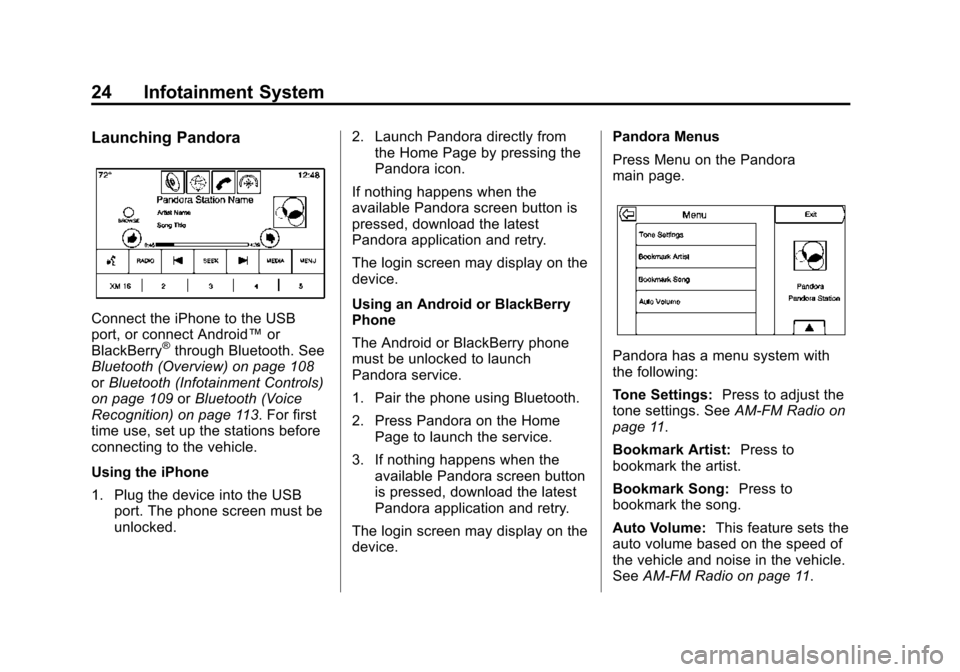
Launching Pandora
Connect the iPhone to the USB
port, or connect Android™or
BlackBerry
®through Bluetooth. See
Bluetooth (Overview) on page 108
or Bluetooth (Infotainment Controls)
on page 109 orBluetooth (Voice
Recognition) on page 113. For first
time use, set up the stations before
connecting to the vehicle.
Using the iPhone
1. Plug the device into the USB port. The phone screen must be
unlocked. 2. Launch Pandora directly from
the Home Page by pressing the
Pandora icon.
If nothing happens when the
available Pandora screen button is
pressed, download the latest
Pandora application and retry.
The login screen may display on the
device.
Using an Android or BlackBerry
Phone
The Android or BlackBerry phone
must be unlocked to launch
Pandora service.
1. Pair the phone using Bluetooth.
2. Press Pandora on the Home Page to launch the service.
3. If nothing happens when the available Pandora screen button
is pressed, download the latest
Pandora application and retry.
The login screen may display on the
device. Pandora Menus
Press Menu on the Pandora
main page.Pandora has a menu system with
the following:
Tone Settings:
Press to adjust the
tone settings. See AM-FM Radio on
page 11.
Bookmark Artist: Press to
bookmark the artist.
Bookmark Song: Press to
bookmark the song.
Auto Volume: This feature sets the
auto volume based on the speed of
the vehicle and noise in the vehicle.
See AM-FM Radio on page 11.
Page 26 of 138
Black plate (26,1)Cadillac CUE Infotainment System (GMNA-Localizing-U.S./Canada-
7639728) - 2015 - CRC - 9/3/14
26 Infotainment System
.Have at least one station
created.
.For Android and BlackBerry
devices, check that the device is
paired with the vehicle, and
whether the device displays in
the Connected phone sources
list under the Phone icon from
the Home Page.
.For an iPhone, check that the
USB cable is connected to the
USB port and the screen is
unlocked.
.Close Pandora on the device
and launch again. Devices that
allow multitasking may require
an extra step to quit the Pandora
application. See the cell phone
manufacturer's user guide.
Thumbs Up or Thumbs Down
Error
If there is an error trying to rate a
track with the
,or-buttons, the
message “Thumbs Down Error” or
“Thumbs Up Error” will display.
Press OK to dismiss. Loss of Audio
Loss of Pandora audio can happen
in different ways:
.Weak or lost data connection.
.Device needs to be charged.
.Application needs to be
relaunched.
.Connection between phone and
radio was lost.
.An iPhone is connected to both
Bluetooth and the USB port.
If there is a loss of audio, playback
can be resumed by changing the
audio flow from Bluetooth to USB
cable.
To change the audio flow:
1. While the iPhone is connected, double tap the phone’s home
button.
2. Swipe a finger to the left on the phone’s screen display. A box
with a triangle displays on the
lower line of the box that is highlighted. Press this box to
display the dock connector
option.
3. Select Dock Connector.
Common Pandora Messages
Pandora Error/Please Check
Device: Not signed in or Pandora
is down for maintenance.
No Stations Available: No stations
are available on the Pandora server
through the connected device.
No Internet Connection: A few
reasons for loss of Internet
connection are:
.The connected device loses its
cellular connection.
.The device does not support
Internet connectivity.
.The device is not in the vehicle.
No Bluetooth Signal: The
Bluetooth signal is lost.
Page 37 of 138
Black plate (37,1)Cadillac CUE Infotainment System (GMNA-Localizing-U.S./Canada-
7639728) - 2015 - CRC - 9/3/14
Infotainment System 37
the power button on the remote
to turn the system on. The
system can also be turned on
from the front infotainment
system by pressing the Video
icon on the Home Page.
Push the video screen into its
locked position when it is not in use.
The screen turns off automatically.
The audio may continue with the
screens down. This allows listening
to music without the screen on. To
turn the audio off, press the power
button on the remote or on the front
infotainment Video page.
{Caution
Avoid directly touching the video
screen, as damage may occur.
Sources
Sources, if equipped, include AM,
FM, BD, XM (if equipped), AUX,
Photos, CD/DVD/Blu-ray, USB, and
SD card.
Menus and Features
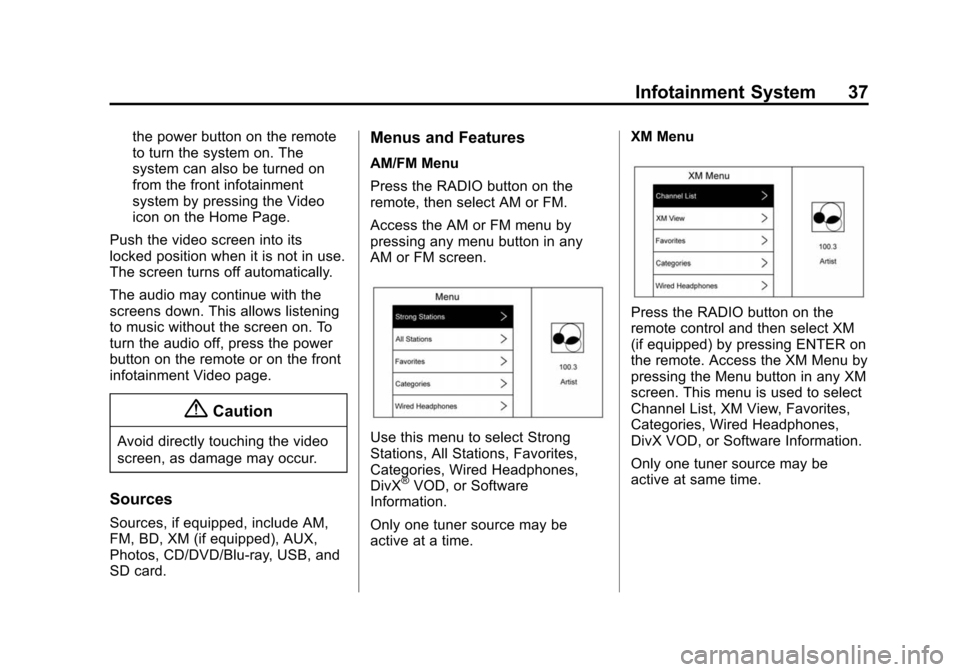
AM/FM Menu
Press the RADIO button on the
remote, then select AM or FM.
Access the AM or FM menu by
pressing any menu button in any
AM or FM screen.
Use this menu to select Strong
Stations, All Stations, Favorites,
Categories, Wired Headphones,
DivX
®VOD, or Software
Information.
Only one tuner source may be
active at a time. XM Menu
Press the RADIO button on the
remote control and then select XM
(if equipped) by pressing ENTER on
the remote. Access the XM Menu by
pressing the Menu button in any XM
screen. This menu is used to select
Channel List, XM View, Favorites,
Categories, Wired Headphones,
DivX VOD, or Software Information.
Only one tuner source may be
active at same time.
Page 53 of 138
Black plate (53,1)Cadillac CUE Infotainment System (GMNA-Localizing-U.S./Canada-
7639728) - 2015 - CRC - 9/3/14
Infotainment System 53
8.o(Previous/Reverse/Decrease)
.Radio and CD: Press to go
to the previous station or
track.
.Press to go to the
previous menu.
.Press to decrease the
brightness of the RSE
screen.
9.
w(Up Arrow)
.Press to scroll up a list.
10.
r/ENTER
.Press to select the
highlighted choice in
any menu.
.Press and hold for
quick play.
11.
p(Next/Forward/Increase)
.Radio and CD: Press to
go to the next station or
track.
.Press to go to the
next menu.
.Press to increase the
brightness of the RSE
screen.
12. RADIO
.Press to scroll through the
radio sources including
AM, FM, or XM (if
equipped).
13. MENU
.Press to go to the menu of
the now playing screen.
14.
4(Back)
.Press to go back to the
previous menu.
.Press and hold to go back
to the now playing screen.
15.
x(Down Arrow)
.Press to go down a list. To use the remote control, aim it at
the transmitter window at either
seatback console or at the second
row overhead screen and press the
buttons firmly. Direct sunlight or very
bright light could affect the ability of
the RSE transmitter to receive
signals from the remote control.
Check the batteries if the remote
control does not seem to be
working. See
“Battery Replacement”
later in this section. Objects
blocking the line of sight could also
affect the function of the remote
control.
{Caution
Storing the remote control in a hot
area or in direct sunlight can
damage it, and the repairs will not
be covered by the warranty.
Storage in extreme cold can
weaken the batteries. Keep the
remote control stored in a cool,
dry place.
Page 57 of 138

Black plate (57,1)Cadillac CUE Infotainment System (GMNA-Localizing-U.S./Canada-
7639728) - 2015 - CRC - 9/3/14
Infotainment System 57
player automatically draws
the disc in,“Loading”
displays on the screen
along with a disc indicator,
and playback starts. If the
disc is inserted incorrectly,
the DVD player ejects the
disc and “No Disc” displays.
3. Lever Lock and Release Latch
.The viewing angle of the
video screen can be
adjusted by releasing the
latch and gently moving the
screen. Then lock it into a
secure position.
4. POWER
O
.Press to turn the power on
or off. Each video screen
can be powered on or off
independently.
5. SOURCE
.Press to select between
Monitor 3, Monitor 4, or the
AV INPUT. Each video
display screen can be
adjusted independently, as well as display information
from both DVD players and
both A/V inputs.
6. USB Port
.Connect the USB drive to
listen to music or view
pictures. To charge devices,
connect it to the USB port.
Not all devices are able to
be charged. For playback,
the formats available are:
‐ JPEG
‐ JPG
‐ M2V
‐ MP3
‐ MPE
‐ MPEG-1
‐ MPEG-2
‐ MPG
‐ OGG
‐ WMA 7. Video Input
.The yellow connector is
used for video input.
8. Left Audio Input
.The white connector is
used for the left side audio.
9. Right Audio Input
.The red connector is used
for the right side audio.
10. 3.5 mm (1/8 in) Output Jack
.Wired headphones can be
plugged in with a 3.5 mm
(1/8 in) jack.
11. PLAY
r
.Press this button located
below the video display
screen to start playback of
a disc. On DVDs and
video CDs with playback
control (PBC), menu
screens can display
automatically. It might be
necessary to press the
play button again to begin
Page 58 of 138
Black plate (58,1)Cadillac CUE Infotainment System (GMNA-Localizing-U.S./Canada-
7639728) - 2015 - CRC - 9/3/14
58 Infotainment System
play. There is a play
position memory feature
for DVD and video CD
only. If the DVD player is
turned off and then turned
back on, the DVD player
resumes playback where
the disc stopped. The play
position memory is erased
if the disc is removed.
12. STOP
c
.Press once to stop playing
a DVD.
There is a pre-stop feature
for DVD and video CD
only. This feature resumes
playback of the disc where
it was stopped. Press the
stop button once during
disc playback and
c
displays on the DVD
startup screen. This icon
disappears after a few
seconds. Press the stop
button a second time,
or eject the disc, to cancel the pre-stop feature and to
clear the disc position
memory.
13. EJECT
X
.Press to eject a disc from
the DVD slot.
If a disc is ejected from
the player, but not
removed, it will
automatically reload into
the player. Another way to
reload a disc that has
been ejected, but not
removed from the DVD
player, is to press the
eject button or the play
button.
Infrared Remote Sensor: Located
in the top center of the video display
screen. Do not block the signal from
the remote to the sensor.
Infrared Transmitters: Located in
the top center of the video display
screen. Do not block the signal from
the headphones to the transmitter.
Using the RSE On-Screen
Display (OSD) Menus
Use the OSD setup display
menus for:
.General Setup
.Audio Setup
.Quality Setup
.Preference Setup
To use the OSD menus while using
the DVD player or an auxiliary
device:
1. Press the SETUP button on the remote control to display the
icons and pages on the display
screen.
2. Select the desired page by using the left/right navigation arrows to
move the cursor.
3. Press the SETUP button again on the remote control to cancel
use of the setup display.
Page 63 of 138
Black plate (63,1)Cadillac CUE Infotainment System (GMNA-Localizing-U.S./Canada-
7639728) - 2015 - CRC - 9/3/14
Infotainment System 63
Objects blocking the line of sight
can affect the function of the remote
control. Direct or very bright light
can affect the ability of the
transmitter to receive signals from
the remote control. If the remote
control does not seem to be
working, the batteries might need to
be replaced. See“Battery
Replacement” following this section.
The remote control provided with
the Headrest DVD RSE system is
not a universal remote control and
will not control other equipment.
{Caution
Storing the remote control in a hot
area or in direct sunlight can
damage it, and the repairs will not
be covered by the warranty.
Storage in extreme cold can
weaken the batteries. Keep the
remote control stored in a cool,
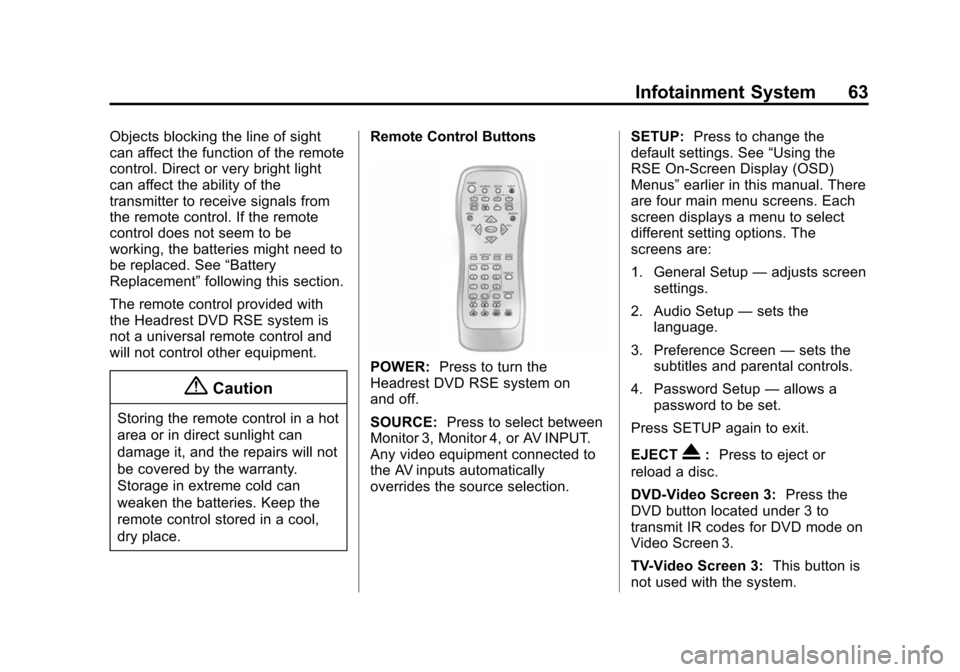
dry place. Remote Control Buttons
POWER:
Press to turn the
Headrest DVD RSE system on
and off.
SOURCE: Press to select between
Monitor 3, Monitor 4, or AV INPUT.
Any video equipment connected to
the AV inputs automatically
overrides the source selection. SETUP:
Press to change the
default settings. See “Using the
RSE On-Screen Display (OSD)
Menus” earlier in this manual. There
are four main menu screens. Each
screen displays a menu to select
different setting options. The
screens are:
1. General Setup —adjusts screen
settings.
2. Audio Setup —sets the
language.
3. Preference Screen —sets the
subtitles and parental controls.
4. Password Setup —allows a
password to be set.
Press SETUP again to exit.
EJECT
X: Press to eject or
reload a disc.
DVD-Video Screen 3: Press the
DVD button located under 3 to
transmit IR codes for DVD mode on
Video Screen 3.
TV-Video Screen 3: This button is
not used with the system.
Page 67 of 138
Black plate (67,1)Cadillac CUE Infotainment System (GMNA-Localizing-U.S./Canada-
7639728) - 2015 - CRC - 9/3/14
Infotainment System 67
.Shuffle—Play the songs in
random order, from within the
selected folder.
Using the REPEAT Feature
REPEAT: Press to change between
Repeat One and Repeat Folder.
.Repeat One —Repeats the
song that is playing.
.Repeat Folder —Repeats the
folder that is playing.
Tips and Troubleshooting
IR Sensor Inoperative: Check that
the batteries are good in the remote
control. Check that the remote
Control IR Sensor is not blocked.
Aim the remote control toward the
IR Sensor being controlled. Select
the correct screen, 3 or 4.
No picture: Check that the correct
video input mode is selected. Check
that the video cable is plugged into
the jack securely. No Sound:
Check that the correct
audio input mode is selected. Check
that the audio cable is securely
plugged into the jack.
Cleaning the Video Screens
The video display screens are made
of a specially coated glass and can
be scratched or damaged by
abrasive products, solvents,
or ammonia-based window
cleaners. Clean with a soft, lint-free,
cotton cloth that has been slightly
dampened with warm water. Dry the
screens by wiping with a clean dry
cotton cloth.
Cleaning the Components
Use care when touching or cleaning
the components such as the DVD
player or the discs.
Do not use DVD lens cleaners for
DVD players because the lens of
the DVD optics can become
contaminated by lubricants. Handle CDs and DVDs carefully.
Store them in their original cases or
other protective cases and away
from direct sunlight and dust. The
DVD player scans the bottom
surface of the disc. If the surface of
a CD or DVD is damaged, such as
cracked, broken, or scratched, the
CD or DVD may not play properly or
not at all. If the surface of a CD or
DVD is soiled, take a soft, lint free
cloth or dampen a clean, soft cloth
in a mild, neutral detergent solution
mixed with water, and clean it. Make
sure the wiping process starts from
the center to the edge.
Do not touch the bottom side of a
CD or DVD while handling it; this
could damage the surface. Pick up
CDs or DVDs by grasping the outer
edges or the edge of the hole and
the outer edge.
Page 75 of 138
Black plate (75,1)Cadillac CUE Infotainment System (GMNA-Localizing-U.S./Canada-
7639728) - 2015 - CRC - 9/3/14
Infotainment System 75
.To exit out of a list, press the
EXIT screen button in the top
right corner of the map to return
to the main map view.
Upload Saved Locations: Press to
upload any saved locations such as
downloaded POIs and all entries in
the vehicle address book to the
USB device.
.Press Upload Saved Locations
to save the Vehicle Contacts list
and any My POIs that have been
saved to the vehicle.
.Once saved locations have been
uploaded to a USB, they can be
transferred to a different vehicle
or restored to the current
address book.
Map Adjustments
ZOOM −/+ can be used to adjust
the scale of view on the map. When
the end of the zoom level is
reached, ZOOM −/+ will gray out. Use the pinch/spread hand gesture
to zoom the scale of view on
the map.
.ZOOM
−(minus): Pinch fingers
together to zoom out.
.ZOOM + (plus): Spread fingers
apart to zoom in.
The zoom scales can be configured
for English or metric units. To
change from English to metric, see
“Instrument Cluster” in the owner
manual.
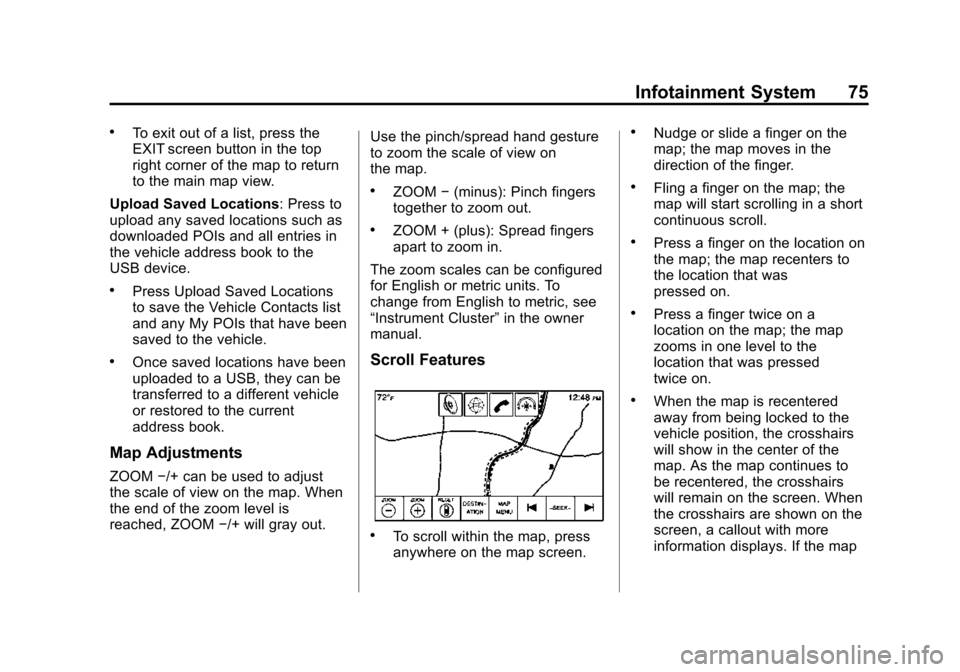
Scroll Features
.To scroll within the map, press
anywhere on the map screen.
.Nudge or slide a finger on the
map; the map moves in the
direction of the finger.
.Fling a finger on the map; the
map will start scrolling in a short
continuous scroll.
.Press a finger on the location on
the map; the map recenters to
the location that was
pressed on.
.Press a finger twice on a
location on the map; the map
zooms in one level to the
location that was pressed
twice on.
.When the map is recentered
away from being locked to the
vehicle position, the crosshairs
will show in the center of the
map. As the map continues to
be recentered, the crosshairs
will remain on the screen. When
the crosshairs are shown on the
screen, a callout with more
information displays. If the map
Page 118 of 138
Black plate (118,1)Cadillac CUE Infotainment System (GMNA-Localizing-U.S./Canada-
7639728) - 2015 - CRC - 9/3/14
118 Infotainment System
Settings
The Settings menu allows
adjustment of different vehicle and
radio features. The menu may
contain the following:
Time and Date
See“Clock” in the owner manual.
Language
This will set the display language in
the radio, instrument cluster, and
voice recognition. Press Language
and select the appropriate
language. Press the
[Back screen
button to go back to the
previous menu.
Valet Mode (If Equipped)
This will lock the infotainment
system and steering wheel controls.
It may also limit top speed, power,
and access to vehicle storage
locations (if equipped). To enable valet mode:
1. Enter a four-digit code on the
keypad.
2. Press Enter to go to the confirmation screen.
3. Re-enter the four-digit code.
Press LOCK or UNLOCK to lock or
unlock the system. Press
[Back to
go back to the previous menu.
Radio
Press to display the Radio Menu
and the following may display:
.Manage Favorites: Press a
displayed Favorite to select that
favorite to edit. Press Rename to
rename the favorite or Delete to
delete it. Press and hold the
station to drag it to a new
location. Press Done to go back
to the previous menu.
.Number of Favorites Shown:
Press to set the number of
favorites to display. Select Auto,
5, 10, 15, 20, 25, 30, 35, 40,
45, 50, 55, or 60. Auto will automatically add or hide
additional Favorite pages based
on the number of Favorites
stored. Press the
[Back screen
button to go back to the
previous menu.
.Auto Volume: If equipped, this
feature adjusts the volume
based on the vehicle speed. See
AM-FM Radio on page 11.
.Bose AudioPilot Noise
Compensation Technology:
If equipped, this feature adjusts
the volume based on the noise
in the vehicle. See AM-FM
Radio on page 11.
.Maximum Startup Volume: This
feature sets the maximum
startup volume. If the vehicle is
started and the volume is
greater than this level, the
volume is adjusted to this level.
To set the maximum startup
volume, press + or −to increase
or decrease. Press the
[Back
screen button to go back to the
previous menu.