seat CADILLAC ATS 2016 1.G CUE Manual
[x] Cancel search | Manufacturer: CADILLAC, Model Year: 2016, Model line: ATS, Model: CADILLAC ATS 2016 1.GPages: 94, PDF Size: 0.96 MB
Page 2 of 94

Cadillac CUE Infotainment System (GMNA-Localizing-MidEast-9369286) -
2016 - crc - 5/14/15
ContentsIntroduction . . . . . . . . . . . . . . . . . .2
Radio . . . . . . . . . . . . . . . . . . . . . . .10
Audio Players . . . . . . . . . . . . . .15
Rear Seat Infotainment . . . .23
Navigation . . . . . . . . . . . . . . . . . .53
Phone . . . . . . . . . . . . . . . . . . . . . .72
Settings . . . . . . . . . . . . . . . . . . . .78
Trademarks and LicenseAgreements . . . . . . . . . . . . . . .
81
Index . . . . . . . . . . . . . . . . . . . . . 91
Page 4 of 94
Cadillac CUE Infotainment System (GMNA-Localizing-MidEast-9369286) -
2016 - crc - 5/14/15
Introduction 3
To play the infotainment system with
the ignition off, see“Retained
Accessory Power (RAP)” in the
owner manual.
Customer Assistance
Assistance may be available to help
with Bluetooth pairing, other mobile
device interface, and operation
support of the CUE infotainment
system. See your dealer.
Infotainment System
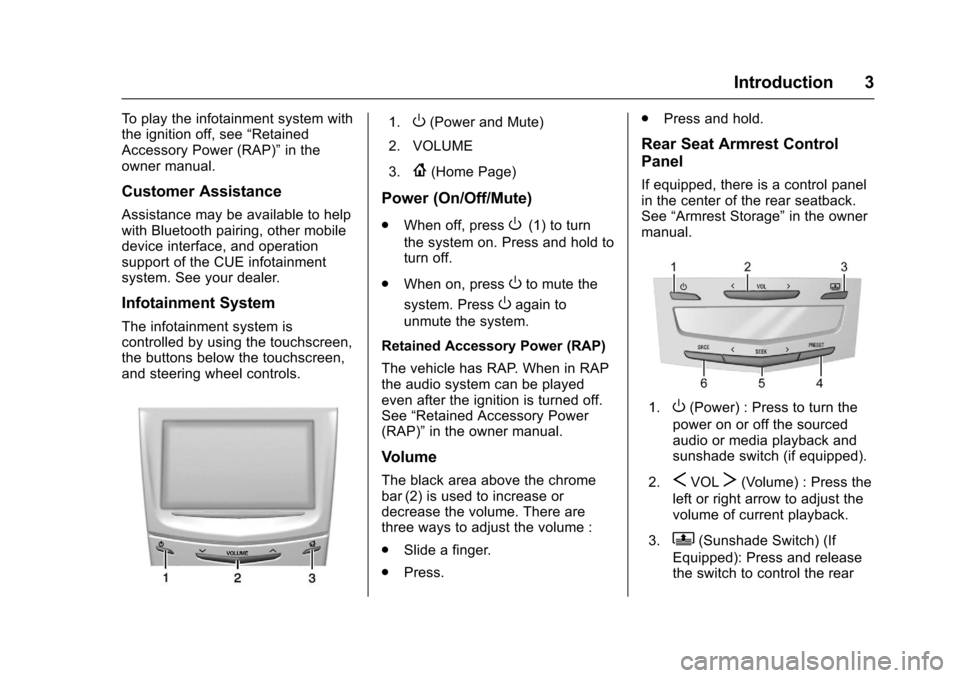
The infotainment system is
controlled by using the touchscreen,
the buttons below the touchscreen,
and steering wheel controls.
1.O(Power and Mute)
2. VOLUME
3.
{(Home Page)
Power (On/Off/Mute)
. When off, pressO(1) to turn
the system on. Press and hold to
turn off.
. When on, press
Oto mute the
system. Press
Oagain to
unmute the system.
Retained Accessory Power (RAP)
The vehicle has RAP. When in RAP
the audio system can be played
even after the ignition is turned off.
See “Retained Accessory Power
(RAP)” in the owner manual.
Volume
The black area above the chrome
bar (2) is used to increase or
decrease the volume. There are
three ways to adjust the volume :
.
Slide a finger.
. Press. .
Press and hold.
Rear Seat Armrest Control
Panel
If equipped, there is a control panel
in the center of the rear seatback.
See “Armrest Storage” in the owner
manual.
1.O(Power) : Press to turn the
power on or off the sourced
audio or media playback and
sunshade switch (if equipped).
2.
SVOLT(Volume) : Press the
left or right arrow to adjust the
volume of current playback.
3.
Q(Sunshade Switch) (If
Equipped): Press and release
the switch to control the rear
Page 7 of 94
Cadillac CUE Infotainment System (GMNA-Localizing-MidEast-9369286) -
2016 - crc - 5/14/15
6 Introduction
Video (If Equipped)
Touch the VIDEO icon to display the
video Rear Seat Entertainment main
page. SeeRear Seat Entertainment
(RSE) System 023 orRear Seat
Entertainment (RSE) System
(Platinum) 040.
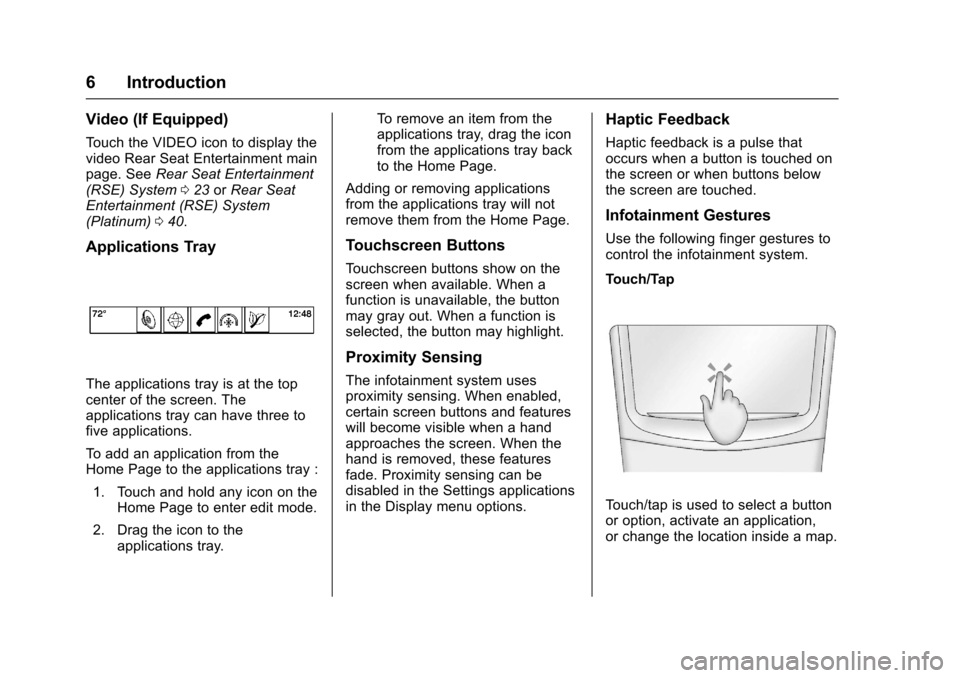
Applications Tray
The applications tray is at the top
center of the screen. The
applications tray can have three to
five applications.
To add an application from the
Home Page to the applications tray :
1. Touch and hold any icon on the Home Page to enter edit mode.
2. Drag the icon to the applications tray. To remove an item from the
applications tray, drag the icon
from the applications tray back
to the Home Page.
Adding or removing applications
from the applications tray will not
remove them from the Home Page.
Touchscreen Buttons
Touchscreen buttons show on the
screen when available. When a
function is unavailable, the button
may gray out. When a function is
selected, the button may highlight.
Proximity Sensing
The infotainment system uses
proximity sensing. When enabled,
certain screen buttons and features
will become visible when a hand
approaches the screen. When the
hand is removed, these features
fade. Proximity sensing can be
disabled in the Settings applications
in the Display menu options.
Haptic Feedback
Haptic feedback is a pulse that
occurs when a button is touched on
the screen or when buttons below
the screen are touched.
Infotainment Gestures
Use the following finger gestures to
control the infotainment system.
Touch/Tap
Touch/tap is used to select a button
or option, activate an application,
or change the location inside a map.
Page 11 of 94
Cadillac CUE Infotainment System (GMNA-Localizing-MidEast-9369286) -
2016 - crc - 5/14/15
10 Radio
Radio
AM-FM Radio
Playing the Radio
While on the audio main page the
available sources are : AM, FM, CD,
My Media, USB, SD, Bluetooth, and
AUX Input.
.Touch the RADIO screen button
to scroll through AM or FM.
. Touch the MEDIA screen button
to scroll through CD (if
equipped), My Media, USB, SD,
Bluetooth, and Aux Input.
Infotainment System Settings
Touch the RADIO screen button to
access broadcast sources.
Touch the MENU screen button to
display the following menus :
Tone Settings:
.Bass, Midrange, Treble,
Surround (if equipped): Touch +
or−to adjust. Surround adjusts
the headrest speaker
volume only. .
Balance: Touch
SorTfor more
sound from the left or right
speakers. The middle position
balances the sound between the
left and right speakers.
. Fade: Touch
yorzfor more
sound from the front or rear
speakers. The middle position
balances the sound between the
front and rear speakers.
Timeshift (If Equipped) : Timeshift
is the recording of a radio station for
up to 25 minutes. See “Timeshifting”
later in this section.
DSP Modes (If Equipped) :
. Bose
®Studio Surround®and
Bose Centerpoint®Surround
sound system has four DSP
modes :
. Normal : Adjusts the audio to
provide the best sound for all
seating positions.
. Driver : Adjusts the audio to
provide the best sound for
the driver. .
Rear : Adjusts the audio to
provide the best sound for
the rear seat occupants.
. Centerpoint : Turns on Bose
Centerpoint Surround
technology. This setting
creates a surround sound
listening experience from
nearly any audio source;
existing stereo, CD
collection, satellite radio, and
MP3 players. For more
information on Bose
Centerpoint Surround
technology, see
www.bose.com/centerpoint.
Auto Volume (If Equipped) : This
feature adjusts the volume based on
vehicle speed. The options are off,
low, medium - low, medium, medium
- high, or high. Touch
[Back to go
back to the previous menu.
Bose AudioPilot noise
compensation technology (If
Equipped) : This feature adjusts
the volume based on the noise in
the vehicle and speed. When turned
ON, AudioPilot technology detects
ambient noise and vehicle speed to
Page 18 of 94
Cadillac CUE Infotainment System (GMNA-Localizing-MidEast-9369286) -
2016 - crc - 5/14/15
Audio Players 17
files contained directly under the
root directory are accessed prior to
any root directory folders.
No Folder :When the CD only
contains compressed audio files
without any folders or playlists, all
files are under the root folder.
File System and Naming : The
song titles, artists, albums, and
genres are taken from the file's ID3
tag and are only displayed if present
in the tag. If a song title is not
present in the ID3 tag, the radio
displays the file name as the
track name.
USB Port
Audio from videos stored on SD/
USB cards may be listened to while
the vehicle is in a forward gear.
Videos can be watched while the
vehicle is in P (Park). Use play/
pause or next/previous to control
the video or touch in the browse to
display a list of the current video
filters.
This vehicle may have two SD card
readers and three USB ports: one
SD card reader and one USB port in the center console, one USB port in
the storage behind the climate
control system, and if equipped with
Rear Seat Entertainment (RSE),
there may be one SD card reader
and one USB port in the rear media
console storage area.
Playing from a USB
A USB mass storage device can be
connected to the USB port.
Audio extensions supported by the
USB are :
.
MP3
. WMA
. AAC
. OGG
. AIFF
. 3GPP
My Media Library
The infotainment system allows
access to content from all of the
connected devices. Touch the
MEDIA screen button to scroll
through the options until My Media is selected. Touch anywhere in the
center area of the screen to browse
the content.
USB MP3 Player and USB Drives
The USB MP3 players and USB
drives connected must comply with
the USB Mass Storage Class
specification (USB MSC).
To play a USB device :
1. Connect the USB.
2. Touch MEDIA until the connected device is shown.
Use the following when playing an
active USB source:
r(Play) : Touch to play the current
media source.
j(Pause) : Touch to pause play of
the current media source.
t(Previous/Reverse) :
. Touch to seek to the beginning
of the current or previous track.
If the track has been playing for
less than 10 seconds, the
previous track plays. If playing
longer than five seconds, the
current track restarts.
Page 22 of 94
Cadillac CUE Infotainment System (GMNA-Localizing-MidEast-9369286) -
2016 - crc - 5/14/15
Audio Players 21
SD Card Reader
If equipped, this vehicle may have
two SD card readers : one in the
center console and one in the rear
media console storage area,
if equipped with Rear Seat
Entertainment (RSE).
The SD card reader is for audio and
video playback and uses the same
controls as the USB port. Playback
from an SD card follows the same
file formats and restrictions defined
underUSB Port 017. Not all
formats are supported.
Set up the SD card while the vehicle
is in P (Park). See “Audio”under
Introduction 02.
Place the card into the port.
If an SD card has already been
connected, but a different source is
currently active, touch the MEDIA
screen button to scroll through the
audio source screens until SD card
displays.
Auxiliary Jack
This vehicle has an auxiliary input
jack in the center console under the
armrest and in the rear media
console, if equipped with Rear Seat
Entertainment (RSE). Possible
auxiliary audio sources include :
. Laptop computer
. Audio music player
This jack is not an audio output. Do
not plug headphones into the
auxiliary input jack. Set up an
auxiliary device while the vehicle is
in P (Park).
Connect a 3.5 mm (1/8 in) cable
from the auxiliary device to the
auxiliary input jack. When a device
is connected, the system can play
audio from the device over the
vehicle speakers.
If an auxiliary device has already
been connected, but a different
source is currently active, touch the
MEDIA screen button to scroll
through audio source screens, until
the AUX Input source screen
displays.
Bluetooth Audio
If equipped, music may be played
from a paired Bluetooth device. See
Bluetooth (Overview) 072 or
Bluetooth (Infotainment Controls)
0 73 for help pairing a device.
Volume and song selection may be
controlled by using the infotainment
controls or on the phone/device.
If Bluetooth Audio is selected and
no volume is present, check the
volume setting on both your phone/
device and the infotainment system.
Music can be launched by touching
the MEDIA screen button on the
Home Page.
To play music via Bluetooth : 1. Power on the device, and pair to connect the device.
2. Once paired, go into the audio application from the Home
Page or via the applications
tray. Select MEDIA until
Bluetooth displays.
Page 24 of 94
Cadillac CUE Infotainment System (GMNA-Localizing-MidEast-9369286) -
2016 - crc - 5/14/15
Rear Seat Infotainment 23
Rear Seat
Infotainment
Rear Seat Entertainment
(RSE) System
If equipped, the system includes a
Blu-ray/DVD/CD player, USB, SD,
audio/video jacks, wireless
headphones, and a remote control.
The remote control is used to select
the same or a different source for
each screen from the rear seats.
Video can be viewed from the front
by pressing the Video screen icon,
if the vehicle is in P (Park). Audio
will be heard over the speakers.
If another screen icon is selected,
the video on the rear screen will
continue to play but the audio on the
speakers will change to the source
selected.
To resume play of the video where it
left off, Pseudo Resume must be
on. See“Player Setup BD/DVD"
later in this section. The RSE system may not operate
properly until the temperature is
above
−20 °C (−4 °F) and below 55 °
C (131 °F).
System Operation
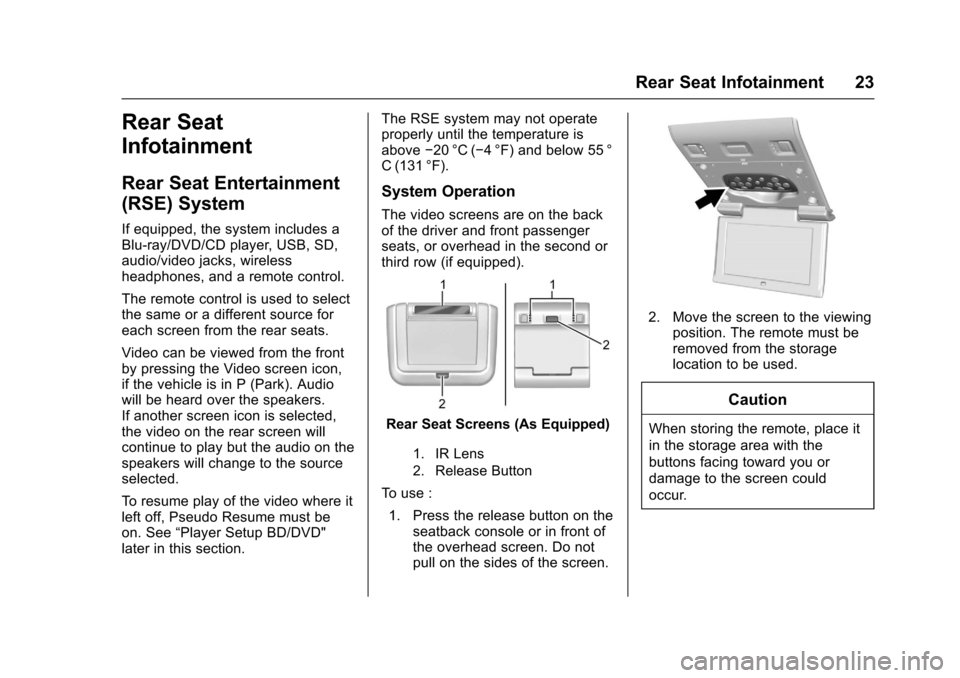
The video screens are on the back
of the driver and front passenger
seats, or overhead in the second or
third row (if equipped).
Rear Seat Screens (As Equipped)
1. IR Lens
2. Release Button
To use :
1. Press the release button on the seatback console or in front of
the overhead screen. Do not
pull on the sides of the screen.
2. Move the screen to the viewingposition. The remote must be
removed from the storage
location to be used.
Caution
When storing the remote, place it
in the storage area with the
buttons facing toward you or
damage to the screen could
occur.
Page 25 of 94
Cadillac CUE Infotainment System (GMNA-Localizing-MidEast-9369286) -
2016 - crc - 5/14/15
24 Rear Seat Infotainment
3. Opening a screen will turn thesystem on. If the screens are
open with the system off, press
the power button on the remote
to turn the system on.
The system can also be turned
on from the front infotainment
system by pressing the Video
screen button. After selected,
another item can be selected
from the Home Page and the
video and audio will continue to
play in the rear.
Push the video screen into its
locked position when it is not in use.
The screen turns off automatically.
The audio may continue with the
screens down. This allows listening
to music without the screen on. To
turn the audio off, press the power
button on the remote or on the front
infotainment Video screen.
Caution
Avoid directly touching the video
screen, as damage may occur.
Sources
Sources, if equipped, include AM,
FM, BD, AUX, Photos, CD/DVD/
Blu-ray, USB, and SD card.
Menus and Features
AM/FM Menu
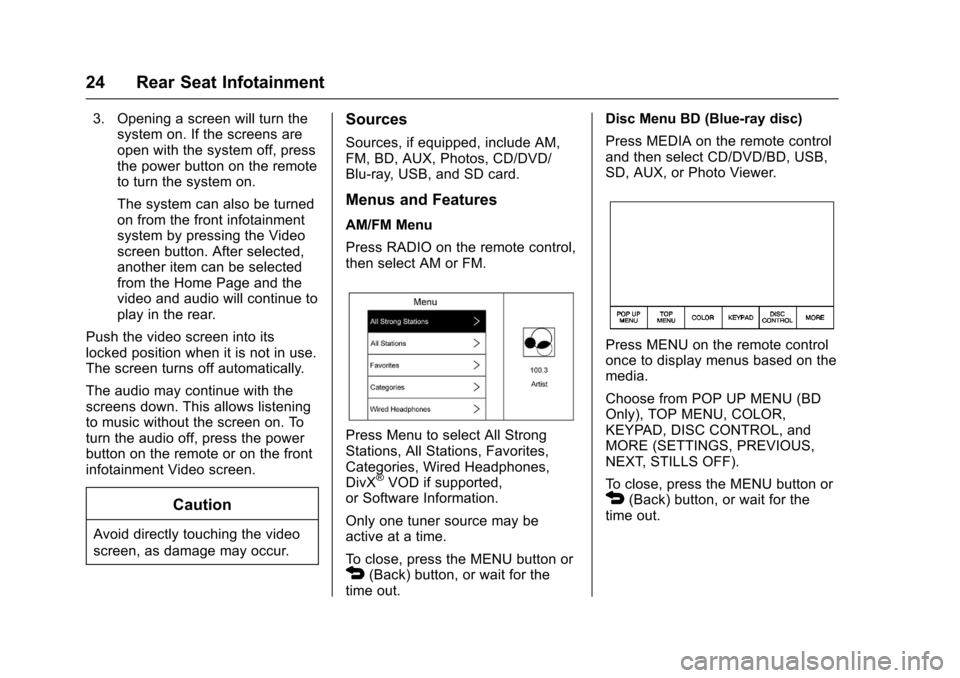
Press RADIO on the remote control,
then select AM or FM.
Press Menu to select All Strong
Stations, All Stations, Favorites,
Categories, Wired Headphones,
DivX
®VOD if supported,
or Software Information.
Only one tuner source may be
active at a time.
To close, press the MENU button or
4(Back) button, or wait for the
time out. Disc Menu BD (Blue-ray disc)
Press MEDIA on the remote control
and then select CD/DVD/BD, USB,
SD, AUX, or Photo Viewer.
Press MENU on the remote control
once to display menus based on the
media.
Choose from POP UP MENU (BD
Only), TOP MENU, COLOR,
KEYPAD, DISC CONTROL, and
MORE (SETTINGS, PREVIOUS,
NEXT, STILLS OFF).
To close, press the MENU button or
4(Back) button, or wait for the
time out.
Page 26 of 94
Cadillac CUE Infotainment System (GMNA-Localizing-MidEast-9369286) -
2016 - crc - 5/14/15
Rear Seat Infotainment 25
Disc Menu DVD
Press MENU on the remote control
once to select from TOP MENU,
KEYPAD, STOP DISC, PHOTO,
and SETTINGS.
To close, press MENU or
4(Back),
or wait for the time out.
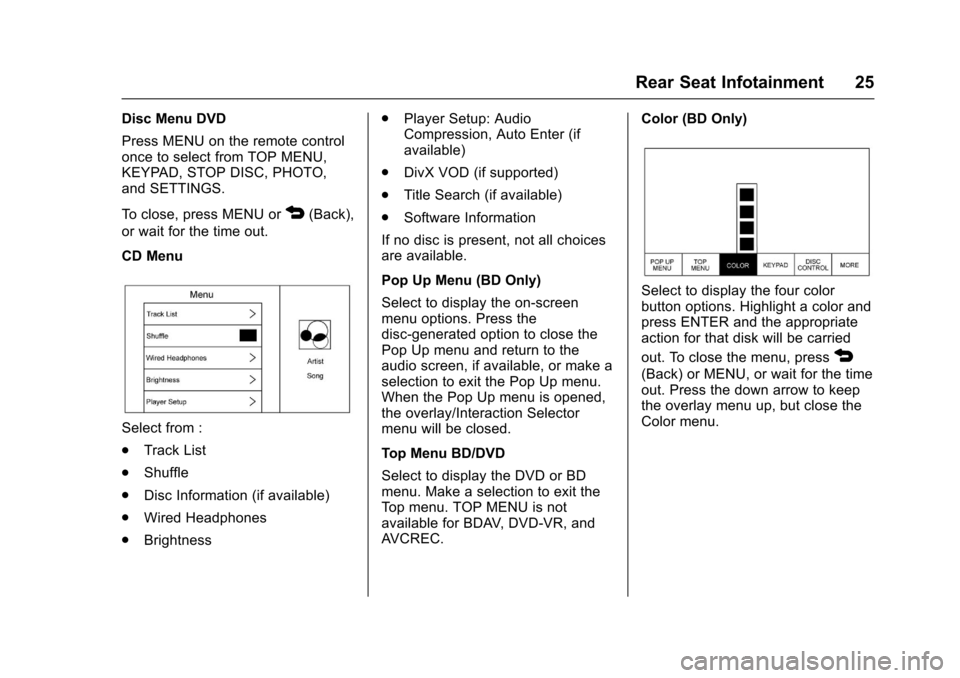
CD Menu
Select from :
. Track List
. Shuffle
. Disc Information (if available)
. Wired Headphones
. Brightness .
Player Setup: Audio
Compression, Auto Enter (if
available)
. DivX VOD (if supported)
. Title Search (if available)
. Software Information
If no disc is present, not all choices
are available.
Pop Up Menu (BD Only)
Select to display the on-screen
menu options. Press the
disc-generated option to close the
Pop Up menu and return to the
audio screen, if available, or make a
selection to exit the Pop Up menu.
When the Pop Up menu is opened,
the overlay/Interaction Selector
menu will be closed.
Top Menu BD/DVD
Select to display the DVD or BD
menu. Make a selection to exit the
Top menu. TOP MENU is not
available for BDAV, DVD-VR, and
AVCREC. Color (BD Only)
Select to display the four color
button options. Highlight a color and
press ENTER and the appropriate
action for that disk will be carried
out. To close the menu, press
4
(Back) or MENU, or wait for the time
out. Press the down arrow to keep
the overlay menu up, but close the
Color menu.
Page 27 of 94
Cadillac CUE Infotainment System (GMNA-Localizing-MidEast-9369286) -
2016 - crc - 5/14/15
26 Rear Seat Infotainment
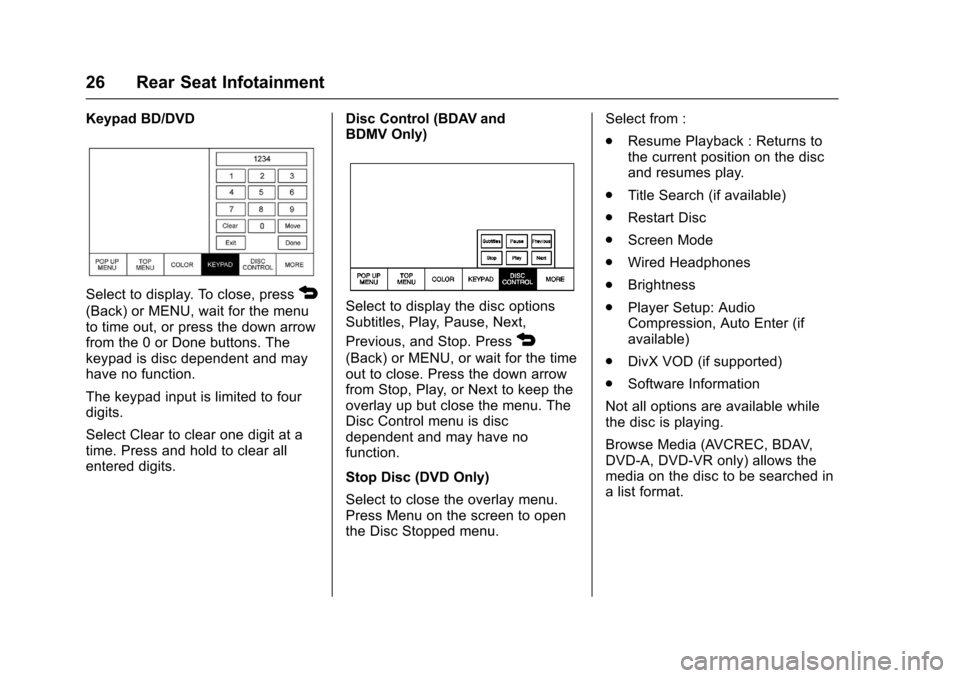
Keypad BD/DVD
Select to display. To close, press4
(Back) or MENU, wait for the menu
to time out, or press the down arrow
from the 0 or Done buttons. The
keypad is disc dependent and may
have no function.
The keypad input is limited to four
digits.
Select Clear to clear one digit at a
time. Press and hold to clear all
entered digits.Disc Control (BDAV and
BDMV Only)Select to display the disc options
Subtitles, Play, Pause, Next,
Previous, and Stop. Press
4
(Back) or MENU, or wait for the time
out to close. Press the down arrow
from Stop, Play, or Next to keep the
overlay up but close the menu. The
Disc Control menu is disc
dependent and may have no
function.
Stop Disc (DVD Only)
Select to close the overlay menu.
Press Menu on the screen to open
the Disc Stopped menu.Select from :
.
Resume Playback : Returns to
the current position on the disc
and resumes play.
. Title Search (if available)
. Restart Disc
. Screen Mode
. Wired Headphones
. Brightness
. Player Setup: Audio
Compression, Auto Enter (if
available)
. DivX VOD (if supported)
. Software Information
Not all options are available while
the disc is playing.
Browse Media (AVCREC, BDAV,
DVD-A, DVD-VR only) allows the
media on the disc to be searched in
a list format.