audio CADILLAC ATS SEDAN 2015 1.G User Guide
[x] Cancel search | Manufacturer: CADILLAC, Model Year: 2015, Model line: ATS SEDAN, Model: CADILLAC ATS SEDAN 2015 1.GPages: 443, PDF Size: 5.79 MB
Page 158 of 443
Black plate (45,1)Cadillac ATS Owner Manual (GMNA-Localizing-U.S./Canada/Mexico-
7707477) - 2015 - crc - 9/15/14
Instruments and Controls 5-45
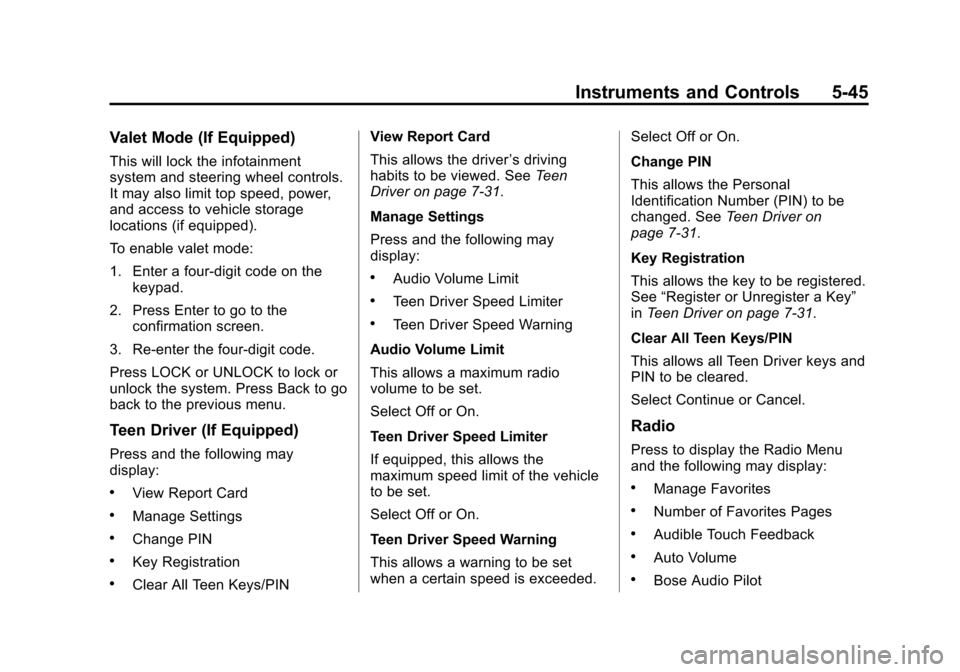
Valet Mode (If Equipped)
This will lock the infotainment
system and steering wheel controls.
It may also limit top speed, power,
and access to vehicle storage
locations (if equipped).
To enable valet mode:
1. Enter a four-digit code on thekeypad.
2. Press Enter to go to the confirmation screen.
3. Re-enter the four-digit code.
Press LOCK or UNLOCK to lock or
unlock the system. Press Back to go
back to the previous menu.
Teen Driver (If Equipped)
Press and the following may
display:
.View Report Card
.Manage Settings
.Change PIN
.Key Registration
.Clear All Teen Keys/PIN View Report Card
This allows the driver
’s driving
habits to be viewed. See Teen
Driver on page 7-31.
Manage Settings
Press and the following may
display:
.Audio Volume Limit
.Teen Driver Speed Limiter
.Teen Driver Speed Warning
Audio Volume Limit
This allows a maximum radio
volume to be set.
Select Off or On.
Teen Driver Speed Limiter
If equipped, this allows the
maximum speed limit of the vehicle
to be set.
Select Off or On.
Teen Driver Speed Warning
This allows a warning to be set
when a certain speed is exceeded. Select Off or On.
Change PIN
This allows the Personal
Identification Number (PIN) to be
changed. See
Teen Driver on
page 7-31.
Key Registration
This allows the key to be registered.
See “Register or Unregister a Key”
in Teen Driver on page 7-31.
Clear All Teen Keys/PIN
This allows all Teen Driver keys and
PIN to be cleared.
Select Continue or Cancel.
Radio
Press to display the Radio Menu
and the following may display:
.Manage Favorites
.Number of Favorites Pages
.Audible Touch Feedback
.Auto Volume
.Bose Audio Pilot
Page 159 of 443
Black plate (46,1)Cadillac ATS Owner Manual (GMNA-Localizing-U.S./Canada/Mexico-
7707477) - 2015 - crc - 9/15/14
5-46 Instruments and Controls
.Maximum Startup Volume
.Audio Cue Volume
Manage Favorites
This allows favorites to be edited.
Select a displayed Favorite to edit.
Select Rename to rename the
favorite or Delete to delete it.
Number of Favorites Pages
Select to set the number of favorites
to display.
Select the desired number or select
Auto and the infotainment system
will automatically adjust the number
of favorites shown.
Audible Touch Feedback
This allows Audible Touch
Feedback to be turned on or off.
Select Off or On.
Auto Volume
If equipped, this feature adjusts the
volume based on the vehicle speed. Bose Audio Pilot
This feature adjusts the volume
based on the noise in the vehicle.
See
“Bose AudioPilot Noise
Compensation Technology” under
“Infotainment System Settings” in
the infotainment manual.
Maximum Startup Volume
This feature sets the maximum
startup volume. If the vehicle is
started and the volume is greater
than this level, the volume is
adjusted to this level. To set the
maximum startup volume, select +
or −to increase or decrease.
Audio Cue Volume
If equipped, this feature adjusts the
startup and shutdown sounds. To
adjust the volume, select + or −to
increase or decrease.
Vehicle
Select and the following may
display:
.Climate and Air Quality
.Collision/Detection Systems
.Comfort and Convenience
.Lighting
.Power Door Locks
.Remote Lock, Unlock, Start
Climate and Air Quality
Select and the following may
display:
.Auto Fan Max Speed
.Auto Defog
.Auto Rear Defog
Auto Fan Max Speed
This feature will set the maximum
auto fan speed.
Select Low, Medium, or High.
Auto Defog
If equipped, this feature will
automatically turn on the rear defog.
Select Off or On.
Page 163 of 443
Black plate (50,1)Cadillac ATS Owner Manual (GMNA-Localizing-U.S./Canada/Mexico-
7707477) - 2015 - crc - 9/15/14
5-50 Instruments and Controls
Select Off, On with Horn
Chirp, or On.
Remote Left in Vehicle Alert
This feature sounds an alert when
the RKE transmitter is left in the
vehicle.
Select Off or On.
Bluetooth
Select and the following may
display:
.Pair New Device
.Device Management
.Ringtones
.Voice Mail Numbers
Pair New Device
Select to pair a new device. See
“Pairing” in“Infotainment Controls”
under Bluetooth (Infotainment
Controls) on page 7-22 orBluetooth
(Voice Recognition) on page 7-26 or
Bluetooth (Overview) on page 7-20 or
“Pairing” in“Infotainment
Controls” under“Bluetooth” in the
infotainment manual.
Device Management
Select to connect to a different
phone source, disconnect a phone,
or delete a phone.
Ringtones
Press to change the ring tone for
the specific phone. The phone does
not need to be connected to change
the ring.
Voice Mail Numbers
This feature displays the voice mail
number for all connected phones.
To change the voice mail number,
select EDIT or press the EDIT
button. Type in a new number, then
select SAVE or press the SAVE
button.
Voice
Select and the following may
display:
.Confidence Threshold
.Prompt Length
.Audio Feedback Speed
Confidence Threshold
This feature allows the adjustment
of the sensitivity of the speech
recognition system.
Select Confirm More or
Confirm Less.
Prompt Length
This feature adjusts the voice
prompt length.
Select Short or Long.
Audio Feedback Speed
This feature adjusts the audio
feedback speed.
Select Slow, Medium, or Fast.
Page 178 of 443
Black plate (1,1)Cadillac ATS Owner Manual (GMNA-Localizing-U.S./Canada/Mexico-
7707477) - 2015 - crc - 9/15/14
Infotainment System 7-1
Infotainment
System
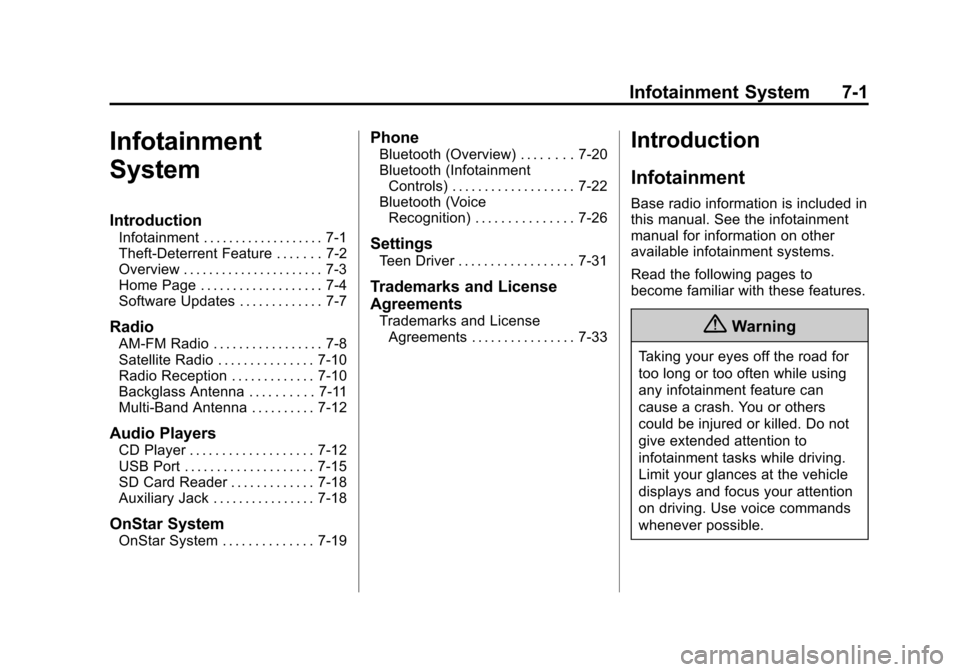
Introduction
Infotainment . . . . . . . . . . . . . . . . . . . 7-1
Theft-Deterrent Feature . . . . . . . 7-2
Overview . . . . . . . . . . . . . . . . . . . . . . 7-3
Home Page . . . . . . . . . . . . . . . . . . . 7-4
Software Updates . . . . . . . . . . . . . 7-7
Radio
AM-FM Radio . . . . . . . . . . . . . . . . . 7-8
Satellite Radio . . . . . . . . . . . . . . . 7-10
Radio Reception . . . . . . . . . . . . . 7-10
Backglass Antenna . . . . . . . . . . 7-11
Multi-Band Antenna . . . . . . . . . . 7-12
Audio Players
CD Player . . . . . . . . . . . . . . . . . . . 7-12
USB Port . . . . . . . . . . . . . . . . . . . . 7-15
SD Card Reader . . . . . . . . . . . . . 7-18
Auxiliary Jack . . . . . . . . . . . . . . . . 7-18
OnStar System
OnStar System . . . . . . . . . . . . . . 7-19
Phone
Bluetooth (Overview) . . . . . . . . 7-20
Bluetooth (InfotainmentControls) . . . . . . . . . . . . . . . . . . . 7-22
Bluetooth (Voice Recognition) . . . . . . . . . . . . . . . 7-26
Settings
Teen Driver . . . . . . . . . . . . . . . . . . 7-31
Trademarks and License
Agreements
Trademarks and License
Agreements . . . . . . . . . . . . . . . . 7-33
Introduction
Infotainment
Base radio information is included in
this manual. See the infotainment
manual for information on other
available infotainment systems.
Read the following pages to
become familiar with these features.
{Warning
Taking your eyes off the road for
too long or too often while using
any infotainment feature can
cause a crash. You or others
could be injured or killed. Do not
give extended attention to
infotainment tasks while driving.
Limit your glances at the vehicle
displays and focus your attention
on driving. Use voice commands
whenever possible.
Page 179 of 443
Black plate (2,1)Cadillac ATS Owner Manual (GMNA-Localizing-U.S./Canada/Mexico-
7707477) - 2015 - crc - 9/15/14
7-2 Infotainment System
The infotainment system has built-in
features intended to help avoid
distraction by disabling some
functions when driving. These
functions may gray out when they
are unavailable. Many infotainment
features are also available through
the instrument cluster and steering
wheel controls.
Before driving:
.Become familiar with the
operation, faceplate buttons, and
screen buttons.
.Set up the audio by presetting
favorite stations, setting the
tone, and adjusting the
speakers.
.Set up phone numbers in
advance so they can be called
easily by pressing a single
button or by using a single voice
command if equipped with
Bluetooth phone capability.
See Defensive Driving on page 9-3. To play the infotainment system with
the ignition off, see
Retained
Accessory Power (RAP) on
page 9-21.
Theft-Deterrent Feature
TheftLock®is designed to
discourage theft of the vehicle's
radio by learning a portion of the
Vehicle Identification Number (VIN).
The radio does not operate if it is
stolen or moved to a different
vehicle.
Page 180 of 443
Black plate (3,1)Cadillac ATS Owner Manual (GMNA-Localizing-U.S./Canada/Mexico-
7707477) - 2015 - crc - 9/15/14
Infotainment System 7-3
Overview
Infotainment System Overview
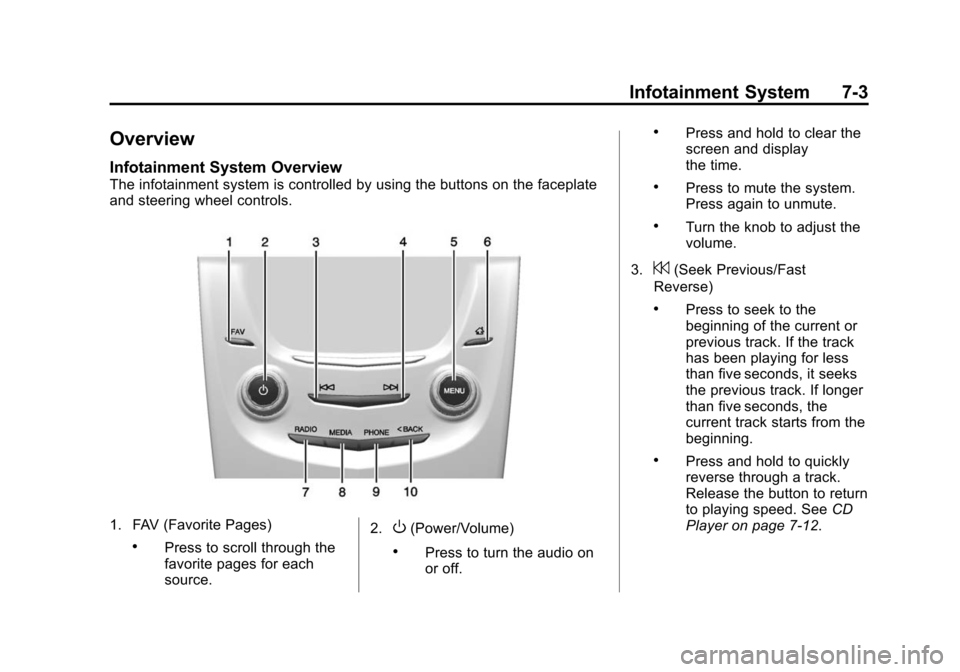
The infotainment system is controlled by using the buttons on the faceplate
and steering wheel controls.
1. FAV (Favorite Pages)
.Press to scroll through the
favorite pages for each
source.2.
O(Power/Volume)
.Press to turn the audio on
or off.
.Press and hold to clear the
screen and display
the time.
.Press to mute the system.
Press again to unmute.
.Turn the knob to adjust the
volume.
3.
7(Seek Previous/Fast
Reverse)
.Press to seek to the
beginning of the current or
previous track. If the track
has been playing for less
than five seconds, it seeks
the previous track. If longer
than five seconds, the
current track starts from the
beginning.
.Press and hold to quickly
reverse through a track.
Release the button to return
to playing speed. See CD
Player on page 7-12.
Page 181 of 443
Black plate (4,1)Cadillac ATS Owner Manual (GMNA-Localizing-U.S./Canada/Mexico-
7707477) - 2015 - crc - 9/15/14
7-4 Infotainment System
.For AM, FM, or SiriusXM®
(if equipped), press to seek
to the previous strong
station.
4.
6(Seek Next/Fast Forward)
.Press to seek the next
track.
.Press and hold to fast
forward through a track.
Release the button to return
to playing speed. See CD
Player on page 7-12.
.For AM, FM, or SiriusXM (if
equipped), press to seek to
the next strong station.
5. MENU
.Press to access the menu
for the current audio
source.
.Press to select the
highlighted menu option.
.Turn to scroll through a list.
6.
{(Home Page)
.See “Home Page” following.7. RADIO
.Press to change the audio
source between AM, FM,
or SiriusXM (if equipped).
8. MEDIA
.Press to change the audio
source between CD, USB,
SD Card, and AUX.
9. PHONE
.See Bluetooth (Infotainment
Controls) on page 7-22 or
Bluetooth (Voice
Recognition) on page 7-26
or Bluetooth (Overview) on
page 7-20.
10.
SBACK
.Press to return to the
previous screen in
a menu.
.On a page accessed
directly by a faceplate
button or Home Page
screen button, press
S
BACK to go to the
previous menu.
Home Page
Home Page Features
The infotainment system displays a
Home Page that makes it easy to
access all of the applications. Turn
the MENU knob to highlight feature
icons. Press the MENU knob to
access the feature’s options.
Various functions are disabled when
the vehicle is moving.
AUDIO: Select the AUDIO screen
icon to display the active source
page. The sources available are
AM, FM, SiriusXM
®(if equipped),
CD, USB/iPod, AUX, and SD Card.
See AM-FM Radio on page 7-8,
Satellite Radio on page 7-10, CD
Player on page 7-12, and Auxiliary
Jack on page 7-18.
PHONE: Select the PHONE screen
icon to display the PHONE main
page. See “PHONE”in this section.
Page 183 of 443
Black plate (6,1)Cadillac ATS Owner Manual (GMNA-Localizing-U.S./Canada/Mexico-
7707477) - 2015 - crc - 9/15/14
7-6 Infotainment System
.Press the area just above the
chrome bar and below the
DELETE screen button to delete
a favorite.
.While a station is highlighted,
press the MOVE screen button.
The screen button will change to
DROP. Turn the MENU knob and
the station tab will follow the
path to the desired location.
Press the area just above the
chrome bar and below the
DROP screen button to relocate
the station.
Number of Favorites Shown: To
set the number of favorites for
display, select Auto to automatically
adjust the number of Favorites
pages shown as Favorites are
added and removed. Another way to
adjust is to select a number from 5–
25 to show that selection of
favorites. Press
SBACK to go back
to the previous menu. Audible Touch Feedback:
Select
Audible Touch Feedback to turn
feedback Off or On. Press
SBACK
to go back to the previous menu.
Auto Volume (If Equipped): This
feature adjusts the volume based on
vehicle speed. The options are Off,
Low, Medium-Low, Medium,
Medium-High, or High. Select the
desired volume. Press
SBACK to
go back to the previous menu.
Bose
®AudioPilot®Noise
Compensation Technology (If
Equipped): While turned ON,
AutoPilot
®detects ambient noise
and vehicle speed to continuously
monitor and adjust many aspects of
the audio signal so that your music
will sound the same at a set volume
level.
The options are ON and OFF.
This feature is most effective at
lower radio volume settings where
background noise can affect how
well the music can be heard while
being played through your vehicle’s audio system. At higher volume
settings, where the music is much
louder than the background noise,
there may be little or no adjustments
by AudioPilot
®.
For more information on Bose
®
AudioPilot®noise compensation
technology, visit www.bose.com//
audiopilot.
Maximum Startup Volume: This
feature sets the maximum startup
volume. If the vehicle is started and
the volume is greater than this level,
the volume is adjusted to this level.
To set the maximum startup volume,
Turn the MENU knob to increase or
decrease startup volume. Press
S
BACK to go back to the
previous menu.
Rear Camera (If Equipped)
From the Rear Camera screen
button, the following may be
displayed:
Rear Camera Display: This
feature will turn the Rear Vision
Camera display on or off. Select
Page 185 of 443
Black plate (8,1)Cadillac ATS Owner Manual (GMNA-Localizing-U.S./Canada/Mexico-
7707477) - 2015 - crc - 9/15/14
7-8 Infotainment System
Radio
AM-FM Radio
Playing the Radio
While on the audio main page,
press the RADIO button to cycle
through the radio sources: AM, FM,
or SiriusXM
®(if equipped) or press
the MEDIA button to cycle through
the media sources: CD, USB, SD,
or AUX.
AM, FM, SiriusXM (If Equipped)
To select AM, FM, or SiriusXM (if
equipped):
1. Press
{.
2. Turn the MENU knob to highlight the AUDIO screen icon.
3. Press the MENU knob to select.
4. Turn the MENU knob to highlight AM, FM, or SiriusXM (if
equipped) and press the MENU
knob to select. Press the RADIO faceplate button
to change the active radio source.
Press the MENU knob and the
following radio settings may display:
Tone Settings:
.Bass, Midrange, and Treble:
Turn the MENU knob and
highlight. Press the MENU knob
to select. Turn the MENU knob
to adjust.
.Balance:
Turn the MENU knob
to highlight. Press the MENU
knob to select. Turn the MENU
knob left for more sound from
the left speakers or right for
more sound from the right
speakers. The middle position
balances the sound between the
left and right speakers.
.Fade: Turn the MENU knob to
highlight. Press the MENU knob
to select. Turn the MENU knob
to the left for more sound from
the front speakers and to the
right for more sound from the
rear speakers. The middle position balances the sound
between the front and rear
speakers.
.EQ (Equalizer): Turn the MENU
knob to highlight. Turn the
MENU knob to scroll through the
options. Press the MENU knob
to select. Press the
SBACK
button to go back to the
previous menu.
Station List: Select to display a list
of AM or FM stations. Press
S
BACK to go to the previous menu.
Auto Volume: If equipped, this
feature adjusts the volume based on
the vehicle speed. The options are
Off, Low, Medium-Low, Medium,
Medium-High, and High. Select the
desired volume.
Press
SBACK to go to the
previous menu.
Bose
®AudioPilot®Noise
Compensation Technology (If
Equipped): While turned ON,
AutoPilot
®detects ambient noise
and vehicle speed to continuously
Page 186 of 443
Black plate (9,1)Cadillac ATS Owner Manual (GMNA-Localizing-U.S./Canada/Mexico-
7707477) - 2015 - crc - 9/15/14
Infotainment System 7-9
monitor and adjust many aspects of
the audio signal so that your music
will sound the same at a set volume
level.
The options are ON and OFF.
This feature is most effective at
lower radio volume settings where
background noise can affect how
well the music can be heard while
being played through your vehicle’s
audio system. At higher volume
settings, where the music is much
louder than the background noise,
there may be little or no adjustments
by AudioPilot
®.
For more information on Bose
®
AudioPilot®noise compensation
technology, visit www.bose.com//
audiopilot.
EQ (Equalizer) Settings: For
vehicles equipped with a Bose
Sound System the available choices
are Manual and Talk. DSP Modes:
If equipped with a
Bose
®Surround Sound System, it
will have the following four DSP
modes:
.Normal: Adjusts the audio to
normal mode. This provides the
best sound quality for all seating
positions.
.Driver: Adjusts the audio to give
the driver the best possible
sound quality.
.Rear: Adjusts the audio to give
the rear seat occupants the best
possible sound quality.
.Centerpoint®: Turns on Bose
Centerpoint®surround
technology.
Centerpoint creates a surround
sound from nearly any audio
source; existing CD collection,
satellite radio, and audio players.
Options for SiriusXM Only
XM View: XM view allows the
channel list to be viewed by channel
name, artist playing on channel, or song playing on channel. Turn
the MENU knob to highlight XM
view and press the MENU knob to
select. Press
SBACK to go to the
previous menu.
Channel List: Select to display a
list of SiriusXM channels. Turn the
MENU knob to highlight and press
the MENU knob to select. Press
S
BACK to go to the previous menu.
Also see the radio settings common
for all sources earlier in this section.
Finding a Station
Seeking a Station
Press
7or6to search for the
previous or next strongest station.
Tuning a Station
Turn the MENU knob to manually
find a station.
Storing Radio Station Presets
Favorites are stored in the favorites
area at the bottom of the screen.