turn CADILLAC CT4 2021 Manual PDF
[x] Cancel search | Manufacturer: CADILLAC, Model Year: 2021, Model line: CT4, Model: CADILLAC CT4 2021Pages: 434, PDF Size: 8.3 MB
Page 136 of 434
Cadillac CT4 Owner Manual (GMNA-Localizing-U.S./Canada-14584335) -
2021 - CRC - 11/23/20
INFOTAINMENT SYSTEM 135
.Set up the audio by presetting
favorite stations, setting the tone,
and adjusting the speakers.
.Set up phone numbers in advance
so they can be called easily by
pressing a single control or by using
a single voice command.
See Distracted Driving 0203.
Active Noise Cancellation (ANC)
If equipped, ANC reduces engine noise
in the vehicle’s interior. ANC requires
the factory-installed audio system,
radio, speakers, amplifier (if
equipped), induction system, and
exhaust system to work properly.
Deactivation is required by your dealer
if related aftermarket equipment is
installed.
Overview
Infotainment System
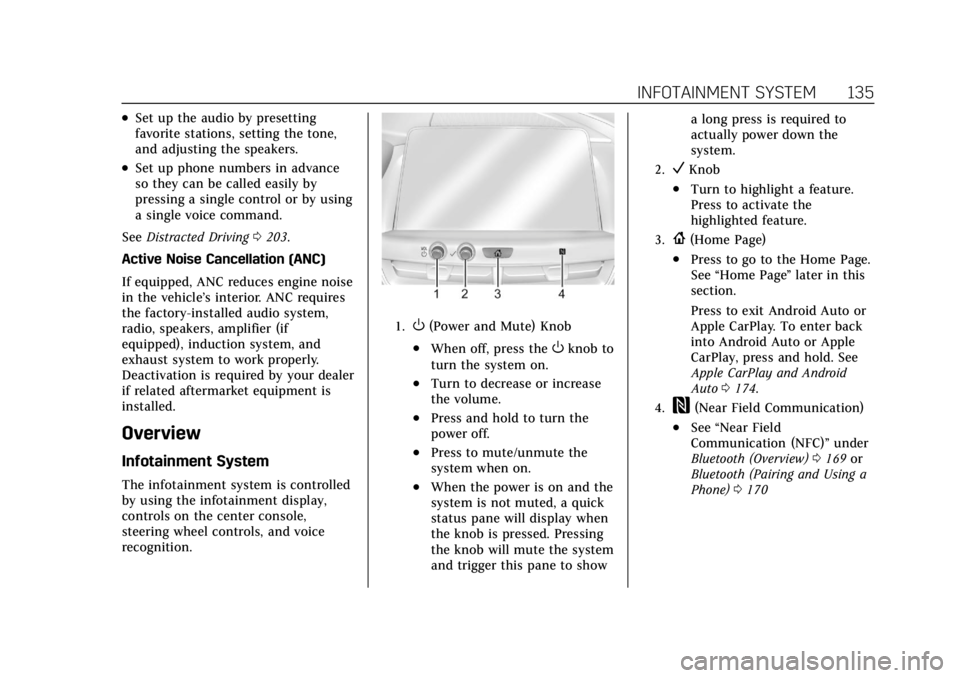
The infotainment system is controlled
by using the infotainment display,
controls on the center console,
steering wheel controls, and voice
recognition.
1.O(Power and Mute) Knob
.When off, press theOknob to
turn the system on.
.Turn to decrease or increase
the volume.
.Press and hold to turn the
power off.
.Press to mute/unmute the
system when on.
.When the power is on and the
system is not muted, a quick
status pane will display when
the knob is pressed. Pressing
the knob will mute the system
and trigger this pane to show a long press is required to
actually power down the
system.
2.VKnob
.Turn to highlight a feature.
Press to activate the
highlighted feature.
3.{(Home Page)
.Press to go to the Home Page.
See
“Home Page ”later in this
section.
Press to exit Android Auto or
Apple CarPlay. To enter back
into Android Auto or Apple
CarPlay, press and hold. See
Apple CarPlay and Android
Auto 0174.
4.W(Near Field Communication)
.See “Near Field
Communication (NFC)” under
Bluetooth (Overview) 0169 or
Bluetooth (Pairing and Using a
Phone) 0170
Page 137 of 434
Cadillac CT4 Owner Manual (GMNA-Localizing-U.S./Canada-14584335) -
2021 - CRC - 11/23/20
136 INFOTAINMENT SYSTEM
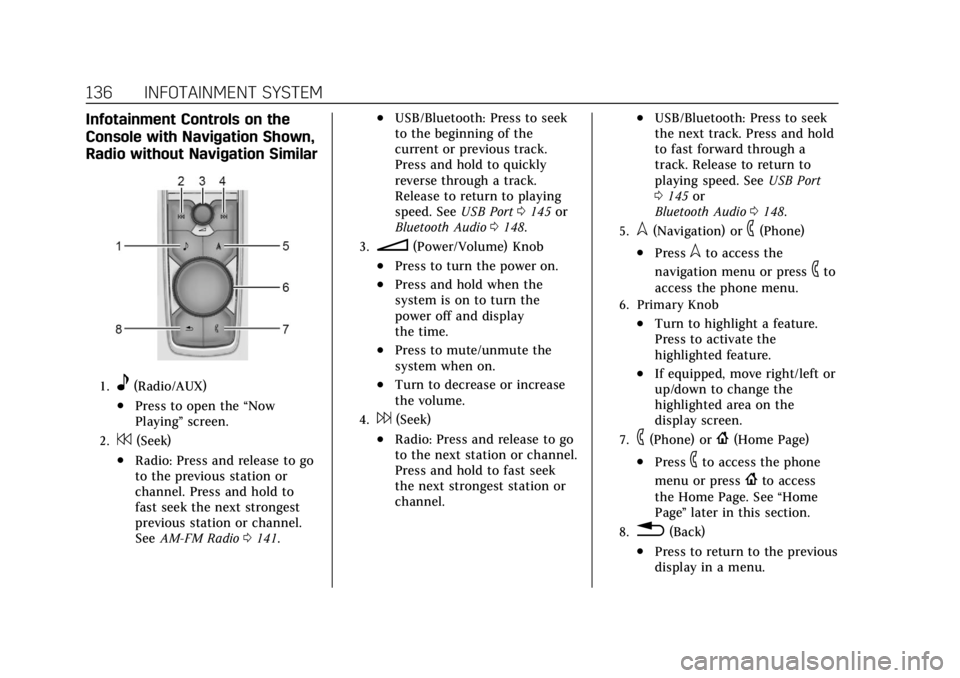
Infotainment Controls on the
Console with Navigation Shown,
Radio without Navigation Similar
1.e(Radio/AUX)
.Press to open the“Now
Playing” screen.
2.7(Seek)
.Radio: Press and release to go
to the previous station or
channel. Press and hold to
fast seek the next strongest
previous station or channel.
SeeAM-FM Radio 0141.
.USB/Bluetooth: Press to seek
to the beginning of the
current or previous track.
Press and hold to quickly
reverse through a track.
Release to return to playing
speed. See USB Port0145 or
Bluetooth Audio 0148.
3.n(Power/Volume) Knob
.Press to turn the power on.
.Press and hold when the
system is on to turn the
power off and display
the time.
.Press to mute/unmute the
system when on.
.Turn to decrease or increase
the volume.
4.6(Seek)
.Radio: Press and release to go
to the next station or channel.
Press and hold to fast seek
the next strongest station or
channel.
.USB/Bluetooth: Press to seek
the next track. Press and hold
to fast forward through a
track. Release to return to
playing speed. See USB Port
0 145 or
Bluetooth Audio 0148.
5.l(Navigation) or6(Phone)
.Presslto access the
navigation menu or press
6to
access the phone menu.
6. Primary Knob
.Turn to highlight a feature.
Press to activate the
highlighted feature.
.If equipped, move right/left or
up/down to change the
highlighted area on the
display screen.
7.6(Phone) or{(Home Page)
.Press6to access the phone
menu or press
{to access
the Home Page. See “Home
Page ”later in this section.
8.0(Back)
.Press to return to the previous
display in a menu.
Page 142 of 434
Cadillac CT4 Owner Manual (GMNA-Localizing-U.S./Canada-14584335) -
2021 - CRC - 11/23/20
INFOTAINMENT SYSTEM 141
Radio
AM-FM Radio
Playing the Radio
Presseon the console controls or
touch the Audio icon on the Home
Page to display the active audio
source page. Choose the three most
recently used sources listed at the left
side of the display. Choose the More
option to display a list of available
sources. Examples of available sources
may include AM, FM, SXM (if
equipped), MyMedia, USB, AUX (if
equipped), and Bluetooth.
Infotainment System
Sound Menu
From any of the audio source main
pages, touch Sound to display the
following:
Equalizer : Touch to adjust Bass,
Midrange, Treble, and Surround (if
equipped) using the options on the
infotainment display. Fade/Balance :
Touch to adjust by
using the controls on the
infotainment display or by tapping/
dragging the crosshair.
Sound Mode (If Equipped)
.Bose Centerpoint surround sound
systems have four sound modes:
‐Normal: Adjusts the audio to
provide the best sound for all
seating positions.
‐ Driver: Adjusts the audio to
provide the best sound for the
driver.
‐ Rear: Adjusts the audio to provide
the best sound for the rear seat
occupants.
‐ Centerpoint: Turns on Bose
Centerpoint surround technology.
This setting creates a surround
sound from nearly any audio
source: existing stereo and MP3
players. For more information on
Bose Centerpoint surround
technology, see
www.boseautomotive.com.
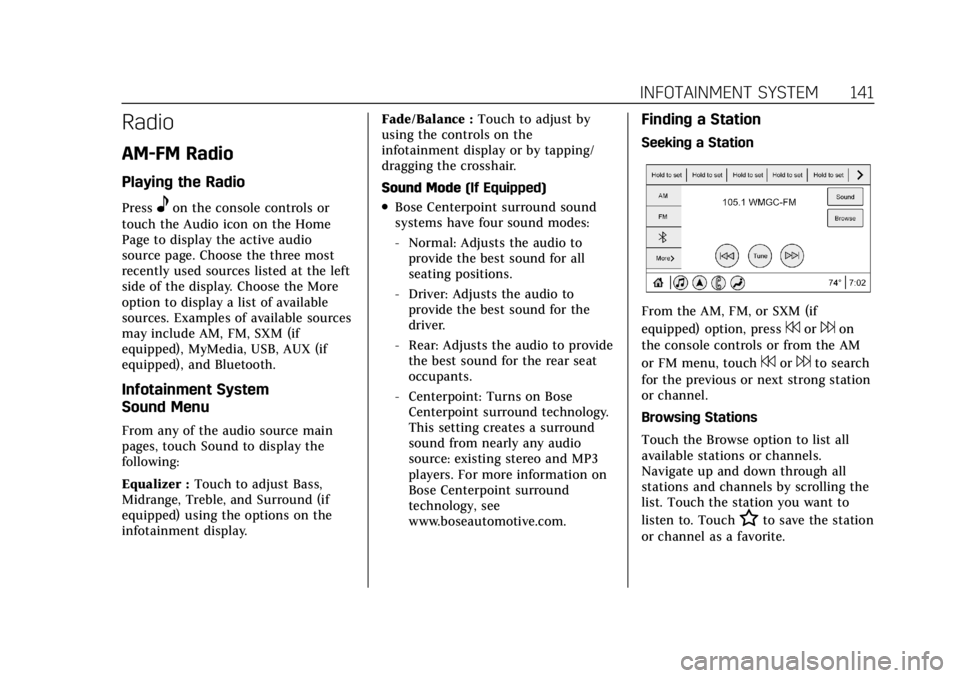
Finding a Station
Seeking a Station
From the AM, FM, or SXM (if
equipped) option, press
7or6on
the console controls or from the AM
or FM menu, touch
7or6to search
for the previous or next strong station
or channel.
Browsing Stations
Touch the Browse option to list all
available stations or channels.
Navigate up and down through all
stations and channels by scrolling the
list. Touch the station you want to
listen to. Touch
Hto save the station
or channel as a favorite.
Page 144 of 434
Cadillac CT4 Owner Manual (GMNA-Localizing-U.S./Canada-14584335) -
2021 - CRC - 11/23/20
INFOTAINMENT SYSTEM 143
Favorites can also be stored by
touching
Hin a station or channel
list. This will highlight indicating that
it is now saved as a favorite.
The number of favorites displayed is
automatically adjusted by default, but
can be manually adjusted in Settings
in the System tab under Favorites and
then Set Number of Audio Favorites.
It can also be adjusted in Settings in
the Apps tab under Audio and then
Set Number of Audio Favorites.
HD Radio Technology
If equipped, HD Radio is a free service
with features such as digital quality
sound, more stations available on a
single frequency such as HD2 and
HD3, and display information such as
artist and song title.
From the Now Playing display, touch
the HD Radio icon to turn HD on
or off.
Station Access
To access HD Radio stations:
1. Tune the radio to the station. If HD Radio is turned on and the station
is broadcasting in HD Radio, the radio will automatically tune to the
HD version of the current channel
(HD1) after several seconds. The
radio will also display icons
representing additional channels
(HD2, ...HD8), that may be
available. When the radio
successfully tunes to a HD station,
the HD logo will display and digital
audio will play.
2. Touch the display arrows to tune to the previous or next HD Radio
station.
There may be a delay before the
station starts playing.
The HD Radio station number is
indicated next to the HD logo.
HD Radio stations can be saved as
favorites.
For a list of all stations, see
www.hdradio.com.
HD Radio Troubleshooting
Digital Audio Delay : Wait for the
signal to process. This can take
several seconds. Volume Change, Audio Skip, Echo,
Digital Audio Lost :
Station signal
strength may be weak, the station is
out of range, or the station may be
out of alignment. Verify proper
reception on another station.
If the HD Radio signal weakens while
listening to HD1, the radio will
automatically switch to the analog
version of the radio station.
If the HD Radio signal loses reception
while listening to stations HD2 to
HD8, the radio mutes until the signal
can be recovered or until the station is
changed.
HD Radio can be disabled if driving in
a weak signal area. Touch HD Radio
On/Off to toggle HD Radio reception
on and off.
Radio Data System (RDS)
If equipped, RDS features are available
for use only on FM stations that
broadcast RDS information. With RDS,
the radio can:
.Group stations by Category (i.e.,
Program Type) such as Rock, Jazz,
Classical, etc.
Page 146 of 434
Cadillac CT4 Owner Manual (GMNA-Localizing-U.S./Canada-14584335) -
2021 - CRC - 11/23/20
INFOTAINMENT SYSTEM 145
SiriusXM Satellite Radio Service
If equipped, SiriusXM Satellite Radio
Service provides digital radio
reception. Tall buildings or hills can
interfere with satellite radio signals,
causing the sound to fade in and out.
In addition, traveling or standing
under heavy foliage, bridges, garages,
or tunnels may cause loss of the
SiriusXM signal for a period of time.
Some cellular services may interfere
with SXM reception causing loss of
signal.
Mobile Device Usage
Mobile device usage, such as making
or receiving calls, charging, or just
having the mobile device on may
cause static interference in the radio.
Unplug the mobile device or turn it
off if this happens.
Multi-Band Antenna
The roof antenna may be used for
radio, navigation, and OnStar,
depending on the equipped options.
Keep clear of obstructions for clearreception. If the vehicle has a sunroof,
and it is open, reception can also be
affected.
Audio Players
Avoiding Untrusted Media
Devices
When using media devices such as SD
cards, USB devices, and mobile
devices, consider the source.
Untrusted media devices could
contain files that affect system
operation or performance. Avoid use if
the content or origin cannot be
trusted.
USB Port
Audio stored on a USB device may be
listened to.
The vehicle may be equipped with two
USB ports in the center console under
the armrest. These ports are for data
and charging. There may also be two
USB ports for charging only at the rear
of the center console.
Caution
To avoid vehicle damage, unplug all
accessories and disconnect all
accessory cables from the vehicle
when not in use. Accessory cables
left plugged into the vehicle,
unconnected to a device, could be
damaged or cause an electrical
short if the unconnected end comes
in contact with liquids or another
power source such as the accessory
power outlet.
Playing from a USB
A USB mass storage device can be
connected to the USB port.
Audio extensions supported by the
USB may include:
.MP3
.AAC
.OGG
.3GP
Gracenote
When plugging in a USB device,
Gracenote service builds voice tags for
music. Voice tags allow artists, albums
Page 147 of 434
Cadillac CT4 Owner Manual (GMNA-Localizing-U.S./Canada-14584335) -
2021 - CRC - 11/23/20
146 INFOTAINMENT SYSTEM
with hard to pronounce names, and
nicknames to be used to play music
through voice recognition, if equipped.
While indexing, infotainment features
may be available.
My Media Library
MyMedia is only available when more
than one indexed device is connected.
It allows access to content from all
indexed media sources. MyMedia will
show as an available source in the
Source page.
USB MP3 Player and USB Devices
The USB MP3 players and USB devices
connected must comply with the USB
Mass Storage Class specification
(USB MSC).
To play a USB device:1. Connect the USB.
2. Touch Audio from the Home Page.
3. Touch the More option and then touch the USB device.
Use the following when playing an
active USB source:
p: Touch to play the current media
source.
j: Touch to pause playback of the
current media source.
7:
.Touch to seek the beginning of the
current or previous track.
.Touch and hold to reverse quickly
through playback. Release to return
to playing speed. Elapsed time
displays.
6:
.Touch to seek the next track.
.Touch and hold to advance quickly
through playback. Release to return
to playing speed. Elapsed time
displays.
Shuff le : Touch the shuffle icon to
play music in random order.
USB Sound Menu
See “Infotainment System Sound
Menu ”under AM-FM Radio 0141.
USB Browse Menu
When a list of songs, albums, artists,
or other types of media displays, the
up and down arrows and A-Z appear on the left side. Select A-Z to view a
display that will show all letters of the
alphabet and select the letter to go to.
Touch the up and down arrows to
move the list up and down.
Touch Browse and the following may
display:
Playlists:
1. Touch to view the playlists stored on the USB.
2. Touch a playlist to view the list of all songs in that playlist.
3. Touch a song from the list to begin playback.
Supported playlist extensions are m3u
and pls.
Artists: 1. Touch to view the list of artists stored on the USB.
2. Touch an artist name to view a list of all albums by the artist.
3. To select a song, touch All Songs or touch an album and then touch a
song from the list.
Page 150 of 434
Cadillac CT4 Owner Manual (GMNA-Localizing-U.S./Canada-14584335) -
2021 - CRC - 11/23/20
INFOTAINMENT SYSTEM 149
3. Touch Bluetooth.
4. Touch Devices to add or deletedevices.
When touching Bluetooth, the radio
may not be able to launch the audio
player on the connected device to
start playing. When the vehicle is not
moving, use the mobile device to
begin playback.
All devices launch audio differently.
When selecting Bluetooth as a source,
the radio may show as paused on the
display. Press play on the device or
touch
pon the display to begin
playback.
Browse functionality will be provided
where supported by the Bluetooth
device. This media content will not be
part of the MyMedia source mode.
Some smartphones support sending
Bluetooth music information to
display on the radio. When the radio
receives this information, it will check
to see if any is available and display it.
For more information about supported
Bluetooth features, see
my.cadillac.com/learn.
OnStar System
4G LTE
If equipped with 4G LTE, up to seven
devices, such as smartphones, tablets,
and laptops, can be connected to
high-speed Internet through the
vehicle’s built-in Wi-Fi hotspot.
Call 1-888-4ONSTAR (1-888-466-7827)
to connect to an OnStar Advisor for
assistance. See www.onstar.com for
vehicle availability, details, and system
limitations. Service and connectivity
may vary by make, model, year,
carrier, availability, and conditions.
4G LTE service is available in select
markets. 4G LTE performance is based
on industry averages and vehicle
systems design. Some services require
a data plan.
The OnStar App
If equipped, the infotainment system
has OnStar controls in the embedded
OnStar app on the Home Page. Most
OnStar functions that can be
performed with the buttons can be
done using the app. To open the app,
touch the OnStar icon on the Home Page. App updates require a
corresponding service plan. Features
vary by region and model. Features
are subject to change. For more
information, see my.cadillac.com/learn
or press
Q.
Services
The Services tab displays the default
view for the app. Use this page to
launch the available OnStar services.
Touch a service to open its display.
Touch Wi-Fi to launch the
connections manager. Turn-by-Turn
and Advisor Call are the other tiled
options.
Account
The Account tab displays a snapshot
of the account linked with the vehicle.
If there is no such account, this tab
will show all values as ——. The call
advisor call icon will be active even if
there is no active account.
Advisor Call
Selecting Advisor Call is the same as
pressing
Qor calling 1-888-4ONSTAR
(1-888-466-7827). The X option in the
Page 151 of 434
Cadillac CT4 Owner Manual (GMNA-Localizing-U.S./Canada-14584335) -
2021 - CRC - 11/23/20
150 INFOTAINMENT SYSTEM
upper right corner of the screen does
not end the call, but returns to the
previous screen.
Turn-by-Turn Directions
With a connected plan, an OnStar
Advisor can download a destination to
the vehicle or its embedded navigation
system, if equipped. Select
Turn-by-Turn Directions from the
Services tab of the OnStar app to call
an Advisor or select a recent or
favorite destination. Touch the
navigation icons to select home,
address or place. A destination
transfer from OnStar will show the
detail view of the destination when it
is transferred from OnStar to the
Navigation application. See
www.onstar.com for a coverage map.
Services vary by model. Map coverage
is available in the United States,
Puerto Rico, and Canada.
Wi-Fi Hotspot
Touch to display the Settings page,
which shows the configurations for
the vehicle hotspot and allows them
to be changed.For more information, see
www.onstar.com.
Navigation
Using the Navigation
System
If equipped, launch the Nav
application by touching the Nav icon
on the Home Page or on the shortcut
tray near the bottom of the
infotainment display.
When the Nav application is launched
for the first time, a product
walkthrough is available. Use of the
feature requires the Terms and
Conditions and the Privacy statement
to be confirmed. If available and
signed into a profile, it is also
suggested to enable and confirm
Predictive Navigation.
Predictive Navigation (If Equipped)
If Predictive Navigation is available
and confirmed, this feature learns
preferences by remembering where
the vehicle has been. It uses the
locations and navigation history to
personalize routes and results.Predictive Navigation may learn
elements such as:
.Personalized routes based on
preferred streets.
.Search results that provide best
matches at the top of the list.
.Predictive traffic.
.Local map content updating.
Predictive Navigation can also be
enabled or disabled at a later time by
touching
A(Options). While in
Options, touch Settings, then Map and
Navigation Settings, and then
Predictive Navigation. See Settings
0 176.
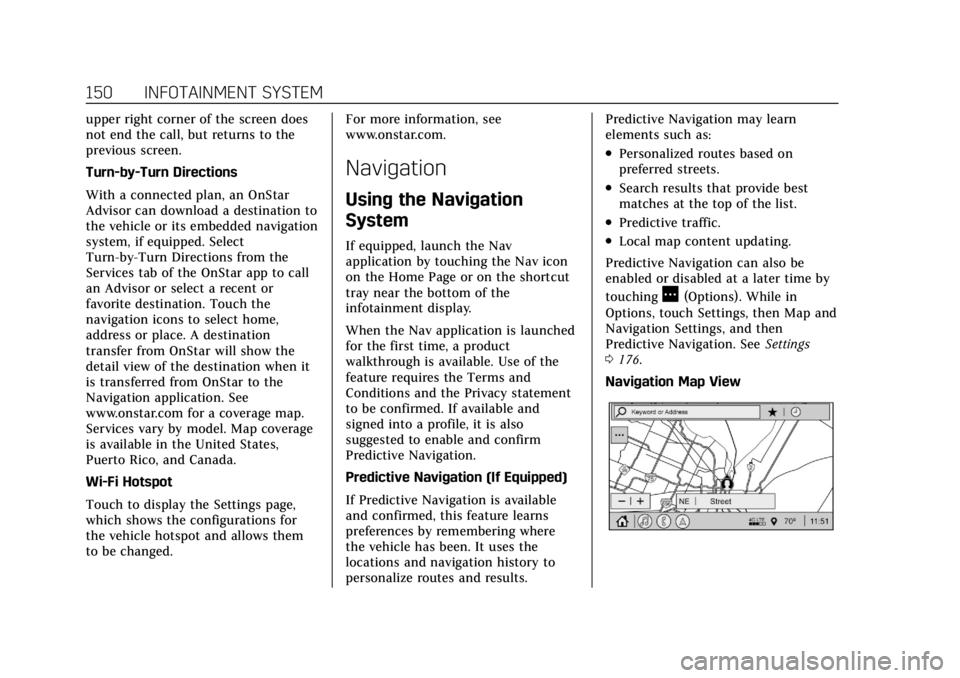
Navigation Map View
Page 152 of 434
Cadillac CT4 Owner Manual (GMNA-Localizing-U.S./Canada-14584335) -
2021 - CRC - 11/23/20
INFOTAINMENT SYSTEM 151
After opening the Nav application for
the first time, the application will
always open in full map view
displaying the vehicle’s current
location. When the vehicle is stopped,
the search bar will appear along the
top of the navigation map view.
Manually close the search bar by
touching
z. When the vehicle is
moving, the
}(Search) icon will
replace the search bar to maximize
the full map view.
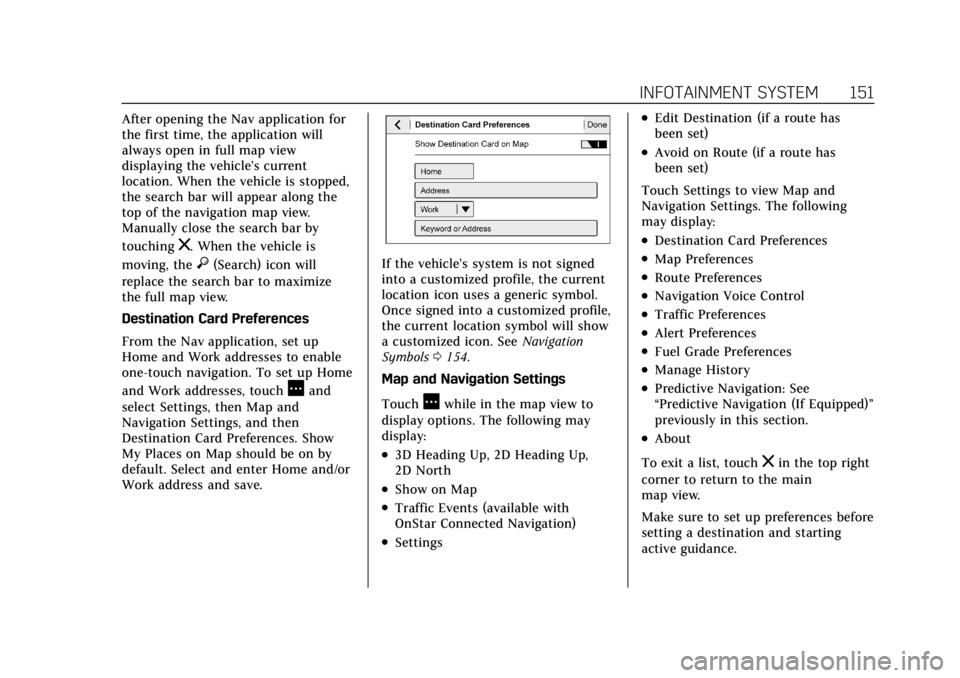
Destination Card Preferences
From the Nav application, set up
Home and Work addresses to enable
one-touch navigation. To set up Home
and Work addresses, touch
Aand
select Settings, then Map and
Navigation Settings, and then
Destination Card Preferences. Show
My Places on Map should be on by
default. Select and enter Home and/or
Work address and save.
If the vehicle’s system is not signed
into a customized profile, the current
location icon uses a generic symbol.
Once signed into a customized profile,
the current location symbol will show
a customized icon. See Navigation
Symbols 0154.
Map and Navigation Settings
Touch
Awhile in the map view to
display options. The following may
display:
.3D Heading Up, 2D Heading Up,
2D North
.Show on Map
.Traffic Events (available with
OnStar Connected Navigation)
.Settings
.Edit Destination (if a route has
been set)
.Avoid on Route (if a route has
been set)
Touch Settings to view Map and
Navigation Settings. The following
may display:
.Destination Card Preferences
.Map Preferences
.Route Preferences
.Navigation Voice Control
.Traffic Preferences
.Alert Preferences
.Fuel Grade Preferences
.Manage History
.Predictive Navigation: See
“Predictive Navigation (If Equipped)”
previously in this section.
.About
To exit a list, touch
zin the top right
corner to return to the main
map view.
Make sure to set up preferences before
setting a destination and starting
active guidance.
Page 153 of 434
Cadillac CT4 Owner Manual (GMNA-Localizing-U.S./Canada-14584335) -
2021 - CRC - 11/23/20
152 INFOTAINMENT SYSTEM
Map Preferences
Touch to choose between basic map
feature configurations:
Map Colors
.Auto–Touch to automatically
change modes based on lighting
conditions.
.Day (Light)
.Night (Dark)
3D Landmark (Default is On) :
Touch On or Off. When turned on, the
system will display all 3D Landmarks
on the map depending on the zoom
level.
3D Building (Default is Off ) : Touch
On or Off. When turned on, the
system will display all of the possible
3D building shapes on the map
depending on the zoom level.
Show Terrain in 3D (Default is
Off ) : If equipped, touch On or Off.
When turned on, the system will
display terrain information on the
map in 3D view.
Auto-Zoom (Default is On) : Touch
On or Off. When turned on, the
system will automatically adjust the zoom level when the vehicle is
approaching a turn. After the turn is
completed, the system automatically
brings the zoom back to the originally
set level. If the vehicle is approaching
a turn with the next turn occurring
shortly after, the Auto-Zoom will
remain on until both turns are
completed.
Route Preferences
Touch to access the Route
Preferences. The choices are:
.Preferred Route
–Choose from two
different route options: Fastest or
Eco-Friendly.
‐ Fastest would be the route with
the shortest drive time.
‐ Eco-Friendly would be the most
fuel-efficient route.
.Avoid on Current Route –Choose
any of the road features to avoid
while on route:
‐ Highways
‐ Unpaved Roads
‐ Ferries
‐ Carpool Lanes
‐ Toll Roads ‐
Tunnels
‐ Country Borders
Navigation Voice Control
Touch to access the voice control
setting display.
.Navigation Volume –To adjust the
volume level, touch the up and
down arrows. If the voice guidance
prompt is being heard, volume can
also be adjusted using the knob on
the center stack or the volume
switch on the steering wheel.
.Navigation Voice Prompt Level
during a Call. Options available are:
‐ Full Prompt (Selected by default)
‐ Tone Only
‐ None
Traffic Events (If Equipped)
This feature provides a list of events
that are on the route or nearby. Touch
Aand then select Traffic Events. An
OnStar connected Navigation service
plan is required.