turn CADILLAC CT4 2021 Workshop Manual
[x] Cancel search | Manufacturer: CADILLAC, Model Year: 2021, Model line: CT4, Model: CADILLAC CT4 2021Pages: 434, PDF Size: 8.3 MB
Page 103 of 434
Cadillac CT4 Owner Manual (GMNA-Localizing-U.S./Canada-14584335) -
2021 - CRC - 12/4/20
102 INSTRUMENTS AND CONTROLS
This indicator will display when
Automatic Emergency Braking or
Front Pedestrian Braking has been
turned off or is currently unavailable
due to malfunction.
SeeAutomatic Emergency Braking
(AEB) 0285.
See Front Pedestrian Braking (FPB)
System 0287.
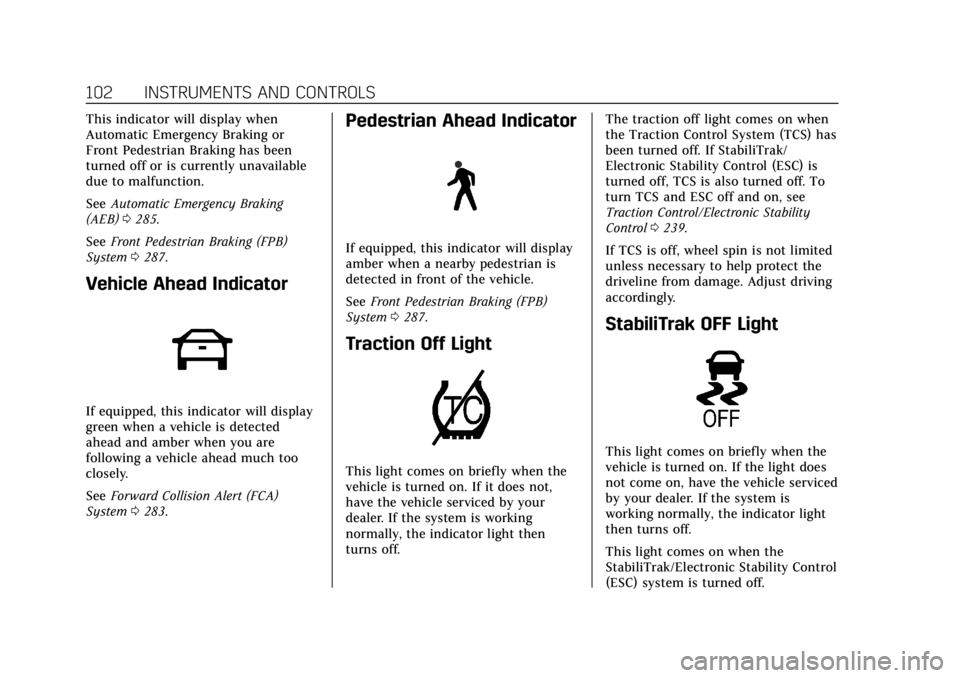
Vehicle Ahead Indicator
If equipped, this indicator will display
green when a vehicle is detected
ahead and amber when you are
following a vehicle ahead much too
closely.
See Forward Collision Alert (FCA)
System 0283.
Pedestrian Ahead Indicator
If equipped, this indicator will display
amber when a nearby pedestrian is
detected in front of the vehicle.
See Front Pedestrian Braking (FPB)
System 0287.
Traction Off Light
This light comes on briefly when the
vehicle is turned on. If it does not,
have the vehicle serviced by your
dealer. If the system is working
normally, the indicator light then
turns off. The traction off light comes on when
the Traction Control System (TCS) has
been turned off. If StabiliTrak/
Electronic Stability Control (ESC) is
turned off, TCS is also turned off. To
turn TCS and ESC off and on, see
Traction Control/Electronic Stability
Control
0239.
If TCS is off, wheel spin is not limited
unless necessary to help protect the
driveline from damage. Adjust driving
accordingly.
StabiliTrak OFF Light
This light comes on briefly when the
vehicle is turned on. If the light does
not come on, have the vehicle serviced
by your dealer. If the system is
working normally, the indicator light
then turns off.
This light comes on when the
StabiliTrak/Electronic Stability Control
(ESC) system is turned off.
Page 104 of 434
Cadillac CT4 Owner Manual (GMNA-Localizing-U.S./Canada-14584335) -
2021 - CRC - 12/4/20
INSTRUMENTS AND CONTROLS 103
If StabiliTrak/ESC is off, the Traction
Control System (TCS) is also off. To
turn ESC off and on, seeTraction
Control/Electronic Stability Control
0 239.
If ESC and TCS are off, the systems do
not assist in controlling the vehicle.
Adjust driving accordingly.
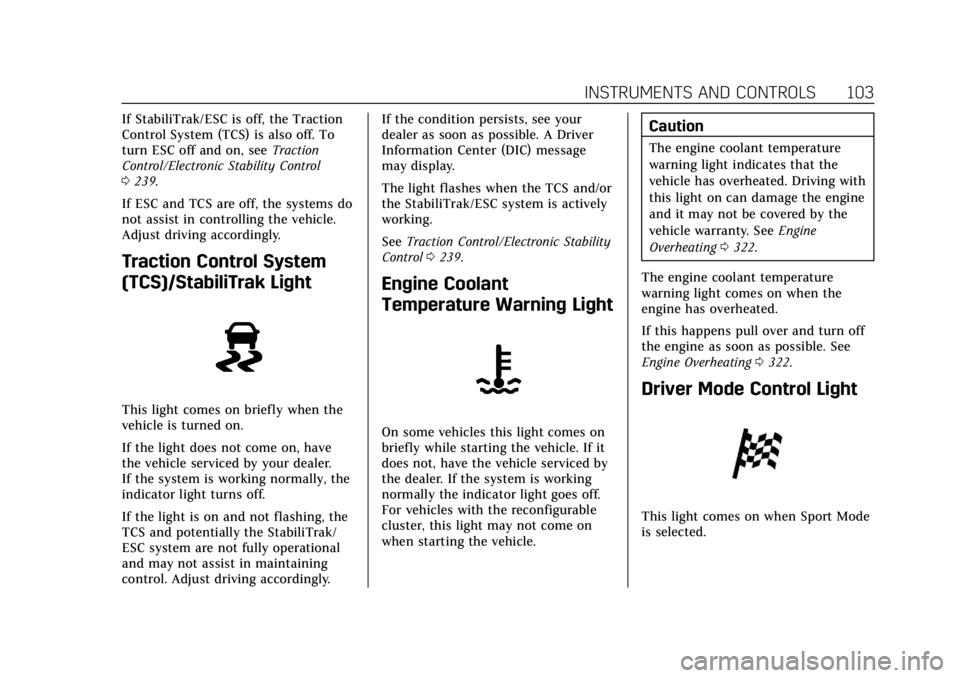
Traction Control System
(TCS)/StabiliTrak Light
This light comes on briefly when the
vehicle is turned on.
If the light does not come on, have
the vehicle serviced by your dealer.
If the system is working normally, the
indicator light turns off.
If the light is on and not flashing, the
TCS and potentially the StabiliTrak/
ESC system are not fully operational
and may not assist in maintaining
control. Adjust driving accordingly. If the condition persists, see your
dealer as soon as possible. A Driver
Information Center (DIC) message
may display.
The light flashes when the TCS and/or
the StabiliTrak/ESC system is actively
working.
See
Traction Control/Electronic Stability
Control 0239.
Engine Coolant
Temperature Warning Light
On some vehicles this light comes on
briefly while starting the vehicle. If it
does not, have the vehicle serviced by
the dealer. If the system is working
normally the indicator light goes off.
For vehicles with the reconfigurable
cluster, this light may not come on
when starting the vehicle.
Caution
The engine coolant temperature
warning light indicates that the
vehicle has overheated. Driving with
this light on can damage the engine
and it may not be covered by the
vehicle warranty. See Engine
Overheating 0322.
The engine coolant temperature
warning light comes on when the
engine has overheated.
If this happens pull over and turn off
the engine as soon as possible. See
Engine Overheating 0322.
Driver Mode Control Light
This light comes on when Sport Mode
is selected.
Page 106 of 434
Cadillac CT4 Owner Manual (GMNA-Localizing-U.S./Canada-14584335) -
2021 - CRC - 12/4/20
INSTRUMENTS AND CONTROLS 105
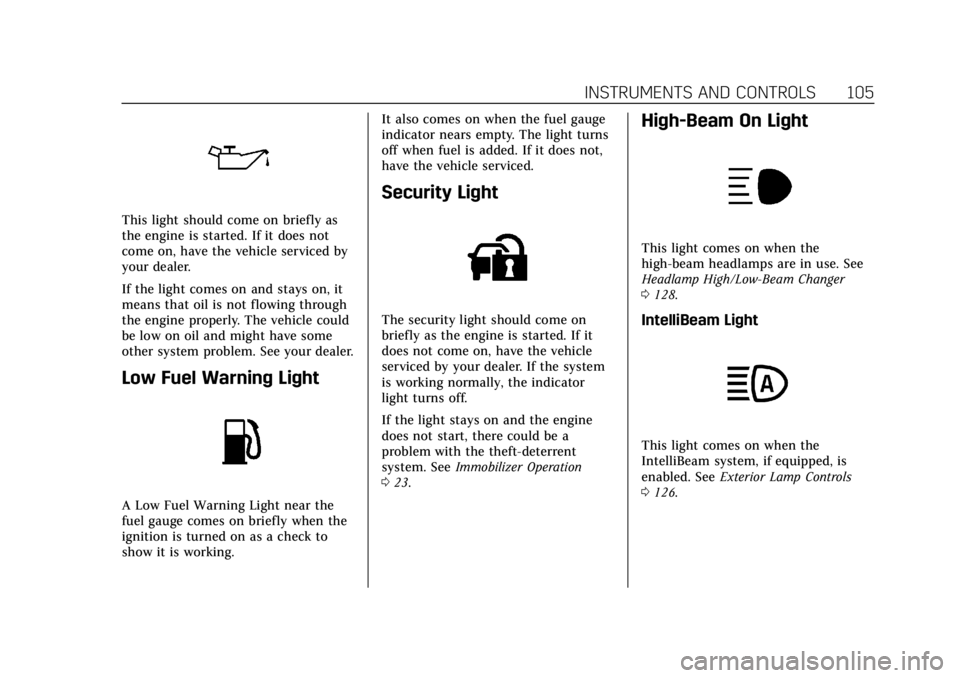
This light should come on briefly as
the engine is started. If it does not
come on, have the vehicle serviced by
your dealer.
If the light comes on and stays on, it
means that oil is not flowing through
the engine properly. The vehicle could
be low on oil and might have some
other system problem. See your dealer.
Low Fuel Warning Light
A Low Fuel Warning Light near the
fuel gauge comes on briefly when the
ignition is turned on as a check to
show it is working.It also comes on when the fuel gauge
indicator nears empty. The light turns
off when fuel is added. If it does not,
have the vehicle serviced.
Security Light
The security light should come on
briefly as the engine is started. If it
does not come on, have the vehicle
serviced by your dealer. If the system
is working normally, the indicator
light turns off.
If the light stays on and the engine
does not start, there could be a
problem with the theft-deterrent
system. See
Immobilizer Operation
0 23.
High-Beam On Light
This light comes on when the
high-beam headlamps are in use. See
Headlamp High/Low-Beam Changer
0128.
IntelliBeam Light
This light comes on when the
IntelliBeam system, if equipped, is
enabled. See Exterior Lamp Controls
0 126.
Page 107 of 434

Cadillac CT4 Owner Manual (GMNA-Localizing-U.S./Canada-14584335) -
2021 - CRC - 12/4/20
106 INSTRUMENTS AND CONTROLS
Lamps On Reminder
This light comes on when the exterior
lamps are in use, except when only
the Daytime Running Lamps (DRL)
are active. SeeExterior Lamp Controls
0 126.
Cruise Control Light (Base
Level)
The cruise control light is white when
the cruise control is on and ready, and
turns green when the cruise control is
set and active.
See Cruise Control 0248.
Adaptive Cruise Control Light
This light is white when the Adaptive
Cruise Control (ACC, if equipped) is on
and ready, and turns green when the
ACC is set and active.
See Adaptive Cruise Control (Advanced)
0 251.
Cruise Control Light
(Uplevel)
The cruise control light is white when
the cruise control is on and ready, and
turns green when the cruise control is
set and active.
See Cruise Control 0248.
Adaptive Cruise Control Light
This light is white when the Adaptive
Cruise Control (ACC, if equipped) is on
and ready, and turns green when the
ACC is set and active.
Curve Speed Control Light
If equipped, this light may illuminate
green when ACC is actively controlling
the vehicle speed and detects a sharp
curve on the road ahead.
ACC automatically slows the vehicle
down while navigating the curve and
may increase speed out of the curve,
but will not exceed the set speed.
Page 108 of 434

Cadillac CT4 Owner Manual (GMNA-Localizing-U.S./Canada-14584335) -
2021 - CRC - 12/4/20
INSTRUMENTS AND CONTROLS 107
SeeAdaptive Cruise Control (Advanced)
0 251.
Super Cruise Light
This light comes on to show the
status of Super Cruise. See Super
Cruise 0260.
Door Ajar Light
This light comes on when a door is
open or not securely latched. Before
driving, check that all doors are
properly closed.
Information Displays
Driver Information Center
(DIC) (Base Level)
The DIC is displayed in the
instrument cluster. It shows the status
of many vehicle systems.
SorT:Press to move between the
interactive display zones in the
cluster. Press
Sto go back to the
previous menu.
yorz: Use the thumbwheel to
scroll to the previous or next
selection.
V: Press the thumbwheel to open a
menu or select a menu item. Press
and hold to reset values on certain
screens.
Info Page Options
The info displays on the DIC can be
turned on or off through the
Options menu.
1. Press
Tto scroll to the Options
menu. Use the thumbwheel to
scroll to Info Pages and press the
thumbwheel to select.
2. Scroll
yorzto move through
the list of possible info displays.
3. Press the thumbwheel while an item is highlighted to select or
deselect that item.
The info pages can also be turned on
or off through the DIC Info Page
Options.
DIC Information Displays
The following is the list of all possible
DIC information displays. Some of the
information displays may not be
available for your particular vehicle.
Page 114 of 434
Cadillac CT4 Owner Manual (GMNA-Localizing-U.S./Canada-14584335) -
2021 - CRC - 12/4/20
INSTRUMENTS AND CONTROLS 113
Caution
If you try to use the HUD image as
a parking aid, you may misjudge
the distance and damage your
vehicle. Do not use the HUD image
as a parking aid.
The HUD information can be
displayed in various languages. The
speedometer reading and other
numerical values can be displayed in
either English or metric units.
The language selection is changed
through the radio and the units of
measurement is changed through the
instrument cluster. See Settings0176
and “Options” underInstrument Cluster
(Base Level) 088 or
Instrument Cluster (Uplevel) 090.
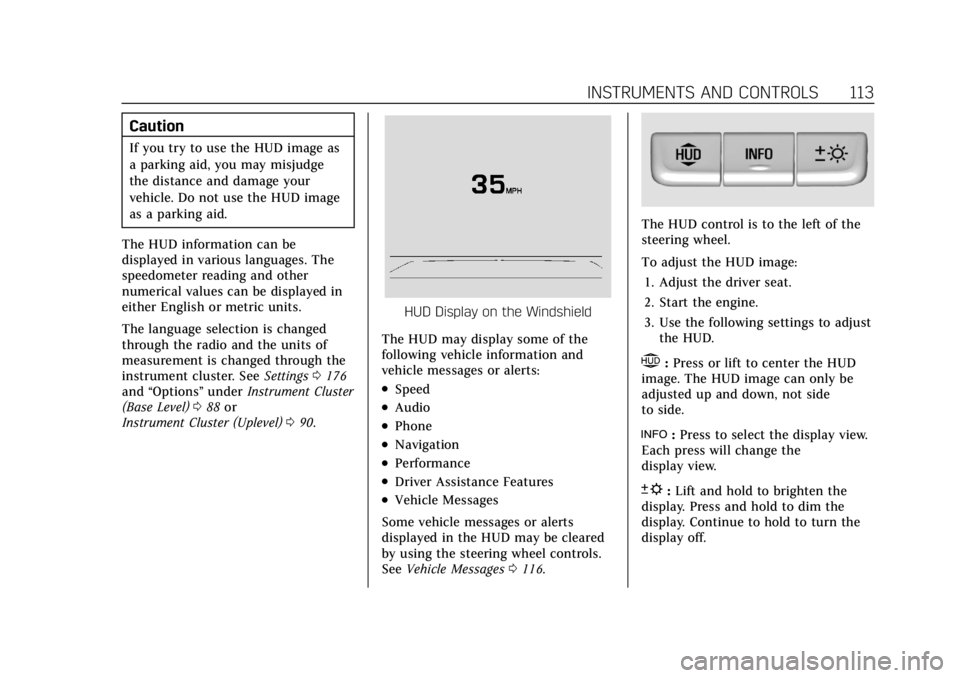
HUD Display on the Windshield
The HUD may display some of the
following vehicle information and
vehicle messages or alerts:
.Speed
.Audio
.Phone
.Navigation
.Performance
.Driver Assistance Features
.Vehicle Messages
Some vehicle messages or alerts
displayed in the HUD may be cleared
by using the steering wheel controls.
See Vehicle Messages 0116.
The HUD control is to the left of the
steering wheel.
To adjust the HUD image:
1. Adjust the driver seat.
2. Start the engine.
3. Use the following settings to adjust the HUD.
$:Press or lift to center the HUD
image. The HUD image can only be
adjusted up and down, not side
to side.
!: Press to select the display view.
Each press will change the
display view.
D: Lift and hold to brighten the
display. Press and hold to dim the
display. Continue to hold to turn the
display off.
Page 117 of 434
Cadillac CT4 Owner Manual (GMNA-Localizing-U.S./Canada-14584335) -
2021 - CRC - 12/4/20
116 INSTRUMENTS AND CONTROLS
Navigation Overlay :This displays
digital speed for Tour/ Sport, current
gear for Track, indicators from speed
view along with Turn-by-Turn
Navigation information in some
vehicles. The compass heading is
displayed when navigation routing is
not active.
Navigation Turn-by-Turn Alerts
shown in the instrument cluster may
also be displayed in any HUD view.
Care of the HUD
Clean the inside of the windshield to
remove any dirt or film that could
reduce the sharpness or clarity of the
HUD image.
Clean the HUD lens with a soft cloth
sprayed with glass cleaner. Wipe the
lens gently, then dry it.
HUD Troubleshooting
If you cannot see the HUD image
when the ignition is on, check that:
.Nothing is covering the HUD lens.
.The HUD brightness setting is not
too dim or too bright.
.The HUD is adjusted to the proper
height.
.Polarized sunglasses are not worn.
.The windshield and HUD lens are
clean.
If the HUD image is not correct,
contact your dealer.
The windshield is part of the HUD
system. If windshield replacement is
required, see Windshield Replacement
0 328.
Vehicle Messages
Messages displayed on the Driver
Information Center (DIC) indicate the
status of the vehicle or some action
that may be needed to correct a
condition. Multiple messages may
appear one after another.
The messages that do not require
immediate action can be
acknowledged and cleared by pressing
the thumbwheel. The messages that
require immediate action cannot be
cleared until that action is performed.
All messages should be taken
seriously; clearing the message does
not correct the problem. If a SERVICE message appears, see
your dealer.
Follow the instructions given in the
messages. The system displays
messages regarding the following
topics:
.Service Messages
.Fluid Levels
.Vehicle Security
.Brakes
.Steering
.Ride Control Systems
.Driver Assistance Systems
.Cruise Control
.Lighting and Bulb Replacement
.Wiper/Washer Systems
.Doors and Windows
.Seat Belts
.Airbag Systems
.Engine and Transmission
.Tire Pressure
.Battery
Page 118 of 434
Cadillac CT4 Owner Manual (GMNA-Localizing-U.S./Canada-14584335) -
2021 - CRC - 12/4/20
INSTRUMENTS AND CONTROLS 117
Engine Power Messages
REDUCED ACCELERATION DRIVE
WITH CARE
This message displays when the
vehicle's propulsion power is reduced.
A reduction in propulsion power can
affect the vehicle's ability to
accelerate. If this message is on, but
there is no observed reduction in
performance, proceed to your
destination. Under certain conditions
the performance may be reduced the
next time the vehicle is driven. The
vehicle may be driven while this
message is on, but maximum
acceleration and speed may be
reduced. Anytime this message stays
on, or displays repeatedly, the vehicle
should be taken to your dealer for
service as soon as possible.
Under certain operating conditions,
propulsion will be disabled. Try
restarting after the ignition has been
off for two minutes.
Vehicle Speed Messages
SPEED LIMITED TO
XXX KM/H (MPH)
This message shows that the vehicle
speed has been limited to the speed
displayed. The limited speed is a
protection for various propulsion and
vehicle systems, such as lubrication,
thermal, brakes, suspension, Teen
Driver if equipped, or tires.
Vehicle Personalization
The following are all possible vehicle
personalization features. Depending
on the vehicle, some may not be
available.
For System, Apps, and Personal
features and functions, seeSettings
0 176.
To access the vehicle
personalization menu: 1. Touch the Settings icon on the Home Page of the infotainment
display.
2. Touch Vehicle to display a list of available options. 3. Touch to select the desired feature
setting.
4. Touch
9orRto turn a feature off
or on.
5. Touch
zto go to the top level of
the Settings menu.
The menu may contain the following:
Rear Seat Reminder
This allows for a chime and a message
when the rear door has been opened
before or during operation of the
vehicle.
Touch Off or On.
Buckle to Drive
This feature can prevent shifting out
of Park when the driver, and if
applicable the front passenger, seat
belt is not buckled. See Buckle To Drive
0 41.
Touch Off or On.
Driver Mode Customization
Touch and the following may display:
.My Mode
.V-Mode
Page 119 of 434
Cadillac CT4 Owner Manual (GMNA-Localizing-U.S./Canada-14584335) -
2021 - CRC - 12/4/20
118 INSTRUMENTS AND CONTROLS
.Visualization
My Mode
Touch and the following may display:
.Engine Sound
.Steering
.Suspension
.Brake Feel
For information on the range of
settings, see “Driver Mode
Customization ”in Driver Mode Control
0 241.
V-Mode
Touch and the following may display:
.Engine Sound
.Steering
.Suspension
.Brake Feel
.Powertrain
For information on the range of
settings, see “Driver Mode
Customization ”in Driver Mode Control
0 241. Visualization
This setting shows handling and
performance settings on the
infotainment display when changing
drive modes.
Touch Off or On.
Climate and Air Quality
Touch and the following may display:
.Auto Fan Speed
.Air Quality Sensor
.Auto Cooled Seats
.Auto Heated Seats
.Auto Defog
.Auto Rear Defog
.Ionizer
Auto Fan Speed
This setting specifies the amount of
airf low when the climate control fan
setting is Auto Fan.
Touch Low, Medium, or High.
Air Quality Sensor
This setting switches the system into
Recirculation Mode based on the
quality of the outside air. Touch Off, Low Sensitivity, or High
Sensitivity.
Auto Cooled Seats
This setting automatically turns on
and regulates the ventilated seats
when the cabin temperature is warm.
See
Heated and Ventilated Front Seats
0 37.
Touch Off or On.
Auto Heated Seats
This setting automatically turns on
and regulates the heated seats when
the cabin temperature is cool. The
auto heated seats can be turned off by
using the heated seat buttons on the
center stack. See Heated and Ventilated
Front Seats 037.
If equipped with auto heated steering
wheel, this feature will turn on when
the auto heated seats turn on.
Touch Off or On.
Auto Defog
This setting automatically turns the
front defogger on when the engine is
started.
Touch Off or On.
Page 120 of 434
Cadillac CT4 Owner Manual (GMNA-Localizing-U.S./Canada-14584335) -
2021 - CRC - 12/4/20
INSTRUMENTS AND CONTROLS 119
Auto Rear Defog
This setting automatically turns the
rear defogger on when the engine is
started.
Touch Off or On.
Ionizer
If equipped and on, this feature helps
clean the air inside the vehicle and
remove contaminants such as pollen,
odors, and dust. SeeDual Automatic
Climate Control System 0196.
Touch Off or On.
Collision / Detection Systems
Touch and the following may display:
.Alert Type
.Forward Collision System
.Front Pedestrian Detection
.Adaptive Cruise Go Notifier
.Lane Change Alert
.Rear Camera Park Assist Symbols
.Rear Cross Traffic Alert
.Super Cruise Lane Change Alert Type
This setting specifies the type of
vehicle feedback provided, either a
beep or seat vibration, when you are
in danger of colliding with an object.
Touch Beeps or Safety Alert Seat.
Forward Collision System
This setting can alert of a potential
crash with a detected vehicle ahead
and can apply brakes to help reduce a
collision’s severity.
Touch Off, Alert, or Alert and Brake.
Front Pedestrian Detection
This feature may help avoid or reduce
the harm caused by front-end crashes
with nearby pedestrians.
See
Front Pedestrian Braking (FPB)
System 0287.
Touch Off, Alert, or Alert and Brake.
Adaptive Cruise Go Notifier
This setting determines if an alert will
appear when Adaptive Cruise Control
brings the vehicle to a complete stop
and the vehicle ahead of you starts
moving again. See Adaptive Cruise
Control (Advanced) 0251. Touch Off or On.
Lane Change Alert
This setting specifies if an alert will
display on the outside mirror to help
you avoid crashing into a vehicle in
your blind spot, or rapidly
approaching your blind spot, during a
lane change maneuver. See
Lane
Change Alert (LCA) 0289.
Touch Off or On.
Rear Camera Park Assist Symbols
This setting enables the Rear Camera
Park Assist Symbols. See Assistance
Systems for Parking or Backing 0277.
Touch Off or On.
Rear Cross Traffic Alert
This setting specifies if an alert will
display when the vehicle detects
approaching rear cross traffic when in
R (Reverse). See Assistance Systems for
Parking or Backing 0277.
Touch Off or On.