ad blue CADILLAC CT4 2023 Owners Manual
[x] Cancel search | Manufacturer: CADILLAC, Model Year: 2023, Model line: CT4, Model: CADILLAC CT4 2023Pages: 524, PDF Size: 6.98 MB
Page 47 of 524

Cadillac CT4 Owner Manual (GMNA-Localizing-U.S./Canada-16500442) -
2023 - CRC - 5/4/22
46 Seats and Restraints
PressJorzto heat the
driver or passenger seat
cushion and seatback.
Press
Cor{to ventilate the
driver or passenger seat.
Press the button once for the
highest setting. With each
press of the button, the seat
will change to the next lower
setting, and then to the off
setting. The indicator lights
next to the buttons indicate
three for the highest setting
and one for the lowest. If the
front heated seats are on
high, the level may
automatically be lowered after
approximately 30 minutes.
When this feature is off, the
heated and ventilated seat
symbols on the buttons are
white. A ventilated seat has a
fan that pulls air through the
seat. The air is not cooled.
When a heated seat is turned
on, the symbol turns red.
When a ventilated seat is
turned on, the symbol
turns blue. The passenger seat may take
longer to heat up.
Auto Heated and Ventilated
Seats
If the vehicle is equipped with
auto heated or ventilated
seats, and the engine is
running, this feature will
automatically activate the
heated or ventilated seats at
the level required by the
vehicle's interior temperature.
The active high, medium, low,
or off heated or ventilated
seat level will be indicated by
the manual heated and
ventilated seat buttons on the
center stack. Use the manual
heated and ventilated seat
buttons on the center stack to
turn auto heated or ventilated
seats off. If the passenger
seat is unoccupied, the auto
heated or ventilated seats
feature will not activate that
seat. If equipped with a heated
steering wheel, the auto
heated steering wheel
activation will follow the
heated seat auto activation
and the heated wheel
indicator will follow the state
of the steering wheel heat.
To enable or disable auto
heated or ventilated seats,
select Settings > Vehicle >
Climate and Air Quality >
Auto Cooled or Auto Heated
Seats > ON or OFF.
Remote Start Heated and
Ventilated Seats
If equipped, the heated seats
will turn on automatically
during a remote start if it is
cold outside and the ventilated
seats will turn on automatically
if it is hot outside. If equipped,
the heated steering wheel will
turn on automatically during a
remote start if it is cold
outside. The heated and
ventilated seat indicators and
heated steering wheel
indicator may come on during
this operation.
The heated and ventilated
seats and heated steering
wheel may cancel when the
Page 103 of 524
Cadillac CT4 Owner Manual (GMNA-Localizing-U.S./Canada-16500442) -
2023 - CRC - 5/4/22
102 Instruments and Controls
Retained Accessory Power
(RAP) is turned off and then
back on. See Retained
Accessory Power (RAP)0267.
Wait one minute to allow the
circuit breaker to reset before
reconnecting devices or
turning RAP back on. If the
problem continues, the issue
could be within your device.
Try another known good
device to make sure the circuit
breaker is operating properly.
If this does not resolve your
problem, see your dealer.
Caution
Failure to replace the circuit
breaker with the minifuse
could overheat the cigar
lighter and damage the
vehicle.
When adding electrical
equipment, be sure to follow
the proper installation
instructions included with the
equipment. See Add-On
Electrical Equipment 0366.
Caution
Hanging heavy equipment
from the power outlet can
cause damage not covered
by the vehicle warranty. The
power outlets are designed
for accessory power plugs
only, such as cell phone
charge cords.
Always unplug electrical
equipment when not in use
and do not plug in equipment
that exceeds the maximum
15 amps rating.
Wireless Charging
If equipped and enabled, the
vehicle has wireless charging
in the bin below the climate
control system. The system
operates at 145 kHz and
wirelessly charges one Qi
compatible smartphone. The
power output of the system is
capable of charging at a rate
up to 3 amp (15 W), as requested by the compatible
smartphone. See Radio
Frequency Statement
0494.
{Warning
Wireless charging may
affect the operation of an
implanted pacemaker or
other medical devices. If you
have one, it is recommended
to consult with your doctor
before using the wireless
charging system.
The vehicle must be on, in
accessory mode, or Retained
Accessory Power (RAP) must
be active. The wireless
charging feature may not
correctly indicate charging
when the vehicle is in RAP,
during a Bluetooth phone call,
or when phone projection (e.g.
Apple CarPlay / Android Auto)
is active. See Retained
Accessory Power (RAP) 0267.
The operating temperature is
−40 °C (−40 °F) to 85 °C
(185 °F) for the charging
Page 147 of 524

Cadillac CT4 Owner Manual (GMNA-Localizing-U.S./Canada-16500442) -
2023 - CRC - 5/4/22
146 Lighting
AUTO :Automatically turns
the exterior lamps on and off,
depending on outside lighting.
;: Turns on the parking
lamps including all lamps,
except the headlamps.
2: Turns on the headlamps
together with the parking
lamps and instrument panel
lights.
IntelliBeam System
If equipped, this system turns
the vehicle's high-beam
headlamps on and off
according to surrounding
traffic conditions.
The system turns the
high-beam headlamps on when
it is dark enough and there is
no other traffic present.
This light
bcomes on in the
instrument cluster when the
IntelliBeam system is enabled. Turning On and Enabling
IntelliBeam
To enable the IntelliBeam
system, press
bon the turn
signal lever when it is dark
outside and the exterior lamp
control is in AUTO or
2.
Driving with IntelliBeam
The system only activates the
high beams when driving over
40 km/h (25 mph).
The blue high-beam on light
appears on the instrument
cluster when the high beams
are on. There is a sensor near the top
center of the windshield that
automatically controls the
system. Keep this area of the
windshield clear of debris to
allow for best system
performance.
The high-beam headlamps
remain on, under the
automatic control, until one of
the following situations
occurs:
.The system detects an
approaching vehicle's
headlamps.
.The system detects a
preceding vehicle's taillamps.
.The outside light is bright
enough that high-beam
headlamps are not required.
.The vehicle's speed drops
below 20 km/h (12 mph).
.The IntelliBeam system is
disabled by the button on
the turn signal lever. If this
happens, press
bon the
turn signal lever when the
exterior lamp control is in
Page 155 of 524
Cadillac CT4 Owner Manual (GMNA-Localizing-U.S./Canada-16500442) -
2023 - CRC - 5/4/22
154 Infotainment System
Infotainment
System
Introduction
Introduction . . . . . . . . . . . . . . . . . 155
Overview . . . . . . . . . . . . . . . . . . . . . 155
Steering WheelControls . . . . . . . . . . . . . . . . . . . . . 158
Using the System . . . . . . . . . . 158
Software Updates . . . . . . . . . 162
Radio
AM-FM Radio . . . . . . . . . . . . . . . . 162
Radio Data System (RDS) . . . . . . . . . . . . . . 164
Satellite Radio . . . . . . . . . . . . . . 165
Radio Reception . . . . . . . . . . . . 165
Multi-Band Antenna . . . . . . . 166
Audio Players
Avoiding Untrusted Media Devices . . . . . . . . . . . . . . . . . . . . . . 166
USB Port . . . . . . . . . . . . . . . . . . . . . 166
Bluetooth Audio . . . . . . . . . . . . 169
Navigation
Using the Navigation System . . . . . . . . . . . . . . . . . . . . . . 170
Maps . . . . . . . . . . . . . . . . . . . . . . . . . . . 174
Navigation Symbols . . . . . . . 175
Destination . . . . . . . . . . . . . . . . . . . 176
Global Positioning System (GPS) . . . . . . . . . . . . . . 183
Vehicle Positioning . . . . . . . . 183
Problems with Route Guidance . . . . . . . . . . . . . . . . . . . . 184
If the System Needs Service . . . . . . . . . . . . . . . . . . . . . . 184
Map Data Updates . . . . . . . . 184
Database Coverage Explanations . . . . . . . . . . . . . . . 185
Voice Recognition
Voice Recognition . . . . . . . . . 185
Performance Data
Recorder (PDR)
Performance DataRecorder (PDR) . . . . . . . . . . . 192
Phone
Bluetooth (Overview) . . . . . 198
Bluetooth (Pairing andUsing a Phone) . . . . . . . . . . . . 199
Apple CarPlay and Android Auto . . . . . . . . . . . . . . 204
Settings
Settings . . . . . . . . . . . . . . . . . . . . . . 207
Teen Driver . . . . . . . . . . . . . . . . . . . 211
Trademarks and License
Agreements
Trademarks and License
Agreements . . . . . . . . . . . . . . . . 215
Page 157 of 524
Cadillac CT4 Owner Manual (GMNA-Localizing-U.S./Canada-16500442) -
2023 - CRC - 5/4/22
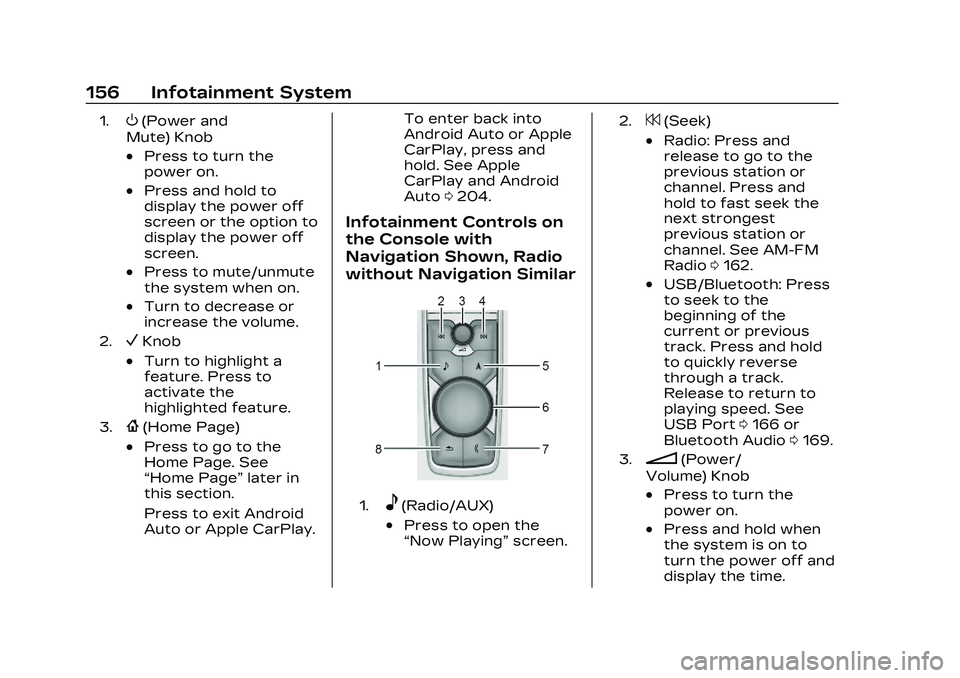
156 Infotainment System
1.O(Power and
Mute) Knob
.Press to turn the
power on.
.Press and hold to
display the power off
screen or the option to
display the power off
screen.
.Press to mute/unmute
the system when on.
.Turn to decrease or
increase the volume.
2.VKnob
.Turn to highlight a
feature. Press to
activate the
highlighted feature.
3.{(Home Page)
.Press to go to the
Home Page. See
“Home Page” later in
this section.
Press to exit Android
Auto or Apple CarPlay. To enter back into
Android Auto or Apple
CarPlay, press and
hold. See Apple
CarPlay and Android
Auto
0204.
Infotainment Controls on
the Console with
Navigation Shown, Radio
without Navigation Similar
1.e(Radio/AUX)
.Press to open the
“Now Playing” screen.
2.7(Seek)
.Radio: Press and
release to go to the
previous station or
channel. Press and
hold to fast seek the
next strongest
previous station or
channel. See AM-FM
Radio0162.
.USB/Bluetooth: Press
to seek to the
beginning of the
current or previous
track. Press and hold
to quickly reverse
through a track.
Release to return to
playing speed. See
USB Port 0166 or
Bluetooth Audio 0169.
3.n(Power/
Volume) Knob
.Press to turn the
power on.
.Press and hold when
the system is on to
turn the power off and
display the time.
Page 158 of 524
Cadillac CT4 Owner Manual (GMNA-Localizing-U.S./Canada-16500442) -
2023 - CRC - 5/4/22
Infotainment System 157
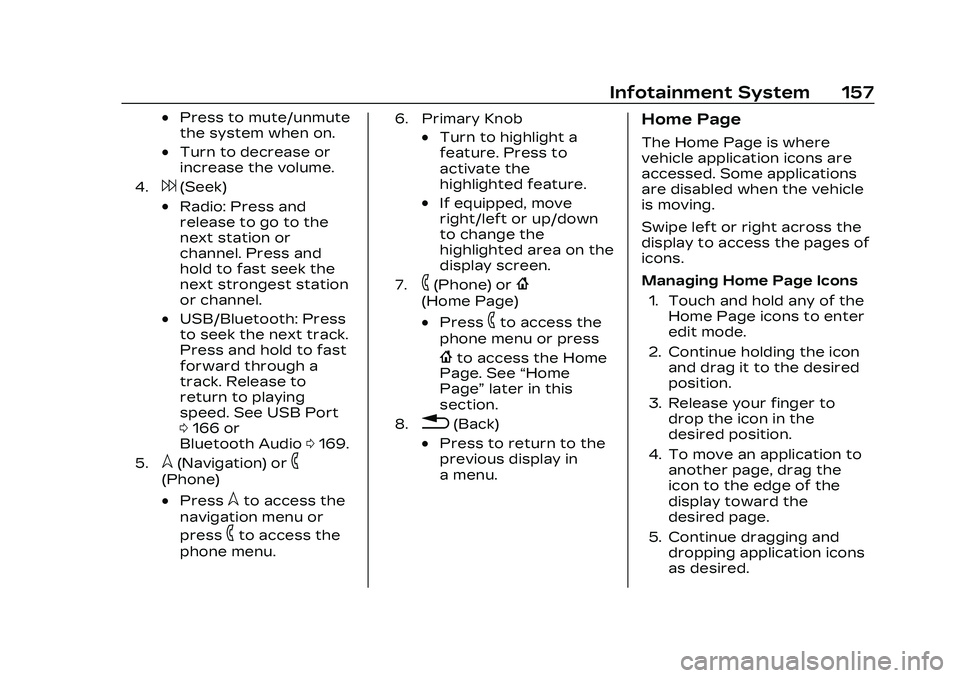
.Press to mute/unmute
the system when on.
.Turn to decrease or
increase the volume.
4.6(Seek)
.Radio: Press and
release to go to the
next station or
channel. Press and
hold to fast seek the
next strongest station
or channel.
.USB/Bluetooth: Press
to seek the next track.
Press and hold to fast
forward through a
track. Release to
return to playing
speed. See USB Port
0166 or
Bluetooth Audio 0169.
5.l(Navigation) or6
(Phone)
.Presslto access the
navigation menu or
press
6to access the
phone menu.
6. Primary Knob
.Turn to highlight a
feature. Press to
activate the
highlighted feature.
.If equipped, move
right/left or up/down
to change the
highlighted area on the
display screen.
7.6(Phone) or{
(Home Page)
.Press6to access the
phone menu or press
{to access the Home
Page. See “Home
Page” later in this
section.
8.0(Back)
.Press to return to the
previous display in
a menu.
Home Page
The Home Page is where
vehicle application icons are
accessed. Some applications
are disabled when the vehicle
is moving.
Swipe left or right across the
display to access the pages of
icons.
Managing Home Page Icons
1. Touch and hold any of the Home Page icons to enter
edit mode.
2. Continue holding the icon and drag it to the desired
position.
3. Release your finger to drop the icon in the
desired position.
4. To move an application to another page, drag the
icon to the edge of the
display toward the
desired page.
5. Continue dragging and dropping application icons
as desired.
Page 159 of 524
Cadillac CT4 Owner Manual (GMNA-Localizing-U.S./Canada-16500442) -
2023 - CRC - 5/4/22
158 Infotainment System
Steering Wheel
Controls
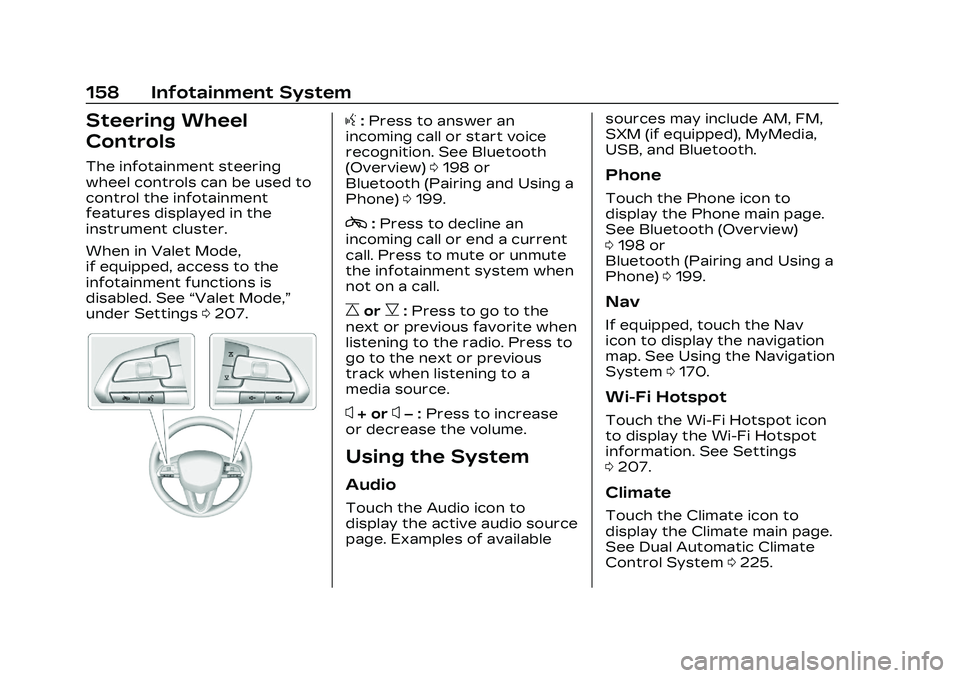
The infotainment steering
wheel controls can be used to
control the infotainment
features displayed in the
instrument cluster.
When in Valet Mode,
if equipped, access to the
infotainment functions is
disabled. See“Valet Mode,”
under Settings 0207.
g:Press to answer an
incoming call or start voice
recognition. See Bluetooth
(Overview) 0198 or
Bluetooth (Pairing and Using a
Phone) 0199.
c:Press to decline an
incoming call or end a current
call. Press to mute or unmute
the infotainment system when
not on a call.
CorB: Press to go to the
next or previous favorite when
listening to the radio. Press to
go to the next or previous
track when listening to a
media source.
x+ orx– :Press to increase
or decrease the volume.
Using the System
Audio
Touch the Audio icon to
display the active audio source
page. Examples of available sources may include AM, FM,
SXM (if equipped), MyMedia,
USB, and Bluetooth.
Phone
Touch the Phone icon to
display the Phone main page.
See Bluetooth (Overview)
0
198 or
Bluetooth (Pairing and Using a
Phone) 0199.
Nav
If equipped, touch the Nav
icon to display the navigation
map. See Using the Navigation
System 0170.
Wi-Fi Hotspot
Touch the Wi-Fi Hotspot icon
to display the Wi-Fi Hotspot
information. See Settings
0207.
Climate
Touch the Climate icon to
display the Climate main page.
See Dual Automatic Climate
Control System 0225.
Page 163 of 524
Cadillac CT4 Owner Manual (GMNA-Localizing-U.S./Canada-16500442) -
2023 - CRC - 5/4/22
162 Infotainment System
Software Updates
Over-the-Air Software
Updates
If equipped, see“Updates”
under Settings 0207 for
details on software updates.
Radio
AM-FM Radio
Playing the Radio
Presseon the console
controls or touch the Audio
icon on the Home Page to
display the active audio source
page. Choose the three most
recently used sources listed at
the left side of the display.
Choose the More option to
display a list of available
sources. Examples of available
sources may include AM, FM,
SXM (if equipped), MyMedia,
USB, AUX (if equipped), and
Bluetooth.
Infotainment System
Sound Menu
From any of the audio source
main pages, touch Sound to
display the following:
Equalizer : Touch to adjust
Bass, Midrange, Treble, and
Surround (if equipped) using
the options on the
infotainment display.
Fade/Balance : Touch to
adjust by using the controls on
the infotainment display or by
tapping/dragging the
crosshair.
Sound Mode (If Equipped)
.Bose Centerpoint surround
sound systems have four
sound modes:
‐ Normal: Adjusts the audio
to provide the best sound
for all seating positions.
‐ Driver: Adjusts the audio to
provide the best sound for
the driver. ‐
Rear: Adjusts the audio to
provide the best sound for
the rear seat occupants.
‐ Centerpoint: Turns on
Bose Centerpoint
surround technology. This
setting creates a surround
sound from nearly any
audio source: existing
stereo and MP3 players.
For more information on
Bose Centerpoint
surround technology, see
www.boseautomotive.com.
.AKG surround sound
systems have two sound
modes:
‐Normal: Adjusts the audio
to provide the best sound
for all seating positions.
‐ Rear: Adjusts the audio to
provide the best sound for
the rear seat occupants.
Page 170 of 524
Cadillac CT4 Owner Manual (GMNA-Localizing-U.S./Canada-16500442) -
2023 - CRC - 5/4/22
Infotainment System 169
File System and Naming
File systems supported by the
USB may include:
.FAT32
.NTFS
.HFS+
The songs, artists, albums, and
genres are taken from the
file’s song information and are
only displayed if present. The
radio displays the file name as
the track name if the song
information is not available.
Storing and Recalling
Media Favorites
To store media favorites,
touch Browse to display a list
of media types.
Touch one of the following
Browse options to save a
favorite:
Playlists : Touch
Hnext to
any playlist to store the
playlist as a favorite. Touch a
saved favorite to recall a
favorite playlist. The first song
in the playlist begins to play. Artists :
Touch
Hnext to any
artist to store the artist as a
favorite. Touch a saved
favorite to recall a favorite
artist. The first song in the
artist list begins to play.
Songs : Touch
Hnext to any
song to store the song as a
favorite. Touch a saved
favorite to recall a
favorite song.
Albums : Touch
Hnext to any
album to store the album as a
favorite. Touch a saved
favorite to recall a favorite
album. The first song in the
album list begins to play.
Genres : Touch
Hnext to any
genre to store the genre as a
favorite. Touch a saved
favorite to recall a favorite
genre. The first song of the
genre begins to play.
Podcasts : Touch
Hnext to
any podcast to store the
podcast as a favorite. Touch a saved favorite to recall a
favorite podcast. The podcast
begins to play.
Audiobooks :
Touch
Hnext
to any audiobook to store the
audiobook as a favorite. Touch
a saved favorite to recall a
favorite audiobook. The first
chapter in the audiobook
begins to play.
Media Playback and Mute
USB playback will be paused if
the system is muted. If the
steering wheel mute control is
pressed again, playback will
resume.
If the source is changed while
in mute, playback resumes and
audio will unmute.
Bluetooth Audio
Music may be played from a
paired Bluetooth device. See
Bluetooth (Overview) 0198 or
Bluetooth (Pairing and Using a
Phone) 0199 for help pairing a
device.
Page 171 of 524
Cadillac CT4 Owner Manual (GMNA-Localizing-U.S./Canada-16500442) -
2023 - CRC - 5/4/22
170 Infotainment System
Volume and song selection
may be controlled by using the
infotainment controls or the
mobile device. If Bluetooth is
selected and no volume is
present, check the volume
setting on the infotainment
system.
Music can be launched by
touching Bluetooth from the
recent sources list on the left
of the display or by touching
the More option and then
touching the Bluetooth device.
To play music via Bluetooth:1. Power on the device, and pair to connect the device.
2. Once paired, touch Audio from the Home Page, then
touch Bluetooth from the
recent sources list on the
left of the display.
Bluetooth Sound Menu
See “Infotainment System
Sound Menu” under AM-FM
Radio 0162. Manage Bluetooth Devices
From the Home Page:
1. Touch Audio.
2. Touch Devices to add or delete devices.
When touching Bluetooth, the
radio may not be able to
launch the audio player on the
connected device to start
playing. When the vehicle is
not moving, use the mobile
device to begin playback.
All devices launch audio
differently. When selecting
Bluetooth as a source, the
radio may show as paused on
the display. Press play on the
device or touch
pon the
vehicle display to begin
playback.
Browse functionality will be
provided where supported by
the Bluetooth device. This
media content will not be part
of the MyMedia source mode. Some smartphones support
sending Bluetooth music
information to display on the
radio. When the radio receives
this information, it will check to
see if any is available and
display it. For more
information about supported
Bluetooth features, visit your
brand website. See Online
Account
0486 for details.
See Radio Frequency
Statement 0494.
Navigation
Using the Navigation
System
If equipped, launch the Nav
application by touching the
Nav icon on the Home Page or
on the shortcut tray near the
bottom of the infotainment
display.
When the Nav application is
launched for the first time, a
product walkthrough is
available. Use of the feature