brake CADILLAC CT5 2021 User Guide
[x] Cancel search | Manufacturer: CADILLAC, Model Year: 2021, Model line: CT5, Model: CADILLAC CT5 2021Pages: 435, PDF Size: 8.9 MB
Page 107 of 435
Cadillac CT5 Owner Manual (GMNA-Localizing-U.S./Canada-14584312) -
2021 - CRC - 11/24/20
106 INSTRUMENTS AND CONTROLS
take longer to stop. If the light is still
on, have the vehicle towed for service.
SeeTowing the Vehicle 0371.
{Warning
The brake system might not be
working properly if the brake
system warning light is on. Driving
with the brake system warning light
on can lead to a crash. If the light is
still on after the vehicle has been
pulled off the road and carefully
stopped, have the vehicle towed for
service.
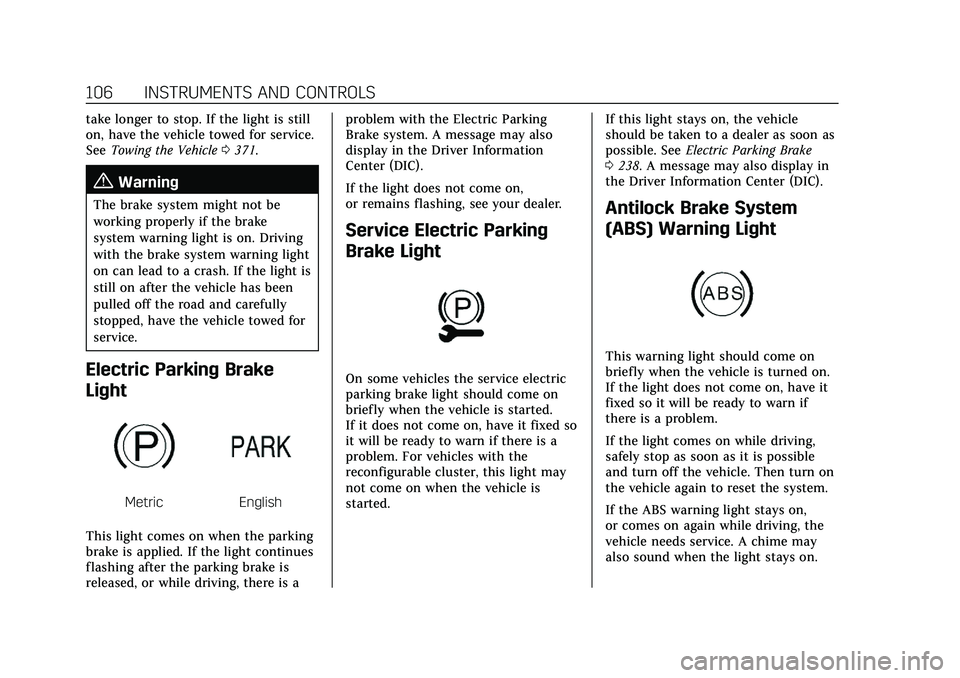
Electric Parking Brake
Light
MetricEnglish
This light comes on when the parking
brake is applied. If the light continues
flashing after the parking brake is
released, or while driving, there is a problem with the Electric Parking
Brake system. A message may also
display in the Driver Information
Center (DIC).
If the light does not come on,
or remains flashing, see your dealer.
Service Electric Parking
Brake Light
On some vehicles the service electric
parking brake light should come on
briefly when the vehicle is started.
If it does not come on, have it fixed so
it will be ready to warn if there is a
problem. For vehicles with the
reconfigurable cluster, this light may
not come on when the vehicle is
started.
If this light stays on, the vehicle
should be taken to a dealer as soon as
possible. See
Electric Parking Brake
0 238. A message may also display in
the Driver Information Center (DIC).
Antilock Brake System
(ABS) Warning Light
This warning light should come on
briefly when the vehicle is turned on.
If the light does not come on, have it
fixed so it will be ready to warn if
there is a problem.
If the light comes on while driving,
safely stop as soon as it is possible
and turn off the vehicle. Then turn on
the vehicle again to reset the system.
If the ABS warning light stays on,
or comes on again while driving, the
vehicle needs service. A chime may
also sound when the light stays on.
Page 108 of 435
Cadillac CT5 Owner Manual (GMNA-Localizing-U.S./Canada-14584312) -
2021 - CRC - 11/24/20
INSTRUMENTS AND CONTROLS 107
If the ABS warning light is the only
light on, the vehicle has regular
brakes, but ABS is not functioning.
If both the ABS warning light and the
brake system warning light are on,
ABS is not functioning and there is a
problem with the regular brakes. See
your dealer for service.
SeeBrake System Warning Light 0105.
Performance Shifting Light
If equipped, this light may display
green when Sport Mode is activated
and certain driving conditions are
met. Sport Mode detects when the
vehicle is being driven in a
competitive manner, and adjusts the
shifting of the gears accordingly. See
Driver Mode Control 0242.
Automatic Vehicle Hold
(AVH) Light
This light comes on when AVH is
actively holding the vehicle. See
Automatic Vehicle Hold (AVH) 0240.
Lane Keep Assist (LKA)
Light
After the vehicle is started, this light
turns off and stays off if LKA has not
been turned on or is unavailable.
If equipped, this light is white if LKA
is turned on, but not ready to assist.
This light is green if LKA is turned on
and is ready to assist. LKA may assist by gently turning the
steering wheel if the vehicle
approaches a detected lane marking.
The LKA light is amber when
assisting.
This light flashes amber as a Lane
Departure Warning (LDW) alert, to
indicate that the lane marking has
been crossed.
LKA will not assist or alert if the turn
signal is active in the direction of lane
departure, or if LKA detects that you
are accelerating, braking, or actively
steering.
See
Lane Keep Assist (LKA) 0293.
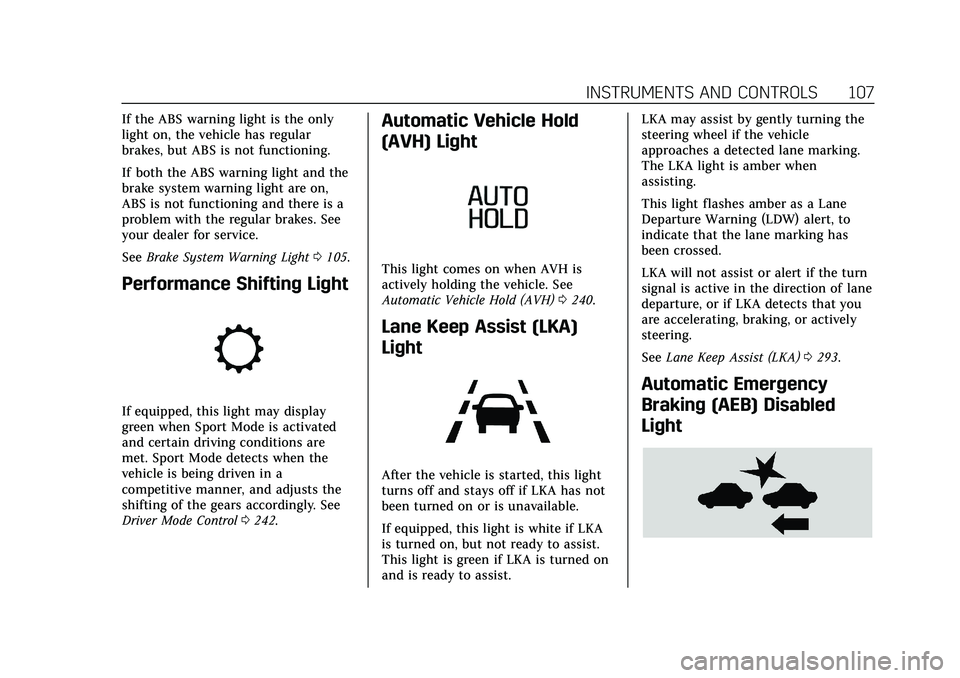
Automatic Emergency
Braking (AEB) Disabled
Light
Page 116 of 435
Cadillac CT5 Owner Manual (GMNA-Localizing-U.S./Canada-14584312) -
2021 - CRC - 11/24/20
INSTRUMENTS AND CONTROLS 115
Brake Pad Life :If equipped, This
displays an estimate of the remaining
life of the front and rear brake pads.
Messages will display based on brake
pad wear and the state of the system.
Reset the Brake Pad Life display after
replacing the brake pads. See Brake
Pad Life System (If Equipped) 0328.
Tire Pressure : Shows the
approximate pressures of all four tires.
Tire pressure is displayed in either
kilopascal (kPa) or in pounds per
square inch (psi). If the pressure is
low, the value for that tire is shown in
amber. See Tire Pressure Monitor
System 0351 and
Tire Pressure Monitor Operation 0352.
Fuel Economy : Displays average fuel
economy, the best fuel economy over
the selected distance, and a bar graph
showing instantaneous fuel economy.
Average Speed : Displays the average
vehicle speed of the vehicle in
kilometers per hour (km/h) or miles
per hour (mph). This average is based
on the various vehicle speeds recorded
since the last reset. Reset the average
speed by pressing the thumbwheel while this display is active to show a
confirmation window to select yes
or no.
Timer :
This display can be used as a
timer. To start the timer, press the
thumbwheel while this display is
active. The display will show the
amount of time that has passed since
the timer was last reset. To stop the
timer, press the thumbwheel briefly
while this display is active and the
timer is running.
Press the thumbwheel while this
display is active to reset the timer.
Follow Distance/Gap Setting : When
Adaptive Cruise Control (ACC) is not
engaged, the current follow time to
the vehicle ahead is displayed as a
time value on this page. When ACC
has been engaged, the display
switches to the gap setting page. This
page shows the current gap setting
along with the vehicle ahead telltale.
Driver Assistance : If equipped,
shows information for Lane Keep
Assist (LKA) and Forward Collision
Alert (FCA). Battery Voltage :
Shows the current
battery voltage.
Coolant Temperature : Shows the
engine coolant temperature in either
degrees Celsius (°C) or degrees
Fahrenheit (°F).
Oil Temperature : Shows the engine
oil temperature in either degrees
Celsius (°C) or degrees Fahrenheit (°F).
Engine Hours (Hourmeter) : Shows
the total number of hours the engine
has run. The display also shows the
engine idle hours.
Engine Boost : Displays engine
manifold pressure relative to ambient
air pressure. It will display boost
pressure generated by the
turbocharging system.
Transmission Fluid Temperature :
Shows the temperature of the
automatic transmission fluid in either
degrees Celsius (°C) or degrees
Fahrenheit (°F).
Info Page Options : Scroll to choose
which info pages appear on the DIC.
Press the thumbwheel to select or
deselect.
Page 119 of 435
Cadillac CT5 Owner Manual (GMNA-Localizing-U.S./Canada-14584312) -
2021 - CRC - 11/24/20
118 INSTRUMENTS AND CONTROLS
Current Drive Cycle :Displays
information in relation to the current
drive cycle including Distance
Traveled, Average Fuel Economy, and
the Total Time. They will reset after
the drive cycle is completed.
Driver Assistance : If equipped,
displays the states of all active safety
systems.
Oil Life : Displays an estimate of the
oil's remaining useful life.
If REMAINING OIL LIFE 99% is
displayed, that means 99% of the
current oil life remains.
When the remaining oil life is low, the
CHANGE ENGINE OIL SOON message
will appear on the display. The oil
should be changed as soon as
possible. See Engine Oil0316. In
addition to the engine oil life system
monitoring the oil life, additional
maintenance is recommended in the
Maintenance Schedule. See the
Maintenance Schedule booklet..
The Oil Life display must be reset
after each oil change. It will not reset
itself. Do not reset the Oil Life display
accidentally at any time other than
when the oil has just been changed. It cannot be reset accurately until the
next oil change. See
Engine Oil Life
System 0318.
Air Filter Life : If equipped, shows an
estimate of the engine air filter’s
remaining useful life and the state of
the system. Engine Air Filter Life 95%
means 95% of the current air filter life
remains. Messages will display based
on the engine air filter life and the
state of the system. When the
REPLACE AT NEXT OIL CHANGE
message displays, the engine air filter
should be replaced at the time of the
next oil change. When the REPLACE
NOW message displays, the engine air
filter should be replaced as soon as
possible.
Engine Hours : Displays the total
number of hours the engine has run.
The display also shows the engine idle
hours.
Lifetime Revs : The display also
shows total engine revolutions divided
by 10,000.
Brake Pad Life : If equipped, This
displays an estimate of the remaining
life of the front and rear brake pads.
Messages will display based on brake pad wear and the state of the system.
Reset the Brake Pad Life display after
replacing the brake pads. See
Brake
Pad Life System (If Equipped) 0328.
Head-Up Display (HUD)
{Warning
If the HUD image is too bright or
too high in your field of view, it
may take you more time to see
things you need to see when it is
dark outside. Be sure to keep the
HUD image dim and placed low in
your field of view.
If equipped with HUD, some
information concerning the operation
of the vehicle is projected onto the
windshield. The information is
projected through the HUD lens on
the driver side of the instrument
panel and focused out toward the
front of the vehicle.
Page 123 of 435
Cadillac CT5 Owner Manual (GMNA-Localizing-U.S./Canada-14584312) -
2021 - CRC - 11/24/20
122 INSTRUMENTS AND CONTROLS
Navigation Overlay :This displays
digital speed for Tour/ Sport, current
gear for Track, indicators from speed
view along with Turn-by-Turn
Navigation information in some
vehicles, vehicle ahead indicator, Lane
Departure Warning/Lane Keep Assist,
and Adaptive Cruise Control and set
speed. The compass heading is
displayed when navigation routing is
not active.
Navigation Turn-by-Turn Alerts
shown in the instrument cluster may
also be displayed in any HUD view.
Care of the HUD
Clean the inside of the windshield to
remove any dirt or film that could
reduce the sharpness or clarity of the
HUD image.
Clean the HUD lens with a soft cloth
sprayed with glass cleaner. Wipe the
lens gently, then dry it.
HUD Troubleshooting
If you cannot see the HUD image
when the ignition is on, check that:
.Nothing is covering the HUD lens.
.The HUD brightness setting is not
too dim or too bright.
.The HUD is adjusted to the proper
height.
.Polarized sunglasses are not worn.
.The windshield and HUD lens are
clean.
If the HUD image is not correct,
contact your dealer.
The windshield is part of the HUD
system. If the windshield needs
replacing, see Windshield Replacement
0 332.
Vehicle Messages
Messages displayed on the Driver
Information Center (DIC) indicate the
status of the vehicle or some action
that may be needed to correct a
condition. Multiple messages may
appear one after another.
The messages that do not require
immediate action can be
acknowledged and cleared by pressing
the thumbwheel. The messages that
require immediate action cannot be
cleared until that action is performed. All messages should be taken
seriously; clearing the message does
not correct the problem.
If a SERVICE message appears, see
your dealer.
Follow the instructions given in the
messages. The system displays
messages regarding the following
topics:
.Service Messages
.Fluid Levels
.Vehicle Security
.Brakes
.Steering
.Ride Control Systems
.Driver Assistance Systems
.Cruise Control
.Lighting and Bulb Replacement
.Wiper/Washer Systems
.Doors and Windows
.Seat Belts
.Airbag Systems
.Engine and Transmission
.Tire Pressure
.Battery
Page 124 of 435
Cadillac CT5 Owner Manual (GMNA-Localizing-U.S./Canada-14584312) -
2021 - CRC - 11/24/20
INSTRUMENTS AND CONTROLS 123
Engine Power Messages
REDUCED ACCELERATION DRIVE
WITH CARE
This message displays when the
vehicle's propulsion power is reduced.
A reduction in propulsion power can
affect the vehicle's ability to
accelerate. If this message is on, but
there is no observed reduction in
performance, proceed to your
destination. Under certain conditions
the performance may be reduced the
next time the vehicle is driven. The
vehicle may be driven while this
message is on, but maximum
acceleration and speed may be
reduced. Anytime this message stays
on, or displays repeatedly, the vehicle
should be taken to your dealer for
service as soon as possible.
Under certain operating conditions,
propulsion will be disabled. Try
restarting after the ignition has been
off for two minutes.
Vehicle Speed Messages
SPEED LIMITED TO XXX
KM/H (MPH)
This message shows that the vehicle
speed has been limited to the speed
displayed. The limited speed is a
protection for various propulsion and
vehicle systems, such as lubrication,
thermal, brakes, suspension, Teen
Driver if equipped, or tires.
Vehicle Personalization
The following are all possible vehicle
personalization features. Depending
on the vehicle, some may not be
available.
For System, Apps, and Personal
features and functions, seeSettings
0 182.
To access the vehicle
personalization menu: 1. Touch the Settings icon on the Home Page of the infotainment
display.
2. Touch Vehicle to display a list of available options. 3. Touch to select the desired feature
setting.
4. Touch
9orRto turn a feature off
or on.
5. Touch
zto go to the top level of
the Settings menu.
The menu may contain the following:
Rear Seat Reminder
This allows for a chime and a message
when the rear door has been opened
before or during operation of the
vehicle.
Touch Off or On.
Buckle to Drive
This feature can prevent shifting out
of Park when the driver, and if
applicable the front passenger, seat
belt is not buckled. See Buckle To Drive
0 47.
Touch Off or On.
Driver Mode Customization
Touch and the following may display:
.My Mode
.V-Mode
Page 125 of 435
Cadillac CT5 Owner Manual (GMNA-Localizing-U.S./Canada-14584312) -
2021 - CRC - 11/24/20
124 INSTRUMENTS AND CONTROLS
.Visualization
My Mode
Touch and the following may display:
.Engine Sound
.Steering
.Suspension
.Brake Feel
For information on the range of
settings, see “Driver Mode
Customization ”in Driver Mode Control
0 242.
V-Mode
Touch and the following may display:
.Engine Sound
.Steering
.Suspension
.Brake Feel
.Powertrain
For information on the range of
settings, see “Driver Mode
Customization ”in Driver Mode Control
0 242. Visualization
This setting shows handling and
performance settings on the
infotainment display when changing
drive modes.
Touch Off or On.
Climate and Air Quality
Touch and the following may display:
.Auto Fan Speed
.Air Quality Sensor
.Auto Cooled Seats
.Auto Heated Seats
.Auto Defog
.Auto Rear Defog
.Ionizer
Auto Fan Speed
This setting specifies the amount of
airf low when the climate control fan
setting is Auto Fan.
Touch Low, Medium, or High.
Air Quality Sensor
This setting switches the system into
Recirculation Mode based on the
quality of the outside air. Touch Off, Low Sensitivity, or High
Sensitivity.
Auto Cooled Seats
This setting automatically turns on
and regulates the ventilated seats
when the cabin temperature is warm.
See
Heated and Ventilated Front Seats
0 42.
Touch Off or On.
Auto Heated Seats
This setting automatically turns on
and regulates the heated seats when
the cabin temperature is cool. The
auto heated seats can be turned off by
using the heated seat buttons on the
center stack. See Heated and Ventilated
Front Seats 042.
If equipped with auto heated steering
wheel, this feature will turn on when
the auto heated seats turn on.
Touch Off or On.
Auto Defog
This setting automatically turns the
front defogger on when the engine is
started.
Touch Off or On.
Page 126 of 435
Cadillac CT5 Owner Manual (GMNA-Localizing-U.S./Canada-14584312) -
2021 - CRC - 11/24/20
INSTRUMENTS AND CONTROLS 125
Auto Rear Defog
This setting automatically turns the
rear defogger on when the engine is
started.
Touch Off or On.
Ionizer
If equipped and on, this feature helps
clean the air inside the vehicle and
remove contaminants such as pollen,
odors, and dust. SeeDual Automatic
Climate Control System 0202.
Touch Off or On.
Collision / Detection Systems
Touch and the following may display:
.Alert Type
.Forward Collision System
.Front Pedestrian Detection
.Lane Change Alert
.Seat Belt Tightening
.Rear Cross Traffic Alert
.Rear Pedestrian Detection
.Adaptive Cruise Go Notifier
.Rear Camera Park Assist Symbols
.Super Cruise Lane Change Alert Type
This setting specifies the type of
vehicle feedback provided, either a
beep or seat vibration, when you are
in danger of colliding with an object.
Touch Beeps or Safety Alert Seat.
Forward Collision System
This setting can alert of a potential
crash with a detected vehicle ahead
and can apply brakes to help reduce a
collision’s severity.
Touch Off, Alert, or Alert and Brake.
Front Pedestrian Detection
This feature may help avoid or reduce
the harm caused by front-end crashes
with nearby pedestrians.
See
Front Pedestrian Braking (FPB)
System 0289.
Touch Off, Alert, or Alert and Brake.
Lane Change Alert
This setting specifies if an alert will
display on the outside mirror to help
you avoid crashing into a vehicle in
your blind spot, or rapidly approaching your blind spot, during a
lane change maneuver. See
Lane
Change Alert (LCA) 0291.
Touch Off or On.
Seat Belt Tightening
This setting automatically adjusts
your seat belts to a snug fit when
buckled. The seat belts tighten when
you first buckle up and during rough
driving or road conditions.
Touch Off or On.
Rear Cross Traffic Alert
This setting specifies if an alert will
display when the vehicle detects
approaching rear cross traffic when in
R (Reverse). See Assistance Systems for
Parking or Backing 0277.
Touch Off or On.
Rear Pedestrian Detection
This setting specifies if alerts will
display when the vehicle detects
pedestrians behind when in
R (Reverse). See Rear Pedestrian Alert
0 284.
Touch Off, Alert, or Alert and Brake.
Page 191 of 435
Cadillac CT5 Owner Manual (GMNA-Localizing-U.S./Canada-14584312) -
2021 - CRC - 11/23/20
190 INFOTAINMENT SYSTEM
The PIN is required to:
.Register or unregister keys.
.Change Teen Driver settings.
.Change or clear the Teen
Driver PIN.
.Access or delete Report Card data.
Register keys to activate Teen
Driver and assign restrictions to
the key:
Any vehicle key can be registered, up
to a maximum of eight keys. Label the
key to tell it apart from the
other keys.
For a pushbutton start system: 1. Start the engine.
2. For automatic transmissions, the vehicle must be in P (Park). For
manual transmissions, the vehicle
must be stopped with the parking
brake set.
3. From the Settings menu, touch Vehicle and then Teen Driver.
4. Enter the PIN.
5. Place the remote key you wish to register in the rear cupholder. The
key does not need to be the one that started the vehicle. See
Remote
Keyless Entry (RKE) System
Operation 07for rear cupholder
location.
6. From the Teen Driver menu, touch Setup Keys..If the transmitter key has not
previously been registered, the
option to add the key displays.
Touch Setup and a confirmation
message displays. Teen Driver
restrictions will be applied
whenever this key is used to
operate the vehicle.
.If the transmitter key has
already been registered, the
option to remove the key
displays. If Remove is touched,
the transmitter key is no longer
registered. A confirmation
message displays, and Teen
Driver restrictions will not be
applied if this transmitter key is
used to operate the vehicle.
In vehicles with a pushbutton start
system, if a Teen Driver and a
non-Teen Driver key are both present
at start up, the vehicle will recognize the non-Teen Driver key to start the
vehicle. The Teen Driver settings will
not be active.
Manage Settings
Buckle To Drive :
When turned ON,
Buckle to Drive prevents the driver
from shifting out of P (Park) for a
period of time if driver seat belt, and
on some vehicles, the passenger seat
belt, is not buckled. See Buckle To
Drive 047 and
Vehicle Personalization 0123.
Audio Volume Limit : Allows the
audio volume limit to be turned on or
off. Touch Set Audio Volume Limit to
choose the maximum allowable audio
volume level.
Set Audio Volume Limit : Allows a
maximum radio volume to be set. Use
the arrows to choose the maximum
allowable level for the audio volume.
Teen Driver Speed Limiter : Limits
the maximum speed of the vehicle.
When the speed limiter is turned on
and the vehicle is started with a Teen
Driver key, the DIC displays a message
that the top speed is limited.
Page 193 of 435

Cadillac CT5 Owner Manual (GMNA-Localizing-U.S./Canada-14584312) -
2021 - CRC - 11/23/20
192 INFOTAINMENT SYSTEM
.Overspeed Warnings–the number
of times the speed warning setting
was exceeded.
.Wide Open Throttle –the number
of times the accelerator pedal was
pressed nearly all the way down.
.Forward Collision Alerts –the
number of times the driver was
notified when approaching a vehicle
ahead too quickly and at potential
risk for a crash.
.Forward Automatic Braking, also
called Automatic Emergency
Braking (if equipped) –the number
of times the vehicle detected that a
forward collision was imminent and
applied the brakes.
.Reverse Automatic Braking (if
equipped) –the number of times
the vehicle detected that a rearward
collision was imminent and applied
the brakes.
.Traction Control –the number of
times the Traction Control System
activated to reduce wheel spin or
loss of traction.
.Stability Control –the number of
events which required the use of
electronic stability control.
.Antilock Braking System Active –
The number of Antilock Brake
System activations.
.Tailgating Alerts –the number of
times the driver was alerted for
following a vehicle ahead too
closely.
Report Card Data
Cumulative Data is saved for all trips
until the Report Card is reset or until
the maximum count is exceeded.
If the maximum count is exceeded for
a Report Card line item, that item will
no longer be updated in the Report
Card until it is reset. Each item will
report a maximum of 1,000 counts.
The distance driven will report a
maximum of 64,374 km (40,000 mi).
To delete Report Card data, do one of
the following:
.From the Report Card display, touch
Reset.
.Touch Clear All Teen Keys and PIN
from the Teen Driver menu. This
will also unregister any Teen Driver
keys and delete the PIN.
Forgotten PIN
See your dealer to reset the PIN.
Trademarks and License
Agreements
FCC Information
See Radio Frequency Statement 0410.
"Made for iPod," and "Made for
iPhone," mean that an electronic
accessory has been designed to
connect specifically to iPod or iPhone,
respectively, and has been certified by
the developer to meet Apple
performance standards. Apple is not
responsible for the operation of this
device or its compliance with safety
and regulatory standards. Please note
that the use of this accessory with
iPod or iPhone may affect wireless
performance. iPhone, iPod, iPod
classic, iPod nano, iPod shuffle, and
iPod touch are trademarks of Apple
Inc., registered in the U.S. and other
countries.