fuel CADILLAC CT5 2022 Owner's Manual
[x] Cancel search | Manufacturer: CADILLAC, Model Year: 2022, Model line: CT5, Model: CADILLAC CT5 2022Pages: 466, PDF Size: 7.21 MB
Page 122 of 466

Cadillac CT5 Owner Manual (GMNA-Localizing-U.S./Canada-15268585) -
2022 - CRC - 10/11/21
INSTRUMENTS AND CONTROLS 121
economy. Pressing the thumbwheel
opens a menu to change the selected
distance or reset the current values.
Trip Timer/Fuel Used :This display
can be used as a timer. To start/stop
the timer, press the thumbwheel while
this display is active and then select
the start/stop the timer. The display
shows the amount of time that has
passed since the timer was last reset.
To reset the timer to zero, press the
thumbwheel to access the menu while
this display is active.
Fuel Used displays the approximate
liters (L) or gallons (gal) of fuel that
have been used since last reset. The
fuel used can be reset by pressing the
thumbwheel and selecting Reset Fuel
Used in the menu.
Current Drive Cycle : Displays
information in relation to the current
drive cycle including Distance
Traveled, Average Fuel Economy, and
the Total Time. They will reset after
the drive cycle is completed.
Driver Assistance : If equipped,
displays the status of all active safety
systems. Oil Life :
Displays an estimate of the
remaining useful oil life.
If REMAINING OIL LIFE 99% is
displayed, that means 99% of the
current oil life remains.
When the remaining oil life is low, the
CHANGE ENGINE OIL SOON message
appears on the display. The oil should
be changed as soon as possible. See
Engine Oil 0336. In addition to the
engine oil life system monitoring the
oil life, additional maintenance is
recommended. See Maintenance
Schedule 0410.
The Oil Life display must be reset
after each oil change. It will not reset
itself. Do not reset the Oil Life display
accidentally at any time other than
when the oil has just been changed.
It cannot be reset accurately until the
next oil change. See Engine Oil Life
System 0338.
Air Filter Life : If equipped, shows an
estimate of the engine air filter’s
remaining useful life and the state of
the system. Engine Air Filter Life 95%
means 95% of the current air filter life
remains. Messages are displayed based
on the engine air filter life and the state of the system. When the
REPLACE AT NEXT OIL CHANGE
message displays, the engine air filter
should be replaced at the time of the
next oil change. When the REPLACE
NOW message displays, the engine air
filter should be replaced as soon as
possible.
Engine Hours :
Displays the total
number of hours the engine has run.
The display also shows the engine idle
hours.
Lifetime Revs : The display shows
total engine revolutions divided by
10,000.
Brake Pad Life : If equipped, this
displays an estimate of the remaining
life of the front and rear brake pads.
Messages are displayed based on
brake pad wear and the state of the
system. Reset the Brake Pad Life
display after replacing the brake pads.
See Brake Pad Life System (If Equipped)
0 351.
Page 160 of 466
Cadillac CT5 Owner Manual (GMNA-Localizing-U.S./Canada-15268585) -
2022 - CRC - 10/11/21
INFOTAINMENT SYSTEM 159
the search bar will appear along the
top of the navigation map view.
Manually close the search bar by
touching
z. When the vehicle is
moving, the
}(Search) icon will
replace the search bar to maximize
the full map view.
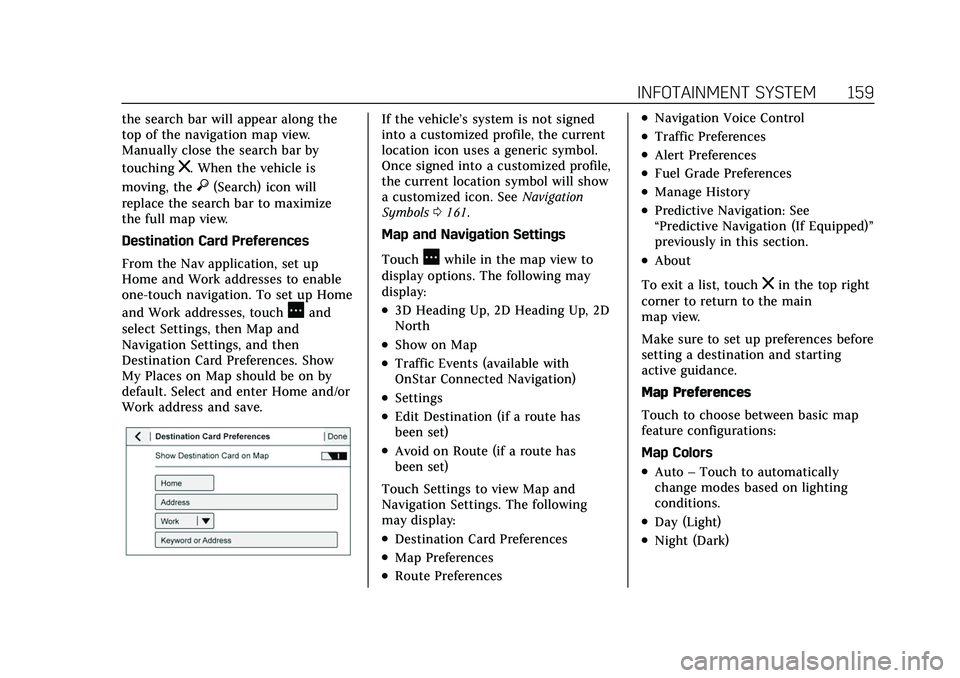
Destination Card Preferences
From the Nav application, set up
Home and Work addresses to enable
one-touch navigation. To set up Home
and Work addresses, touch
Aand
select Settings, then Map and
Navigation Settings, and then
Destination Card Preferences. Show
My Places on Map should be on by
default. Select and enter Home and/or
Work address and save.
If the vehicle’s system is not signed
into a customized profile, the current
location icon uses a generic symbol.
Once signed into a customized profile,
the current location symbol will show
a customized icon. See Navigation
Symbols 0161.
Map and Navigation Settings
Touch
Awhile in the map view to
display options. The following may
display:
.3D Heading Up, 2D Heading Up, 2D
North
.Show on Map
.Traffic Events (available with
OnStar Connected Navigation)
.Settings
.Edit Destination (if a route has
been set)
.Avoid on Route (if a route has
been set)
Touch Settings to view Map and
Navigation Settings. The following
may display:
.Destination Card Preferences
.Map Preferences
.Route Preferences
.Navigation Voice Control
.Traffic Preferences
.Alert Preferences
.Fuel Grade Preferences
.Manage History
.Predictive Navigation: See
“Predictive Navigation (If Equipped)”
previously in this section.
.About
To exit a list, touch
zin the top right
corner to return to the main
map view.
Make sure to set up preferences before
setting a destination and starting
active guidance.
Map Preferences
Touch to choose between basic map
feature configurations:
Map Colors
.Auto –Touch to automatically
change modes based on lighting
conditions.
.Day (Light)
.Night (Dark)
Page 161 of 466
Cadillac CT5 Owner Manual (GMNA-Localizing-U.S./Canada-15268585) -
2022 - CRC - 10/11/21
160 INFOTAINMENT SYSTEM
3D Landmark (Default is On) :
Touch On or Off. When turned on, the
system will display all 3D Landmarks
on the map depending on the zoom
level.
3D Building (Default is Off ) :Touch
On or Off. When turned on, the
system will display all of the possible
3D building shapes on the map
depending on the zoom level.
Show Terrain in 3D (Default is
Off ) : If equipped, touch On or Off.
When turned on, the system will
display terrain information on the
map in 3D view.
Auto-Zoom (Default is On) : Touch
On or Off. When turned on, the
system will automatically adjust the
zoom level when the vehicle is
approaching a turn. After the turn is
completed, the system automatically
brings the zoom back to the originally
set level. If the vehicle is approaching
a turn with the next turn occurring
shortly after, the Auto-Zoom will
remain on until both turns are
completed. Route Preferences
Touch to access the Route
Preferences. The choices are:
.Preferred Route
–Choose from two
different route options: Fastest or
Eco-Friendly.
‐ Fastest would be the route with
the shortest drive time.
‐ Eco-Friendly would be the most
fuel-efficient route.
.Avoid on Current Route –Choose
any of the road features to avoid
while on route:
‐ Highways
‐ Unpaved Roads
‐ Ferries
‐ Carpool Lanes
‐ Toll Roads
‐ Tunnels
‐ Country Borders
Navigation Voice Control
Touch to access the voice control
setting display.
.Navigation Volume –To adjust the
volume level, touch the up and
down arrows. If the voice guidance prompt is being heard, volume can
also be adjusted using the knob on
the center stack or the volume
switch on the steering wheel.
.Navigation Voice Prompt Level
during a Call. Options available are:
‐
Full Prompt (Selected by default)
‐ Tone Only
‐ None
Traffic Events (If Equipped)
This feature provides a list of events
that are on the route or nearby. Touch
Aand then select Traffic Events. An
OnStar connected Navigation service
plan is required.
Traffic Preferences (If Equipped)
While in Map View, touch
A, then
Settings and then Map and Navigation
Settings to access Traffic Preferences.
When Show Traffic on Map is turned
on, the feature provides an overview
of the traffic flow using different
coded colors. The following options
are available for rerouting:
Page 168 of 466
Cadillac CT5 Owner Manual (GMNA-Localizing-U.S./Canada-15268585) -
2022 - CRC - 10/11/21
INFOTAINMENT SYSTEM 167
Favorites
The navigation favorites can have
contacts, addresses, or POIs that have
been saved through the favorite icon
on the details view.
Accessing Favorites
In the Nav application, view the
Favorites list by touching
Hin the
search bar along the top of the Nav
map view. If the search bar is closed,
touch
}and selectH.
Saving Favorites
Favorites can be added from a number
of the system’s applications. Touch
the favorites icon to save content as a
favorite.
Renaming Navigation Favorites 1. Touch the Settings icon on the Home Page and touch the
System tab.
2. Touch Favorites to access the Manage Favorites option.
3. Touch a saved Navigation favorite to access the edit icon. Touch the
edit icon to rename the favorite. 4. Touch Save to store the renamed
favorite.
Recents
TouchHto access a list of recent
destinations.
Recenter Position Icon
Touch the Recenter Position arrow in
the middle of the map view to reset
the map to the current location.
Last Parked Location
The Last Parked Location is the last
location the vehicle engine was turned
off. That location is displayed in the
first row of the Recents list. Touching
the last Parked Location shows the
Address Details view to either save the
address or drive to it. The Last Parked
Location can be deleted by entering
the Edit display. Once the Last Parked
Location is deleted, it no longer
appears in the Recents list, unless the
vehicle is started at that location
again.
Show POI Icons
To see the POI categories, touch
Options, then touch Show on Map. Up
to eight categories of icons can be
selected.
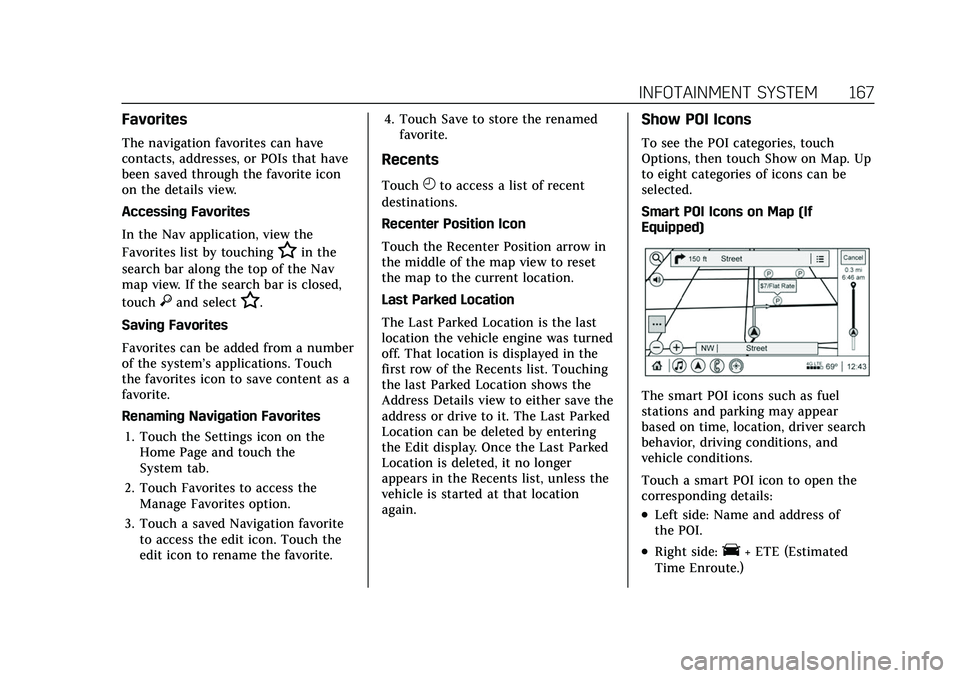
Smart POI Icons on Map (If
Equipped)
The smart POI icons such as fuel
stations and parking may appear
based on time, location, driver search
behavior, driving conditions, and
vehicle conditions.
Touch a smart POI icon to open the
corresponding details:
.Left side: Name and address of
the POI.
.Right side:E+ ETE (Estimated
Time Enroute.)
Page 169 of 466
Cadillac CT5 Owner Manual (GMNA-Localizing-U.S./Canada-15268585) -
2022 - CRC - 10/11/21
168 INFOTAINMENT SYSTEM
Smart Fuel Station Icons
Fuel station prices are shown if
available for nearby stations when the
vehicle is low on fuel.
Smart Parking Icons
When reaching a densely populated
destination and the system
determines that parking may be
limited, the system will attempt to
display nearby parking destinations
with pricing information, if available.
Report an Issue Using POI Details (If
Equipped)
In the POI details page, a POI issue
can be reported if the data is not
accurate or the address is incorrect.
Touch Report an Issue near the
bottom of the display to access the
issue selection page. Touch one of the
predefined issues on the selection
page, then touch Send. The system
will send the information for analysis.Search
Touch Search on the infotainment
display to open the search display.
It has a search field entry box, quick
category icon shortcuts, recents icon,
favorites icon, and keyboard.
Auto Complete
Enter a partial location in the field
entry box on the search display. Auto
complete will attempt to complete the
destination based on what is being
entered. Touch the suggested item to
search.
Search While in Motion with No
Front Seat Passenger Present
The search display will not allow
changes or text input with the
keyboard when the vehicle is in
motion. As a result, a display showing
three rows of the most commonly
used categories appears. Touching the
search box will activate speech
recognition.Search While in Motion with Front
Seat Passenger Present
If the system detects that the front
seat passenger is present with both
driver and passenger seat belts
buckled, touching the search icon will
display an alert message that allows
the passenger to search for a
destination as if the vehicle were
stopped.
Connected Navigation
Connected Navigation is a
subscription service that enables
certain capabilities within the
navigation system, such as Traffic,
Smart Search/Routing, and Predictive
Navigation capabilities. The system
will show an alert when the
subscription is expiring and will ask to
renew the plan.
OnStar System
With a connected plan, an OnStar
Advisor can download a destination to
the vehicle or into the built-in
navigation system.
Page 195 of 466
Cadillac CT5 Owner Manual (GMNA-Localizing-U.S./Canada-15268585) -
2022 - CRC - 10/11/21
194 INFOTAINMENT SYSTEM
.HD Radio: This allows HD Radio
reception to be turned on or off.
Touch the controls on the
infotainment display to disable or
enable.
.Explicit Content Filter: This setting
allows access to explicit content
SiriusXM channels.
Touch Off or On.
.Manage Phones: Select to connect
to a different phone source,
disconnect a phone, or delete a
phone.
.Reset Music Index: This allows the
music index to be reset if you are
having difficulty accessing all of the
media content on your device.
Touch Yes or No.
Climate
Touch and the following may display:
.Auto Fan Speed: This setting
specifies the amount of airflow
when the climate control fan setting
is Auto Fan.
Touch Low, Medium, or High.
.Air Quality Sensor: This setting
switches the system into
Recirculation Mode based on the
quality of the outside air.
Touch Off, Low Sensitivity, or High
Sensitivity.
.Auto Cooled Seats: This setting
automatically turns on and
regulates the ventilated seats when
the cabin temperature is warm.
Touch the controls on the
infotainment display to disable or
enable.
.Auto Heated Seats: This setting
automatically turns on and
regulates the heated seats when the
cabin temperature is cool. The auto
heated seats can be turned off by
using the heated seat controls on
the center stack.
Touch the controls on the
infotainment display to disable or
enable.
.Auto Defog: This setting
automatically turns the front
defogger on when the vehicle engine
is started. Touch the controls on the
infotainment display to disable or
enable.
.Auto Rear Defog: This setting
automatically turns the rear
defogger on when the vehicle engine
is started.
Touch the controls on the
infotainment display to disable or
enable.
.Ionizer: This setting purifies the air
in the interior of the vehicle..
Touch the controls on the
infotainment display to disable or
enable.
Navigation
Touch and the following may display:
.Destination Card Preferences
.Map Preferences
.Route Preferences
.Navigation Voice Control
.Traffic Preferences
.Alert Preferences
.Fuel Grade Preferences
.Manage History
.Predictive Navigation (if equipped)
.About
Page 199 of 466
Cadillac CT5 Owner Manual (GMNA-Localizing-U.S./Canada-15268585) -
2022 - CRC - 10/11/21
198 INFOTAINMENT SYSTEM
When Teen Driver is Active:
.The radio will mute when the
driver, or in some vehicles, the front
passenger seat belt, is not buckled.
The audio from any device paired to
the vehicle will also be muted.
.If an object, such as a briefcase,
handbag, grocery bag, laptop,
or other electronic device, is on the
front passenger seat, it could cause
the radio to mute. If this happens,
remove the object from the seat. See
Passenger Sensing System061.
.Some safety systems, such as
Forward Collision Alert, if equipped,
cannot be turned off.
.The gap setting for the Forward
Collision Alert and Adaptive Cruise
Control, if equipped, cannot be
changed.
.When trying to change a safety
feature that is not configurable in
Teen Driver, the DIC displays a
message indicating that Teen Driver
is active and the action is not
available.
.Super Cruise, if equipped, is not
available.
.Enhanced Low Fuel Warning (if
equipped) –When the vehicle is low
on fuel, the low fuel light on the
instrument cluster flashes and the
DIC low fuel warning cannot be
dismissed.
.Do not tow a trailer.
Report Card
The vehicle owner must secure the
driver’s consent to record certain
vehicle data when the vehicle is driven
with a registered Teen Driver key.
There is one Report Card per vehicle.
Data is only recorded when a
registered Teen Driver key is used to
operate the vehicle.
The Report Card data is collected from
the time Teen Driver is activated or
the last time the Report Card was
reset. The following items may be
recorded:
.Distance Driven –the total distance
driven.
.Maximum Speed –the maximum
vehicle speed detected.
.Overspeed Warnings –the number
of times the speed warning setting
was exceeded.
.Wide Open Throttle –the number
of times the accelerator pedal was
pressed nearly all the way down.
.Forward Collision Alerts –the
number of times the driver was
notified when approaching a vehicle
ahead too quickly and at potential
risk for a crash.
.Forward Automatic Braking, also
called Automatic Emergency
Braking (if equipped) –the number
of times the vehicle detected that a
forward collision was imminent and
applied the brakes.
.Reverse Automatic Braking (if
equipped) –the number of times
the vehicle detected that a rearward
collision was imminent and applied
the brakes.
.Traction Control –the number of
times the Traction Control System
activated to reduce wheel spin or
loss of traction.
.Stability Control –the number of
events which required the use of
electronic stability control.
.Antilock Braking System Active –
The number of Antilock Brake
System activations.
Page 211 of 466

Cadillac CT5 Owner Manual (GMNA-Localizing-U.S./Canada-15268585) -
2022 - CRC - 10/11/21
210 CLIMATE CONTROLS
Climate Control Display
1. Driver and Passenger Temperature Controls
2. Driver and Passenger Temperature Displays
3. Fan Control
4. Sync (Synchronized Temperature)
5. Recirculation
6. Air Delivery Mode Control
7. Auto (Automatic Operation)
8. A/C (Air Conditioning)
9. On/Off (Power)
The fan, air delivery mode, air
conditioning, driver and passenger
temperatures, recirculation, and Sync settings can be controlled by touching
CLIMATE on the infotainment Home
Page or the climate button in the
climate control display application
tray. A selection can then be made on
the front climate control page
displayed. See the infotainment
manual.
Climate Control Status Display
The climate control status display
appears briefly when the center stack
climate controls are adjusted.
Climate Control Influence on Fuel
Economy
The climate control system depends
on other vehicle systems for heat and
power input. Certain climate control
settings can lead to higher fuel usage.
The following climate control settings
use more fuel:
.MAX air conditioning mode
.Defrost mode
.Extreme temperature settings, such
as 15° C (60° F) or 32° C (90° F)
.High fan speed settings
To help reduce fuel usage:
.Use the full automatic control as
described under “Automatic
Operation.”
.Select a temperature setting that is
higher in hot weather and lower in
cold weather.
.Turn off the air conditioning when
it is not needed.
.Only use defrost to clear the
windows.
Page 212 of 466

Cadillac CT5 Owner Manual (GMNA-Localizing-U.S./Canada-15268585) -
2022 - CRC - 10/11/21
CLIMATE CONTROLS 211
Automatic Operation
To place the system in
automatic mode:1. Press AUTO.
2. Set the driver and passenger temperature.
To find your comfort setting, start
with 22 °C (72 °F) and allow the
system time to stabilize. Then
adjust the temperature as needed
for best comfort.
To improve fuel efficiency and to cool
the vehicle faster, recirculation may be
automatically selected in warm
weather.
The recirculation light will not come
on when automatically controlled.
Press
@to manually select
recirculation; press it again to select
outside air.
Do not cover the solar sensor on the
top of the instrument panel near the
windshield. This sensor regulates air
temperature based on sun load. See
“Sensors ”later in this section.
Manual Operation
ON/OFF : Press to turn the climate
control system on or off. When the
system is off, outside air will be
prevented from entering the vehicle.
When the system is on, a button is
pressed, or knob is turned, the climate
control system will turn on and
deliver airflow per the current setting.
Q 9 R:Press the fan controls on the
center stack or the climate control
display to increase or decrease the fan
speed. Press and hold the controls to
adjust speed more quickly.
Press AUTO to return to automatic
operation.
Driver and Passenger Temperature
Control : The temperature can be
adjusted separately for the driver and
the passenger. Press
w/xto
increase or decrease the temperature.
SYNC : Press to link the passenger
and rear climate temperature settings,
if equipped, to the driver setting. The
SYNC indicator light will turn on.
When the passenger or rear climate
temperature settings are adjusted, the
SYNC indicator light is off. The driver side or passenger side
temperature display shows the
temperature setting increasing or
decreasing.
Air Delivery Mode Control :
Press
Y,
[, orzto change the direction of
the airf low. An indicator light comes
on in the selected mode button. All
three buttons or any combination of
the three buttons can be used to
select the air delivery mode.
Changing the mode cancels the
automatic operation and the system
goes into manual mode. Press AUTO
to return to automatic operation.
z: This mode clears the windows of
fog or moisture. Air is directed to the
windshield, outboard panel outlets,
and side window vents. The system
automatically forces outside air into
the vehicle and the air conditioning
compressor will run, unless the
outside temperature is close to
freezing.
Y: Air is directed to the instrument
panel outlets.
Page 216 of 466

Cadillac CT5 Owner Manual (GMNA-Localizing-U.S./Canada-15268585) -
2022 - CRC - 10/11/21
DRIVING AND OPERATING 215
Driving and
Operating
Driving Information
Driving for Better FuelEconomy . . . . . . . . . . . . . . . . . . . . . . . . 216
Distracted Driving . . . . . . . . . . . . . . . . 217
Defensive Driving . . . . . . . . . . . . . . . . 217
Impaired Driving . . . . . . . . . . . . . . . . . 217
Control of a Vehicle . . . . . . . . . . . . . . 218
Braking . . . . . . . . . . . . . . . . . . . . . . . . . . . . 218
Steering . . . . . . . . . . . . . . . . . . . . . . . . . . . 218
Off-Road Recovery . . . . . . . . . . . . . . . . 219
Loss of Control . . . . . . . . . . . . . . . . . . . 220
Track Events and Competitive Driving (V-Series and V-Series
Blackwing) . . . . . . . . . . . . . . . . . . . . . . 220
Driving on Wet Roads . . . . . . . . . . . 230
Hill and Mountain Roads . . . . . . . . 231
Winter Driving . . . . . . . . . . . . . . . . . . . . 231
If the Vehicle Is Stuck . . . . . . . . . . . 232
Vehicle Load Limits . . . . . . . . . . . . . . 233
Starting and Operating
New Vehicle Break-In . . . . . . . . . . . . 236
Composite Materials . . . . . . . . . . . . . 237
Ignition Positions . . . . . . . . . . . . . . . . 238
Starting the Engine . . . . . . . . . . . . . . 239
Stop/Start System . . . . . . . . . . . . . . . . 241 Engine Heater . . . . . . . . . . . . . . . . . . . . 242
Retained Accessory
Power (RAP) . . . . . . . . . . . . . . . . . . . . 243
Shifting Into Park . . . . . . . . . . . . . . . . 243
Shifting out of Park . . . . . . . . . . . . . . 244
Parking (Manual Transmission) . . . . . . . . . . . . . . . . . . . 244
Parking over Things That Burn . . . . . . . . . . . . . . . . . . . . . . . 244
Active Fuel Management . . . . . . . . 244
Extended Parking . . . . . . . . . . . . . . . . . 245
Engine Exhaust
Engine Exhaust . . . . . . . . . . . . . . . . . . . 245
Running the Vehicle While Parked . . . . . . . . . . . . . . . . . . . . . . . . . . . 246
Automatic Transmission
Automatic Transmission . . . . . . . . . 246
Manual Mode . . . . . . . . . . . . . . . . . . . . . 250
Manual Transmission
Manual Transmission . . . . . . . . . . . . 251
Active Rev Match . . . . . . . . . . . . . . . . 253
Drive Systems
All-Wheel Drive . . . . . . . . . . . . . . . . . . 254
Brakes
Electric Brake Boost . . . . . . . . . . . . . . 254
Antilock Brake System (ABS) . . . . 255
Electric Parking Brake . . . . . . . . . . . . 255 Brake Assist . . . . . . . . . . . . . . . . . . . . . . . 256
Hill Start Assist (HSA) . . . . . . . . . . . 257
Automatic Vehicle
Hold (AVH) . . . . . . . . . . . . . . . . . . . . . 257
Ride Control Systems
Traction Control/ElectronicStability Control . . . . . . . . . . . . . . . . 258
Driver Mode Control . . . . . . . . . . . . . 259
Competitive Driving Mode . . . . . . . 265
Limited-Slip Differential . . . . . . . . . 267
Cruise Control
Cruise Control . . . . . . . . . . . . . . . . . . . . 268
Adaptive Cruise Control (Advanced) . . . . . . . . . . . . . . . . . . . . . . 270
Super Cruise . . . . . . . . . . . . . . . . . . . . . . 279
Driver Assistance Systems
Driver Assistance Systems . . . . . . . 294
Assistance Systems for Parking or Backing . . . . . . . . . . . . . . . . . . . . . . . 296
Rear Vision Camera (RVC) . . . . . . . 296
Surround Vision System . . . . . . . . . 297
Park Assist . . . . . . . . . . . . . . . . . . . . . . . . 298
Automatic Parking Assist (APA) . . . . . . . . . . . . . . . . . . . . . 300
Reverse Automatic Braking (RAB) . . . . . . . . . . . . . . . . . . . 301
Rear Pedestrian Alert . . . . . . . . . . . . 303