instrument cluster CADILLAC CT5 2022 Owner's Manual
[x] Cancel search | Manufacturer: CADILLAC, Model Year: 2022, Model line: CT5, Model: CADILLAC CT5 2022Pages: 466, PDF Size: 7.21 MB
Page 137 of 466
Cadillac CT5 Owner Manual (GMNA-Localizing-U.S./Canada-15268585) -
2022 - CRC - 10/11/21
136 LIGHTING
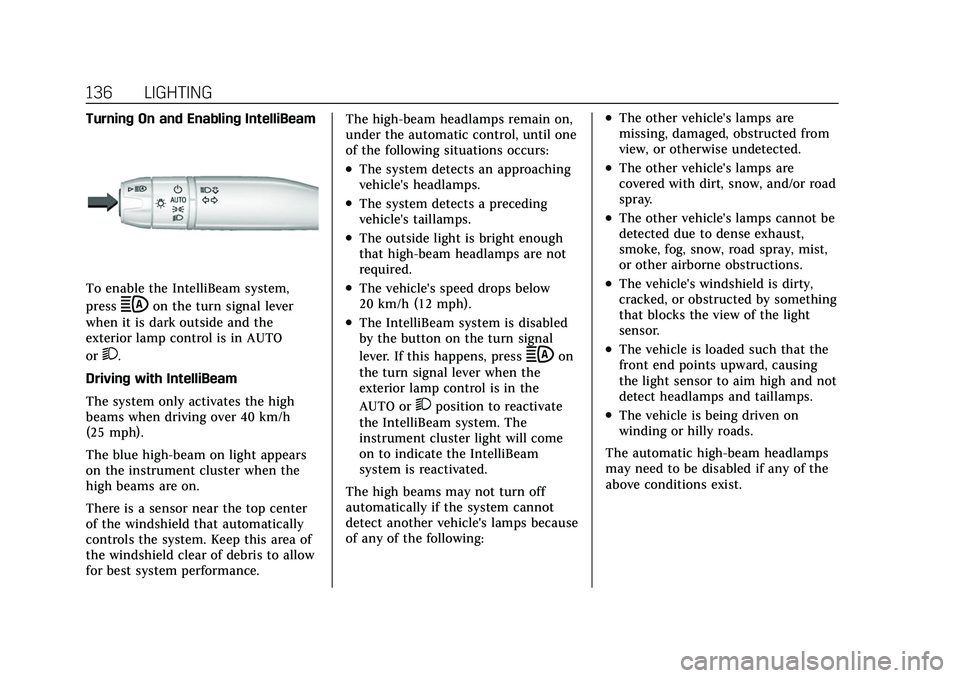
Turning On and Enabling IntelliBeam
To enable the IntelliBeam system,
press
bon the turn signal lever
when it is dark outside and the
exterior lamp control is in AUTO
or
2.
Driving with IntelliBeam
The system only activates the high
beams when driving over 40 km/h
(25 mph).
The blue high-beam on light appears
on the instrument cluster when the
high beams are on.
There is a sensor near the top center
of the windshield that automatically
controls the system. Keep this area of
the windshield clear of debris to allow
for best system performance. The high-beam headlamps remain on,
under the automatic control, until one
of the following situations occurs:
.The system detects an approaching
vehicle's headlamps.
.The system detects a preceding
vehicle's taillamps.
.The outside light is bright enough
that high-beam headlamps are not
required.
.The vehicle's speed drops below
20 km/h (12 mph).
.The IntelliBeam system is disabled
by the button on the turn signal
lever. If this happens, press
bon
the turn signal lever when the
exterior lamp control is in the
AUTO or
2position to reactivate
the IntelliBeam system. The
instrument cluster light will come
on to indicate the IntelliBeam
system is reactivated.
The high beams may not turn off
automatically if the system cannot
detect another vehicle's lamps because
of any of the following:
.The other vehicle's lamps are
missing, damaged, obstructed from
view, or otherwise undetected.
.The other vehicle's lamps are
covered with dirt, snow, and/or road
spray.
.The other vehicle's lamps cannot be
detected due to dense exhaust,
smoke, fog, snow, road spray, mist,
or other airborne obstructions.
.The vehicle's windshield is dirty,
cracked, or obstructed by something
that blocks the view of the light
sensor.
.The vehicle is loaded such that the
front end points upward, causing
the light sensor to aim high and not
detect headlamps and taillamps.
.The vehicle is being driven on
winding or hilly roads.
The automatic high-beam headlamps
may need to be disabled if any of the
above conditions exist.
Page 138 of 466

Cadillac CT5 Owner Manual (GMNA-Localizing-U.S./Canada-15268585) -
2022 - CRC - 10/11/21
LIGHTING 137
Exterior Lamps Off
Reminder
A warning chime sounds if the driver
door is opened while the ignition is off
and the exterior lamps are on.
Headlamp High/Low-Beam
Changer
3:Push the turn signal lever away
from you and release, to turn the high
beams on. To return to low beams,
push the lever again or pull it toward
you and release.
This indicator light turns on in the
instrument cluster when the
high-beam headlamps are on.
Flash-to-Pass
To flash the high beams, pull the turn
signal lever toward you, and release.
Daytime Running
Lamps (DRL)
DRL can make it easier for others to
see the front of your vehicle during
the day. Fully functional DRL are
required on all vehicles first sold in
Canada.
If equipped, the DRL will come on
when all of the following conditions
are met:
.The ignition is on.
.The exterior lamp control is
in AUTO.
.The light sensor determines it is
daytime.
The DRL turn off when the headlamps
are turned to
Oor the ignition is off.
For vehicles first sold in Canada, the
DRL can only be turned off when the
vehicle is parked.
Automatic Headlamp
System
When the exterior lamp control is set
to AUTO and it is dark enough
outside, the headlamps come on
automatically.
If equipped, the light sensor is on top
of the instrument panel or on the
windshield near the rearview mirror.
Do not cover the sensor, otherwise the
headlamps will come on when they
are not needed.
The system may also turn on the
headlamps when driving through a
parking garage or tunnel.
Page 139 of 466

Cadillac CT5 Owner Manual (GMNA-Localizing-U.S./Canada-15268585) -
2022 - CRC - 10/11/21
138 LIGHTING
If the vehicle is started in a dark
garage, the automatic headlamp
system comes on immediately. If it is
light outside when the vehicle leaves
the garage, there is a slight delay
before the automatic headlamp
system turns off the headlamps.
During that delay, the instrument
cluster may not be as bright as usual.
Make sure the instrument panel
brightness control is in the full bright
position. SeeInstrument Panel
Illumination Control 0139.
When it is bright enough outside, the
headlamps will turn off.
The automatic headlamp system turns
off when the exterior lamp control is
turned to
Oor the ignition is off. For
vehicles sold in Canada, this control
only works when the transmission is
in P (Park).
Lights On with Wipers
If the windshield wipers are activated
in daylight with the engine on, and
the exterior lamp control is in AUTO,
the headlamps, parking lamps, and
other exterior lamps come on. The
transition time for the lamps coming on varies based on wiper speed. When
the wipers are not operating, these
lamps turn off. Move the exterior
lamp control to
Oor;to disable
this feature.
Hazard Warning Flashers
|: Press this button to make the
front and rear turn signal lamps flash
on and off. Release the button for at
least one second and press again to
turn the flashers off.
The hazard warning flashers turn on
automatically if the airbags deploy.
Turn and Lane-Change
Signals
Move the lever all the way up or down
to signal a turn.
An arrow on the instrument cluster
flashes in the direction of the turn or
lane change.
Raise or lower the lever until the
arrow starts to flash to signal a lane
change. Hold it there until the lane
change is completed. If the lever is
briefly pressed and released, the turn
signal flashes three times.
The turn and lane-change signal can
be turned off manually by moving the
lever back to its original position.
Page 144 of 466
Cadillac CT5 Owner Manual (GMNA-Localizing-U.S./Canada-15268585) -
2022 - CRC - 10/11/21
INFOTAINMENT SYSTEM 143
Infotainment System
Introduction
Introduction . . . . . . . . . . . . . . . . . . . . . . 143
Overview . . . . . . . . . . . . . . . . . . . . . . . . . . 144
Steering Wheel Controls . . . . . . . . . 146
Using the System . . . . . . . . . . . . . . . . . 146
Software Updates . . . . . . . . . . . . . . . . . 149
Radio
AM-FM Radio . . . . . . . . . . . . . . . . . . . . . 149
HD Radio Technology . . . . . . . . . . . . 152
Radio Data System (RDS) . . . . . . . . 152
Satellite Radio . . . . . . . . . . . . . . . . . . . . 153
Radio Reception . . . . . . . . . . . . . . . . . . 153
Multi-Band Antenna . . . . . . . . . . . . . 154
Audio Players
Avoiding Untrusted MediaDevices . . . . . . . . . . . . . . . . . . . . . . . . . . 154
USB Port . . . . . . . . . . . . . . . . . . . . . . . . . . 154
Bluetooth Audio . . . . . . . . . . . . . . . . . . 157
Navigation
Using the Navigation System . . . . 158
Maps . . . . . . . . . . . . . . . . . . . . . . . . . . . . . . 161
Navigation Symbols . . . . . . . . . . . . . . 161
Destination . . . . . . . . . . . . . . . . . . . . . . . 163
OnStar System . . . . . . . . . . . . . . . . . . . . 168
Global Positioning System (GPS) . . . . . . . . . . . . . . . . . . . 169 Vehicle Positioning . . . . . . . . . . . . . . . 170
Problems with Route
Guidance . . . . . . . . . . . . . . . . . . . . . . . . 170
If the System Needs Service . . . . . 171
Map Data Updates . . . . . . . . . . . . . . . 171
Database Coverage Explanations . . . . . . . . . . . . . . . . . . . . 171
Voice Recognition
Voice Recognition . . . . . . . . . . . . . . . . 171
Performance Data
Recorder (PDR)
Performance DataRecorder (PDR) . . . . . . . . . . . . . . . . . 177
Phone
Bluetooth (Overview) . . . . . . . . . . . . . 182
Bluetooth (Pairing and Using aPhone) . . . . . . . . . . . . . . . . . . . . . . . . . . . 183
Apple CarPlay and Android Auto . . . . . . . . . . . . . . . . . . . 187
Settings
Settings . . . . . . . . . . . . . . . . . . . . . . . . . . . 189
Teen Driver . . . . . . . . . . . . . . . . . . . . . . . 196
Trademarks and License
Agreements
Trademarks and LicenseAgreements . . . . . . . . . . . . . . . . . . . . . 199
Introduction
Read the following pages to become
familiar with the features.
{Warning
Taking your eyes off the road for
too long or too often while using
any infotainment feature can cause
a crash. You or others could be
injured or killed. Do not give
extended attention to infotainment
tasks while driving. Limit your
glances at the vehicle displays and
focus your attention on driving. Use
voice commands whenever possible.
The infotainment system has built-in
features intended to help avoid
distraction by disabling some features
when driving. These features may gray
out when they are unavailable. Many
infotainment features are also
available through the instrument
cluster and steering wheel controls.
Before driving:
.Become familiar with the operation,
center stack controls, steering wheel
controls, and infotainment display.
Page 147 of 466
Cadillac CT5 Owner Manual (GMNA-Localizing-U.S./Canada-15268585) -
2022 - CRC - 10/11/21
146 INFOTAINMENT SYSTEM
Home Page
The Home Page is where vehicle
application icons are accessed. Some
applications are disabled when the
vehicle is moving.
Swipe left or right across the display
to access the pages of icons.
Managing Home Page Icons1. Touch and hold any of the Home Page icons to enter edit mode.
2. Continue holding the icon and drag it to the desired position.
3. Release your finger to drop the icon in the desired position.
4. To move an application to another page, drag the icon to the edge of
the display toward the
desired page.
5. Continue dragging and dropping application icons as desired.
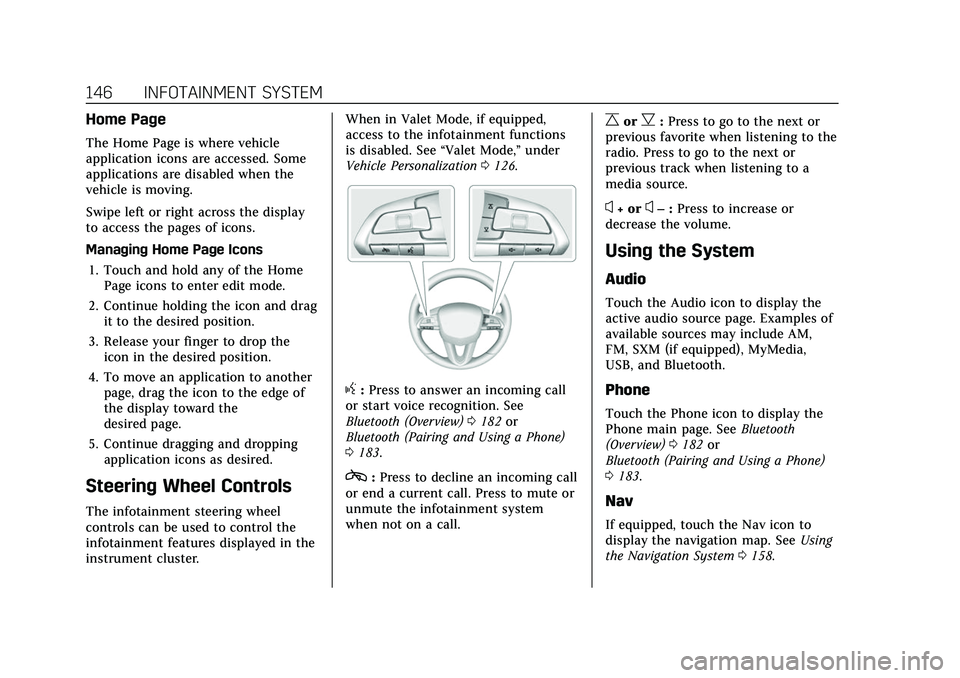
Steering Wheel Controls
The infotainment steering wheel
controls can be used to control the
infotainment features displayed in the
instrument cluster. When in Valet Mode, if equipped,
access to the infotainment functions
is disabled. See
“Valet Mode,”under
Vehicle Personalization 0126.
g:Press to answer an incoming call
or start voice recognition. See
Bluetooth (Overview) 0182 or
Bluetooth (Pairing and Using a Phone)
0 183.
c:Press to decline an incoming call
or end a current call. Press to mute or
unmute the infotainment system
when not on a call.
CorB: Press to go to the next or
previous favorite when listening to the
radio. Press to go to the next or
previous track when listening to a
media source.
x+ orx– :Press to increase or
decrease the volume.
Using the System
Audio
Touch the Audio icon to display the
active audio source page. Examples of
available sources may include AM,
FM, SXM (if equipped), MyMedia,
USB, and Bluetooth.
Phone
Touch the Phone icon to display the
Phone main page. See Bluetooth
(Overview) 0182 or
Bluetooth (Pairing and Using a Phone)
0 183.
Nav
If equipped, touch the Nav icon to
display the navigation map. See Using
the Navigation System 0158.
Page 173 of 466
Cadillac CT5 Owner Manual (GMNA-Localizing-U.S./Canada-15268585) -
2022 - CRC - 10/11/21
172 INFOTAINMENT SYSTEM
Hybrid Speech Recognition
If equipped, this feature helps
distinguish words by using
Internet-based information along with
the system’s voice recognition
database. This allows you to speak
more naturally when using voice
recognition.
Using Voice Recognition
Voice recognition becomes available
once the system has been initialized.
This begins when the ignition is
turned on. Initialization may take a
few moments.1. Press
gon the steering wheel
controls to activate voice
recognition.
2. The audio system mutes and the system plays a prompt.
3. Clearly speak one of the commands described in this section.
A voice recognition system prompt
can be interrupted while it is
playing by pressing
gagain.
Once voice recognition is started, both
the infotainment display and
instrument cluster show the selections and visual dialog content. These
displays can be turned on or off in the
Tutorial Mode under
Settings0189.
There are three voice prompt modes
supported:
.Informative verbal prompts: This
type of prompt will provide more
information regarding the supported
actions.
.Short prompts: This type of prompt
will provide simple instructions
about what can be stated.
.Auto informative prompts: This type
of prompt plays during the first few
speech sessions, then automatically
switches to the short prompt after
some experience has been gained
through using the system.
If a command is not spoken, the voice
recognition system says a help
prompt.
Prompts and Infotainment Displays
While a voice recognition session is
active, there may be corresponding
options showing on the displays.
A selection can be made by manually
touching the option, or by speaking
the number for the option to select. Manual interaction in the voice
recognition session is permitted.
Interaction during a voice session may
be completed entirely using voice
commands while some manual
commands may expedite a task. If a
selection is made using a manual
control, the voice recognition dialog
will progress in the same way as if the
selection were made using a voice
command. Once the system completes
the task, or the session is terminated,
the voice recognition dialog stops.
An example of this type of manual
intervention is touching an entry of a
displayed number list instead of
speaking the number associated with
the entry desired.
Canceling Voice Recognition
.Touch or say
“Cancel”or“Exit ”to
terminate the voice recognition
session and show the display where
voice recognition was initiated.
.Pression the steering wheel
controls to terminate the voice
recognition session and show the
display where voice recognition was
initiated.
Page 196 of 466
Cadillac CT5 Owner Manual (GMNA-Localizing-U.S./Canada-15268585) -
2022 - CRC - 10/11/21
INFOTAINMENT SYSTEM 195
SeeUsing the Navigation System 0158.
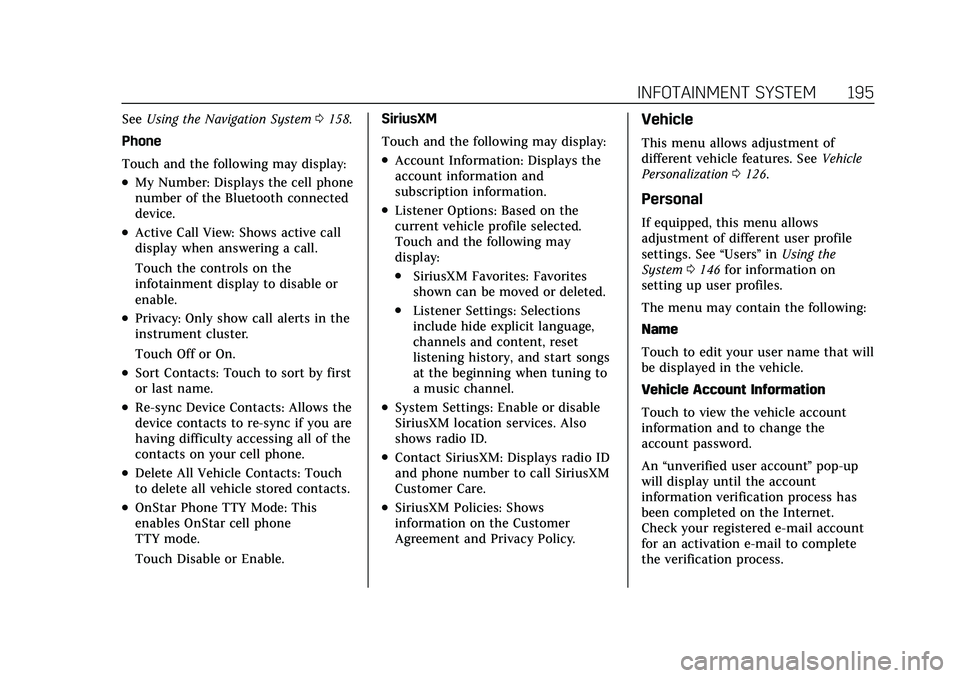
Phone
Touch and the following may display:
.My Number: Displays the cell phone
number of the Bluetooth connected
device.
.Active Call View: Shows active call
display when answering a call.
Touch the controls on the
infotainment display to disable or
enable.
.Privacy: Only show call alerts in the
instrument cluster.
Touch Off or On.
.Sort Contacts: Touch to sort by first
or last name.
.Re-sync Device Contacts: Allows the
device contacts to re-sync if you are
having difficulty accessing all of the
contacts on your cell phone.
.Delete All Vehicle Contacts: Touch
to delete all vehicle stored contacts.
.OnStar Phone TTY Mode: This
enables OnStar cell phone
TTY mode.
Touch Disable or Enable. SiriusXM
Touch and the following may display:
.Account Information: Displays the
account information and
subscription information.
.Listener Options: Based on the
current vehicle profile selected.
Touch and the following may
display:
.SiriusXM Favorites: Favorites
shown can be moved or deleted.
.Listener Settings: Selections
include hide explicit language,
channels and content, reset
listening history, and start songs
at the beginning when tuning to
a music channel.
.System Settings: Enable or disable
SiriusXM location services. Also
shows radio ID.
.Contact SiriusXM: Displays radio ID
and phone number to call SiriusXM
Customer Care.
.SiriusXM Policies: Shows
information on the Customer
Agreement and Privacy Policy.
Vehicle
This menu allows adjustment of
different vehicle features. See
Vehicle
Personalization 0126.
Personal
If equipped, this menu allows
adjustment of different user profile
settings. See “Users”in Using the
System 0146 for information on
setting up user profiles.
The menu may contain the following:
Name
Touch to edit your user name that will
be displayed in the vehicle.
Vehicle Account Information
Touch to view the vehicle account
information and to change the
account password.
An “unverified user account ”pop-up
will display until the account
information verification process has
been completed on the Internet.
Check your registered e-mail account
for an activation e-mail to complete
the verification process.
Page 199 of 466
Cadillac CT5 Owner Manual (GMNA-Localizing-U.S./Canada-15268585) -
2022 - CRC - 10/11/21
198 INFOTAINMENT SYSTEM
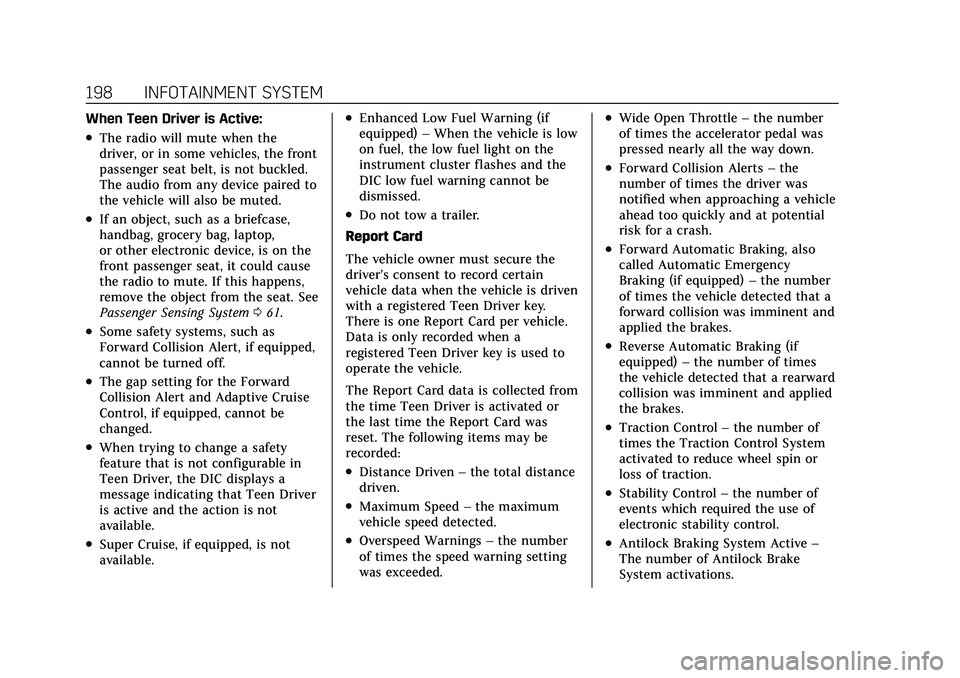
When Teen Driver is Active:
.The radio will mute when the
driver, or in some vehicles, the front
passenger seat belt, is not buckled.
The audio from any device paired to
the vehicle will also be muted.
.If an object, such as a briefcase,
handbag, grocery bag, laptop,
or other electronic device, is on the
front passenger seat, it could cause
the radio to mute. If this happens,
remove the object from the seat. See
Passenger Sensing System061.
.Some safety systems, such as
Forward Collision Alert, if equipped,
cannot be turned off.
.The gap setting for the Forward
Collision Alert and Adaptive Cruise
Control, if equipped, cannot be
changed.
.When trying to change a safety
feature that is not configurable in
Teen Driver, the DIC displays a
message indicating that Teen Driver
is active and the action is not
available.
.Super Cruise, if equipped, is not
available.
.Enhanced Low Fuel Warning (if
equipped) –When the vehicle is low
on fuel, the low fuel light on the
instrument cluster flashes and the
DIC low fuel warning cannot be
dismissed.
.Do not tow a trailer.
Report Card
The vehicle owner must secure the
driver’s consent to record certain
vehicle data when the vehicle is driven
with a registered Teen Driver key.
There is one Report Card per vehicle.
Data is only recorded when a
registered Teen Driver key is used to
operate the vehicle.
The Report Card data is collected from
the time Teen Driver is activated or
the last time the Report Card was
reset. The following items may be
recorded:
.Distance Driven –the total distance
driven.
.Maximum Speed –the maximum
vehicle speed detected.
.Overspeed Warnings –the number
of times the speed warning setting
was exceeded.
.Wide Open Throttle –the number
of times the accelerator pedal was
pressed nearly all the way down.
.Forward Collision Alerts –the
number of times the driver was
notified when approaching a vehicle
ahead too quickly and at potential
risk for a crash.
.Forward Automatic Braking, also
called Automatic Emergency
Braking (if equipped) –the number
of times the vehicle detected that a
forward collision was imminent and
applied the brakes.
.Reverse Automatic Braking (if
equipped) –the number of times
the vehicle detected that a rearward
collision was imminent and applied
the brakes.
.Traction Control –the number of
times the Traction Control System
activated to reduce wheel spin or
loss of traction.
.Stability Control –the number of
events which required the use of
electronic stability control.
.Antilock Braking System Active –
The number of Antilock Brake
System activations.
Page 251 of 466

Cadillac CT5 Owner Manual (GMNA-Localizing-U.S./Canada-15268585) -
2022 - CRC - 10/11/21
250 DRIVING AND OPERATING
2. From the center position, move theshift lever back.
.If the vehicle is in P (Park), press
the shift lock release button
while pulling the shift
lever back.
.D will illuminate in red.
.After releasing the shift lever, it
will return to the center
position.
To shift out of D (Drive): 1. Bring the vehicle to a complete stop.
2. Shift to the desired gear.
3. After releasing the shift lever, it will return to the center position.
Downshifting the transmission in
slippery road conditions could result
in skidding. See “Skidding”underLoss
of Control 0220.
Caution
Spinning the tires or holding the
vehicle in one place on a hill using
only the accelerator pedal may
damage the transmission. The
(Continued)
Caution (Continued)
repair will not be covered by the
vehicle warranty. If the vehicle is
stuck, do not spin the tires. When
stopping on a hill, use the brakes to
hold the vehicle in place.
If equipped with the 2.0L L4 engine,
engine speeds may be increased while
driving at highway speeds while the
engine is still warming up.
Manual Mode
Tap Shift Caution
Driving with the engine at a high
rpm without upshifting while using
Tap Shift, could damage the vehicle.
Always upshift when necessary
while using Tap Shift.
If equipped, vehicles with Tap Shift
have controls on the back of the
steering wheel to manually shift the
automatic transmission.
Permanent Tap Shift Mode
To enter Permanent Tap Shift Mode:1. With the vehicle in D (Drive), pull back on the shift lever to activate
M (Manual Mode). The M in the
shift pattern will illuminate in red,
and the D will switch to white.
While in Permanent Tap Shift
Mode, the M on the instrument
cluster will be highlighted and the
current gear shown.
Page 252 of 466

Cadillac CT5 Owner Manual (GMNA-Localizing-U.S./Canada-15268585) -
2022 - CRC - 10/11/21
DRIVING AND OPERATING 251
2. After releasing the shift lever, itwill return to the center position.
3. Pull the control toward you to shift. Pull the left control to
downshift, and the right control to
upshift. To shift to the lowest
available gear, pull and hold the
left control.
To exit Permanent Tap Shift Mode: 1. To exit M (Manual Mode) and return to D (Drive), pull back on
the shift lever. The D in the shift
pattern will illuminate in red, and
the M will switch to white.
2. After releasing the shift lever, it will return to the center position.
M (Manual Mode) can be exited to
return to D (Drive) at any speed by
pulling the lever rearward from the
center position. It is not necessary to
stop the vehicle or shift to N (Neutral)
or P (Park) prior to shifting back to
D (Drive). Temporary Tap Manual Shift Mode
To enter Temporary Tap Shift Mode:
1. With the transmission in D (Drive) and not in Permanent Tap Shift
Mode, the Tap Shift controls will
activate a Temporary Tap Manual
Shift Mode, allowing the
transmission to be manually
shifted. While in Temporary Tap
Shift Mode, the D on the
instrument cluster will be
highlighted and the current gear
shown.
2. To shift to the lowest available gear, press and hold the left
control.
3. To deactivate, hold the right control briefly. Automatic shifts
return after no manual shifts have
been done for seven to 10 seconds.
While using Tap Shift, the vehicle will
have firmer, quicker shifting. This can
be used for sport driving or when
climbing or descending hills, to stay in
gear longer, or to downshift for more
power or engine braking. The transmission will only allow
shifting into gears appropriate for the
vehicle speed and engine revolutions
per minute (rpm). The transmission
will not automatically shift to the next
higher gear if the engine rpm is too
high. It will only automatically shift to
the next lower gear if the engine rpm
is much too low.
Manual Transmission
If equipped, this is the shift pattern
for the manual transmission.