transmission CADILLAC CT5 2023 User Guide
[x] Cancel search | Manufacturer: CADILLAC, Model Year: 2023, Model line: CT5, Model: CADILLAC CT5 2023Pages: 526, PDF Size: 6.85 MB
Page 119 of 526
Cadillac CT5 Owner Manual (GMNA-Localizing-U.S./Canada-16500419) -
2023 - CRC - 5/6/22
118 Instruments and Controls
.Sport: Displays Coolant
Temperature, Fuel Gauge,
Fuel Range, Compass, Driver
Mode Control Light,
Odometer, Speed,
Tachometer, Electronic
Transmission Range, Current
Gear, Speed Limit, Info Area,
and Interaction Area, and
Cruise Control (if engaged).
.Tour: Displays Fuel Gauge,
Fuel Range, Compass, Driver
Mode Control Light,
Odometer, Speed,
Tachometer, Electronic
Transmission Range, Current
Gear, Peak Performance,
Speed Limit, Info Area, and
Interaction Area, and Cruise
Control (if engaged).
.Stealth: Displays Fuel Gauge,
Digital Speed, and
Tachometer.
.Track: If equipped, displays
Coolant Temperature, Fuel
Gauge, Driver Mode Control
Light, Speed, Tachometer,
Electronic Transmission
Range, Current Gear, Info
Area, and Interactive Area.Preset info tiles shown on
each layout:
Sport :
Time and
Temperature, Oil
Temperature, Tire Status, Oil
Pressure
Track : Oil Pressure,
Transmission Fluid
Temperature, Tire Status, Oil
Temperature
Tour : Time and Temperature
Stealth : None
Speed Warning
The Speed Warning display
allows the driver to set a
speed that they do not want
to exceed. To set the Speed
Warning, press the
thumbwheel when Speed
Warning is displayed, or press
the thumbwheel on the main
view to set the speed value.
Scroll to adjust the value.
Press the thumbwheel to set
the speed. Once the speed is
set, this feature can be
turned off by pressing the
thumbwheel while viewing this page. If the selected speed
limit is exceeded, a pop-up
warning is displayed with a
chime.
Speed Sign
Shows sign information, which
comes from a roadway
database in the onboard
navigation, if equipped.
Units
Press the thumbwheel while
Units is displayed to enter the
Units menu. Choose US or
metric units by pressing the
thumbwheel while the desired
item is highlighted. A selected
mark will be displayed next to
the selected item.
Tachometer
If equipped, the Tachometer
allows the driver to choose
between the traditional
tachometer (linear gauge) or
the numerical tachometer
(shift lights with numerical
Tachometer RPM) when Track
theme is selected.
Page 121 of 526
Cadillac CT5 Owner Manual (GMNA-Localizing-U.S./Canada-16500419) -
2023 - CRC - 5/6/22
120 Instruments and Controls
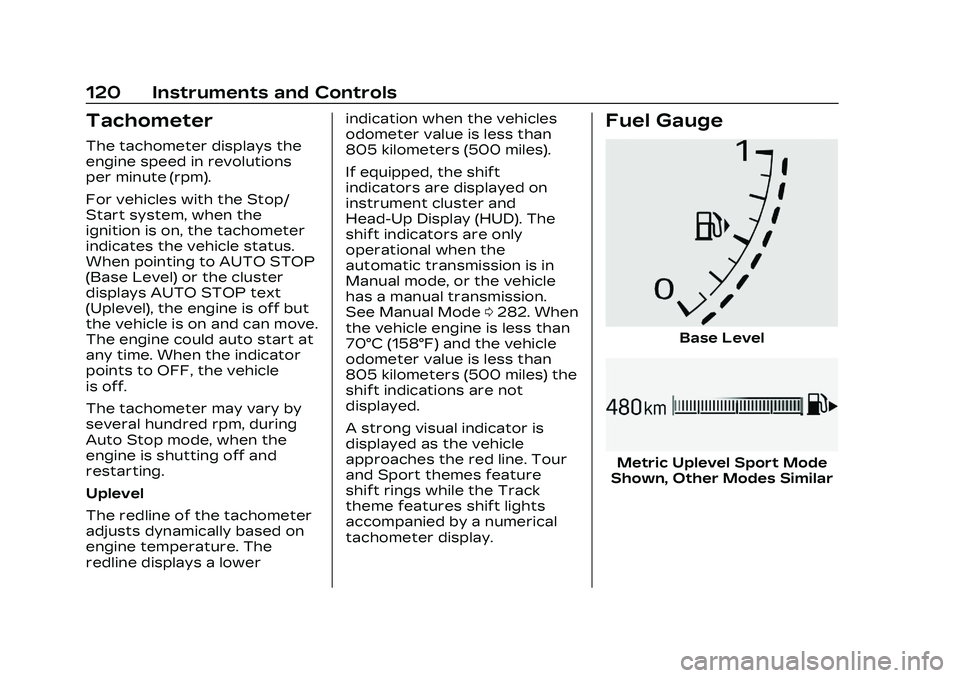
Tachometer
The tachometer displays the
engine speed in revolutions
per minute (rpm).
For vehicles with the Stop/
Start system, when the
ignition is on, the tachometer
indicates the vehicle status.
When pointing to AUTO STOP
(Base Level) or the cluster
displays AUTO STOP text
(Uplevel), the engine is off but
the vehicle is on and can move.
The engine could auto start at
any time. When the indicator
points to OFF, the vehicle
is off.
The tachometer may vary by
several hundred rpm, during
Auto Stop mode, when the
engine is shutting off and
restarting.
Uplevel
The redline of the tachometer
adjusts dynamically based on
engine temperature. The
redline displays a lowerindication when the vehicles
odometer value is less than
805 kilometers (500 miles).
If equipped, the shift
indicators are displayed on
instrument cluster and
Head-Up Display (HUD). The
shift indicators are only
operational when the
automatic transmission is in
Manual mode, or the vehicle
has a manual transmission.
See Manual Mode
0282. When
the vehicle engine is less than
70°C (158°F) and the vehicle
odometer value is less than
805 kilometers (500 miles) the
shift indications are not
displayed.
A strong visual indicator is
displayed as the vehicle
approaches the red line. Tour
and Sport themes feature
shift rings while the Track
theme features shift lights
accompanied by a numerical
tachometer display.
Fuel Gauge
Base Level
Metric Uplevel Sport Mode
Shown, Other Modes Similar
Page 126 of 526
Cadillac CT5 Owner Manual (GMNA-Localizing-U.S./Canada-16500419) -
2023 - CRC - 5/6/22
Instruments and Controls 125
If the light stays on, or comes
on while driving, there may be
a problem with the electrical
charging system. Have it
checked by your dealer.
Driving while this light is on
could drain the battery.
When this light comes on, or is
flashing, the Driver Information
Center (DIC) also displays a
message.
If a short distance must be
driven with the light on, be
sure to turn off all
accessories, such as the radio
and air conditioner. Find a safe
place to stop the vehicle.
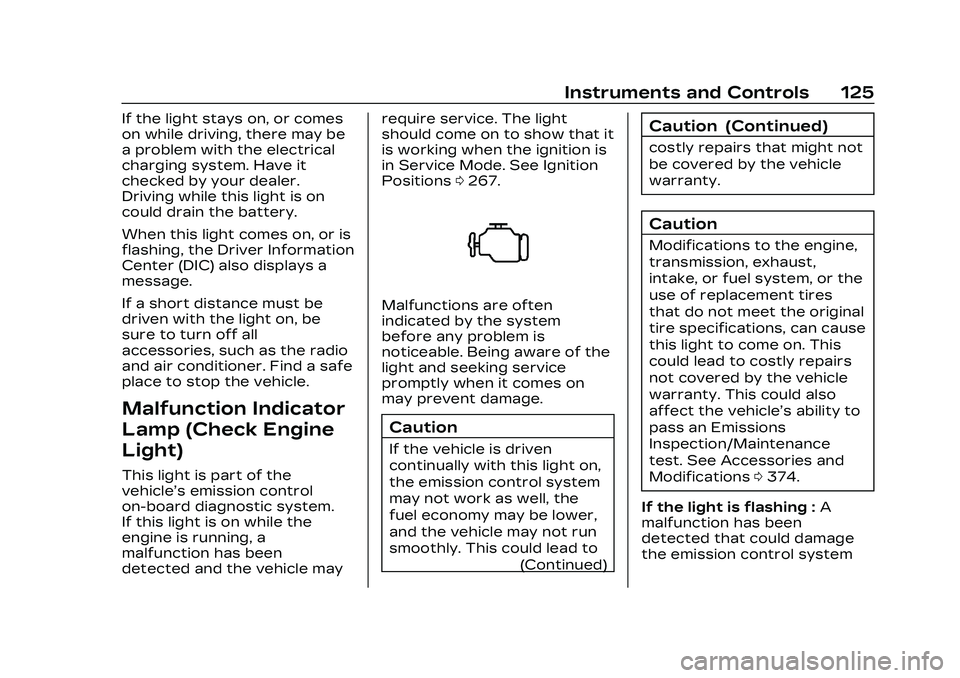
Malfunction Indicator
Lamp (Check Engine
Light)
This light is part of the
vehicle’s emission control
on-board diagnostic system.
If this light is on while the
engine is running, a
malfunction has been
detected and the vehicle mayrequire service. The light
should come on to show that it
is working when the ignition is
in Service Mode. See Ignition
Positions
0267.
Malfunctions are often
indicated by the system
before any problem is
noticeable. Being aware of the
light and seeking service
promptly when it comes on
may prevent damage.
Caution
If the vehicle is driven
continually with this light on,
the emission control system
may not work as well, the
fuel economy may be lower,
and the vehicle may not run
smoothly. This could lead to
(Continued)
Caution (Continued)
costly repairs that might not
be covered by the vehicle
warranty.
Caution
Modifications to the engine,
transmission, exhaust,
intake, or fuel system, or the
use of replacement tires
that do not meet the original
tire specifications, can cause
this light to come on. This
could lead to costly repairs
not covered by the vehicle
warranty. This could also
affect the vehicle’s ability to
pass an Emissions
Inspection/Maintenance
test. See Accessories and
Modifications0374.
If the light is flashing : A
malfunction has been
detected that could damage
the emission control system
Page 140 of 526
Cadillac CT5 Owner Manual (GMNA-Localizing-U.S./Canada-16500419) -
2023 - CRC - 5/6/22
Instruments and Controls 139
based on the various vehicle
speeds recorded since the last
reset. Reset the average
speed by pressing the
thumbwheel while this display
is active to show a
confirmation window to select
yes or no.
Timer :This display can be
used as a timer. To start the
timer, press the thumbwheel
while this display is active. The
display will show the amount
of time that has passed since
the timer was last reset. To
stop the timer, press the
thumbwheel briefly while this
display is active and the timer
is running.
Press the thumbwheel while
this display is active to reset
the timer.
Follow Distance/Gap
Setting : When Adaptive
Cruise Control (ACC) is not
engaged, the current follow
time to the vehicle ahead is
displayed as a time value on
this page. When ACC has been engaged, the display switches
to the gap setting page. This
page shows the current gap
setting along with the vehicle
ahead telltale.
Driver Assistance :
If equipped, shows information
for Lane Keep Assist (LKA)
and Forward Collision
Alert (FCA).
Battery Voltage :
Shows the
current battery voltage.
Coolant Temperature :
Shows the engine coolant
temperature in either degrees
Celsius (°C) or degrees
Fahrenheit (°F).
Oil Temperature : Shows the
engine oil temperature in
either degrees Celsius (°C) or
degrees Fahrenheit (°F).
Engine Hours (Hourmeter) :
Shows the total number of
hours the engine has run. The
display also shows the engine
idle hours. Engine Boost :
Displays
engine manifold pressure
relative to ambient air
pressure. It will display boost
pressure generated by the
turbocharging system.
Transmission Fluid
Temperature : If equipped,
Shows the temperature of the
transmission fluid in either
degrees Celsius (°C) or
degrees Fahrenheit (°F).
Info Page Options : Scroll to
choose which info pages
appear on the DIC. Press the
thumbwheel to select or
deselect.
Blank Page : Allows for no
information to be displayed in
the cluster info display areas.
Driver Information
Center (DIC) (Uplevel)
The DIC is displayed in the
instrument cluster. It shows
the status of many vehicle
systems.
Page 142 of 526

Cadillac CT5 Owner Manual (GMNA-Localizing-U.S./Canada-16500419) -
2023 - CRC - 5/6/22
Instruments and Controls 141
When in tour mode, shows
history of the Average Fuel
Economy from the last 100 km
(62 mi). Each bar represents
about 5 km (3 mi) of driving.
When driving, the bars shift to
reflect the most recent
distance on the right side.
Lateral G-Force :If equipped,
displays inertial forces being
exerted on the vehicle in the
lateral (side-to-side) direction
as numerical value and as
graphical depiction.
Oil Pressure : Shows the
current oil pressure in either
kilopascal (kPa) or in pounds
per square inch (psi).
Oil Temperature : Shows the
current oil temperature in
either degrees Celsius (°C) or
degrees Fahrenheit (°F).
Time & Temperature :
Displays the current time and
the current outside air
temperature. Tire Status :
Shows individual
tire pressures and overall
temperature as either Cold,
Cool, Normal, Warm, or Hot.
Normal is typical for normal
driving while Warm is typical
for aggressive driving.
Unknown displays when tire
temperature information is
unavailable.
Transmission Fluid
Temperature : If equipped,
shows the temperature of the
transmission fluid in either
degrees Celsius (°C) or
degrees Fahrenheit (°F).
Right Zone
Trip 1 or 2/Average Speed/
Average Fuel Economy : Trip
displays the current distance
traveled, in either
kilometers (km) or miles (mi),
since the trip odometer was
last reset. The trip odometer
can be reset by pressing and
holding the thumbwheel while
this display is active. Average Speed displays the
average speed of the vehicle
in kilometers per hour (km/h)
or miles per hour (mph). This
average is calculated based on
the various vehicle speeds
recorded since the last reset
of this value. The average
speed can be reset by
pressing and holding the
thumbwheel while this display
is active.
Average Fuel Economy
displays the approximate
average liters per
100 kilometers (L/100 km) or
miles per gallon (mpg). This
number is calculated based on
the number of L/100 km (mpg)
recorded since the last time
this menu item was reset. This
number reflects only the
current, approximate average
fuel economy and changes as
driving conditions change. The
Average Fuel Economy can be
reset by pressing and holding
the thumbwheel while this
display is active.
Page 146 of 526

Cadillac CT5 Owner Manual (GMNA-Localizing-U.S./Canada-16500419) -
2023 - CRC - 5/6/22
Instruments and Controls 145
to confirm and save the
setting. This feature may only
be available in P (Park). See
Instrument Cluster (Base
Level)0113 or
Instrument Cluster (Uplevel)
0 115.
HUD Views
There are three views in the
HUD. Track mode is available
for V-Series only. Some
vehicle information and vehicle
messages or alerts may be
displayed in any view.
Metric
English Speed View :
This displays
digital speed in English or
metric units, speed limit,
vehicle ahead indicator, Lane
Departure Warning/Lane Keep
Assist, and Adaptive Cruise
Control and set speed. Some
information only appears on
vehicles that have these
features, and when they are
active.
Metric
English
Performance View : This
displays digital speed,
indicators from speed view along with rpm reading, vehicle
ahead indicator, Lane
Departure Warning/Lane Keep
Assist, and Adaptive Cruise
Control and set speed.
Metric
English
Track View : If equipped, this
displays digital speed,
transmission positions, Shift
Timing Light Position, gear
shift indicator,
The shift timing lights at the
top of the display will appear
with increases in engine rpm.
Page 147 of 526
Cadillac CT5 Owner Manual (GMNA-Localizing-U.S./Canada-16500419) -
2023 - CRC - 5/6/22
146 Instruments and Controls
The rows of lights get closer
together as the shift point
gets closer. Shift the
transmission before the lights
come together in the display.
Shift immediately if the lights
are flashing. See Manual Mode
0282.
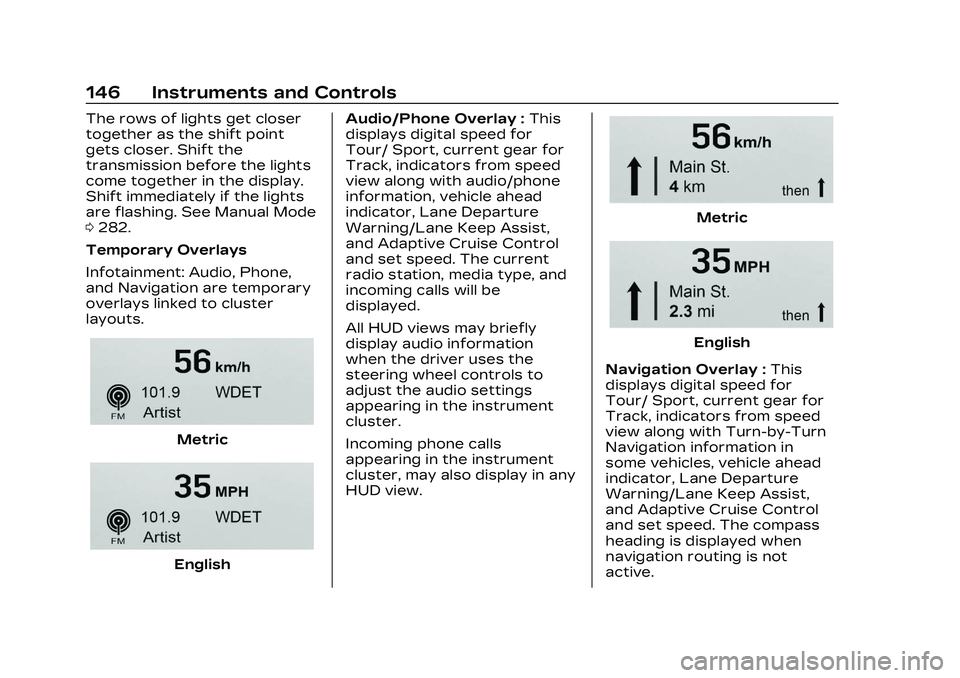
Temporary Overlays
Infotainment: Audio, Phone,
and Navigation are temporary
overlays linked to cluster
layouts.
Metric
English Audio/Phone Overlay :
This
displays digital speed for
Tour/ Sport, current gear for
Track, indicators from speed
view along with audio/phone
information, vehicle ahead
indicator, Lane Departure
Warning/Lane Keep Assist,
and Adaptive Cruise Control
and set speed. The current
radio station, media type, and
incoming calls will be
displayed.
All HUD views may briefly
display audio information
when the driver uses the
steering wheel controls to
adjust the audio settings
appearing in the instrument
cluster.
Incoming phone calls
appearing in the instrument
cluster, may also display in any
HUD view.
Metric
English
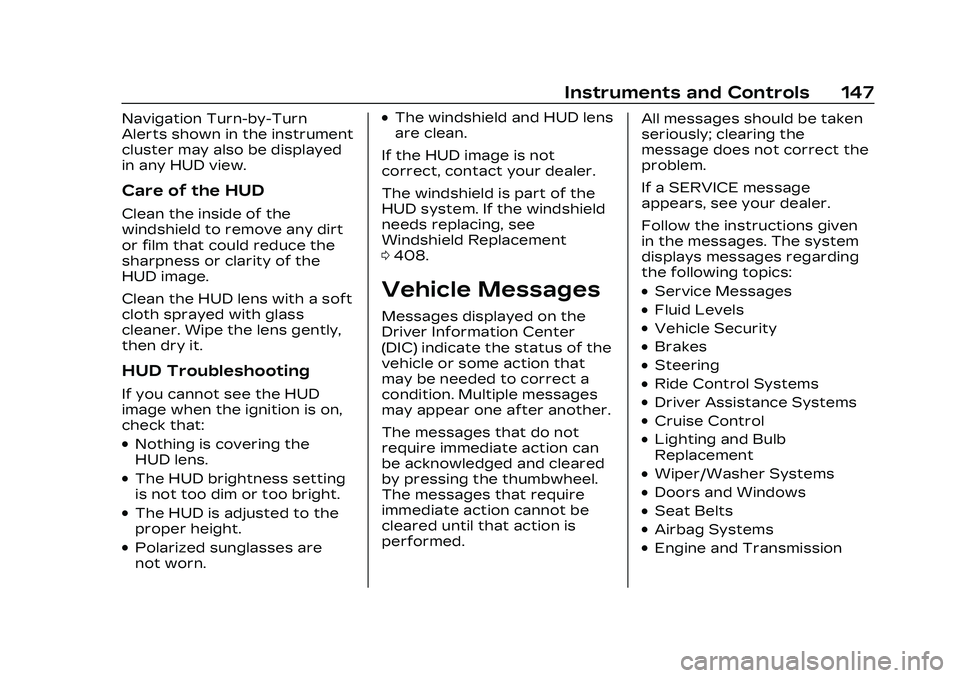
Navigation Overlay : This
displays digital speed for
Tour/ Sport, current gear for
Track, indicators from speed
view along with Turn-by-Turn
Navigation information in
some vehicles, vehicle ahead
indicator, Lane Departure
Warning/Lane Keep Assist,
and Adaptive Cruise Control
and set speed. The compass
heading is displayed when
navigation routing is not
active.
Page 148 of 526
Cadillac CT5 Owner Manual (GMNA-Localizing-U.S./Canada-16500419) -
2023 - CRC - 5/6/22
Instruments and Controls 147
Navigation Turn-by-Turn
Alerts shown in the instrument
cluster may also be displayed
in any HUD view.
Care of the HUD
Clean the inside of the
windshield to remove any dirt
or film that could reduce the
sharpness or clarity of the
HUD image.
Clean the HUD lens with a soft
cloth sprayed with glass
cleaner. Wipe the lens gently,
then dry it.
HUD Troubleshooting
If you cannot see the HUD
image when the ignition is on,
check that:
.Nothing is covering the
HUD lens.
.The HUD brightness setting
is not too dim or too bright.
.The HUD is adjusted to the
proper height.
.Polarized sunglasses are
not worn.
.The windshield and HUD lens
are clean.
If the HUD image is not
correct, contact your dealer.
The windshield is part of the
HUD system. If the windshield
needs replacing, see
Windshield Replacement
0 408.
Vehicle Messages
Messages displayed on the
Driver Information Center
(DIC) indicate the status of the
vehicle or some action that
may be needed to correct a
condition. Multiple messages
may appear one after another.
The messages that do not
require immediate action can
be acknowledged and cleared
by pressing the thumbwheel.
The messages that require
immediate action cannot be
cleared until that action is
performed. All messages should be taken
seriously; clearing the
message does not correct the
problem.
If a SERVICE message
appears, see your dealer.
Follow the instructions given
in the messages. The system
displays messages regarding
the following topics:
.Service Messages
.Fluid Levels
.Vehicle Security
.Brakes
.Steering
.Ride Control Systems
.Driver Assistance Systems
.Cruise Control
.Lighting and Bulb
Replacement
.Wiper/Washer Systems
.Doors and Windows
.Seat Belts
.Airbag Systems
.Engine and Transmission
Page 150 of 526

Cadillac CT5 Owner Manual (GMNA-Localizing-U.S./Canada-16500419) -
2023 - CRC - 5/6/22
Instruments and Controls 149
Do not use the Universal
Remote system with any
garage door opener that does
not have the stop and reverse
feature. This includes any
garage door opener model
manufactured before
April 1, 1982.
Keep the original hand-held
transmitter for use in other
vehicles as well as for future
programming. Erase the
programming when vehicle
ownership is terminated. See
“Erasing Universal Remote
System Buttons”later in this
section.
To program a garage door
opener, park outside directly in
line with and facing the garage
door opener receiver. Clear all
people and objects near the
garage door.
Make sure the hand-held
transmitter has a new battery
for quick and accurate
transmission of the
radio-frequency signal.Programming the
Universal Remote System
Programming involves
time-sensitive actions and may
time out, requiring the
procedure to be repeated.
Read these instructions
completely before
programming the Universal
Remote system. It may help to
have another person assist
with the programming
process.
1. Hold the end of the hand-held transmitter
about 3 to 8 cm (1 to 3 in)
away from the Universal
Remote system buttons
with the indicator light in
view. The hand-held
transmitter was supplied
by the manufacturer of the
garage door opener
receiver.
2. Press and release one of the three Universal
Remote system buttons to
be programmed. Press and
hold the hand-held transmitter button. Do not
release the hand-held
transmitter button until
the indicator light changes
from a slow to a rapid flash
or continuous light. Then
release the hand-held
transmitter button.
Some garage door
openers may require
substitution of Step 2 with
the procedure under
“Radio Signals for Some
Gate Operators”
later in
this section.
3. Press and hold the newly programmed Universal
Remote system button for
five seconds while
watching the indicator light
and garage door
activation.
.If the indicator light
stays on continuously or
the garage door moves
when the button is
pressed, then
programming is
Page 151 of 526

Cadillac CT5 Owner Manual (GMNA-Localizing-U.S./Canada-16500419) -
2023 - CRC - 5/6/22
150 Instruments and Controls
complete. There is no
need to complete
Steps 4–6.
.If the indicator light does
not come on or the
garage door does not
move, a second button
press may be required.
For a second time, press
and hold the newly
programmed button for
five seconds. If the
indicator light stays on
continuously or the
garage door moves
when the button is
pressed, then
programming is
complete. There is no
need to complete
Steps 4–6.
.If the garage door does
not move, continue with
programming Steps 4–6.
Learn or Smart Button
4. After completing Steps 1– 3, locate the Learn or
Smart button inside
garage on the garage door
opener receiver. The name
and color of the button
may vary by manufacturer.
5. Press and release the Learn or Smart button.
Step 6 must be completed
within 30 seconds of
pressing this button.
6. Return to the vehicle and firmly press and hold the
trained Universal Remote
system button for
two seconds and release.
Repeat the “press/hold/ release”
sequence up to
three times to complete
the training process.
The Universal Remote system
should now activate the
garage door. Repeat the
process for programming the
remaining two buttons.
For questions or programming
help, see www.homelink.com/
gm or call 1-800-355-3515.
For calls placed outside the
U.S., Canada, or Puerto Rico,
international rates will apply
and may differ based on
landline or mobile phone.
Radio Signals for Some
Gate Operators
Some gate operators and
radio-frequency laws require
transmitter signals to time out
or quit after several seconds
of transmission. This may not
be long enough for the
Universal Remote system to
pick up the signal during
programming.