wheel CADILLAC CT5 2023 User Guide
[x] Cancel search | Manufacturer: CADILLAC, Model Year: 2023, Model line: CT5, Model: CADILLAC CT5 2023Pages: 526, PDF Size: 6.85 MB
Page 78 of 526

Cadillac CT5 Owner Manual (GMNA-Localizing-U.S./Canada-16500419) -
2023 - CRC - 5/6/22
Seats and Restraints 77
put on an unoccupied seat.
If this is not desired, remove
the object from the seat.
{Warning
Stowing articles under the
passenger seat or between
the passenger seat cushion
and seatback may interfere
with the proper operation of
the passenger sensing
system.
Servicing the
Airbag-Equipped
Vehicle
Airbags affect how the vehicle
should be serviced. There are
parts of the airbag system in
several places around the
vehicle. Your dealer and the
service manual have
information about servicing
the vehicle and the airbag
system. To purchase a service
manual, see Publication
Ordering Information0496.
{Warning
For up to 10 seconds after
the vehicle is turned off and
the battery is disconnected,
an airbag can still inflate
during improper service. You
can be injured if you are
close to an airbag when it
inflates. Avoid yellow
connectors. They are
probably part of the airbag
system. Be sure to follow
proper service procedures,
and make sure the person
performing work for you is
qualified to do so.
Adding Equipment to
the Airbag-Equipped
Vehicle
Adding accessories that
change the vehicle's frame,
bumper system, height, front
end, or side sheet metal may
keep the airbag system from
working properly. The operation of the airbag
system can also be affected
by changing, including
improperly repairing or
replacing, any parts of the
following:
.Airbag system, including
airbag modules, front or side
impact sensors, sensing and
diagnostic module, or airbag
wiring
.Front seats, including
stitching, seams or zippers
.Seat belts
.Steering wheel, instrument
panel, overhead console,
ceiling trim, or pillar
garnish trim
.Inner door seals, including
speakers
Your dealer and the service
manual have information about
the location of the airbag
modules and sensors, sensing
and diagnostic module, and
airbag wiring along with the
proper replacement
procedures.
Page 79 of 526

Cadillac CT5 Owner Manual (GMNA-Localizing-U.S./Canada-16500419) -
2023 - CRC - 5/6/22
78 Seats and Restraints
In addition, the vehicle has a
passenger sensing system for
the front outboard passenger
position, which includes
sensors that are part of the
passenger seat. The
passenger sensing system
may not operate properly if
the original seat trim is
replaced with non-GM covers,
upholstery, or trim; or with GM
covers, upholstery, or trim
designed for a different
vehicle. Any object, such as an
aftermarket seat heater or a
comfort-enhancing pad or
device, installed under or on
top of the seat fabric, could
also interfere with the
operation of the passenger
sensing system. This could
either prevent proper
deployment of the passenger
airbag(s) or prevent the
passenger sensing system
from properly turning off the
passenger airbag(s). See
Passenger Sensing System
072. If the vehicle has rollover
roof-rail airbags, see Different
Size Tires and Wheels
0439
for additional important
information.
If the vehicle must be modified
because you have a disability
and have questions about
whether the modifications will
affect the vehicle's airbag
system, or if you have
questions about whether the
airbag system will be affected
if the vehicle is modified for
any other reason, call
Customer Assistance. See
Customer Assistance Offices
0 487.
Airbag System Check
The airbag system does not
need regularly scheduled
maintenance or replacement.
Make sure the airbag
readiness light is working. See
Airbag Readiness Light 0123.
Caution
If an airbag covering is
damaged, opened, or broken,
the airbag may not work
properly. Do not open or
break the airbag coverings.
If there are any opened or
broken airbag coverings,
have the airbag covering
and/or airbag module
replaced. For the location of
the airbags, see Where Are
the Airbags? 067. See your
dealer for service.
Replacing Airbag
System Parts after a
Crash
{Warning
A crash can damage the
airbag systems in the
vehicle. A damaged airbag
system may not properly
protect you and your
passenger(s) in a crash,
(Continued)
Page 104 of 526
Cadillac CT5 Owner Manual (GMNA-Localizing-U.S./Canada-16500419) -
2023 - CRC - 5/6/22
Instruments and Controls 103
Instruments and
Controls
Controls
Steering WheelAdjustment . . . . . . . . . . . . . . . . . 104
Heated Steering Wheel . . . . . . . . . . . . . . . . . . . . . . . . 105
Horn . . . . . . . . . . . . . . . . . . . . . . . . . . . 105
Windshield Wiper/ Washer . . . . . . . . . . . . . . . . . . . . . . 105
Compass . . . . . . . . . . . . . . . . . . . . . 107
Clock . . . . . . . . . . . . . . . . . . . . . . . . . . 108
Power Outlets . . . . . . . . . . . . . . 108
Wireless Charging . . . . . . . . . 109
Warning Lights, Gauges,
and Indicators
Warning Lights, Gauges, and Indicators . . . . . . . . . . . . . . 112
Instrument Cluster (Base
Level) . . . . . . . . . . . . . . . . . . . . . . . . . 113
Instrument Cluster (Uplevel) . . . . . . . . . . . . . . . . . . . . . 115
Speedometer . . . . . . . . . . . . . . . . 119
Odometer . . . . . . . . . . . . . . . . . . . . . 119
Trip Odometer . . . . . . . . . . . . . . . 119
Tachometer . . . . . . . . . . . . . . . . . 120
Fuel Gauge . . . . . . . . . . . . . . . . . . . 120 Engine Coolant
Temperature Gauge
(Base Level) . . . . . . . . . . . . . . . . . 121
Engine Coolant Temperature Gauge
(Uplevel) . . . . . . . . . . . . . . . . . . . . . 122
Seat Belt Reminders . . . . . . 122
Airbag Readiness Light . . . . . . . . . . . . . . . . . . . . . . . . . . 123
Passenger Airbag Status Indicator . . . . . . . . . . . . . . . . . . . . . 124
Charging System Light . . . 124
Malfunction Indicator Lamp (Check Engine
Light) . . . . . . . . . . . . . . . . . . . . . . . . . 125
Brake System Warning Light . . . . . . . . . . . . . . . . . . . . . . . . . . 127
Electric Parking Brake Light . . . . . . . . . . . . . . . . . . . . . . . . . . 128
Service Electric Parking Brake Light . . . . . . . . . . . . . . . . . 128
Antilock Brake System (ABS) Warning Light . . . . . 128
Performance Shifting Light . . . . . . . . . . . . . . . . . . . . . . . . . . 129
Automatic Vehicle Hold (AVH) Light . . . . . . . . . . . . . . . . . 129
Lane Keep Assist (LKA) Light . . . . . . . . . . . . . . . . . . . . . . . . . . 129 Automatic Emergency
Braking (AEB) Disabled
Light . . . . . . . . . . . . . . . . . . . . . . . . . 130
Vehicle Ahead Indicator . . . . . . . . . . . . . . . . . . . . 130
Pedestrian Ahead Indicator . . . . . . . . . . . . . . . . . . . . 130
Traction Off Light . . . . . . . . . 130
StabiliTrak OFF Light . . . . . 131
Traction Control System (TCS)/StabiliTrak
Light . . . . . . . . . . . . . . . . . . . . . . . . . . 131
Engine Coolant Temperature Warning
Light . . . . . . . . . . . . . . . . . . . . . . . . . . 131
Driver Mode Control Light . . . . . . . . . . . . . . . . . . . . . . . . . . 132
Tire Pressure Light . . . . . . . 133
Engine Oil Pressure Light . . . . . . . . . . . . . . . . . . . . . . . . . 134
Low Fuel Warning Light . . . . . . . . . . . . . . . . . . . . . . . . . 134
Security Light . . . . . . . . . . . . . . . 135
High-Beam On Light . . . . . . 135
Lamps On Reminder . . . . . . 135
Cruise Control Light . . . . . . 135
Door Ajar Light . . . . . . . . . . . . . 136
Page 105 of 526

Cadillac CT5 Owner Manual (GMNA-Localizing-U.S./Canada-16500419) -
2023 - CRC - 5/6/22
104 Instruments and Controls
Information Displays
Driver Information Center(DIC) (Base Level) . . . . . . . . . 136
Driver Information Center (DIC) (Uplevel) . . . . . . . . . . . . . . 139
Head-Up Display (HUD) . . . 143
Vehicle Messages
Vehicle Messages . . . . . . . . . . 147
Engine Power
Messages . . . . . . . . . . . . . . . . . . . 148
Vehicle Speed Messages . . . . . . . . . . . . . . . . . . . 148
Universal Remote System
Universal RemoteSystem . . . . . . . . . . . . . . . . . . . . . . 148
Universal Remote System Programming . . . . . . . . . . . . . . 148
Universal Remote System Operation . . . . . . . . . . . . . . . . . . . 151
Controls
Steering Wheel
Adjustment
To adjust the steering wheel:
1. Pull the lever down.
2. Move the steering wheel up or down.
3. Pull or push the steering wheel closer or away
from you.
4. Pull the lever up to lock the steering wheel in place. Power Tilt and Telescoping
Wheel
If equipped, the control is on
the left side of the steering
column.
.Push the control up or down
to tilt the steering wheel up
or down.
.Push the control forward or
rearward to move the
steering wheel toward the
front or rear of the vehicle.
Do not adjust the steering
wheel while driving.
Page 106 of 526

Cadillac CT5 Owner Manual (GMNA-Localizing-U.S./Canada-16500419) -
2023 - CRC - 5/6/22
Instruments and Controls 105
To set the power tilt wheel
memory position, see Memory
Seats048.
Heated Steering
Wheel
(:If equipped, press to turn
the heated steering wheel on
or off. An indicator light next
to the button displays when
the feature is turned on.
The steering wheel takes
about three minutes to be fully
heated. If equipped with a remote
start heated steering wheel,
the heated steering wheel and
indicator will turn on
automatically.
If equipped with auto heated
seats, the heated steering
wheel will turn on along with
the heated seats when it is
cold outside. The heated
steering wheel indicator light
may not come on. See Heated
and Ventilated Front Seats
0
51.
Horn
Pressaon the steering
wheel pad to sound the horn.
Windshield Wiper/
Washer
With the ignition on or in
accessory mode, move the
windshield wiper lever to
select the wiper speed.
HI : Use for fast wipes.
LO : Use for slow wipes.
INT : Use this setting for
intermittent wipes or for
Rainsense wipes, when
Rainsense is enabled. For
intermittent wipes, move the
lever up to INT, then turn the
xINT band up for more
frequent wipes or down for
less frequent wipes.
If Rainsense is enabled, see
“Rainsense” later in this
section.
If the windshield wipers are in
use for a while when driving,
the exterior lamps come on
automatically if the exterior
Page 114 of 526
Cadillac CT5 Owner Manual (GMNA-Localizing-U.S./Canada-16500419) -
2023 - CRC - 5/6/22
Instruments and Controls 113
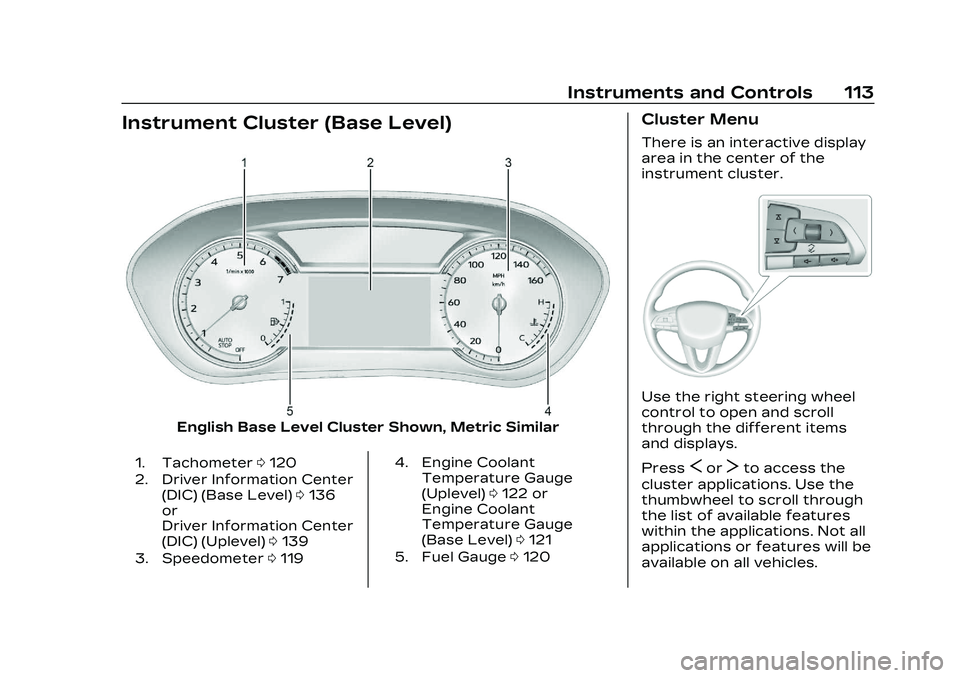
Instrument Cluster (Base Level)
English Base Level Cluster Shown, Metric Similar
1. Tachometer0120
2. Driver Information Center (DIC) (Base Level) 0136
or
Driver Information Center
(DIC) (Uplevel) 0139
3. Speedometer 0119 4. Engine Coolant
Temperature Gauge
(Uplevel) 0122 or
Engine Coolant
Temperature Gauge
(Base Level) 0121
5. Fuel Gauge 0120
Cluster Menu
There is an interactive display
area in the center of the
instrument cluster.
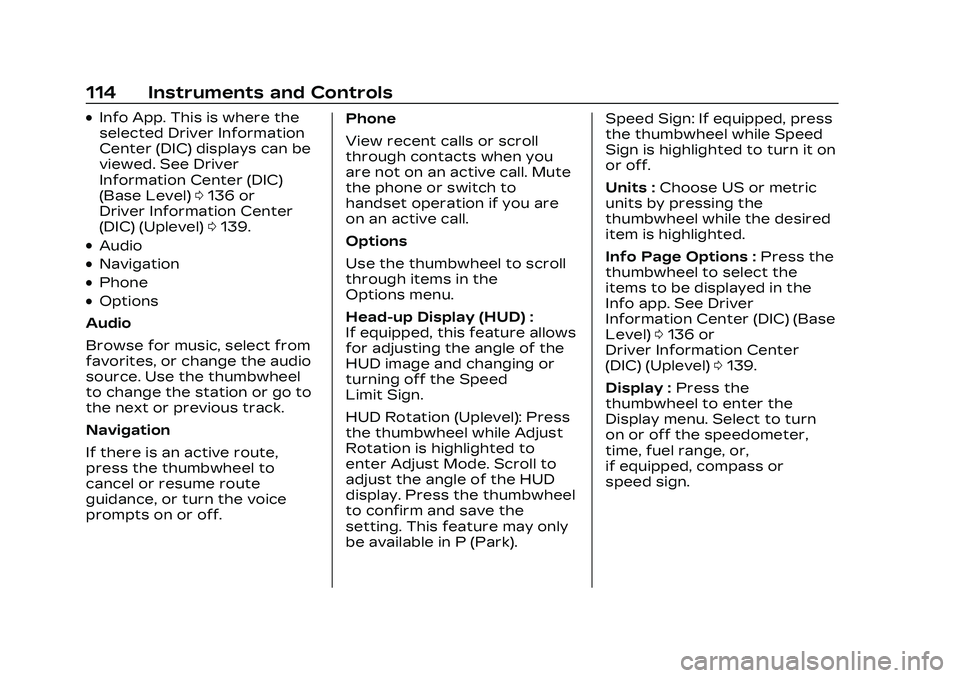
Use the right steering wheel
control to open and scroll
through the different items
and displays.
Press
SorTto access the
cluster applications. Use the
thumbwheel to scroll through
the list of available features
within the applications. Not all
applications or features will be
available on all vehicles.
Page 115 of 526
Cadillac CT5 Owner Manual (GMNA-Localizing-U.S./Canada-16500419) -
2023 - CRC - 5/6/22
114 Instruments and Controls
.Info App. This is where the
selected Driver Information
Center (DIC) displays can be
viewed. See Driver
Information Center (DIC)
(Base Level)0136 or
Driver Information Center
(DIC) (Uplevel) 0139.
.Audio
.Navigation
.Phone
.Options
Audio
Browse for music, select from
favorites, or change the audio
source. Use the thumbwheel
to change the station or go to
the next or previous track.
Navigation
If there is an active route,
press the thumbwheel to
cancel or resume route
guidance, or turn the voice
prompts on or off. Phone
View recent calls or scroll
through contacts when you
are not on an active call. Mute
the phone or switch to
handset operation if you are
on an active call.
Options
Use the thumbwheel to scroll
through items in the
Options menu.
Head-up Display (HUD) :
If equipped, this feature allows
for adjusting the angle of the
HUD image and changing or
turning off the Speed
Limit Sign.
HUD Rotation (Uplevel): Press
the thumbwheel while Adjust
Rotation is highlighted to
enter Adjust Mode. Scroll to
adjust the angle of the HUD
display. Press the thumbwheel
to confirm and save the
setting. This feature may only
be available in P (Park).Speed Sign: If equipped, press
the thumbwheel while Speed
Sign is highlighted to turn it on
or off.
Units :
Choose US or metric
units by pressing the
thumbwheel while the desired
item is highlighted.
Info Page Options : Press the
thumbwheel to select the
items to be displayed in the
Info app. See Driver
Information Center (DIC) (Base
Level) 0136 or
Driver Information Center
(DIC) (Uplevel) 0139.
Display : Press the
thumbwheel to enter the
Display menu. Select to turn
on or off the speedometer,
time, fuel range, or,
if equipped, compass or
speed sign.
Page 116 of 526
Cadillac CT5 Owner Manual (GMNA-Localizing-U.S./Canada-16500419) -
2023 - CRC - 5/6/22
Instruments and Controls 115
Speed Warning :The Speed
Warning display allows the
driver to set a warning at a
speed that they do not want
to exceed. To set the Speed
Warning press the
thumbwheel when Speed
Warning is displayed. Use the
thumbwheel to adjust the
value and press to set the
speed.
Once the speed is set, this
feature can be turned off by
pressing the thumbwheel
while viewing this page. If the
selected speed limit is
exceeded, a pop-up warning is
displayed with a chime.
Software Information :
Displays open source software
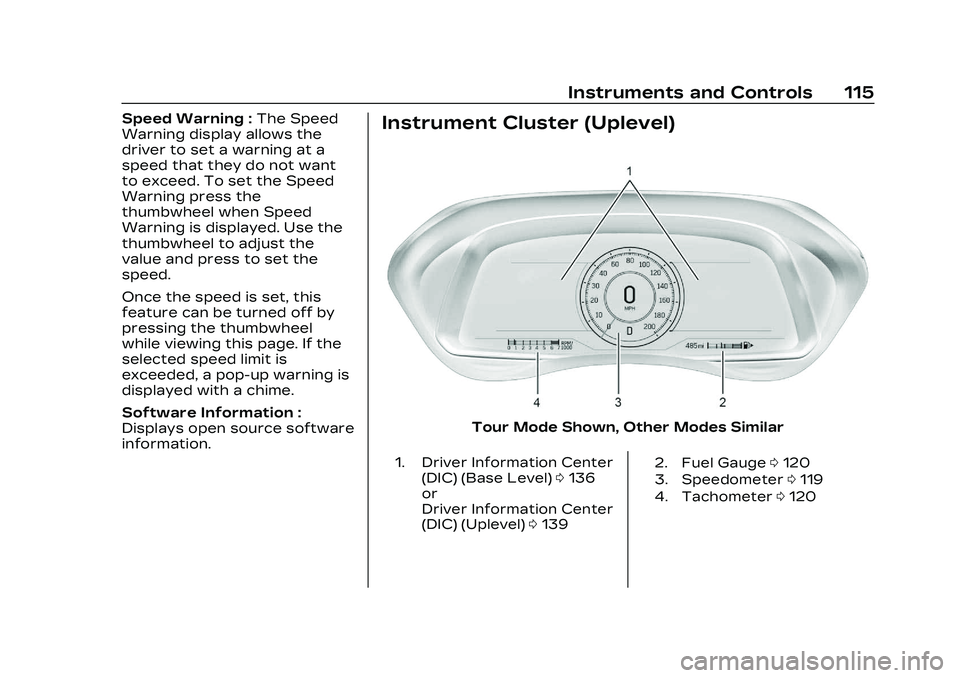
information.Instrument Cluster (Uplevel)
Tour Mode Shown, Other Modes Similar
1. Driver Information Center
(DIC) (Base Level) 0136
or
Driver Information Center
(DIC) (Uplevel) 0139 2. Fuel Gauge
0120
3. Speedometer 0119
4. Tachometer 0120
Page 117 of 526
Cadillac CT5 Owner Manual (GMNA-Localizing-U.S./Canada-16500419) -
2023 - CRC - 5/6/22
116 Instruments and Controls
Cluster Menu
There is an interactive display
area in the center of the
instrument cluster.
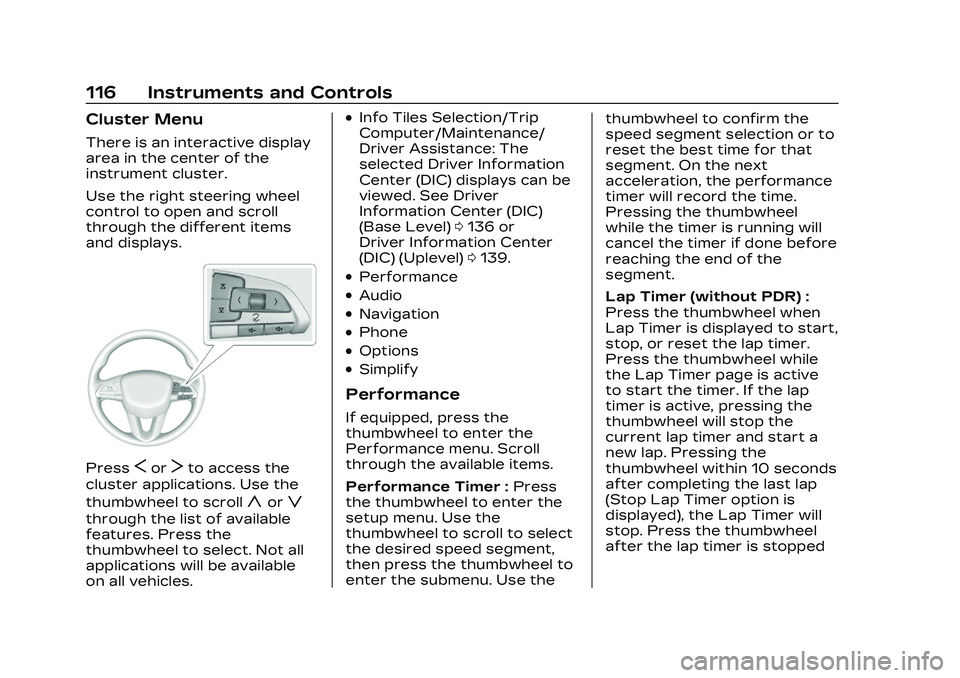
Use the right steering wheel
control to open and scroll
through the different items
and displays.
PressSorTto access the
cluster applications. Use the
thumbwheel to scroll
yorz
through the list of available
features. Press the
thumbwheel to select. Not all
applications will be available
on all vehicles.
.Info Tiles Selection/Trip
Computer/Maintenance/
Driver Assistance: The
selected Driver Information
Center (DIC) displays can be
viewed. See Driver
Information Center (DIC)
(Base Level) 0136 or
Driver Information Center
(DIC) (Uplevel) 0139.
.Performance
.Audio
.Navigation
.Phone
.Options
.Simplify
Performance
If equipped, press the
thumbwheel to enter the
Performance menu. Scroll
through the available items.
Performance Timer : Press
the thumbwheel to enter the
setup menu. Use the
thumbwheel to scroll to select
the desired speed segment,
then press the thumbwheel to
enter the submenu. Use the thumbwheel to confirm the
speed segment selection or to
reset the best time for that
segment. On the next
acceleration, the performance
timer will record the time.
Pressing the thumbwheel
while the timer is running will
cancel the timer if done before
reaching the end of the
segment.
Lap Timer (without PDR) :
Press the thumbwheel when
Lap Timer is displayed to start,
stop, or reset the lap timer.
Press the thumbwheel while
the Lap Timer page is active
to start the timer. If the lap
timer is active, pressing the
thumbwheel will stop the
current lap timer and start a
new lap. Pressing the
thumbwheel within 10 seconds
after completing the last lap
(Stop Lap Timer option is
displayed), the Lap Timer will
stop. Press the thumbwheel
after the lap timer is stopped
Page 118 of 526
Cadillac CT5 Owner Manual (GMNA-Localizing-U.S./Canada-16500419) -
2023 - CRC - 5/6/22
Instruments and Controls 117
to reset the timer, or to view
the lap history. A maximum of
16 laps can be stored.
Lap Timer (with PDR) :The
lap times recorded with the
PDR system will automatically
be displayed in this window.
This only happens if a track
has been selected in the PDR
system and a video recording
is started. See Performance
Data Recorder (PDR) 0200.
Friction Bubble : A four
quadrant visual display,
indicative of the four corners
of the car, with a “bubble”
showing where the most
inertia is being exerted on the
vehicle.
Launch Control : If equipped,
the Launch Control display
allows the driver to adjust the
parameters of the Launch
Control System. See Track
Events and Competitive
Driving (V-Series and V-Series
Blackwing) 0246.Audio
Browse for music, select from
favorites, or change the audio
source. Use the thumbwheel
to change the station or go to
the next or previous track.
Navigation
If there is an active route,
press the thumbwheel to
cancel or resume route
guidance, or turn the voice
prompts on or off.
Phone
View recent calls or scroll
through contacts when you
are not on an active call. Mute
the phone or switch to
handset operation if you are
on an active call.
Options
Use the thumbwheel to scroll
through items in the
Options menu. Display Themes
Press the thumbwheel to
enter the Display menu. There
are four instrument cluster
display configurations to
choose from. Sport, Tour,
Stealth, and Track (if
equipped). The style of the
cluster will change depending
on the theme selected.
Default is linked to Driver
Mode. Other display themes
can be set.
If in My Mode then those
displays plus HUD (if equipped)
can be set. My Mode is only
selectable when in Link to
Driver mode.
Stealth Mode is enabled when
the Instrument Panel
Illumination Control is set to
the minimum level. See
Instrument Panel Illumination
Control
0157.