wheel CADILLAC CT6 2017 1.G User Guide
[x] Cancel search | Manufacturer: CADILLAC, Model Year: 2017, Model line: CT6, Model: CADILLAC CT6 2017 1.GPages: 337, PDF Size: 3.89 MB
Page 76 of 337
Cadillac CT6 Owner Manual (GMNA-Localizing-MidEast-10293390) - 2017 -
CRC - 6/21/16
SEATS AND RESTRAINTS 75
{Warning
Because airbags inflate with great
force and faster than the blink of an
eye, anyone who is up against,
or very close to any airbag when it
inflates can be seriously injured or
killed. Do not sit unnecessarily
close to any airbag, as you would be
if sitting on the edge of the seat or
leaning forward. Safety belts help
keep you in position before and
during a crash. Always wear a safety
belt, even with airbags. The driver
should sit as far back as possible
while still maintaining control of
the vehicle. The safety belts and the
front outboard passenger airbags
are most effective when you are
sitting well back and upright in the
seat with both feet on the floor.
Occupants should not lean on or
sleep against the door or side
windows in seating positions with
seat-mounted side impact airbags
and/or roof-rail airbags.
{Warning
Children who are up against,
or very close to, any airbag when it
inflates can be seriously injured or
killed. Always secure children
properly in the vehicle. To read
how, seeOlder Children 085 or
Infants and Young Children 087.
There is an airbag readiness light on
the instrument cluster, which shows
the airbag symbol. The system checks
the airbag electrical system for
malfunctions. The light tells you if
there is an electrical problem. See
Airbag Readiness Light 0126.
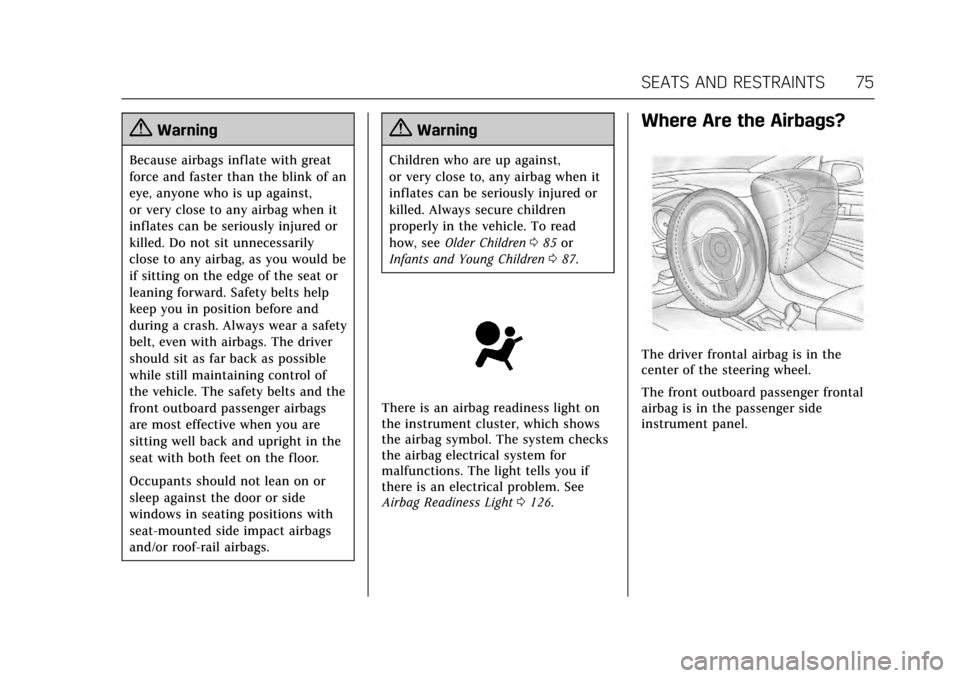
Where Are the Airbags?
The driver frontal airbag is in the
center of the steering wheel.
The front outboard passenger frontal
airbag is in the passenger side
instrument panel.
Page 78 of 337

Cadillac CT6 Owner Manual (GMNA-Localizing-MidEast-10293390) - 2017 -
CRC - 6/21/16
SEATS AND RESTRAINTS 77
Warning (Continued)
put anything between an occupant
and an airbag, and do not attach or
put anything on the steering wheel
hub or on or near any other airbag
covering.
Do not use seat accessories that
block the inflation path of a
seat-mounted side impact airbag.
Never secure anything to the roof of
a vehicle with roof-rail airbags by
routing a rope or tie‐down through
any door or window opening. If you
do, the path of an inflating roof-rail
airbag will be blocked.
When Should an Airbag
Inflate?
This vehicle is equipped with airbags.
SeeAirbag System 074. Airbags are
designed to inflate if the impact
exceeds the specific airbag system's
deployment threshold. Deployment
thresholds are used to predict how
severe a crash is likely to be in time
for the airbags to inflate and help restrain the occupants. The vehicle
has electronic sensors that help the
airbag system determine the severity
of the impact. Deployment thresholds
can vary with specific vehicle design.
Frontal airbags are designed to inflate
in moderate to severe frontal or near
frontal crashes to help reduce the
potential for severe injuries, mainly to
the driver's or front outboard
passenger's head and chest.
Whether the frontal airbags will or
should inflate is not based primarily
on how fast the vehicle is traveling.
It depends on what is hit, the
direction of the impact, and how
quickly the vehicle slows down.
Frontal airbags may inflate at
different crash speeds depending on
whether the vehicle hits an object
straight on or at an angle, and
whether the object is fixed or moving,
rigid or deformable, narrow or wide.
Frontal airbags are not intended to
inflate during vehicle rollovers, in rear
impacts, or in many side impacts.
In addition, the vehicle has advanced
technology frontal airbags. Advanced
technology frontal airbags adjust the
restraint according to either crash
severity or occupant interaction.
Knee airbags are designed to inflate in
moderate to severe frontal or near
frontal impacts. Knee airbags are not
designed to inflate during vehicle
rollovers, in rear impacts, or in many
side impacts.
Seat-mounted side impact airbags are
designed to inflate in moderate to
severe side crashes depending on the
location of the impact. Seat-mounted
side impact airbags are not designed
to inflate in frontal impacts, near
frontal impacts, rollovers, or rear
impacts. A seat-mounted side impact
airbag is designed to inflate on the
side of the vehicle that is struck.
Roof-rail airbags are designed to
inflate in moderate to severe side
crashes depending on the location of
the impact. In addition, these roof-rail
airbags are designed to inflate during
a rollover or in a severe frontal
impact. Roof-rail airbags are not
designed to inflate in rear impacts.
Page 79 of 337

Cadillac CT6 Owner Manual (GMNA-Localizing-MidEast-10293390) - 2017 -
CRC - 6/21/16
78 SEATS AND RESTRAINTS
Both roof-rail airbags will inflate when
either side of the vehicle is struck,
if the sensing system predicts that the
vehicle is about to roll over on its
side, or in a severe frontal impact.
In any particular crash, no one can
say whether an airbag should have
inflated simply because of the vehicle
damage or repair costs.
What Makes an Airbag
Inflate?
In a deployment event, the sensing
system sends an electrical signal
triggering a release of gas from the
inflator. Gas from the inflator fills the
airbag causing the bag to break out of
the cover. The inflator, the airbag, and
related hardware are all part of the
airbag module.
For airbag locations, seeWhere Are the
Airbags? 075.
How Does an Airbag
Restrain?
In moderate to severe frontal or near
frontal collisions, even belted
occupants can contact the steering wheel or the instrument panel. In
moderate to severe side collisions,
even belted occupants can contact the
inside of the vehicle.
Airbags supplement the protection
provided by safety belts by
distributing the force of the impact
more evenly over the occupant's body.
Rollover capable roof-rail airbags are
designed to help contain the head and
chest of occupants in the outboard
seating positions in the first and
second rows. The rollover capable
roof-rail airbags are designed to help
reduce the risk of full or partial
ejection in rollover events, although
no system can prevent all such
ejections.
But airbags would not help in many
types of collisions, primarily because
the occupant's motion is not toward
those airbags. See
When Should an
Airbag Inflate? 077.
Airbags should never be regarded as
anything more than a supplement to
safety belts.
What Will You See after an
Airbag Inflates?
After the frontal airbags and
seat-mounted side impact airbags
inflate, they quickly deflate, so quickly
that some people may not even realize
an airbag inflated. Roof-rail airbags
may still be at least partially inflated
for some time after they inflate. Some
components of the airbag module may
be hot for several minutes. For
location of the airbags, see Where Are
the Airbags? 075.
The parts of the airbag that come into
contact with you may be warm, but
not too hot to touch. There may be
some smoke and dust coming from
the vents in the deflated airbags.
Airbag inflation does not prevent the
driver from seeing out of the
windshield or being able to steer the
vehicle, nor does it prevent people
from leaving the vehicle.
Page 85 of 337
Cadillac CT6 Owner Manual (GMNA-Localizing-MidEast-10293390) - 2017 -
CRC - 6/21/16
84 SEATS AND RESTRAINTS
Adding Equipment to the
Airbag-Equipped Vehicle
Adding accessories that change the
vehicle's frame, bumper system,
height, front end, or side sheet metal
may keep the airbag system from
working properly. The operation of the
airbag system can also be affected by
changing any parts of the front seats,
safety belts, the airbag sensing and
diagnostic module, steering wheel,
instrument panel, any of the airbag
modules, ceiling or pillar garnish trim,
front sensors, side impact sensors,
or airbag wiring.
Your dealer and the service manual
have information about the location of
the airbag sensors, sensing and
diagnostic module, and airbag wiring.
In addition, the vehicle has a
passenger sensing system for the front
outboard passenger position, which
includes sensors that are part of the
passenger seat. The passenger sensing
system may not operate properly if
the original seat trim is replaced with
non-GM covers, upholstery, or trim; or
with GM covers, upholstery, or trim
designed for a different vehicle. Anyobject, such as an aftermarket seat
heater or a comfort-enhancing pad or
device, installed under or on top of
the seat fabric, could also interfere
with the operation of the passenger
sensing system. This could either
prevent proper deployment of the
passenger airbag(s) or prevent the
passenger sensing system from
properly turning off the passenger
airbag(s). See
Passenger Sensing
System 079.
The vehicle has rollover roof-rail
airbags. See Different Size Tires and
Wheels 0288 for additional important
information.
If your vehicle needs to be modified
because you have a disability and you
have questions about whether the
modifications will affect the vehicle's
airbag system, or if you have
questions about whether the airbag
system will be affected if the vehicle is
modified for any other reason, see
your dealer.
Airbag System Check
The airbag system does not need
regularly scheduled maintenance or
replacement. Make sure the airbag
readiness light is working. See Airbag
Readiness Light 0126.
Caution
If an airbag covering is damaged,
opened, or broken, the airbag may
not work properly. Do not open or
break the airbag coverings. If there
are any opened or broken airbag
coverings, have the airbag covering
and/or airbag module replaced. For
the location of the airbags, see
Where Are the Airbags? 075. See
your dealer for service.
Page 108 of 337
Cadillac CT6 Owner Manual (GMNA-Localizing-MidEast-10293390) - 2017 -
CRC - 6/21/16
INSTRUMENTS AND CONTROLS 107
Instruments and
Controls
Controls
Steering Wheel Adjustment . . . . . 108
Steering Wheel Controls . . . . . . . . . 108
Heated Steering Wheel . . . . . . . . . . 108
Horn . . . . . . . . . . . . . . . . . . . . . . . . . . . . . . . 109
Windshield Wiper/Washer . . . . . . . 109
Clock . . . . . . . . . . . . . . . . . . . . . . . . . . . . . . 111
Power Outlets . . . . . . . . . . . . . . . . . . . . . 111
Wireless Charging . . . . . . . . . . . . . . . . 113
Cigarette Lighter . . . . . . . . . . . . . . . . . . 114
Ashtrays . . . . . . . . . . . . . . . . . . . . . . . . . . 114
Warning Lights, Gauges, and
Indicators
Warning Lights, Gauges, andIndicators . . . . . . . . . . . . . . . . . . . . . . . 114
Instrument Cluster (Base Level) . . . . . . . . . . . . . . . . . . . . . . . . . . . . 115
Instrument Cluster (Uplevel) . . . . 118
Speedometer . . . . . . . . . . . . . . . . . . . . . . 121
Odometer . . . . . . . . . . . . . . . . . . . . . . . . . 121
Trip Odometer . . . . . . . . . . . . . . . . . . . . 121
Tachometer . . . . . . . . . . . . . . . . . . . . . . . 121
Fuel Gauge . . . . . . . . . . . . . . . . . . . . . . . . 121
Boost Gauge (Performance Configuration Only) . . . . . . . . . . . . 122 Engine Oil Pressure Gauge (Base
Level Cluster) . . . . . . . . . . . . . . . . . . . 123
Engine Oil Temperature Gauge (Performance
Configuration Only) . . . . . . . . . . . . 123
Engine Coolant Temperature Gauge . . . . . . . . . . . . . . . . . . . . . . . . . . . . 124
Voltmeter Gauge (Base Level Cluster) . . . . . . . . . . . . . . . . . . . . . . . . . . 125
Safety Belt Reminders . . . . . . . . . . . . 125
Airbag Readiness Light . . . . . . . . . . 126
Passenger Airbag Status Indicator . . . . . . . . . . . . . . . . . . . . . . . . . 126
Charging System Light . . . . . . . . . . . 127
Malfunction Indicator Lamp (Check Engine Light) . . . . . . . . . . . 127
Brake System Warning Light . . . . 129
Electric Parking Brake Light . . . . . 130
Service Electric Parking Brake Light . . . . . . . . . . . . . . . . . . . . . . . . . . . . . 130
Antilock Brake System (ABS) Warning Light . . . . . . . . . . . . . . . . . . 130
Lane Keep Assist (LKA) Light . . . 131
Vehicle Ahead Indicator . . . . . . . . . 131
Pedestrian Ahead Indicator . . . . . . 131
Traction Off Light . . . . . . . . . . . . . . . . 131
StabiliTrak
®OFF Light . . . . . . . . . . . 132
Traction Control System (TCS)/ StabiliTrak
®Light . . . . . . . . . . . . . . 132
Engine Coolant Temperature Warning Light . . . . . . . . . . . . . . . . . . 132 Tire Pressure Light . . . . . . . . . . . . . . . 133
Engine Oil Pressure Light . . . . . . . . 133
Low Fuel Warning Light . . . . . . . . . 134
Auto Stop Mode (Uplevel
Cluster) . . . . . . . . . . . . . . . . . . . . . . . . . . 134
Security Light . . . . . . . . . . . . . . . . . . . . . 134
High-Beam On Light . . . . . . . . . . . . . 134
Lamps On Reminder . . . . . . . . . . . . . 135
Cruise Control Light . . . . . . . . . . . . . . 135
Door Ajar Light . . . . . . . . . . . . . . . . . . . 135
Information Displays
Driver Information Center (DIC) . . . . . . . . . . . . . . . . . . . . . 136
Head-Up Display (HUD) . . . . . . . . . 138
Vehicle Messages
Vehicle Messages . . . . . . . . . . . . . . . . . 141
Battery Voltage and Charging Messages . . . . . . . . . . . . . . . . . . . . . . . . 141
Brake System Messages . . . . . . . . . . 142
Cruise Control Messages . . . . . . . . . 142
Door Ajar Messages . . . . . . . . . . . . . . 143
Engine Cooling System Messages . . . . . . . . . . . . . . . . . . . . . . . . 143
Engine Oil Messages . . . . . . . . . . . . . 144
Engine Power Messages . . . . . . . . . . 144
Fuel System Messages . . . . . . . . . . . 145
Key and Lock Messages . . . . . . . . . . 145
Lamp Messages . . . . . . . . . . . . . . . . . . . 145
Page 109 of 337

Cadillac CT6 Owner Manual (GMNA-Localizing-MidEast-10293390) - 2017 -
CRC - 6/21/16
108 INSTRUMENTS AND CONTROLS
Object Detection SystemMessages . . . . . . . . . . . . . . . . . . . . . . . . 145
Ride Control System Messages . . . . . . . . . . . . . . . . . . . . . . . . 148
Airbag System Messages . . . . . . . . . 149
Safety Belt Messages . . . . . . . . . . . . . 149
Security Messages . . . . . . . . . . . . . . . . 149
Service Vehicle Messages . . . . . . . . 149
Steering System Messages . . . . . . . 149
Starting the Vehicle Messages . . . 150
Tire Messages . . . . . . . . . . . . . . . . . . . . 150
Transmission Messages . . . . . . . . . . 151
Vehicle Reminder Messages . . . . . 151
Vehicle Speed Messages . . . . . . . . . 151
Washer Fluid Messages . . . . . . . . . . 151
Window Messages . . . . . . . . . . . . . . . . 151
Vehicle Personalization
Vehicle Personalization . . . . . . . . . . 152
Universal Remote System
Universal Remote System
Programming . . . . . . . . . . . . . . . . . . . 160
Universal Remote System Operation . . . . . . . . . . . . . . . . . . . . . . . . 162
Controls
Steering Wheel Adjustment
Power Tilt and Telescoping Steering
Wheel
Press the control to move the tilt and
telescoping steering wheel up and
down or forward and rearward.
Do not adjust the steering wheel while
driving.
Steering Wheel Controls
The infotainment system can be
operated by using the steering wheel
controls. See "Steering Wheel
Controls" in the infotainment manual.
Heated Steering Wheel
(:If equipped with a heated steering
wheel, press to turn on or off. An
indicator next to the button is lit
when the feature is turned on.
The steering wheel takes about
three minutes to start heating.
Page 110 of 337

Cadillac CT6 Owner Manual (GMNA-Localizing-MidEast-10293390) - 2017 -
CRC - 6/21/16
INSTRUMENTS AND CONTROLS 109
Horn
Pressaon the steering wheel pad to
sound the horn.
Windshield Wiper/Washer
With the ignition in ACC/ACCESSORY
or ON/RUN, move the windshield
wiper lever up or down to select the
wiper speed.
HI : Use for fast wipes.
LO : Use for slow wipes.
AUTO : Use this setting for
intermittent wipes when Rainsense ™
is disabled, or for Rainsense wipes
when it is enabled. For intermittent
wipes, move the lever up to AUTO,
then turn the band on the wiper lever
up for more frequent wipes or down
for less frequent wipes. If Rainsense is
enabled, see “Rainsense™”later in this
section.
If the windshield wipers are in use
while driving, the exterior lamps come
on automatically if the exterior lamp
control is in AUTO. The transition
time for the lamps coming on varies
based on wiper speed. See “Lights On
with Wipers ”under Automatic
Headlamp System 0165.
OFF : Use to turn the wipers off. 1X :
For a single wipe, briefly move
the wiper lever down. For several
wipes, hold the wiper lever down.
f: Pull the windshield wiper lever
toward you to spray windshield
washer fluid and activate the wipers.
The wipers will continue until the
lever is released or the maximum
wash time is reached. When the
windshield wiper lever is released,
additional wipes may occur depending
on how long the windshield washer
had been activated. See Washer Fluid
0 260 for information on filling the
windshield washer fluid reservoir.
{Warning
In freezing weather, do not use the
washer until the windshield is
warmed. Otherwise the washer fluid
can form ice on the windshield,
blocking your vision.
Clear snow and ice from the wiper
blades and windshield before using
them. If frozen to the windshield,
Page 117 of 337

Cadillac CT6 Owner Manual (GMNA-Localizing-MidEast-10293390) - 2017 -
CRC - 6/21/16
116 INSTRUMENTS AND CONTROLS
Cluster Menu
There is an interactive display area in
the center of the instrument cluster.
Use the right steering wheel control to
open and scroll through the different
items and displays.
Press
Sto access the cluster
applications. Use
yorzto scroll
through the list of available
applications. Not all applications will
be available on all vehicles.
. Info App. This is where the
selected Driver Information Center
(DIC) displays can be viewed. See
Driver Information Center
(DIC) 0136.
. Audio
. Phone
. Navigation
. Settings Audio
Press SEL to select the Audio app,
then press
Tto enter the Audio
menu. In the Audio menu browse for
music, select from the favorites,
or change the audio source. Use
yor
zto change the station or go to the
next or previous track.
Phone
Press SEL to select the Phone app,
then press
Tto enter the Phone
menu. In the Phone menu, if there is
no active phone call, view recent calls,
or scroll through contacts. If there is
an active call, mute the phone or
switch to handset operation.
Navigation
Press SEL to select the Navigation
app, then press
Tto enter the
Navigation menu. If there is no active
route, you can resume the last route
and turn the voice prompts on/off.
If there is an active route, press SEL
to cancel or resume route guidance or
turn the voice prompts on or off. Settings
Press SEL to select the Settings app,
then press
Tto enter the Settings
menu. Use
yorzto scroll through
items in the Settings menu.
Units : Press
Twhile Units is
displayed to enter the Units menu.
Choose English, Imperial, or metric
units by pressing SEL while the
desired item is highlighted.
A checkmark will be displayed next to
the selected item.
Display Themes : There are three
instrument cluster display
configurations to choose from:
Standard, Technology, and Media.
Info Pages : Press
Twhile Info Pages
is displayed to enter the Info Pages
menu and select the items to be
displayed in the Info app. See Driver
Information Center (DIC) 0136.
Page 120 of 337

Cadillac CT6 Owner Manual (GMNA-Localizing-MidEast-10293390) - 2017 -
CRC - 6/21/16
INSTRUMENTS AND CONTROLS 119
Reconfigurable Instrument
Cluster
The cluster display layout can be
changed.
Balanced Configuration
The Balanced configuration has three
interactive display zones: one in the
center of each of the gauges.
Enhanced Configuration
The Enhanced configuration has three
interactive display zones.
Performance Configuration (If Equipped)
The Performance configuration has
two interactive display zones.
Use the five-way control on the right
side of the steering wheel to move
between the different display zones
and scroll through the different
displays.
To change the cluster configuration:
1. Find the Options page in one of the interactive display zones on
the cluster.
2. Press SEL to enter the Options menu.
3. Scroll down to highlight Display Layout. Then press SEL to
select it. 4. Each layout in the menu is
represented by a small preview
image of the display layout.
Scroll up or down and highlight
the selection. Press SEL to select
the desired cluster configuration.
5. Exit the Display Layout menu by pressing
S.
Cluster Application Displays
The cluster can display information
regarding Navigation, Audio, and
Phone.
Navigation
If there is no active route, a compass
will be displayed. If there is an active
route, press SEL to end route guidance
or turn the voice prompts on or off.
Audio
While the Audio application page is
displayed, press SEL to enter the
Audio menu. In the Audio menu,
search for music, select from favorites,
or change the audio source
Page 121 of 337

Cadillac CT6 Owner Manual (GMNA-Localizing-MidEast-10293390) - 2017 -
CRC - 6/21/16
120 INSTRUMENTS AND CONTROLS
Phone
While the Phone application page is
displayed, press SEL to enter the
Phone menu. In the Phone menu,
if there is no active phone call, view
recent calls, select from favorites,
or scroll through contacts. If there is
an active call, mute the phone or
switch to handset operation.
Cluster Options Menu
To enter the cluster Options menu:1. Use the five-way control on the right side of the steering wheel
to find the Options page in one
of the interactive display zones
on the cluster.
2. Press SEL on the center of the five-way control to enter the
Options menu.
Units : Press SEL while Units is
highlighted to enter the Units menu.
Choose US or metric units by pressing
SEL while the desired item is
highlighted. A checkmark will be
displayed next to the selected item. Info Pages :
Press SEL while Info
Pages is highlighted to select the
items to be displayed in the DIC info
displays. See Driver Information Center
(DIC) 0136.
Fav Button Options : Press SEL while
Fav Button Options is highlighted to
select between FAV Primary and SEEK
Primary. This selection allows for
configuration of the
CandB
steering wheel controls. When FAV
Primary is selected, pressing
Cand
Bwill go to the next or previous
favorite and pressing and holding
C
andBwill seek. When SEEK Primary
is selected, pressing
CandBwill
seek and pressing and holding
Cand
Bwill go to the next or previous
favorite.
Display Layout : Press SEL while
Display Layout is highlighted to
change the configuration of the
cluster. See “Reconfigurable
Instrument Cluster” earlier in this
section. Head-up Display (HUD) Rotation :
This feature allows for adjusting the
angle of the HUD image. Press SEL on
the steering wheel controls while
Head-up Display Rotation is
highlighted to enter Adjust Mode.
Press
yorzto adjust the angle of
the HUD display. Press
SorTto
highlight OK, then press SEL to save
the setting. Cancel can also be
selected to cancel the setting. The
vehicle must be in P (Park).
Tire Loading : Press SEL while Tire
Loading is highlighted to change the
tire loading setting. Choose Light (for
comfort pressure up to three people),
Eco (for Eco pressure up to three
people), or Max (for full loading) by
pressing SEL while the desired item is
highlighted.
Open Source Software : Press SEL
while Open Source Software is
highlighted to display open source
software information.