lock CADILLAC CTS 2008 2.G Manual PDF
[x] Cancel search | Manufacturer: CADILLAC, Model Year: 2008, Model line: CTS, Model: CADILLAC CTS 2008 2.GPages: 490, PDF Size: 2.59 MB
Page 228 of 490
For XM™ stations, the music guide displays a
Category list. This list displays all of the Categories
available and the number of XM™ stations available
under each.
Turn the MENU/SELECT knob clockwise or
counterclockwise to scroll through the list. Press this
knob to select the desired item. The selected item
displays a speaker symbol to indicate it is the current
active source.
Finding a XM™ Station
m
:Press to switch to XM mode. Turn the TUNE/TONE
knob to select from a list of available XM stations.
Turn the TUNE/TONE knob until the desired station
is highlighted. Press the TUNE/TONE knob to select
the highlighted station. The highlighted station will
also automatically be selected if the TUNE/TONE is
released and no longer turned.
Storing a Radio Station as a Favorite
Drivers are encouraged to set up their radio station
favorites while the vehicle is stopped. Tune to your
favorite stations using the presets, favorites button, and
steering wheel controls, if the vehicle has this feature.
SeeDefensive Driving on page 4-2.
FAV (Favorites):A maximum of 36 stations can be
programmed as favorites using the six pushbuttons
positioned below the radio station frequency labels on
the display and by using the radio favorites page button
(FAV button). Press the FAV button to go through up
to six pages of favorites, each having six favorite
stations available per page. Each page of favorites
can contain any combination of AM, FM, or XM™
(if equipped) stations.
To store a station as a favorite, perform the
following steps:
1. Tune to the desired radio station.
2. Press the FAV button to display the page where
the station is to be stored.
3-86
Page 229 of 490

3. Press and hold one of the six pushbuttons until a
beep sounds. When that pushbutton is pressed
and released, the radio recalls the station that
was set.
4. Repeat the steps for each pushbutton radio station
to be stored as a favorite.
The number of favorites pages can be setup using the
CONFIG button. To setup the number of favorites
pages, perform the following steps:
1. Press the CONFIG button to display the radio
setup menu.
2. Press the pushbutton located below the FAV label.
3. Select the desired number of favorites pages by
pressing the pushbutton located below the
displayed page numbers.
4. Press the FAV button, or let the menu time out, to
return to the original main radio screen showing the
radio station frequency labels and to begin the
process of programming your favorites for the
chosen number of pages.Setting the Tone
(Bass/Midrange/Treble)
BASS/MID/TREB (Bass, Midrange, or Treble):
To adjust bass, midrange, or treble, press the
TUNE/TONE knob until the tone control labels display.
Continue pressing to highlight the desired label, or
press the pushbutton positioned under the desired
label. Turn the TUNE/TONE knob clockwise or
counterclockwise to adjust the highlighted setting.
The highlighted setting can also be adjusted by pressing
either SEEK arrow,
\FWD, orsREV button until
the desired levels are obtained. If a station’s frequency
is weak or has static, decrease the treble.
To quickly adjust bass, midrange, or treble to the middle
position, press the pushbutton positioned under the
BASS, MID, or TREB label for more than two seconds.
A beep may sound and the level adjusts to the
middle position.
To quickly adjust all tone and speaker controls to the
middle position, press the TUNE/TONE knob for
more than two seconds.
3-87
Page 230 of 490

Adjusting the Speakers (Balance/Fade)
BAL/FADE (Balance/Fade):To adjust balance or
fade, press the TUNE/TONE knob until the speaker
control labels display. Continue pressing to highlight
the desired label, or press the pushbutton positioned
under the desired label. Turn the TUNE/TONE
knob clockwise or counterclockwise to adjust the
highlighted setting. The highlighted setting can be
adjusted by pressing either SEEK arrow,
\FWD, or
sREV buttons until the desired levels are obtained.
To quickly adjust balance or fade to the middle position,
press the pushbutton positioned under the BAL or
FADE label for more than two seconds. A beep may
sound and the level adjusts to the middle position.
To quickly adjust all speaker and tone controls to the
middle position, press the TUNE/TONE knob for
more than two seconds.
Digital Signal Processing (DSP)
If your radio has this feature, it is used to provide a
choice of different listening experiences. To choose a
DSP setting, perform the following steps:
1. Press the TUNE/TONE knob to display the
tone/speaker, and DSP labels.
2. Press the pushbutton located under the DSP label.
3. Press the Back button to exit the display. To return to
the original display, repeatedly press the Back button
or wait for the display to time out.
The DSP settings available are:
Normal: Select for normal mode, this provides the
best sound quality for all seating positions.
Driver: Select to adjust the audio for the driver to
receive the best possible sound quality.
Rear: Select to adjust the audio for the rear seat
passengers to receive the best possible sound
quality.
3-88
Page 231 of 490

Centerpoint®: Select to enable Bose®
Centerpoint®. Centerpoint®produces a full vehicle
surround sound listening experience from CD,
non-5.1 surround sound DVD-A, MP3/WMA, AUX
(auxiliary) input, or XM™ digital audio source
and will deliver ve independent audio channels
from conventional two channel stereo recording.
This feature is not available in AM/FM radio mode.
If your vehicle is equipped with the Bose
®5.1 Cabin
Surround®sound system, your radio can support
the playback of 5.1 Surround Sound DVD-A discs
or DTS 5.1 Surround Sound CD discs. When a
5.1 Surround Sound formatted disc is playing, DSP
options available are:
5.1 Surround + Normal: Best for all seating
positions.
5.1 Surround + Rear: Best for the rear
seating position.
Conguring Radio Functions
CONFIG:Press to display FAV, AUTO VOL, XM
(if equipped), or HDD (if available), and Back.
See the information provided in this radio section to
learn more options about the FAV, AUTO VOL, XM,
and HDD (if available) label functions. See “Speed
Compensated Volume (SCV)” or “Noise Compensation
Technology” earlier for information on the AUTO
VOL label. Press the pushbutton located under the
Back label to go back to the previous display.
Radio Message
Locked:Displays when the THEFTLOCK®system has
locked up the radio. Take the vehicle to your
dealer/retailer for service.
If any error occurs repeatedly or if an error cannot be
corrected, contact your dealer/retailer.
3-89
Page 246 of 490

Using the Auxiliary Input Jack
The radio system has an auxiliary input jack. It is in
the center console bin. This is not an audio output;
do not plug the headphone set into the front auxiliary
input jack. An external audio device such as an iPod,
laptop computer, MP3 player, etc. can be connected to
the auxiliary input jack for use as another source for
audio listening.
Set up any auxiliary device while the vehicle is stopped.
SeeDefensive Driving on page 4-2for more information
on driver distraction.
To use a portable audio player, connect a 3.5 mm
(1/8 inch) cable to the radio’s front auxiliary input jack.
The radio automatically detects the device and “Aux
Input Device” displays. The device begins playing over
the vehicle speakers. If an auxiliary device has already
been connected, press the radio’s AUX or CD/AUX
button.
VOL/
O(Volume/Power):Turn clockwise or
counterclockwise to increase or decrease the volume
of the portable player. Use the portable device to
make additional volume adjustments.
FM/AM:Press to listen to the radio when a portable
audio device is playing. The portable audio device
continues playing, until you stop it.CD or CD/AUX (CD/Auxiliary):Press to play a CD
when a portable audio device is playing. Press again to
start playing audio from the connected portable audio
player. If a portable audio player is not connected,
“No Aux Device” displays.
Using the Radio Controls to Connect
and Control Your iPod
You can control your iPod using the radio buttons and
knobs and display your iPod song information on
the radio’s display. To connect and control your iPod
using the radio controls, your vehicle must have a USB
port. If it does, it is located in the center console bin.
You will also need a special iPod connection cable that
can be purchased with your vehicle or may be available
after, from your dealer/retailer. See your dealer/retailer
for more information.
This feature supports the following iPod models:
Fifth generation or later iPod
First or Second generation or later iPod Nano*
* For proper operation, make sure your iPod has the
latest rmware from Apple
®. Your iPod rmware can
be updated using the latest iTunes application.
See www.apple.com/itunes.
3-104
Page 252 of 490
sREV (Reverse):Press and hold to reverse
playback quickly within an MP3/WMA le. Sound is
heard at a reduced volume. The elapsed time of the le
displays. Release to resume playing the le.
\FWD (Fast Forward):Press and hold to advance
playback quickly within an MP3/WMA le. Sound is
heard at a reduced volume. The elapsed time of the le
displays. Release to resume playing the le.
Shuffle:With the shuffle setting, MP3/WMA les on the
CD can be played in random, rather than sequential
order, on the CD currently playing. To use shuffle:
To play MP3/WMA les from the CD in random
order, press the pushbutton under the Shuffle
label until Shuffle On displays. Press again to turn
shuffle off.
XM Radio Messages
xL (Explicit Language Channels):These channels, or
any others, can be blocked at a customer’s request,
by calling 1-800-852-XMXM (9696).
XM Updating:The encryption code in the receiver is
being updated, and no action is required. This process
should take no longer than 30 seconds.
No XM Signal:The system is functioning correctly, but
the vehicle is in a location that is blocking the XM™
signal. When the vehicle is moved into an open area,
the signal should return.
Loading XM:The audio system is acquiring and
processing audio and text data. No action is needed.
This message should disappear shortly.
Channel Off Air:This channel is not currently in
service. Tune in to another channel.
Channel Unavail:This previously assigned channel is
no longer assigned. Tune to another station. If this
station was one of the presets, choose another station
for that preset button.
3-110
Page 266 of 490

Theft-Deterrent Feature
THEFTLOCK®is designed to discourage theft of the
vehicle’s radio. The feature works automatically by
learning a portion of the Vehicle Identication Number
(VIN). If the radio is moved to a different vehicle, it does
not operate and LOC, LOCK, or LOCKED could display.
With THEFTLOCK activated, the radio does not
operate if stolen.
Audio Steering Wheel Controls
Some audio controls can be adjusted at the steering
wheel. They include the following:
SRCE (Source):Press this button to switch between
the radio AM, FM, XM™ (if equipped), CD, HDD
(if available), auxiliary input jack (if connected), USB
and iPod (if available and connected).
yz(Previous/Next):Press the previous or the
next arrow to go to the previous or to the next radio
station stored as a favorite.
When a CD is playing, press either arrow to go to the
previous or to the next track.
+
e−e(Volume):Press the plus or minus volume
button to increase or to decrease the volume.
Left-Side Steering
Wheel Controls
Right-Side Steering
Wheel Controls
(Bluetooth
®Equipped
Vehicle’s Similar)
3-124
Page 269 of 490
Your Driving, the Road, and the Vehicle............4-2
Defensive Driving...........................................4-2
Drunk Driving.................................................4-2
Control of a Vehicle........................................4-3
Braking.........................................................4-4
Antilock Brake System (ABS)...........................4-5
Braking in Emergencies...................................4-5
Traction Control System (TCS).........................4-6
Limited-Slip Rear Axle.....................................4-7
StabiliTrak
®System........................................4-8
Panic Brake Assist.........................................4-9
All-Wheel Drive (AWD) System.........................4-9
Steering........................................................4-9
Off-Road Recovery.......................................4-12
Passing.......................................................4-12
Loss of Control.............................................4-12Competitive Driving.......................................4-14
Driving at Night............................................4-14
Driving in Rain and on Wet Roads..................4-15
Before Leaving on a Long Trip.......................4-16
Highway Hypnosis........................................4-16
Hill and Mountain Roads................................4-16
Winter Driving..............................................4-17
If Your Vehicle is Stuck in Sand, Mud,
Ice, or Snow.............................................4-21
Rocking Your Vehicle to Get It Out.................4-22
Loading the Vehicle......................................4-22
Towing..........................................................4-28
Towing Your Vehicle.....................................4-28
Recreational Vehicle Towing...........................4-28
Towing a Trailer...........................................4-30
Section 4 Driving Your Vehicle
4-1
Page 273 of 490
Antilock Brake System (ABS)
Your vehicle has the Antilock Brake System (ABS), an
advanced electronic braking system that will help
prevent a braking skid.
When you start the engine and begin to drive away,
ABS will check itself. You might hear a momentary
motor or clicking noise while this test is going on, and
you might even notice that the brake pedal moves
a little. This is normal.
If there is a problem with
ABS, this warning light will
stay on. SeeAntilock Brake
System (ABS) Warning
Light on page 3-39.
Let us say the road is wet and you are driving safely.
Suddenly, an animal jumps out in front of you. You slam
on the brakes and continue braking. Here is what
happens with ABS:
A computer senses that wheels are slowing down. If
one of the wheels is about to stop rolling, the computer
will separately work the brakes at each wheel.ABS can change the brake pressure faster than any
driver could. The computer is programmed to make the
most of available tire and road conditions. This can
help you steer around the obstacle while braking hard.
As you brake, the computer keeps receiving updates
on wheel speed and controls braking pressure
accordingly.
Remember: ABS does not change the time you need to
get your foot up to the brake pedal or always decrease
stopping distance. If you get too close to the vehicle
in front of you, you will not have time to apply the brakes
if that vehicle suddenly slows or stops. Always leave
enough room up ahead to stop, even though you
have ABS.
Using ABS
Do not pump the brakes. Just hold the brake pedal
down rmly and let antilock work for you. You might
hear the antilock pump or motor operate, and feel the
brake pedal pulsate, but this is normal.
Braking in Emergencies
With ABS, you can steer and brake at the same time.
In many emergencies, steering can help you more than
even the very best braking.
4-5
Page 279 of 490
Steering in Emergencies
There are times when steering can be more effective
than braking. For example, you come over a hill and nd
a truck stopped in your lane, or a car suddenly pulls out
from nowhere, or a child darts out from between parked
cars and stops right in front of you. You can avoid these
problems by braking — if you can stop in time. But
sometimes you cannot; there is not room. That is the time
for evasive action — steering around the problem.
Your vehicle can perform very well in emergencies like
these. First apply the brakes. SeeBraking on page 4-4.
It is better to remove as much speed as you can from a
possible collision. Then steer around the problem, to the
left or right depending on the space available.
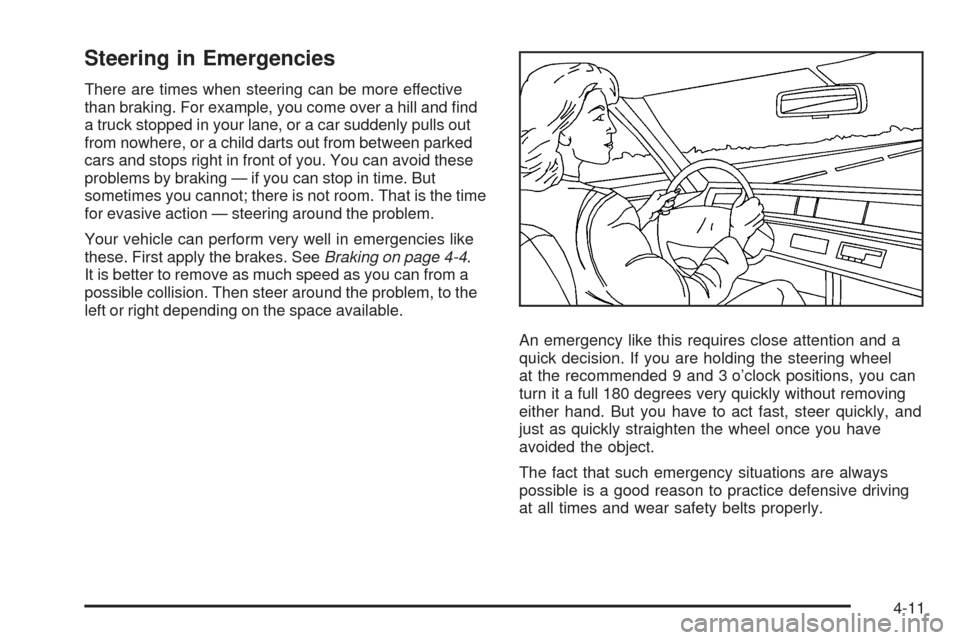
An emergency like this requires close attention and a
quick decision. If you are holding the steering wheel
at the recommended 9 and 3 o’clock positions, you can
turn it a full 180 degrees very quickly without removing
either hand. But you have to act fast, steer quickly, and
just as quickly straighten the wheel once you have
avoided the object.
The fact that such emergency situations are always
possible is a good reason to practice defensive driving
at all times and wear safety belts properly.
4-11