audio CADILLAC CTS 2011 2.G User Guide
[x] Cancel search | Manufacturer: CADILLAC, Model Year: 2011, Model line: CTS, Model: CADILLAC CTS 2011 2.GPages: 496, PDF Size: 7.71 MB
Page 207 of 496

Black plate (1,1)Cadillac CTS/CTS-V Owner Manual - 2011
Infotainment System 7-1
Infotainment
System
Introduction
Introduction . . . . . . . . . . . . . . . . . . . 7-1
Theft-Deterrent Feature . . . . . . . 7-2
Operation . . . . . . . . . . . . . . . . . . . . . 7-2
Radio
AM-FM Radio . . . . . . . . . . . . . . . . . 7-9
Satellite Radio . . . . . . . . . . . . . . . 7-12
Radio Reception . . . . . . . . . . . . . 7-16
Backglass Antenna . . . . . . . . . . 7-17
Multi-Band Antenna . . . . . . . . . . 7-17
Audio Players
CD Player . . . . . . . . . . . . . . . . . . . 7-17
CD/DVD Player . . . . . . . . . . . . . . 7-20
MP3 . . . . . . . . . . . . . . . . . . . . . . . . . 7-25
Hard Drive Device (HDD) . . . . 7-29
Auxiliary Devices . . . . . . . . . . . . 7-36
Phone
Bluetooth . . . . . . . . . . . . . . . . . . . . 7-38
Introduction
Read the following pages to
become familiar with the audio
system's features.
{WARNING
Taking your eyes off the road for
extended periods could cause a
crash resulting in injury or death
to you or others. Do not give
extended attention to
entertainment tasks while driving.
This system provides access to
many audio and non‐audio listings.
To minimize taking your eyes off the
road while driving, do the following
while the vehicle is parked:
.Become familiar with the
operation and controls of the
audio system.
.Set up the tone, speaker
adjustments, and preset radio
stations. For more information, see
Defensive
Driving on page 9‑2.
Notice: Contact your dealer
before adding any equipment.
Adding audio or communication
equipment could interfere with
the operation of the vehicle's
engine, radio, or other systems,
and could damage them. Follow
federal rules covering mobile
radio and telephone equipment.
The vehicle has Retained
Accessory Power (RAP). With RAP,
the audio system can be played
even after the ignition is turned off.
See Retained Accessory Power
(RAP)
on page 9‑19for more
information.
Navigation System
For vehicles with a navigation
system, see the separate Navigation
System Manual.
Page 209 of 496
Black plate (3,1)Cadillac CTS/CTS-V Owner Manual - 2011
Infotainment System 7-3
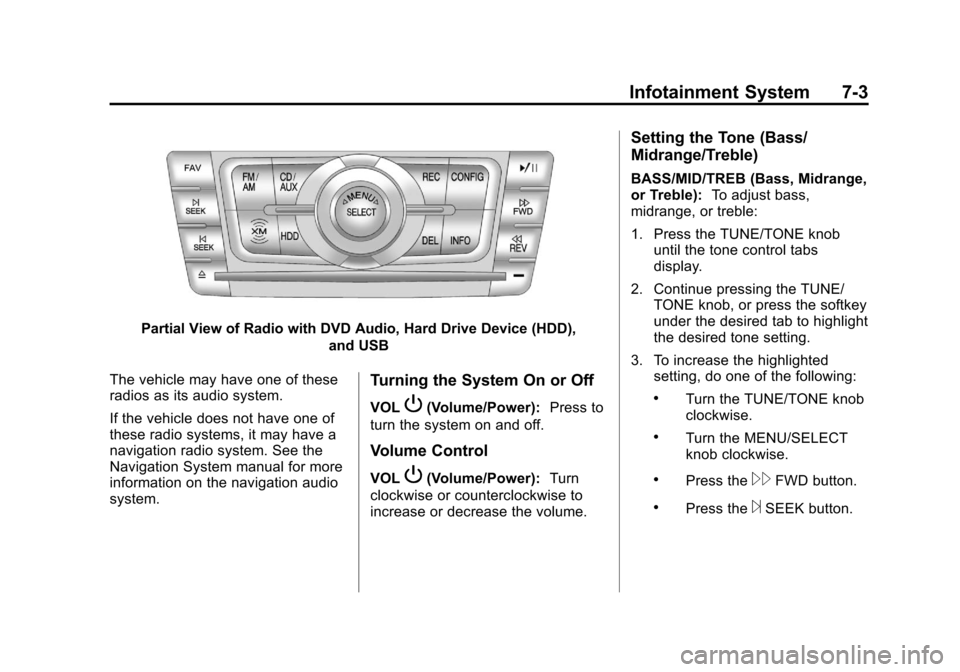
Partial View of Radio with DVD Audio, Hard Drive Device (HDD),and USB
The vehicle may have one of these
radios as its audio system.
If the vehicle does not have one of
these radio systems, it may have a
navigation radio system. See the
Navigation System manual for more
information on the navigation audio
system.
Turning the System On or Off
VOLP(Volume/Power): Press to
turn the system on and off.
Volume Control
VOLP(Volume/Power): Turn
clockwise or counterclockwise to
increase or decrease the volume.
Setting the Tone (Bass/
Midrange/Treble)
BASS/MID/TREB (Bass, Midrange,
or Treble): To adjust bass,
midrange, or treble:
1. Press the TUNE/TONE knob until the tone control tabs
display.
2. Continue pressing the TUNE/ TONE knob, or press the softkey
under the desired tab to highlight
the desired tone setting.
3. To increase the highlighted setting, do one of the following:
.Turn the TUNE/TONE knob
clockwise.
.Turn the MENU/SELECT
knob clockwise.
.Press the\FWD button.
.Press the¨SEEK button.
Page 211 of 496
Black plate (5,1)Cadillac CTS/CTS-V Owner Manual - 2011
Infotainment System 7-5
Digital Signal
Processing (DSP)
If the radio has this feature, it has
either a Bose®sound system or a
Bose®5.1 Cabin Surround®sound
system. DSP is used to provide a
choice of different listening
experiences.
To choose a DSP setting:
1. Press the TUNE/TONE knob to
display the tone/speaker and
DSP tabs.
2. Press the softkey under the DSP tab.
3. Press the softkey below the Back tab to return to the original
tone/speaker display, or wait for
the display to time out. The DSP settings available are:
.Normal: Select for normal mode;
this provides the best sound
quality for all seating positions.
.Driver: Select to adjust the
audio for the driver to receive
the best possible sound quality.
.Rear: Select to adjust the audio
for the rear seat passengers to
receive the best possible sound
quality.
.Centerpoint®: Select to enable
Bose®Centerpoint signal
processing circuitry. Centerpoint
creates a Bose
®surround sound
listening experience from stereo
CDs, MP3s, and satellite radio.
As a result, vehicle owners enjoy
a surround sound listening
experience from many audio
sources. Simply turn it on, and it
operates automatically.
This feature is not available in
AM/FM radio mode. If the vehicle is equipped with
the Bose 5.1 Cabin Surround
sound system, the radio can
support the playback of 5.1
surround sound DVD-A discs or
DTS 5.1 surround sound CD
discs. When a 5.1 surround
sound formatted disc is playing,
DSP options available are:
‐
5.1 Surround + Normal: Best
for all seating positions.
‐ 5.1 Surround + Rear: Best for
the rear seating positions.
System Settings
CONFIG: Press to adjust the
number of favorites pages, auto
volume, XM (if equipped), and HDD
(if available) settings. The FAV,
AUTO VOL, XM (if equipped), and
HDD (if available) tabs display. The
display will time out after
approximately ten seconds.
Page 212 of 496
Black plate (6,1)Cadillac CTS/CTS-V Owner Manual - 2011
7-6 Infotainment System
Configuring the Number of
Favorite Pages
The number of favorite pages can
be set up using the CONFIG button.
To setup the number of favorite
pages:
1. Press the CONFIG button todisplay the radio setup menu.
2. Press the softkey located below the FAV tab.
3. Select the desired number of favorites pages by pressing the
softkey located below the
displayed page numbers.
4. Press the FAV button, or let the menu time out, to return to the
original main radio screen
showing the radio station
frequency tabs and to begin the
process of programming
favorites for the chosen number
of pages. Speed Compensated
Volume (SCV)
A radio with SCV automatically
adjusts the sound to compensate for
road and wind noise as the vehicle
speeds up or slows down, so that
the volume is consistent while
driving. To activate SCV:
1. Set the radio volume to the
desired level.
2. Press the CONFIG button to display the radio setup menu.
3. Press the softkey under the AUTO VOL tab on the radio
display.
4. Press the softkey under the desired Speed Compensated
Volume setting (OFF, Low, Med,
or High) to select the level of
radio volume compensation. The
display times out after
approximately 10 seconds. Each
higher setting allows for more
radio volume compensation at
faster vehicle speeds. Noise Compensation Technology
If the vehicle has the radio with DVD
Audio, HDD, and USB, it has Bose
AudioPilot
®noise compensation
technology.
When turned on, AudioPilot
continuously adjusts the audio
system equalization, to compensate
for background noise.
To activate AudioPilot:
1. Press the CONFIG button to display the radio setup menu.
2. Press the softkey under the AUTO VOL tab on the radio
display.
3. Press the softkey below the On or Off tab located under the
AUTO VOL display to turn this
feature on or off. The display
times out after approximately
10 seconds.
This feature is most effective at
lower radio volume settings where
background noise can affect how
the music being played through the
vehicle's audio system is heard. At
Page 213 of 496
Black plate (7,1)Cadillac CTS/CTS-V Owner Manual - 2011
Infotainment System 7-7
higher volume settings, where the
music is much louder than the
background noise, there may be
little or no adjustments by
AudioPilot. For additional
information on AudioPilot, visit
www.bose.com/audiopilot.
Radio Message
Locked:Displays when the
TheftLock®system has locked up
the infotainment system. Take the
vehicle to your dealer for service.
If any error occurs repeatedly or if
an error cannot be corrected,
contact your dealer.
Other Information
The radio with DVD Audio, HDD,
and USB utilizes Gracenote®
technology to provide Song, Artist,
Album, and Genre information for
many CD audio discs and is
capable of playing DVD-A and
DTS‐encoded discs (DTS and DTS
Digital Surround are registered
trademarks of Digital Theater
Systems, Inc.). Dolby and the double-D symbol are
trademarks of Dolby Laboratories.
Manufactured under license from
Dolby Laboratories.
Gracenote
®Database
Gracenote Music Recognition
Service, Music recognition
technology, and related data are
provided by Gracenote
®. Gracenote
is the industry standard in music
recognition technology and related
content delivery. For more
information, visit
www.gracenote.com.
CD and music-related data from
Gracenote, Inc., copyright ©
2000-2007 Gracenote. Gracenote
Software, copyright © 2000-2007
Gracenote. This product and service
may practice one or more of the
following U.S. Patents: #5,987,525;
#6,061,680; #6,154,773;
#6,161,132; #6,230,192;
#6,230,207; #6,240,459;
#6,330,593, and other patents
issued or pending. Some services supplied under license from Open
Globe, Inc. for U.S. Patent:
#6,304,523.
Gracenote and CDDB are registered
trademarks of Gracenote. The
Gracenote logo and logotype, and
the
“Powered by Gracenote” logo
are trademarks of Gracenote.
If you require more information
regarding the use of the Gracenote
Service, visit: www.gracenote.com/
corporate.
For the data provided by
Gracenote
®Music Recognition
Service, the content is not
necessarily guaranteed 100%.
Regarding the use of Gracenote
Music Recognition Service. When
this product is used, it is necessary
to agree to the following articles.
This application or device contains
software from Gracenote, Inc. of
Emeryville, California (“Gracenote”).
Page 215 of 496
Black plate (9,1)Cadillac CTS/CTS-V Owner Manual - 2011
Infotainment System 7-9
Gracenote is not obligated to
provide you with new enhanced or
additional data types or categories
that Gracenote may provide in the
future and is free to discontinue its
services at any time.
GRACENOTE DISCLAIMS ALL
WARRANTIES EXPRESS OR
IMPLIED, INCLUDING, BUT
NOT LIMITED TO, IMPLIED
WARRANTIES OF
MERCHANTABILITY, FITNESS
FOR A PARTICULAR PURPOSE,
TITLE, AND NON-INFRINGEMENT.
GRACENOTE DOES NOT
WARRANT THE RESULTS THAT
WILL BE OBTAINED BY YOUR
USE OF THE GRACENOTE
SOFTWARE OR ANY
GRACENOTE SERVER. IN
NO CASE WILL GRACENOTE
BE LIABLE FOR ANY
CONSEQUENTIAL OR
INCIDENTAL DAMAGES OR
FOR ANY LOST PROFITS OR
LOST REVENUES.Radio
AM-FM Radio
Control Buttons
The buttons used to control the
radio are:
FM/AM:Press to choose between
FM and AM.
TUNE: Turn to search for stations.
MENU/SELECT: Turn clockwise or
counterclockwise to scroll through
the station list. Press the MENU/
SELECT knob to select the desired
station.
INFO: Press to display additional
information that may be available for
the current song. When information
is not available, No Information
displays.
¨SEEK or©SEEK: Press to go to
the previous or to the next radio
station and stay there. The radio only tunes into stations
with a strong signal that are in the
selected band.
FAV:
Press to change the
favorites page.
Softkeys: Press to select preset
stations.
Radio Data System (RDS)
The audio system has a Radio Data
System (RDS) feature. RDS is
available for use only on FM
stations that broadcast RDS
information. This system relies upon
receiving specific information from
these stations and only works when
the information is available. While
the radio is tuned to an FM-RDS
station, the station name or call
letters display. In rare cases, a radio
station can broadcast incorrect
information that causes the radio
features to work improperly. If this
happens, contact the radio station.
Page 217 of 496
Black plate (11,1)Cadillac CTS/CTS-V Owner Manual - 2011
Infotainment System 7-11
The number of favorites pages can
be set up using the CONFIG button.
To set up the number of favorites
pages, perform the following steps:
1. Press the CONFIG button todisplay the radio setup menu.
2. Press the softkey located below the FAV label.
3. Select the desired number of favorites pages by pressing the
softkey located below the
displayed page numbers.
4. Press the FAV button, or let the menu time out, to return to the
original main radio screen
showing the radio station
frequency labels and to begin
the process of programming
favorites for the chosen number
of pages.Time-shifting —Pause and
Rewind Live FM and AM
The Radio with DVD Audio, HDD,
and USB has the ability to rewind
60 minutes of FM and AM content.
While listening to the radio, the
content from the current station is
always being buffered to the HDD.
Press
r/j(play/pause) to pause
the radio. The radio display will
show the Time Shift buffer status
bar. The status bar shows the
amount of content stored in the
buffer and the current pause point.
To resume playback from the
current pause point, press
r/j
again. The radio will no longer be
playing “live”radio. Instead, time
shifted content is being played from
the buffer. When the radio is playing
time shifted content from the buffer,
a buffer status bar shows below the
station number on the left side of
screen. Press and hold the REV or FWD
buttons to rewind or fast forward
through the time shift buffer. Hold
FWD until the end of the currently
recorded buffer to resume
“live”
radio playback. With “live”radio
playing, the radio display will no
longer show the buffer bar below
the station number.
On FM or AM, press the REV or
FWD button multiple times to rewind
or fast forward. Each press will
rewind or fast forward 30 seconds of
content.
When the radio station is changed,
the buffer is cleared and
automatically restarted for the
current station. You cannot rewind
to content from a previously tuned
station.
Time shifting of FM or AM is not
available while recording or while
other sources of playback are
selected.
Page 220 of 496
Black plate (14,1)Cadillac CTS/CTS-V Owner Manual - 2011
7-14 Infotainment System
The number of favorites pages can
be set up using the CONFIG button.
To set up the number of favorites
pages, perform the following steps:
1. Press the CONFIG button todisplay the radio setup menu.
2. Press the softkey located below the FAV label.
3. Select the desired number of favorites pages by pressing the
softkey located below the
displayed page numbers.
4. Press the FAV button, or let the menu time out, to return to the
original main radio screen
showing the radio station
frequency labels and to begin
the process of programming
favorites for the chosen number
of pages.Time-shifting —Pause and
Rewind Live XM
The Radio with DVD Audio, HDD,
and USB has the ability to rewind
60 minutes of XM content. While
listening to the radio, the content
from the current station is always
being buffered to the HDD.
Press
r/j(play/pause) To pause
the radio. The radio display will
show the Time Shift buffer status
bar. The status bar shows the
amount of content that is stored in
the buffer and the current pause
point.
To resume playback from the
current pause point, press
r/j
again. The radio will no longer be
playing “live”radio. Instead, time
shifted content is being played from
the buffer. When the radio is playing
time shifted content from the buffer,
a buffer status bar shows below the
station number on the left side of
screen. Press and hold the REV or FWD
buttons to rewind or fast forward
through the time shift buffer. Hold
FWD until the end of the currently
recorded buffer to resume
“live”
radio playback. With “live”radio
playing, the radio display will no
longer show the buffer bar below
the station number.
Press the REV or FWD button
multiple time to jump to the previous
or next song or commercial.
When the radio station is changed,
the buffer is cleared and
automatically restarted for the
current station. You cannot rewind
to content from a previously tuned
station.
Time shifting of XM is not available
while recording or while other
sources of playback are selected.
Page 221 of 496
Black plate (15,1)Cadillac CTS/CTS-V Owner Manual - 2011
Infotainment System 7-15
Pausing XM with the Vehicle
Turned Off
If XM is paused before the vehicle is
turned off, the radio will continue to
buffer the current radio station for
up to one hour. If the vehicle is
turned back on within one hour, the
radio will automatically resume
playback from the pause point.
XM Messages
XL (Explicit Language
Channels):These channels, or any
others, can be blocked at a
customer's request, by calling
1-800-929-2100.
XM Updating: The encryption code
in the receiver is being updated, and
no action is required. This process
should take no longer than
30 seconds.
No XM Signal: The system is
functioning correctly, but the vehicle
is in a location that is blocking the
XM signal. When the vehicle is
moved into an open area, the signal
should return. Loading XM:
The audio system is
acquiring and processing audio and
text data. No action is needed. This
message should disappear shortly.
Channel Off Air: This channel is
not currently in service. Tune in to
another channel.
Channel Unauth: This channel is
blocked or cannot be received with
your XM Subscription package.
Channel Unavail: This previously
assigned channel is no longer
assigned. Tune to another station.
If this station was one of the
presets, choose another station for
that preset button.
No Artist Info: No artist
information is available at this time
on this channel. The system is
working properly.
No Title Info: No song title
information is available at this time
on this channel. The system is
working properly. No CAT Info:
No category
information is available at this time
on this channel. The system is
working properly.
No Information: No text or
informational messages are
available at this time on this
channel. The system is working
properly.
CAT Not Found: There are no
channels available for the selected
category. The system is working
properly.
XM Radio ID: If tuned to channel 0,
this message alternates with the XM
Radio 8‐digit radio ID label. This
label is needed to activate the
service.
Unknown: If this message is
received when tuned to channel 0,
there could be a receiver fault.
Consult with your dealer.
Page 223 of 496
Black plate (17,1)Cadillac CTS/CTS-V Owner Manual - 2011
Infotainment System 7-17
Backglass Antenna
The AM-FM antenna is integrated
with the rear window defogger,
located in the rear window. Make
sure that the inside surface of the
rear window is not scratched and
that the lines on the glass are not
damaged. If the inside surface is
damaged, it could interfere with
radio reception. For proper radio
reception, the antenna connector
needs to be properly attached to the
post on the glass.
If a cellular telephone antenna
needs to be attached to the glass,
make sure that the grid lines for the
AM-FM antenna are not damaged.
There is enough space between the
grid lines to attach a cellular
telephone antenna without
interfering with radio reception.
Notice:Using a razor blade or
sharp object to clear the inside
rear window can damage the rear
window antenna and/or the rear
window defogger. Repairs would not be covered by the vehicle
warranty. Do not clear the inside
rear window with sharp objects.
Notice:
Do not apply aftermarket
glass tinting with metallic film.
The metallic film in some tinting
materials will interfere with or
distort the incoming radio
reception. Any damage caused to
your backglass antenna due to
metallic tinting materials will not
be covered by the vehicle
warranty.
Multi-Band Antenna
The antenna located on the roof of
the vehicle is used for the OnStar,
XM Satellite Radio Service System,
and GPS (Global Positioning
System), if the vehicle has these
features. Keep the antenna clear of
obstructions for clear reception.
If the vehicle has a sunroof and it is
open, the performance of OnStar,
XM, and GPS can be affected.
Audio Players
CD Player
The infotainment system's CD
player can play audio CDs and
MP3 CDs.
CDs that are 8 cm (3 in) in diameter
will not work in the CD player.
Care of CDs
If playing a CD, the sound quality
can be reduced due to disc quality,
the method of recording, the quality
of the music that has been
recorded, and the way the disc has
been handled. Handle discs
carefully. Store CDs in their original
cases or other protective cases and
away from direct sunlight and dust.
The CD player scans the bottom
surface of the disc. If the surface of
a disc is damaged, such as cracked,
broken, or scratched, the disc may
not play properly or not at all. Do
not touch the bottom side of a disc
while handling it; this could damage