radio controls CADILLAC CTS 2012 2.G Owners Manual
[x] Cancel search | Manufacturer: CADILLAC, Model Year: 2012, Model line: CTS, Model: CADILLAC CTS 2012 2.GPages: 496, PDF Size: 6.36 MB
Page 1 of 496

Black plate (1,1)Cadillac CTS/CTS-V Owner Manual (Include Mex) - 2012
2012 Cadillac CTS/CTS-V Owner ManualM
In Brief. . . . . . . . . . . . . . . . . . . . . . . . 1-1
Instrument Panel . . . . . . . . . . . . . . 1-2
Initial Drive Information . . . . . . . . 1-4
Vehicle Features . . . . . . . . . . . . . 1-16
Performance and Maintenance . . . . . . . . . . . . . . . . 1-22
Keys, Doors, and Windows . . . . . . . . . . . . . . . . . . . . 2-1
Keys and Locks . . . . . . . . . . . . . . . 2-2
Doors . . . . . . . . . . . . . . . . . . . . . . . . 2-18
Vehicle Security . . . . . . . . . . . . . . 2-24
Exterior Mirrors . . . . . . . . . . . . . . . 2-28
Interior Mirrors . . . . . . . . . . . . . . . . 2-29
Windows . . . . . . . . . . . . . . . . . . . . . 2-29
Roof . . . . . . . . . . . . . . . . . . . . . . . . . . 2-32 Seats and Restraints
. . . . . . . . . 3-1
Head Restraints . . . . . . . . . . . . . . . 3-2
Front Seats . . . . . . . . . . . . . . . . . . . . 3-3
Rear Seats . . . . . . . . . . . . . . . . . . . 3-11
Safety Belts . . . . . . . . . . . . . . . . . . 3-12
Airbag System . . . . . . . . . . . . . . . . 3-20
Child Restraints . . . . . . . . . . . . . . 3-34
Storage . . . . . . . . . . . . . . . . . . . . . . . 4-1
Storage Compartments . . . . . . . . 4-1
Additional Storage Features . . . 4-2
Roof Rack System . . . . . . . . . . . . . 4-6
Instruments and Controls . . . . 5-1
Controls . . . . . . . . . . . . . . . . . . . . . . . 5-2
Warning Lights, Gauges, and
Indicators . . . . . . . . . . . . . . . . . . . 5-10
Information Displays . . . . . . . . . . 5-27 Vehicle Messages . . . . . . . . . . . . 5-31
Vehicle Personalization . . . . . . . 5-46
Universal Remote System . . . . 5-53
Lighting . . . . . . . . . . . . . . . . . . . . . . . 6-1
Exterior Lighting . . . . . . . . . . . . . . . 6-1
Interior Lighting . . . . . . . . . . . . . . . . 6-7
Lighting Features . . . . . . . . . . . . . . 6-7
Infotainment System . . . . . . . . . 7-1
Introduction . . . . . . . . . . . . . . . . . . . . 7-1
Radio . . . . . . . . . . . . . . . . . . . . . . . . . . 7-8
Audio Players . . . . . . . . . . . . . . . . 7-16
Phone . . . . . . . . . . . . . . . . . . . . . . . . 7-35
Trademarks and License
Agreements . . . . . . . . . . . . . . . . . 7-43
Page 7 of 496
Black plate (1,1)Cadillac CTS/CTS-V Owner Manual (Include Mex) - 2012
In Brief 1-1
In Brief
Instrument Panel
Instrument Panel . . . . . . . . . . . . . . 1-2
Initial Drive Information
Initial Drive Information . . . . . . . . 1-4
Starting the Engine . . . . . . . . . . . 1-4
Remote Keyless Entry (RKE)System . . . . . . . . . . . . . . . . . . . . . . 1-4
Remote Vehicle Start . . . . . . . . . 1-5
Door Locks . . . . . . . . . . . . . . . . . . . 1-6
Liftgate . . . . . . . . . . . . . . . . . . . . . . . . 1-7
Trunk Release . . . . . . . . . . . . . . . . 1-7
Windows . . . . . . . . . . . . . . . . . . . . . . 1-8
Seat Adjustment . . . . . . . . . . . . . . 1-8
Memory Features . . . . . . . . . . . . . 1-9
Heated and Ventilated Seats . . . . . . . . . . . . . . . . . . . . . . . 1-10
Head Restraint Adjustment . . . . . . . . . . . . . . . . . 1-11
Safety Belts . . . . . . . . . . . . . . . . . . 1-11 Passenger Sensing
System . . . . . . . . . . . . . . . . . . . . . 1-11
Mirror Adjustment . . . . . . . . . . . . 1-12
Steering Wheel Adjustment . . . . . . . . . . . . . . . . . 1-12
Interior Lighting . . . . . . . . . . . . . . 1-13
Exterior Lighting . . . . . . . . . . . . . 1-13
Windshield Wiper/Washer . . . . 1-14
Climate Controls . . . . . . . . . . . . . 1-15
Transmission . . . . . . . . . . . . . . . . 1-16
Vehicle Features
Radio(s) . . . . . . . . . . . . . . . . . . . . . 1-16
Satellite Radio . . . . . . . . . . . . . . . 1-17
Portable Audio Devices . . . . . . 1-17
Bluetooth
®. . . . . . . . . . . . . . . . . . . 1-17
Mobile Apps . . . . . . . . . . . . . . . . . 1-17
Steering Wheel Controls . . . . . 1-18
Cruise Control . . . . . . . . . . . . . . . 1-18
Navigation System . . . . . . . . . . . 1-19
Driver Information
Center (DIC) . . . . . . . . . . . . . . . 1-19
Rear Vision Camera (RVC) . . . . . . . . . . . . . 1-20 Ultrasonic Parking Assist . . . . 1-20
Storage Compartments . . . . . . 1-20
Power Outlets . . . . . . . . . . . . . . . 1-21
Universal Remote System . . . 1-21
Sunroof . . . . . . . . . . . . . . . . . . . . . . 1-21
Performance and Maintenance
Traction Control
System (TCS) . . . . . . . . . . . . . . 1-22
StabiliTrak
®System . . . . . . . . . 1-22
Tire Pressure Monitor . . . . . . . . 1-23
Tire Sealant and Compressor Kit . . . . . . . . . . . . . 1-23
Engine Oil Life System . . . . . . 1-23
Driving for Better Fuel Economy . . . . . . . . . . . . . . . . . . . 1-24
Roadside Service . . . . . . . . . . . . 1-24
OnStar
®. . . . . . . . . . . . . . . . . . . . . 1-25
Page 9 of 496

Black plate (3,1)Cadillac CTS/CTS-V Owner Manual (Include Mex) - 2012
In Brief 1-3
A.Air Vents on page 8‑6.
B. Driver Information Center (DIC)
on page 5‑27.
C. Instrument Panel Illumination
Control on page 6‑7.
D. Turn and Lane-Change Signals
on page 6‑5.
E. Instrument Cluster on
page 5‑11.
F. Windshield Wiper/Washer on
page 5‑4.
Rear Window Wiper/Washer on
page 5‑6 (If Equipped).
G. Navigation Button (If Equipped). See Navigation System Manual.
H. Traction Control System (TCS)
on page 9‑38.
Magnetic Ride Control on
page 9‑40 (CTS‐V Model Only). I.
Clock on page 5‑8.
J. Passenger Sensing System on
page 3‑27.
K. Hazard Warning Flashers on
page 6‑5.
L. Navigation Display Brightness Control (If Equipped). See
Navigation System Manual.
M. Infotainment on page 7‑1.
Navigation/Radio System
(If Equipped). See Navigation
System Manual.
N. Parking Brake Release Lever. See Parking Brake (Manual) on
page 9‑34 orParking Brake
(Electric) on page 9‑35.
O. Hood Release. See Hood on
page 10‑5. P.
Cruise Control on page 9‑41.
Heated Steering Wheel on
page 5‑4 (If Equipped).
Traction Control System (TCS)
Disable Button (CTS-V Model
Only). See Traction Control
System (TCS) on page 9‑38.
Q. Tap Shift Controls (If Equipped). Located on the rear of the
steering wheel. See Manual
Mode on page 9‑29.
R. Data Link Connector (DLC) (Out of View). See Malfunction
Indicator Lamp on page 5‑19.
S. Steering Wheel Adjustment on
page 5‑2.
T. Horn on page 5‑4.
U. Steering Wheel Controls on
page 5‑3.
Page 22 of 496

Black plate (16,1)Cadillac CTS/CTS-V Owner Manual (Include Mex) - 2012
1-16 In Brief
Transmission
Automatic Transmission
Driver Shift Control (DSC) or Tap
Shift
Driver Shift Control (DSC) allows
shifting an automatic transmission
similar to a manual transmission.
DSC can be enabled through the
shift lever or the Tap Shift controls,
located on the back of the steering
wheel (if equipped). SeeManual
Mode on page 9‑29.
Manual Transmission
Skip Shift (CTS‐V)
Under light acceleration, the
transmission will only allow shifting
from 1 (First) to 4 (Fourth). This
helps improve fuel mileage. Under
harder acceleration, Skip Shift is
disabled, and all gears are
available. See Manual Transmission
on page 9‑31.
Vehicle Features
Radio(s)
VOL/O: Press to turn the system
on and off. Turn to increase or
decrease the volume.
FM/AM: Press to select between
FM or AM.
m: Press to select XM™,
if equipped.
TUNE/TONE: Turn to select radio
stations.
¨SEEK or©SEEK: Press to seek
the next or previous station.
INFO: Press to display additional
information that may be available for
the current song. When information
is not available, No Information
displays.
For more information about these
and other radio features, see
Operation on page 7‑3.
Storing a Favorite Station
A maximum of 36 stations can be
programmed as favorites using the
six softkeys below the radio station
frequency tabs on the display and
by using the radio favorites page
button (FAV button). Press the FAV
button to go through up to six pages
of favorites, each having six favorite
stations available per page. Each
page of favorites can contain any
combination of AM, FM, or XM
stations.
For more information, see AM-FM
Radio on page 7‑8.
Setting the Clock
The analog clock is located on the
instrument panel above the radio.
The clock is not connected with any
other vehicle system and runs by
itself. To adjust the clock:
1. Locate the adjustment buttons
directly below the clock face.
2. Push and hold the right adjustment button to move the
clock hands forward, or the left
Page 23 of 496
Black plate (17,1)Cadillac CTS/CTS-V Owner Manual (Include Mex) - 2012
In Brief 1-17
adjustment button to make the
clock hands go backward.
Holding either button down will
cause the clock to advance
faster. Release the button before
the desired time is reached.
3. Push and release either button to adjust the time by one minute
increments until the desired time
is reached.
For more information on setting the
clock, see Clock on page 5‑8.
Satellite Radio
Vehicles with an XM™ satellite radio
tuner and a valid XM satellite radio
subscription can receive XM
programming.
XM Satellite Radio Service
XM is a satellite radio service based
in the 48 contiguous United States
and 10 Canadian provinces. XM
satellite radio has a wide variety of
programming and commercial-free music, coast to coast, and in
digital-quality sound. A fee is
required to receive the XM service.
For more information refer to:
.www.xmradio.com or call
1-800-929-2100 (U.S.).
.www.xmradio.ca or call
1-877-438-9677 (Canada).
For more information, see Satellite
Radio on page 7‑11.
Portable Audio Devices
Some vehicles have a 3.5 mm
(1/8 in) auxiliary input and a USB
port located in the center console.
External devices such as iPods
®,
laptop computers, MP3 players, CD
changers, and USB storage devices
may be connected, depending on
the audio system.
For more information, see Auxiliary
Devices on page 7‑33.
Bluetooth®
The Bluetooth system allows users
with a Bluetooth-enabled cell phone
to make and receive hands-free
calls using the vehicle audio system
and controls.
The Bluetooth-enabled cell phone
must be paired with the in-vehicle
Bluetooth system before it can be
used in the vehicle. Not all phones
will support all functions.
See Bluetooth on page 7‑35.
Mobile Apps
Mobile Apps
Mobile apps are available for
download through iTunes®to then
access the iPhone®App Store and
Google™ Marketplace for
Android™. Search for the apps to
download. The apps are free of
charge; however, myCadillac
requires the user to link their own
vehicle and OnStar MyLink requires
an active OnStar subscription.
Page 24 of 496
Black plate (18,1)Cadillac CTS/CTS-V Owner Manual (Include Mex) - 2012
1-18 In Brief
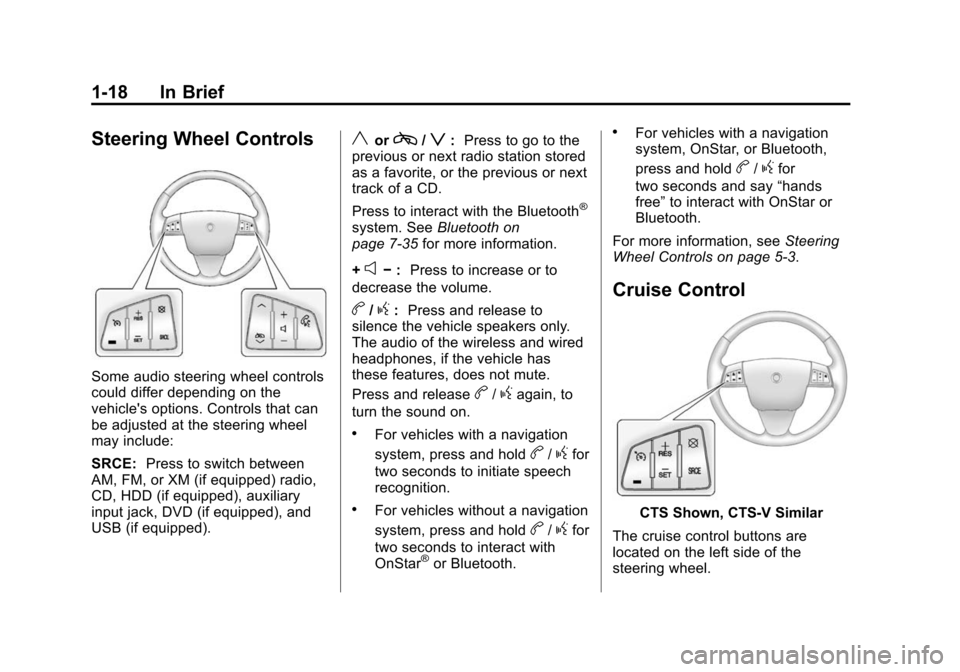
Steering Wheel Controls
Some audio steering wheel controls
could differ depending on the
vehicle's options. Controls that can
be adjusted at the steering wheel
may include:
SRCE:Press to switch between
AM, FM, or XM (if equipped) radio,
CD, HDD (if equipped), auxiliary
input jack, DVD (if equipped), and
USB (if equipped).
yorc/z: Press to go to the
previous or next radio station stored
as a favorite, or the previous or next
track of a CD.
Press to interact with the Bluetooth
®
system. See Bluetooth on
page 7‑35 for more information.
+
e− : Press to increase or to
decrease the volume.
b/g: Press and release to
silence the vehicle speakers only.
The audio of the wireless and wired
headphones, if the vehicle has
these features, does not mute.
Press and release
b/gagain, to
turn the sound on.
.For vehicles with a navigation
system, press and hold
b/gfor
two seconds to initiate speech
recognition.
.For vehicles without a navigation
system, press and hold
b/gfor
two seconds to interact with
OnStar
®or Bluetooth.
.For vehicles with a navigation
system, OnStar, or Bluetooth,
press and hold
b/gfor
two seconds and say “hands
free” to interact with OnStar or
Bluetooth.
For more information, see Steering
Wheel Controls on page 5‑3.
Cruise Control
CTS Shown, CTS‐V Similar
The cruise control buttons are
located on the left side of the
steering wheel.
Page 131 of 496
Black plate (3,1)Cadillac CTS/CTS-V Owner Manual (Include Mex) - 2012
Instruments and Controls 5-3
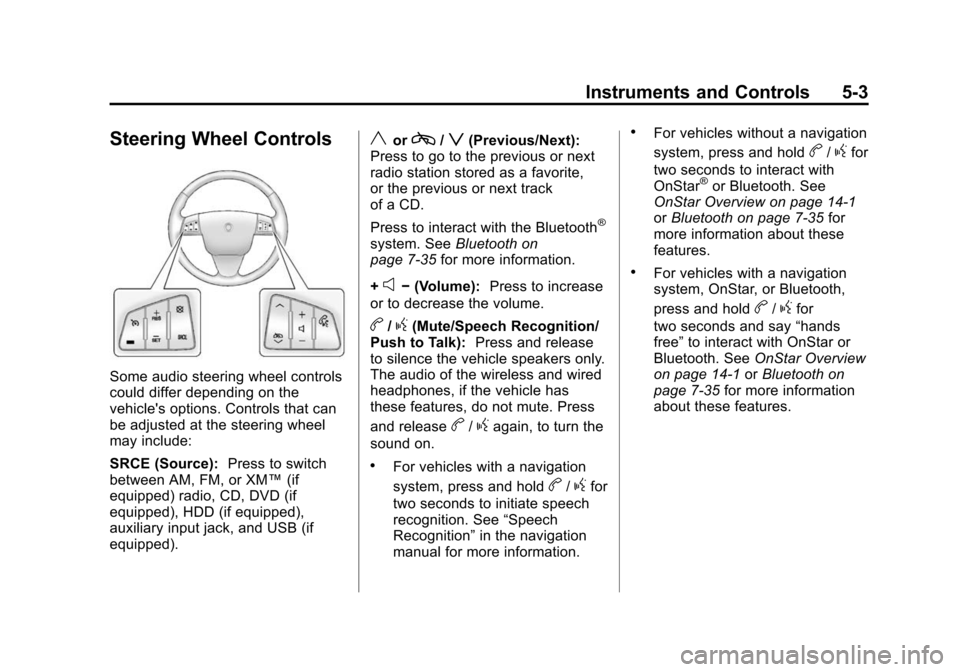
Steering Wheel Controls
Some audio steering wheel controls
could differ depending on the
vehicle's options. Controls that can
be adjusted at the steering wheel
may include:
SRCE (Source):Press to switch
between AM, FM, or XM™ (if
equipped) radio, CD, DVD (if
equipped), HDD (if equipped),
auxiliary input jack, and USB (if
equipped).
yorc/z(Previous/Next):
Press to go to the previous or next
radio station stored as a favorite,
or the previous or next track
of a CD.
Press to interact with the Bluetooth
®
system. See Bluetooth on
page 7‑35 for more information.
+
e− (Volume): Press to increase
or to decrease the volume.
b/g(Mute/Speech Recognition/
Push to Talk): Press and release
to silence the vehicle speakers only.
The audio of the wireless and wired
headphones, if the vehicle has
these features, do not mute. Press
and release
b/gagain, to turn the
sound on.
.For vehicles with a navigation
system, press and hold
b/gfor
two seconds to initiate speech
recognition. See “Speech
Recognition” in the navigation
manual for more information.
.For vehicles without a navigation
system, press and hold
b/gfor
two seconds to interact with
OnStar
®or Bluetooth. See
OnStar Overview on page 14‑1
or Bluetooth on page 7‑35 for
more information about these
features.
.For vehicles with a navigation
system, OnStar, or Bluetooth,
press and hold
b/gfor
two seconds and say “hands
free” to interact with OnStar or
Bluetooth. See OnStar Overview
on page 14‑1 orBluetooth on
page 7‑35 for more information
about these features.
Page 136 of 496

Black plate (8,1)Cadillac CTS/CTS-V Owner Manual (Include Mex) - 2012
5-8 Instruments and Controls
3. PressVto scroll through and
select the appropriate
variance zone.
4. Press
3until the vehicle
heading, for example, N for
North, is displayed in the DIC.
5. Calibrate the compass. See “Compass Calibration
Procedure” following.
Compass Calibration
The compass can be manually
calibrated. Only calibrate the
compass in a magnetically clean
and safe location, such as an open
parking lot, where driving the
vehicle in circles is not a danger.
Also calibrate the compass, away
from tall buildings, utility wires,
manhole covers, or other industrial
structures, if possible.
If the DIC display does not show a
heading, for example, N for North,
or the heading does not change
after making turns, there may be a
strong magnetic field interfering with
the compass. Interference may be caused by a magnetic antenna
mount, magnetic note pad holder,
or any other magnetic item. Turn off
the vehicle, move the magnetic
item, then turn on the vehicle and
calibrate the compass.
Compass Calibration Procedure
1. Before calibrating the compass,
check that the compass is set to
the correct variance zone. See
“Compass Variance (Zone)
Procedure” earlier in this
section.
Do not operate any switches
such as window, sunroof,
climate controls, seats, etc.
during the calibration procedure.
2. Press
Tuntil PRESSVTO
CALIBRATE COMPASS
displays.
3. Press
Vto start the compass
calibration.
4. The DIC will display CALIBRATING DRIVE IN
CIRCLES. Drive the vehicle in tight circles at less than 8 km/h
(5 mph) to complete the
calibration. The DIC will display
CALIBRATION COMPLETE for a
few seconds then returns to the
PRESS
VTO CALIBRATE
COMPASS display.
Clock
The analog clock is on the
instrument panel above the radio.
The clock is not connected with any
other vehicle system and runs by
itself. To adjust the clock:
1. Locate the adjustment buttons directly below the clock.
2. Push and release the right adjustment button to move the
clock hands forward or the left
adjustment button to make the
clock hands go backward.
Holding either button down will
cause the clock to advance
faster. Release the button before
the desired time is reached.
Page 147 of 496

Black plate (19,1)Cadillac CTS/CTS-V Owner Manual (Include Mex) - 2012
Instruments and Controls 5-19
Charging System Light
The charging system light comes on
briefly when the ignition is turned
on, but the engine is not running, as
a check to show the light is working.
The light turns off when the engine
is started. If it does not, have the
vehicle serviced by your dealer.
If the light stays on, or comes on
while driving, there may be a
problem with the electrical charging
system. Have it checked by your
dealer. Driving while this light is on
could drain the battery.
When this light comes on, the Driver
Information Center (DIC) also
displays a message.See
Battery Voltage and Charging
Messages on page 5‑31.
If a short distance must be driven
with the light on, be sure to turn off
all accessories, such as the radio
and air conditioner.
Malfunction
Indicator Lamp
A computer system called OBD II
(On-Board Diagnostics-Second
Generation) monitors the operation
of the vehicle to ensure emissions
are at acceptable levels, to produce
a cleaner environment. This light
comes on when the vehicle is
placed in ON/RUN as a check to
show it is working. If it does not,
have the vehicle serviced by your
dealer. See Ignition Positions (Key
Access) on page 9‑16 orIgnition
Positions (Keyless Access) on
page 9‑18 for more information.
This light should come on when the
ignition is on, but the engine is not
running, as a check to show it is
working. If it does not, have the
vehicle serviced by your dealer.
If the malfunction indicator lamp
comes on and stays on while the
engine is running, this indicates that
there is an OBD II problem and
service is required.
Page 165 of 496

Black plate (37,1)Cadillac CTS/CTS-V Owner Manual (Include Mex) - 2012
Instruments and Controls 5-37
Key and Lock Messages
ACCESSORY MODE ACTIVE
If the vehicle has the keyless
access system, this message
displays when the accessory mode
is active. SeeIgnition Positions (Key
Access) on page 9‑16 orIgnition
Positions (Keyless Access) on
page 9‑18 for more information.
ELECTRONIC KEY ALREADY
KNOWN
If the vehicle has the keyless
access system, this message
displays if you try to match a
transmitter that has already been
learned. See the keyless access
information for Remote Keyless
Entry (RKE) System Operation (Key
Access) on page 2‑5 orRemote
Keyless Entry (RKE) System
Operation (Keyless Access) on
page 2‑6 for more information.
ELECTRONIC KEY NOT
DETECTED
If the vehicle has the keyless
access system, this message
displays if the vehicle does not
detect the presence of a transmitter
when you have attempted to start
the vehicle or a vehicle door has
just closed. The following conditions
may cause this message to appear:
.Driver-added equipment plugged
into the accessory power outlet
on the center console is causing
interference. Examples of these
devices are cell phones and cell
phone chargers, two-way radios,
power inverters, or similar items.
Try moving the keyless access
transmitter away from these
devices when starting the
vehicle. In addition, PDA devices
and remote garage and gate
openers may also generate
Electromagnetic Interference
(EMI) that may interfere with the
keyless access transmitter. Do not carry the keyless access
transmitter in the same pocket
or bag as these devices.
.The vehicle is experiencing
Electromagnetic Interference
(EMI). Some locations, such as
airports, automatic toll booths,
and some gas stations have EMI
fields which may interfere with
the keyless access transmitter.
If moving the transmitter to
different locations within the
vehicle does not help, place the
transmitter in the center console
transmitter pocket with the