ratio CADILLAC CTS 2014 Service Manual
[x] Cancel search | Manufacturer: CADILLAC, Model Year: 2014, Model line: CTS, Model: CADILLAC CTS 2014Pages: 400, PDF Size: 4.53 MB
Page 154 of 400
Black plate (42,1)Cadillac CTS Owner Manual (GMNA-Localizing-U.S./Canada/Mexico-
6081492) - 2014 - CRC 2nd Edition - 11/18/13
5-42 Instruments and Controls
braking functions of the Auto
Collision Preparation feature. Some
last-second automatic braking
capability is still provided with the
Alert setting, but braking is less
likely to occur. SeeActive
Emergency Braking System on
page 9-54.
AUTOMATIC COLLISION PREP
UNAVAILABLE
This message displays when the
Active Emergency Braking System
has been unavailable for some time.
The Active Emergency Braking
System does not need service.
This can occur under the following
conditions:
.The radar is not clean. Keep the
radar sensors free of mud, dirt,
snow, ice, and slush. Clean the
entire front and/or rear of the
vehicle. For cleaning
instructions, see Exterior Care
on page 10-69.
.Heavy rain or snow is interfering
with the radar object detection or
camera performance.
This message may also be
displayed if there is a problem with
the StabiliTrak system.
FORWARD COLLISION
ALERT OFF
This message displays when the
Forward Collision Alert has been
turned off.
FRONT CAMERA BLOCKED
CLEAN WINDSHIELD
This message displays when the
camera is blocked. Cleaning the
outside of the windshield behind the
rearview mirror may correct the
issue. The Lane Departure Warning
system will not operate. Adaptive
Cruise Control (ACC), Forward
Collision Alert (FCA), and the Active
Emergency Braking System may not
work or may not work as well.
LANE DEPARTURE WARNING
UNAVAILABLE
This message displays when
attempting to activate the Lane
Departure Warning (LDW) system
when it is temporarily unavailable.
The LDW system does not need
service.
This message could be due to the
camera being blocked. Cleaning the
outside of the windshield behind the
rearview mirror may correct the
issue.
REAR AUTO BRAKE/PARK
ASSIST OFF
This message displays when the
Parking Assist system has been
turned off or when there is a
temporary condition causing the
system to be disabled.
REAR AUTO BRAKE AND
PARK ASSIST UNAVAILABLE
This message displays when
attempting to activate the parking
and backing features of the Driver
Page 156 of 400

Black plate (44,1)Cadillac CTS Owner Manual (GMNA-Localizing-U.S./Canada/Mexico-
6081492) - 2014 - CRC 2nd Edition - 11/18/13
5-44 Instruments and Controls
(SBZA) and Rear Cross Traffic Alert
(RCTA) features will not work. Take
the vehicle to your dealer.
SIDE DETECTION SYSTEM
UNAVAILABLE
This message indicates that Side
Blind Zone Alert (SBZA) and Rear
Cross Traffic Alert (RCTA) are
disabled either because the sensor
is blocked and cannot detect
vehicles in the blind zone, or the
vehicle is passing through an open
area, such as the desert, where
there is insufficient data for
operation. This message may also
activate during heavy rain or due to
road spray. The vehicle does not
need service. For cleaning, see
"Washing the Vehicle" under
Exterior Care on page 10-69.
Ride Control System
Messages
ALL WHEEL DRIVE OFF
If the vehicle has the
All-Wheel-Drive (AWD) system, this
message displays when there is a
temporary condition making the
AWD system unavailable. The
vehicle will run in 2WD. This could
be caused by:
.Loss of wheel or vehicle speed
.AWD system overheat
.Certain vehicle electrical
conditions
This message turns off when the
above conditions are no longer
present and the warning message is
reset.
See All-Wheel Drive on page 9-26.
SERVICE ALL WHEEL DRIVE
This message displays if a problem
occurs with the All-Wheel-Drive
(AWD) system. The vehicle will run
in 2WD. This could be caused by:
.An electronics problem
.Worn out or overheated clutch
plates
.Various electrical issues
The system may need service. See
your dealer.
SERVICE STABILITRAK
This message displays if there is a
problem with the StabiliTrak system.
See Traction Control/Electronic
Stability Control on page 9-30.
SERVICE SUSPENSION
SYSTEM
This message displays when there
is a problem with the MagneRide™
system. See Driver Mode Control on
page 9-31. Have the vehicle
serviced by your dealer.
Page 158 of 400

Black plate (46,1)Cadillac CTS Owner Manual (GMNA-Localizing-U.S./Canada/Mexico-
6081492) - 2014 - CRC 2nd Edition - 11/18/13
5-46 Instruments and Controls
SERVICE VEHICLE SOON
This message displays if there is a
problem with the vehicle. Take the
vehicle to your dealer for service.
Starting the Vehicle
Messages
PRESS BRAKE TO START
VEHICLE
This message is displayed when
attempting to start the vehicle
without first pressing the brake
pedal.
SERVICE KEYLESS START
SYSTEM
This message is displayed if there is
a problem with the pushbutton start
system. Take the vehicle to your
dealer for service.
TURN STEERING WHEEL
START VEHICLE AGAIN
This message may display when
you try to start the vehicle, but the
column remains locked. Try turningthe steering wheel while starting the
vehicle to unlock the steering
column. If the vehicle still does not
start, turn the steering wheel the
other way, and try starting the
vehicle again.
Tire Messages
SERVICE TIRE MONITOR
SYSTEM
This message displays if there is a
problem with the Tire Pressure
Monitor System (TPMS). See
Tire
Pressure Monitor Operation on
page 10-51.
TIRE LEARNING ACTIVE
This message displays when the
system is learning new tires. See
Tire Pressure Monitor Operation on
page 10-51.
TIRE LOW ADD AIR TO TIRE
This message displays when the
pressure in one or more of the tires
is low. This message also displays LEFT
FRONT, RIGHT FRONT, LEFT
REAR, or RIGHT REAR to indicate
the location of the low tire.
The low tire pressure warning light
will also come on. See
Tire
Pressure Light on page 5-26.
If a tire pressure message appears
on the DIC, stop as soon as you
can. Inflate the tires by adding air
until the tire pressure is equal to the
values shown on the Tire and
Loading Information label. See Tires
on page 10-40, Vehicle Load Limits
on page 9-11, and Tire Pressure on
page 10-48.
You can receive more than one tire
pressure message at a time. The
DIC also shows the tire pressure
values. See Driver Information
Center (DIC) on page 5-30.
Page 161 of 400
Black plate (49,1)Cadillac CTS Owner Manual (GMNA-Localizing-U.S./Canada/Mexico-
6081492) - 2014 - CRC 2nd Edition - 11/18/13
Instruments and Controls 5-49
.Number of Favorites Shown
.Auto Volume
.Audible Touch Feedback
.Bose Audio Pilot
.Maximum Start Up Volume
Manage Favorites
This allows favorites to be edited.
See “Manage Favorites” in
“Settings” under“Radio” in the
infotainment manual.
Number of Favorites Shown
Press to set the number of favorites
to display.
Select the desired number or select
Auto and the infotainment system
will automatically adjust the number
of favorites shown.
Auto Volume
This feature adjusts the volume
based on the vehicle speed.
Select Off, Low, Medium-Low,
Medium, Medium-High, or High. Audible Touch Feedback
This allows Audible Touch
Feedback to be turned on or off.
Select Off or On.
Bose Audio Pilot
This feature adjusts the volume
based on the noise in the vehicle.
See
“Bose AudioPilot Noise
Compensation Technology” under
“Infotainment System Settings” in
the infotainment manual.
Select Off or On.
Maximum Startup Volume
This feature sets the maximum
startup volume. If the vehicle is
started and the volume is greater
than this level, the volume is
adjusted to this level. To set the
maximum startup volume, press +
or −to increase or decrease.
Vehicle
Select and the following may
display:
.Climate and Air Quality
.Collision/Detection Systems
.Comfort and Convenience
.Lighting
.Power Door Locks
.Remote Lock, Unlock, Start
Climate and Air Quality
Select and the following may
display:
.Auto Fan Max Speed
.Air Quality Sensor
.Auto Defog
Auto Fan Max Speed
This feature will set the maximum
auto fan speed.
Select Low, Medium, or High.
Air Quality Sensor
This allows for selection of air
quality sensor operation at high or
low sensitivity.
Select Off, Low Sensitivity, or High
Sensitivity.
Page 162 of 400
Black plate (50,1)Cadillac CTS Owner Manual (GMNA-Localizing-U.S./Canada/Mexico-
6081492) - 2014 - CRC 2nd Edition - 11/18/13
5-50 Instruments and Controls
Auto Defog
When set to On, the front defog will
automatically react to temperature
and humidity conditions that may
cause fogging.
Select Off or On.
Collision/Detection Systems
Select the Collision/Detection
Systems menu and the following
may display:
.Alert Type
.Auto Collision Preparation
.Go Notifier
.Side Blind Zone Alert
.Rear Cross Traffic Alert
Alert Type
This feature will set crash alerts to
beeps or seat vibrations. This
setting affects all crash alerts
including:
.Forward Collision
.Lane Departure Warning
.Adaptive Cruise Control
.Parking Assist
.Backing Warning
Select Beeps or Safety Alert Seat.
Auto Collision Preparation
This feature will turn on or off the
Forward Collision Alert feature as
well as the Automatic Braking
capability of the Auto Collision
Preparation feature. With the Alert &
Brake setting, both Forward
Collision Alert as well as the
Automatic Braking capability of the
Auto Collision Preparation feature
are available. The Alert setting
disables most automatic braking
functions of the Auto Collision
Preparation feature. Some
last-second automatic braking
capability is still provided with the
Alert setting, but it is much less
likely to be triggered by most driving
conditions. Off disables all Forward
Collision Alert and Automatic
Braking capabilities of the Auto Collision Preparation feature. See
Active Emergency Braking System
on page 9-54.
Select Off, Alert & Brake, or Alert.
Go Notifier
This feature will give a reminder
from Adaptive Cruise Control when
it has brought the vehicle to a
complete stop behind another
stopping vehicle, and then that
vehicle drives on. See
Adaptive
Cruise Control on page 9-37.
Select Off or On.
Side Blind Zone Alert
This allows the feature to be turned
on or off. See Side Blind Zone Alert
(SBZA) on page 9-56.
Select Off or On.
Rear Cross Traffic Alert
This allows the Rear Cross Traffic
Alert feature to be turned on or off.
See Assistance Systems for Parking
or Backing on page 9-46.
Select Off or On.
Page 165 of 400

Black plate (53,1)Cadillac CTS Owner Manual (GMNA-Localizing-U.S./Canada/Mexico-
6081492) - 2014 - CRC 2nd Edition - 11/18/13
Instruments and Controls 5-53
Passive Door Lock
This allows passive locking to be
turned on or off and selects
feedback. SeeRemote Keyless
Entry (RKE) System Operation on
page 2-3.
Select Off, On with Horn
Chirp, or On.
Remote Left in Vehicle Alert
This feature sounds an alert when
the RKE transmitter is left in the
vehicle.
Select Off or On.
Bluetooth
Select and the following may
display:
.Pair New Device
.Device Management
.Ringtones
.Voice Mail Numbers Pair New Device
Select to pair a new device. See
“Pairing”
in“Infotainment Controls”
under “Bluetooth” in the infotainment
manual.
Device Management
Select to connect to a different
phone source, disconnect a phone,
or delete a phone.
Ringtones
Press to change the ring tone for
the specific phone. The phone does
not need to be connected to change
the ring.
Voice Mail Numbers
This feature displays the voice mail
number for all connected phones.
The voice mail number may be
changed by selecting EDIT or
pressing the EDIT button and typing
in a new number, then select SAVE
or press the SAVE button.
Voice
Select and the following may
display:
.Confidence Threshold
.Prompt Length
.Audio Feedback Speed
Confidence Threshold
This feature allows the adjustment
of the sensitivity of the speech
recognition system.
Select Confirm More or
Confirm Less.
Prompt Length
This feature adjusts the voice
prompt length.
Select Short or Long.
Audio Feedback Speed
This feature adjusts the audio
feedback speed.
Select Slow, Medium, or Fast.
Page 169 of 400

Black plate (57,1)Cadillac CTS Owner Manual (GMNA-Localizing-U.S./Canada/Mexico-
6081492) - 2014 - CRC 2nd Edition - 11/18/13
Instruments and Controls 5-57
does not flash, press and hold
the same button a second time
for two seconds, then release it.
Again, if the door does not move
or the garage door lamp does
not flash, press and hold the
same button a third time for
two seconds, then release it.
The Universal Remote system
should now activate the
garage door.
Repeat the process for
programming the two remaining
buttons.
Radio Signals for Canada and
Some Gate Operators
For questions or programming help
call 1-800-355-3515 or see
www.homelink.com.
Canadian radio-frequency laws and
some U.S. gate operators require
transmitter signals to time out or quit
after several seconds of
transmission. This may not be long enough for the Universal Remote
system to pick up the signal during
programming.
If the programming did not work,
replace Step 2 under
“Programming
the Universal Remote System” with
the following:
Press and hold the Universal
Remote system button while
pressing and releasing the
hand-held transmitter button every
two seconds until the signal has
been successfully accepted by the
Universal Remote system. The
Universal Remote system indicator
light will flash slowly at first and then
rapidly. Proceed with Step 3 under
“Programming the Universal Remote
System” to complete.
Universal Remote System
Operation
Using the Universal Remote
System
Press and hold the appropriate
Universal Remote system button for
at least one-half second. The
indicator light will come on while the
signal is being transmitted.
Erasing Universal Remote
System Buttons
Erase all programmed buttons when
vehicle ownership is terminated.
To erase:
1. Press and hold the two outside
buttons until the indicator light
begins to flash. This should take
about 10 seconds.
2. Release both buttons.
Page 183 of 400

Black plate (1,1)Cadillac CTS Owner Manual (GMNA-Localizing-U.S./Canada/Mexico-
6081492) - 2014 - CRC 2nd Edition - 11/18/13
Climate Controls 8-1
Climate Controls
Climate Control Systems
Dual Automatic Climate ControlSystem . . . . . . . . . . . . . . . . . . . . . . 8-1
Rear Climate Control System . . . . . . . . . . . . . . . . . . . . . . 8-6
Air Vents
Air Vents . . . . . . . . . . . . . . . . . . . . . . 8-8
Maintenance
Passenger Compartment AirFilter . . . . . . . . . . . . . . . . . . . . . . . . . 8-9
Service . . . . . . . . . . . . . . . . . . . . . . . 8-9
Climate Control Systems
Dual Automatic Climate Control System
The climate control buttons and the touch screen are used to adjust the
heating, cooling, and ventilation.
Climate Control Buttons
1. Driver and Passenger Temperature Controls
2. Fan Control
3. OFF (Fan) 4. Driver and Passenger Heated
and Ventilated Seats (If
Equipped)
5. AUTO (Automatic Operation)
6. Defrost
7. Rear Window Defogger
Page 184 of 400
Black plate (2,1)Cadillac CTS Owner Manual (GMNA-Localizing-U.S./Canada/Mexico-
6081492) - 2014 - CRC 2nd Edition - 11/18/13
8-2 Climate Controls
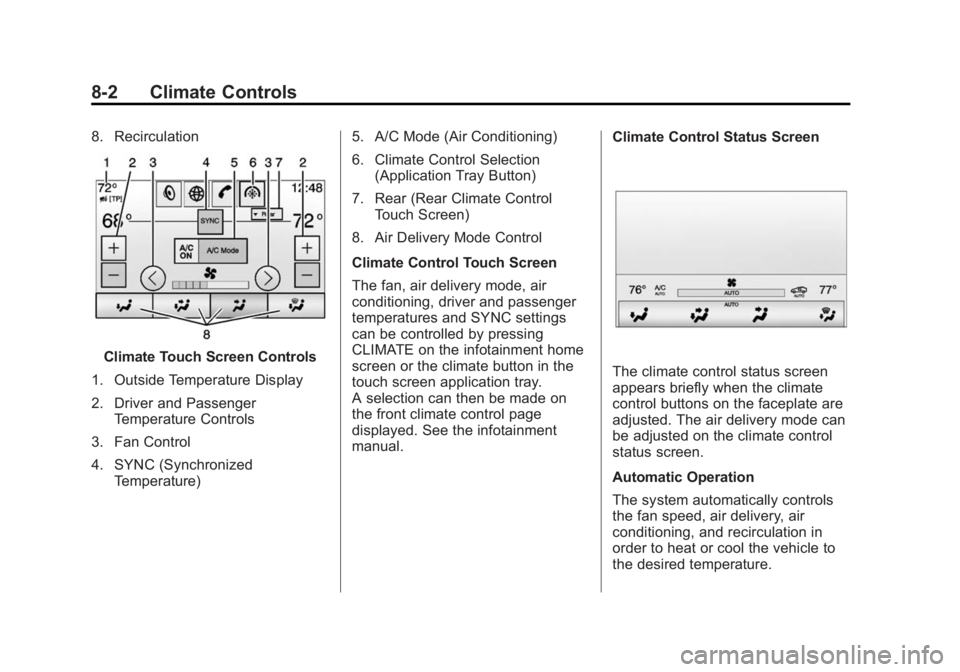
8. Recirculation
Climate Touch Screen Controls
1. Outside Temperature Display
2. Driver and Passenger Temperature Controls
3. Fan Control
4. SYNC (Synchronized Temperature) 5. A/C Mode (Air Conditioning)
6. Climate Control Selection
(Application Tray Button)
7. Rear (Rear Climate Control Touch Screen)
8. Air Delivery Mode Control
Climate Control Touch Screen
The fan, air delivery mode, air
conditioning, driver and passenger
temperatures and SYNC settings
can be controlled by pressing
CLIMATE on the infotainment home
screen or the climate button in the
touch screen application tray.
A selection can then be made on
the front climate control page
displayed. See the infotainment
manual. Climate Control Status ScreenThe climate control status screen
appears briefly when the climate
control buttons on the faceplate are
adjusted. The air delivery mode can
be adjusted on the climate control
status screen.
Automatic Operation
The system automatically controls
the fan speed, air delivery, air
conditioning, and recirculation in
order to heat or cool the vehicle to
the desired temperature.
Page 185 of 400

Black plate (3,1)Cadillac CTS Owner Manual (GMNA-Localizing-U.S./Canada/Mexico-
6081492) - 2014 - CRC 2nd Edition - 11/18/13
Climate Controls 8-3
When the indicator light is on or
AUTO is displayed on the touch
screen, the system is in full
automatic operation. If the air
delivery mode or fan setting is
manually adjusted, the auto
indicator turns off and the display
will show the selected settings. Auto
operation can be turned off
individually for climate settings.
For automatic operation:
1. Press AUTO.
2. Set the temperature. Allow thesystem time to stabilize. Then
adjust the temperature as
needed for best comfort.
To improve fuel efficiency and to
cool the vehicle faster, recirculation
may be automatically selected in
warm weather. The recirculation
light will not come on. Press
@to
select recirculation; press it again to
select outside air. English units can be changed to
metric units through the instrument
cluster. See
“Cluster Settings Menu”
under Instrument Cluster on
page 5-10.
OFF (Fan): Press to turn the fan on
or off. The temperature control and
air delivery mode can still be
adjusted.
w/x(Driver and Passenger
Temperature Controls): The
temperature can be adjusted
separately for the driver and the
passenger. Press to increase or
decrease the temperature. Press
and hold to rapidly increase or
decrease the temperature.
The driver and passenger
temperatures can also be adjusted
by pressing the controls on the
touch screen.
SYNC (Synchronized
Temperature): Press SYNC on the
touch screen to link all climate zone
settings to the driver settings. Adjust
the driver side temperature control
to change the linked temperature. When the passenger settings are
adjusted, the SYNC button is
displayed when the temperatures
are unlinked.
Rear (If Equipped):
Press this
button on the front climate control
touch screen to open the rear
climate control screen. The rear
climate control settings can now be
adjusted from the front
passenger area.
Manual Operation
z 9 y(Fan Control): Press the
fan control buttons or the touch
screen fan control, to increase or
decrease the fan speed. Press and
hold the buttons or the touch screen
control to adjust speed more
quickly. The fan speed setting
displays. Pressing either button
cancels automatic fan control and
the fan can be controlled manually.
Press AUTO to return to automatic
operation. To turn off the fan and
climate control system, press and
hold the fan down button or touch
screen fan control until it is off.