high CADILLAC CTS 2017 3.G CUE Manual
[x] Cancel search | Manufacturer: CADILLAC, Model Year: 2017, Model line: CTS, Model: CADILLAC CTS 2017 3.GPages: 109, PDF Size: 0.69 MB
Page 5 of 109
Cadillac CUE Infotainment System (GMNA-Localizing-MidEast-10260791) -
2017 - crc - 1/13/16
Introduction 5
k:Touch to display the
favorites list.
Touch and hold a location within the
favorites area to begin the process
of saving a favorite application.
Touch the application icon to store
as a favorite, and the name of the
application will be shown in
favorites.
Managing Home Page Icons
1. Touch and hold any of the Home Page icons to edit
that icon.
2. Drag the icon to a new location on the Home Page or to save it
to the applications tray.
3. Press
{to exit edit mode.
Steering Wheel Controls
(Except XT5)
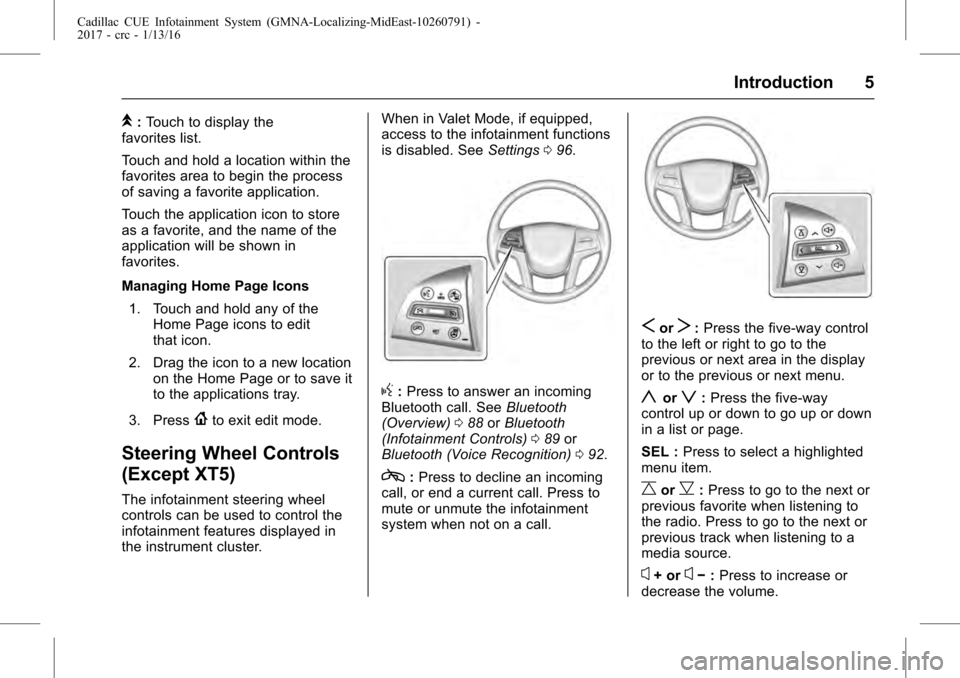
The infotainment steering wheel
controls can be used to control the
infotainment features displayed in
the instrument cluster. When in Valet Mode, if equipped,
access to the infotainment functions
is disabled. See
Settings096.
g:Press to answer an incoming
Bluetooth call. See Bluetooth
(Overview) 088 orBluetooth
(Infotainment Controls) 089 or
Bluetooth (Voice Recognition) 092.
c:Press to decline an incoming
call, or end a current call. Press to
mute or unmute the infotainment
system when not on a call.
SorT: Press the five-way control
to the left or right to go to the
previous or next area in the display
or to the previous or next menu.
yorz: Press the five-way
control up or down to go up or down
in a list or page.
SEL : Press to select a highlighted
menu item.
CorB: Press to go to the next or
previous favorite when listening to
the radio. Press to go to the next or
previous track when listening to a
media source.
x+ orx− :Press to increase or
decrease the volume.
Page 6 of 109
Cadillac CUE Infotainment System (GMNA-Localizing-MidEast-10260791) -
2017 - crc - 1/13/16
6 Introduction
Steering Wheel
Controls (XT5)
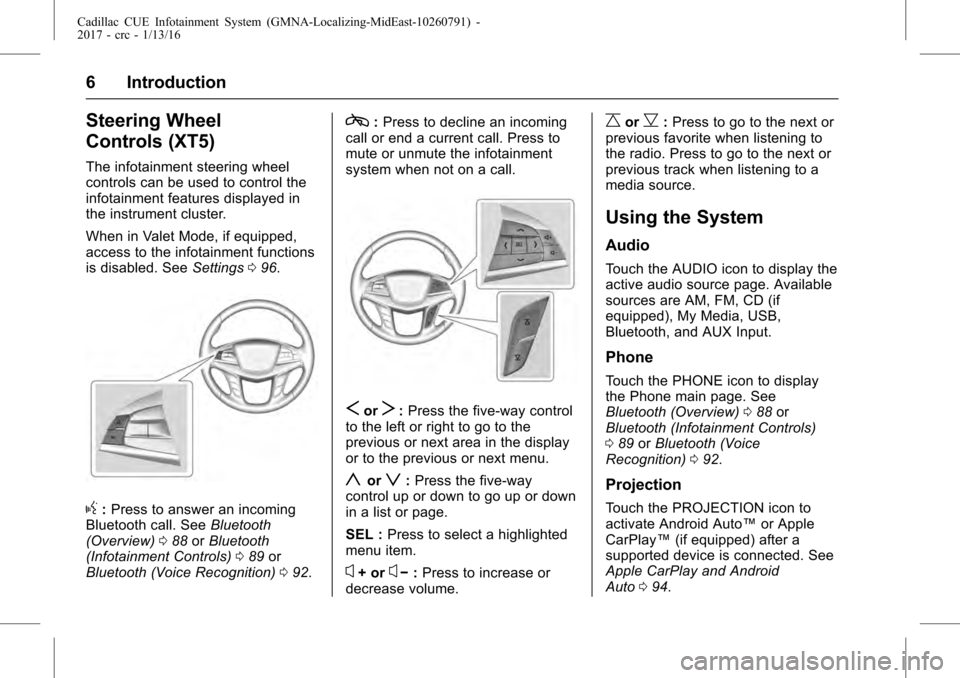
The infotainment steering wheel
controls can be used to control the
infotainment features displayed in
the instrument cluster.
When in Valet Mode, if equipped,
access to the infotainment functions
is disabled. SeeSettings096.
g:Press to answer an incoming
Bluetooth call. See Bluetooth
(Overview) 088 orBluetooth
(Infotainment Controls) 089 or
Bluetooth (Voice Recognition) 092.
c:Press to decline an incoming
call or end a current call. Press to
mute or unmute the infotainment
system when not on a call.
SorT: Press the five-way control
to the left or right to go to the
previous or next area in the display
or to the previous or next menu.
yorz: Press the five-way
control up or down to go up or down
in a list or page.
SEL : Press to select a highlighted
menu item.
x+ orx− :Press to increase or
decrease volume.
CorB: Press to go to the next or
previous favorite when listening to
the radio. Press to go to the next or
previous track when listening to a
media source.
Using the System
Audio
Touch the AUDIO icon to display the
active audio source page. Available
sources are AM, FM, CD (if
equipped), My Media, USB,
Bluetooth, and AUX Input.
Phone
Touch the PHONE icon to display
the Phone main page. See
Bluetooth (Overview) 088 or
Bluetooth (Infotainment Controls)
0 89 orBluetooth (Voice
Recognition) 092.
Projection
Touch the PROJECTION icon to
activate Android Auto™ or Apple
CarPlay™ (if equipped) after a
supported device is connected. See
Apple CarPlay and Android
Auto 094.
Page 7 of 109
Cadillac CUE Infotainment System (GMNA-Localizing-MidEast-10260791) -
2017 - crc - 1/13/16
Introduction 7
NAV (Navigation)
Touch the NAV icon to display the
navigation map. SeeUsing the
Navigation System 056.
Settings
Touch the SETTINGS icon to
display the Settings menu. See
Settings 096.
Text
Touch the TEXT icon to display the
Text Messaging main page. See
Text Messaging 093.
Climate
Touch the CLIMATE icon to display
the Climate main page. See “Dual
Automatic Climate Control System”
in the owner manual.
Rear Climate
If equipped, touch the R. CLIMATE
icon to display the Rear Climate
main page. See “Rear Climate
Control System” in the owner
manual.
Video
If equipped, touch the VIDEO icon
to display the video Rear Seat
Infotainment main page. See Rear
Seat Infotainment (RSI) System
0 25 orRear Seat Infotainment
(RSI) System (Platinum) 044.
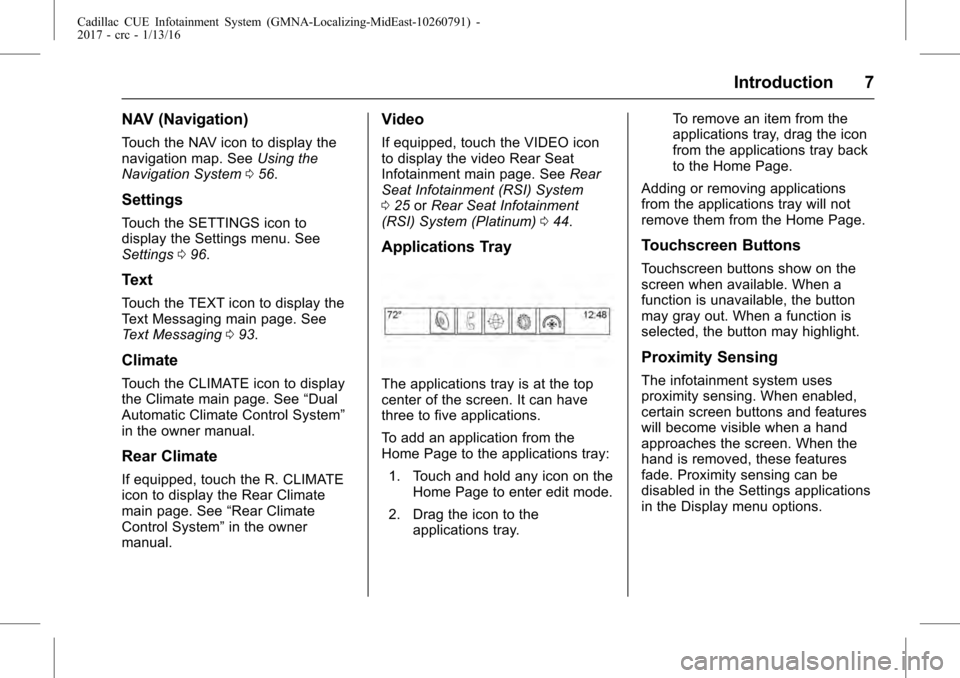
Applications Tray
The applications tray is at the top
center of the screen. It can have
three to five applications.
To add an application from the
Home Page to the applications tray:
1. Touch and hold any icon on the Home Page to enter edit mode.
2. Drag the icon to the applications tray. To remove an item from the
applications tray, drag the icon
from the applications tray back
to the Home Page.
Adding or removing applications
from the applications tray will not
remove them from the Home Page.
Touchscreen Buttons
Touchscreen buttons show on the
screen when available. When a
function is unavailable, the button
may gray out. When a function is
selected, the button may highlight.
Proximity Sensing
The infotainment system uses
proximity sensing. When enabled,
certain screen buttons and features
will become visible when a hand
approaches the screen. When the
hand is removed, these features
fade. Proximity sensing can be
disabled in the Settings applications
in the Display menu options.
Page 10 of 109
Cadillac CUE Infotainment System (GMNA-Localizing-MidEast-10260791) -
2017 - crc - 1/13/16
10 Introduction
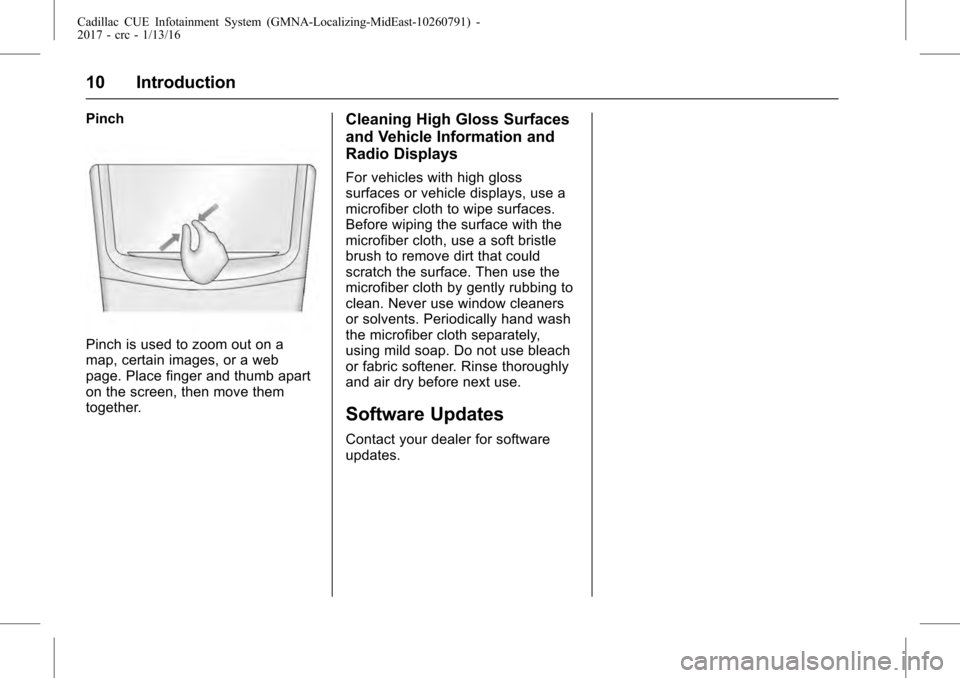
Pinch
Pinch is used to zoom out on a
map, certain images, or a web
page. Place finger and thumb apart
on the screen, then move them
together.
Cleaning High Gloss Surfaces
and Vehicle Information and
Radio Displays
For vehicles with high gloss
surfaces or vehicle displays, use a
microfiber cloth to wipe surfaces.
Before wiping the surface with the
microfiber cloth, use a soft bristle
brush to remove dirt that could
scratch the surface. Then use the
microfiber cloth by gently rubbing to
clean. Never use window cleaners
or solvents. Periodically hand wash
the microfiber cloth separately,
using mild soap. Do not use bleach
or fabric softener. Rinse thoroughly
and air dry before next use.
Software Updates
Contact your dealer for software
updates.
Page 12 of 109
Cadillac CUE Infotainment System (GMNA-Localizing-MidEast-10260791) -
2017 - crc - 1/13/16
12 Radio
Categories :Touch Categories
under the Audio menu to access the
categories list for AM-FM. The list
contains names associated with the
AM-FM channels. Touch a category
name to display a list of channels
for that category. Selecting a station
from the list tunes the radio to that
channel and returns the display to
Now Playing.
Auto Volume (If Equipped) : This
feature adjusts the volume based on
vehicle speed. The options are Off,
Low, Medium - Low, medium,
Medium - High, or High. Touch
0
to go back to the previous menu.
Bose
®AudioPilot®noise
compensation technology (If
Equipped) : This feature adjusts
the volume based on the noise in
the vehicle and the speed. When
turned on, AudioPilot technology
detects ambient noise and vehicle
speed to continuously adjust many
aspects of the audio signal so that
music will sound the same at a set
volume level.
The options are On and Off. This feature is most effective at
lower radio volume settings where
background noise can affect how
well the music is being played
through the vehicle’
s audio system.
At higher volume settings, where
the music is much louder than the
background noise, there may be
little or no adjustments by
AudioPilot.
For more information on Bose
AudioPilot noise compensation
technology, see www.bose.com/
audiopilot.
HD Radio™ :For AM and FM only,
touch to turn HD reception on or off.
Touch0to go back to the
previous menu.
EQ : If equipped with a Bose sound
system, the Equalizer settings are
selected through the tone settings
menu. Touch the left or right arrows
to cycle through the EQ options.
The available choices are Custom
and Talk. Update Station List :
For AM and
FM only, touch to update the station
list. Touch
0to go back to the
previous menu.
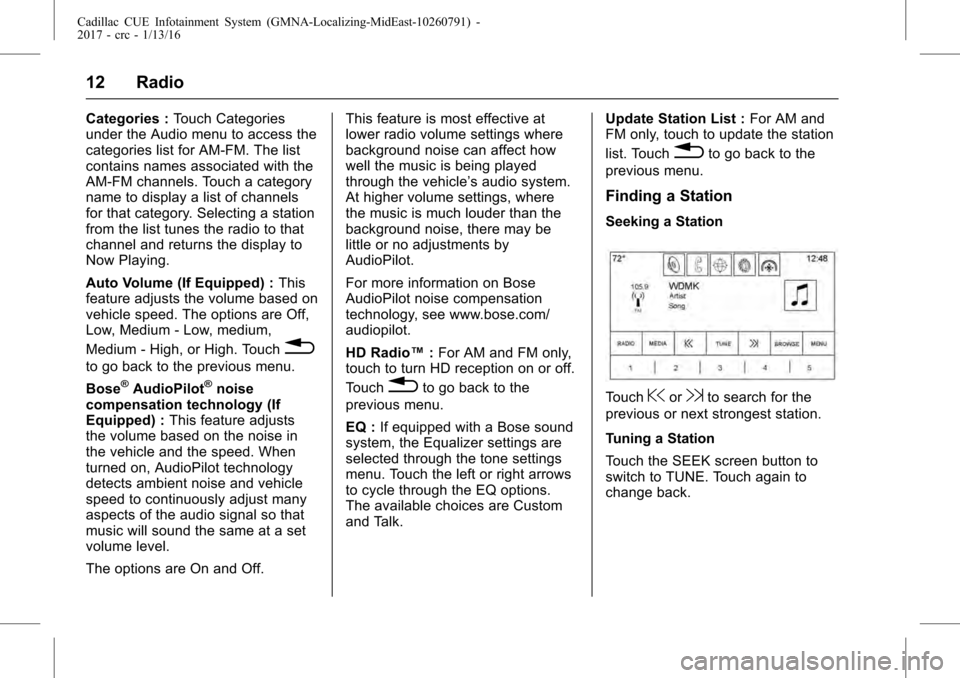
Finding a Station
Seeking a Station
Touch@or9to search for the
previous or next strongest station.
Tuning a Station
Touch the SEEK screen button to
switch to TUNE. Touch again to
change back.
Page 18 of 109
Cadillac CUE Infotainment System (GMNA-Localizing-MidEast-10260791) -
2017 - crc - 1/13/16
18 Audio Players
the previous track. If longer than
five seconds, the current track
starts from the beginning.
. Touch and hold to fast reverse
through a track. Release the
button to return to playing
speed. Elapsed time displays.
9:
. Touch to seek to the next track.
. Touch and hold to fast forward
through a track. Release the
button to return to playing
speed. Elapsed time displays.
When a Blu-ray
®or DVD disc,
if equipped, is loaded and the CD
button is touched, a message
displays, “Go to video application to
play DVD/BD.”
Error Messages
If Disc Error displays and/or the disc
comes out, it could be for one of the
following reasons:
. The disc has an invalid or
unknown format. .
The road is very rough. Try the
disc again when the road is
smoother.
. The disc is dirty, scratched, wet,
or upside down.
. The air is very humid. Try the
disc again later.
. There was a problem while
burning the disc.
. The label is caught in the CD
player.
If Disc Player Error displays, it could
be for one of the following reasons:
. The player temperature is
too high.
. There are load or eject errors.
If the CD is not playing correctly, for
any other reason, try a known
good CD.
If any error continues, contact your
dealer.
MP3/CD Menu
Touch the MENU button while that
source is active to access the menu. Touch any of the following buttons
on the MP3/CD Menu:
Shuffle :
Touch to play the tracks
randomly. Touch again to stop
shuffle.
Auto Volume (If Equipped) : This
feature adjusts the volume based on
the speed of the vehicle. See
AM-FM Radio 011.
Bose AudioPilot noise
compensation technology (If
Equipped) : This feature adjusts the
volume based on the noise in the
vehicle and the speed. See AM-FM
Radio 011.
Tone Settings : Touch + or−to
adjust Bass, Midrange, Treble,
or Surround (if equipped). See
AM-FM Radio 011.MP3 Guidelines
.
Sampling rate: 16 kHz,
22.05 kHz, 24 kHz, 32 kHz,
44.1 kHz, and 48 kHz.
. Bit rates supported: 8, 16, 24,
32, 40, 48, 56, 64, 80, 96, 112,
128, 144, 160, 192, 224, 256,
and 320 kbps.
Page 27 of 109
Cadillac CUE Infotainment System (GMNA-Localizing-MidEast-10260791) -
2017 - crc - 1/13/16
Rear Seat Infotainment 27
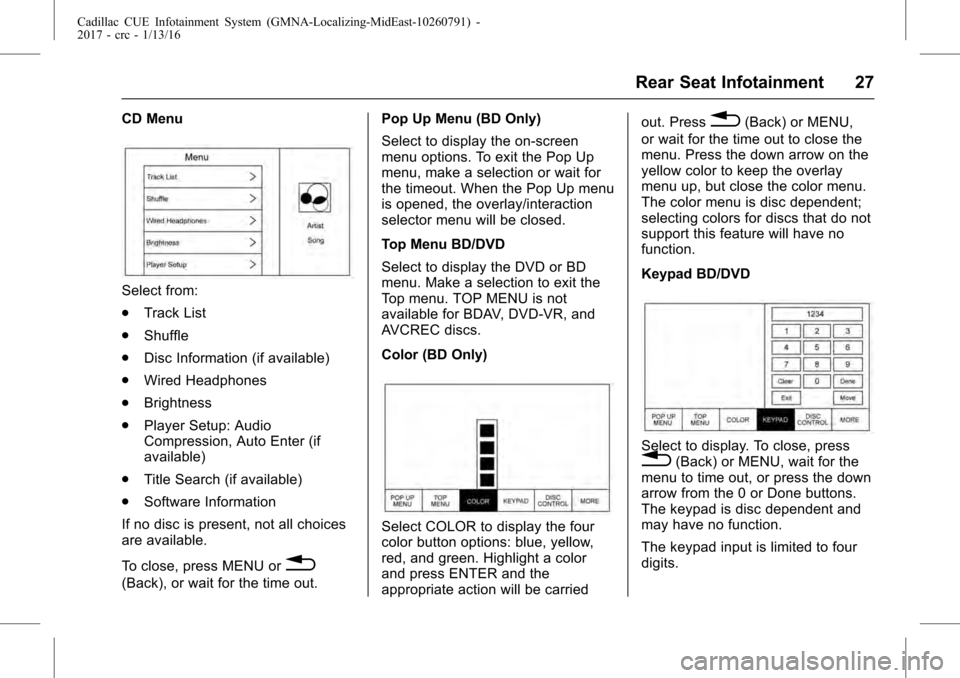
CD Menu
Select from:
.Track List
. Shuffle
. Disc Information (if available)
. Wired Headphones
. Brightness
. Player Setup: Audio
Compression, Auto Enter (if
available)
. Title Search (if available)
. Software Information
If no disc is present, not all choices
are available.
To close, press MENU or
0
(Back), or wait for the time out. Pop Up Menu (BD Only)
Select to display the on-screen
menu options. To exit the Pop Up
menu, make a selection or wait for
the timeout. When the Pop Up menu
is opened, the overlay/interaction
selector menu will be closed.
Top Menu BD/DVD
Select to display the DVD or BD
menu. Make a selection to exit the
Top menu. TOP MENU is not
available for BDAV, DVD-VR, and
AVCREC discs.
Color (BD Only)
Select COLOR to display the four
color button options: blue, yellow,
red, and green. Highlight a color
and press ENTER and the
appropriate action will be carriedout. Press
0(Back) or MENU,
or wait for the time out to close the
menu. Press the down arrow on the
yellow color to keep the overlay
menu up, but close the color menu.
The color menu is disc dependent;
selecting colors for discs that do not
support this feature will have no
function.
Keypad BD/DVD
Select to display. To close, press0(Back) or MENU, wait for the
menu to time out, or press the down
arrow from the 0 or Done buttons.
The keypad is disc dependent and
may have no function.
The keypad input is limited to four
digits.
Page 29 of 109
Cadillac CUE Infotainment System (GMNA-Localizing-MidEast-10260791) -
2017 - crc - 1/13/16
Rear Seat Infotainment 29
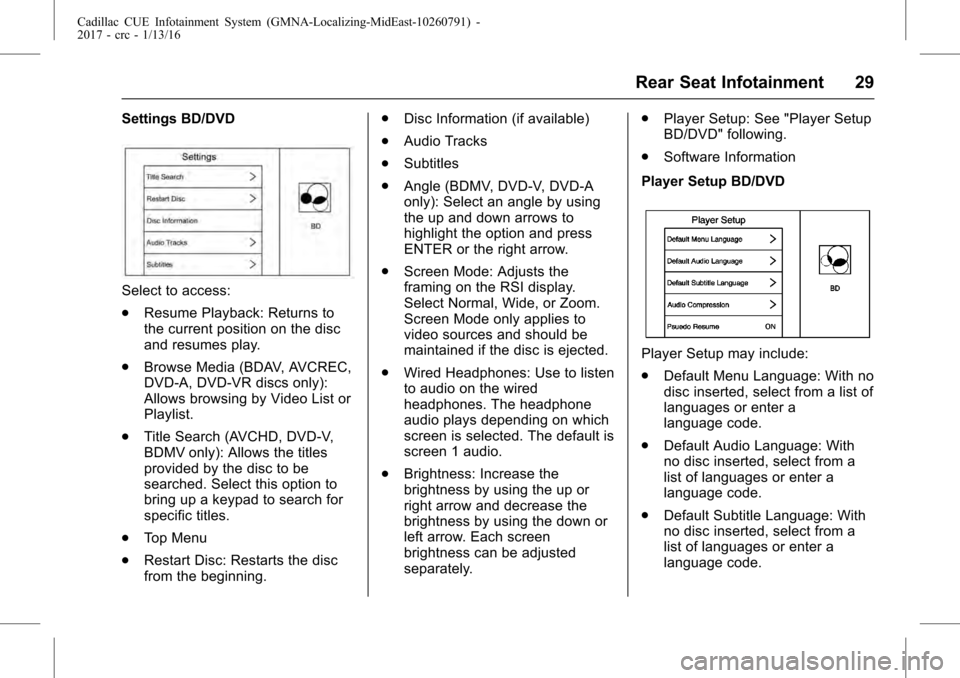
Settings BD/DVD
Select to access:
.Resume Playback: Returns to
the current position on the disc
and resumes play.
. Browse Media (BDAV, AVCREC,
DVD-A, DVD-VR discs only):
Allows browsing by Video List or
Playlist.
. Title Search (AVCHD, DVD-V,
BDMV only): Allows the titles
provided by the disc to be
searched. Select this option to
bring up a keypad to search for
specific titles.
. Top Menu
. Restart Disc: Restarts the disc
from the beginning. .
Disc Information (if available)
. Audio Tracks
. Subtitles
. Angle (BDMV, DVD-V, DVD-A
only): Select an angle by using
the up and down arrows to
highlight the option and press
ENTER or the right arrow.
. Screen Mode: Adjusts the
framing on the RSI display.
Select Normal, Wide, or Zoom.
Screen Mode only applies to
video sources and should be
maintained if the disc is ejected.
. Wired Headphones: Use to listen
to audio on the wired
headphones. The headphone
audio plays depending on which
screen is selected. The default is
screen 1 audio.
. Brightness: Increase the
brightness by using the up or
right arrow and decrease the
brightness by using the down or
left arrow. Each screen
brightness can be adjusted
separately. .
Player Setup: See "Player Setup
BD/DVD" following.
. Software Information
Player Setup BD/DVD
Player Setup may include:
. Default Menu Language: With no
disc inserted, select from a list of
languages or enter a
language code.
. Default Audio Language: With
no disc inserted, select from a
list of languages or enter a
language code.
. Default Subtitle Language: With
no disc inserted, select from a
list of languages or enter a
language code.
Page 30 of 109
Cadillac CUE Infotainment System (GMNA-Localizing-MidEast-10260791) -
2017 - crc - 1/13/16
30 Rear Seat Infotainment
.Audio Compression: When on,
the RSI will attempt to reduce
the difference between the audio
highs and lows. CUSTOM will
increase dialog volume.
. Pseudo Resume: When on, the
RSI will attempt to resume play
of the video where it left off after
the vehicle has been turned off.
This can be turned on or off.
. Auto Enter: When on, the RSI
will attempt to start play of the
video when the disc is inserted.
This feature can be turned on or
off. Not all discs support this
feature.
. Audio Channel (AVCREC,
DBAV, DVD-VR discs only)
contains: Stereo, Left Mono, and
Right Mono. Audio Channel is
available from the Settings
menu. Default will be determined
by the disc.
. Format Internal User Memory:
Only shown when no disc is
inserted. To format internal user
memory, select OK. A message
and the activity indicator display.
A message displays when the format is complete. To close,
press
0(Back) or MENU,
or wait for the time out.
Errors
Errors can occur if the local storage
area has been broken or if the
ignition is turned off during
formatting. Closing the screen
during formatting will not interrupt it.
If the screen is opened again, the
current state of format will be
displayed. If an error occurs, the
Error screen will display when the
ignition is turned on.
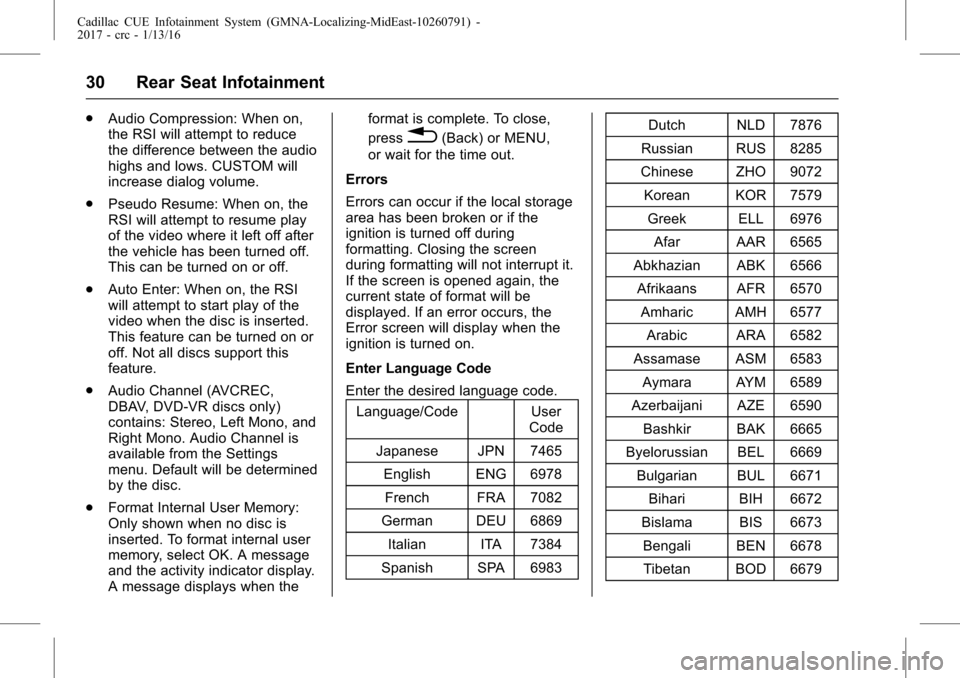
Enter Language Code
Enter the desired language code. Language/Code User
Code
Japanese JPN 7465 English ENG 6978French FRA 7082
German DEU 6869 Italian ITA 7384
Spanish SPA 6983 Dutch NLD 7876
Russian RUS 8285
Chinese ZHO 9072
Korean KOR 7579 Greek ELL 6976 Afar AAR 6565
Abkhazian ABK 6566 Afrikaans AFR 6570 Amharic AMH 6577 Arabic ARA 6582
Assamase ASM 6583 Aymara AYM 6589
Azerbaijani AZE 6590 Bashkir BAK 6665
Byelorussian BEL 6669 Bulgarian BUL 6671 Bihari BIH 6672
Bislama BIS 6673 Bengali BEN 6678Tibetan BOD 6679
Page 37 of 109
Cadillac CUE Infotainment System (GMNA-Localizing-MidEast-10260791) -
2017 - crc - 1/13/16
Rear Seat Infotainment 37
too far forward or stepping out of the
vehicle can cause the headphones
to lose the signal or have static.
Use the volume control on the
headphones to adjust the volume.
For best audio performance, wear
the headphones as indicated with
L (Left) and R (Right) on the ear
pads. Do not let anything cover the
ear pads.
Caution
Do not store the headphones in
heat or direct sunlight. This could
damage the headphones and
repairs will not be covered by the
warranty. Storage in extreme cold
can weaken the batteries. Keep
the headphones stored in a cool,
dry place.
If the foam ear pads become worn
or damaged, the pads can be
replaced separately. To purchase
replacement ear pads, contact your
dealer. Battery Replacement
To change the batteries:
1. Loosen the screw to the battery door on the left side of the
headphones.
2. Slide the battery door open.
3. Replace the two AAA batteries.
4. Replace the battery door and tighten the screw.
Remove the batteries if the
headphones will not be used for a
long time.
Rear Seat Infotainment (RSI)
WiFi (If Equipped)
The RSI WiFi allows:
. Miracast™ to display a smart
device directly on the RSI
screen.
. Accessing music, videos, and
pictures that are saved or taken
with a smart device to the RSI
system through Digital Living
Network Alliance (DLNA)
applications. .
Playing games made for your
Android™ device directly on the
RSI screens.
. Only one smart device to be
connected to the RSI at
one time.
Device Support
Android 4.2 or later and Windows
8.1 or later devices will support
Miracast. To operate correctly, the
smart device must support Miracast,
Screen Mirroring, or Android
Wireless Display.
The RSI WiFi complies with the
WiFi Miracast specification to
communicate with other WiFi
Miracast wireless devices. The RSI
WiFi supports High-bandwidth
Digital Content Protection (HDCP)
1.0, 2.0, and 2.1.
HDCP is a form of digital copy
protection developed to prevent
copying of digital audio and video
content as it travels across
connections.
For more information, see your
dealer.