navigation CADILLAC CTS SEDAN 2015 3.G Owners Manual
[x] Cancel search | Manufacturer: CADILLAC, Model Year: 2015, Model line: CTS SEDAN, Model: CADILLAC CTS SEDAN 2015 3.GPages: 401, PDF Size: 4.46 MB
Page 22 of 401
Black plate (15,1)Cadillac CTS Owner Manual (GMNA-Localizing-U.S./Canada/Mexico-
7707478) - 2015 - crc - 10/1/14
In Brief 1-15
SeeDual Automatic Climate Control
System on page 8-1 andRear
Climate Control System on page 8-6
(if equipped).
Transmission
Tap Shift
If equipped, permanent Tap Shift
Mode may be entered with the shift
lever in D (Drive), by pressing the
M (Manual Mode) button on the top
of the shift lever.
Temporary Tap Shift Mode may be
entered while in D (Drive) using the
tap shift controls on the back of the
steering wheel.
See Manual Mode on page 9-25.
Vehicle Features
Infotainment System
See the infotainment manual for
information on the radio, audio
players, phone, navigation system,
and voice or speech recognition.
It also includes information on
settings.
Steering Wheel Controls
The infotainment system can be
operated by using the steering
wheel controls. See "Steering
Wheel Controls" in the infotainment
manual.
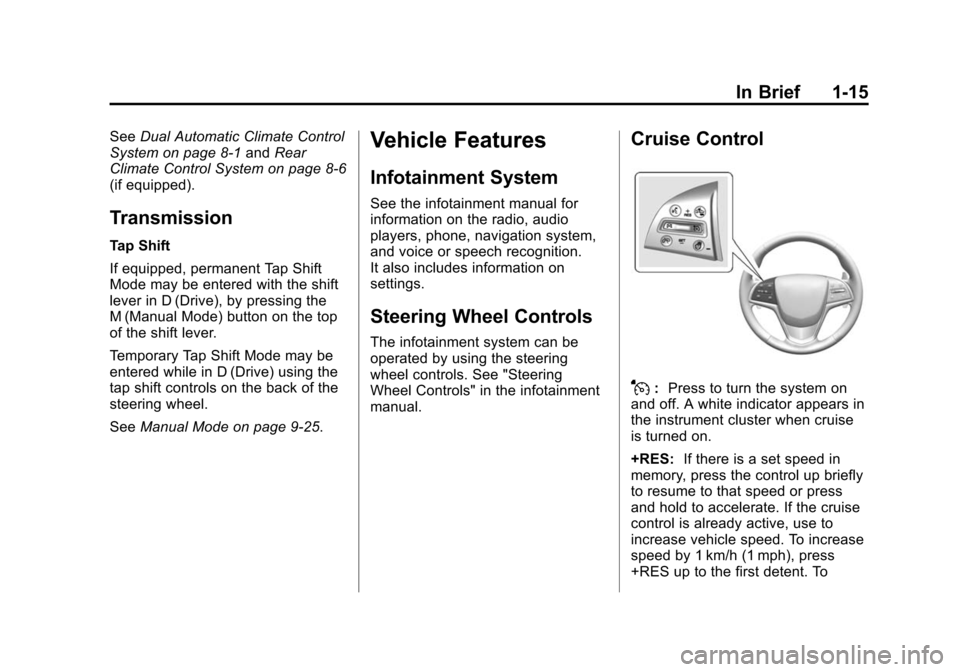
Cruise Control
J:Press to turn the system on
and off. A white indicator appears in
the instrument cluster when cruise
is turned on.
+RES: If there is a set speed in
memory, press the control up briefly
to resume to that speed or press
and hold to accelerate. If the cruise
control is already active, use to
increase vehicle speed. To increase
speed by 1 km/h (1 mph), press
+RES up to the first detent. To
Page 29 of 401
Black plate (22,1)Cadillac CTS Owner Manual (GMNA-Localizing-U.S./Canada/Mexico-
7707478) - 2015 - crc - 10/1/14
1-22 In Brief
Driving for Better Fuel
Economy
Driving habits can affect fuel
mileage. Here are some driving tips
to get the best fuel economy
possible.
.Avoid fast starts and accelerate
smoothly.
.Brake gradually and avoid
abrupt stops.
.Avoid idling the engine for long
periods of time.
.When road and weather
conditions are appropriate, use
cruise control.
.Always follow posted speed
limits or drive more slowly when
conditions require.
.Keep vehicle tires properly
inflated.
.Combine several trips into a
single trip.
.Replace the vehicle's tires with
the same TPC Spec number
molded into the tire's sidewall
near the size.
.Follow recommended scheduled
maintenance.
Roadside Service
U.S.: 1-800-224-1400
Canada: 1-800-882-1112
TTY Users (U.S. Only):
1-888-889-2438
New Cadillac owners are
automatically enrolled in the
Roadside Service Program.
SeeRoadside Service on
page 13-5.
OnStar®
This vehicle may be equipped with a
comprehensive, in-vehicle system
that can connect to a live OnStar
Advisor for Emergency, Security,
Navigation, Connection, and
Diagnostic Services. OnStar
services may require a paid
subscription. See OnStar Overview
on page 14-1.
Page 126 of 401
Black plate (13,1)Cadillac CTS Owner Manual (GMNA-Localizing-U.S./Canada/Mexico-
7707478) - 2015 - crc - 10/1/14
Instruments and Controls 5-13
Use the five-way control on the right
side of the steering wheel to move
between the different display zones
and scroll through the different
displays.
To change the cluster configuration:
1. With the vehicle in P (Park), findthe Settings page in one of the
interactive display zones on the
cluster.
2. Press SEL to enter the Settings menu.
3. Scroll down to highlight Display Layout. Then press SEL to
select it.
4. Each layout in the menu is represented by a small preview
image of the display layout.
Scroll up or down and highlight
the selection. Press SEL to
select the desired cluster
configuration.
5. Exit the Display Layout menu by pressing
S.
Cluster Application Displays
The cluster can display information
regarding Navigation, Audio, and
Phone. On the base cluster, a
speedometer can also be displayed
in the center zone.
Navigation (If Equipped)
If there is no active route, a
compass will be displayed. If there
is an active route, press SEL to end
route guidance or turn the voice
prompts on or off.
Audio
While the Audio application page is
displayed, press SEL to enter the
Audio menu. In the Audio menu,
search for music, select from
favorites, or change the audio
source
Phone
While the Phone application page is
displayed, press SEL to enter the
Phone menu. In the Phone menu,
if there is no active phone call, view
recent calls, select from favorites, or scroll through contacts. If there is
an active call, mute the phone or
switch to handset operation.
Cluster Settings Menu
To enter the cluster settings menu:
1. Use the five-way control on the
right side of the steering wheel
to find the Settings page in one
of the interactive display zones
on the cluster.
2. Press SEL on the center of the five-way control to enter the
Settings menu.
Units: Press SEL while Units is
highlighted to enter the Unit menu.
Choose English or metric units by
pressing SEL while the desired item
is highlighted. A checkmark will be
displayed next to the selected item.
Info Pages: Press SEL while Info
Pages is highlighted to select the
items to be displayed in the DIC info
displays. See Driver Information
Center (DIC) on page 5-29.
Page 144 of 401
Black plate (31,1)Cadillac CTS Owner Manual (GMNA-Localizing-U.S./Canada/Mexico-
7707478) - 2015 - crc - 10/1/14
Instruments and Controls 5-31
per hour (mph). This average is
calculated based on the various
vehicle speeds recorded since the
last reset of this value. The average
speed can be reset by pressing and
holding SEL while this display is
active.
Timer:This display can be used as
a timer. To start the timer, press SEL
while this display is active. The
display will show the amount of time
that has passed since the timer was
last reset. To stop the timer, press
SEL briefly while this display is
active and the timer is running. To
reset the timer to zero, press and
hold SEL while this display is active.
Compass (Base Cluster): Shows
the direction the vehicle is driving.
Turn Arrow: Shows the next
maneuver when using route
guidance.
Estimated Time to Arrival: Shows
the estimated time until arrival at
your destination. Distance to Destination:
Shows
the distance to the destination when
using route guidance.
Speed Limit: Shows the current
speed limit on vehicles with the
navigation system. The information
for this page comes from a roadway
database.
Speed Warning: Allows the driver
to set a speed that they do not want
to exceed. To set the Speed
Warning, press SEL when Speed
Warning is displayed. Press
yor
zto adjust the value. This feature
can be turned off by pressing and
holding SEL while viewing this
page. If the selected speed limit is
exceeded, a pop-up warning is
displayed and a chime may sound.
Cruise Set Speed: Shows the
speed the cruise control or Adaptive
Cruise Control (ACC, if equipped) is
set to.
Follow Distance Indicator/Gap
Setting: The current follow time to
the vehicle ahead is displayed as a
time value on this page when ACC is not engaged. When ACC has
been engaged, the Follow Distance
Indicator page switches to the Gap
Setting page. This page shows the
current gap setting along with the
vehicle ahead telltale.
Battery Voltage:
Shows the
current battery voltage.
Engine Boost: Shows the current
amount of boost being added.
Oil Life: Shows an estimate of the
oil's remaining useful life.
If REMAINING OIL LIFE 99% is
displayed, that means 99% of the
current oil life remains.
When the remaining oil life is low,
the CHANGE ENGINE OIL SOON
message will appear on the display.
See Engine Oil Messages on
page 5-39. The oil should be
changed as soon as possible. See
Engine Oil on page 10-10. In
addition to the engine oil life system
monitoring the oil life, additional
maintenance is recommended in the
Page 146 of 401
Black plate (33,1)Cadillac CTS Owner Manual (GMNA-Localizing-U.S./Canada/Mexico-
7707478) - 2015 - crc - 10/1/14
Instruments and Controls 5-33
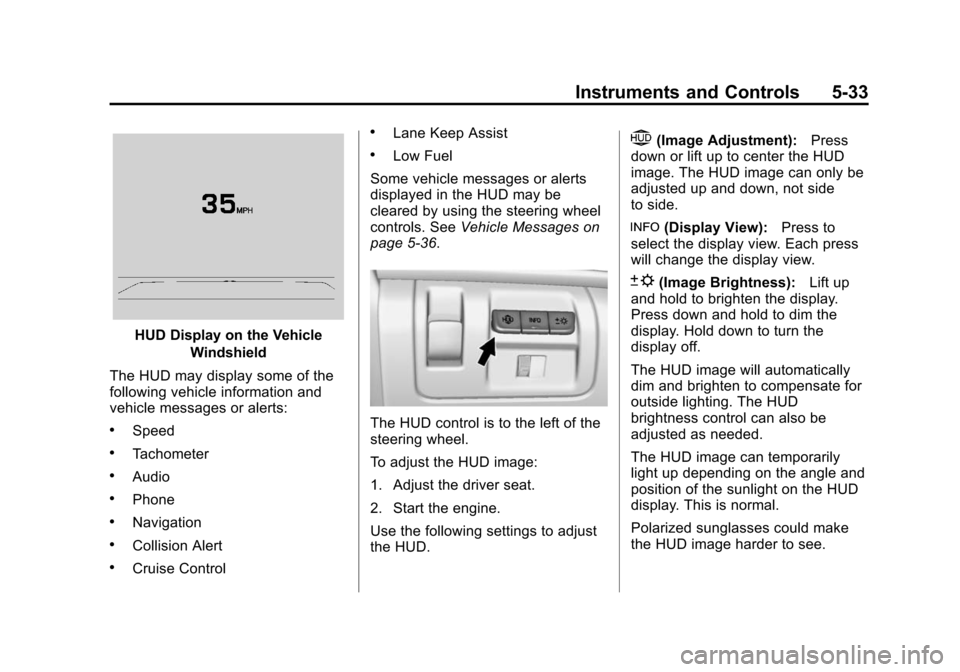
HUD Display on the VehicleWindshield
The HUD may display some of the
following vehicle information and
vehicle messages or alerts:
.Speed
.Tachometer
.Audio
.Phone
.Navigation
.Collision Alert
.Cruise Control
.Lane Keep Assist
.Low Fuel
Some vehicle messages or alerts
displayed in the HUD may be
cleared by using the steering wheel
controls. See Vehicle Messages on
page 5-36.
The HUD control is to the left of the
steering wheel.
To adjust the HUD image:
1. Adjust the driver seat.
2. Start the engine.
Use the following settings to adjust
the HUD.
$(Image Adjustment): Press
down or lift up to center the HUD
image. The HUD image can only be
adjusted up and down, not side
to side.
!(Display View): Press to
select the display view. Each press
will change the display view.
D(Image Brightness): Lift up
and hold to brighten the display.
Press down and hold to dim the
display. Hold down to turn the
display off.
The HUD image will automatically
dim and brighten to compensate for
outside lighting. The HUD
brightness control can also be
adjusted as needed.
The HUD image can temporarily
light up depending on the angle and
position of the sunlight on the HUD
display. This is normal.
Polarized sunglasses could make
the HUD image harder to see.
Page 147 of 401
Black plate (34,1)Cadillac CTS Owner Manual (GMNA-Localizing-U.S./Canada/Mexico-
7707478) - 2015 - crc - 10/1/14
5-34 Instruments and Controls
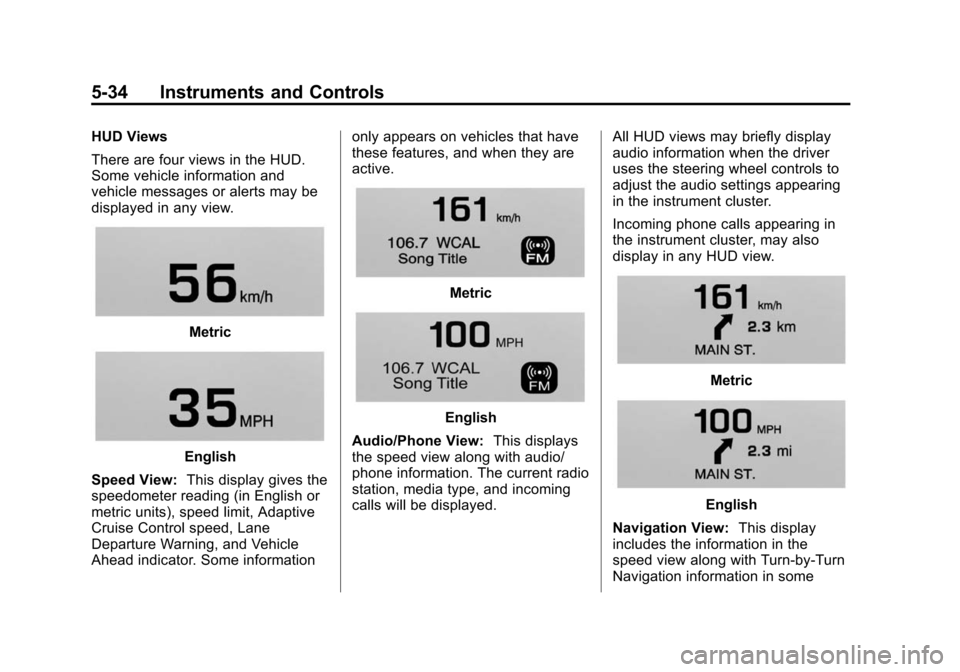
HUD Views
There are four views in the HUD.
Some vehicle information and
vehicle messages or alerts may be
displayed in any view.
Metric
English
Speed View: This display gives the
speedometer reading (in English or
metric units), speed limit, Adaptive
Cruise Control speed, Lane
Departure Warning, and Vehicle
Ahead indicator. Some information only appears on vehicles that have
these features, and when they are
active.
Metric
English
Audio/Phone View: This displays
the speed view along with audio/
phone information. The current radio
station, media type, and incoming
calls will be displayed. All HUD views may briefly display
audio information when the driver
uses the steering wheel controls to
adjust the audio settings appearing
in the instrument cluster.
Incoming phone calls appearing in
the instrument cluster, may also
display in any HUD view.
Metric
English
Navigation View: This display
includes the information in the
speed view along with Turn-by-Turn
Navigation information in some
Page 148 of 401
Black plate (35,1)Cadillac CTS Owner Manual (GMNA-Localizing-U.S./Canada/Mexico-
7707478) - 2015 - crc - 10/1/14
Instruments and Controls 5-35
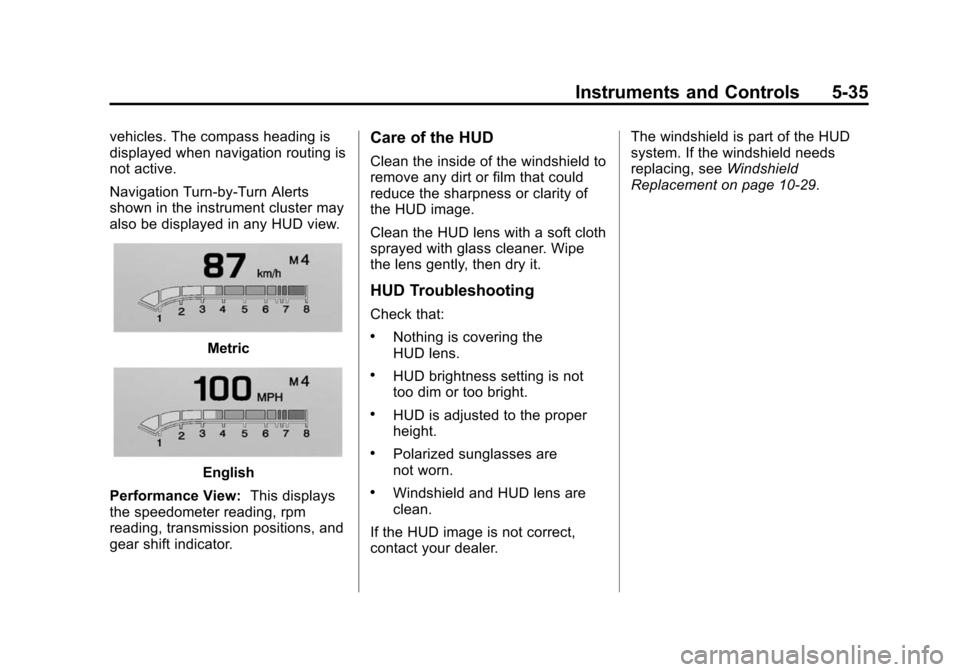
vehicles. The compass heading is
displayed when navigation routing is
not active.
Navigation Turn-by-Turn Alerts
shown in the instrument cluster may
also be displayed in any HUD view.
Metric
English
Performance View: This displays
the speedometer reading, rpm
reading, transmission positions, and
gear shift indicator.
Care of the HUD
Clean the inside of the windshield to
remove any dirt or film that could
reduce the sharpness or clarity of
the HUD image.
Clean the HUD lens with a soft cloth
sprayed with glass cleaner. Wipe
the lens gently, then dry it.
HUD Troubleshooting
Check that:
.Nothing is covering the
HUD lens.
.HUD brightness setting is not
too dim or too bright.
.HUD is adjusted to the proper
height.
.Polarized sunglasses are
not worn.
.Windshield and HUD lens are
clean.
If the HUD image is not correct,
contact your dealer. The windshield is part of the HUD
system. If the windshield needs
replacing, see
Windshield
Replacement on page 10-29.
Page 182 of 401
Black plate (1,1)Cadillac CTS Owner Manual (GMNA-Localizing-U.S./Canada/Mexico-
7707478) - 2015 - crc - 10/1/14
Infotainment System 7-1
Infotainment
System
Introduction
Infotainment . . . . . . . . . . . . . . . . . . . 7-1
Introduction
Infotainment
See the infotainment manual for
information on the radio, audio
players, phone, navigation system,
and voice or speech recognition.
It also includes information on
settings.
Page 195 of 401
Black plate (2,1)Cadillac CTS Owner Manual (GMNA-Localizing-U.S./Canada/Mexico-
7707478) - 2015 - crc - 10/1/14
9-2 Driving and Operating
Lane Change Alert . . . . . . . . . . . 9-56
Lane DepartureWarning (LDW) . . . . . . . . . . . . . 9-58
Lane Keep Assist (LKA) . . . . . 9-59
Fuel
Fuel . . . . . . . . . . . . . . . . . . . . . . . . . 9-61
California Fuel Requirements . . . . . . . . . . . . . . 9-62
Fuels in Foreign Countries . . . 9-62
Fuel Additives . . . . . . . . . . . . . . . 9-62
Filling the Tank . . . . . . . . . . . . . . 9-63
Filling a Portable Fuel Container . . . . . . . . . . . . . . . . . . . 9-64
Trailer Towing
General TowingInformation . . . . . . . . . . . . . . . . . 9-65
Driving Characteristics and Towing Tips . . . . . . . . . . . . . . . . 9-65
Trailer Towing (With LFX Engine) . . . . . . . . . . . . . . . . . . . . . 9-68
Trailer Towing (With LTG or LF3 Engine) . . . . . . . . . . . . . . . . 9-69
Towing Equipment . . . . . . . . . . . 9-69
Conversions and Add-Ons
Add-On Electrical Equipment . . . . . . . . . . . . . . . . . 9-70
Driving Information
Distracted Driving
Distraction comes in many forms
and can take your focus from the
task of driving. Exercise good
judgment and do not let other
activities divert your attention away
from the road. Many local
governments have enacted laws
regarding driver distraction. Become
familiar with the local laws in
your area.
To avoid distracted driving, always
keep your eyes on the road, hands
on the wheel, and mind on the drive.
.Do not use a phone in
demanding driving situations.
Use a hands-free method to
place or receive necessary
phone calls.
.Watch the road. Do not read,
take notes, or look up
information on phones or other
electronic devices.
.Designate a front seat
passenger to handle potential
distractions.
.Become familiar with vehicle
features before driving, such as
programming favorite radio
stations and adjusting climate
control and seat settings.
Program all trip information into
any navigation device prior to
driving.
.Wait until the vehicle is parked
to retrieve items that have fallen
to the floor.
.Stop or park the vehicle to tend
to children.
.Keep pets in an appropriate
carrier or restraint.
.Avoid stressful conversations
while driving, whether with a
passenger or on a cell phone.
Page 196 of 401
Black plate (3,1)Cadillac CTS Owner Manual (GMNA-Localizing-U.S./Canada/Mexico-
7707478) - 2015 - crc - 10/1/14
Driving and Operating 9-3
{Warning
Taking your eyes off the road too
long or too often could cause a
crash resulting in injury or death.
Focus your attention on driving.
See the infotainment manual for
information on that system or the
navigation system, if equipped,
including pairing and using a cell
phone.
Defensive Driving
Defensive driving means “always
expect the unexpected.” The first
step in driving defensively is to wear
the safety belt. See Safety Belts on
page 3-13.
.Assume that other road users
(pedestrians, bicyclists, and
other drivers) are going to be
careless and make mistakes.
Anticipate what they might do
and be ready.
.Allow enough following distance
between you and the driver in
front of you.
.Focus on the task of driving.
Drunk Driving
Death and injury associated with
drinking and driving is a global
tragedy.
{Warning
Drinking and then driving is very
dangerous. Your reflexes,
perceptions, attentiveness, and
judgment can be affected by even
a small amount of alcohol. You
can have a serious —or even
fatal —collision if you drive after
drinking.
Do not drink and drive or ride with
a driver who has been drinking.
Ride home in a cab; or if you are
with a group, designate a driver
who will not drink.
Control of a Vehicle
Braking, steering, and accelerating
are important factors in helping to
control a vehicle while driving.
Braking
Braking action involves perception
time and reaction time. Deciding to
push the brake pedal is perception
time. Actually doing it is
reaction time.
Average driver reaction time is
about three-quarters of a second. In
that time, a vehicle moving at
100 km/h (60 mph) travels 20 m
(66 ft), which could be a lot of
distance in an emergency.
Helpful braking tips to keep in mind
include:
.Keep enough distance between
you and the vehicle in front
of you.
.Avoid needless heavy braking.
.Keep pace with traffic.