buttons CADILLAC ELDORADO 1998 10.G User Guide
[x] Cancel search | Manufacturer: CADILLAC, Model Year: 1998, Model line: ELDORADO, Model: CADILLAC ELDORADO 1998 10.GPages: 380, PDF Size: 21.39 MB
Page 148 of 380
Downloaded from www.Manualslib.com manuals search engine TOP SPEED - FUEL OFF - 111: This message will
appear when the
PCM senses that the maximum speed
for your vehicle has been reached. The speed
of your
vehicle will decrease several mph as the fuel supply is
cut off. This allows your vehicle
to stay in a stable
operating range.
TRACTION ENGAGED - 91: When your traction
control system is limiting wheel spin, the TRACTION
ENGAGED message will be displayed. Slippery road
conditions may exist if this message is displayed,
so
adjust your driving accordingly. This message will stay
on for a few seconds after the traction control system
stops limiting wheel spin.
TRACTION OFF - 89: This message will be displayed
after the traction control has been turned
off.
TRACTION READY - 90: This message informs the
driver that the traction control system
is available. This
occurs when the traction odoff button in the glove box
has been returned to an on position (pressing the button
once turns the traction control system off pressing the
button again turns the system back on). This message
also self cancels after five seconds.
TRACTION SUSPENDED - 56: This message
displays when the traction control system has been
temporarily shut off because your vehicle’s brakes
have overheated. This message does not indicate
a
problem with your vehicle’s traction control system.
After a few minutes,
the traction control system will
be available again and the TRACTION READY
message will appear.
TRANS FLUID RESET - 48: With the engine not
running and the ignition on, press and hold the OFF
and rear defog buttons until the TRANS FLUID
RESET message appears on the Driver Information
Center
(DIC) (between five and 20 seconds).
TRANS HOT IDLE ENG - 112: This message
indicates that the trans’axle fluid in your vehicle is too
hot. Stop and allow your vehicle
to idle until it cools
down or until this message is removed.
TRUNK OPEN - 24: This message indicates that the
trunk
is open when your vehicle’s ignition is in RUN.
TURN SIGNAL ON - 20: This message is a reminder,
after driving about
1 mile (1.6 km/h), that you have the
turn signal
on. A multiple chime will also sound when
this message is displayed.
Page 149 of 380
Downloaded from www.Manualslib.com manuals search engine VEHICLE OVERSPEED - 52: A failure in the
suspension control system has occurred when this
message appears. The
PCM determines the speed your
vehicle is limited
to. Have your vehicle serviced if this
message appears.
VEHICLE SPEED LIMITED TO XXX MPH
(KM/H) - 113: A failure in the suspension control
system has occurred when this message appears. The
PCM determines the speed your vehicle is limited to.
Have your vehicle serviced
if this message appears.
Programmable, Memory and
Personalization Features
(If Equipped)
Your vehicle may be equipped with the following
features that can be individually programmed,
memorized or personalized for up to two drivers. For
a brief description of each feature (except for climate
control and radio personalization), see each feature
in the Index.
Memory Seat and Mirrors
6
-
: 4’
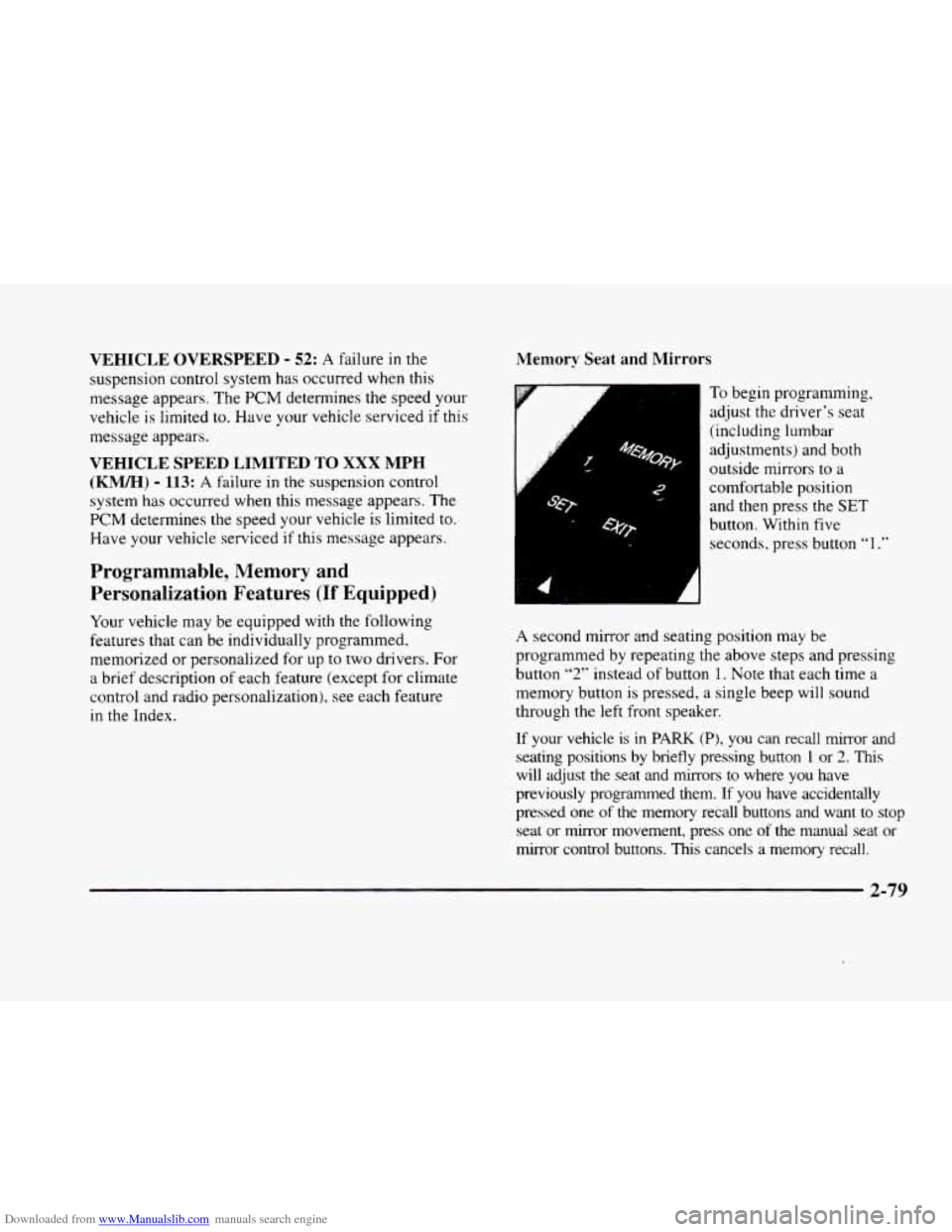
To begin progranming,
adjust the driver’s seat
(including lumbar
adjustments) and both
outside mirrors to
a
comfortable position
and then press the
SET
button. Within five
seconds, press button
“1 .”
A second mirror and seating position may be
programmed by repeating
the above steps and pressing
button
“2” instead of button 1. Note that each time a
memory button
is pressed, a single beep will sound
through the left front speaker.
If your vehicle is in PARK (PI, you can recall mirror and
seating positions by briefly pressing button 1 or 2. This
will adjust the seat and mirrors to where you have
previously programmed them.
If you have accidentally
pressed one
of the memory recall buttons and want to stop
seat or mirror movement, press one of the manual seat or
mirror control buttons.
This cancels a memory recall.
2-79
Page 150 of 380
Downloaded from www.Manualslib.com manuals search engine You can also recall a seat and mirror position if your
vehicle is not
in PARK (P). Press and hold either the
1 or 2 button until seat and mirror movement is
complete. Releasing the buttons will stop adjustment.
The
EXIT button can be programmed to allow easy exit
for up
to two drivers. Adjust the seat to a comfortable
“exit” position and then press the SET button followed
by the EXIT button. While your vehicle is in PARK (P),
briefly press the EXIT button to recall your programmed
exit position.
Programmable Automatic Door Locks
Your vehicle’s ignition must be in RUN. To begin
programming, press and hold the INFO and
INFO
RESET buttons at the same time to display the
following prompts.
DOORS LOCK IN GEAR: All doors automatically
lock when shifted out of PARK (P).
No automatic
door unlock.
DOORS UNLOCK IN PARK: All doors automatically
lock when shifted out
of PARK (P) and unlock when
shifting into PARK (P).
DRIVR UNLOCK IN PARK: All doors automatically
lock when shifted out
of PARK (P). Only the driver’s
door automatically unlocks when shifted into PARK
(P).
DRIVR UNLOCK IN KEY OFF: All doors
automatically lock when shifted out
of PARK (P).
Only
the driver’s door automatically unlocks when the
ignition key is turned to
OFF.
DOORS UNLOCK KEY OFF: All doors
automatically lock when shifted
out of PARK (P). All
doors automatically unlock when the ignition key is
turned to OFF.
A “yes” or “no” response must be made after each
prompt
is displayed in order to continue on to the next
prompt or personalization feature. The yes and
no
buttons are displayed in amber on the vehicle’s digital
control panel. Press
the TRIP RESET button to choose
yes, press the
INFO RESET button to choose no or
press the INFO button to “skip” to the next
personalization feature.
FEATURE
ON appears when a yes response is made
and FEATURE OFF appears with a
no response.
2-80
Page 151 of 380
Downloaded from www.Manualslib.com manuals search engine If a no response is made after the DOORS LOCK IN
GEAR prompt is displayed, FEATURE
OFF will appear.
The automatic door locking system has been disabled
and no other door lock messages will be displayed.
LGHTS FLSH
AT UNLOCK, which is the next
available personalization feature to display, will appear
next. See “Lock/Unlock Confirmation” in
the Index for
more information.
If a yes response is made after the
DOORS LOCK IN
GEAR prompt
is displayed, FEATURE ON appears.
The automatic door locking system is enabled and
allows the DRIVR UNLOCK IN PARK prompt to
appear. Choosing this prompt advances
you to LGHTS
FLSH
AT UNLOCK whereas a no response will
display the DWR UNLOCK KEY OFF prompt.
If DRIVR UNLOCK KEY OFF is chosen, FEATURE
ON appears. You will advance to the LGHTS FLSH
AT UNLOCK prompt. If you don’t choose this
prompt, FEATURE OFF appears as well as the next
prompt
-- DOORS UNLOCK IN PARK. If this prompt
is chosen, FEATURE ON appears. If a no response
was made. DOORS UNLOCK
KEY OFF will appear.
At this point, a yes or no response automatically brings
up the LGHTS FLSH
AT UNLOCK feature.
Lock/Unlock Confirmation
This personalization feature allows the driver to
program the parlung lamps to blink when the lock or
unlock buttons on the remote keyless entry transmitter
are pressed.
to program the horn to sound when the lock
button is pressed and/or to program
the exterior lamps to
turn on when the unlock button is pressed. Press the
TRIP
RESET button to answer yes, press the INFO
RESET button to indicate no or press the INFO button
to skip to the next personalization feature.
To begin programming, your vehicle’s ignition must be
in RUN. Press and hold the INFO and
INFO RESET
buttons at the same time to display the following
prompts. LOCKKJNLOCK confirmation is the second
feature to appear:To skip past the first personalization
feature, press the Information (INFO) button.
LGHTS FLSH AT UNLOCK: Parking lamps blink
twice when
the unlock button on the remote keyless
entry transmitter is pressed.
LIGHTS FLASH AT LOCK: Parking lamps blink
once when the lock button on the remote keyless entry
transmitter is pressed.
HORN SOUNDS AT LOCK: Horn sounds when
the lock button on the remote keyless entry transmitter
is pressed.
2-81
Page 152 of 380
Downloaded from www.Manualslib.com manuals search engine EXT LIGHTS AT UNLOCK: Exterior lamps (parking
lamps, taillamps, sidemarker lamps, license plate lamps,
low-beam headlamps, etc.) turn
on when the unlock
button
on the remote keyless entry transmitter is pressed
and
it is dark outside. These lamps stay on for about 20
seconds or until the key is turned OFF.
The prompts listed here appear in the same order as
displayed on
the Driver Information Center (DIC).
FEATURE
ON appears when a yes response is made
and FEATURE OFF appears with a no response. To
skip
to the next personalization feature (REMOTE
RECALL MEMORY), press the
INFO button.
Remote Recall Memory (If Equipped with
Memory Personalization)
Memory settings that have been previously programmed
(climate control settings,
radio preset settings, exterior
lighting choices, remote confirmation choices and
programmable automatic door lock choices) can be
recalled by using the remote keyless entry transmitter or
by placing the key in your vehicle’s ignition. Before
you begin
programming, make sure that your
vehicle’s ignition
is in RUN. To begin programming,
press the
INFO and INFO RESET buttons at the same
time for about two seconds. As mentioned, remote recall
memory
is the third feature to appear. To skip past the
first two personalization features, press the
INFO button.
When REMOTE RECALL MEMORY appears, the
driver is able to recall memory settings when the unlock
button on the remote keyless entry transmitter is
pressed. Press
the TRIP RESET button to select or press
the
INFO RESET button to answer no and to continue
on to the next prompt. FEATURE ON displays when a
yes response
is made.
If
a no response was made, the KEY IN RECALL
MEMORY prompt will’ show next.
This choice recalls
memory settings when the key is placed
in your
vehicle’s ignition. FEATURE
ON displays for a yes
response, and FEATURE
OFF for a no response. A yes
or
no response is required.
2-82
Page 153 of 380
Downloaded from www.Manualslib.com manuals search engine Curb View Assist Mirror (If Equipped
with Memory)
If your vehicle has this personalization feature,
MIRROR TILT IN REV will be the fourth
personalization prompt to display on the Driver
Information Center
(DIC).
To program your vehicle, press the INFO and INFO
RESET buttons at the same time for about two seconds.
When
MIRROR TILT IN REV appears? a yes or no
response is needed. Press the TRIP RESET button to
answer yes or the INFO RESET button to answer no.
FEATURE ON displays when a yes response is made
and FEATURE OFF shows after a no response. Tf
you do not want this feature, press the INFO button
to skip to the next personalization feature which is
STORAGE MODE.
Storage Mode Personalization
Before you begin programming, make sure that your
vehicle's ignition is in RUN. To begin programming,
press
the INFO and INFO RESET buttons at the same
time for about two seconds. The first message to appear
is DOORS LOCK IN GEAR. Press the INFO button
after this prompt
is displayed until STORAGE MODE
prompt appears on the Driver Information Center (DIC).
Press the TRiP RESET button to answer yes or press
the
INFO RESET button to indicate a no response.
FEATURE ON appears when a yes response is made
and
FEATURE OFF shows when a no response is made.
Since this is the last personalization feature available. a
yes or no response will end out of the Driver
Information
Center (DIC) display.
Once the battery
guard has been programmed, your
vehicle
will enter the storage mode about 20 minutes
after the ignition
key has been turned off.
Your vehicle will stay in the storage mode until the
ignition key is turned out of LOCK. The system will
"wake-up" when the door key is inserted into the door,
however,
your vehicle will remain in the storage mode.
The ignition must be out of LOCK before the battery
guard
is disabled.
Home and Away Feature
To program. hold two radio preset buttons at the same
time until HOME PWSETS DRVR 1 ( DRVR 2)
appears on the Driver Information Center (DIC) display.
At this time,
you are able to input your desired radio
stations. Holding the
same two radio preset buttons
again will display
AWAY PRESETS DRVR 1 (or
DRVR 2). Radio stations that are out of your normal
operating
range can be input at this time.
Page 154 of 380
Downloaded from www.Manualslib.com manuals search engine Climate Control Personalization
With this feature, your vehicle will recall the latest
climate control settings as adjusted
the last time your
vehicle was operated. This feature allows two different
drivers
to store and recall their own climate control
settings. The settings recalled by the climate control
system are determined by which remote keyless entry
transmitter
(“1” or “2”) was used to enter the vehicle.
The number
on the back of the remote keyless entry
transmitter corresponds
to driver 1 or to driver 2. After
the unlock button is pressed on the remote keyless entry
transmitter
or the ignition key is placed in the ignition,
the climate control settings will automatically adjust to
where they were last
set. The settings can also be
changed by briefly pressing the memory seat
buttons
1 or 2 located on the driver’s door.
Radio Personalization
With this feature, your vehicle will recall the latest radio
settings as adjusted the last time your vehicle was
operated. This feature allows two different drivers
to
store and recall their own radio settings for AM and FM
presets, last tuned station, volume, tone and audio
source (radio, cassette
or CD). The settings recalled by
the radio are determined by which remote keyless
entry transmitter
(1 or 2) was used to enter the vehicle.
The number
on the back of the remote keyless entry
transmitter corresponds to driver
1 or to driver 2. After
the unlock button is pressed
on the remote keyless entry
transmitter and the ignition
is in RUN, the radio settings
will automatically adjust to where they were last set
by
the identified driver. The settings can also be changed by
briefly pressing the memory seat buttons
1 or 2 located
on the driver’s door. The new settings will be saved for
the driver.
Continuous Variable -- Road Sensing
Suspension
(CV-RSS) (ETC Only)
The CV-RSS automatically adjusts the ride of your
vehicle. Automatic ride control is achieved through a
computer used
to control and monitor the suspension
system. The controller receives input from various
sensors
to determine the proper system response. If the
controller detects
a problem within the system, the
Driver Information Center
(DIC) will display a
SERVICE RIDE CONTROL message. If this message
appears, have your vehicle serviced at your dealership.
2-84
Page 166 of 380
Downloaded from www.Manualslib.com manuals search engine AM-FM Stereo with Cassette Tape Player
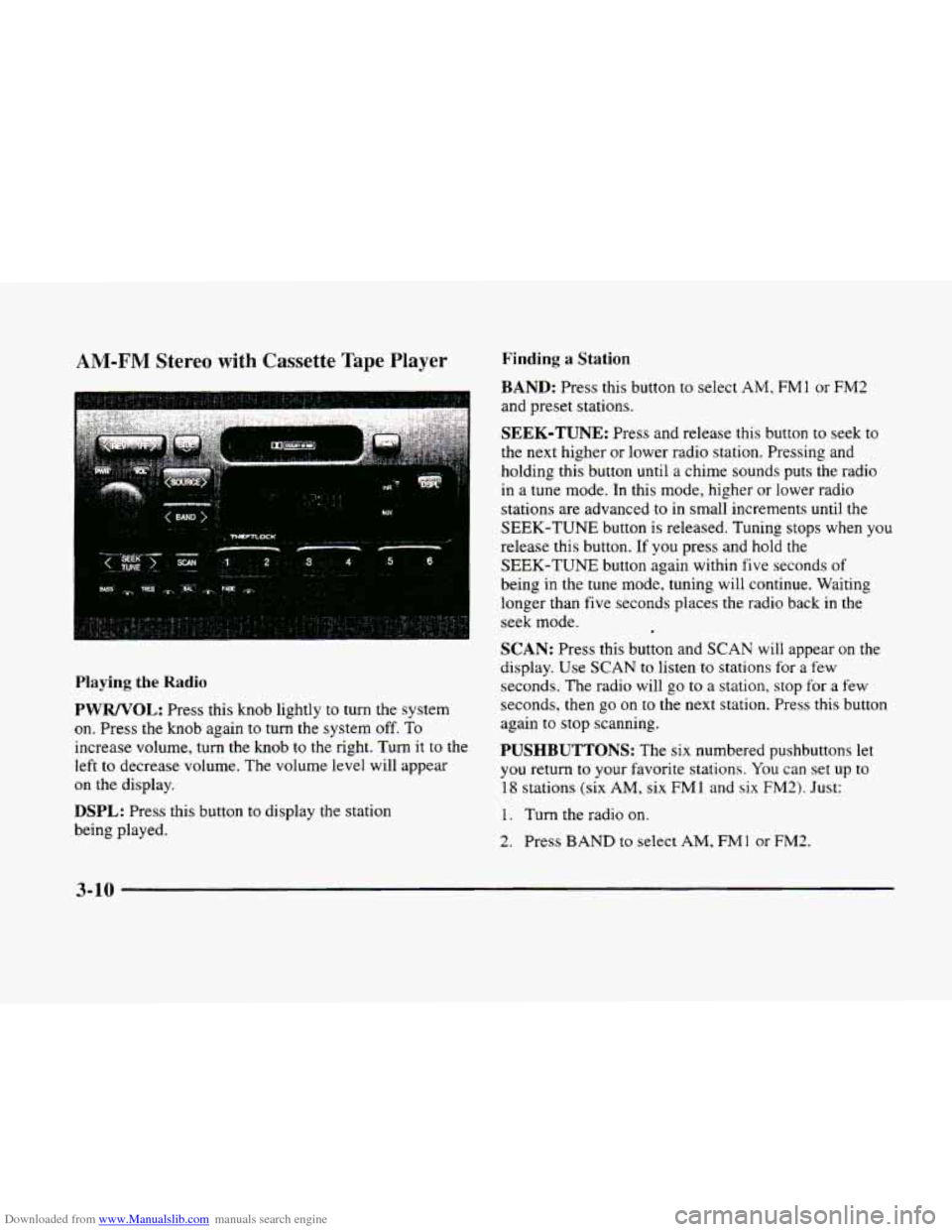
Playing the Radio
PWRNOL: Press this knob lightly to turn the system
on. Press the knob again to turn
the system off. To
increase volume, turn the knob to the right. Turn it to the
left
to decrease volume. The volume level will appear
on the display.
DSPL: Press this button to display the station
being played.
Finding a Station
BAND: Press this button to select AM, FMl or FM2
and preset stations.
SEEK-TUNE: Press and release this button to seek to
the next higher or lower radio station. Pressing and
holding this button until a chime sounds puts the radio
in a tune mode. In this mode, higher or lower radio
stations are advanced
to in small increments until the
SEEK-TUNE button is released. Tuning stops when you
release this button.
If you press and hold the
SEEK-TUNE button again within five seconds of
being in the tune mode, tuning will continue. Waiting
longer than five seconds places the radio back in the
seek mode.
SCAN: Press this button and SCAN will appear on the
display.
Use SCAN to listen to stations for a few
seconds.
The radio will go to a station, stop for a few
seconds, then
go on to the next station. Press this button
again to stop scanning,
PUSHBUTTONS: The six numbered pushbuttons let
you return
to your favorite stations. You can set up to
18 stations (six AM, six FM1 and six FM2). Just:
1. Turn the radio on.
2. Press BAND to select AM, FMl or FM2.
3-10
Page 167 of 380
Downloaded from www.Manualslib.com manuals search engine 3. Tune in the desired station.
4. Press and hold one of the six numbered buttons for
more than two seconds until you hear a beep.
Whenever
you press that numbered button for less
than two seconds,
the station you set will return.
5. Repeat the steps for each pushbutton.
When battery power is removed and later applied,
you
will not have to reset your radio presets because the
radio remembe,rs them.
Setting the Tone
BASS: Press this knob lightly so it extends. Turn
the knob to
the right to increase and to the left to
decrease bass.
PRESET SCAN: Press and hold SCAN for two to three
seconds
until PRESET SCAN appears on the display to
listen
to each of your preset stations for a few seconds
(factory presets which have not been reprogrammed
with your stations will be ignored).
The radio will go to
the first preset station stored on your pushbuttons, stop
for a few seconds, then go
on to the next preset station.
Press
SCAN again to stop scanning. If a preset station
has weak reception, the radio will not stop at the
preset station.
TREB: Press this knob lightly so it extends. Turn the
knob to the right
to increase and to the left to decrease
treble.
If a station is weak or noisy. you may want to
decrease the treble.
Push these
knobs back into their stored positions when
you’re not using them.
Adjusting the Speakers
BAL: Press this knob lightly so it extends. Turn the
knob to
the right to adjust sound to the right speakers
and
to the left for the left speakers. The middle position
balances the sound between the speakers.
FADE: Press this knob lightly so it extends. Turn the
knob to the right to adjust the sound to the front
speakers and to the left for the rear speakers. The middle
position balances the sound between the speakers.
Push these knobs back into
their stored positions when
you’re not using them.
3-11
Page 168 of 380
Downloaded from www.Manualslib.com manuals search engine Playing a Cassette Tape
With the radio on, insert a cassette tape. The tape will
begin playing as soon as it is inserted. When one side of
your cassette tape is done playing, auto reverse plays the
other side of your cassette tape. If you want to insert a
cassette tape when the ignition is off, first press EJECT.
While the tape is playing,
use the VOL, FADE, BAL,
BASS and TREB controls just as you do for the radio.
Other controls may have different functions when a tape is
inserted. The display will show TAPE with
an arrow to
indicate which side
of the tape is playing. PLAY will
appear
on the display temporarily when a tape is playing.
The display will then revert back to showing the time.
If an error occurs while trying to play a cassette tape,
it
could be that:
The cassette tape is tight and the cassette player
cannot turn the hubs of
the tape. Hold the cassette
tape with the open end down and try turning the right
hub
to the left with a pencil. Flip the tape over and
repeat. If the hubs
do not turn easily, your cassette
tape may be damaged and should
not be used in the
player. Try a new tape to be sure your player is
working properly.
The cassette tape is broken. (Check to see if your
tape is broken. Try a new tape.)
REV Press the left arrow to rewind the tape rapidly.
The radio will play while the tape reverses and
REV
will appear on the display. You may use your station
pushbuttons to tune to another radio station while in
REV mode. Press the left arrow again to return to
playing speed.
FF: Press the right arrow to fast forward to another part
of the tape.
The radio will play while the tape advances
and
FF will appear on the display. You may use your
station pushbuttons to tune to another radio station while
in
FF mode. Press the right arrow again to return to
playing speed.
SEEK-TUNE: Press the right arrow to seek to the next
selection
on the tape. Press the left arrow to search for
the previous selection'on the tape
(REP will appear on
the display). Your tape must have at least three seconds
of silence between each selection for SEEK-TUNE to
work. The sound will mute while seeking.
SCAN: Press this button. SCAN FF will appear on the
display
until the next selection is found and then SCAN
PLAY will appear on the display. Use SCAN to listen to
selections for a few seconds. The tape will
go to a
selection, stop for a few seconds, then go on to the next
selection. Press this button again to stop scanning.
SIDE: Press this button to change the side of the tape
that is playing. (PLAY shows on the display.)
3-12