change time CADILLAC ELDORADO 1998 10.G User Guide
[x] Cancel search | Manufacturer: CADILLAC, Model Year: 1998, Model line: ELDORADO, Model: CADILLAC ELDORADO 1998 10.GPages: 380, PDF Size: 21.39 MB
Page 154 of 380
Downloaded from www.Manualslib.com manuals search engine Climate Control Personalization
With this feature, your vehicle will recall the latest
climate control settings as adjusted
the last time your
vehicle was operated. This feature allows two different
drivers
to store and recall their own climate control
settings. The settings recalled by the climate control
system are determined by which remote keyless entry
transmitter
(“1” or “2”) was used to enter the vehicle.
The number
on the back of the remote keyless entry
transmitter corresponds
to driver 1 or to driver 2. After
the unlock button is pressed on the remote keyless entry
transmitter
or the ignition key is placed in the ignition,
the climate control settings will automatically adjust to
where they were last
set. The settings can also be
changed by briefly pressing the memory seat
buttons
1 or 2 located on the driver’s door.
Radio Personalization
With this feature, your vehicle will recall the latest radio
settings as adjusted the last time your vehicle was
operated. This feature allows two different drivers
to
store and recall their own radio settings for AM and FM
presets, last tuned station, volume, tone and audio
source (radio, cassette
or CD). The settings recalled by
the radio are determined by which remote keyless
entry transmitter
(1 or 2) was used to enter the vehicle.
The number
on the back of the remote keyless entry
transmitter corresponds to driver
1 or to driver 2. After
the unlock button is pressed
on the remote keyless entry
transmitter and the ignition
is in RUN, the radio settings
will automatically adjust to where they were last set
by
the identified driver. The settings can also be changed by
briefly pressing the memory seat buttons
1 or 2 located
on the driver’s door. The new settings will be saved for
the driver.
Continuous Variable -- Road Sensing
Suspension
(CV-RSS) (ETC Only)
The CV-RSS automatically adjusts the ride of your
vehicle. Automatic ride control is achieved through a
computer used
to control and monitor the suspension
system. The controller receives input from various
sensors
to determine the proper system response. If the
controller detects
a problem within the system, the
Driver Information Center
(DIC) will display a
SERVICE RIDE CONTROL message. If this message
appears, have your vehicle serviced at your dealership.
2-84
Page 155 of 380
Downloaded from www.Manualslib.com manuals search engine Oil Life Indicator
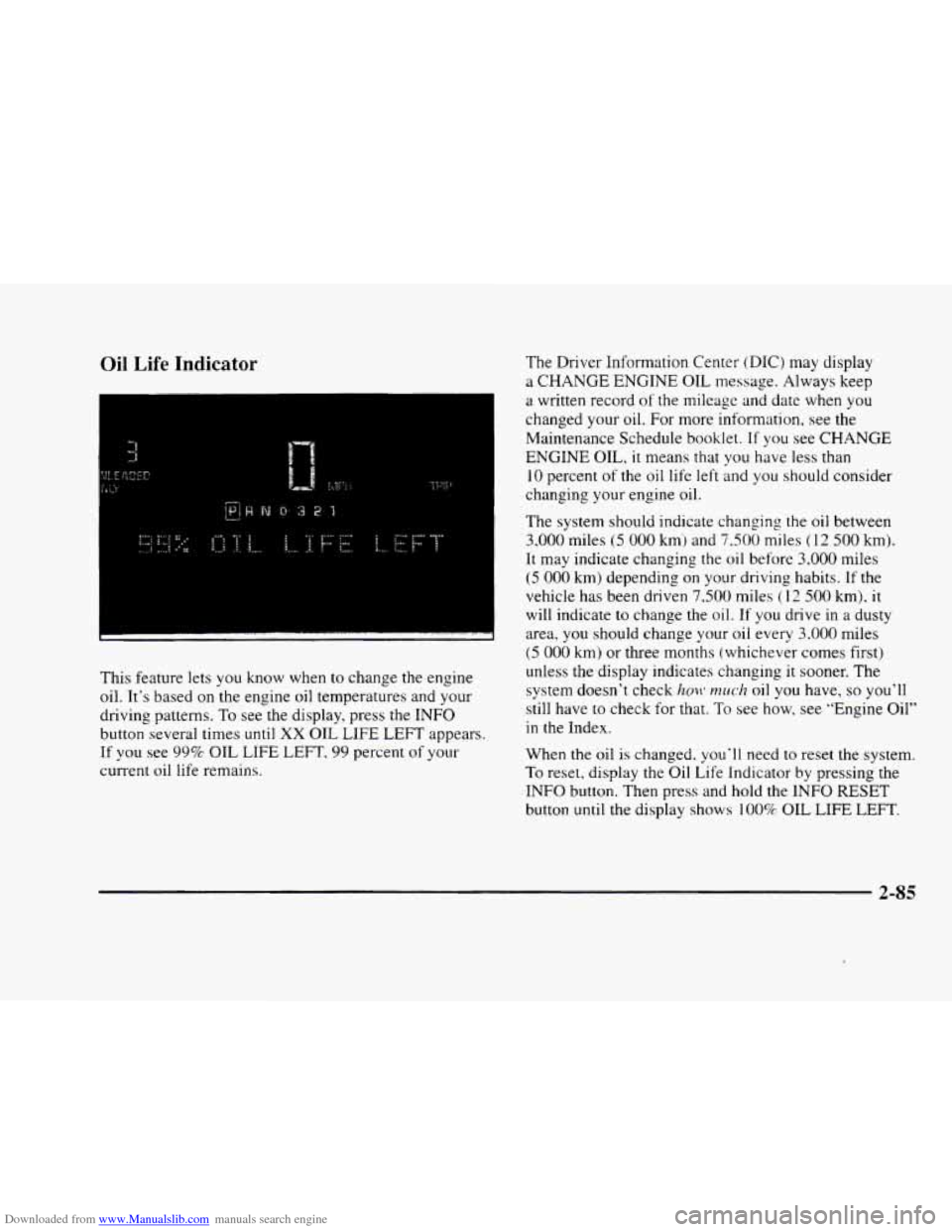
This feature lets you know when to change the engine
oil. It’s based on the engine oil temperatures and your
driving patterns.
To see the display, press the INFO
button several times until XX OIL LIFE LEFT appears.
If you see 99% OIL LIFE LEFT, 99 percent of your
current oil life remains.
The Driver Information Center (DIC) may display
a
CHANGE ENGINE OIL message. Always keep
a written record
of the mileage and date when you
changed your
oil. For more information, see the
Maintenance Schedule booklet.
If you see CHANGE
ENGINE OIL, it means that you have less than
10 percent of the oil life left and you should consider
changing your engine oil.
The system should indicate changing the
oil between
3,000 miles (5 000 kmj and 7,500 miles (1 2 500 km).
It may indicate changing the oil before 3.000 miles
(5 000 km) depending on your driving habits. If the
vehicle has been driven
7.500 miles (1 2 500 km). it
will indicate to change the oil.
If you drive in a dusty
area, you should change your oil every
3.000 miles
(5 000 km) or three months (whichever comes first)
unless the display indicates changing it sooner. The
system doesn’t check
hmt* much oil you have, so you’ll
still have to check for that.
To see how, see “Engine Oil’’
in the Index.
When the oil
is changed. you‘ll need to reset the system.
To reset, display the Oil Life Indicator by pressing the
INFO button. Then press and hold the INFO RESET
button until the display shows
100% OIL LIFE LEFT.
2-85
Page 160 of 380
Downloaded from www.Manualslib.com manuals search engine If your vehicle is sitting out on a hot day and you have it
set on AUTO, the air will first flow out the floor air
outlets for a few seconds. That is normal. This
is to
expel hot air from the air outlets. As the air
is cooled,
the airflow will move through
the air conditioning
outlets. If you start your vehicle with the fan setting
on
HI, it will skip the air conditioning purge.
To avoid blowing cold air in cold weather, the system
will delay turning on the fan until warm air is available.
The length
of delay depends on the outside air
temperature, engine coolant temperature
or the time
since the engine was last started.
As the coolant warms
up,
the blower fan speed will gradually increase and air
will flow from the heater outlets, with some aifflow
to the windshield to prevent fogging under most
normal conditions.
If you leave your vehicle, the system will remember the
control setting the next time
you start your engine,
except for recirculation and defrost. Each ignition cycle
cancels recirculation, whereas,
DEFROST will change
to automatic operation when the ignition is
shut off and
then turned back on.
Manual Operation
You may manually adjust the air delivery mode or
fan speed.
/J AC: This setting directs airflow through the
A0
middle instrument panel outlets.
l# BI-LEVEL: This setting directs air into your
vehicle in two ways.
Cool air is directed to the upper
portion
of your body through the four instrument panel
outlets while warmed air is directed to the floor.
'fl HEATER/DEFROST: This setting directs air to
the floor outlets and toward the windshield.
I# HEATER: This'setting directs warmed air
through the
floor outlets. Some warm air is diverted to
the windshield to minimize fogging.
A0
w.
0
DEFROST Press this button to quickly remove
fog or frost from the windshield. This setting sends most
of the airflow to the windshield with only a small
amount
to the floor outlets.
3-4
Page 162 of 380
Downloaded from www.Manualslib.com manuals search engine Electronic Solar Sensor
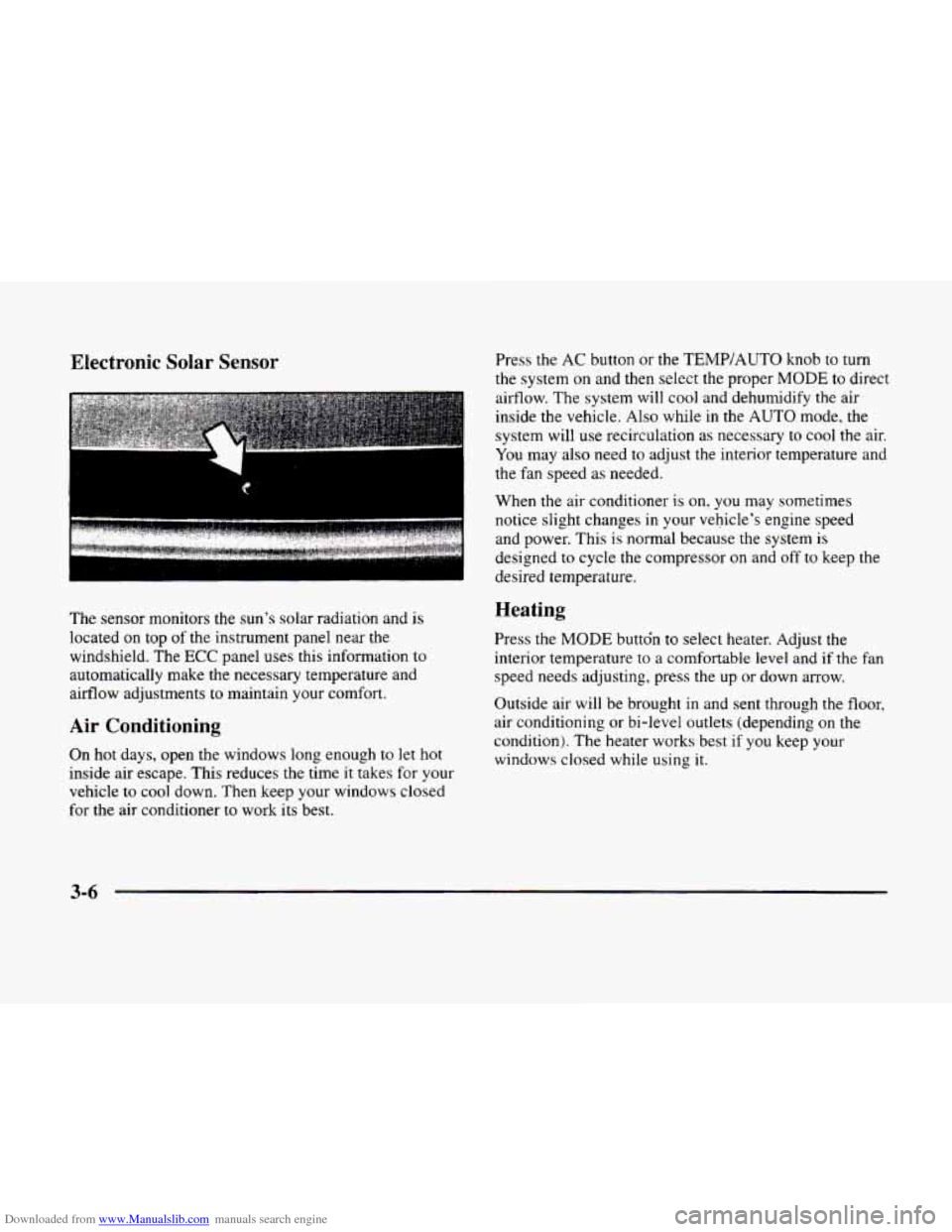
The sensor monitors the sun’s solar radiation and is
located on top of the instrument panel near the
windshield. The
ECC panel uses this information to
automatically make the necessary temperature and
airflow adjustments to maintain your comfort.
Air Conditioning
On hot days, open the windows long enough to let hot
inside air escape. This reduces the time it takes for your
vehicle to
cool down. Then keep your windows closed
for the air conditioner
to work its best. Press the
AC button or the
TEMP/AUTO knob to turn
the system on and then select the proper
MODE to direct
airflow. The system will cool and dehumidify the air
inside the vehicle. Also while
in the AUTO mode, the
system will use recirculation as necessary to cool the air.
You may also need to adjust the interior temperature and
the fan speed as needed.
When
the air conditioner is on, you may sometimes
notice slight changes
in your vehicle’s engine speed
and power. This
is normal because the system is
designed to cycle the compressor on and off to keep the
desired temperature.
Heating
Press the MODE buttdn to select heater. Adjust the
interior temperature to a comfortable level and if the fan
speed needs adjusting, press the up or down arrow.
Outside air will be brought in and sent through the floor,
air conditioning or bi-level outlets (depending on
the
condition). The heater works best if you keep your
windows closed while using
it.
3-6
Page 165 of 380
Downloaded from www.Manualslib.com manuals search engine HVAC Steering Wheel Controls
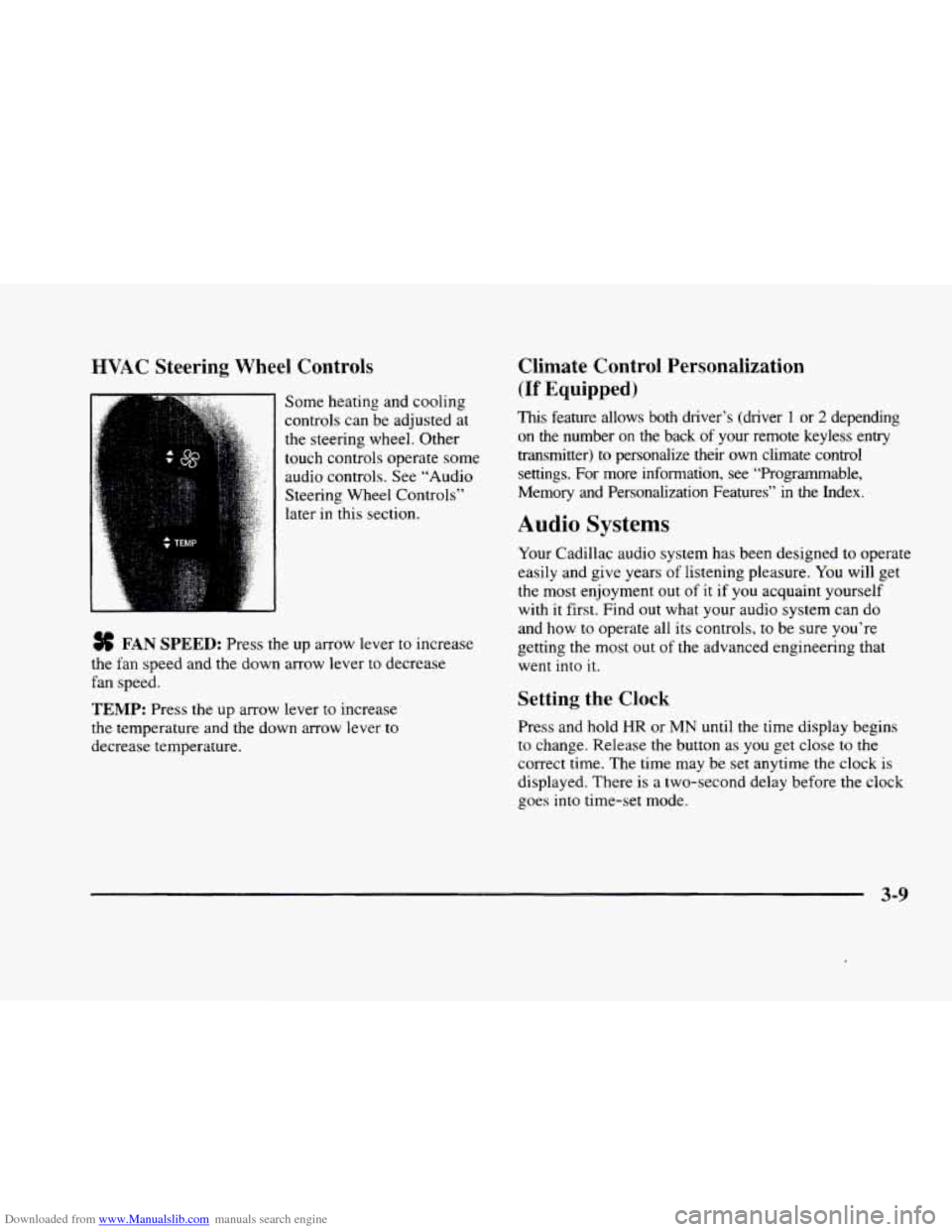
Some heating and cooling
controls can be adjusted at
the steering wheel. Other
touch controls operate some
audio controls. See “Audio
Steering Wheel Controls”
later in this section.
FAN SPEED: Press the up arrow lever to increase
the fan speed and the down arrow lever to decrease
fan speed.
TEMP: Press the up arrow lever to increase
the temperature and the down arrow lever to
decrease temperature.
Climate Control Personalization
(If Equipped j
This feature allows both driver’s (driver 1 or 2 depending
on the number
on the back of your remote keyless entry
transmitter)
to personalize their own climate control
settings. For more information, see “Programmable,
Memory and Personalization Features” in the Index.
Audio Systems
Your Cadillac audio system has been designed to operate
easily and give years of listening pleasure.
You will get
the most enjoyment out of it if you acquaint yourself
with
it first. Find out what your audio system can do
and how
to operate all its controls, to be sure you‘re
getting the most out of the advanced engineering that
went into
it.
Setting the Clock
Press and hold HR or MN until the time display begins
to change. Release the button as you get close to the
correct time. The time may be set anytime the clock is
displayed. There is a two-second delay before the clock
goes into time-set mode.
3-9
Page 168 of 380
Downloaded from www.Manualslib.com manuals search engine Playing a Cassette Tape
With the radio on, insert a cassette tape. The tape will
begin playing as soon as it is inserted. When one side of
your cassette tape is done playing, auto reverse plays the
other side of your cassette tape. If you want to insert a
cassette tape when the ignition is off, first press EJECT.
While the tape is playing,
use the VOL, FADE, BAL,
BASS and TREB controls just as you do for the radio.
Other controls may have different functions when a tape is
inserted. The display will show TAPE with
an arrow to
indicate which side
of the tape is playing. PLAY will
appear
on the display temporarily when a tape is playing.
The display will then revert back to showing the time.
If an error occurs while trying to play a cassette tape,
it
could be that:
The cassette tape is tight and the cassette player
cannot turn the hubs of
the tape. Hold the cassette
tape with the open end down and try turning the right
hub
to the left with a pencil. Flip the tape over and
repeat. If the hubs
do not turn easily, your cassette
tape may be damaged and should
not be used in the
player. Try a new tape to be sure your player is
working properly.
The cassette tape is broken. (Check to see if your
tape is broken. Try a new tape.)
REV Press the left arrow to rewind the tape rapidly.
The radio will play while the tape reverses and
REV
will appear on the display. You may use your station
pushbuttons to tune to another radio station while in
REV mode. Press the left arrow again to return to
playing speed.
FF: Press the right arrow to fast forward to another part
of the tape.
The radio will play while the tape advances
and
FF will appear on the display. You may use your
station pushbuttons to tune to another radio station while
in
FF mode. Press the right arrow again to return to
playing speed.
SEEK-TUNE: Press the right arrow to seek to the next
selection
on the tape. Press the left arrow to search for
the previous selection'on the tape
(REP will appear on
the display). Your tape must have at least three seconds
of silence between each selection for SEEK-TUNE to
work. The sound will mute while seeking.
SCAN: Press this button. SCAN FF will appear on the
display
until the next selection is found and then SCAN
PLAY will appear on the display. Use SCAN to listen to
selections for a few seconds. The tape will
go to a
selection, stop for a few seconds, then go on to the next
selection. Press this button again to stop scanning.
SIDE: Press this button to change the side of the tape
that is playing. (PLAY shows on the display.)
3-12
Page 186 of 380
Downloaded from www.Manualslib.com manuals search engine Whenever a CD magazine with discs is loaded in the
changer, the CD changer symbol will appear on the
radio display. If the
CD changer is checking the
magazine for
CDs, the CD symbol will flash on the
display until the changer is ready to play. When
a CD
begins playing, a disc and track number will be
displayed. The disc numbers are listed
on the front of
the magazine.
All
of the CD functions are controlled by the radio
buttons, except for ejecting the CD magazine.
PUSHBUTTONS: Press buttons one through six to
select compact discs one through six. Press and hold one
of the six pushbuttons until a beep sounds to select
compact discs
7 through 12. These pushbuttons
represent the order
of the discs loaded in the changer.
DSPL: Press and hold this button to see the track
elapsed time (available on the AM-FM Stereo with
Cassette Tape Player
only).
REV/RW Press and hold this button to reverse quickly
through a track selection.
FF: Press and hold this button to advance quickly
through a track selection.
If your vehicle is equipped with the AM-FM Stereo with
Cassette Tape Player, use SEEK-TUNE. For all other
audio systems, use TUNE-SEEK.
SEEK-TUNE: Press the right arrow to seek to the next
selection. Press the left arrow to search for the previous
track selection. The sound will mute while seeking.
TUNE-SEEK: When this button is pressed, it has two
positions. This button works the same, whether it is
pressed to
the first or second position. Press this
button to seek to the next or previous selection on
the
compact disc.
SCAN: Press this button. You will hear the first few
seconds for the first track on each disc. Press this button
again
to stop scanning. (This button is available on the
AM-FM Stereo with Cassette Player only.)
TRACK SCAN: Press SCAN for less than two seconds.
You will hear the first-few seconds
of each track on a
disc. Press SCAN again
to stop TRACK SCAN. The CD
will mute while scanning and SCAN will appear on the
display. (This function
is not available on the AM-FM
Stereo with Cassette Tape Player.)
DISC SCAN: When you press SCAN for more than two
seconds,
you will hear the first few seconds of the first
track
on each disc. Press SCAN again to stop DISC
SCAN. The
CD will mute while scanning and SCAN
will appear on the display. (This function is not available
on the
AM-FM Stereo with Cassette Tape Player.)
Page 187 of 380
Downloaded from www.Manualslib.com manuals search engine RDM: Press this button to hear the tracks in random.
rather than sequential, order. RANDOM will appear
on the display. Press TUNE-SEEK while RDM is on
the display to randomly seek through discs and tracks.
Press
RDM again to turn off random play. (This button
is not available
on the AM-FM Stereo with Cassette
Tape Player.)
SIDE: Press this button to select the next disc in the
changer. If your vehicle is equipped with the AM-FM
Stereo with Cassette Tape P1aye.r. CD and
the disc
number will appear
on the display each time you press
this button. If
your vehicle is equipped with any other
audio system, DISC LOADING will appear
on the
display and the disc number on the radio display will
go
to that of the next available CD each time you press
this button.
SOURCE: Press this button to select a source. The
audio source must be loaded
to play. If none of the audio
sources are loaded,
NO SOURCE LOADED will appear
on the display. Press this button again or BAND to
switch back to the radio. (CD will be displayed for a
few seconds instead
on the AM-FM Stereo with Cassette
Tape Player, then the radio will play.)
EJECT Slide the CD changer door all the way open
and the disc holder will automatically eject.
Compact Disc Changer Errors
CD CHANGER ERROR could be displayed for
the following:
0 The road is too rough. The disc should play when the
road is smoother.
0 The disc is dirty. scratched, wet or loaded label
side up.
0 The air is very humid. If so, wait about an hour and
try again.
CD CHANGER DOOR OPEN
is displayed when the
CD changer door is left open. (CHEK DOOR will be
displayed instead on the
AM-FM Stereo with Cassette
Tape Player.) Completely
close the changer door to
restore normal operation.
If any error occurs repeatedly or if an error cannot be
corrected, please contact your dealer.
3-31
Page 207 of 380
Downloaded from www.Manualslib.com manuals search engine Remember: Anti-lock doesn’t change the time you need
to get your foot up to the brake pedal or always decrease
stopping distance. If you get too close to the vehicle in
front
of you, you won’t have time to apply your brakes
if that vehicle suddenly slows or stops. Always leave
enough room up ahead to stop, even though you have
anti-lock brakes.
Using Anti-Lock
Don’t pump the brakes. Just hold the brake pedal down
firmly and let anti-lock work for you. You may hear the
anti-lock pump or motor operate, and feel the brake
pedal pulsate, but this is normal. If
your vehicle
is in cruise control when the traction
control system begins
to limit wheel spin, the cruise
control will automatically disengage. When road
conditions allow you
to safely use it again, you may
reengage the cruise control. (See “Cruise Control” in
the Index.)
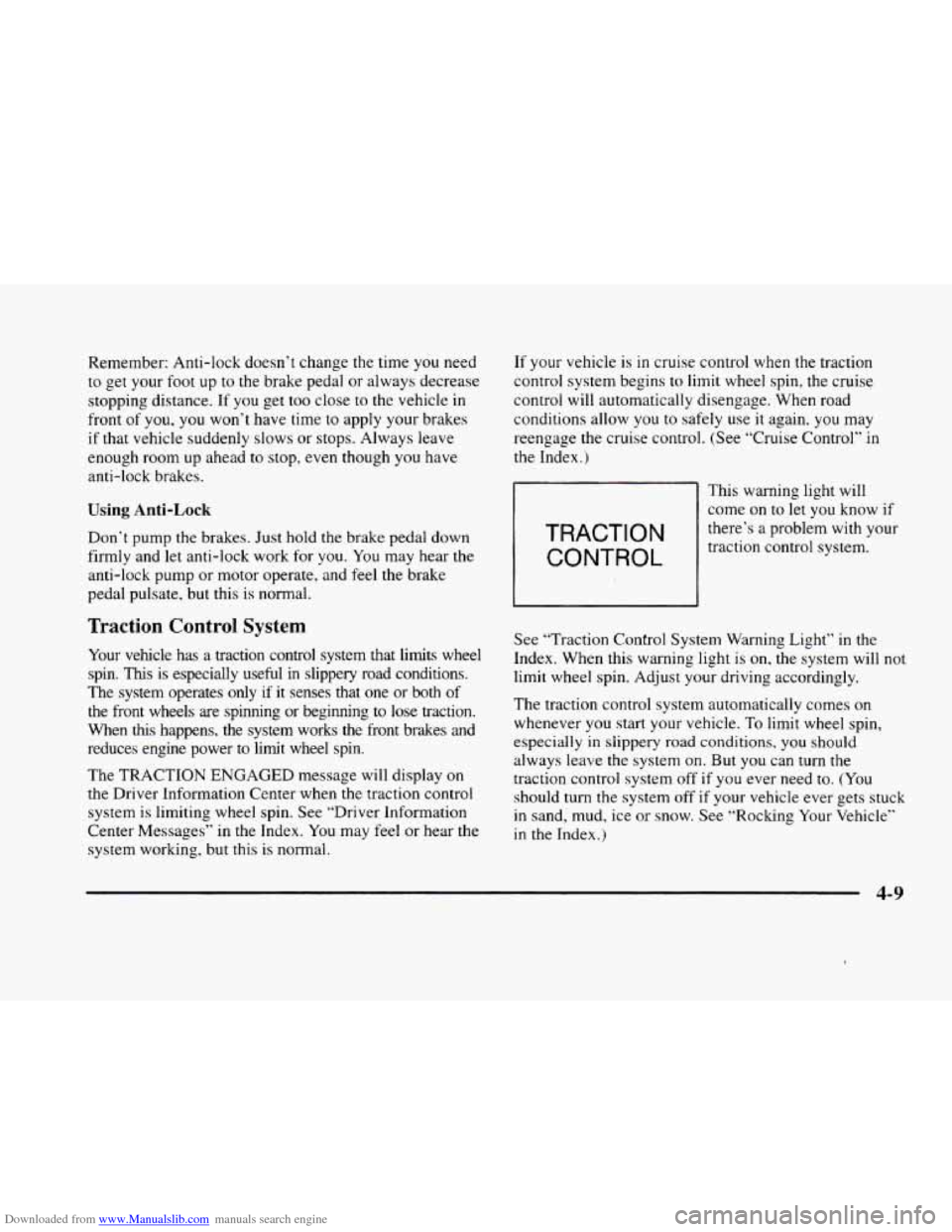
TRACTION
CONTROL
This warning light will
come
on to let you know if
there’s a problem with your
traction control system.
Traction Control System
Your vehicle has a traction control system that limits wheel
spin.
This is especially useful in slippery road conditions.
The system operates only
if it senses that one or both of
the front wheels are spinning or beginning to
lose traction.
When
this happens, the system works the front brakes and
reduces engine power to
limit wheel spin.
The TRACTION ENGAGED message will display on
the Driver Information Center when
the traction control
system
is limiting wheel spin. See ‘.Driver Infomation
Center Messages” in the Index. You may feel or hear the
system working, but this is normal. See
“Traction Control System Warning Light” in the
Index. When this warning light is
on. the system will not
limit wheel spin. Adjust
your driving accordingly.
The traction control system automatically comes on
whenever
you start your vehicle. To limit wheel spin,
especially
in slippery road conditions, you should
always leave the system on. But you can turn the
traction control system
off if you ever need to. (You
should turn the system off if your vehicle ever gets stuck
in sand, mud, ice or snow. See “Rocking Your Vehicle”
in the Index.)
4-9
Page 212 of 380
Downloaded from www.Manualslib.com manuals search engine Do not get too close to the vehicle you want to
pass while you’re awaiting an opportunity. For one
thing, following too closely reduces your area of
vision, especially if you’re following a larger
vehicle.
Also, you won’t have adequate space if the
vehicle ahead suddenly slows or stops. Keep back a
reasonable distance.
When it looks like a chance to pass is coming up,
start to accelerate but stay
in the right lane and don’t
get too close. Time your move
so you will be
increasing speed as the time comes to move into the
other lane. If the way is clear
to pass, you will have a
“running start” that more than makes up for the
distance you would lose by dropping back. And if
something happens to cause you to cancel your pass,
you need only slow down and drop back again and
wait for another opportunity.
If other cars are lined up to pass a slow vehicle, wait
your turn. But take care that someone isn’t trying to
pass
you as you pull out to pass the slow vehicle.
Remember to glance over your shoulder and check
the blind spot.
Check your mirrors, glance over your shoulder, and
start your left lane change signal before moving out
of the right lane to pass. When you are far enough
ahead of the passed vehicle to see its front in your
inside mirror, activate your right lane change signal
and move back into the right lane. (Remember that
your right outside mirror is convex. The vehicle
you
just passed may seem to be farther away from you
than it really
is.)
Try not to pass more than one vehicle at a time
on two-lane roads. Reconsider before passing the
next vehicle.
Don’t overtake a slowly moving vehicle too rapidly.
Even though the brake lamps
are not flashing, it may
be slowing down or starting to turn.
If you’re being passed, make it easy for the
following driver
to get ahead of you. Perhaps you
can ease a little to the right.
4-14