AUX CADILLAC ESCALADE 2008 3.G User Guide
[x] Cancel search | Manufacturer: CADILLAC, Model Year: 2008, Model line: ESCALADE, Model: CADILLAC ESCALADE 2008 3.GPages: 490, PDF Size: 2.65 MB
Page 256 of 490
For optimal audio performance, the headphones must
be worn correctly. The symbol L (Left) appears on
the upper left side, above the ear pad and should be
positioned on the left ear. The symbol R (Right) appears
on the upper right side, above the ear pad and should
be positioned on the right ear.
Notice:Do not store the headphones in heat or
direct sunlight. This could damage the headphones
and repairs will not be covered by your warranty.
Storage in extreme cold can weaken the batteries.
Keep the headphones stored in a cool, dry place.
If the foam ear pads attached to the headphones
become worn or damaged, the pads can be replaced
separately from the headphone set. See your
dealer/retailer for more information.
Battery Replacement
To change the batteries on the headphones, do the
following:
1. Turn the screw to loosen the battery door located
on the left side of the headphones. Slide the
battery door open.
2. Replace the two batteries in the compartment.
Make sure that they are installed correctly, using the
diagram on the inside of the battery compartment.
3. Replace the battery door and tighten the door screw.
If the headphones are to be stored for a long period
of time, remove the batteries and keep them in a cool,
dry place.
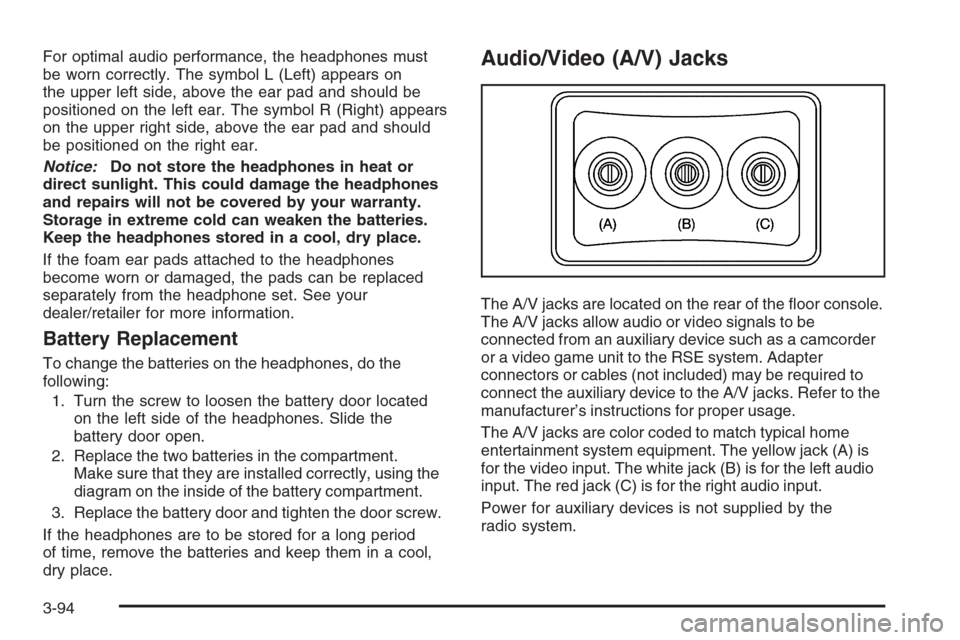
Audio/Video (A/V) Jacks
The A/V jacks are located on the rear of the oor console.
The A/V jacks allow audio or video signals to be
connected from an auxiliary device such as a camcorder
or a video game unit to the RSE system. Adapter
connectors or cables (not included) may be required to
connect the auxiliary device to the A/V jacks. Refer to the
manufacturer’s instructions for proper usage.
The A/V jacks are color coded to match typical home
entertainment system equipment. The yellow jack (A) is
for the video input. The white jack (B) is for the left audio
input. The red jack (C) is for the right audio input.
Power for auxiliary devices is not supplied by the
radio system.
3-94
Page 257 of 490
To use the auxiliary inputs of the RSE system, connect
an external auxiliary device to the color-coded A/V jacks
and turn both the auxiliary device and the video screen
power on. If the video screen is in the DVD player mode,
pressing the AUX (auxiliary) button on the remote control
switches the video screen from the DVD player mode
to the auxiliary device. The radio plays the audio of the
connected auxiliary device by sourcing to auxiliary.
SeeRadio(s) on page 3-70for more information.
For optimal sound quality, increase the portable audio
device’s volume to the loudest level. Higher levels
of volume decreases audio distortion.
It is always best to power your portable audio device
through its own battery while playing.
How to Change the RSE Video Screen
Settings
The screen display mode (normal, full, and zoom),
screen brightness, and setup menu language can be
changed from the on screen setup menu. To change
any feature, perform the following:
1. Press the
z(display menu) button on the remote
control.
2. Use the remote control
Q,R,q,rnavigation
arrows and the
rbutton to use the setup menu.
3. Press the
zmenu button again to remove
the setup menu from the screen.
Audio Output
Audio from the DVD player or auxiliary inputs can be
heard through the following possible sources:
Wireless Headphones
Vehicle Speakers
Vehicle wired headphone jacks on the rear seat
audio system, if your vehicle has this feature.
The RSE system always transmits the audio signal to
the wireless headphones, if there is audio available.
See “Headphones” earlier in this section for more
information.
The DVD player is capable of outputting audio to the
wired headphone jacks on the RSA system, if your
vehicle has this feature. The DVD player can be
selected as an audio source on the RSA system.
SeeRear Seat Audio (RSA) on page 3-102for more
information.
When a device is connected to the radio’s auxiliary
input jack, if your vehicle has this feature, or A/V jacks,
the rear seat passengers are be able to hear audio
from the auxiliary device through the wireless or wired
headphones. The front seat passengers are able to
listen to playback from this device through the vehicle
speakers by selecting AUX as the source on the radio.
3-95
Page 261 of 490
AUX (Auxiliary):Press to switch the system between
the DVD player and an auxiliary source.
If your vehicle has a third row video screen, the AUX
button controls the source display on the second row
video screen, and the third row video screen as
described in the table below:
Aux Button
PressSecond Row
ScreenThird Row
Screen
Default State
(No Press)DVD Media DVD Media
First PressAux Video
SourceAux Video
Source
Second Press DVD MediaAux Video
Source
Third PressAux Video
SourceDVD Media
Fourth PressReturn to
Default StateReturn to
Default State
d(Camera):Press to change camera angles on DVDs
that have this feature when a DVD is playing. The format
and content of this function varies for each disc.1 through 0 (Numeric Keypad):The numeric keypad
provides the capability of direct chapter or track
number selection.
\(Clear):Press within three seconds after entering a
numeric selection, to clear all numeric inputs.
}10 (Double Digit Entries):Press to select chapter
or track numbers greater than 9. Press this button before
entering the number.
Battery Replacement
To change the remote control batteries, do the following:
1. Slide the rear cover back on the remote control.
2. Replace the two batteries in the compartment.
Make sure that they are installed correctly,
using the diagram on the inside of the battery
compartment.
3. Replace the battery cover.
3-99
Page 262 of 490
If the remote control is to be stored for a long period of
time, remove the batteries and keep them in a cool,
dry place.
Problem Recommended Action
No power. The ignition might not be
turned ON/RUN or in
ACC/ACCESSORY.
The picture does not ll the
screen. There are black
borders on the top and
bottom or on both sides
or it looks stretched out.Check the display mode
settings in the setup menu
by pressing the display
menu button on the remote
control.
In auxiliary mode, the
picture moves or scrolls.Check the auxiliary input
connections at both
devices.
The remote control
does not work.Check to make sure
there is no obstruction
between the remote
control and the
transmitter window.
Check the batteries to
make sure they are not
dead or installed
incorrectly.
Problem Recommended Action
After stopping the player,
I push Play but
sometimes the DVD
starts where I left off
and sometimes at the
beginning.If the stop button was
pressed one time, the
DVD player resumes
playing where the DVD
was stopped. If the stop
button was pressed two
times the DVD player
begins to play from the
beginning of the DVD.
The auxiliary source is
running but there is no
picture or sound.Check that the RSE video
screen is in the auxiliary
source mode.
Check the auxiliary
input connections at
both devices.
Sometimes the wireless
headphone audio cuts
out or buzzes.Check for obstructions,
low batteries, reception
range, and interference
from cellular telephone
towers or by using your
cellular telephone in
the vehicle.
Check that the
headphones are on
correctly using the L (left)
and R (right) on the
headphones.
3-100
Page 263 of 490
Problem Recommended Action
I lost the remote and/or
the headphones.See your dealer/retailer
for assistance.
The DVD is playing,
but there is no picture
or sound.Check that the RSE video
screen is sourced to the
DVD player.
DVD Display Error Messages
The DVD display error message depends on which
radio you have. The video screen might display one of
the following:
Disc Load/Eject Error:This message displays when
there are disc load or eject problems.
Disc Format Error:This message displays, if the disc
is inserted with the disc label wrong side up, or if
the disc is damaged.
Disc Region Error:This message displays, if the disc
is not from a correct region.
No Disc Inserted:This message displays, if no disc
is present when
Zor DVD AUX is pressed on
the radio.
DVD Distortion
Video distortion may occur when operating cellular
phones, scanners, CB radios, Global Position Systems
(GPS)*, two-way radios, mobile fax, or walkie talkies.
It might be necessary to turn off the DVD player when
operating one of these devices in or near the vehicle.
*Excludes the OnStar
®System.
Cleaning the RSE Overhead Console
When cleaning the RSE overhead console surface,
use only a clean cloth dampened with clean water.
Cleaning the Video Screen
When cleaning the video screen, use only a clean cloth
dampened with clean water. Use care when directly
touching or cleaning the screen, as damage can result.
3-101
Page 264 of 490
Rear Seat Audio (RSA)
This feature allows rear seat passengers to listen to and
control any of the music sources: radio, CDs, DVDs,
or other auxiliary sources. The rear seat passengers
can control the same music sources the front seat
passengers are listening to (dual control) or a different
source. For example, rear seat passengers can
listen to and control a CD through the headphones,
while the driver listens to the radio through the speakers.
The rear seat passengers have control of the volume
for each set of headphones.
You can operate the RSA functions even when the
main radio is off. The front audio system will display
the headphone icon when the RSA is on, and will
disappear from the display when it is off.
Audio can be heard through wired headphones
(not included) plugged into the jacks on the RSA.
If your vehicle has this feature, audio can also be
heard on Channel 2 of the wireless headphones.
The audio system allows the rear speakers to continue
playing even when the RSA audio is active through
the headphones.
To listen to an iPod or portable audio device through
the RSA, attach the iPod or portable audio device to
the front auxiliary input (if available), located on the
front audio system. Turn the iPod on, then choose the
front auxiliary input with the RSA SRCE button.
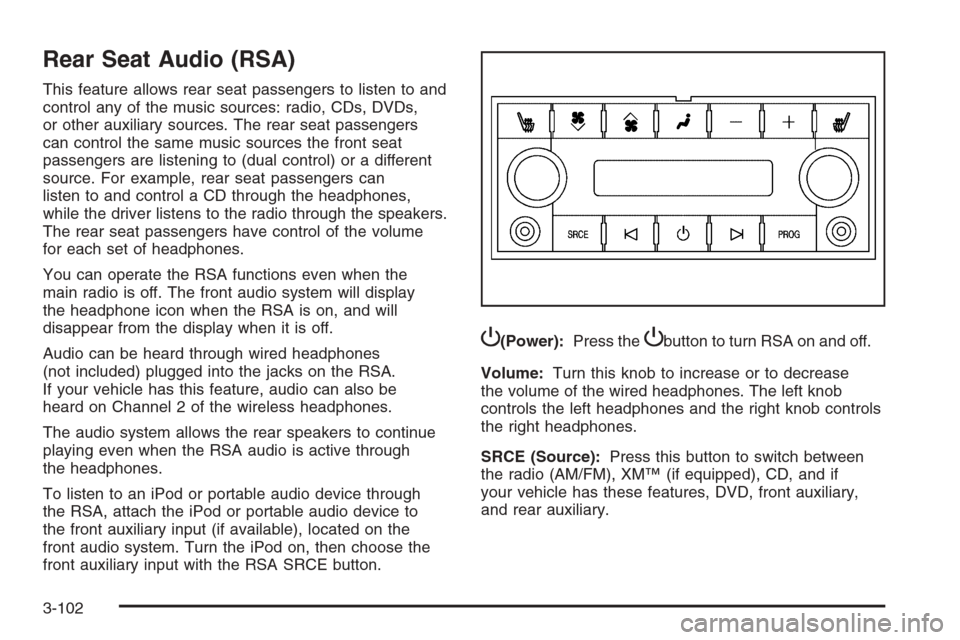
P(Power):Press thePbutton to turn RSA on and off.
Volume:Turn this knob to increase or to decrease
the volume of the wired headphones. The left knob
controls the left headphones and the right knob controls
the right headphones.
SRCE (Source):Press this button to switch between
the radio (AM/FM), XM™ (if equipped), CD, and if
your vehicle has these features, DVD, front auxiliary,
and rear auxiliary.
3-102
Page 267 of 490
SRCE (Source):Press this button to switch between
the radio (AM, FM), XM™ (if equipped), CD, and if your
vehicle has these features, DVD, front auxiliary, and
rear auxiliary.
+
e−e(Volume):Press the plus or minus volume
button to increase or to decrease the radio volume.
¨(Seek):Press the seek arrow to go to the next
radio station while in AM, FM, or XM™ (if equipped).
Press the seek arrow to go to the next track or chapter
while sourced to the CD or DVD slot. Press the seek
arrow to go to the next disc while sourced to a CD
or DVD changer, if multiple discs are loaded.
Radio Reception
Frequency interference and static can occur during
normal radio reception if items such as cell phone
chargers, vehicle convenience accessories, and external
electronic devices are plugged into the accessory
power outlet. If there is interference or static, unplug
the item from the accessory power outlet.
AM
The range for most AM stations is greater than for FM,
especially at night. The longer range can cause station
frequencies to interfere with each other. For better radio
reception, most AM radio stations boost the power levels
during the day, and then reduce these levels during the
night. Static can also occur when things like storms and
power lines interfere with radio reception. When this
happens, try reducing the treble on your radio.
FM Stereo
FM stereo gives the best sound, but FM signals reach
only about 10 to 40 miles (16 to 65 km). Tall buildings or
hills can interfere with FM signals, causing the sound
to fade in and out.
XM™ Satellite Radio Service
XM™ Satellite Radio Service gives digital radio reception
from coast-to-coast in the 48 contiguous United States,
and in Canada. Just as with FM, tall buildings or hills can
interfere with satellite radio signals, causing the sound to
fade in and out. In addition, traveling or standing under
heavy foliage, bridges, garages, or tunnels may cause
loss of the XM™ signal for a period of time. The radio
may display No Signl to indicate interference.
3-105
Page 324 of 490
If you are charging a remote (non-vehicle) battery,
press the Tow/Haul mode button located at the
end of the shift lever. This will boost the vehicle
system voltage and properly charge the battery.
Electric Brake Control Wiring
Provisions
These wiring provisions are included with your vehicle
as part of the heavy-duty trailer wiring package.
These provisions are for an electric brake controller.
The red/black stripe power feed will not be connected
to the battery until the ring terminal is unstowed
and connected to the underhood electrical center.
The instrument panel contains blunt cut wires near
the data link connector for the trailer brake controller.
The harness contains the following wires:
Dark Blue: Auxiliary
Red/Black: Battery
Light Blue/White: Brake Switch
White: Ground
It should be installed by your dealer/retailer
or a qualied service center.
Trailer Recommendations
You must subtract your hitch loads from the Cargo
Weight Rating (CWR). CWR is the maximum weight
of the load your vehicle can carry. It doesn’t include the
weight of the people inside. But you can gure about
150 lbs. (68 kg) for each seat. The total cargo load must
not be more than your vehicle’s CWR.
Weigh your vehicle with the trailer attached, so that you
won’t go over the GVWR or GAWR. If you are using
a weight-distributing hitch, weigh the vehicle without
the spring bars in place.
You’ll get the best performance if you spread out the
weight of your load the right way, and if you choose
the correct hitch and trailer brakes.
For more information, seeTowing a Trailer on page 4-44.
4-56
Page 435 of 490
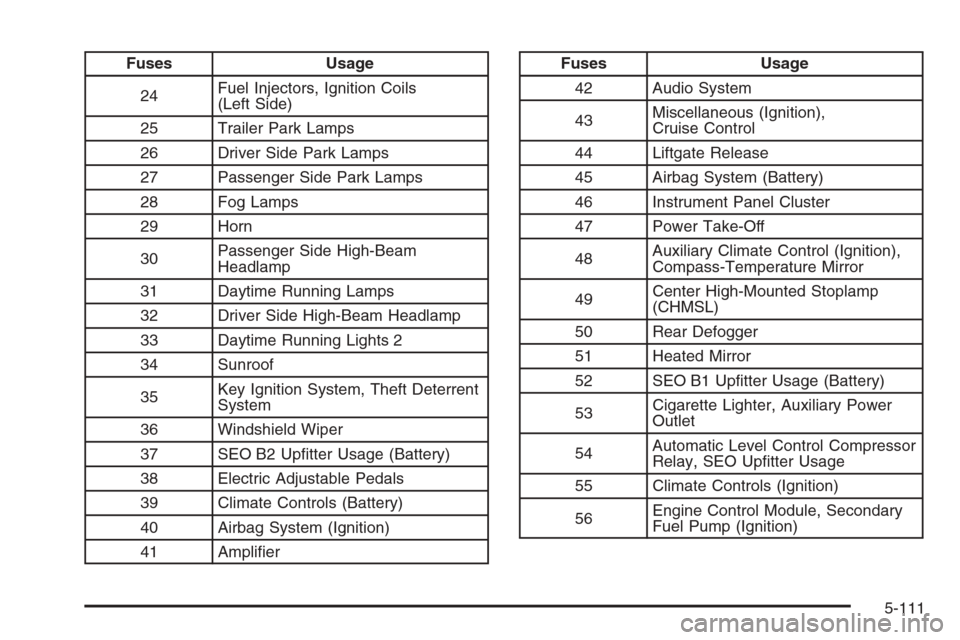
Fuses Usage
24Fuel Injectors, Ignition Coils
(Left Side)
25 Trailer Park Lamps
26 Driver Side Park Lamps
27 Passenger Side Park Lamps
28 Fog Lamps
29 Horn
30Passenger Side High-Beam
Headlamp
31 Daytime Running Lamps
32 Driver Side High-Beam Headlamp
33 Daytime Running Lights 2
34 Sunroof
35Key Ignition System, Theft Deterrent
System
36 Windshield Wiper
37 SEO B2 Uptter Usage (Battery)
38 Electric Adjustable Pedals
39 Climate Controls (Battery)
40 Airbag System (Ignition)
41 AmplierFuses Usage
42 Audio System
43Miscellaneous (Ignition),
Cruise Control
44 Liftgate Release
45 Airbag System (Battery)
46 Instrument Panel Cluster
47 Power Take-Off
48Auxiliary Climate Control (Ignition),
Compass-Temperature Mirror
49Center High-Mounted Stoplamp
(CHMSL)
50 Rear Defogger
51 Heated Mirror
52 SEO B1 Uptter Usage (Battery)
53Cigarette Lighter, Auxiliary Power
Outlet
54Automatic Level Control Compressor
Relay, SEO Uptter Usage
55 Climate Controls (Ignition)
56Engine Control Module, Secondary
Fuel Pump (Ignition)
5-111