ESP CADILLAC ESCALADE 2009 3.G Owner's Manual
[x] Cancel search | Manufacturer: CADILLAC, Model Year: 2009, Model line: ESCALADE, Model: CADILLAC ESCALADE 2009 3.GPages: 586, PDF Size: 4.47 MB
Page 249 of 586
Voice Pass-Thru
Voice Pass-Thru allows access to the voice recognition
commands on the cell phone. See the cell phone
manufacturers user guide to see if the cell phone
supports this feature. This feature can be used to
verbally access contacts stored in the cell phone.
1. Press and hold
bgfor two seconds. The system
responds with “Ready” followed by a tone.
2. Say “Bluetooth
®”. The system responds with
“Bluetooth®ready” followed by a tone.
3. Say “Voice”. The system responds with “OK,
accessing
The cell phone’s normal prompt messages will
go through its cycle according to the phone’s
operating instructions.
Dual Tone Multi-Frequency (DTMF)
Tones
The in-vehicle Bluetooth®system can send numbers
and numbers stored as name tags during a call. This is
used when calling a menu driven phone system.
Account numbers can be programmed into the
phonebook for retrieval during menu driven calls.
Sending a Number During a Call
1. Pressbg. The system responds with “Ready”
followed by a tone.
2. Say “Dial”. The system responds with “Say a
number to send tones” followed by a tone.
3. Say the number to send.
If the system clearly recognizes the number it
responds with “OK, Sending Number” and the
dial tones are sent and the call continues.
If the system is not sure it recognized the
number properly, it responds “Dial Number,
Please say yes or no?” followed by a tone. If the
number is correct, say “Yes”. The system
responds with “OK, Sending Number” and the
dial tones are sent and the call continues.
3-83
Page 250 of 586
Sending a Stored Name Tag During a Call
1. Pressbg. The system responds with “Ready”
followed by a tone.
2. Say “Send name tag.” The system responds
with “Say a name tag to send tones” followed
by a tone.
3. Say the name tag to send.
If the system clearly recognizes the name tag it
responds with “OK, Sending
the dial tones are sent and the call continues.
If the system is not sure it recognized the name
tag properly, it responds “Dial
Please say yes or no?” followed by a tone. If the
name tag is correct, say “Yes”. The system
responds with “OK, Sending
the dial tones are sent and the call continues.
Clearing the System
Unless information is deleted out of the in-vehicle
Bluetooth®system, it will be retained indenitely. This
includes all saved name tags in the phonebook and
phone pairing information. For information on how
to delete this information, see the above sections on
Deleting a Paired Phone and Deleting Name Tags.
Other Information
The Bluetooth®word mark and logos are owned by the
Bluetooth®SIG, Inc. and any use of such marks by
General Motors is under license. Other trademarks and
trade names are those of their respective owners.
This device complies with Part 15 of the FCC Rules.
Operation is subject to the following two conditions:
1. This device may not cause harmful interference.
2. This device must accept any interference received,
including interference that may cause undesired
operation.
This device complies with RSS-210 of Industry Canada.
Operation is subject to the following two conditions:
1. This device may not cause interference.
2. This device must accept any interference received,
including interference that may cause undesired
operation of the device.
Changes or modications to this system by other than
an authorized service facility could void authorization to
use this equipment.
3-84
Page 280 of 586
SRCE (Source/Voice Recognition):Press to switch
between the radio (AM, FM, XM), CD, and for vehicles
with, DVD, and rear auxiliary.
Press and hold this button for longer than one second
to initiate voice recognition. SeeVoice Recognition
on page 4-82for more information.
+
e−e(Volume): Press to increase or to decrease
the radio volume.
¨(Seek):Press to go to the next radio station while in
AM, FM, or XM™. Press
¨to go to the next track or
chapter while sourced to the CD or DVD slot. Press the
¨if multiple discs are loaded to go to the next disc while
sourced to a CD player.
Radio Reception
Frequency interference and static can occur during
normal radio reception if items such as cell phone
chargers, vehicle convenience accessories, and external
electronic devices are plugged into the accessory power
outlet. If there is interference or static, unplug the item
from the accessory power outlet.
AM
The range for most AM stations is greater than for FM,
especially at night. The longer range can cause station
frequencies to interfere with each other. For better radio
reception, most AM radio stations boost the power levels
during the day, and then reduce these levels during the
night. Static can also occur when things like storms and
power lines interfere with radio reception. When this
happens, try reducing the treble on the radio.
FM Stereo
FM signals only reach about 10 to 40 miles
(16 to 65 km). Although the radio has a built-in electronic
circuit that automatically works to reduce interference,
some static can occur, especially around tall buildings or
hills, causing the sound to fade in and out.
XM™ Satellite Radio Service
XM Satellite Radio Service gives digital radio reception
from coast-to-coast in the 48 contiguous United States,
and in Canada. Just as with FM, tall buildings or hills can
interfere with satellite radio signals, causing the sound to
fade in and out. In addition, traveling or standing under
heavy foliage, bridges, garages, or tunnels may cause
loss of the XM signal for a period of time.
3-114
Page 293 of 586
Using Your Stored Preset Destinations
These destinations are available for selection while
driving.
1. If the radio is already on with a map disc inserted,
skip to Step 5.
2. Press
Oto turn the system on.
3. Insert the DVD map disc. See “Installing the Map
DVD” underMaps on page 4-14for more
information.
4. A caution may appear. Touch the OK screen button
to proceed.
5. Press the DEST hard key.
6. Select one of the available preset destination
screen buttons. A map screen, with the destination
marked appears.
7. Select the route preference (Fastest, Shortest,
or Other). The system calculates and highlights
the route.
8. Select the Start Guidance screen button. The route
is now ready to be started.
See “Preset Destination” underDestination on page 4-24
for more information.
Canceling Guidance
Guidance is canceled once the nal destination is
reached. To cancel guidance prior to arrival at the nal
destination:
1. Press the DEST hard key.
2. Press the Cancel Guidance screen button.
3. Press OK to conrm.
Guidance Volume
Adjust the volume of voice guidance prompts:
1. Press the CONFIG hard key to enter the menu
options, then press the CONFIG key repeatedly
until Nav is selected or touch the Nav screen button.
2. Press the Voice Prompt screen button.
3. Press the + (plus) or – (minus) screen buttons to
increase or to decrease the volume of the voice
prompts. The system responds with the adjusted
voice level.
See “Voice Prompt ” underConfigure Menu on
page 4-42for more information.
Cleaning the Display
Use a soft clean cotton cloth dampened with clean
water.
4-11
Page 325 of 586
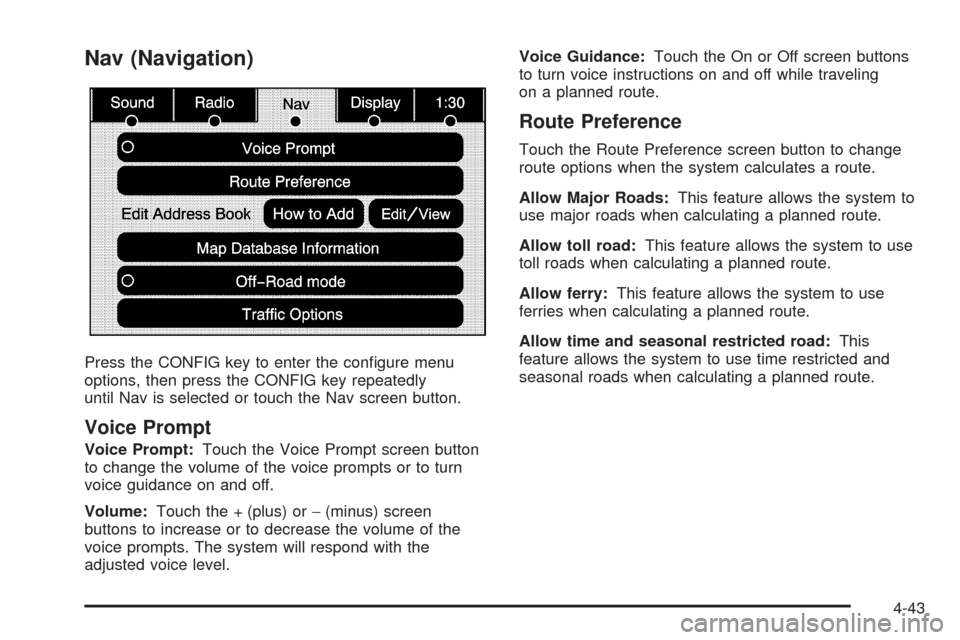
Nav (Navigation)
Press the CONFIG key to enter the congure menu
options, then press the CONFIG key repeatedly
until Nav is selected or touch the Nav screen button.
Voice Prompt
Voice Prompt:Touch the Voice Prompt screen button
to change the volume of the voice prompts or to turn
voice guidance on and off.
Volume:Touch the + (plus) or−(minus) screen
buttons to increase or to decrease the volume of the
voice prompts. The system will respond with the
adjusted voice level.Voice Guidance:Touch the On or Off screen buttons
to turn voice instructions on and off while traveling
on a planned route.
Route Preference
Touch the Route Preference screen button to change
route options when the system calculates a route.
Allow Major Roads:This feature allows the system to
use major roads when calculating a planned route.
Allow toll road:This feature allows the system to use
toll roads when calculating a planned route.
Allow ferry:This feature allows the system to use
ferries when calculating a planned route.
Allow time and seasonal restricted road:This
feature allows the system to use time restricted and
seasonal roads when calculating a planned route.
4-43
Page 327 of 586
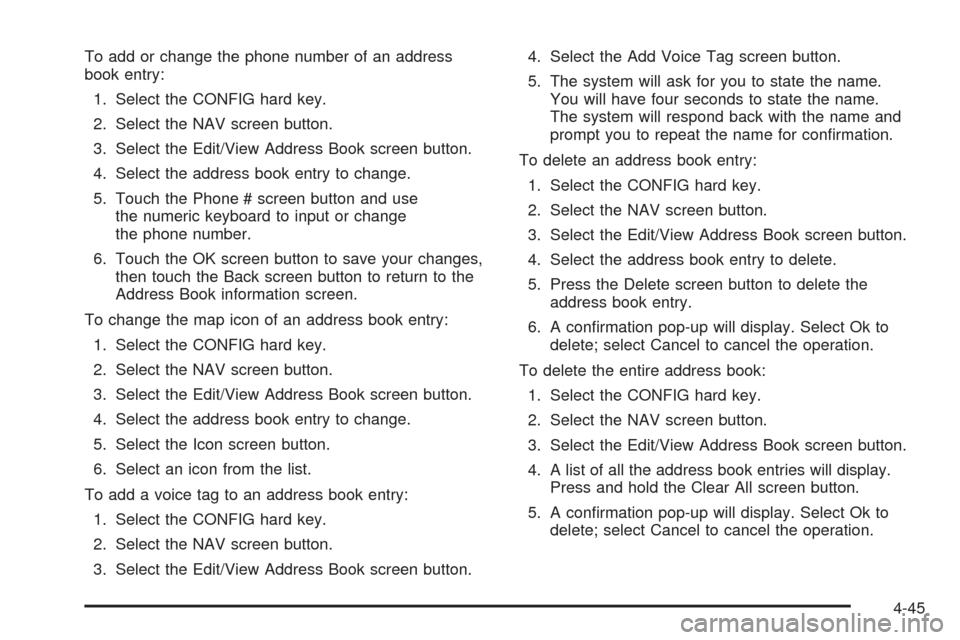
To add or change the phone number of an address
book entry:
1. Select the CONFIG hard key.
2. Select the NAV screen button.
3. Select the Edit/View Address Book screen button.
4. Select the address book entry to change.
5. Touch the Phone # screen button and use
the numeric keyboard to input or change
the phone number.
6. Touch the OK screen button to save your changes,
then touch the Back screen button to return to the
Address Book information screen.
To change the map icon of an address book entry:
1. Select the CONFIG hard key.
2. Select the NAV screen button.
3. Select the Edit/View Address Book screen button.
4. Select the address book entry to change.
5. Select the Icon screen button.
6. Select an icon from the list.
To add a voice tag to an address book entry:
1. Select the CONFIG hard key.
2. Select the NAV screen button.
3. Select the Edit/View Address Book screen button.4. Select the Add Voice Tag screen button.
5. The system will ask for you to state the name.
You will have four seconds to state the name.
The system will respond back with the name and
prompt you to repeat the name for conrmation.
To delete an address book entry:
1. Select the CONFIG hard key.
2. Select the NAV screen button.
3. Select the Edit/View Address Book screen button.
4. Select the address book entry to delete.
5. Press the Delete screen button to delete the
address book entry.
6. A conrmation pop-up will display. Select Ok to
delete; select Cancel to cancel the operation.
To delete the entire address book:
1. Select the CONFIG hard key.
2. Select the NAV screen button.
3. Select the Edit/View Address Book screen button.
4. A list of all the address book entries will display.
Press and hold the Clear All screen button.
5. A conrmation pop-up will display. Select Ok to
delete; select Cancel to cancel the operation.
4-45
Page 360 of 586
Day:Touch this screen button and the system will
make the navigation screen background darken.
Monitor:From the DVD Setup screen, touch this button
to adjust the viewing angle of the DVD on the
navigation screen. This is not available on all DVDs.
This button is not available for DVD audio
Touch the
ebutton to close the screen in from the
left and right sides.
Touch the
Jbutton to ll the screen on the left and
right sides.
Touch the
dbutton to ll the screen on the top and
bottom.
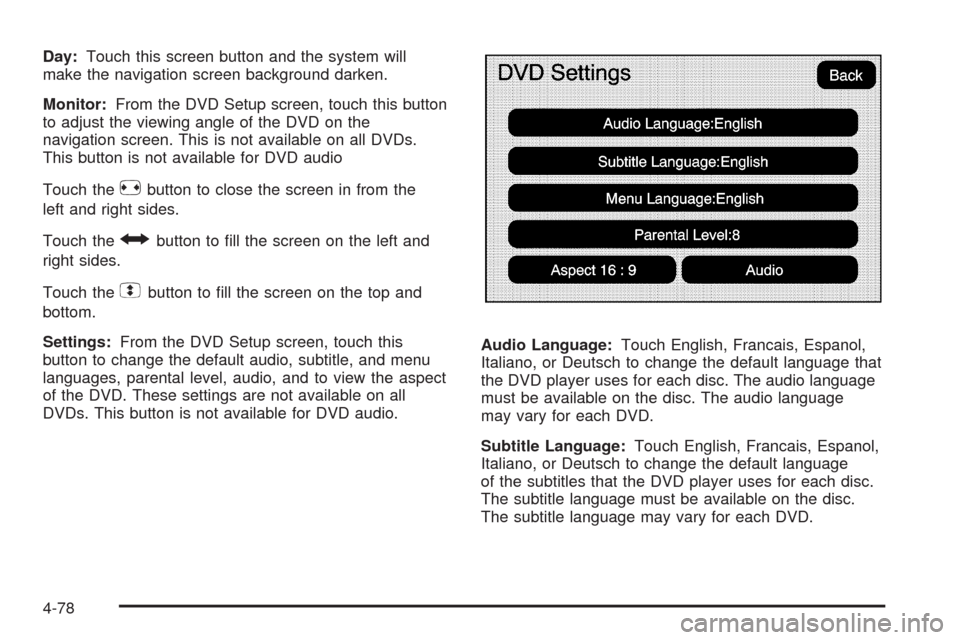
Settings:From the DVD Setup screen, touch this
button to change the default audio, subtitle, and menu
languages, parental level, audio, and to view the aspect
of the DVD. These settings are not available on all
DVDs. This button is not available for DVD audio.Audio Language:Touch English, Francais, Espanol,
Italiano, or Deutsch to change the default language that
the DVD player uses for each disc. The audio language
must be available on the disc. The audio language
may vary for each DVD.
Subtitle Language:Touch English, Francais, Espanol,
Italiano, or Deutsch to change the default language
of the subtitles that the DVD player uses for each disc.
The subtitle language must be available on the disc.
The subtitle language may vary for each DVD.
4-78
Page 361 of 586
Menu Language:Touch English, Francais, Espanol,
Italiano, or Deutsch to change the default language
of the DVD video menus. The menu language must be
available on the disc. The menu language may vary
for each DVD.
Parental Level:Touch this button to change the rating
level to only allow the play of DVDs with a certain
rating. The rating selection is 1 through 8, with 1 Kids
Safe being a G rating. If the 1 is selected, any DVD with
a rating above G will not be able to be viewed without
entering a password.
When the parental level is rst entered a keyboard will
appear on the display and a four-digit password will
need to be created. Type in a password that you will be
able to remember. Once the password is created,
you can then select a rating level.
If you would like to change the rating level, press the
Parental Level button, then press the Password button.
Type in the password and then change the rating level.
If the password has been forgotten, contact your
dealer/retailer.
This may not be available on all DVDs.Aspect:Touch this button to change the aspect ratio of
the DVD. This may not be available on all DVDs.
y(Next Track/Chapter):Press this hard key to go to
the next track or chapter. This button may not work
when the DVD is playing the copyright information or the
previews.
z(Previous Track/Chapter):Press this hard key to
return to the start of the current track or chapter.
Press this button again to go to the previous track or
chapter. This button may not work when the DVD
is playing the copyright information or the previews.
w(Tuning Knob):Turn this knob counterclockwise
one notch to go to the start of the current chapter/track,
turn it again to go to the previous chapter/track. Turn
this knob clockwise to go to the next chapter/track.
4-79
Page 366 of 586
Storing Voice Tags
From the address book entry information page, press
the Add Voice tag screen button. The system responds
“Name Please?” and you will have four seconds to
record a name. The system asks for conrmation of the
name before saving it as a voice tag.
Navigation Help
Navigation Help:This command instructs the system
to assist with navigation commands.
Display Commands
Use the following display commands to set the
display mode.
Display [set] day [mode]:Sets the display to
daytime mode.
Display [set] night [mode]:Sets the display to
night mode.
Display [set] auto [mode]:Sets the display to
automatic mode. The system changes between
day and night mode automatically.
System help:Instructs the system to assist with
display commands.
Radio Commands
The following are radio commands that can be accessed
by clearly stating the commands exactly as they are
written.
Radio [band] [select] AM, radio [band] [select] FM,
radio [band] [select] XM, radio [band] [select]
satellite:Instructs the system to go to either the AM,
FM, or XM (if equipped).
Radio [select] (frequency) AM, radio [select]
(frequency) FM:Instructs the system to go to a specic
frequency on either AM or FM.
Radio [select] (channel) XM, radio [select] (channel)
satellite:Instructs the system to go to a specic
channel on the XM™ band (if equipped).
Radio help:Instructs the system to assist with radio
commands.
4-84
Page 371 of 586
Drunk Driving
{CAUTION:
Drinking and then driving is very dangerous. Your
reexes, perceptions, attentiveness, and judgment
can be affected by even a small amount of
alcohol. You can have a serious — or even
fatal — collision if you drive after drinking. Do not
drink and drive or ride with a driver who has been
drinking. Ride home in a cab; or if you are with a
group, designate a driver who will not drink.
Death and injury associated with drinking and driving is
a global tragedy.
Alcohol affects four things that anyone needs to drive a
vehicle: judgment, muscular coordination, vision, and
attentiveness.
Police records show that almost 40 percent of all motor
vehicle-related deaths involve alcohol. In most cases,
these deaths are the result of someone who was drinking
and driving. In recent years, more than 17,000 annual
motor vehicle-related deaths have been associated with
the use of alcohol, with about 250,000 people injured.For persons under 21, it is against the law in every
U.S. state to drink alcohol. There are good medical,
psychological, and developmental reasons for
these laws.
The obvious way to eliminate the leading highway
safety problem is for people never to drink alcohol
and then drive.
Medical research shows that alcohol in a person’s
system can make crash injuries worse, especially
injuries to the brain, spinal cord, or heart. This means
that when anyone who has been drinking — driver
or passenger — is in a crash, that person’s chance
of being killed or permanently disabled is higher
than if the person had not been drinking.
Control of a Vehicle
The following three systems help to control the vehicle
while driving — brakes, steering, and accelerator.
At times, as when driving on snow or ice, it is easy to
ask more of those control systems than the tires
and road can provide. Meaning, you can lose control of
the vehicle. SeeStabiliTrak
®System on page 5-6.
Adding non-dealer/non-retailer accessories can affect
vehicle performance. SeeAccessories and Modifications
on page 6-3.
5-3