lights CADILLAC ESCALADE 2012 3.G Owner's Manual
[x] Cancel search | Manufacturer: CADILLAC, Model Year: 2012, Model line: ESCALADE, Model: CADILLAC ESCALADE 2012 3.GPages: 538, PDF Size: 7.59 MB
Page 251 of 538
Black plate (67,1)Cadillac Escalade/Escalade ESV Owner Manual - 2012
Infotainment System 7-67
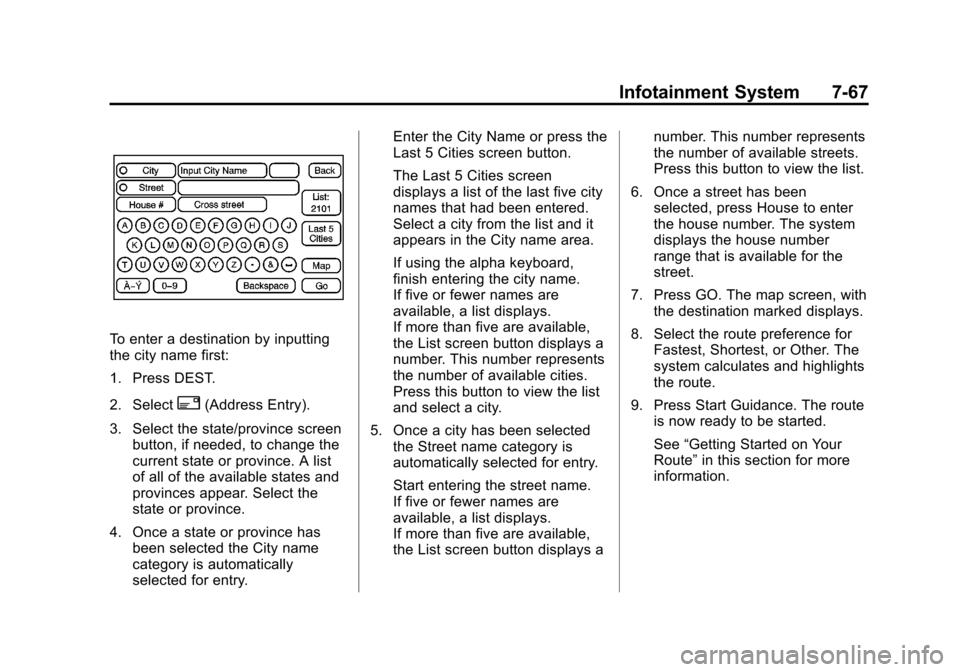
To enter a destination by inputting
the city name first:
1. Press DEST.
2. Select
2(Address Entry).
3. Select the state/province screen button, if needed, to change the
current state or province. A list
of all of the available states and
provinces appear. Select the
state or province.
4. Once a state or province has been selected the City name
category is automatically
selected for entry. Enter the City Name or press the
Last 5 Cities screen button.
The Last 5 Cities screen
displays a list of the last five city
names that had been entered.
Select a city from the list and it
appears in the City name area.
If using the alpha keyboard,
finish entering the city name.
If five or fewer names are
available, a list displays.
If more than five are available,
the List screen button displays a
number. This number represents
the number of available cities.
Press this button to view the list
and select a city.
5. Once a city has been selected the Street name category is
automatically selected for entry.
Start entering the street name.
If five or fewer names are
available, a list displays.
If more than five are available,
the List screen button displays a number. This number represents
the number of available streets.
Press this button to view the list.
6. Once a street has been selected, press House to enter
the house number. The system
displays the house number
range that is available for the
street.
7. Press GO. The map screen, with the destination marked displays.
8. Select the route preference for Fastest, Shortest, or Other. The
system calculates and highlights
the route.
9. Press Start Guidance. The route is now ready to be started.
See “Getting Started on Your
Route” in this section for more
information.
Page 252 of 538
Black plate (68,1)Cadillac Escalade/Escalade ESV Owner Manual - 2012
7-68 Infotainment System
To enter a destination by entering
the street name first:
1. Press DEST.
2. Select
2.
3. Select the state/province screen button, if needed, to change the
current state or province. A list
of all of the available states and
provinces appear. Select the
state or province.
4. Select Street and start entering the street name or press the
Last 5 Streets screen button.
If the street name is common,
the city might need to be entered
first.
The Last 5 Streets screen
displays a list of the last
five street names that had been
entered. Select a street from the
list and it appears in the Street
name area.
If using the alpha keyboard,
finish entering the street
name. If five or fewer names are available, a list displays.
If more than five are available,
the List screen button displays a
number. This number represents
the number of available streets.
Press this button to view the list
and select a street.
5. Once a street has been selected, select House to enter
the house number. The system
displays the house number
range that is available for the
street.
6. Once the house number is selected, the city name
automatically populates. If there
is more than one city available
for selection, a list of cities
display. Select the city.
7. Press GO. The map screen, with the destination marked displays.
8. Select the route preference for Fastest, Shortest, or Other. The
system calculates and highlights
the route. 9. Press Start Guidance. The route
is now ready to be started.
See “Getting Started on Your
Route” in this section for more
information.
To enter a destination by entering a
cross street:
1. Press DEST.
2. Press
2.
3. Select the state/province screen button, if needed, to change the
current state or province. A list
of all of the available states and
provinces appear. Select the
state or province.
4. Select Street and start entering the street name or press the
Last 5 Streets screen button.
If the street name is common,
the city might need to be entered
first.
Page 253 of 538
Black plate (69,1)Cadillac Escalade/Escalade ESV Owner Manual - 2012
Infotainment System 7-69
The Last 5 Streets screen
displays a list of the last five
street names that had been
entered. Select a street from the
list and it appears in the Street
name area.
If using the alpha keyboard,
finish entering the street
name. If five or fewer names
are available, a list displays.
If more than five are available,
the List screen button displays a
number. This number represents
the number of available streets.
Press this button to view the list
and select a street.
5. Once a street has been selected, select Cross Street
and start entering the cross
street name. If five or fewer
names are available, a list
displays. If more than five are
available, the List screen button displays a number. This number
represents the number of
available streets. Press this
button to view the list and select
a street.
6. Press GO. The map screen, with the destination marked displays.
7. Select the route preference for Fastest, Shortest, or Other. The
system calculates and highlights
the route.
8. Press Start Guidance. The route is now ready to be started.
See “Getting Started on Your
Route” in this section for more
information.
Point of Interest (POI)
The Point of Interest (POI)
destination entry method lets you
select a destination from the
POI list.
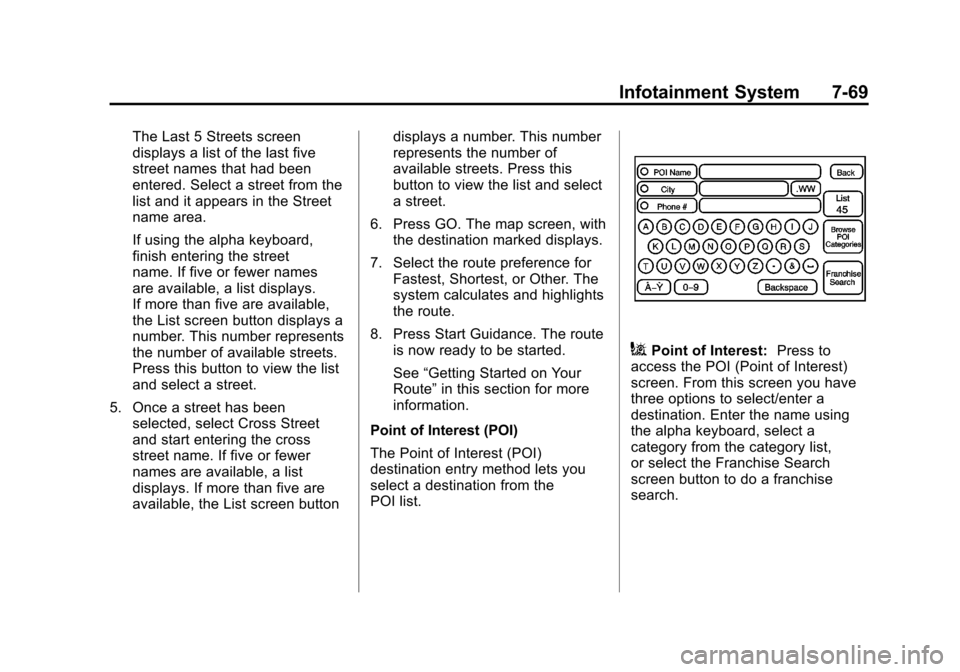
iPoint of Interest: Press to
access the POI (Point of Interest)
screen. From this screen you have
three options to select/enter a
destination. Enter the name using
the alpha keyboard, select a
category from the category list,
or select the Franchise Search
screen button to do a franchise
search.
Page 254 of 538
Black plate (70,1)Cadillac Escalade/Escalade ESV Owner Manual - 2012
7-70 Infotainment System
To use the point of interest
destination entry method by
entering the name:
1. Press DEST.
2. Press
i.
3. Select the state/province screen button, if needed, to change the
current state or province. A list
of all of the available states and
provinces appear. Select the
state or province.
4. Enter the POI name.
If five or fewer names are
available, a list displays.
If more than five are available,
the List screen button displays a
number. This number represents
the number of available POIs.
Press this button to view the list.
5. Press GO, located next to the POI. The map screen, with the
destination marked displays. 6. Select the route preference for
Fastest, Shortest, or Other. The
system calculates and highlights
the route.
7. Press Start Guidance. The route is now ready to be started.
See “Getting Started on Your
Route” in this section for more
information.
To use the point of interest
destination entry method by
selecting a category:
1. Press DEST.
2. Press
i.
3. Press Browse POI Categories to view the list of POI categories.
4. Select a category. The system displays available
POI names in the selected
category. 5. Press GO, located next to the
POI. The map screen, with the
destination marked displays.
6. Select the route preference for Fastest, Shortest, or Other. The
system calculates and highlights
the route.
7. Press Start Guidance. The route is now ready to be started.
See “Getting Started on Your
Route” in this section for more
information.
To use the point of interest
destination entry method by
selecting to do a franchise search:
1. Press DEST.
2. Press
i.
3. Press Franchise Search to view a list of franchise categories.
Page 255 of 538
Black plate (71,1)Cadillac Escalade/Escalade ESV Owner Manual - 2012
Infotainment System 7-71
4. Select a category.The system displays available
POI names in the selected
category.
5. Press GO, located next to the POI. The map screen, with the
destination marked displays.
6. Select the route preference for Fastest, Shortest, or Other. The
system calculates and highlights
the route.
7. Press Start Guidance. The route is now ready to be started.
See “Getting Started on Your
Route” in this section for more
information. Address Book
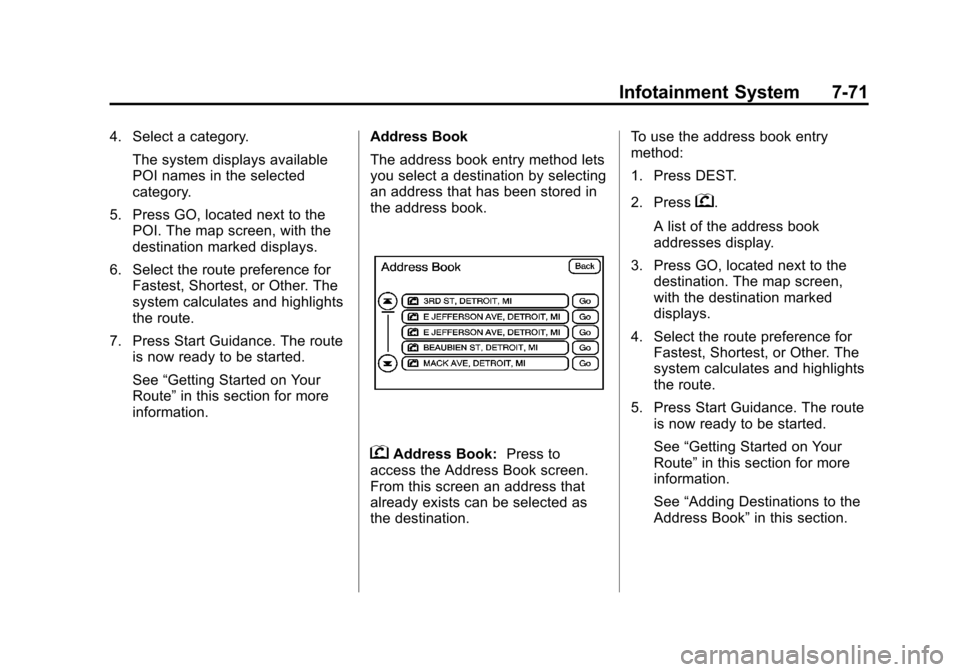
The address book entry method lets
you select a destination by selecting
an address that has been stored in
the address book.
gAddress Book:
Press to
access the Address Book screen.
From this screen an address that
already exists can be selected as
the destination. To use the address book entry
method:
1. Press DEST.
2. Press
g.
A list of the address book
addresses display.
3. Press GO, located next to the destination. The map screen,
with the destination marked
displays.
4. Select the route preference for Fastest, Shortest, or Other. The
system calculates and highlights
the route.
5. Press Start Guidance. The route is now ready to be started.
See “Getting Started on Your
Route” in this section for more
information.
See “Adding Destinations to the
Address Book” in this section.
Page 256 of 538
Black plate (72,1)Cadillac Escalade/Escalade ESV Owner Manual - 2012
7-72 Infotainment System
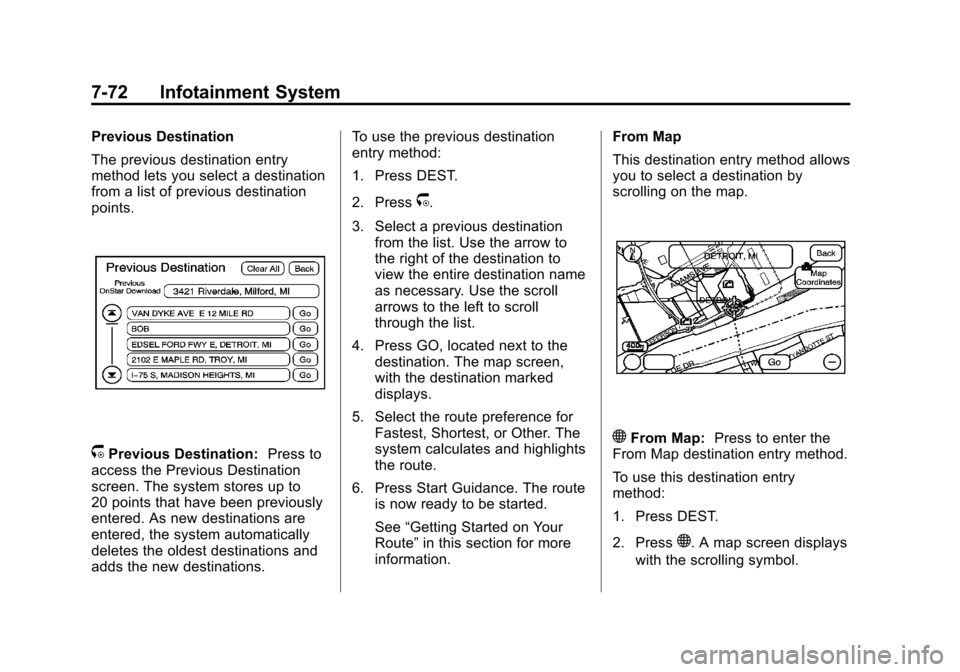
Previous Destination
The previous destination entry
method lets you select a destination
from a list of previous destination
points.
/Previous Destination:Press to
access the Previous Destination
screen. The system stores up to
20 points that have been previously
entered. As new destinations are
entered, the system automatically
deletes the oldest destinations and
adds the new destinations. To use the previous destination
entry method:
1. Press DEST.
2. Press
/.
3. Select a previous destination from the list. Use the arrow to
the right of the destination to
view the entire destination name
as necessary. Use the scroll
arrows to the left to scroll
through the list.
4. Press GO, located next to the destination. The map screen,
with the destination marked
displays.
5. Select the route preference for Fastest, Shortest, or Other. The
system calculates and highlights
the route.
6. Press Start Guidance. The route is now ready to be started.
See “Getting Started on Your
Route” in this section for more
information. From Map
This destination entry method allows
you to select a destination by
scrolling on the map.
)From Map:
Press to enter the
From Map destination entry method.
To use this destination entry
method:
1. Press DEST.
2. Press
). A map screen displays
with the scrolling symbol.
Page 257 of 538
Black plate (73,1)Cadillac Escalade/Escalade ESV Owner Manual - 2012
Infotainment System 7-73
3. Use0/1and press on the
map to find the area that you
would like to select as your
destination.
Pressing/holding and dragging
your finger on the map activates
fast scrolling.
4. Press once on the area that you would like to set as your
destination.
The map screen displays the
address information.
5. Press GO. The map screen, with the destination marked displays.
6. Select the route preference for Fastest, Shortest, or Other. The
system calculates and highlights
the route.
7. Press Start Guidance. The route is now ready to be started.
See “Getting Started on Your
Route” in this section for more
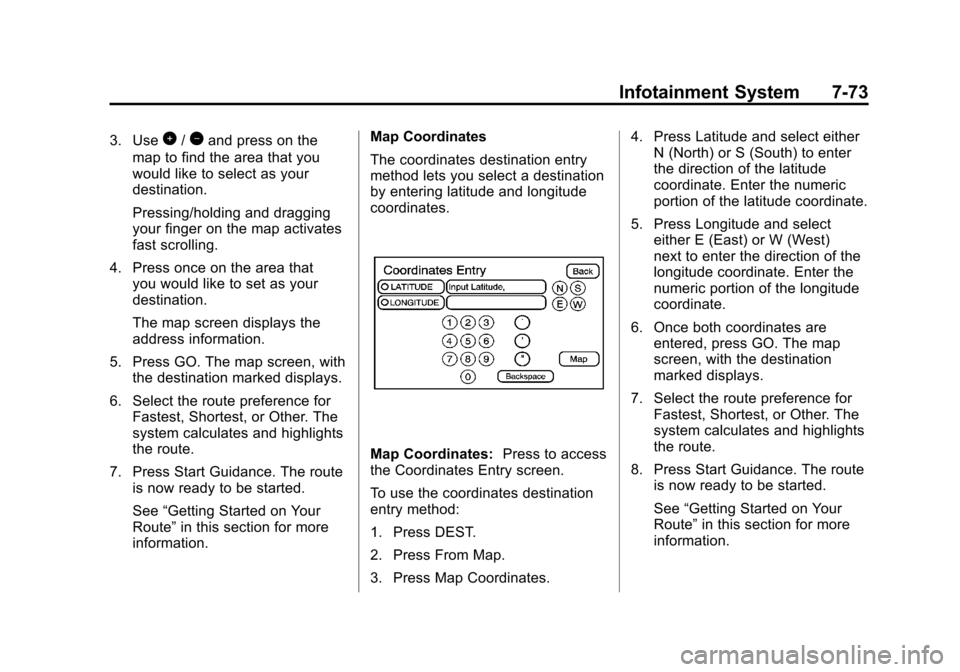
information. Map Coordinates
The coordinates destination entry
method lets you select a destination
by entering latitude and longitude
coordinates.
Map Coordinates:
Press to access
the Coordinates Entry screen.
To use the coordinates destination
entry method:
1. Press DEST.
2. Press From Map.
3. Press Map Coordinates. 4. Press Latitude and select either
N (North) or S (South) to enter
the direction of the latitude
coordinate. Enter the numeric
portion of the latitude coordinate.
5. Press Longitude and select either E (East) or W (West)
next to enter the direction of the
longitude coordinate. Enter the
numeric portion of the longitude
coordinate.
6. Once both coordinates are entered, press GO. The map
screen, with the destination
marked displays.
7. Select the route preference for Fastest, Shortest, or Other. The
system calculates and highlights
the route.
8. Press Start Guidance. The route is now ready to be started.
See “Getting Started on Your
Route” in this section for more
information.
Page 258 of 538
Black plate (74,1)Cadillac Escalade/Escalade ESV Owner Manual - 2012
7-74 Infotainment System
Preset Destination
The preset destination entry method
lets you set a destination by
selecting from one of five previously
stored destinations. Besides voice
tagged destinations, these are the
only destinations available to set
while the vehicle is moving. If a
destination is not set for one of the
screen buttons, the button is
dimmed and not available for use.
See“Adding or Changing Preset
Destinations” in this section for
information on how to add a preset
destination.
To use the preset destination entry
method:
1. Press DEST.
2. Select the desired preset destination screen button. The
screen buttons are labeled with
the name that was selected for
the destination when it was
stored. The map screen, with the
destination marked displays.
3. Select the route preference for Fastest, Shortest, or Other. The
system calculates and highlights
the route. 4. Press Start Guidance. The route
is now ready to be started.
See “Getting Started on Your
Route” in this section for more
information.
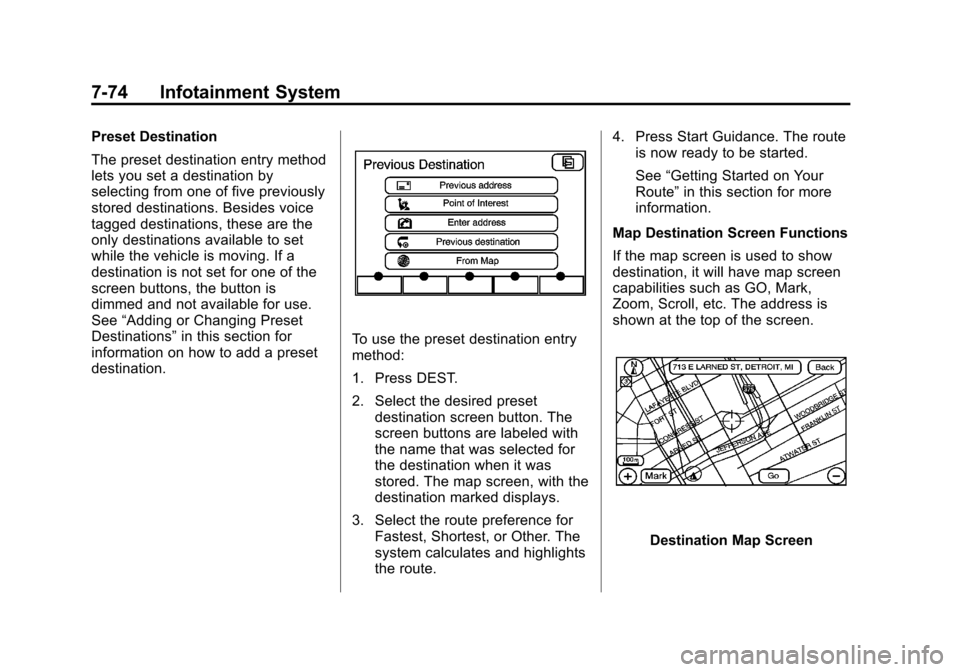
Map Destination Screen Functions
If the map screen is used to show
destination, it will have map screen
capabilities such as GO, Mark,
Zoom, Scroll, etc. The address is
shown at the top of the screen.
Destination Map Screen
Page 263 of 538
Black plate (79,1)Cadillac Escalade/Escalade ESV Owner Manual - 2012
Infotainment System 7-79
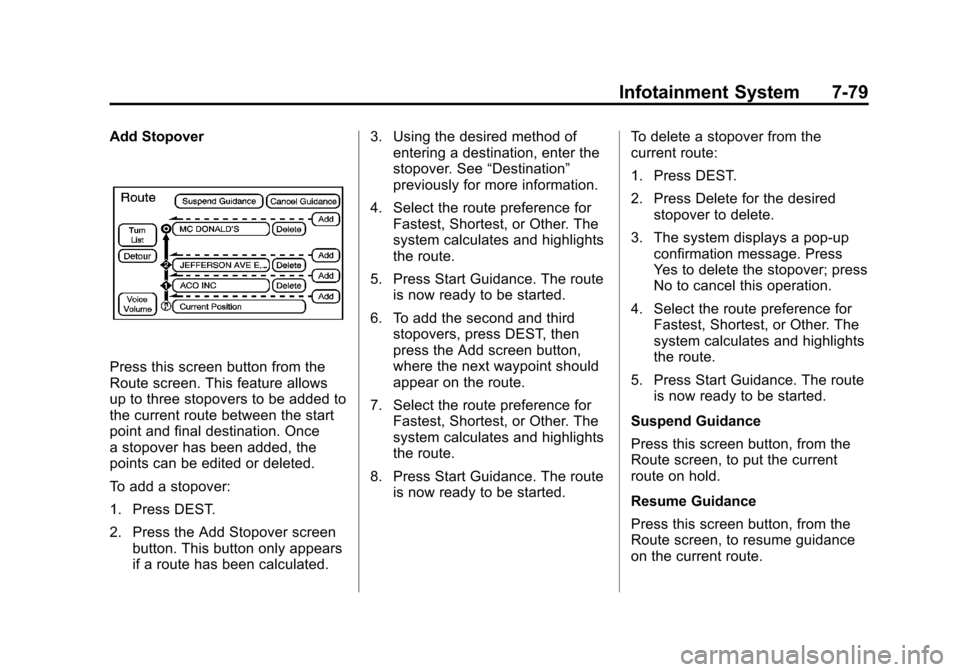
Add Stopover
Press this screen button from the
Route screen. This feature allows
up to three stopovers to be added to
the current route between the start
point and final destination. Once
a stopover has been added, the
points can be edited or deleted.
To add a stopover:
1. Press DEST.
2. Press the Add Stopover screenbutton. This button only appears
if a route has been calculated. 3. Using the desired method of
entering a destination, enter the
stopover. See “Destination”
previously for more information.
4. Select the route preference for Fastest, Shortest, or Other. The
system calculates and highlights
the route.
5. Press Start Guidance. The route is now ready to be started.
6. To add the second and third stopovers, press DEST, then
press the Add screen button,
where the next waypoint should
appear on the route.
7. Select the route preference for Fastest, Shortest, or Other. The
system calculates and highlights
the route.
8. Press Start Guidance. The route is now ready to be started. To delete a stopover from the
current route:
1. Press DEST.
2. Press Delete for the desired
stopover to delete.
3. The system displays a pop-up confirmation message. Press
Yes to delete the stopover; press
No to cancel this operation.
4. Select the route preference for Fastest, Shortest, or Other. The
system calculates and highlights
the route.
5. Press Start Guidance. The route is now ready to be started.
Suspend Guidance
Press this screen button, from the
Route screen, to put the current
route on hold.
Resume Guidance
Press this screen button, from the
Route screen, to resume guidance
on the current route.
Page 323 of 538
Black plate (23,1)Cadillac Escalade/Escalade ESV Owner Manual - 2012
Driving and Operating 9-23
key to ACC/ACCESSORY. If this
doesn't work, then the vehicle needs
service.
Notice:Using a tool to force the
key to turn in the ignition could
cause damage to the switch or
break the key. Use the correct
key, make sure it is all the way in,
and turn it only with your hand.
If the key cannot be turned by
hand, see your dealer.
B (ACC/ACCESSORY): This
position lets things like the radio
and the windshield wipers operate
while the engine is off. Use this
position if the vehicle must be
pushed or towed.
C (ON/RUN): This position can
be used to operate the electrical
accessories and to display some
instrument panel cluster warning
and indicator lights. This position
can also be used for service and
diagnostics, and to verify the
proper operation of the malfunction
indicator lamp as may be required
for emission inspection purposes. The switch stays in this position
when the engine is running. The
transmission is also unlocked in this
position on automatic transmission
vehicles.
If you leave the key in the ACC/
ACCESSORY or ON/RUN position
with the engine off, the battery could
be drained. You may not be able to
start the vehicle if the battery is
allowed to drain for an extended
period of time.
D (START):
This is the position
that starts the engine. When the
engine starts, release the key. The
ignition switch returns to ON/RUN
for driving.
A warning tone will sound when the
driver door is opened, the ignition is
in ACC/ACCESSORY or LOCK/OFF
and the key is in the ignition.Starting the Engine
If the vehicle is a hybrid, see the
hybrid supplement for more
information.
Move the shift lever to P (Park) or
N (Neutral). The engine will not start
in any other position. To restart the
engine when the vehicle is already
moving, use N (Neutral) only.
Notice: Do not try to shift to
P (Park) if the vehicle is moving.
If you do, you could damage the
transmission. Shift to P (Park)
only when the vehicle is stopped.
Starting Procedure
1. With your foot off the accelerator pedal, turn the ignition to START.
When the engine starts, let go of
the key. The idle speed will go
down as the engine warms. Do
not race the engine immediately
after starting it. Operate the
engine and transmission gently
to allow the oil to warm up and
lubricate all moving parts.