reset CADILLAC ESCALADE 2012 3.G Owner's Guide
[x] Cancel search | Manufacturer: CADILLAC, Model Year: 2012, Model line: ESCALADE, Model: CADILLAC ESCALADE 2012 3.GPages: 538, PDF Size: 7.59 MB
Page 191 of 538
Black plate (7,1)Cadillac Escalade/Escalade ESV Owner Manual - 2012
Infotainment System 7-7
8. Once a street has beenselected, select the House #
screen button to enter the house
number. The system displays the
house number range that is
available for the street.
9. Press GO. A map screen, with the destination marked appears.
10. Select the route preference for Fastest, Shortest, or Other.
The system calculates and
highlights the route.
11. Press Start Guidance. You are now ready to start your route.
See “Address Entry” under
Destination on page 7‑66 for more
information.
Entering a Point of Interest (POI)
To set a destination by entering a
Point of Interest (POI), do the
following:
1. Press
Oto turn the system on.
2. A caution may appear. Press OK to proceed. 3. Press DEST.
4. Press
iPoint of Interest.
5. Select the state/province screen button, if needed, to change the
current state or province. A list
of all of the available states and
provinces appear. Select the
state or province.
6. Enter the specific title of the POI in the POI name space (e.g.
Washington Monument).
If five or fewer names are
available, a list displays. If more
than five are available, the
List screen button displays a
number. This button represents
the number of available POIs.
Press this button to view the list.
7. Press GO next to the POI. A map screen, with the
destination marked appears.
8. Select the route preference for Fastest, Shortest, or Other. The
system calculates and highlights
the route. 9. Press Start Guidance. The route
is now ready to be started.
See “Point of Interest (POI)” under
Destination on page 7‑66 for more
information.
Storing Preset Destinations
1. Press
Oto turn the system on.
2. A caution may appear. Press OK to proceed.
3. Press DEST. Enter a destination. See
Destination on page 7‑66 for
more information on how to
enter a destination.
4. Press DEST, the Route screen displays. Press Final Destination
or Stopover. The information
screen displays for that location.
Press Add to Address Book. The
address book screen appears.
5. Press the Name screen button. An alpha-keyboard displays.
Enter the name. Press the Back
screen button.
Page 192 of 538
Black plate (8,1)Cadillac Escalade/Escalade ESV Owner Manual - 2012
7-8 Infotainment System
6. Press and hold one of thescreen buttons at the bottom
of the screen until the name
appears in the screen button on
the display.
The name appears in that preset
destination screen button and is
now available to select from the
Destination Entry screen. See
“Using Your Stored Preset
Destinations” in this section to
select it as a destination.
See Destination on page 7‑66
for more information on how
to add or change preset
destinations.
Using Your Stored Preset
Destinations
These destinations are available for
selection while driving.
1. Press
Oto turn the system on.
2. A caution may appear. Press OK to proceed.
3. Press DEST. 4. Select one of the available
preset destination screen
buttons. A map screen, with the
destination marked appears.
5. Select the route preference for Fastest, Shortest, or Other. The
system calculates and highlights
the route.
6. Press Start Guidance. The route is now ready to be started.
See “Preset Destination” under
Destination on page 7‑66 for more
information.
Canceling Guidance
Guidance is canceled once the final
destination is reached. To cancel
guidance prior to arrival at the final
destination:
1. Press DEST.
2. Press Cancel Guidance.
3. Press OK to confirm.
Guidance Volume
Adjust the volume of voice guidance
prompts:
1. Press CONFIG to enter the
menu options, then press
CONFIG again, repeatedly
until Nav is selected or press
the Nav screen button.
2. Press Voice Prompt.
3. Press + or –screen buttons to
increase or to decrease the
volume of the voice prompts.
The system responds with the
adjusted voice level.
See “Voice Prompt ”under
Configure Menu on page 7‑81 for
more information.
Cleaning the Display Screen
Use a soft clean cotton cloth
dampened with clean water.
Page 196 of 538
Black plate (12,1)Cadillac Escalade/Escalade ESV Owner Manual - 2012
7-12 Infotainment System
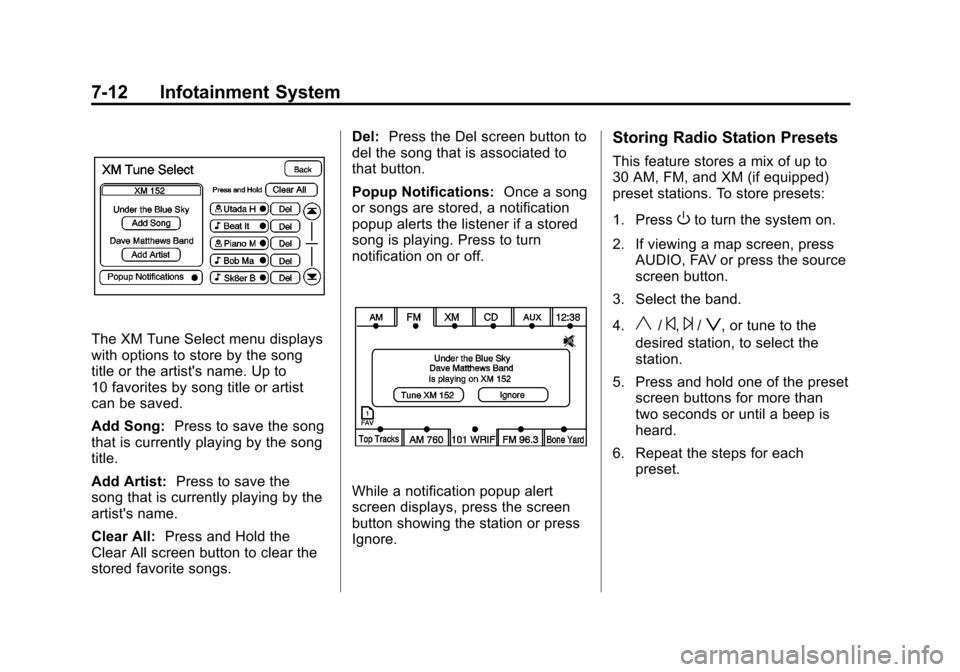
The XM Tune Select menu displays
with options to store by the song
title or the artist's name. Up to
10 favorites by song title or artist
can be saved.
Add Song:Press to save the song
that is currently playing by the song
title.
Add Artist: Press to save the
song that is currently playing by the
artist's name.
Clear All: Press and Hold the
Clear All screen button to clear the
stored favorite songs. Del:
Press the Del screen button to
del the song that is associated to
that button.
Popup Notifications: Once a song
or songs are stored, a notification
popup alerts the listener if a stored
song is playing. Press to turn
notification on or off.
While a notification popup alert
screen displays, press the screen
button showing the station or press
Ignore.
Storing Radio Station Presets
This feature stores a mix of up to
30 AM, FM, and XM (if equipped)
preset stations. To store presets:
1. Press
Oto turn the system on.
2. If viewing a map screen, press AUDIO, FAV or press the source
screen button.
3. Select the band.
4.
y/©,¨/z, or tune to the
desired station, to select the
station.
5. Press and hold one of the preset screen buttons for more than
two seconds or until a beep is
heard.
6. Repeat the steps for each preset.
Page 198 of 538
Black plate (14,1)Cadillac Escalade/Escalade ESV Owner Manual - 2012
7-14 Infotainment System
2 CH. (Channel):Enhances
surround sound.
5.1 CH. (Channel): Gives a full
affect of surround sound listening.
This button is only available when
playing DVD video discs that
support 5.1 audio and if the RSA
is off.
Radio Menu
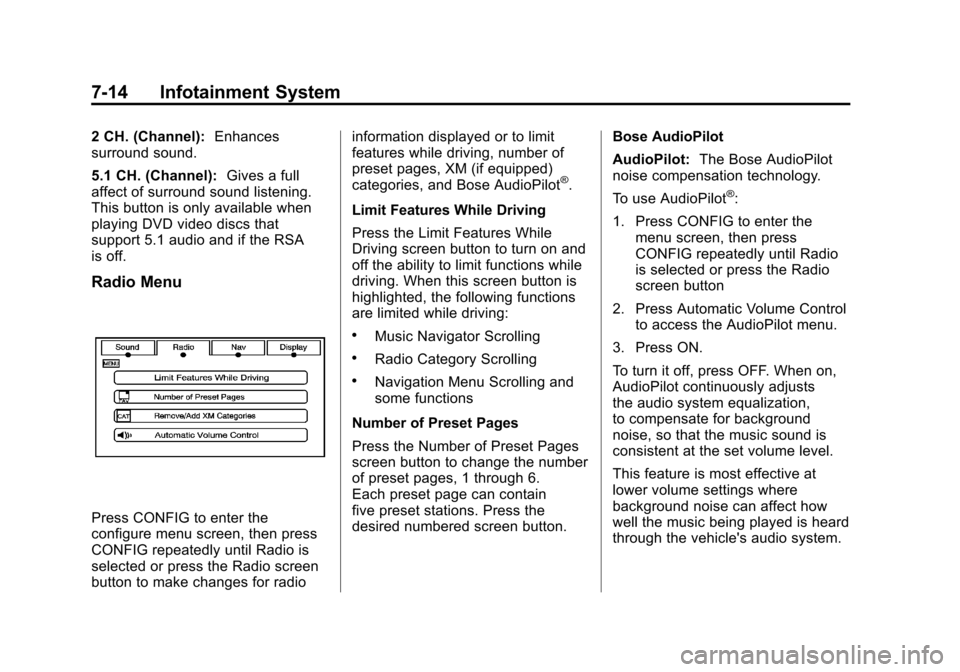
Press CONFIG to enter the
configure menu screen, then press
CONFIG repeatedly until Radio is
selected or press the Radio screen
button to make changes for radio information displayed or to limit
features while driving, number of
preset pages, XM (if equipped)
categories, and Bose AudioPilot
®.
Limit Features While Driving
Press the Limit Features While
Driving screen button to turn on and
off the ability to limit functions while
driving. When this screen button is
highlighted, the following functions
are limited while driving:
.Music Navigator Scrolling
.Radio Category Scrolling
.Navigation Menu Scrolling and
some functions
Number of Preset Pages
Press the Number of Preset Pages
screen button to change the number
of preset pages, 1 through 6.
Each preset page can contain
five preset stations. Press the
desired numbered screen button. Bose AudioPilot
AudioPilot:
The Bose AudioPilot
noise compensation technology.
To use AudioPilot
®:
1. Press CONFIG to enter the menu screen, then press
CONFIG repeatedly until Radio
is selected or press the Radio
screen button
2. Press Automatic Volume Control to access the AudioPilot menu.
3. Press ON.
To turn it off, press OFF. When on,
AudioPilot continuously adjusts
the audio system equalization,
to compensate for background
noise, so that the music sound is
consistent at the set volume level.
This feature is most effective at
lower volume settings where
background noise can affect how
well the music being played is heard
through the vehicle's audio system.
Page 232 of 538

Black plate (48,1)Cadillac Escalade/Escalade ESV Owner Manual - 2012
7-48 Infotainment System
REPEAT7:Press to repeat
part or all of a chapter, title, track,
or the entire disc after using the
A‐B button to setup repeat preset
sections.
RETURN
8: This button is not
used with the system.
A‐B: This button is used to setup
repeat preset sections. Press this
button once while the disc is playing
to select the starting position. Press
a second time to select the end
position. Press a third time to turn
the function off. To view the preset
section, press
7.
AUTO MEMORY: This button is not
used with the system.
SEARCH/SKIP: This button is not
used with the system.
ERASE/ADD: This button is not
used with the system.
R-S: This button is not used with
the system. TITLE:
Press to enter the disc
title mode. The title feature is
disc-specific, and may not be
available on all discs.
SUBTITLE: Press to change the
subtitle language to another
available language or to turn
subtitles off.
ANGLE: Press to select a different
viewing angle for discs that are
recorded with different camera
angles.
AUDIO: Press to select a different
language for discs that are recorded
with different languages.
0‐9 (Numbers): The numbers
located on the lower left side of the
remote control can be used to enter
numbered menu options, channels,
or track numbers.
GOTO: Press to enter the GOTO
menu to choose a desired title,
chapter, track, or song inside
the disc. DISPLAY:
Press to scroll through
display information on the upper left
corner of the screen, such as title,
chapter/track, time elapsed, and
time remaining, or to turn off the
display
PROGRAM: Press to edit a
playback program containing
desired titles in the DVD or tracks
in the CD-DA.
3D: Press to change between
different 3D audio modes for DVD
or CD.
The options for DVD are: Off, Rock,
Pop, Live, Dance, Techno, Classic,
and Soft.
The options for CD are: Off,
Concert, Living room, Hall,
Bathroom Cave, Arena, and
Church.
RANDOM: Press to play titles
randomly.
PLAY/PAUSE
r/j: Press to start
playback of the disc, or to pause
playback.
Page 235 of 538
Black plate (51,1)Cadillac Escalade/Escalade ESV Owner Manual - 2012
Infotainment System 7-51
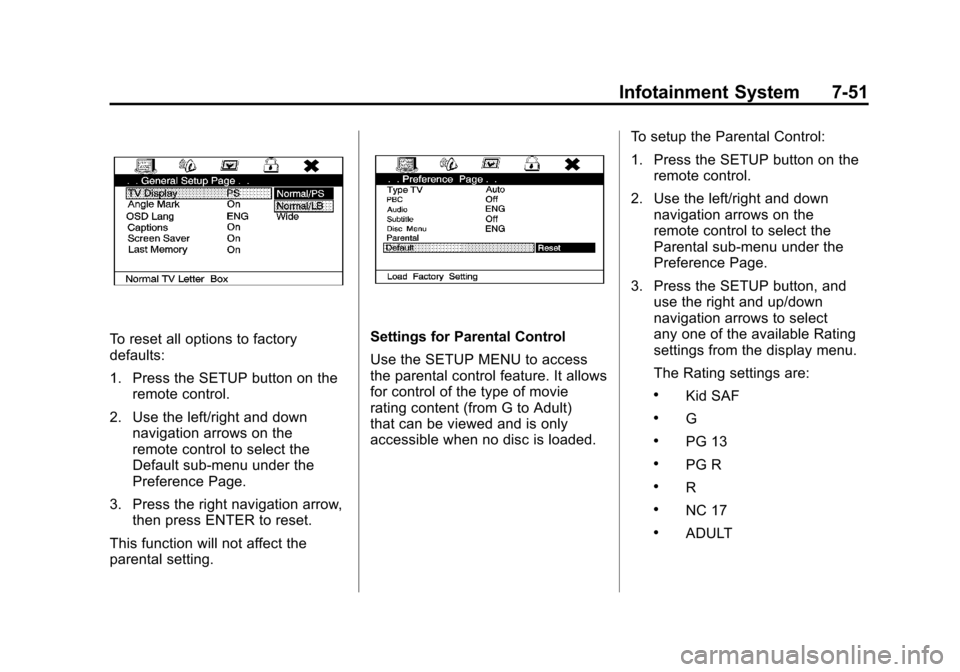
To reset all options to factory
defaults:
1. Press the SETUP button on theremote control.
2. Use the left/right and down navigation arrows on the
remote control to select the
Default sub-menu under the
Preference Page.
3. Press the right navigation arrow, then press ENTER to reset.
This function will not affect the
parental setting.Settings for Parental Control
Use the SETUP MENU to access
the parental control feature. It allows
for control of the type of movie
rating content (from G to Adult)
that can be viewed and is only
accessible when no disc is loaded. To setup the Parental Control:
1. Press the SETUP button on the
remote control.
2. Use the left/right and down navigation arrows on the
remote control to select the
Parental sub-menu under the
Preference Page.
3. Press the SETUP button, and use the right and up/down
navigation arrows to select
any one of the available Rating
settings from the display menu.
The Rating settings are:
.Kid SAF
.G
.PG 13
.PG R
.R
.NC 17
.ADULT
Page 241 of 538

Black plate (57,1)Cadillac Escalade/Escalade ESV Owner Manual - 2012
Infotainment System 7-57
© ¨(Seek):When listening to FM,
AM, or XM (if equipped), press
either the left
©or right¨seek
arrow to go to the previous or to the
next station or channels and stay
there. This function is inactive,
with some radios, if the front seat
passengers are listening to the
radio.
Press and hold either the left
©or
right
¨seek arrow until the display
flashes, to tune to an individual
station. The display stops flashing
after the buttons have not been
pushed for more than two seconds.
This function is inactive, with some
radios, if the front seat passengers
are listening to the radio. While listening to a disc, press the
right
¨seek arrow to go to the next
track or chapter on the disc. Press
the left
©seek arrow to go back to
the start of the current track or
chapter (if more than ten seconds
have played). This function is
inactive, with some radios, if the
front seat passengers are listening
to the disc.
When a DVD video menu is being
displayed, press either the left
©or
right
¨seek arrow to perform a
cursor up or down on the menu.
Hold the left
©or right¨seek arrow
to perform a cursor left or right on
the menu.
When a USB device is playing, the
right or left seek button can be used
to control the device. PROG (Program):
Press this
button to go to the next preset
radio station or channel set on the
main radio. This function is inactive,
with some radios, if the front seat
passengers are listening to the
radio.
When a CD or DVD audio disc is
playing, press this button to go to
the beginning of the CD or DVD
audio. This function is inactive,
with some radios, if the front seat
passengers are listening to the disc.
When a DVD video menu is being
displayed, press the PROG button
to perform the menu function, enter.
Page 242 of 538
Black plate (58,1)Cadillac Escalade/Escalade ESV Owner Manual - 2012
7-58 Infotainment System
Navigation
Using the Navigation
System
This section presents basic
information needed to operate the
navigation system.
Use the buttons located on the
navigation system along with the
available touch-sensitive screen
buttons on the navigation screen to
operate the system. SeeOverview
on page 7‑4 for more information.
Once the vehicle is moving, various
functions are disabled to reduce
driver distractions.
Navigation Control Buttons
The following control buttons are
located on the navigation system:
O/n(Power/Volume):
1. Press to turn the system on and off.
2. Turn to increase or decrease the volume to the audio system. 3. Press and hold for more than
two seconds to turn off the
navigation system, the Rear
Seat Entertainment (RSE), and
Rear Seat Audio (RSA). If the
vehicle has not been tuned off,
the RSE and the RSA can be
turned back on by pressing this
knob and continues play of the
last active source.
Z(Eject): Press to eject the
CD/DVD Disc. See CD/DVD Player
on page 7‑18.
w(Tuning Knob): Turn to go to
the next or previous frequency or
disc track or chapter. See CD/DVD
Player on page 7‑18 orMP3 on
page 7‑28 for more information.
AUDIO: Press to display the audio
screen. Press to switch between
AM, FM, or XM, if equipped, DISC,
or AUX (Auxiliary), or press on the
screen button. See CD/DVD Player
on page 7‑18, MP3 on page 7‑28,
and Auxiliary Devices on page 7‑30
for more information. FAV (Favorite):
Press to access
the preset stations. See “Storing
Radio Station Presets” under,
Overview on page 7‑4.
5(Phone): SeeOnStar Overview
on page 14‑1 (if equipped)
and Bluetooth on page 7‑100
(if equipped) for more information.
e(Sound): Press to access the
Sound menu to adjust the treble,
midrange, bass, fade, balance, and
Digital Signal Processing (DSP).
y/z(Scan Up/Down): Press to
scan the tracks/chapters up or down
on a disc.
y/©or¨/z(Seek/Scan)
(Previous/Next): Press the up
or down arrows to go to the next
or previous station. Press and
hold either arrow for more than
two seconds. The radio goes to a
station, plays for a few seconds,
then goes to the next station.
Page 258 of 538
Black plate (74,1)Cadillac Escalade/Escalade ESV Owner Manual - 2012
7-74 Infotainment System
Preset Destination
The preset destination entry method
lets you set a destination by
selecting from one of five previously
stored destinations. Besides voice
tagged destinations, these are the
only destinations available to set
while the vehicle is moving. If a
destination is not set for one of the
screen buttons, the button is
dimmed and not available for use.
See“Adding or Changing Preset
Destinations” in this section for
information on how to add a preset
destination.
To use the preset destination entry
method:
1. Press DEST.
2. Select the desired preset destination screen button. The
screen buttons are labeled with
the name that was selected for
the destination when it was
stored. The map screen, with the
destination marked displays.
3. Select the route preference for Fastest, Shortest, or Other. The
system calculates and highlights
the route. 4. Press Start Guidance. The route
is now ready to be started.
See “Getting Started on Your
Route” in this section for more
information.
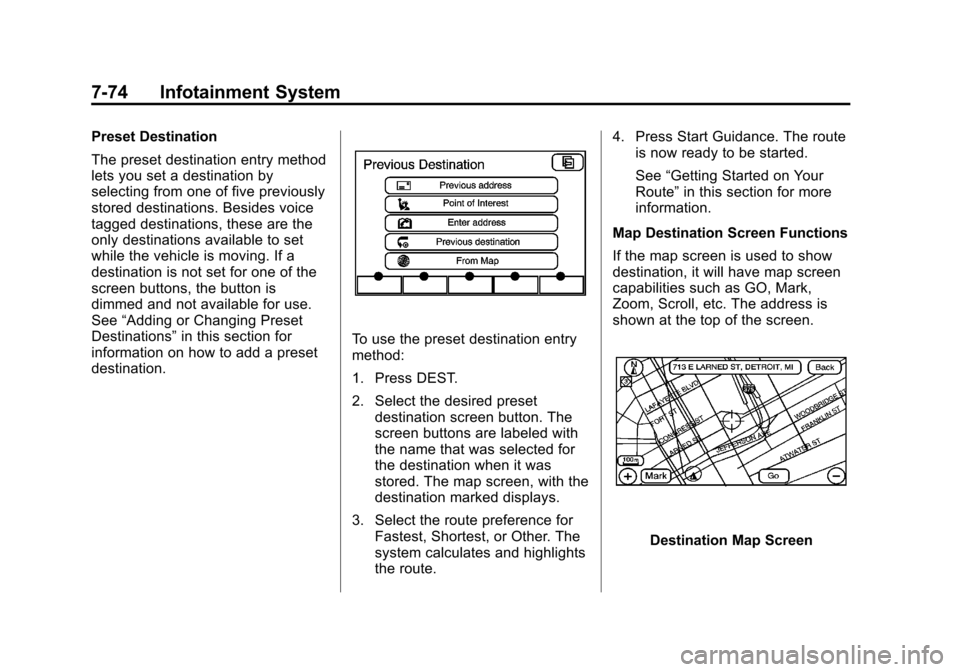
Map Destination Screen Functions
If the map screen is used to show
destination, it will have map screen
capabilities such as GO, Mark,
Zoom, Scroll, etc. The address is
shown at the top of the screen.
Destination Map Screen
Page 264 of 538
Black plate (80,1)Cadillac Escalade/Escalade ESV Owner Manual - 2012
7-80 Infotainment System
Cancel Guidance
Press this screen button, from the
Route screen, to cancel the current
route.
Adding Destinations to the
Address Book
There are two ways to add a
destination to the address book:
.To add the current vehicle
position to the address book,
press the Mark screen button
from the map screen. The
system automatically saves the
current vehicle information in the
address book. When scrolling on
the map the Mark screen button
automatically adds the current
scrolled position information in
the address book.
.Press the Add to Address Book
screen button when available
on POI information screens,
Destination Entry screens,
or POI screens. The system
automatically saves this
information in the address book.See
“Nav” under Configure Menu on
page 7‑81 for information on editing
address book entries.
Adding or Changing Preset
Destinations
This feature allows additions
or changes one of five preset
destinations. When a destination
has been added as a preset
destination, it is available to select
from the Destination Entry screen.
See “Preset Destination” previously
for information on how to select a
preset destination as a final
destination.
To store the current vehicle position
as a preset destination:
1. Press Mark from the map screen to add the current vehicle
position to the address book.
The Address Book screen
appears. 2. Press Name. An alpha-keyboard
displays. Enter the name. Press
OK then press Back to return to
the address book information
screen.
3. Press and hold one of the buttons at the bottom of the
screen until the name appears in
that preset destination screen
button. It is now available to
select from the Destination Entry
screen.
To store an address book entry as a
preset destination:
1. Press CONFIG.
2. Press the Nav screen button.
3. Press Edit/View.
4. Select the address book entry to be stored as the preset
destination. Press Name to add
a name, if needed.