light CADILLAC ESCALADE 2013 3.G Owners Manual
[x] Cancel search | Manufacturer: CADILLAC, Model Year: 2013, Model line: ESCALADE, Model: CADILLAC ESCALADE 2013 3.GPages: 532, PDF Size: 7.69 MB
Page 264 of 532
Black plate (82,1)Cadillac Escalade/Escalade ESV Owner Manual - 2013 - CRC 2nd Edition - 10/
9/12
7-82 Infotainment System
t(Reverse Skip):Press to go
back to the start point or previous
stopover.
q/r(Reverse Scroll): Press to
scroll to the start point or previous
stopover. The
t(reverse skip)
button changes to a fast reverse
screen button.
j(Pause): Press to pause the
route preview, while in reverse or
fast forward scroll.
r/[(Fast Forward Scroll):
Press to scroll to the next stopover
or to the final destination. The
u
(fast forward skip) button changes
to a fast speed fast forward.
u(Fast Forward Skip): Press to
go to the next stopover or to the
final destination.
Detour
Press this screen button from the
Route screen, then select to detour
2 km, 5 km, 10 km (1 mile, 3 miles,
or 5 miles) around the current route.
This can also be selected to detour the whole route if necessary. The
detour option is only available while
driving on a current planned route.
Voice Volume
Press this screen button from the
Route screen to turn voice guidance
on or off and to change the volume
of voice prompts. See
“Nav”under
Configure Menu on page 7‑84 for
more information.
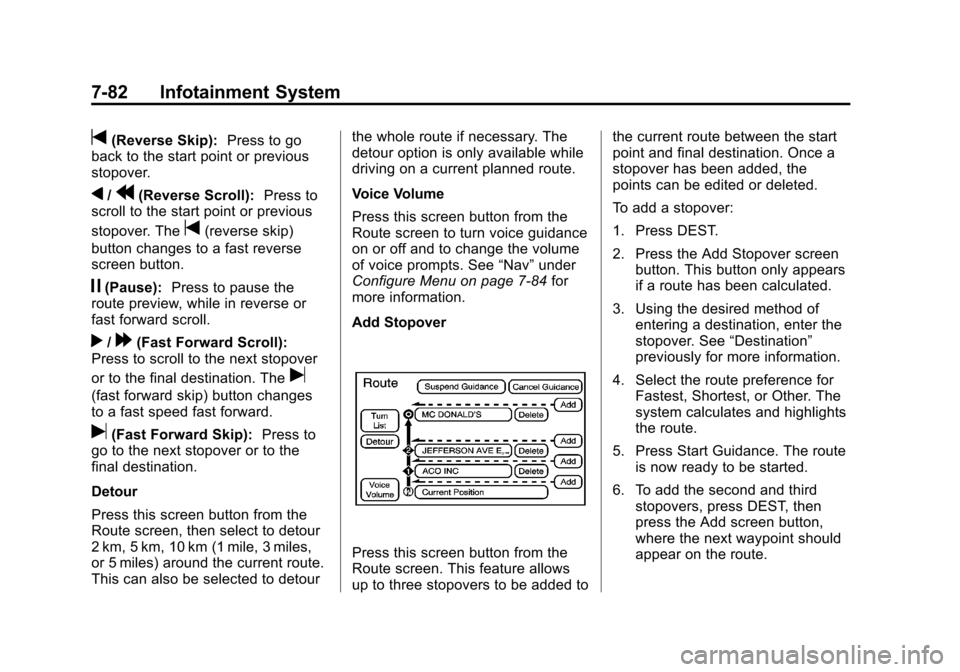
Add Stopover
Press this screen button from the
Route screen. This feature allows
up to three stopovers to be added to the current route between the start
point and final destination. Once a
stopover has been added, the
points can be edited or deleted.
To add a stopover:
1. Press DEST.
2. Press the Add Stopover screen
button. This button only appears
if a route has been calculated.
3. Using the desired method of entering a destination, enter the
stopover. See “Destination”
previously for more information.
4. Select the route preference for Fastest, Shortest, or Other. The
system calculates and highlights
the route.
5. Press Start Guidance. The route is now ready to be started.
6. To add the second and third stopovers, press DEST, then
press the Add screen button,
where the next waypoint should
appear on the route.
Page 265 of 532
Black plate (83,1)Cadillac Escalade/Escalade ESV Owner Manual - 2013 - CRC 2nd Edition - 10/
9/12
Infotainment System 7-83
7. Select the route preference forFastest, Shortest, or Other. The
system calculates and highlights
the route.
8. Press Start Guidance. The route is now ready to be started.
To delete a stopover from the
current route:
1. Press DEST.
2. Press Delete for the desired stopover to delete.
3. The system displays a pop-up confirmation message. Press
Yes to delete the stopover; press
No to cancel this operation.
4. Select the route preference for Fastest, Shortest, or Other. The
system calculates and highlights
the route.
5. Press Start Guidance. The route is now ready to be started.
Suspend Guidance
Press this screen button, from the
Route screen, to put the current
route on hold. Resume Guidance
Press this screen button, from the
Route screen, to resume guidance
on the current route.
Cancel Guidance
Press this screen button, from the
Route screen, to cancel the current
route.
Adding Destinations to the
Address Book
There are two ways to add a
destination to the address book:
.To add the current vehicle
position to the address book,
press the Mark screen button
from the map screen. The
system automatically saves the
current vehicle information in the
address book. When scrolling on
the map the Mark screen button
automatically adds the current
scrolled position information in
the address book.
.Press the Add to Address Book
screen button when available on
POI information screens,
Destination Entry screens,
or POI screens. The system
automatically saves this
information in the address book.
See “Nav” under Configure Menu on
page 7‑84 for information on editing
address book entries.
Adding or Changing Preset
Destinations
This feature allows additions or
changes one of five preset
destinations. When a destination
has been added as a preset
destination, it is available to select
from the Destination Entry screen.
See “Preset Destination” previously
for information on how to select a
preset destination as a final
destination.
Page 269 of 532
Black plate (87,1)Cadillac Escalade/Escalade ESV Owner Manual - 2013 - CRC 2nd Edition - 10/
9/12
Infotainment System 7-87
4. A list of all the address bookentries will display. Press and
hold Clear All.
5. A confirmation pop-up will display. Press OK to delete;
press Cancel to cancel the
operation.
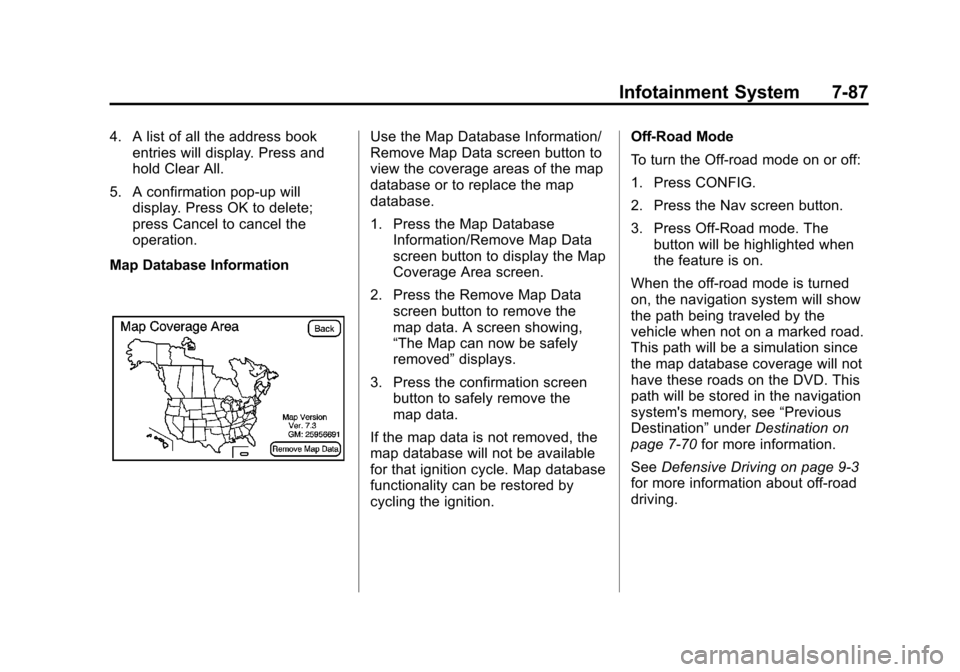
Map Database InformationUse the Map Database Information/
Remove Map Data screen button to
view the coverage areas of the map
database or to replace the map
database.
1. Press the Map Database Information/Remove Map Data
screen button to display the Map
Coverage Area screen.
2. Press the Remove Map Data screen button to remove the
map data. A screen showing,
“The Map can now be safely
removed” displays.
3. Press the confirmation screen button to safely remove the
map data.
If the map data is not removed, the
map database will not be available
for that ignition cycle. Map database
functionality can be restored by
cycling the ignition. Off-Road Mode
To turn the Off-road mode on or off:
1. Press CONFIG.
2. Press the Nav screen button.
3. Press Off-Road mode. The
button will be highlighted when
the feature is on.
When the off-road mode is turned
on, the navigation system will show
the path being traveled by the
vehicle when not on a marked road.
This path will be a simulation since
the map database coverage will not
have these roads on the DVD. This
path will be stored in the navigation
system's memory, see “Previous
Destination” underDestination on
page 7‑70 for more information.
See Defensive Driving on page 9‑3
for more information about off-road
driving.
Page 271 of 532
Black plate (89,1)Cadillac Escalade/Escalade ESV Owner Manual - 2013 - CRC 2nd Edition - 10/
9/12
Infotainment System 7-89
3. Press the Traffic button. Thisbutton is highlighted when it is
active.
Selecting Alert for Approaching
Traffic Events enables the
system to show a pop-up screen
that notifies of possible traffic
issues ahead.
When this feature is highlighted,
while traveling on a route,
accidents located on the route
are indicated and can be
avoided.
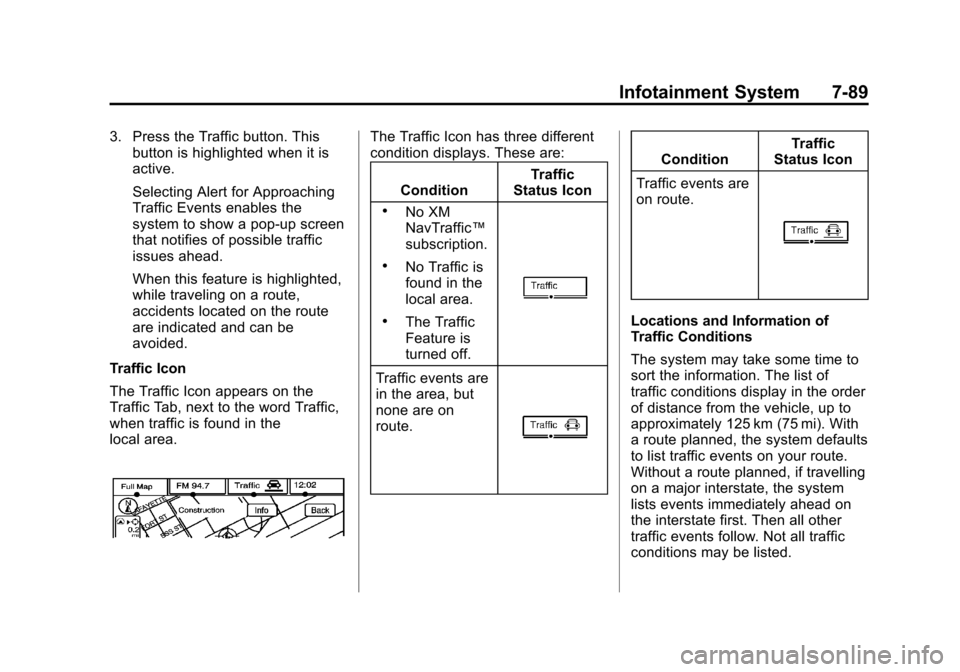
Traffic Icon
The Traffic Icon appears on the
Traffic Tab, next to the word Traffic,
when traffic is found in the
local area.The Traffic Icon has three different
condition displays. These are:
Condition Traffic
Status Icon
.No XM
NavTraffic ™
subscription.
.No Traffic is
found in the
local area.
.The Traffic
Feature is
turned off.
Traffic events are
in the area, but
none are on
route.
Condition Traffic
Status Icon
Traffic events are
on route.
Locations and Information of
Traffic Conditions
The system may take some time to
sort the information. The list of
traffic conditions display in the order
of distance from the vehicle, up to
approximately 125 km (75 mi). With
a route planned, the system defaults
to list traffic events on your route.
Without a route planned, if travelling
on a major interstate, the system
lists events immediately ahead on
the interstate first. Then all other
traffic events follow. Not all traffic
conditions may be listed.
Page 273 of 532
Black plate (91,1)Cadillac Escalade/Escalade ESV Owner Manual - 2013 - CRC 2nd Edition - 10/
9/12
Infotainment System 7-91
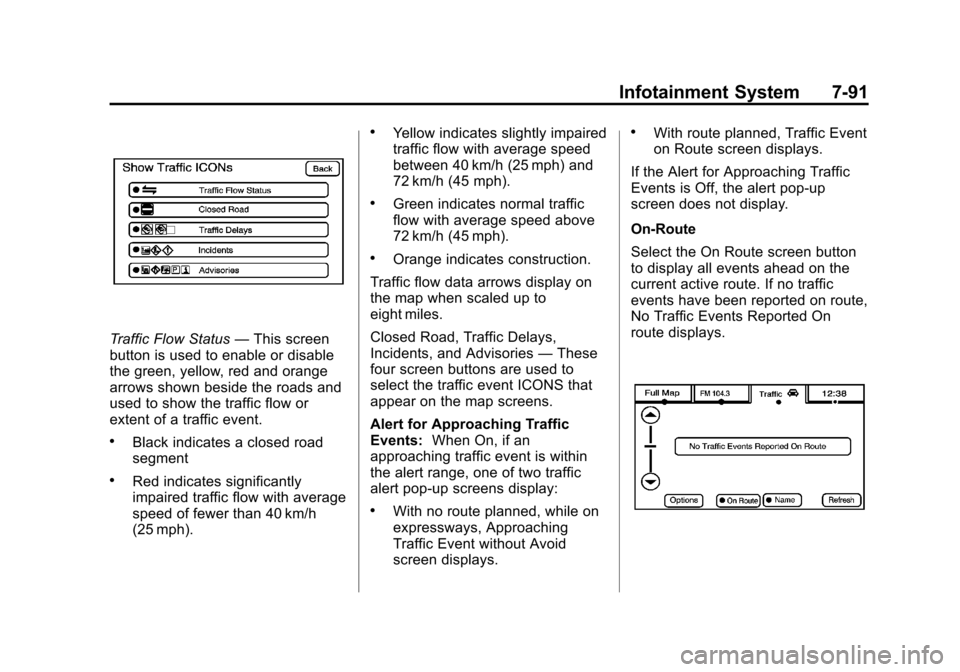
Traffic Flow Status—This screen
button is used to enable or disable
the green, yellow, red and orange
arrows shown beside the roads and
used to show the traffic flow or
extent of a traffic event.
.Black indicates a closed road
segment
.Red indicates significantly
impaired traffic flow with average
speed of fewer than 40 km/h
(25 mph).
.Yellow indicates slightly impaired
traffic flow with average speed
between 40 km/h (25 mph) and
72 km/h (45 mph).
.Green indicates normal traffic
flow with average speed above
72 km/h (45 mph).
.Orange indicates construction.
Traffic flow data arrows display on
the map when scaled up to
eight miles.
Closed Road, Traffic Delays,
Incidents, and Advisories —These
four screen buttons are used to
select the traffic event ICONS that
appear on the map screens.
Alert for Approaching Traffic
Events: When On, if an
approaching traffic event is within
the alert range, one of two traffic
alert pop-up screens display:
.With no route planned, while on
expressways, Approaching
Traffic Event without Avoid
screen displays.
.With route planned, Traffic Event
on Route screen displays.
If the Alert for Approaching Traffic
Events is Off, the alert pop-up
screen does not display.
On-Route
Select the On Route screen button
to display all events ahead on the
current active route. If no traffic
events have been reported on route,
No Traffic Events Reported On
route displays.
Page 277 of 532
Black plate (95,1)Cadillac Escalade/Escalade ESV Owner Manual - 2013 - CRC 2nd Edition - 10/
9/12
Infotainment System 7-95
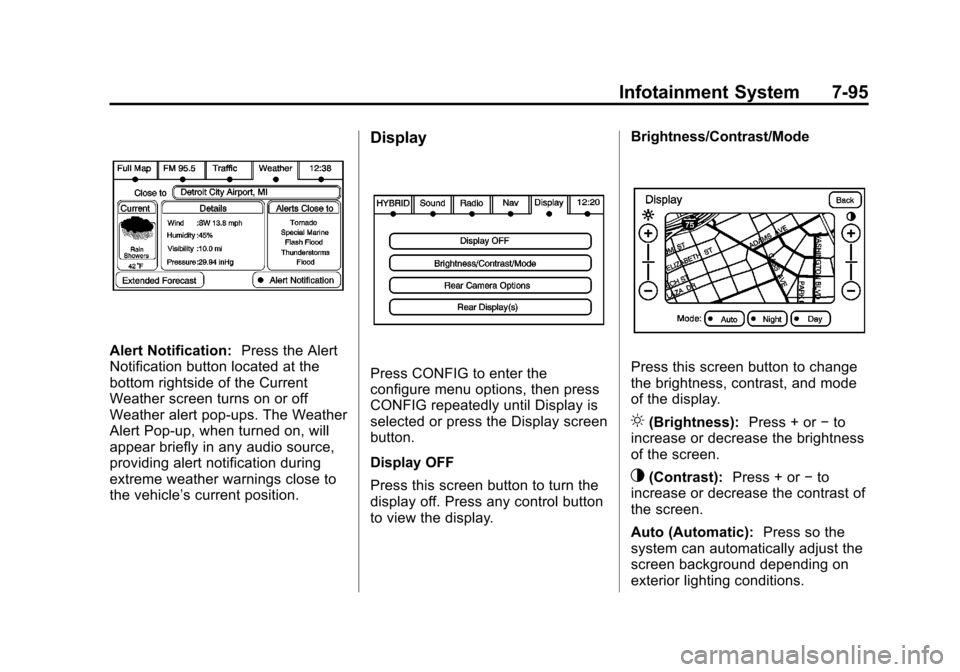
Alert Notification:Press the Alert
Notification button located at the
bottom rightside of the Current
Weather screen turns on or off
Weather alert pop-ups. The Weather
Alert Pop-up, when turned on, will
appear briefly in any audio source,
providing alert notification during
extreme weather warnings close to
the vehicle’ s current position.
Display
Press CONFIG to enter the
configure menu options, then press
CONFIG repeatedly until Display is
selected or press the Display screen
button.
Display OFF
Press this screen button to turn the
display off. Press any control button
to view the display. Brightness/Contrast/ModePress this screen button to change
the brightness, contrast, and mode
of the display.
](Brightness):
Press + or−to
increase or decrease the brightness
of the screen.
_(Contrast): Press + or−to
increase or decrease the contrast of
the screen.
Auto (Automatic): Press so the
system can automatically adjust the
screen background depending on
exterior lighting conditions.
Page 294 of 532
Black plate (2,1)Cadillac Escalade/Escalade ESV Owner Manual - 2013 - CRC 2nd Edition - 10/
9/12
8-2 Climate Controls
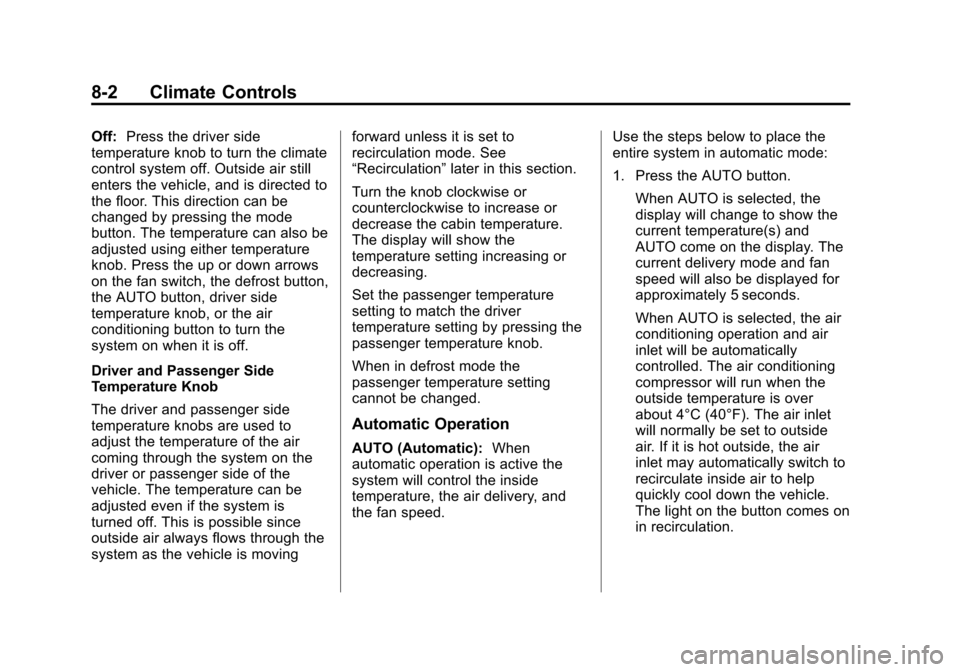
Off:Press the driver side
temperature knob to turn the climate
control system off. Outside air still
enters the vehicle, and is directed to
the floor. This direction can be
changed by pressing the mode
button. The temperature can also be
adjusted using either temperature
knob. Press the up or down arrows
on the fan switch, the defrost button,
the AUTO button, driver side
temperature knob, or the air
conditioning button to turn the
system on when it is off.
Driver and Passenger Side
Temperature Knob
The driver and passenger side
temperature knobs are used to
adjust the temperature of the air
coming through the system on the
driver or passenger side of the
vehicle. The temperature can be
adjusted even if the system is
turned off. This is possible since
outside air always flows through the
system as the vehicle is moving forward unless it is set to
recirculation mode. See
“Recirculation”
later in this section.
Turn the knob clockwise or
counterclockwise to increase or
decrease the cabin temperature.
The display will show the
temperature setting increasing or
decreasing.
Set the passenger temperature
setting to match the driver
temperature setting by pressing the
passenger temperature knob.
When in defrost mode the
passenger temperature setting
cannot be changed.
Automatic Operation
AUTO (Automatic): When
automatic operation is active the
system will control the inside
temperature, the air delivery, and
the fan speed. Use the steps below to place the
entire system in automatic mode:
1. Press the AUTO button.
When AUTO is selected, the
display will change to show the
current temperature(s) and
AUTO come on the display. The
current delivery mode and fan
speed will also be displayed for
approximately 5 seconds.
When AUTO is selected, the air
conditioning operation and air
inlet will be automatically
controlled. The air conditioning
compressor will run when the
outside temperature is over
about 4°C (40°F). The air inlet
will normally be set to outside
air. If it is hot outside, the air
inlet may automatically switch to
recirculate inside air to help
quickly cool down the vehicle.
The light on the button comes on
in recirculation.
Page 295 of 532
Black plate (3,1)Cadillac Escalade/Escalade ESV Owner Manual - 2013 - CRC 2nd Edition - 10/
9/12
Climate Controls 8-3
2. Set the driver and passengertemperature.
To find your comfort setting, start
with a 23°C (74°F) temperature
setting and allow about
20 minutes for the system to
regulate. Use the driver or
passenger temperature buttons
to adjust the temperature setting
as necessary. If a temperature
setting of 15°C (60°F) is chosen,
the system remains at the
maximum cooling setting. If a
temperature setting of 32°C (90°
F) is chosen, the system
remains at the maximum heat
setting. Choosing either
maximum setting will not cause
the vehicle to heat or cool any
faster.
Be careful not to cover the sensor
located on the top of the instrument
panel near the windshield. This
sensor regulates air temperature
based on sun load and also turns
on the headlamps. To avoid blowing cold air in cold
weather, the system will delay
turning on the fan until warm air is
available. The length of delay
depends on the engine coolant
temperature. Pressing the fan
switch will override this delay and
change the fan to a selected speed.
Manual Operation
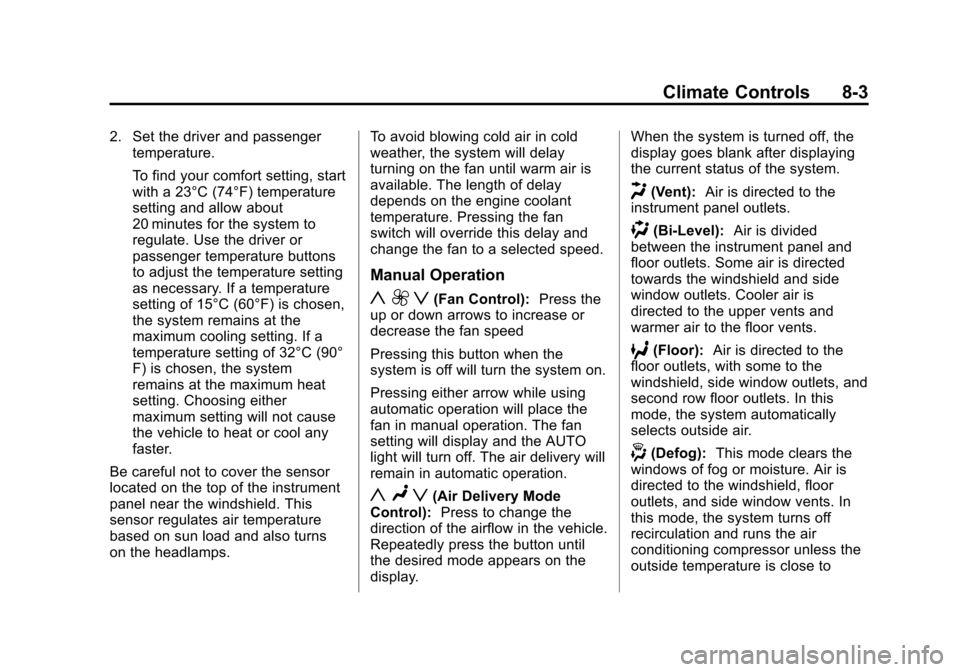
y 9 z(Fan Control):
Press the
up or down arrows to increase or
decrease the fan speed
Pressing this button when the
system is off will turn the system on.
Pressing either arrow while using
automatic operation will place the
fan in manual operation. The fan
setting will display and the AUTO
light will turn off. The air delivery will
remain in automatic operation.
y Nz(Air Delivery Mode
Control): Press to change the
direction of the airflow in the vehicle.
Repeatedly press the button until
the desired mode appears on the
display. When the system is turned off, the
display goes blank after displaying
the current status of the system.
H(Vent):
Air is directed to the
instrument panel outlets.
)(Bi-Level): Air is divided
between the instrument panel and
floor outlets. Some air is directed
towards the windshield and side
window outlets. Cooler air is
directed to the upper vents and
warmer air to the floor vents.
6(Floor): Air is directed to the
floor outlets, with some to the
windshield, side window outlets, and
second row floor outlets. In this
mode, the system automatically
selects outside air.
-(Defog): This mode clears the
windows of fog or moisture. Air is
directed to the windshield, floor
outlets, and side window vents. In
this mode, the system turns off
recirculation and runs the air
conditioning compressor unless the
outside temperature is close to
Page 296 of 532

Black plate (4,1)Cadillac Escalade/Escalade ESV Owner Manual - 2013 - CRC 2nd Edition - 10/
9/12
8-4 Climate Controls
freezing. The recirculation mode
cannot be selected while in the
defog mode.
0(Defrost):This mode removes
fog or frost from the windshield
more quickly. Air is directed to the
windshield and side window vents,
with some directed to the floor
vents. In this mode, the system
automatically forces outside air into
the vehicle and runs the air
conditioning compressor unless the
outside temperature is close to
freezing. The recirculation mode
cannot be selected while in the
defrost mode.
The passenger temperature control
cannot be activated while in defrost
mode. If the passenger control knob
is pressed, the passenger
temperature flashes three times and
will not work. If the passenger
control knob is adjusted, the driver
temperature indicator changes. The
passenger temperature will not be
displayed. If vent, bi-level, or floor mode is
selected again, the climate control
system displays the previous
temperature settings.
Do not drive the vehicle until all the
windows are clear.
#(Air Conditioning):
Press to
turn the air conditioning (A/C)
compressor on and off. An indicator
light comes on to show that the air
conditioning is on.
Pressing this button when the
outside temperature is too cool for
air conditioning will make the air
conditioning indicator flash 3 times
and then turn off indicating the air
conditioning mode is not available.
If the air conditioning is on and the
outside temperature drops below a
temperature which is too cool for air
conditioning to be effective, the air
conditioning light turns off to show
that the air conditioning mode has
been canceled. On hot days, open the windows long
enough to let hot inside air escape.
This helps to reduce the time it
takes for the vehicle to cool down.
It also helps the system to operate
more efficiently.
The air conditioning system
removes moisture from the air, so a
small amount of water might drip
under the vehicle while idling or
after turning off the engine. This is
normal.
@(Recirculation):
Press to turn
the recirculation mode on or off. An
indicator light comes on to show
that the recirculation is on.
This mode recirculates and helps to
quickly cool the air inside the
vehicle. It can be used to help
prevent outside air and odors from
entering the vehicle.
Page 297 of 532
Black plate (5,1)Cadillac Escalade/Escalade ESV Owner Manual - 2013 - CRC 2nd Edition - 10/
9/12
Climate Controls 8-5
The recirculation mode cannot be
used with floor, defog, or defrost
modes. If recirculation is selected
with one of those modes, the
indicator light flashes three times
and then turns off. The air
conditioning compressor also comes
on when this mode is activated.
While in recirculation mode the
windows may fog when the weather
is cold and damp. To clear the fog,
select either the defog or defrost
mode and increase the fan speed.
The recirculation mode can also be
turned off by turning off the ignition.
REAR (Rear Climate Control):For
vehicles with the rear heating and
air conditioning controls. Press the
REAR button to turn the rear climate
control system on or off. See Rear
Climate Control System (Rear
Climate with Rear Seat Audio) on
page 8‑6.Rear Window Defogger
The rear window defogger uses a
warming grid to remove fog from the
rear window.
1(Rear Window Defogger):
Press to turn the rear window
defogger on or off. It automatically
turns off after it has been activated.
The defogger can also be turned off
by turning off the engine. Do not
drive the vehicle until all the
windows are clear.
Notice: Do not use a razor blade
or sharp object to clear the inside
rear window. Do not adhere
anything to the defogger grid
lines in the rear glass. These
actions may damage the rear
defogger. Repairs would not be
covered by your warranty. Heated Mirrors:
Press
1to help
clear fog or frost from the surface of
the outside mirror. See “Outside
Heated Mirrors” inHeated Mirrors
on page 2‑16.
Heated or Cooled Seats: For
vehicles with heated and cooled
seats, see Heated and Ventilated
Front Seats on page 3‑7.