AUX CADILLAC ESCALADE 2013 3.G User Guide
[x] Cancel search | Manufacturer: CADILLAC, Model Year: 2013, Model line: ESCALADE, Model: CADILLAC ESCALADE 2013 3.GPages: 532, PDF Size: 7.69 MB
Page 223 of 532
Black plate (41,1)Cadillac Escalade/Escalade ESV Owner Manual - 2013 - CRC 2nd Edition - 10/
9/12
Infotainment System 7-41
Using the Uplevel RSE
On-Screen Display (OSD)
Menus
Use the OSD setup display
menus for:
.General Setup
.Audio Setup
.Quality Setup
.Preference Setup
To use the OSD menus while using
the DVD player or an auxiliary
device:
1. Press the SETUP button on the remote control to display the
icons and pages on the display
screen.
2. Select the desired page by using the left/right navigation arrows to
move the cursor.
3. Press the SETUP button again on the remote control to cancel
use of the setup display. Not all DVDs support all of the
feature defaults in the setup menus.
If a feature is not supported, the
defaults are provided by the DVD
media.
General Setup Menu
To set the language for the OSD:
1. Press the SETUP button on the
remote control.
2. Use the left/right navigation arrows to navigate the General
Setup Page, then use the down
navigation arrow to select the
OSD language.
3. Press the ENTER button and then use the right or left
navigation arrows to select
English, Simple/Traditional
Chinese, French, German,
Italian, Spanish, Portuguese,
or Korean. Press the left
navigation arrow to go back to
the previous menu. The angle mark allows different
viewing angles on the DVD player.
To set the angle mark:
1. Press the SETUP button on the
remote control.
2. Use the left/right navigation arrows to navigate the General
Setup Page, then use the down
navigation arrow to select the
OSD language.
3. Press the ENTER button and then use the right or left
navigation arrows to select On
or Off. Press the left navigation
arrow to go back to the
previous menu.
Audio Setup Menu
The Audio Setup Menu is available
when a disc is not loaded.
To set the speaker setup:
1. Press the SETUP button on the remote control.
2. Use the left/right navigation arrows to navigate the Audio
Setup Page.
Page 226 of 532
Black plate (44,1)Cadillac Escalade/Escalade ESV Owner Manual - 2013 - CRC 2nd Edition - 10/
9/12
7-44 Infotainment System
5. At the Confirm PWD option,confirm the new password by
entering the new password
again.
6. Scroll to the OK button and press ENTER. The message
“Your password has been
changed” displays.
To reset the system back to the
factory default settings:
1. Press the SETUP button on the remote control.
2. Use the left/right and down navigation arrows on the remote
control to select the Default
sub-menu under the Preference
Page and press the ENTER
button to reset the settings. The
parental settings will not be
affected.Vehicle Speakers
Audio from the DVD player or an
auxiliary device can be heard
through the vehicle speakers or the
wireless/wired headphones, while
the radio is tuned to one of the six
frequencies selected on the Sound
Around portion of the system’s
remote control. See “Remote
Control” later in this section.
Only one audio source can be heard
through the vehicle’ s speakers at a
time. The audio source being used
is specified by the A/V (audio/video)
source selected on the driver side
head restraint video display screen.
To turn the RSE system audio
output to the vehicle’s speakers,
press Sound Around ON, on the
system’ s remote control. The audio
from the RSE system can be heard
through the wireless/wired
headphones and the vehicle’s
speakers at the same time. The
volume on the radio can vary when
switching between the radio, CD,
DVD, MP3, or an auxiliary device.
Wireless Headphones
The two wireless headphones
included with the Headrest DVD
RSE system will only work with the
Headrest DVD RSE system and are
marked for channel 3 and 4. The
wireless headphones must be used
within a line of sight of the
transmitter that is located above the
video display screen.
3-4 Channel Selector: This is
located on the right earpiece. Either
Channel 3 or 4 can be selected with
the channel selector. The driver side
monitor is designated as Channel 3,
and the passenger side as Channel
4. Set the channel selector switch
according to the video display
screen being viewed. The message,
“To listen to this monitor tune your
headphones to Channel 3 (or 4)”
displays for five seconds then
disappears when the video display
screen is turned on.
Page 234 of 532
Black plate (52,1)Cadillac Escalade/Escalade ESV Owner Manual - 2013 - CRC 2nd Edition - 10/
9/12
7-52 Infotainment System
listen to the radio, CDs, DVDs,
MP3s, DVD-As, or any auxiliary
source connected to A/V jacks or
the auxiliary input jack, if the vehicle
has this feature. The wireless
headphones have a power button,
channel 1 or 2 switch, and a volume
control.
If the vehicle has a third row video
screen display, it has two additional
headphones.
Push the power button to turn on
the headphones. An indicator light
located on the headphones comes
on. If the light comes on, but there
is intermittent sound and/or static on
the headphones, or if the indicator
light does not come on, the batteries
might need to be replaced. See
“Battery Replacement”later in this
section for more information. Switch
the headphones to Off when not
in use.
Infrared transmitters are located at
the rear of the overhead console.
The headphones shut off
automatically to save the battery power if the RSE system and RSA
are shut off, or if the headphones
are out of range of the transmitters
for more than three minutes. If you
move too far forward or step out of
the vehicle, the headphones lose
the audio signal.
To adjust the volume on the
headphones, use the volume control
located on the right side.
For optimal audio performance, the
headphones must be worn correctly.
Headphones should be worn with
the headband over the top of the
head for best audio reception. The
symbol L (Left) appears on the
outside bottom edge of the ear cup
and should be positioned on the left
ear. The symbol R (Right) appears
on the outside bottom edge of the
ear cup and should be positioned on
the right ear.
Notice:
Do not store the
headphones in heat or direct
sunlight. This could damage the
headphones and repairs will not
be covered by the warranty. Storage in extreme cold can
weaken the batteries. Keep the
headphones stored in a cool, dry
place.
If the foam ear pads attached to the
headphones become worn or
damaged, the pads can be replaced
separately from the headphone set.
To purchase replacement ear pads,
call 1-888-293-3332, then prompt
zero (0), or contact your dealer.
Battery Replacement
To change the batteries on the
headphones:
1. Turn the screw to loosen the
battery door located on the left
side of the headphones. Slide
the battery door open.
2. Replace the two batteries in the compartment. Make sure that
they are installed correctly, using
the diagram on the inside of the
battery compartment.
3. Replace the battery door and tighten the door screw.
Page 235 of 532
Black plate (53,1)Cadillac Escalade/Escalade ESV Owner Manual - 2013 - CRC 2nd Edition - 10/
9/12
Infotainment System 7-53
If the headphones are to be stored
for a long period of time, remove the
batteries and keep them in a cool,
dry place.
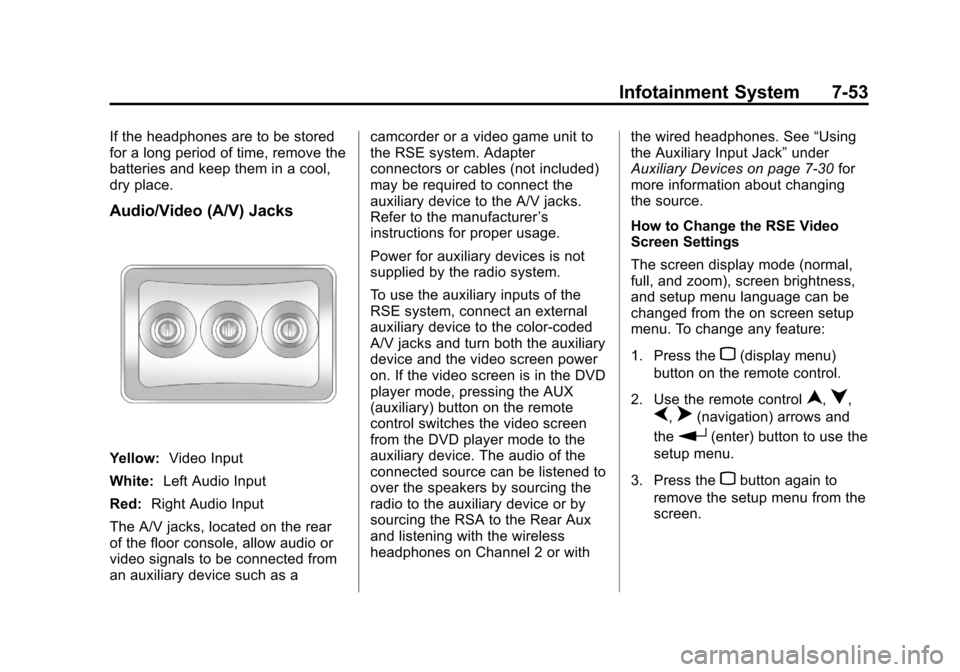
Audio/Video (A/V) Jacks
Yellow:Video Input
White: Left Audio Input
Red: Right Audio Input
The A/V jacks, located on the rear
of the floor console, allow audio or
video signals to be connected from
an auxiliary device such as a camcorder or a video game unit to
the RSE system. Adapter
connectors or cables (not included)
may be required to connect the
auxiliary device to the A/V jacks.
Refer to the manufacturer
’s
instructions for proper usage.
Power for auxiliary devices is not
supplied by the radio system.
To use the auxiliary inputs of the
RSE system, connect an external
auxiliary device to the color-coded
A/V jacks and turn both the auxiliary
device and the video screen power
on. If the video screen is in the DVD
player mode, pressing the AUX
(auxiliary) button on the remote
control switches the video screen
from the DVD player mode to the
auxiliary device. The audio of the
connected source can be listened to
over the speakers by sourcing the
radio to the auxiliary device or by
sourcing the RSA to the Rear Aux
and listening with the wireless
headphones on Channel 2 or with the wired headphones. See
“Using
the Auxiliary Input Jack” under
Auxiliary Devices on page 7‑30 for
more information about changing
the source.
How to Change the RSE Video
Screen Settings
The screen display mode (normal,
full, and zoom), screen brightness,
and setup menu language can be
changed from the on screen setup
menu. To change any feature:
1. Press the
z(display menu)
button on the remote control.
2. Use the remote control
n,q,
p,o(navigation) arrows and
the
r(enter) button to use the
setup menu.
3. Press the
zbutton again to
remove the setup menu from the
screen.
Page 236 of 532
Black plate (54,1)Cadillac Escalade/Escalade ESV Owner Manual - 2013 - CRC 2nd Edition - 10/
9/12
7-54 Infotainment System
Audio Output
Audio from the DVD player or
auxiliary inputs can be heard
through the following possible
sources:
.Wireless headphones
.Vehicle speakers
.Vehicle-wired headphone jacks
on the RSA system, if the
vehicle has this feature.
The RSE system always transmits
the audio signal to the wireless
headphones, if there is audio
available. See “Headphones” earlier
in this section for more information.
The DVD player is capable of
outputting audio to the wired
headphone jacks on the RSA
system, if the vehicle has this
feature. The DVD player can be
selected as an audio source on the
RSA system. See Rear Seat Audio
(RSA) System on page 7‑60 for
more information. When a device is connected to the
A/V jacks, or the radio's auxiliary
input jack if the vehicle has this
feature, the rear seat passengers
are able to hear audio from the
auxiliary device through the wireless
or wired headphones. The front seat
passengers are able to listen to
playback from this device through
the vehicle speakers by selecting
AUX as the source on the radio.
Video Screen(s)
The video screen(s) are located in
the overhead console.
To use the video screen(s):
1. Push the release button located
on the overhead console.
2. Move the screen to the desired position.
When the video screen is not in
use, push it up into its locked
position.
If a DVD is playing and the screen
is raised to its locked position, the
screen remains on. This is normal, and the DVD continues to play
through the previous audio source.
Use the remote control power button
or eject the disc to turn off the
screen.
The overhead console contains the
infrared transmitters for the wireless
headphones and the infrared
receivers for the remote control.
They are located at the rear of the
console.
Notice:
Avoid directly touching
the video screen, as damage may
occur. See “Cleaning the Video
Screens” later in this section for
more information.
Page 239 of 532
Black plate (57,1)Cadillac Escalade/Escalade ESV Owner Manual - 2013 - CRC 2nd Edition - 10/
9/12
Infotainment System 7-57
{(Subtitles):Press this button to
turn on or off subtitles and to move
through subtitle options when a
DVD is playing. The format and
content of this function vary for
each disc.
AUX (Auxiliary): Press this button
to switch the system between the
DVD player and an auxiliary source.
If the vehicle has a third row video
screen, the AUX button controls the
source display on the second row
video screen, and the third row
video screen as described in the
table below:
Aux
Button Press Second
Row
Screen Third Row
Screen
Default
State (No Press) DVD
Media DVD
Media
First
Press Aux Video
Source Aux Video
Source
Second Press DVD
Media Aux Video
Source Aux
Button Press Second
Row
Screen Third Row
Screen
Third
Press Aux Video
Source DVD
Media
Fourth Press Return to
DefaultState Return to
DefaultState
2(Camera): Press this button to
change camera angles on DVDs
that have this feature while a DVD is
playing. The format and content of
this function vary for each disc.
1 through 0 (Numeric Keypad):
The numeric keypad provides the
capability of direct chapter or track
number selection.
\(Clear): Press this button within
three seconds after entering a
numeric selection, to clear all
numerical inputs.
}10 (Double Digit Entries): Press
this button to select chapter or track
numbers greater than nine. Press
this button before entering the
number.
Battery Replacement
To change the remote control
batteries:
1. Slide the rear cover back on the remote control.
2. Replace the two batteries in the compartment. Make sure they
are installed correctly using the
diagram on the inside of the
remote control.
3. Replace the battery cover.
If the remote control is to be stored
for a long period of time, remove the
batteries and keep them in a cool,
dry place.
Page 240 of 532
Black plate (58,1)Cadillac Escalade/Escalade ESV Owner Manual - 2013 - CRC 2nd Edition - 10/
9/12
7-58 Infotainment System
Tips and Troubleshooting Chart
ProblemRecommended Action
There is no power. The ignition might not be turned to ON/RUN or ACC/
ACCESSORY.
The picture does not fill the screen. There are black
borders on the top and bottom or on both sides, or the
picture looks stretched out. Check the display mode settings in the setup menu by
pressing the display menu button on the remote control.
In auxiliary mode, the picture moves or scrolls. Check the auxiliary input connections at both devices.
The remote control does not work. Check to make sure there is no obstruction between the
remote control and the transmitter window.
Check the batteries to make sure they are not dead or
installed incorrectly.
After stopping the player, and pushing Play, sometimes
the DVD starts where it left off and sometimes at the
beginning. If the stop button was pressed one time, the DVD player
resumes playing where the DVD was stopped. If the
stop button was pressed two times, the DVD player
begins to play from the beginning of the DVD.
The auxiliary source is running, but there is no picture or
sound. Check that the RSE video screen is in the auxiliary
source mode.
Check the auxiliary input connections at both devices.
Page 242 of 532
Black plate (60,1)Cadillac Escalade/Escalade ESV Owner Manual - 2013 - CRC 2nd Edition - 10/
9/12
7-60 Infotainment System
Cleaning the Video Screen
When cleaning the video screen,
use only a clean cloth dampened
with clean water. Use care when
directly touching or cleaning the
screen, as damage could result.
Rear Seat Audio (RSA)
System
Vehicles with this feature allow the
rear seat passengers to listen to
and control any of the music
sources: radio, CD, DVD, or other
auxiliary sources. The rear seat
passengers can control the same
music sources the front seat
passengers are listening to (dual
control) or a different source. For
example, rear seat passengers can
listen to and control a CD through
the headphones, while the driver
listens to the radio through the
speakers. The rear seat passengers
have control of the volume for each
set of headphones.The radio functionality is controlled
by both the RSA and the front radio,
only one band can be tuned to at
one time. Changing the band on the
RSA or the front radio will change
band on the other system.
RSA functions can be operated
even when the main radio is off.
Audio can be heard through wired
headphones (not included) plugged
into the jacks on the RSA. If the
vehicle has this feature, audio can
also be heard on Channel 2 of the
wireless headphones.
The audio system allows the rear
speakers to continue playing even
when the RSA audio is active
through the headphones.
To listen to an iPod or portable
audio device through the RSA,
attach the iPod or portable audio
device to the auxiliary input (if
available), located below the RSA.
Turn the iPod on, then choose the
auxiliary input with the RSA SRCEbutton. An iPod
®or portable audio
device can be connected to the front
auxiliary jack or the USB port.
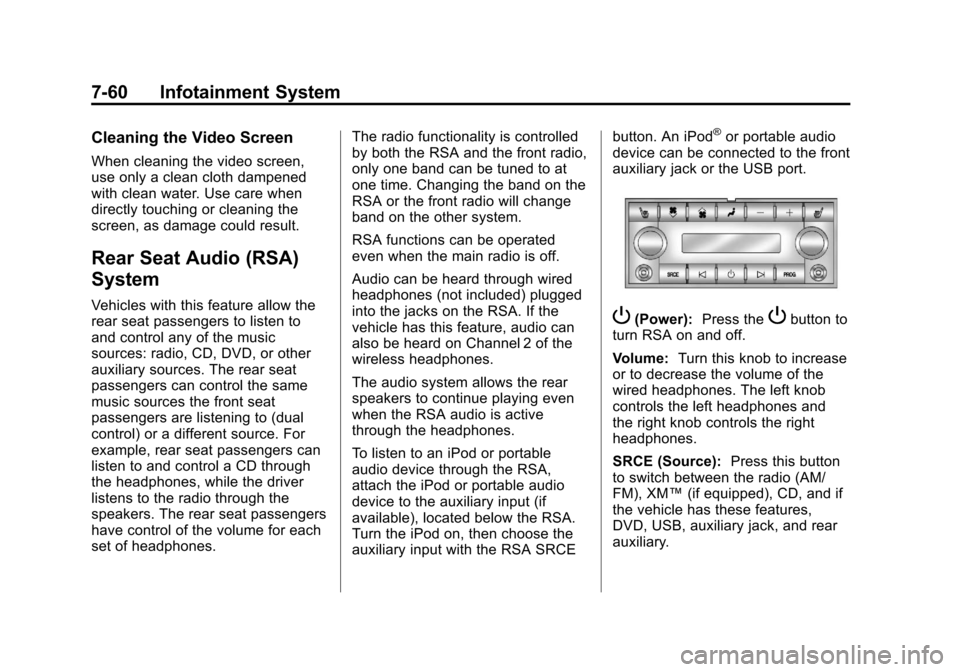
P(Power): Press thePbutton to
turn RSA on and off.
Volume: Turn this knob to increase
or to decrease the volume of the
wired headphones. The left knob
controls the left headphones and
the right knob controls the right
headphones.
SRCE (Source): Press this button
to switch between the radio (AM/
FM), XM™ (if equipped), CD, and if
the vehicle has these features,
DVD, USB, auxiliary jack, and rear
auxiliary.
Page 244 of 532
Black plate (62,1)Cadillac Escalade/Escalade ESV Owner Manual - 2013 - CRC 2nd Edition - 10/
9/12
7-62 Infotainment System
Navigation
Using the Navigation
System
This section presents basic
information needed to operate the
navigation system.
Use the buttons located on the
navigation system along with the
available touch-sensitive screen
buttons on the navigation screen to
operate the system. SeeOverview
on page 7‑4 for more information.
Once the vehicle is moving, various
functions are disabled to reduce
driver distractions.
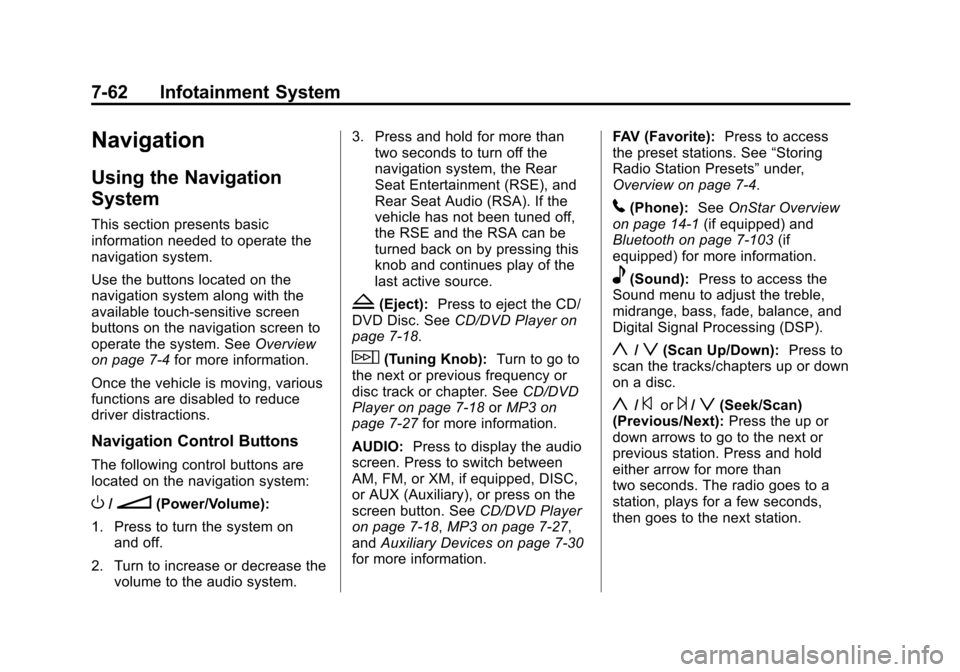
Navigation Control Buttons
The following control buttons are
located on the navigation system:
O/n(Power/Volume):
1. Press to turn the system on and off.
2. Turn to increase or decrease the volume to the audio system. 3. Press and hold for more than
two seconds to turn off the
navigation system, the Rear
Seat Entertainment (RSE), and
Rear Seat Audio (RSA). If the
vehicle has not been tuned off,
the RSE and the RSA can be
turned back on by pressing this
knob and continues play of the
last active source.
Z(Eject): Press to eject the CD/
DVD Disc. See CD/DVD Player on
page 7‑18.
w(Tuning Knob): Turn to go to
the next or previous frequency or
disc track or chapter. See CD/DVD
Player on page 7‑18 orMP3 on
page 7‑27 for more information.
AUDIO: Press to display the audio
screen. Press to switch between
AM, FM, or XM, if equipped, DISC,
or AUX (Auxiliary), or press on the
screen button. See CD/DVD Player
on page 7‑18, MP3 on page 7‑27,
and Auxiliary Devices on page 7‑30
for more information. FAV (Favorite):
Press to access
the preset stations. See “Storing
Radio Station Presets” under,
Overview on page 7‑4.
5(Phone): SeeOnStar Overview
on page 14‑1 (if equipped) and
Bluetooth on page 7‑103 (if
equipped) for more information.
e(Sound): Press to access the
Sound menu to adjust the treble,
midrange, bass, fade, balance, and
Digital Signal Processing (DSP).
y/z(Scan Up/Down): Press to
scan the tracks/chapters up or down
on a disc.
y/©or¨/z(Seek/Scan)
(Previous/Next): Press the up or
down arrows to go to the next or
previous station. Press and hold
either arrow for more than
two seconds. The radio goes to a
station, plays for a few seconds,
then goes to the next station.
Page 278 of 532
Black plate (96,1)Cadillac Escalade/Escalade ESV Owner Manual - 2013 - CRC 2nd Edition - 10/
9/12
7-96 Infotainment System
Night:Press to make the map
background darker.
Day: Press to make the map
background brighter.
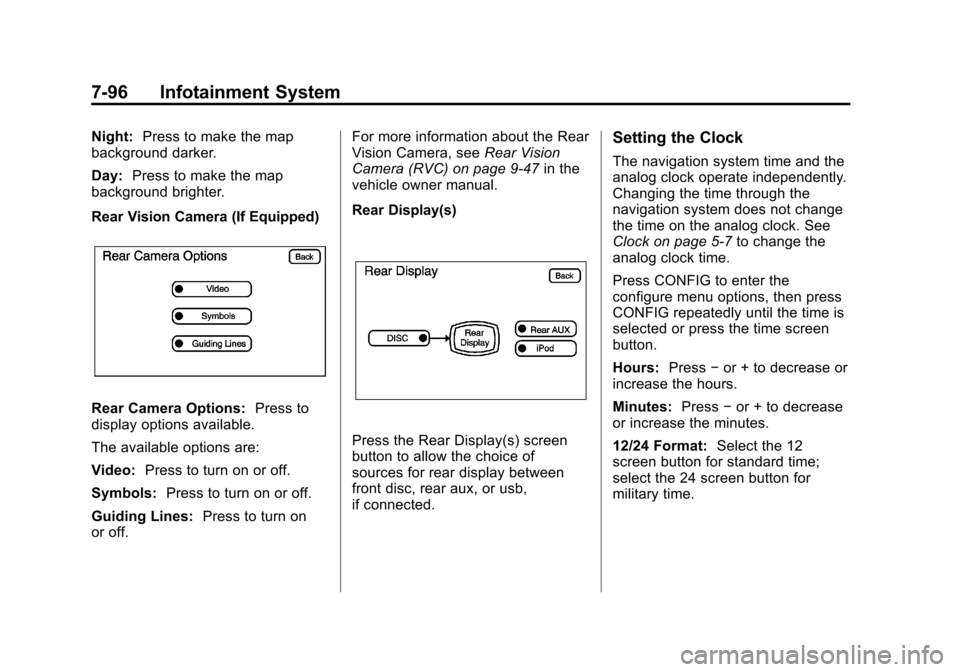
Rear Vision Camera (If Equipped)
Rear Camera Options: Press to
display options available.
The available options are:
Video: Press to turn on or off.
Symbols: Press to turn on or off.
Guiding Lines: Press to turn on
or off. For more information about the Rear
Vision Camera, see
Rear Vision
Camera (RVC) on page 9‑47 in the
vehicle owner manual.
Rear Display(s)
Press the Rear Display(s) screen
button to allow the choice of
sources for rear display between
front disc, rear aux, or usb,
if connected.
Setting the Clock
The navigation system time and the
analog clock operate independently.
Changing the time through the
navigation system does not change
the time on the analog clock. See
Clock on page 5‑7 to change the
analog clock time.
Press CONFIG to enter the
configure menu options, then press
CONFIG repeatedly until the time is
selected or press the time screen
button.
Hours: Press−or + to decrease or
increase the hours.
Minutes: Press−or + to decrease
or increase the minutes.
12/24 Format: Select the 12
screen button for standard time;
select the 24 screen button for
military time.