AUX CADILLAC ESCALADE 2013 3.G Owners Manual
[x] Cancel search | Manufacturer: CADILLAC, Model Year: 2013, Model line: ESCALADE, Model: CADILLAC ESCALADE 2013 3.GPages: 532, PDF Size: 7.69 MB
Page 23 of 532
Black plate (17,1)Cadillac Escalade/Escalade ESV Owner Manual - 2013 - CRC 2nd Edition - 10/
9/12
In Brief 1-17
Portable Audio Devices
This vehicle has an auxiliary input,
located on the audio faceplate, and
a USB port located on the
instrument panel or in the center
console. External devices such as
iPod
®, laptop computers,
MP3 players, CD changers, USB
storage device, etc. can be
connected to the auxiliary port using
a 3.5 mm (1/8 in) input jack or the
USB port depending on the audio
system.
See Auxiliary Devices on page 7‑30
or CD/DVD Player on page 7‑18 for
further information.
Bluetooth®
For vehicles with a Bluetooth
system, it allows users with a
Bluetooth-enabled cell phone to
make and receive hands-free calls
using the vehicle’ s audio system
and controls. The Bluetooth-enabled cell phone
must be paired with the Bluetooth
system before it can be used in the
vehicle. Not all phones will support
all functions. For more information,
see www.gm.com/bluetooth and
Bluetooth on page 7‑103.
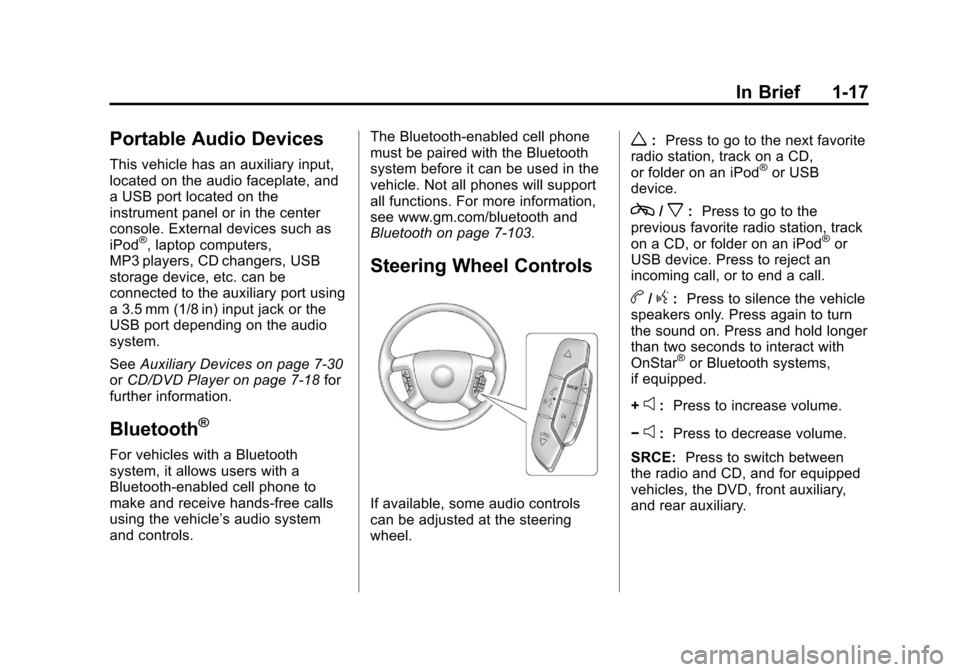
Steering Wheel Controls
If available, some audio controls
can be adjusted at the steering
wheel.
w:
Press to go to the next favorite
radio station, track on a CD,
or folder on an iPod
®or USB
device.
c/x: Press to go to the
previous favorite radio station, track
on a CD, or folder on an iPod
®or
USB device. Press to reject an
incoming call, or to end a call.
b/g: Press to silence the vehicle
speakers only. Press again to turn
the sound on. Press and hold longer
than two seconds to interact with
OnStar
®or Bluetooth systems,
if equipped.
+
e: Press to increase volume.
−
e: Press to decrease volume.
SRCE: Press to switch between
the radio and CD, and for equipped
vehicles, the DVD, front auxiliary,
and rear auxiliary.
Page 123 of 532
Black plate (3,1)Cadillac Escalade/Escalade ESV Owner Manual - 2013 - CRC 2nd Edition - 10/
9/12
Instruments and Controls 5-3
Radio
To select preset or favorite radio
stations:
Press and release
worc/xto
go to the next or previous radio
station stored as a preset or
favorite.
CD/DVD
To select tracks on a CD/DVD:
Press and release
worc/xto
go to the next or previous track.
Navigating an iPod or USB Device
on the Main Audio Screen
1. Press and release
worc/x
to select the next or previous
track within the selected
category.
2. Press and hold
worc/xto
move quickly through the tracks.
3. Press and release
¨to move up
one track within the selected
category. Navigating an iPod or USB Device
on the Music Navigator Screen
1. Press and release
worc/x
to select the next or previous
track within the selected
category.
2. Press and hold
worc/xto
move quickly through the tracks
within the selected category.
3. Press and release
¨to move up
one track within the selected
category.
b/g(Mute/Push to Talk): Press
to silence the vehicle speakers only.
Press again to turn the sound on.
For vehicles with Bluetooth or
OnStar systems, press and hold for
longer than two seconds to interact
with those systems. See Bluetooth
on page 7‑103 andOnStar
Overview on page 14‑1 for more
information. SRCE (Source/Voice
Recognition):
Press to switch
between the radio and CD, and for
equipped vehicles, the DVD, front
auxiliary, and rear auxiliary.
Press and hold this button for longer
than one second to initiate voice
recognition. See Voice Recognition
on page 7‑100 for more information.
¨(Seek):Press to go to the next
radio station while in AM,
FM, or XM™.
Press
¨to go to the next track or
chapter while sourced to the CD or
DVD slot.
Press
¨to select a track or a folder
when navigating folders on an iPod
or USB device.
Page 183 of 532
Black plate (1,1)Cadillac Escalade/Escalade ESV Owner Manual - 2013 - CRC 2nd Edition - 10/
9/12
Infotainment System 7-1
Infotainment
System
Introduction
Infotainment . . . . . . . . . . . . . . . . . . . 7-2
Theft-Deterrent Feature . . . . . . . 7-3
Overview . . . . . . . . . . . . . . . . . . . . . . 7-4
Radio
AM-FM Radio . . . . . . . . . . . . . . . . . 7-9
Satellite Radio . . . . . . . . . . . . . . . 7-15
Radio Reception . . . . . . . . . . . . . 7-16
Rear Side WindowAntenna . . . . . . . . . . . . . . . . . . . . 7-17
Satellite Radio Antenna . . . . . . 7-18
Audio Players
CD/DVD Player . . . . . . . . . . . . . . 7-18
MP3 . . . . . . . . . . . . . . . . . . . . . . . . . 7-27
Auxiliary Devices . . . . . . . . . . . . 7-30
Rear Seat Infotainment
Rear Seat Entertainment (RSE) System
(Headrest DVD) . . . . . . . . . . . . 7-31
Rear Seat Entertainment (RSE) System
(Overhead) . . . . . . . . . . . . . . . . . 7-50
Rear Seat Audio (RSA) System . . . . . . . . . . . . . . . . . . . . . 7-60
Navigation
Using the NavigationSystem . . . . . . . . . . . . . . . . . . . . . 7-62
Maps . . . . . . . . . . . . . . . . . . . . . . . . 7-64 Navigation Symbols . . . . . . . . . 7-65
Destination . . . . . . . . . . . . . . . . . . 7-70
Configure Menu . . . . . . . . . . . . . 7-84
Global Positioning
System (GPS) . . . . . . . . . . . . . . 7-97
Vehicle Positioning . . . . . . . . . . 7-97
Problems with Route Guidance . . . . . . . . . . . . . . . . . . . 7-98
If the System Needs Service . . . . . . . . . . . . . . . . . . . . . 7-99
Map Data Updates . . . . . . . . . . . 7-99
Database Coverage Explanations . . . . . . . . . . . . . . 7-100
Voice Recognition
Voice Recognition . . . . . . . . . . 7-100
Phone
Bluetooth . . . . . . . . . . . . . . . . . . . 7-103
Page 186 of 532
Black plate (4,1)Cadillac Escalade/Escalade ESV Owner Manual - 2013 - CRC 2nd Edition - 10/
9/12
7-4 Infotainment System
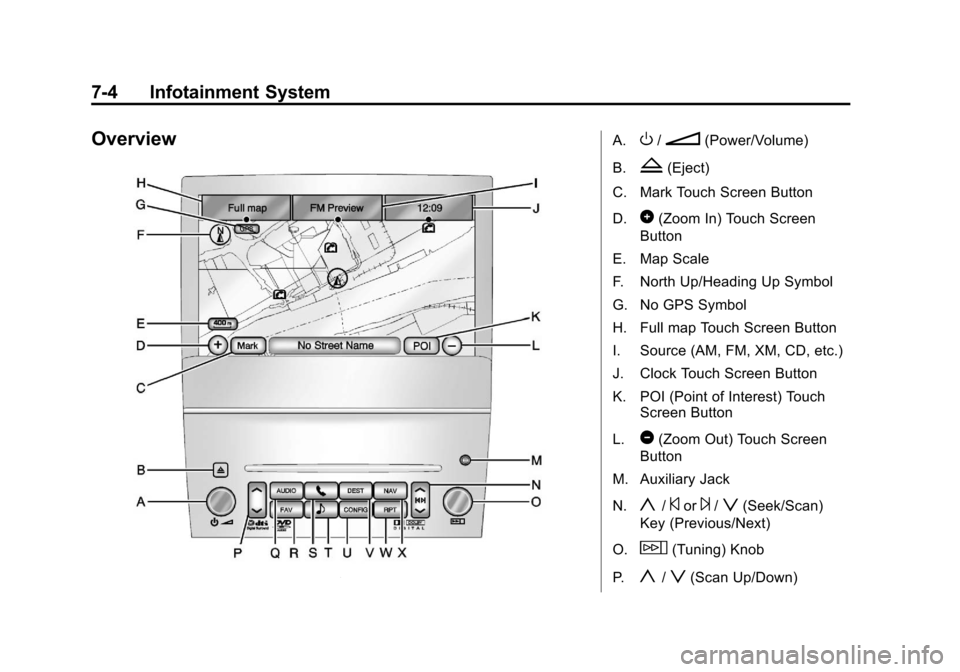
OverviewA.O/n(Power/Volume)
B.
Z(Eject)
C. Mark Touch Screen Button
D.
0(Zoom In) Touch Screen
Button
E. Map Scale
F. North Up/Heading Up Symbol
G. No GPS Symbol
H. Full map Touch Screen Button
I. Source (AM, FM, XM, CD, etc.)
J. Clock Touch Screen Button
K. POI (Point of Interest) Touch Screen Button
L.
1(Zoom Out) Touch Screen
Button
M. Auxiliary Jack
N.
y/©or¨/z(Seek/Scan)
Key (Previous/Next)
O.
w(Tuning) Knob
P.
y/z(Scan Up/Down)
Page 191 of 532
Black plate (9,1)Cadillac Escalade/Escalade ESV Owner Manual - 2013 - CRC 2nd Edition - 10/
9/12
Infotainment System 7-9
Radio
AM-FM Radio
Notice:Before adding any sound
equipment to the vehicle, such as
an audio system, CD player, CB
radio, mobile telephone,
or two-way radio, make sure that
it can be added by checking with
your dealer. Also, check federal
rules covering mobile radio and
telephone units. If sound
equipment can be added, it is
very important to do it properly.
Added sound equipment can
interfere with the operation of the
vehicle's engine, radio, or other
systems, and even damage them.
The vehicle's systems can
interfere with the operation of
sound equipment that has been
added.
Notice: The chime signals related
to safety belts, parking brake, and
other functions of the vehicle
operate through the navigation
system. If that equipment is replaced or additional equipment
is added to the vehicle, the
chimes may not work. Make sure
that replacement or additional
equipment is compatible with the
vehicle before installing it. See
“Accessories and Modifications”
in the vehicle's owner manual.
Playing the Radio
O/n(Power/Volume):
1. Press to turn the audio system on and off.
2. Turn to increase or to decrease the volume.
3. Press and hold for more than two seconds to turn off the
navigation system, the Rear
Seat Entertainment (RSE) video
screen, and Rear Seat Audio
(RSA). If the vehicle has not
been turned off, press this knob
to turn RSE and RSA back on
and to continue playback of the
last active source.
w(Tuning Knob): Turn to go to
the next or previous frequency or
disc track or chapter. See CD/DVD
Player on page 7‑18 orMP3 on
page 7‑27 for more information.
AUDIO: Press to display the audio
screen. Press to switch between
AM, FM, or XM, if equipped, Disc,
or AUX (Auxiliary), or press the
screen button. See CD/DVD Player
on page 7‑18, MP3 on page 7‑27,
and Auxiliary Devices on page 7‑30
for more information.
Page 194 of 532
Black plate (12,1)Cadillac Escalade/Escalade ESV Owner Manual - 2013 - CRC 2nd Edition - 10/
9/12
7-12 Infotainment System
Add Artist:Press to save the song
that is currently playing by the
artist's name.
Clear All: Press and Hold the
Clear All screen button to clear the
stored favorite songs.
Del: Press the Del screen button to
del the song that is associated to
that button.
Popup Notifications: Once a song
or songs are stored, a notification
popup alerts the listener if a stored
song is playing. Press to turn
notification on or off.While a notification popup alert
screen displays, press the screen
button showing the station or press
Ignore.
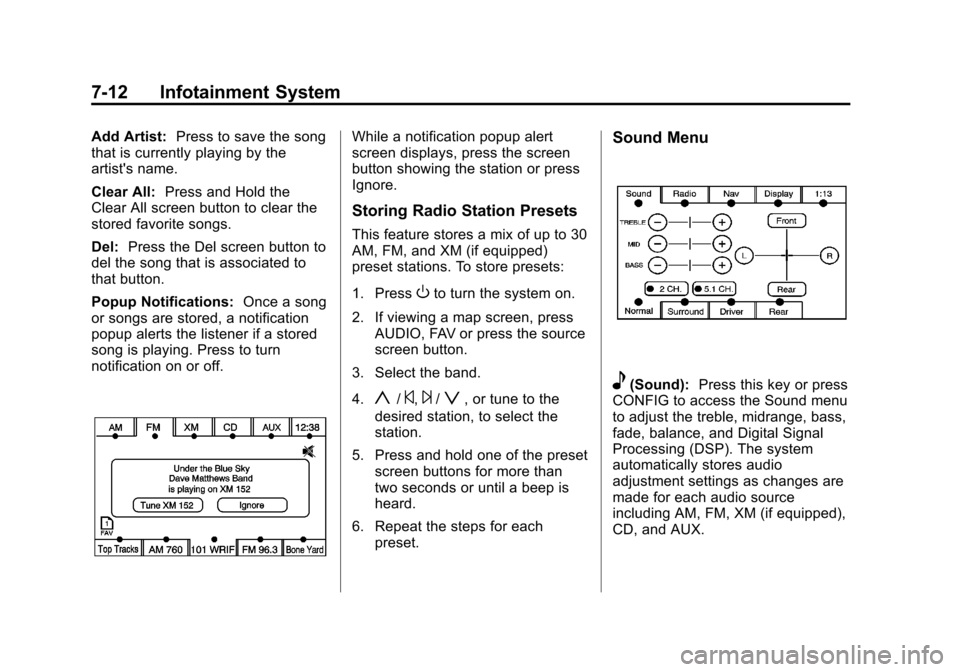
Storing Radio Station Presets
This feature stores a mix of up to 30
AM, FM, and XM (if equipped)
preset stations. To store presets:
1. Press
Oto turn the system on.
2. If viewing a map screen, press AUDIO, FAV or press the source
screen button.
3. Select the band.
4.
y/©,¨/z, or tune to the
desired station, to select the
station.
5. Press and hold one of the preset screen buttons for more than
two seconds or until a beep is
heard.
6. Repeat the steps for each preset.
Sound Menu
e(Sound): Press this key or press
CONFIG to access the Sound menu
to adjust the treble, midrange, bass,
fade, balance, and Digital Signal
Processing (DSP). The system
automatically stores audio
adjustment settings as changes are
made for each audio source
including AM, FM, XM (if equipped),
CD, and AUX.
Page 207 of 532
Black plate (25,1)Cadillac Escalade/Escalade ESV Owner Manual - 2013 - CRC 2nd Edition - 10/
9/12
Infotainment System 7-25
If the CD/DVD is not playing
correctly, for any other reason, try a
known good CD/DVD.
If any error occurs repeatedly or if
an error cannot be corrected,
contact your dealer.
Connecting a USB Storage
Device or iPod®
The USB Port, located on the
instrument panel or in the center
console, can be used to control an
iPod or a USB storage device.
To avoid connection problems,
extension cords are not
recommended. Use only the cable
that came with the device.
To connect a USB storage device,
connect the device to the USB port
located on the instrument panel or
in the center console.
To connect an iPod, connect one
end of the USB cable that came
with the iPod to the iPod’s dock
connector and connect the other
end to the USB port. If the vehicle is
on and the USB connection works,“OK to disconnect”
and a GM logo
may appear on the iPod and iPod
appears on the radio's display. The
iPod music appears on the radio’s
display and begins playing.
The iPod charges while it is
connected to the vehicle if the
vehicle is in the ACC/ACCESSORY
or ON/RUN position. When the
vehicle is turned off, the iPod
automatically powers off and will not
charge or draw power from the
vehicle's battery.
USB Supported File and Folder
Structure
The guidelines that must be met
while using USB supported files and
folders are:
.Up to 700 folders.
.Up to 8 folders in depth.
.Up to 65,535 files.
.Folder and file names up to
64 bytes.
.Files with an .mp3 or .wma file
extension.
.AAC files stored on an iPod.
.FAT16
.FAT32
Using the Navigation Audio
System to Control a USB
Storage Device or iPod
®
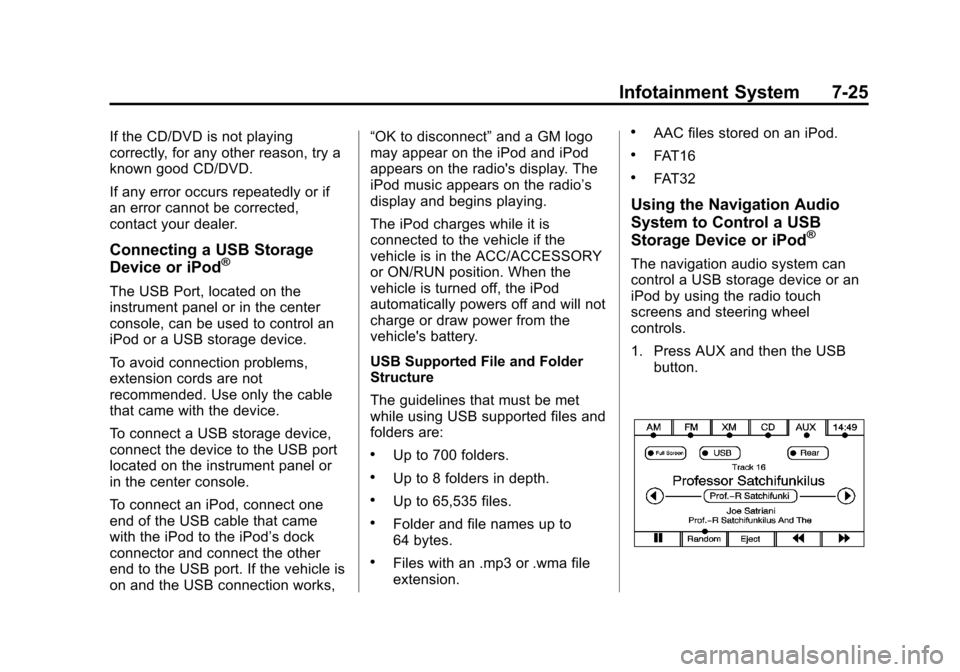
The navigation audio system can
control a USB storage device or an
iPod by using the radio touch
screens and steering wheel
controls.
1. Press AUX and then the USB
button.
Page 212 of 532
Black plate (30,1)Cadillac Escalade/Escalade ESV Owner Manual - 2013 - CRC 2nd Edition - 10/
9/12
7-30 Infotainment System
When playing an MP3 the rear seat
operator can power on the RSE
video screen and use the remote
control to navigate through the MP3.
Auxiliary Devices
Using the Auxiliary Input Jack
The navigation system has an
auxiliary input jack located on the
faceplate and in the center console.
This is not an audio output; do not
plug the headphone set into the
front auxiliary input jack. An external
audio device such as an iPod,
laptop computer, MP3 player, CD
player, or cassette tape player, etc.
can be connected to the auxiliary
input jack for use as another audio
source.
Drivers are encouraged to set up
any auxiliary device while the
vehicle is in P (Park). SeeDefensive
Driving on page 9‑3 for more
information on driver distraction. To use a portable audio player,
connect a 3.5 mm (1/8 in) cable to
the radio's front auxiliary input jack.
When a device is connected, press
AUDIO, then press AUDIO again
until AUX is selected or press the
AUX screen button to begin playing
audio from the device over the
vehicle speakers.
For optimal sound quality, increase
the portable audio device's volume
to the loudest level.
It is always best to power the
portable audio device through its
own battery while playing.
The vehicle may have a rear
entertainment system (RSE) with a
second and third row screen. The
RSE has audio adapters to allow
you to connect auxiliary devices.
The audio can be heard through the
speakers or through the wireless or
wired headphones. See the Rear
Seat Infotainment user guide for
more information.Drivers are encouraged to set up
any auxiliary device while the
vehicle is in P (Park). See
Defensive Driving on page 9‑3
for
more information on driver
distraction.
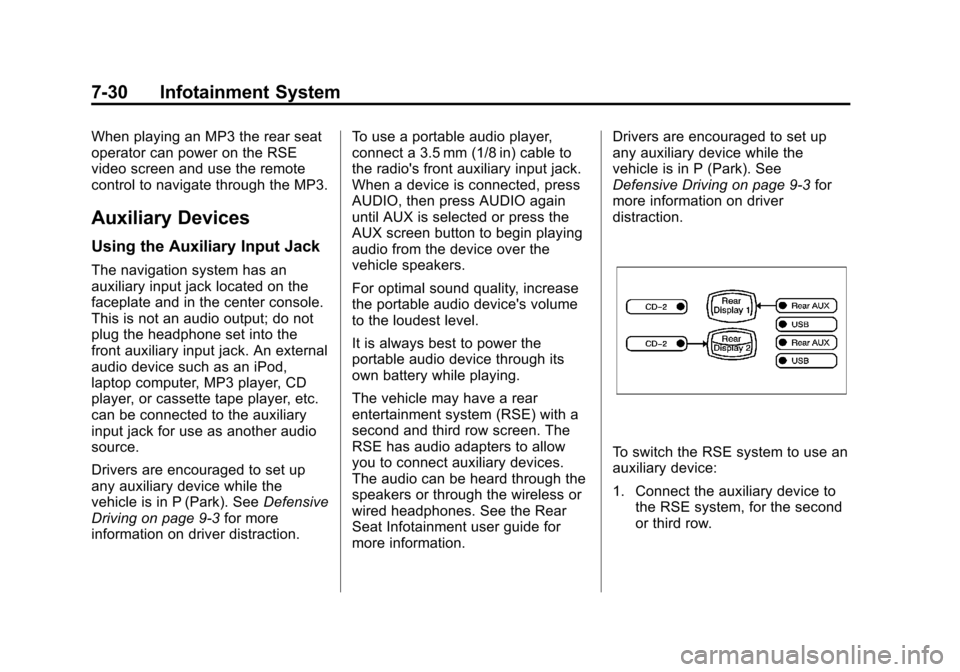
To switch the RSE system to use an
auxiliary device:
1. Connect the auxiliary device to the RSE system, for the second
or third row.
Page 213 of 532
Black plate (31,1)Cadillac Escalade/Escalade ESV Owner Manual - 2013 - CRC 2nd Edition - 10/
9/12
Infotainment System 7-31
2. Press AUDIO then press AUDIOagain, repeatedly until AUX
(auxiliary) is selected or press
the AUX screen button. An
auxiliary device must be
connected for the AUX screen
button to appear as an option to
select.
3. For the second row display select the Rear AUX screen
button next to Rear Display
1 and for the third row display
select the Rear AUX screen
button next to Rear Display 2.
Each screen works
independently of the other. The
second row screen can watch a
DVD while the third row screen
can use the auxiliary device.
The rear seat passengers can also
use the remote control to change
the functions of the RSE. See the
Rear Seat Infotainment user guide
for more information.Rear Seat
Infotainment
Rear Seat Entertainment
(RSE) System
(Headrest DVD)
Vehicles with an RSE system
include two head restraint video
display screens with integrated DVD
players, auxiliary inputs, two
wireless headphones, and a remote
control. This system works
independently from the vehicle's
Overhead DVD RSE system. See
Rear Seat Entertainment (RSE)
System (Headrest DVD) on
page 7‑31 orRear Seat
Entertainment (RSE) System
(Overhead) on page 7‑50 for
information about the Overhead
DVD RSE system.
The vehicle has a feature called
Retained Accessory Power (RAP).
With RAP, the RSE system can be
played even after the ignition is turned off. See
Retained Accessory
Power (RAP) on page 9‑26 for more
information.
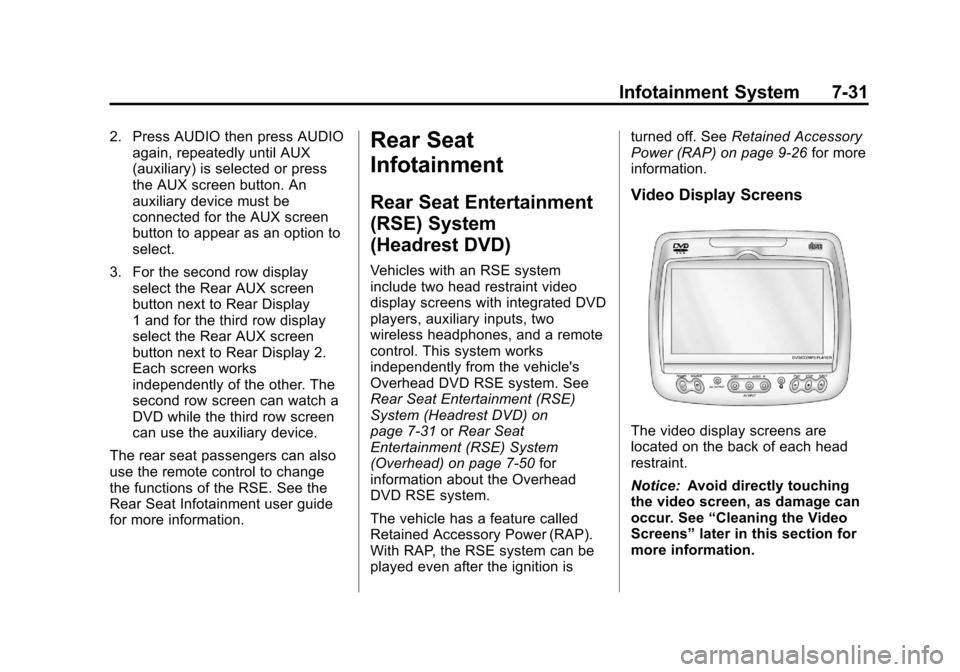
Video Display Screens
The video display screens are
located on the back of each head
restraint.
Notice: Avoid directly touching
the video screen, as damage can
occur. See “Cleaning the Video
Screens” later in this section for
more information.
Page 216 of 532
Black plate (34,1)Cadillac Escalade/Escalade ESV Owner Manual - 2013 - CRC 2nd Edition - 10/
9/12
7-34 Infotainment System
L. STOPc
.Press once to stop playing
a DVD.
There is a pre-stop feature
for DVD and video CD
only. This feature resumes
playback of the disc where
it was stopped. Press the
stop button once during
disc playback and
c
displays on the DVD
startup screen. This icon
disappears after a few
seconds. Press the stop
button a second time,
or eject the disc, to cancel
the pre-stop feature and to
clear the disc position
memory.M. EJECT
X
.Press to eject a disc from
the DVD slot.
If a disc is ejected from the
player, but not removed, it
will automatically reload
into the player. Another
way to reload a disc that
has been ejected, but not
removed from the DVD
player, is to press the eject
button or the play button.
Infrared Remote Sensor: Located
in the top center of the video display
screen. Do not block the signal from
the remote to the sensor.
Infrared Transmitters: Located in
the top center of the video display
screen. Do not block the signal from
the headphones to the transmitter.
Using the Base RSE
On-Screen Display (OSD)
Menus
Use the OSD setup display
menus for:
.Initial setup
.Display setup
.Parental control setup
.Adjusting the picture quality
.Setting the various outputs
.On-screen display language
To use the OSD menus while using
the DVD player or an auxiliary
device:
1. Press the SETUP button on the remote control to display the
icons and pages on the display
screen.
2. Select the desired page by using the left/right navigation arrows to
move the cursor.
3. Press the SETUP button again on the remote control to cancel
use of the setup display.