language CADILLAC ESCALADE 2013 3.G User Guide
[x] Cancel search | Manufacturer: CADILLAC, Model Year: 2013, Model line: ESCALADE, Model: CADILLAC ESCALADE 2013 3.GPages: 532, PDF Size: 7.69 MB
Page 223 of 532
Black plate (41,1)Cadillac Escalade/Escalade ESV Owner Manual - 2013 - CRC 2nd Edition - 10/
9/12
Infotainment System 7-41
Using the Uplevel RSE
On-Screen Display (OSD)
Menus
Use the OSD setup display
menus for:
.General Setup
.Audio Setup
.Quality Setup
.Preference Setup
To use the OSD menus while using
the DVD player or an auxiliary
device:
1. Press the SETUP button on the remote control to display the
icons and pages on the display
screen.
2. Select the desired page by using the left/right navigation arrows to
move the cursor.
3. Press the SETUP button again on the remote control to cancel
use of the setup display. Not all DVDs support all of the
feature defaults in the setup menus.
If a feature is not supported, the
defaults are provided by the DVD
media.
General Setup Menu
To set the language for the OSD:
1. Press the SETUP button on the
remote control.
2. Use the left/right navigation arrows to navigate the General
Setup Page, then use the down
navigation arrow to select the
OSD language.
3. Press the ENTER button and then use the right or left
navigation arrows to select
English, Simple/Traditional
Chinese, French, German,
Italian, Spanish, Portuguese,
or Korean. Press the left
navigation arrow to go back to
the previous menu. The angle mark allows different
viewing angles on the DVD player.
To set the angle mark:
1. Press the SETUP button on the
remote control.
2. Use the left/right navigation arrows to navigate the General
Setup Page, then use the down
navigation arrow to select the
OSD language.
3. Press the ENTER button and then use the right or left
navigation arrows to select On
or Off. Press the left navigation
arrow to go back to the
previous menu.
Audio Setup Menu
The Audio Setup Menu is available
when a disc is not loaded.
To set the speaker setup:
1. Press the SETUP button on the remote control.
2. Use the left/right navigation arrows to navigate the Audio
Setup Page.
Page 224 of 532
Black plate (42,1)Cadillac Escalade/Escalade ESV Owner Manual - 2013 - CRC 2nd Edition - 10/
9/12
7-42 Infotainment System
3. Press the down navigation arrowto select Speaker Setup
sub-menu and to adjust the
speakers setting. Choose from
LT/RT, Stereo, V SURR,
and OFF
4. Press the ENTER button and then use the left or right
navigation arrows to select a
speaker option. Press the left
navigation arrow to go back to
the previous menu.
The Dolby Digital Setup Menu
speaker options are L-Mono,
R-Mono, and Mix-Mono.
Quality Setup Menu
To setup the video quality
setup menu:
1. Press the SETUP button on the remote control.
2. Use the left/right and down navigation arrows on the remote
control to select the Video
Quality Setup sub-menu. 3. Press the ENTER button, use
the left or right navigation arrows
to adjust the following:
Sharpness: Adjust to soften or
sharpen the picture. Use the right or
left navigation arrows to choose
from Low, Med, or High.
Brightness: Adjust to brighten or
darken the picture. Use the right or
left navigation arrows to choose
from −20 to +20.
Contrast: Adjust to increase or
decrease the picture contrast. Use
the right or left navigation arrows to
choose from −16 to +16.
Hue: Adjust to increase or
decrease the color hue. Use the
right or left navigation arrows to
choose from −9 to +9.
Saturation: Adjust to increase or
decrease color intensity. Use the
right or left navigation arrows to
choose from −9 to +9 Preference Setup Menu
To set the audio playback language:
1. Press the SETUP button on the
remote control.
2. Use the left/right and down navigation arrows on the remote
control to select the Audio
sub-menu under the
Preference Page.
To turn the Subtitles on or off:
1. Press the SETUP button on the remote control.
2. Use the left/right and down navigation arrows on the remote
control to select the Subtitle
sub-menu under the Preference
Page and use the left or right
navigation arrows to choose On
or Off. Press the left navigation
arrow to go back to the
previous menu.
Page 225 of 532
Black plate (43,1)Cadillac Escalade/Escalade ESV Owner Manual - 2013 - CRC 2nd Edition - 10/
9/12
Infotainment System 7-43
To set the disc menu language:
1. Press the SETUP button on theremote control.
2. Use the left/right and down navigation arrows on the remote
control to select the Disc
sub-menu under the Preference
Page and use the left or right
navigation arrows to select the
language. Press the left
navigation arrow to go back to
the previous menu.
To setup the Parental Control:
1. Press the SETUP button on the remote control.
2. Use the left/right and down navigation arrows on the remote
control to select the Parental
sub-menu under the
Preference Page. 3. Press the SETUP button, and
use the right and up/down
navigation arrows to select any
one of the available Rating
settings from the display menu.
The Rating settings are:
.Kid SAFE (Children)
.G
.PG
.PG 13
.PG R
.R
.NC 17
.ADULT
4. Press the left navigation arrow to confirm the selection.
If a disc is inserted into the DVD
compartment slot and it exceeds the
Parental Setting, the following
message appears on display:
The Parental Setting of this player
prohibits play. Would you like to
allow this disc to play? If yes if selected, the six digit
password must be entered for the
disc to play. If the wrong password
is entered, the following message
appears:
This movie will not play due to the
Parental Setting of the player.
To create a six digit password, use
the numeric keypad on the remote
control. Press the ENTER button to
confirm.
The default password is
136900.
To change the Parental Control
Password:
1. Press the SETUP button on the remote control
2. Navigate to the Password sub-menu under the Preference
Menu and press enter.
3. At the Old Password option, enter the old password or the
default password (136900).
4. At the New Password option, enter the new password (six
digits) using numeric buttons.
Page 228 of 532

Black plate (46,1)Cadillac Escalade/Escalade ESV Owner Manual - 2013 - CRC 2nd Edition - 10/
9/12
7-46 Infotainment System
SETUP:Press to change the
default settings, see “Using the RSE
On-Screen Display (OSD) Menus”
later in this manual. There are four
main menu screens, each screen
displays a menu to select different
setting options. The screens are:
1. General Setup —adjusts screen
settings.
2. Audio Setup —sets the
language.
3. Preference Screen —sets the
subtitles and parental controls.
4. Password Setup —allows a
password to be set.
Press SETUP again to exit.
EJECT
X: Press to eject or
reload a disc.
DVD-Video Screen 3: Press the
DVD button located under 3 to
transmit IR codes for DVD mode on
Video Screen 3.
TV-Video Screen 3: This button is
not used with the system. DVD-Video Screen 4:
Press the
DVD button located under 4 to
transmit IR codes for DVD mode on
Video Screen 4.
TV-Video Screen 4: This button is
not used with the system.
SOUND AROUND ON/OFF: Press
to turn the FM Transmitter power on
or off.
MUTE
>(For DVD Only): Press to
turn off the headphone sound. Press
again to turn the sound on again.
PIX (Picture Selection): Press to
adjust the picture’s On Screen
Display (OSD). Each time this
button is pressed, the picture
adjustment OSD, cycles through
bars for BRIGHTNESS,
CONTRAST, COLOR, and TINT.
Use the right/left navigation arrows
to adjust the setting. This feature
automatically shuts off id another
button is pressed or adjustments
are not made within six seconds. SOUND AROUND SELECT:
Press
to select an FM transmitter channel.
The SOUND AROUND SELECT
lets the DVD audio play over the
vehicle’s sound system by tuning
the radio to one of the six FM
frequencies listed below.
.CH1 : 88.3MHz
.CH2 : 88.7MHz
.CH3 : 89.1MHz
.CH4 : 89.5MHz
.CH5 : 89.9MHz
.CH6 : 90.3MHz
MENU: Press to enter the DVD
disc menu while the disc is playing.
Q,R,q,r(Navigation Arrows):
Press to navigate through menus.
ENTER: Press to enter a selected
function or to begin playback of
the disc.
Page 229 of 532

Black plate (47,1)Cadillac Escalade/Escalade ESV Owner Manual - 2013 - CRC 2nd Edition - 10/
9/12
Infotainment System 7-47
REPEAT7:Press to repeat part
or all of a chapter, title, track, or the
entire disc after using the A-B
button to setup repeat preset
sections.
RETURN
8: This button is not
used with the system.
A-B: This button is used to setup
repeat preset sections. Press this
button once while the disc is playing
to select the starting position. Press
a second time to select the end
position. Press a third time to turn
the function off. To view the preset
section, press
7.
AUTO MEMORY: This button is not
used with the system.
SEARCH/SKIP: This button is not
used with the system.
ERASE/ADD: This button is not
used with the system.
R-S: This button is not used with
the system. TITLE:
Press to enter the disc title
mode. The title feature is
disc-specific, and may not be
available on all discs.
SUBTITLE: Press to change the
subtitle language to another
available language or to turn
subtitles off.
ANGLE: Press to select a different
viewing angle for discs that are
recorded with different camera
angles.
AUDIO: Press to select a different
language for discs that are recorded
with different languages.
0-9 (Numbers): The numbers
located on the lower left side of the
remote control can be used to enter
numbered menu options, channels,
or track numbers.
GOTO: Press to enter the GOTO
menu to choose a desired title,
chapter, track, or song inside
the disc. DISPLAY:
Press to scroll through
display information on the upper left
corner of the screen, such as title,
chapter/track, time elapsed, and
time remaining, or to turn off the
display
PROGRAM: Press to edit a
playback program containing
desired titles in the DVD or tracks in
the CD-DA.
3D: Press to change between
different 3D audio modes for DVD
or CD.
The options for DVD are: Off, Rock,
Pop, Live, Dance, Techno, Classic,
and Soft.
The options for CD are: Off,
Concert, Living room, Hall,
Bathroom Cave, Arena, and Church.
RANDOM: Press to play titles
randomly.
PLAY/PAUSE
r/j: Press to start
playback of the disc, or to pause
playback.
Page 235 of 532
Black plate (53,1)Cadillac Escalade/Escalade ESV Owner Manual - 2013 - CRC 2nd Edition - 10/
9/12
Infotainment System 7-53
If the headphones are to be stored
for a long period of time, remove the
batteries and keep them in a cool,
dry place.
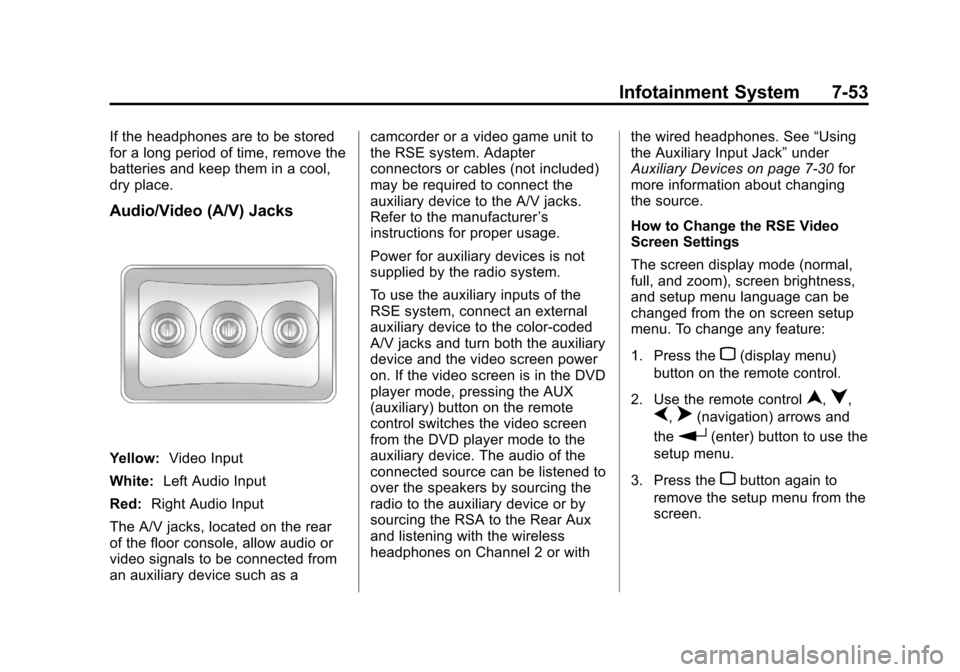
Audio/Video (A/V) Jacks
Yellow:Video Input
White: Left Audio Input
Red: Right Audio Input
The A/V jacks, located on the rear
of the floor console, allow audio or
video signals to be connected from
an auxiliary device such as a camcorder or a video game unit to
the RSE system. Adapter
connectors or cables (not included)
may be required to connect the
auxiliary device to the A/V jacks.
Refer to the manufacturer
’s
instructions for proper usage.
Power for auxiliary devices is not
supplied by the radio system.
To use the auxiliary inputs of the
RSE system, connect an external
auxiliary device to the color-coded
A/V jacks and turn both the auxiliary
device and the video screen power
on. If the video screen is in the DVD
player mode, pressing the AUX
(auxiliary) button on the remote
control switches the video screen
from the DVD player mode to the
auxiliary device. The audio of the
connected source can be listened to
over the speakers by sourcing the
radio to the auxiliary device or by
sourcing the RSA to the Rear Aux
and listening with the wireless
headphones on Channel 2 or with the wired headphones. See
“Using
the Auxiliary Input Jack” under
Auxiliary Devices on page 7‑30 for
more information about changing
the source.
How to Change the RSE Video
Screen Settings
The screen display mode (normal,
full, and zoom), screen brightness,
and setup menu language can be
changed from the on screen setup
menu. To change any feature:
1. Press the
z(display menu)
button on the remote control.
2. Use the remote control
n,q,
p,o(navigation) arrows and
the
r(enter) button to use the
setup menu.
3. Press the
zbutton again to
remove the setup menu from the
screen.
Page 238 of 532

Black plate (56,1)Cadillac Escalade/Escalade ESV Owner Manual - 2013 - CRC 2nd Edition - 10/
9/12
7-56 Infotainment System
r(Enter):Press this button to
select the choice that is highlighted
in any menu.
z(Display Menu): Press this
button to adjust the brightness,
screen display mode (normal, full,
or zoom), and display the
language menu.
q(Return): Press this button to
exit the current active menu and
return to the previous menu. This
button operates only when the
display menu or a DVD menu is
active.
c(Stop): Press this button to stop
playing, fast reversing, or fast
forwarding a DVD. Press this button
twice to return to the beginning of
the DVD.
s(Play/Pause): Press this
button to start playing a DVD. Press
this button while a DVD is playing to
pause it. Press it again to continue
playing the DVD. While the DVD is playing, the DVD
can be played slowly by pressing
the play/pause button then pressing
the fast forward button. The DVD
continues playing in a slow play
mode. Also, reverse can be played
slowly by pressing the play/pause
button and then pressing the fast
reverse button. To cancel slow play
mode, press the play/pause button.
t(Previous Track/Chapter):
Press this button to return to the
start of the current track or chapter.
Press this button again to go to the
previous track or chapter. This
button might not work when the
DVD is playing the copyright
information or the previews.
u(Next Track/Chapter): Press
this button to go to the beginning of
the next chapter or track. This
button might not work while the
DVD is playing the copyright
information or the previews.
r(Fast Reverse): Press this
button to quickly reverse the DVD or
CD. To stop fast reversing a DVD
video, press the play/pause button.
To stop fast reversing a DVD audio
or CD, release the fast reverse
button. This button might not work
when the DVD is playing the
copyright information or the
previews.
[(Fast Forward): Press this
button to fast forward the DVD or
CD. To stop fast forwarding a DVD
video, press the play/pause button.
To stop fast forwarding a DVD audio
or CD, release the fast forward
button. This button might not work
while the DVD is playing the
copyright information or the
previews.
e(Audio): Press this button to
change audio tracks on DVDs that
have this feature when the DVD is
playing. The format and content of
this function vary for each disc.
Page 283 of 532
Black plate (101,1)Cadillac Escalade/Escalade ESV Owner Manual - 2013 - CRC 2nd Edition - 10/
9/12
Infotainment System 7-101
Helpful Hints for Stating
Commands
.When a multiple command is
available, choose the command
that works best.
.Words that are in brackets are
optional. For example, for the
command Radio [band] [select]
FM, stating Radio FM or Radio
select FM are both valid
commands.
.When the system recognizes the
command the system does one
of the following:
‐Perform the function.
‐ Ask you to confirm your
choice.
‐ Issue an error message “Did
not recognize. Voice
Recognition Canceled.”
.If you experience difficulty with
the system recognizing a
command, try saying it more
softly, and wait for a few
seconds after the beep,
or repeat the command.
.Background noise may cause
voice commands to be
misunderstood, including airflow
noise from wind.
.To use the voice recognition
system, the map DVD must be
loaded and the navigation
system must be on.
This system is able to recognize
commands in three different
languages. The system only
recognizes commands based on the
language selected from the Driver
Information Center (DIC). See
Driver Information Center (DIC) on
page 5‑23 for more information.
Voice Recognition Commands
The following list shows all of the
voice commands available for the
navigation system with a brief
description of each. The commands
are listed with the optional words in
brackets. To use the voice
commands, refer to the instructions
listed previously.
Voice Tag Commands
The following are voice tag
commands that can be accessed by
clearly stating the commands
exactly as they are written. There
are up to 40 voice tag entries for
destinations.
Navigation go to [destination],
navigation select: These
commands instruct the system to
select a destination saved under the
voice tag you have stored. The
system prompts for a destination
name then waits for you to state
the name.
Page 517 of 532
Black plate (7,1)Cadillac Escalade/Escalade ESV Owner Manual - 2013 - CRC 2nd Edition - 10/
9/12
OnStar 14-7
TTY Users
OnStar has the ability to
communicate to the deaf,
hard-of-hearing, or speech-impaired
customers while in the vehicle. The
available dealer-installed TTY
system can provide in-vehicle
access to all of the OnStar services,
except Virtual Advisor and OnStar
Turn-by-Turn Navigation.
OnStar.com
The website provides access to
account information, manages the
OnStar subscription, and allows
viewing of videos of each service.
Get subscription plan pricing and
sign up for OnStar Vehicle
Diagnostics. Click on the“My
Account” tab on the home page.
OnStar Personal Identification
Number (PIN)
A PIN is needed to access some of
the OnStar services, like Remote
Door Unlock and Stolen Vehicle
Assistance. You will be prompted to
change the PIN the first time when
speaking with an Advisor. To
change the OnStar PIN, call OnStar
and provide the Advisor with the
current number.
Warranty
OnStar equipment may be
warranted as part of the New
Vehicle Limited Warranty. The
manufacturer of the vehicle
furnishes detailed warranty
information.
Languages
The vehicle can be programmed to
respond in French or Spanish.
Press
Qand ask an Advisor.
Advisors can speak French or
Spanish.
Potential Issues
Some OnStar services are disabled
after five days. OnStar cannot
perform Remote Door Unlock or
Stolen Vehicle Assistance after the
vehicle has been off continuously
for five days. After five days, OnStar
can contact Roadside Assistance
and a locksmith to help gain access
to the vehicle.
Global Positioning
System (GPS)
.Obstruction of the GPS can
occur in a large city with tall
buildings; in parking garages;
around airports; in tunnels,
underpasses, or parking
garages; or in an area with very
dense trees. If GPS signals are
not available, the OnStar system
should still operate to call
OnStar. However, OnStar could
have difficulty identifying the
exact location.