USB CADILLAC ESCALADE 2022 User Guide
[x] Cancel search | Manufacturer: CADILLAC, Model Year: 2022, Model line: ESCALADE, Model: CADILLAC ESCALADE 2022Pages: 508, PDF Size: 9.18 MB
Page 174 of 508
Cadillac Escalade Owner Manual (GMNA-Localizing-U.S./Canada/Mexico-
15567102) - 2022 - CRC - 11/17/21
INFOTAINMENT SYSTEM 173
Touch the up and down arrows to
move the list up and down.
Touch Browse and the following may
display:
Playlists:1. Touch to view the playlists stored on the USB.
2. Touch a playlist to view the list of all songs in that playlist.
3. Touch a song from the list to begin playback.
Supported playlist extensions are m3u
and pls.
Artists: 1. Touch to view the list of artists stored on the USB.
2. Touch an artist name to view a list of all albums by the artist.
3. To select a song, touch All Songs or touch an album and then touch a
song from the list.
Songs: 1. Touch to display a list of all songs on the USB.
2. To begin playback, touch a song from the list. Albums:
1. Touch to view the albums on the USB.
2. Touch the album to view a list of all songs on the album.
3. Touch a song from the list to begin playback.
Genres: 1. Touch to view the genres on the USB.
2. Touch a genre to view a list of artists.
3. Touch an artist to view albums by that artist.
4. Touch an album to view songs on the album.
5. Touch a song to start playback.
Composers: 1. Touch to view the composers on the USB.
2. Touch a Composer to view a list of albums by that composer.
3. Touch an album or All Songs to view a list of songs.
4. Touch a song from the list to begin playback. Folders:
1. Touch to view the directories on the USB.
2. Touch a folder to view a list of all files.
3. Touch a file from the list to begin playback.
Podcasts : Touch to view the podcasts
on the connected Apple device and
get a list of podcast episodes.
Audiobooks:
1. Touch to view the audiobooks stored on the Apple device.
2. Touch an audiobook to get a list of chapters.
3. Touch the chapter from the list to begin playback.
File System and Naming
File systems supported by the USB
may include:
.FAT32
.NTFS
.HFS+
The songs, artists, albums, and genres
are taken from the file’s song
information and are only displayed if
Page 175 of 508
Cadillac Escalade Owner Manual (GMNA-Localizing-U.S./Canada/Mexico-
15567102) - 2022 - CRC - 11/17/21
174 INFOTAINMENT SYSTEM
present. The radio displays the file
name as the track name if the song
information is not available.
Supported Apple Devices
To view supported devices, see
my.cadillac.com/learn.
Media Playback and Mute
USB playback will be paused if the
system is muted. If the steering wheel
mute control is pressed again,
playback will resume.
If the source is changed while in
mute, playback resumes and audio
will unmute.
Bluetooth Audio
Music may be played from a paired
Bluetooth device. SeeBluetooth
(Overview) 0198 or
Bluetooth (Pairing and Using a Phone)
0 199 for help pairing a device.
Volume and song selection may be
controlled by using the infotainment
controls or the mobile device.
If Bluetooth is selected and no volume is present, check the volume setting
on both your mobile device and the
infotainment system.
Music can be launched by touching
Bluetooth from the recent sources list
on the left of the display or by
touching the More option and then
touching the Bluetooth device.
To play music via Bluetooth:
1. Power on the device, and pair to connect the device.
2. Once paired, touch Audio from the Home Page, then touch Bluetooth
from the recent sources list on the
left of the display.
Bluetooth Sound Menu
See “Infotainment System Sound
Menu ”under AM-FM Radio 0166.
Manage Bluetooth Devices
From the Home Page: 1. Touch Audio.
2. Touch Bluetooth.
3. Touch Devices to add or delete devices. When touching Bluetooth, the radio
may not be able to launch the audio
player on the connected device to
start playing. When the vehicle is not
moving, use the mobile device to
begin playback.
All devices launch audio differently.
When selecting Bluetooth as a source,
the radio may show as paused on the
display. Press play on the device or
touch
pon the display to begin
playback.
Browse functionality will be provided
where supported by the Bluetooth
device. This media content will not be
part of the MyMedia source mode.
Some smartphones support sending
Bluetooth music information to
display on the radio. When the radio
receives this information, it will check
to see if any is available and display it.
For more information about supported
Bluetooth features, see
my.cadillac.com/learn.
Page 178 of 508
Cadillac Escalade Owner Manual (GMNA-Localizing-U.S./Canada/Mexico-
15567102) - 2022 - CRC - 11/17/21
INFOTAINMENT SYSTEM 177
Warning (Continued)
.Do not charge the battery at
temperatures above 45 °C (113 °F)
.Do not charge the battery if the
headphones are defective or
damaged
Caution
Do not store the headphones in
heat or direct sunlight. This could
damage the headphones and repairs
would not be covered by the vehicle
warranty. Storage in extreme cold
can weaken the batteries. Keep the
headphones stored in a cool, dry
place.
Batteries in this product should not be
disposed of with household waste.
Batteries should be recycled at an
appropriate facility. Contact local
authorities for details on recycling.
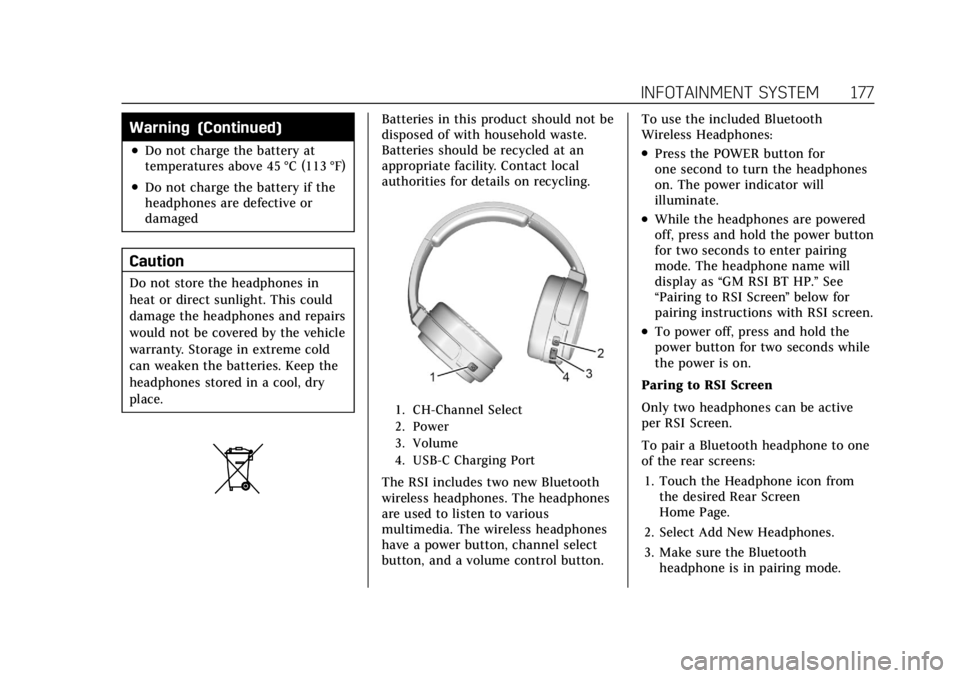
1. CH-Channel Select
2. Power
3. Volume
4. USB-C Charging Port
The RSI includes two new Bluetooth
wireless headphones. The headphones
are used to listen to various
multimedia. The wireless headphones
have a power button, channel select
button, and a volume control button.To use the included Bluetooth
Wireless Headphones:
.Press the POWER button for
one second to turn the headphones
on. The power indicator will
illuminate.
.While the headphones are powered
off, press and hold the power button
for two seconds to enter pairing
mode. The headphone name will
display as
“GM RSI BT HP.” See
“Pairing to RSI Screen ”below for
pairing instructions with RSI screen.
.To power off, press and hold the
power button for two seconds while
the power is on.
Paring to RSI Screen
Only two headphones can be active
per RSI Screen.
To pair a Bluetooth headphone to one
of the rear screens: 1. Touch the Headphone icon from the desired Rear Screen
Home Page.
2. Select Add New Headphones.
3. Make sure the Bluetooth headphone is in pairing mode.
Page 179 of 508

Cadillac Escalade Owner Manual (GMNA-Localizing-U.S./Canada/Mexico-
15567102) - 2022 - CRC - 11/17/21
178 INFOTAINMENT SYSTEM
4. Once recognized by the system, theBluetooth headphone is displayed
on the list of Available
Headphones.
5. Select the Bluetooth headphone from the list. Once connected,
touch OK at the Pairing Successful
pop-up.
6. Touch OK.
Voice Over
If equipped, the RSI system has a
Voice Over feature to benefit the
visually and hearing impaired.
When activated, Voice Over provides
audible feedback to the user about
which area on the screen they are
touching, identifying active buttons,
as well as providing information
feedback of screen identification,
current status, list content, metadata,
and pop-up information. It allows for
the user to activate features through a
double tap anywhere on the screen
which relates to the last single
touched and audibly announced
actionable button. To turn Voice Over on or off, touch
*, touch the toggle, and then press
OK to confirm. Voice Over turns off
every time the vehicle is turned off.
Reset Rear Media
Select to reset the Apps and log out
users.
Open Source License
Select to show the license
information.
Rear Consumer Ports (RCP)
If equipped with RSI, the RCP are in
the rear of the center console. These
include two HDMI ports and two
USB-C charge only ports.
HDMI
The HDMI input allows an HDMI A/V
cable to be connected from an
auxiliary device such as a camcorder,
video game system, or Apple device.
A cable from Apple is required for
Apple devices.
Touch the HDMI port that the
external device was connected to on
the home screen.
For certain HDMI devices that support
USB charging, the USB ports can be
used as a power source.
Content from these HDMI ports are
NOT accessible through the
infotainment display.
To use the HDMI input of the RSI
system:
1. Connect the auxiliary device with an HDMI cable.
2. Power on both the auxiliary device and the RSI video screen.
3. Touch
{(Home) on the desired
display and select HDMI as the
source.
Page 182 of 508
Cadillac Escalade Owner Manual (GMNA-Localizing-U.S./Canada/Mexico-
15567102) - 2022 - CRC - 11/17/21
INFOTAINMENT SYSTEM 181
Rear Media Settings
From the Rear Media page, touch
Settings to access the settings menu.
The menu may contain the following:
Remember Screen Power Status
Select to have rear screens
automatically power on when the
vehicle is started.
Rear Screen Voice-Over
Select to have Video Voice Over for
the individual rear screens.
Allowed Applications
Select to choose which applications
are visible.
Account
Select to show the vehicle data plan.
Reset Rear Media
Select to reset the applications.
Rear MediaTerms of Use
Select to view the terms of use.
Privacy Statement
Select to view the Privacy statement.RSI Troubleshooting
No power :
The ignition might not be
on or in ACC/ACCESSORY.
There is no sound from the
headphones with the indicator light
on : Make sure the headphones have
sufficient charge. Plug the headphones
to a USB-C port to charge.
Check to see if headphones are paired
to the screens. Make sure that you are
listening in to the correct screen by
pressing the channel select button.
If the steps above do not work, then
unpair the headphones from the RSI
screens, turn the headphones off, turn
them back on and attempt to pair
them. See pairing procedures for the
Bluetooth headphone previously in
this section.
Video Distortion
Video distortion can occur when
operating cellular phones, scanners,
CB radios, Global Positioning Systems
(GPS), two-way radios, mobile faxes,
or walkie talkies. It might be necessary to turn off the
video player when operating one of
these devices in or near the vehicle.
Navigation
Using the Navigation
System
If equipped, launch the Nav
application by touching the Nav icon
on the Home Page or on the shortcut
tray near the left side of the
infotainment display.
When the Nav application is launched
for the first time, a product
walkthrough is available. Use of the
feature requires the Terms and
Conditions and the Privacy statement
to be confirmed. If available and
signed into a profile, it is also
suggested to enable and confirm
Personalized Navigation.
Personalized Navigation (If
Equipped)
If Personalized Navigation is available
and confirmed, this feature learns
preferences by remembering where
Page 204 of 508

Cadillac Escalade Owner Manual (GMNA-Localizing-U.S./Canada/Mexico-
15567102) - 2022 - CRC - 11/17/21
INFOTAINMENT SYSTEM 203
Dual Tone Multi-Frequency
(DTMF) Tones
The in-vehicle Bluetooth system can
send numbers during a call. This is
used when calling a menu-driven
phone system. Use the Keypad to
enter the number.
Phone Settings
Touch6on the home page and then
touch Settings. The following may
display:
.Contacts
.Active Call View
.OnStar Phone TTY Mode
Contacts
Sort Contacts : This sorts the
displayed order of contact names by
First Name or Last Name.
Re-sync Phone Contacts : This allows
the contact list to re-sync by
importing the contacts from the
currently connected phone.
Active Call View
This setting allows whether answering
incoming call will display the active
call view. Touch On or Off.
OnStar Phone TTY Mode
This setting enables or disables the
OnStar Phone TTY Mode for OnStar
Advisor Calls and OnStar Emergency
Calls.
Touch Disable or Enable.
Apple CarPlay and
Android Auto
If equipped, Android Auto and/or
Apple CarPlay capability may be
available through a compatible
smartphone. If available and
connected, the Android Auto and
Apple CarPlay icons will change from
gray to white on the Home Page of the
infotainment display.
To use Android Auto and/or Apple
CarPlay:
For Wired Phone Projection
1. Download the Android Auto app to your smartphone from the Google
Play store. There is no app required
for Apple CarPlay. 2. Connect your Android phone or
Apple iPhone by using the
factory-provided phone USB cable
and plugging into a USB data port.
For best performance, it is highly
recommended to use the device’s
factory-provided USB cable, which
should be replaced after significant
wear to maintain connection
quality. Aftermarket or third-party
cables may not work.
3. When the phone is first connected to activate Apple CarPlay or
Android Auto, the message “Device
Projection Privacy Consent ”will
appear.
.Touch Continue to launch Apple
CarPlay or Android Auto.
.Touch Disable to remove Apple
CarPlay and Android Auto
capability from the vehicle
Settings menu. Other functions
may still work.
For Wireless Phone Projection 1. Download the Android Auto app to your smartphone from the Google
Play store. There is no app required
for Apple CarPlay.
Page 205 of 508
Cadillac Escalade Owner Manual (GMNA-Localizing-U.S./Canada/Mexico-
15567102) - 2022 - CRC - 11/17/21
204 INFOTAINMENT SYSTEM
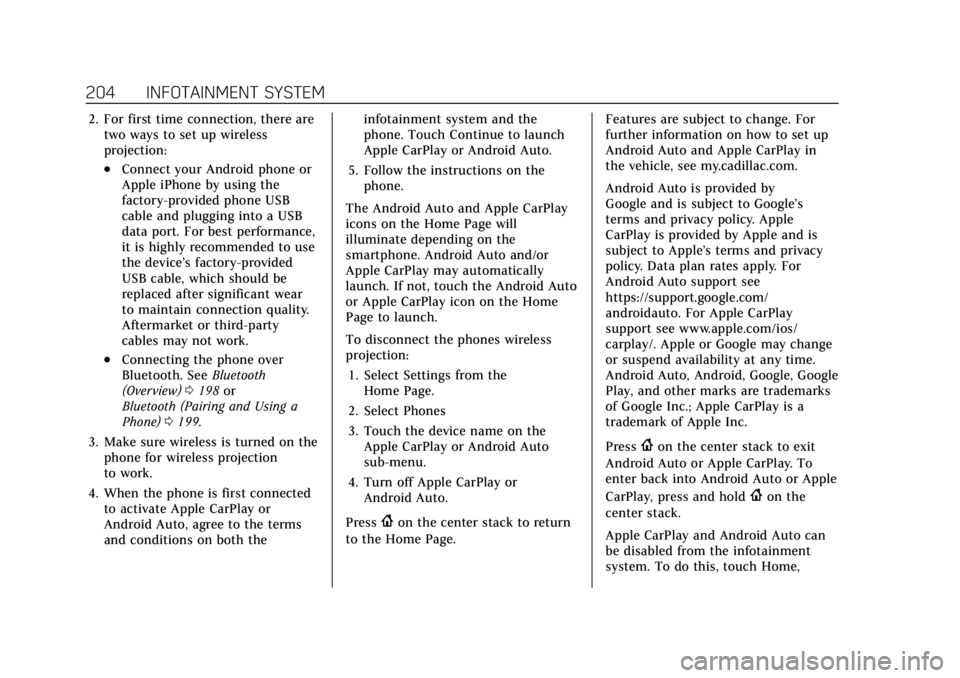
2. For first time connection, there aretwo ways to set up wireless
projection:
.Connect your Android phone or
Apple iPhone by using the
factory-provided phone USB
cable and plugging into a USB
data port. For best performance,
it is highly recommended to use
the device’s factory-provided
USB cable, which should be
replaced after significant wear
to maintain connection quality.
Aftermarket or third-party
cables may not work.
.Connecting the phone over
Bluetooth. See Bluetooth
(Overview) 0198 or
Bluetooth (Pairing and Using a
Phone) 0199.
3. Make sure wireless is turned on the phone for wireless projection
to work.
4. When the phone is first connected to activate Apple CarPlay or
Android Auto, agree to the terms
and conditions on both the infotainment system and the
phone. Touch Continue to launch
Apple CarPlay or Android Auto.
5. Follow the instructions on the phone.
The Android Auto and Apple CarPlay
icons on the Home Page will
illuminate depending on the
smartphone. Android Auto and/or
Apple CarPlay may automatically
launch. If not, touch the Android Auto
or Apple CarPlay icon on the Home
Page to launch.
To disconnect the phones wireless
projection: 1. Select Settings from the Home Page.
2. Select Phones
3. Touch the device name on the Apple CarPlay or Android Auto
sub-menu.
4. Turn off Apple CarPlay or Android Auto.
Press
{on the center stack to return
to the Home Page. Features are subject to change. For
further information on how to set up
Android Auto and Apple CarPlay in
the vehicle, see my.cadillac.com.
Android Auto is provided by
Google and is subject to Google’s
terms and privacy policy. Apple
CarPlay is provided by Apple and is
subject to Apple’s terms and privacy
policy. Data plan rates apply. For
Android Auto support see
https://support.google.com/
androidauto. For Apple CarPlay
support see www.apple.com/ios/
carplay/. Apple or Google may change
or suspend availability at any time.
Android Auto, Android, Google, Google
Play, and other marks are trademarks
of Google Inc.; Apple CarPlay is a
trademark of Apple Inc.
Press
{on the center stack to exit
Android Auto or Apple CarPlay. To
enter back into Android Auto or Apple
CarPlay, press and hold
{on the
center stack.
Apple CarPlay and Android Auto can
be disabled from the infotainment
system. To do this, touch Home,
Page 208 of 508

Cadillac Escalade Owner Manual (GMNA-Localizing-U.S./Canada/Mexico-
15567102) - 2022 - CRC - 11/17/21
INFOTAINMENT SYSTEM 207
.Wi-Fi Password: Select to change
the vehicle’s Wi-Fi network
password.
.Connected Phones: Select to show a
list of the vehicle’s currently
connected phones.
.Data Updating: Select to show the
data plan details including the
amount of data remaining.
Networks
This will show connected and
available Wi-Fi networks.
If a 4G LTE data package is not active
on the vehicle, the infotainment
system can be connected to an
external protected Wi-Fi network,
such as a mobile device or home
hotspot, to utilize connected services.
Device Remote Access
Touch and the following may display:
.Remote Access: Select to control
devices with an installed OnStar app
linked to this vehicle by USB or the
Wi-Fi hotspot.
Language
This will set the display language used
on the infotainment display and
instrument cluster. It may also use the
selected language for voice
recognition and audio feedback. Select
from the available languages.
Privacy
Touch and the following may display:
.Location Services: Select to allow
apps and services to identify the
vehicle location.
.Voice Recognition Sharing: Select to
send voice sessions to a cloud-based
voice recognition system.
.Types: This setting lists permissions
considered sensitive by Android,
and the apps that are currently
allowed to use each permission.
.Used By Applications: This setting
lists each application and its
allowed permissions.
Software Updates
If equipped, the vehicle can download
and install select software updates
over a wireless connection. The
system will prompt for certain updates to be downloaded and
installed. There is also an option to
check for updates manually.
To manually check for updates, touch
Settings on the Home Page and select
the System tab. Follow the on-screen
prompts. There are two options
available under Software Updates,
"Check for Updates" and "Previous
Updates". Selecting "Check for
Updates", will check and list if any
updates are available for this vehicle.
"No updates available" will display if
there is no update available. Selecting
"Previous Updates" will list all the
previous SW version(s) installed in the
vehicle. The steps to check for,
download, and install updates may
vary by vehicle.
The vehicle can be used normally
during the software download. Once
the download is complete, there may
be a prompt to accept the installation
of the update upon the next ignition
cycle or the next time the vehicle is
shifted into P (Park). For most
updates, the vehicle will be disabled
and cannot be driven during the
installation. The system will deliver
Page 400 of 508
Cadillac Escalade Owner Manual (GMNA-Localizing-U.S./Canada/Mexico-
15567102) - 2022 - CRC - 11/17/21
VEHICLE CARE 399
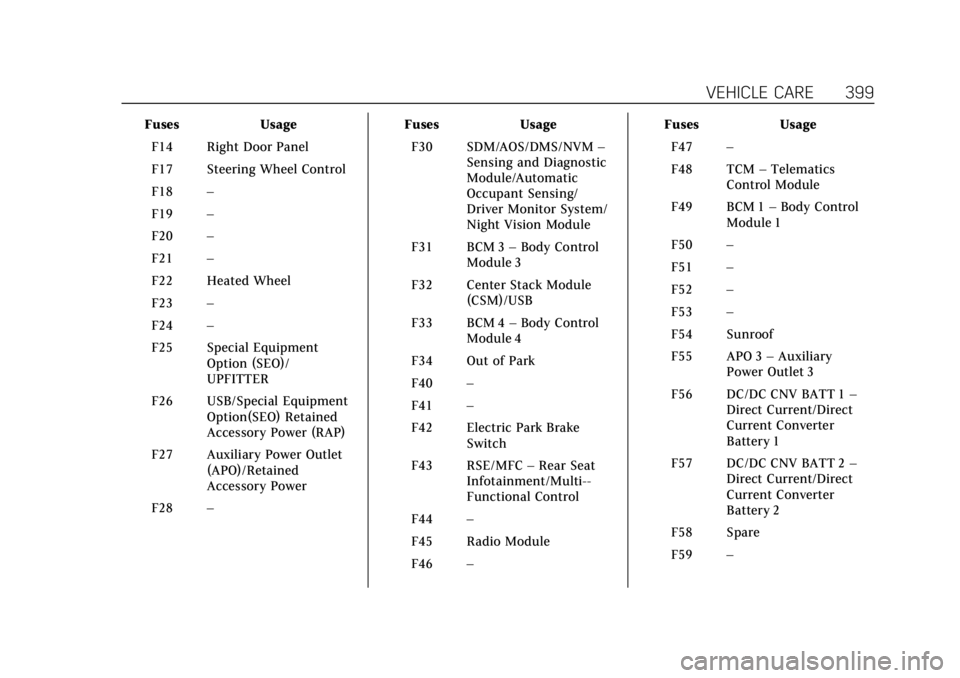
FusesUsage
F14 Right Door Panel
F17 Steering Wheel Control
F18 –
F19 –
F20 –
F21 –
F22 Heated Wheel
F23 –
F24 –
F25 Special Equipment Option (SEO)/
UPFITTER
F26 USB/Special Equipment Option(SEO) Retained
Accessory Power (RAP)
F27 Auxiliary Power Outlet (APO)/Retained
Accessory Power
F28 – Fuses
Usage
F30 SDM/AOS/DMS/NVM –
Sensing and Diagnostic
Module/Automatic
Occupant Sensing/
Driver Monitor System/
Night Vision Module
F31 BCM 3 –Body Control
Module 3
F32 Center Stack Module (CSM)/USB
F33 BCM 4 –Body Control
Module 4
F34 Out of Park
F40 –
F41 –
F42 Electric Park Brake Switch
F43 RSE/MFC –Rear Seat
Infotainment/Multi--
Functional Control
F44 –
F45 Radio Module
F46 – Fuses
Usage
F47 –
F48 TCM –Telematics
Control Module
F49 BCM 1 –Body Control
Module 1
F50 –
F51 –
F52 –
F53 –
F54 Sunroof
F55 APO 3 –Auxiliary
Power Outlet 3
F56 DC/DC CNV BATT 1 –
Direct Current/Direct
Current Converter
Battery 1
F57 DC/DC CNV BATT 2 –
Direct Current/Direct
Current Converter
Battery 2
F58 Spare
F59 –
Page 502 of 508

Cadillac Escalade Owner Manual (GMNA-Localizing-U.S./Canada/Mexico-
15567102) - 2022 - CRC - 11/17/21
INDEX 501
MirrorsAutomatic Dimming . . . . . . . . . . . . . . . 33
Automatic Dimming Rearview . . . . 33
Convex . . . . . . . . . . . . . . . . . . . . . . . . . . . . . . 31
Folding . . . . . . . . . . . . . . . . . . . . . . . . . . . . . 32
Heated . . . . . . . . . . . . . . . . . . . . . . . . . . . . . . 33
Power . . . . . . . . . . . . . . . . . . . . . . . . . . . . . . . 31
Tilt in Reverse . . . . . . . . . . . . . . . . . . . . . 33
Mirrors, Interior Rearview . . . . . . . . . . . 33
Mode . . . . . . . . . . . . . . . . . . . . . . . . . . . . . . . . 267 Driver Control . . . . . . . . . . . . . . . . . . . . . 267
Monitor System, Tire Pressure . . . . . 411
Multi-band Antenna . . . . . . . . . . . . . . . . 171
N
Navigation Connected Services . . . . . . . . . . . . . . . 491
Destination . . . . . . . . . . . . . . . . . . . . . . . . 185
Using the System . . . . . . . . . . . . . . . . . 181
Navigation Symbols . . . . . . . . . . . . . . . . 185
Net, Convenience . . . . . . . . . . . . . . . . . . . 102
New Vehicle Break-In . . . . . . . . . . . . . . . 245
Night Vision System . . . . . . . . . . . . . . . . 325
O
Odometer . . . . . . . . . . . . . . . . . . . . . . . . . . . . 117 Trip . . . . . . . . . . . . . . . . . . . . . . . . . . . . . . . . 117
Off-Road . . . . . . . . . . . . . . . . . . . . . . . . . . . . . 235 Driving . . . . . . . . . . . . . . . . . . . . . . . . . . . . 235 Off-Road (cont'd)
Recovery . . . . . . . . . . . . . . . . . . . . . . . . . . . 234
Oil Engine . . . . . . . . . . . . . . . . . . . . . . . . . . . . . 373
Engine Oil Life System . . . . . . . . . . . 375
Engine Oil Pressure Gauge . . . . . . . 117
Pressure Light . . . . . . . . . . . . . . . . . . . . . 131
Older Children, Restraints . . . . . . . . . . . 78
Online Owner Center . . . . . . . . . . . . . . . 474
OnStar . . . . . . . . . . . . . . . . . . . . . . . . . . . . . . . 483
OnStar Additional Information . . . . 487
OnStar Emergency . . . . . . . . . . . . . . . . . . 486
OnStar Overview . . . . . . . . . . . . . . . . . . . . 485
OnStar Security . . . . . . . . . . . . . . . . . . . . . 486
Outlets Power . . . . . . . . . . . . . . . . . . . . . . . . . . . . . . 109
Overheating, Engine . . . . . . . . . . . . . . . . 381
Overview . . . . . . . . . . . . . . . . . . . . . . . . . . . . 161 Instrument Panel . . . . . . . . . . . . . . . . . . . . 4
P
ParkShifting Into . . . . . . . . . . . . . . . . . . . . . . 250
Shifting Out of . . . . . . . . . . . . . . . . . . . . 251
Park Assist . . . . . . . . . . . . . . . . . . . . .303, 312
Parking Brake and P (Park)Mechanism Check . . . . . . . . . . . . . . . 387 Parking (cont'd)
Extended . . . . . . . . . . . . . . . . . . . . . . . . . . 251
Over Things That Burn . . . . . . . . . . . 251
Parking Assist Automatic . . . . . . . . . . . . . . . . . . . . . . . . . 314
Parking or Backing Assistance Systems . . . . . . . . . . . . . . . 303
Passenger Airbag Status Indicator . . . . . . . . . . . . . . . . . . . . . . . . . . . 122
Passenger Compartment Air Filter . . . . . . . . . . . . . . . . . . . . . . . . . . . . . . . 228
Passenger Sensing System . . . . . . . . . . 72
Pedestrian Ahead Indicator . . . . . . . . 127
Perchlorate Materials
Requirements, California . . . . . . . . . 369
Personalization
Vehicle . . . . . . . . . . . . . . . . . . . . . . . . . . . . . 140
Phone Apple CarPlay andAndroid Auto . . . . . . . . . . . . . . . . . . . . 203
Bluetooth . . . . . . . . . . . . . . . . . . . . 198, 199
Port USB . . . . . . . . . . . . . . . . . . . . . . . . . . . . . . . . 171
Positioning Vehicle . . . . . . . . . . . . . . . . . . . . . . . . . . . . . 191
Power
Door Locks . . . . . . . . . . . . . . . . . . . . . . . . . 17
Mirrors . . . . . . . . . . . . . . . . . . . . . . . . . . . . . 31