phone CADILLAC ESCALADE 2022 User Guide
[x] Cancel search | Manufacturer: CADILLAC, Model Year: 2022, Model line: ESCALADE, Model: CADILLAC ESCALADE 2022Pages: 508, PDF Size: 9.18 MB
Page 168 of 508

Cadillac Escalade Owner Manual (GMNA-Localizing-U.S./Canada/Mexico-
15567102) - 2022 - CRC - 11/17/21
INFOTAINMENT SYSTEM 167
Manual tuning can be done by:
.Touch7or6.
.Turn the Primary Knob on the
infotainment controls.
.Place a finger on the infotainment
display and swipe right or left.
Touch
Hto save the tuned station as
a favorite.
Stations
Touch!to list all available stations
or select Categories at the top of the
list to access the categories list. The
list contains categories associated
with the AM or FM stations. Touch a
category name to display a list of
stations for that category. Touching a
station from the list will tune the
radio to that station. Touch
Hto save the selected station
as a favorite.
Audio Settings
From the AM or FM audio source
main page, touch
*to display the
following:
.Front Passenger Volume
.Sound
.Adaptive Volume
.HD Radio
.RDS
.Manage Phones
.Metadata Corrector
.Reset Music Index
Front Passenger Volume
This setting allows the front seat
passengers to adjust the audio volume
of their headrest speakers
independently from the cabin volume.
Sound
Select and the following may display:
Equalizer : Touch to adjust Bass,
Midrange, and Treble, using the
options on the infotainment display. Fade/Balance :
Touch to adjust by
using the controls on the
infotainment display.
Sound Mode : Touch to select Front
or Rear and to adjust Surround or
Surround 3D.
Adaptive Volume
This feature will automatically adjust
the audio volume based on vehicle
speed and road noise.
Touch Off or On.
HD Radio
Enhances AM and FM radio with
digital channels for better sound
quality and information.
Touch Off or On.
RDS
Radio Data System (RDS) displays
information about the currently
playing radio content such as song or
program name.
Touch Off or On.
Page 169 of 508
Cadillac Escalade Owner Manual (GMNA-Localizing-U.S./Canada/Mexico-
15567102) - 2022 - CRC - 11/17/21
168 INFOTAINMENT SYSTEM
Manage Phones
Select to manage the vehicle
Bluetooth phone connections and
phone pairing.
Metadata Corrector
This feature, when on, will add and
correct information associated with
the media files on connected devices.
Touch Off or On.
Reset Music Index
Select to clear the metadata from the
connected USB devices.
Favorites
From the active audio source page,
choose
qFavorites from the list at
the left side to display a list of audio
favorites.
Favorites are stored by touching
H.
This will highlight indicating that it is
now saved as a favorite.
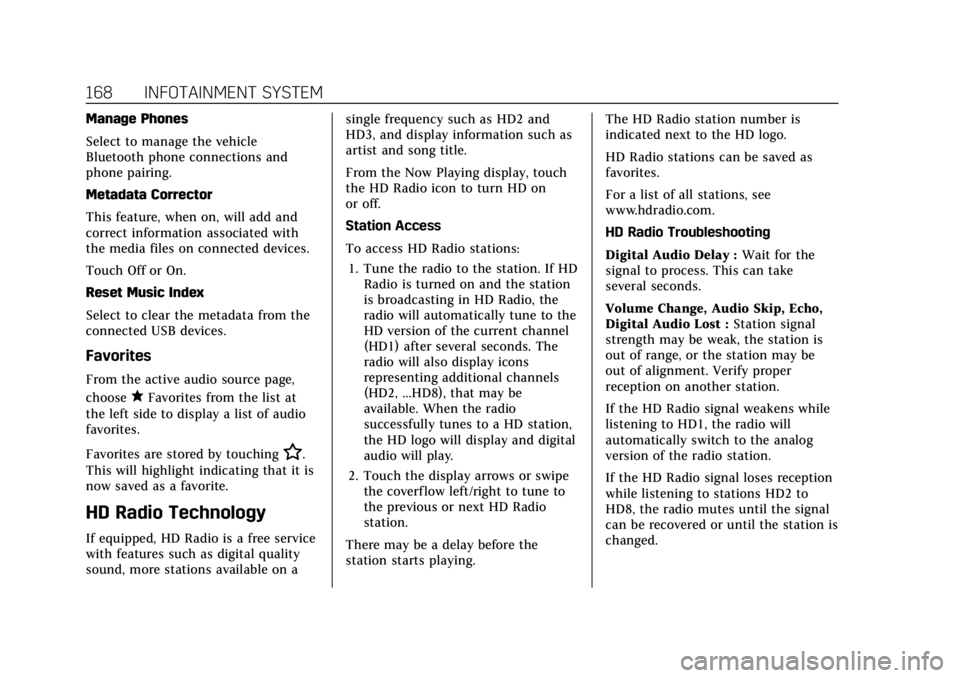
HD Radio Technology
If equipped, HD Radio is a free service
with features such as digital quality
sound, more stations available on a single frequency such as HD2 and
HD3, and display information such as
artist and song title.
From the Now Playing display, touch
the HD Radio icon to turn HD on
or off.
Station Access
To access HD Radio stations:
1. Tune the radio to the station. If HD Radio is turned on and the station
is broadcasting in HD Radio, the
radio will automatically tune to the
HD version of the current channel
(HD1) after several seconds. The
radio will also display icons
representing additional channels
(HD2, ...HD8), that may be
available. When the radio
successfully tunes to a HD station,
the HD logo will display and digital
audio will play.
2. Touch the display arrows or swipe the coverf low left/right to tune to
the previous or next HD Radio
station.
There may be a delay before the
station starts playing. The HD Radio station number is
indicated next to the HD logo.
HD Radio stations can be saved as
favorites.
For a list of all stations, see
www.hdradio.com.
HD Radio Troubleshooting
Digital Audio Delay :
Wait for the
signal to process. This can take
several seconds.
Volume Change, Audio Skip, Echo,
Digital Audio Lost : Station signal
strength may be weak, the station is
out of range, or the station may be
out of alignment. Verify proper
reception on another station.
If the HD Radio signal weakens while
listening to HD1, the radio will
automatically switch to the analog
version of the radio station.
If the HD Radio signal loses reception
while listening to stations HD2 to
HD8, the radio mutes until the signal
can be recovered or until the station is
changed.
Page 175 of 508
Cadillac Escalade Owner Manual (GMNA-Localizing-U.S./Canada/Mexico-
15567102) - 2022 - CRC - 11/17/21
174 INFOTAINMENT SYSTEM
present. The radio displays the file
name as the track name if the song
information is not available.
Supported Apple Devices
To view supported devices, see
my.cadillac.com/learn.
Media Playback and Mute
USB playback will be paused if the
system is muted. If the steering wheel
mute control is pressed again,
playback will resume.
If the source is changed while in
mute, playback resumes and audio
will unmute.
Bluetooth Audio
Music may be played from a paired
Bluetooth device. SeeBluetooth
(Overview) 0198 or
Bluetooth (Pairing and Using a Phone)
0 199 for help pairing a device.
Volume and song selection may be
controlled by using the infotainment
controls or the mobile device.
If Bluetooth is selected and no volume is present, check the volume setting
on both your mobile device and the
infotainment system.
Music can be launched by touching
Bluetooth from the recent sources list
on the left of the display or by
touching the More option and then
touching the Bluetooth device.
To play music via Bluetooth:
1. Power on the device, and pair to connect the device.
2. Once paired, touch Audio from the Home Page, then touch Bluetooth
from the recent sources list on the
left of the display.
Bluetooth Sound Menu
See “Infotainment System Sound
Menu ”under AM-FM Radio 0166.
Manage Bluetooth Devices
From the Home Page: 1. Touch Audio.
2. Touch Bluetooth.
3. Touch Devices to add or delete devices. When touching Bluetooth, the radio
may not be able to launch the audio
player on the connected device to
start playing. When the vehicle is not
moving, use the mobile device to
begin playback.
All devices launch audio differently.
When selecting Bluetooth as a source,
the radio may show as paused on the
display. Press play on the device or
touch
pon the display to begin
playback.
Browse functionality will be provided
where supported by the Bluetooth
device. This media content will not be
part of the MyMedia source mode.
Some smartphones support sending
Bluetooth music information to
display on the radio. When the radio
receives this information, it will check
to see if any is available and display it.
For more information about supported
Bluetooth features, see
my.cadillac.com/learn.
Page 176 of 508
Cadillac Escalade Owner Manual (GMNA-Localizing-U.S./Canada/Mexico-
15567102) - 2022 - CRC - 11/17/21
INFOTAINMENT SYSTEM 175
Rear Seat Infotainment
Rear Seat Infotainment
(RSI) System
If equipped, the system includes two
HDMI ports, two Bluetooth
headphones, and video touchscreen
displays in back of the driver and
passenger seats.
The RSI system may not operate
properly until the temperature is
above−20 °C (−4 °F) and below 55 °C
(131 °F).
System Operation
To use:
1. Double-tap anywhere on either screen to power on and view the
Home screen.
2. Touch
}on the status bar to turn
the screen off.
The screens can be turned on and off
through each individual touchscreen,
independently from the other, and
through front seat control. Playback of any media playing
through that specific screen is paused
when the screen is turned off.
Screens can be locked via the front
seat control.
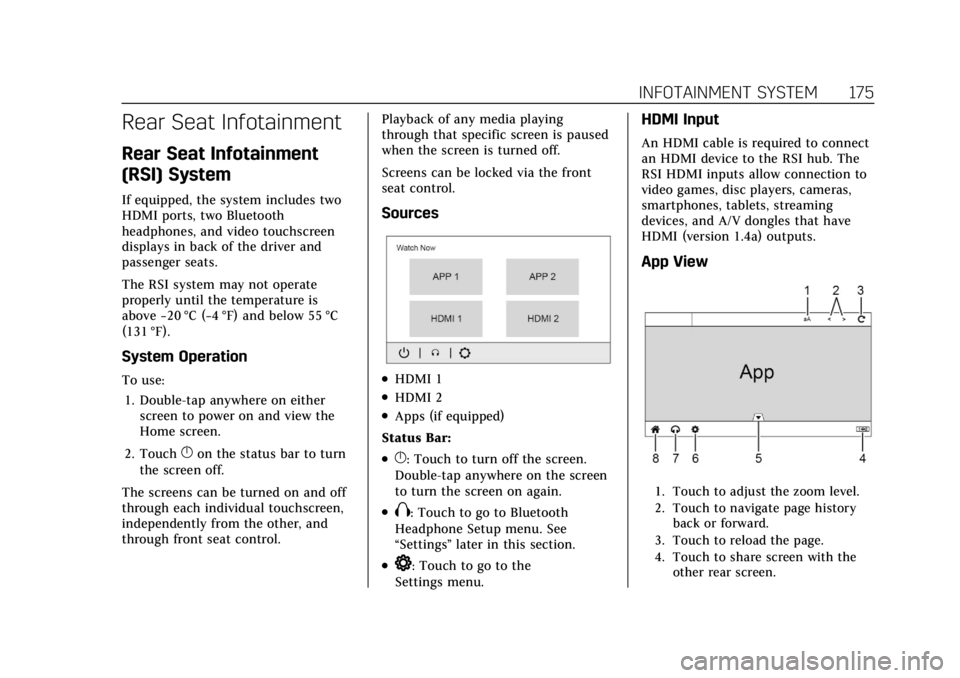
Sources
.HDMI 1
.HDMI 2
.Apps (if equipped)
Status Bar:
.}: Touch to turn off the screen.
Double-tap anywhere on the screen
to turn the screen on again.
.X: Touch to go to Bluetooth
Headphone Setup menu. See
“Settings ”later in this section.
.*: Touch to go to the
Settings menu.
HDMI Input
An HDMI cable is required to connect
an HDMI device to the RSI hub. The
RSI HDMI inputs allow connection to
video games, disc players, cameras,
smartphones, tablets, streaming
devices, and A/V dongles that have
HDMI (version 1.4a) outputs.
App View
1. Touch to adjust the zoom level.
2. Touch to navigate page history back or forward.
3. Touch to reload the page.
4. Touch to share screen with the other rear screen.
Page 177 of 508
Cadillac Escalade Owner Manual (GMNA-Localizing-U.S./Canada/Mexico-
15567102) - 2022 - CRC - 11/17/21
176 INFOTAINMENT SYSTEM
5. Touch or swipe down to close theoverlay. Touching anywhere on
the screen or waiting about
three seconds will also slide the
overlay down.
6. Touch to open the settings menu.
7. Touch to pair or connect the Bluetooth headphones, adjust the
headphone volume or have the
audio play through the vehicle’s
interior speakers.
8. Touch to open the Home Screen.
Touch, swipe, or drag input to
navigate within an app.
Touching an ad will open it in a
second tab. To close the second tab,
touch the first tab, or touch the
z.
Rear Screen Settings
From the rear screen home page,
touch
*to access the settings menu.
The menu may contain the following:
Screen Brightness
Select Screen Brightness. Move the bar
left or right to adjust the display
brightness. Each screen may be
uniquely adjusted. Customer Owned Bluetooth
Headphones
The RSI system supports Bluetooth
headphones. Up to four Bluetooth
headphones can be paired to each
REAR SCREEN. This screen provides a
list of all Bluetooth headphones that
have been paired to the RSI system, as
well as control over their use and
settings. New Bluetooth headphones
can be connected, or the Bluetooth
headphone settings can be changed
from or on this screen.
To pair Bluetooth headphones to one
of the rear screens:
1. Select Bluetooth Headphones or touch
Xfrom the desired Rear
Screen Home Page.
2. Select Connect Headphones.
3. Make sure the Bluetooth headphones are in pairing mode.
Once recognized by the system, the
Bluetooth headphones are
displayed on the list of Available
Headphones. 4. Select the Bluetooth headphones
from the list. The headphones may
need to be unpaired from your
phone before pairing to the RSI.
5. Once a headphone is paired, touch options for that headphone to
access the menu where the
headphone can be renamed,
connected, disconnected, or to
forget.
Provided Bluetooth Headphones
{Warning
The headphones have a built-in
rechargeable lithium ion battery
pack that presents a serious fire
hazard if damaged, defective,
or improperly used.
To avoid battery leakage and/or a
potential fire:
.Do not attempt to burn, crush,
or cut the battery
.Do not expose the battery to
environments with extremely low
air pressures or temperatures
above 60 °C (140 °F) (Continued)
Page 178 of 508
Cadillac Escalade Owner Manual (GMNA-Localizing-U.S./Canada/Mexico-
15567102) - 2022 - CRC - 11/17/21
INFOTAINMENT SYSTEM 177
Warning (Continued)
.Do not charge the battery at
temperatures above 45 °C (113 °F)
.Do not charge the battery if the
headphones are defective or
damaged
Caution
Do not store the headphones in
heat or direct sunlight. This could
damage the headphones and repairs
would not be covered by the vehicle
warranty. Storage in extreme cold
can weaken the batteries. Keep the
headphones stored in a cool, dry
place.
Batteries in this product should not be
disposed of with household waste.
Batteries should be recycled at an
appropriate facility. Contact local
authorities for details on recycling.
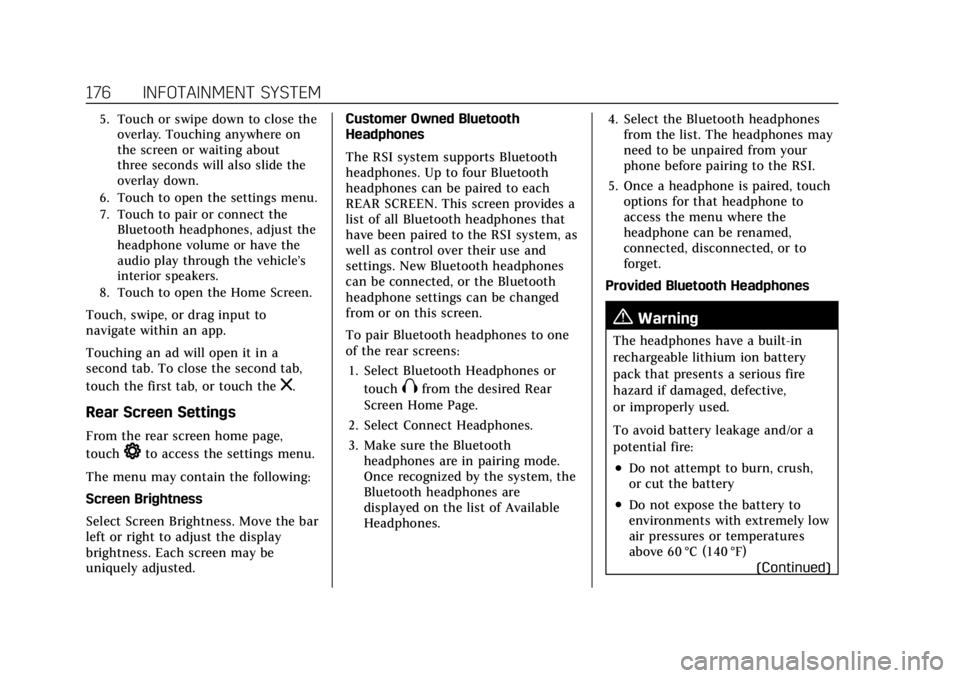
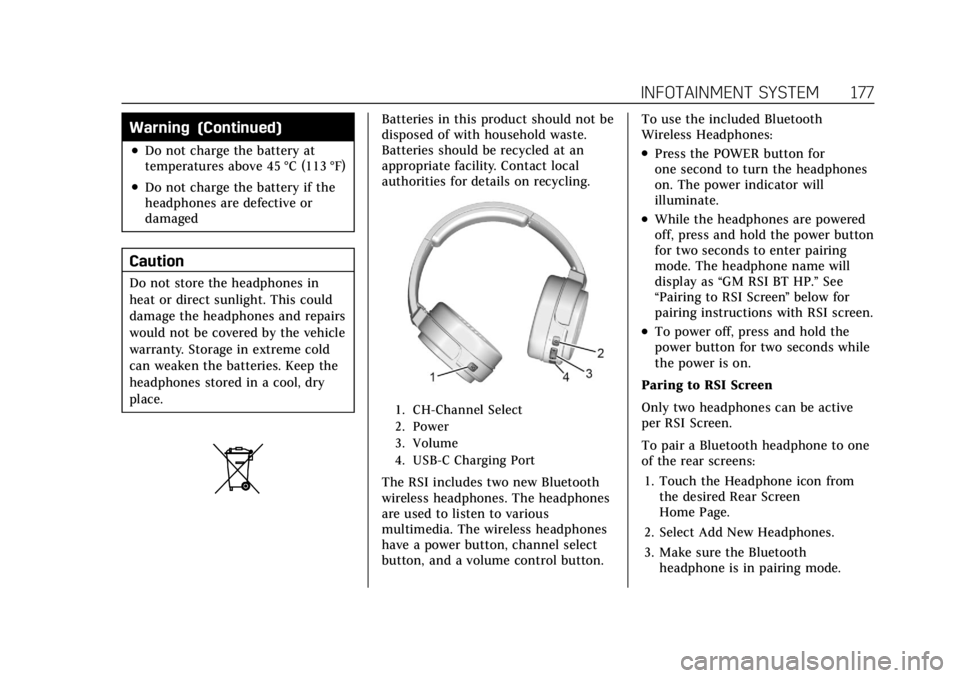
1. CH-Channel Select
2. Power
3. Volume
4. USB-C Charging Port
The RSI includes two new Bluetooth
wireless headphones. The headphones
are used to listen to various
multimedia. The wireless headphones
have a power button, channel select
button, and a volume control button.To use the included Bluetooth
Wireless Headphones:
.Press the POWER button for
one second to turn the headphones
on. The power indicator will
illuminate.
.While the headphones are powered
off, press and hold the power button
for two seconds to enter pairing
mode. The headphone name will
display as
“GM RSI BT HP.” See
“Pairing to RSI Screen ”below for
pairing instructions with RSI screen.
.To power off, press and hold the
power button for two seconds while
the power is on.
Paring to RSI Screen
Only two headphones can be active
per RSI Screen.
To pair a Bluetooth headphone to one
of the rear screens: 1. Touch the Headphone icon from the desired Rear Screen
Home Page.
2. Select Add New Headphones.
3. Make sure the Bluetooth headphone is in pairing mode.
Page 179 of 508

Cadillac Escalade Owner Manual (GMNA-Localizing-U.S./Canada/Mexico-
15567102) - 2022 - CRC - 11/17/21
178 INFOTAINMENT SYSTEM
4. Once recognized by the system, theBluetooth headphone is displayed
on the list of Available
Headphones.
5. Select the Bluetooth headphone from the list. Once connected,
touch OK at the Pairing Successful
pop-up.
6. Touch OK.
Voice Over
If equipped, the RSI system has a
Voice Over feature to benefit the
visually and hearing impaired.
When activated, Voice Over provides
audible feedback to the user about
which area on the screen they are
touching, identifying active buttons,
as well as providing information
feedback of screen identification,
current status, list content, metadata,
and pop-up information. It allows for
the user to activate features through a
double tap anywhere on the screen
which relates to the last single
touched and audibly announced
actionable button. To turn Voice Over on or off, touch
*, touch the toggle, and then press
OK to confirm. Voice Over turns off
every time the vehicle is turned off.
Reset Rear Media
Select to reset the Apps and log out
users.
Open Source License
Select to show the license
information.
Rear Consumer Ports (RCP)
If equipped with RSI, the RCP are in
the rear of the center console. These
include two HDMI ports and two
USB-C charge only ports.
HDMI
The HDMI input allows an HDMI A/V
cable to be connected from an
auxiliary device such as a camcorder,
video game system, or Apple device.
A cable from Apple is required for
Apple devices.
Touch the HDMI port that the
external device was connected to on
the home screen.
For certain HDMI devices that support
USB charging, the USB ports can be
used as a power source.
Content from these HDMI ports are
NOT accessible through the
infotainment display.
To use the HDMI input of the RSI
system:
1. Connect the auxiliary device with an HDMI cable.
2. Power on both the auxiliary device and the RSI video screen.
3. Touch
{(Home) on the desired
display and select HDMI as the
source.
Page 180 of 508
Cadillac Escalade Owner Manual (GMNA-Localizing-U.S./Canada/Mexico-
15567102) - 2022 - CRC - 11/17/21
INFOTAINMENT SYSTEM 179
HDMI
HDMI Connection
The RCP provides two HDMI ports to
mirror video devices.
Connect the external device to watch
the device content through the RSI
screen.
Touch the HDMI port that was
connected to the external device on
the home screen.
HDMI Playing View
HDMI playing view shows the video
content and includes:
.{(Home): Touch{to return to
the RSI Home selection screen.
.X(Headphones): TouchXto
access the Bluetooth Headphone
Setup menu. See “Settings”later in
this section.
.Share: Touch to share the screen
with the other rear screen. The
screen can be shared through the
connected device.
Rear Media App from the Home
Screen
The Rear Media App allows a front
user to control the Rear Seat Video
Screen sources. To access, touch the
Rear Media App icon from the
Home Page.
The Rear Screens may be powered on
or off from the Rear Media App.
Touch Screen 1 or Screen 2 to select a
screen. Touch summary to view both
Rear Screens together. Touching the
Power icon next to the highlighted
screen icon turns that screen on
or off. The audio for the rear users can be
muted by the front user by pressing
the mute icon associated with the left
or right rear screen on the Rear Video
App screen, or both rear screens by
pressing the MUTE ALL button.
The current source from the desired
Rear Screen can also be shown on the
other Rear Screen by pressing the
Share button on the lower right side
of the RSI Video App screens.
Source Selecting from the Rear
Media App
Sources may be selected for the
highlighted Rear Screen. Select
Sources from the Rear Media App
screen, then select from the list of
available sources shown on the RSI
Sources screen.
Page 182 of 508
Cadillac Escalade Owner Manual (GMNA-Localizing-U.S./Canada/Mexico-
15567102) - 2022 - CRC - 11/17/21
INFOTAINMENT SYSTEM 181
Rear Media Settings
From the Rear Media page, touch
Settings to access the settings menu.
The menu may contain the following:
Remember Screen Power Status
Select to have rear screens
automatically power on when the
vehicle is started.
Rear Screen Voice-Over
Select to have Video Voice Over for
the individual rear screens.
Allowed Applications
Select to choose which applications
are visible.
Account
Select to show the vehicle data plan.
Reset Rear Media
Select to reset the applications.
Rear MediaTerms of Use
Select to view the terms of use.
Privacy Statement
Select to view the Privacy statement.RSI Troubleshooting
No power :
The ignition might not be
on or in ACC/ACCESSORY.
There is no sound from the
headphones with the indicator light
on : Make sure the headphones have
sufficient charge. Plug the headphones
to a USB-C port to charge.
Check to see if headphones are paired
to the screens. Make sure that you are
listening in to the correct screen by
pressing the channel select button.
If the steps above do not work, then
unpair the headphones from the RSI
screens, turn the headphones off, turn
them back on and attempt to pair
them. See pairing procedures for the
Bluetooth headphone previously in
this section.
Video Distortion
Video distortion can occur when
operating cellular phones, scanners,
CB radios, Global Positioning Systems
(GPS), two-way radios, mobile faxes,
or walkie talkies. It might be necessary to turn off the
video player when operating one of
these devices in or near the vehicle.
Navigation
Using the Navigation
System
If equipped, launch the Nav
application by touching the Nav icon
on the Home Page or on the shortcut
tray near the left side of the
infotainment display.
When the Nav application is launched
for the first time, a product
walkthrough is available. Use of the
feature requires the Terms and
Conditions and the Privacy statement
to be confirmed. If available and
signed into a profile, it is also
suggested to enable and confirm
Personalized Navigation.
Personalized Navigation (If
Equipped)
If Personalized Navigation is available
and confirmed, this feature learns
preferences by remembering where
Page 187 of 508

Cadillac Escalade Owner Manual (GMNA-Localizing-U.S./Canada/Mexico-
15567102) - 2022 - CRC - 11/17/21
186 INFOTAINMENT SYSTEM
Search While in Motion with No
Front Seat Passenger Present
The search display will not allow
changes or text input with the
keyboard when the vehicle is in
motion. As a result, a display showing
three rows of the most commonly
used categories appears.
Search While in Motion with Front
Seat Passenger Present
If the system detects that the front
seat passenger is present with both
driver and passenger seat belts
buckled, touching the search icon will
display an alert message that allows
the passenger to search for a
destination.
Receiving Destination Directions
from Different Sources
Destinations can be received or
transferred from different sources to
the Nav application for route
guidance. If equipped, some of these
sources may include:
.Navigation from search results.
.OnStar Advisor destination
download.
.An address from the Contacts list.
.An application on the smartphone
that can send destinations to the
vehicle.
.An application downloaded to the
vehicle that can send destinations
to the navigation system.
Waypoints
Add up to five waypoints, which are
additional destinations, along the
route. To add an additional stop or
waypoint:1. From active guidance, touch Add a Stop.
2. Search for the destination using One-Box, Voice search, or the Quick
Category icons.
3. Choose search results Along Route, Nearby, or Near Destination.
4. Choose the desired waypoint and touch Add to Trip.
Route options are not available for
waypoints. Arriving at a Waypoint
When approaching a waypoint, the
system will display a Destination
Arrival view. To continue on to the
next destination touch the Done
message on the infotainment display.
Editing a Waypoint
When waypoints are added during
active guidance, the system allows a
stop to be deleted or the order to be
changed.
To edit a waypoint, touch
Destinations. The following options
will be available:
.Modify destination order by
touching the arrow buttons on the
waypoint destinations list.
.Delete a waypoint by touching the
trash can icon. The icon can be
selected again to re-add the
waypoint in case it was accidentally
selected. Touch
zon the top right
corner so the system can recalculate
the route.