ad blue CADILLAC ESCALADE 2022 Owner's Manual
[x] Cancel search | Manufacturer: CADILLAC, Model Year: 2022, Model line: ESCALADE, Model: CADILLAC ESCALADE 2022Pages: 508, PDF Size: 9.18 MB
Page 203 of 508

Cadillac Escalade Owner Manual (GMNA-Localizing-U.S./Canada/Mexico-
15567102) - 2022 - CRC - 11/17/21
202 INFOTAINMENT SYSTEM
3. Touch#on the infotainment
display to start dialing the number.
Searching Contacts Using the
Keypad
To search for contacts using the
keypad:
1. Touch the Phone icon on the Home Page.
2. Touch Keypad and enter partial phone numbers or contact names
using the digits on the keypad to
search.
Results will show on the right side
of the display. Touch one to place
a call.
Accepting or Declining a Call
When an incoming call is received, the
infotainment system mutes and a ring
tone is heard in the vehicle.
Accepting a Call
Use the steering wheel scroll wheel to
select
#, otherwise press6on steering
wheel controls. Declining a Call
Use steering wheel scroll wheel to
select
K.
Call Waiting
Call waiting must be supported on the
Bluetooth cell phone and enabled by
the wireless service carrier to work.
Accepting a Call
Press
6on steering wheel controls to
answer.
Declining a Call
Use steering wheel scroll wheel to
select
Kto decline.
Switching Between Calls (Call
Waiting Calls Only)
To switch between calls, touch Phone
on the Home Page to display Call
View. While in Call View, touch the
call information of the call on hold to
change calls.
Three-Way Calling
Three-way calling must be supported
on the Bluetooth cell phone and
enabled by the wireless service carrier
to work.
To start a three-way call while in a
current call: 1. In the Call View, touch Add Call to add another call.
2. Initiate the second call by selecting from Recents, Contacts, or Keypad.
3. When the second call is active, touch the merge icon to conference
the three-way call together.
Ending a Call
.Press6on the steering wheel
controls.
.Touch#on the infotainment
display, next to a call, to end only
that call.
Page 204 of 508

Cadillac Escalade Owner Manual (GMNA-Localizing-U.S./Canada/Mexico-
15567102) - 2022 - CRC - 11/17/21
INFOTAINMENT SYSTEM 203
Dual Tone Multi-Frequency
(DTMF) Tones
The in-vehicle Bluetooth system can
send numbers during a call. This is
used when calling a menu-driven
phone system. Use the Keypad to
enter the number.
Phone Settings
Touch6on the home page and then
touch Settings. The following may
display:
.Contacts
.Active Call View
.OnStar Phone TTY Mode
Contacts
Sort Contacts : This sorts the
displayed order of contact names by
First Name or Last Name.
Re-sync Phone Contacts : This allows
the contact list to re-sync by
importing the contacts from the
currently connected phone.
Active Call View
This setting allows whether answering
incoming call will display the active
call view. Touch On or Off.
OnStar Phone TTY Mode
This setting enables or disables the
OnStar Phone TTY Mode for OnStar
Advisor Calls and OnStar Emergency
Calls.
Touch Disable or Enable.
Apple CarPlay and
Android Auto
If equipped, Android Auto and/or
Apple CarPlay capability may be
available through a compatible
smartphone. If available and
connected, the Android Auto and
Apple CarPlay icons will change from
gray to white on the Home Page of the
infotainment display.
To use Android Auto and/or Apple
CarPlay:
For Wired Phone Projection
1. Download the Android Auto app to your smartphone from the Google
Play store. There is no app required
for Apple CarPlay. 2. Connect your Android phone or
Apple iPhone by using the
factory-provided phone USB cable
and plugging into a USB data port.
For best performance, it is highly
recommended to use the device’s
factory-provided USB cable, which
should be replaced after significant
wear to maintain connection
quality. Aftermarket or third-party
cables may not work.
3. When the phone is first connected to activate Apple CarPlay or
Android Auto, the message “Device
Projection Privacy Consent ”will
appear.
.Touch Continue to launch Apple
CarPlay or Android Auto.
.Touch Disable to remove Apple
CarPlay and Android Auto
capability from the vehicle
Settings menu. Other functions
may still work.
For Wireless Phone Projection 1. Download the Android Auto app to your smartphone from the Google
Play store. There is no app required
for Apple CarPlay.
Page 205 of 508
Cadillac Escalade Owner Manual (GMNA-Localizing-U.S./Canada/Mexico-
15567102) - 2022 - CRC - 11/17/21
204 INFOTAINMENT SYSTEM
2. For first time connection, there aretwo ways to set up wireless
projection:
.Connect your Android phone or
Apple iPhone by using the
factory-provided phone USB
cable and plugging into a USB
data port. For best performance,
it is highly recommended to use
the device’s factory-provided
USB cable, which should be
replaced after significant wear
to maintain connection quality.
Aftermarket or third-party
cables may not work.
.Connecting the phone over
Bluetooth. See Bluetooth
(Overview) 0198 or
Bluetooth (Pairing and Using a
Phone) 0199.
3. Make sure wireless is turned on the phone for wireless projection
to work.
4. When the phone is first connected to activate Apple CarPlay or
Android Auto, agree to the terms
and conditions on both the infotainment system and the
phone. Touch Continue to launch
Apple CarPlay or Android Auto.
5. Follow the instructions on the phone.
The Android Auto and Apple CarPlay
icons on the Home Page will
illuminate depending on the
smartphone. Android Auto and/or
Apple CarPlay may automatically
launch. If not, touch the Android Auto
or Apple CarPlay icon on the Home
Page to launch.
To disconnect the phones wireless
projection: 1. Select Settings from the Home Page.
2. Select Phones
3. Touch the device name on the Apple CarPlay or Android Auto
sub-menu.
4. Turn off Apple CarPlay or Android Auto.
Press
{on the center stack to return
to the Home Page. Features are subject to change. For
further information on how to set up
Android Auto and Apple CarPlay in
the vehicle, see my.cadillac.com.
Android Auto is provided by
Google and is subject to Google’s
terms and privacy policy. Apple
CarPlay is provided by Apple and is
subject to Apple’s terms and privacy
policy. Data plan rates apply. For
Android Auto support see
https://support.google.com/
androidauto. For Apple CarPlay
support see www.apple.com/ios/
carplay/. Apple or Google may change
or suspend availability at any time.
Android Auto, Android, Google, Google
Play, and other marks are trademarks
of Google Inc.; Apple CarPlay is a
trademark of Apple Inc.
Press
{on the center stack to exit
Android Auto or Apple CarPlay. To
enter back into Android Auto or Apple
CarPlay, press and hold
{on the
center stack.
Apple CarPlay and Android Auto can
be disabled from the infotainment
system. To do this, touch Home,
Page 207 of 508

Cadillac Escalade Owner Manual (GMNA-Localizing-U.S./Canada/Mexico-
15567102) - 2022 - CRC - 11/17/21
206 INFOTAINMENT SYSTEM
Voice
Touch and the following may display:
.Confirm More/Less: Select Confirm
More or Confirm Less. Selecting
Confirm More may improve voice
recognition system accuracy.
.Prompt Length: Select the style
used by the voice recognition
system when interacting with it.
.Audio Feedback Speed: Select how
quickly the voice recognition system
speaks.
.Allow Prompt Interruptions: Select
if voice commands can be spoken
before voice prompts finish.
.Friendly Prompts: Select to adjust
the formality of the voice
recognition system.
Conversation Enhancement
Touch and the following may display:
.Conversation Enhancement: This
system uses in-vehicle microphones
to make it easier for passengers to
communicate with each other.
Select from Off, Normal, High,
or Rear Microphone Off.
Time, Date, and Unit
Touch and the following may display:
.Time/Date: Select On to use GPS,
RDS, and cellular network signals to
keep the system time and date
current. Select Off to manually set
time and date using the
infotainment display controls.
.Select Time Zone: Select the time
zone for the time display or select
Auto to use the time zone based on
the vehicle location.
.Use 24-hour Format: Select to
change the time display to a
24-hour clock format.
.Unit: Select US or Metric.
Phone Projection
Touch and the following may display:
Android Auto
.Android Auto: Select Off or On to
allow interaction directly with the
phone on the radio screen.
.Select Phone: Select an available
phone from the list or press Add
Phone to pair a new phone.Apple CarPlay
.Apple CarPlay: Select Off or On to
allow interaction directly with the
phone on the radio screen.
.Select Phone: Select an available
phone from the list or press Add
Phone to pair a new phone.
Phones
Touch and the following may display:
Add Phone
.Pair Bluetooth Phone: Follow the
on-screen instructions or select
Bluetooth Help.
Connected
Shows connected phones.
Not Connected
Shows not connected phones.
Wi-Fi Hotspot
Touch and the following may display:
.Share Hotspot Data: Select On to
allow devices to use the vehicle
hotspot and its data.
.Wi-Fi Name: Select to change the
vehicle’s Wi-Fi network name.
Page 214 of 508

Cadillac Escalade Owner Manual (GMNA-Localizing-U.S./Canada/Mexico-
15567102) - 2022 - CRC - 11/17/21
INFOTAINMENT SYSTEM 213
intellectual property rights including
patent rights, copyrights, and trade
secrets of Digital Voice Systems, Inc.
General Requirements:1. A License Agreement from SiriusXM is required for any
product that incorporates SiriusXM
Technology and/or for use of any of
the SiriusXM marks to be
manufactured, distributed,
or marketed in the SiriusXM
Service Area.
2. For products to be distributed, marketed, and/or sold in Canada, a
separate agreement is required with
Canadian Satellite Radio Inc.
(operating as SiriusXM Canada).
TouchSense Technology and
TouchSense System 1000 Series
Licensed from Immersion Corporation.
TouchSense System 1000 protected
under one or more of the U.S. Patents at the following address
www.immersion.com/
patent-marking.html and other
patents pending.
HD Radio Technology
HD Radio Technology manufactured
under license from iBiquity Digital
Corporation. U.S. and Foreign Patents.
For patents see https://dts.com/
patents. HD Radio and the HD, HD
Radio, and
“ARC”logos are registered
trademarks or trademarks of iBiquity
Digital Corporation in the United
States and/or other countries.
Bluetooth
The Bluetooth word mark and logos
are owned by the Bluetooth SIG, Inc.
and any use of such marks by General
Motors is under license. Other
trademarks and trade names are those
of their respective owners. Java
Java is a registered trademark of
Oracle and/or its affiliates.
Schedule I: Gracenote EULA
Music recognition technology and
related data are provided by
Gracenote. Gracenote is the industry
standard in music recognition
technology and related content
delivery. For more information see
www.gracenote.com.
Music-related data from Gracenote,
Inc., copyright © 2000 to present
Gracenote. Gracenote Software,
copyright © 2000 to present
Gracenote. One or more patents
owned by Gracenote may apply to this
product and service. See the
Gracenote website for a
non-exhaustive list of applicable
Gracenote patents. Gracenote, CDDB,
Page 280 of 508
Cadillac Escalade Owner Manual (GMNA-Localizing-U.S./Canada/Mexico-
15567102) - 2022 - CRC - 11/17/21
DRIVING AND OPERATING 279
.The vehicle speed is not being
limited because of a sharp turn.
Increasing Speed While ACC is at a
Set Speed
If ACC is already activated, do one of
the following:
.Use the accelerator pedal to get to
the higher speed. Briefly press and
release SET– and release the
accelerator pedal. The vehicle will
now cruise at the higher speed.
When the accelerator pedal is
pressed, ACC will not brake because
it is overridden. While overridden,
the ACC indicator will turn blue on
the instrument cluster and HUD,
if equipped.
.Press and hold RES+ until the
desired set speed is displayed, then
release it.
.To increase speed in small
increments, press RES+. to the first
detent. For each press, the vehicle
goes 1 km/h (1 mph) faster.
.To increase speed in larger
increments, press RES+ to the
second detent. For each press, the
vehicle speed increases to the next
5 km/h (5 mph) mark on the
speedometer.
The set speed can also be increased
while the vehicle is stopped.
.If stopped with the brake applied,
press RES+ until the desired set
speed is displayed.
.If ACC is holding the vehicle at a
stop and there is another vehicle
directly ahead, pressing RES+ will
increase the set speed.
.Pressing RES+ when there is no
longer a vehicle ahead or the vehicle
ahead is pulling away and the brake
is not applied will cause the ACC to
resume.
When it is determined that there is
no vehicle ahead or the vehicle
ahead is beyond the selected
following gap, then the vehicle
speed will increase to the set speed. Reducing Speed While ACC is at a
Set Speed
If ACC is already activated, do one of
the following:
.Use the brake to get to the desired
lower speed. Release the brake and
press SET–. The vehicle will now
cruise at the lower speed.
.Press and hold SET–
until the
desired lower speed is reached, then
release it.
.To decrease the vehicle speed in
smaller increments, press SET− to
the first detent. For each press, the
vehicle goes about 1 km/h (1 mph)
slower.
.To decrease speed in larger
increments, press SET− to the
second detent. For each press, the
vehicle speed decreases to the next
5 km/h (5 mph) mark on the
speedometer.
The set speed can also be decreased
while the vehicle is stopped.
.If stopped with the brake applied,
press or hold SET− until the desired
set speed is displayed.
Page 285 of 508
Cadillac Escalade Owner Manual (GMNA-Localizing-U.S./Canada/Mexico-
15567102) - 2022 - CRC - 11/17/21
284 DRIVING AND OPERATING
ACC Override
If using the accelerator pedal while
ACC is active, the ACC indicator turns
blue on the instrument cluster and in
the HUD (if equipped) indicating ACC
braking will not occur. ACC will
resume operation when the
accelerator pedal is not being pressed.
{Warning
The ACC will not automatically
apply the brakes if your foot is
resting on the accelerator pedal.
You could crash into a vehicle
ahead of you.
Curves in the Road
{Warning
On curves, ACC may not detect a
vehicle ahead in your lane. You
could be startled if the vehicle
accelerates up to the set speed,
especially when following a vehicle
exiting or entering exit ramps. You
could lose control of the vehicle or
crash. Do not use ACC while driving (Continued)
Warning (Continued)
on an entrance or exit ramp. Always
be ready to use the brakes if
necessary.
{Warning
On curves, ACC may respond to a
vehicle in another lane, or may not
have time to react to a vehicle in
your lane. You could crash into a
vehicle ahead of you, or lose control
of your vehicle. Give extra attention
in curves and be ready to use the
brakes if necessary. Select an
appropriate speed while driving in
curves.
ACC may operate differently in a
sharp curve. It may reduce the vehicle
speed if the curve is too sharp.
The curve speed control indicator
n
may illuminate green when ACC is
actively controlling the vehicle speed
and detects a sharp curve on the road
ahead. ACC automatically slows the vehicle
down while navigating the curve and
may increase speed out of the curve,
but will not exceed the set speed.
When following a vehicle and entering
a curve, ACC may not detect the
vehicle ahead and accelerate to the set
speed. When this happens, the vehicle
ahead indicator will not appear.
ACC may detect a vehicle that is not
in your lane and apply the brakes.
Page 291 of 508
Cadillac Escalade Owner Manual (GMNA-Localizing-U.S./Canada/Mexico-
15567102) - 2022 - CRC - 11/17/21
290 DRIVING AND OPERATING
When Super Cruise is available, the
white
^will display in the
instrument cluster.
.Press]. ACC will set the speed to
the current vehicle speed or resume
to the higher previously stored ACC
set speed.
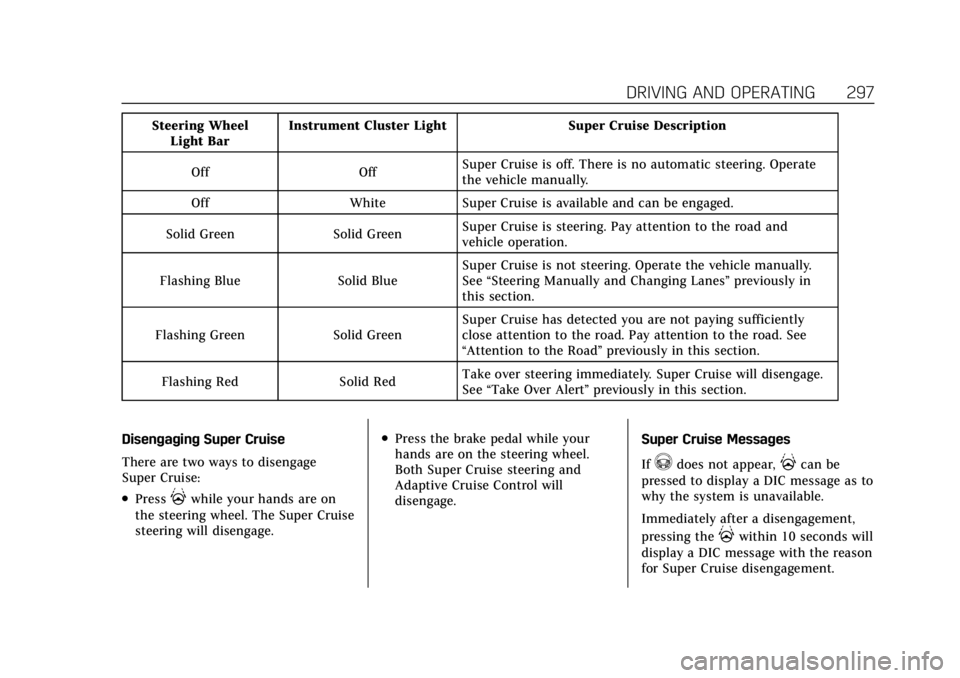
When engaged and not steering the
vehicle, the steering wheel light bar
flashes blue, and
^will be blue. The
driver is in control of steering and
Super Cruise is not steering the
vehicle.
When the vehicle is positioned in the
center of the lane, the steering wheel
light bar and
^display will turn
green, indicating Super Cruise is
steering the vehicle.
When Super Cruise controls the
steering, traffic and other conditions
and laws permit, and it is safe to do
so, your hands can be taken off the
steering wheel.
Always pay attention to the road and
the operation of the vehicle. Always
monitor and be attentive of surrounding traffic, including vehicles
that may cross the road in front of
your vehicle.
Super Cruise steering can be
overridden with manual steering at
any time. When Super Cruise is
engaged, always be prepared to take
immediate action
—including
steering, accelerating, and braking
quickly, if necessary.
Super Cruise, when engaged, will
enable Forward Collision System to
alert and brake.
Steering Manually and Changing
Lanes
The vehicle can always be manually
steered, even with Super Cruise
engaged; for example, when manually
changing lanes.
When the steering wheel is moved
manually, the steering wheel light bar
flashes blue and
^on the
instrument cluster turns blue to
indicate Super Cruise is not steering
the vehicle. When ready to allow Super Cruise to
resume steering again, position the
vehicle in the center of the lane, hold
the steering wheel until the steering
wheel light bar turns green, and then
release the steering wheel when it is
safe to do so.
{Warning
To help prevent crashes before
making a lane change:
.Always check mirrors.
.Glance over your shoulder.
.Use the turn signals.
Super Cruise Lane Change
Super Cruise can steer to perform a
single lane change under certain
conditions when requested by the
driver or initiated by the Super Cruise
System.
To request a lane change: 1. Verify the lane next to your vehicle is clear and conditions are safe to
make a lane change.
Page 298 of 508
Cadillac Escalade Owner Manual (GMNA-Localizing-U.S./Canada/Mexico-
15567102) - 2022 - CRC - 11/17/21
DRIVING AND OPERATING 297
Steering WheelLight Bar Instrument Cluster Light Super Cruise Description
Off Off Super Cruise is off. There is no automatic steering. Operate
the vehicle manually.
Off White Super Cruise is available and can be engaged.
Solid Green Solid Green Super Cruise is steering. Pay attention to the road and
vehicle operation.
Flashing Blue Solid Blue Super Cruise is not steering. Operate the vehicle manually.
See
“Steering Manually and Changing Lanes” previously in
this section.
Flashing Green Solid Green Super Cruise has detected you are not paying sufficiently
close attention to the road. Pay attention to the road. See
“Attention to the Road”
previously in this section.
Flashing Red Solid Red Take over steering immediately. Super Cruise will disengage.
See
“Take Over Alert ”previously in this section.
Disengaging Super Cruise
There are two ways to disengage
Super Cruise:
.Press]while your hands are on
the steering wheel. The Super Cruise
steering will disengage.
.Press the brake pedal while your
hands are on the steering wheel.
Both Super Cruise steering and
Adaptive Cruise Control will
disengage. Super Cruise Messages
If
^does not appear,]can be
pressed to display a DIC message as to
why the system is unavailable.
Immediately after a disengagement,
pressing the
]within 10 seconds will
display a DIC message with the reason
for Super Cruise disengagement.
Page 299 of 508
Cadillac Escalade Owner Manual (GMNA-Localizing-U.S./Canada/Mexico-
15567102) - 2022 - CRC - 11/17/21
298 DRIVING AND OPERATING
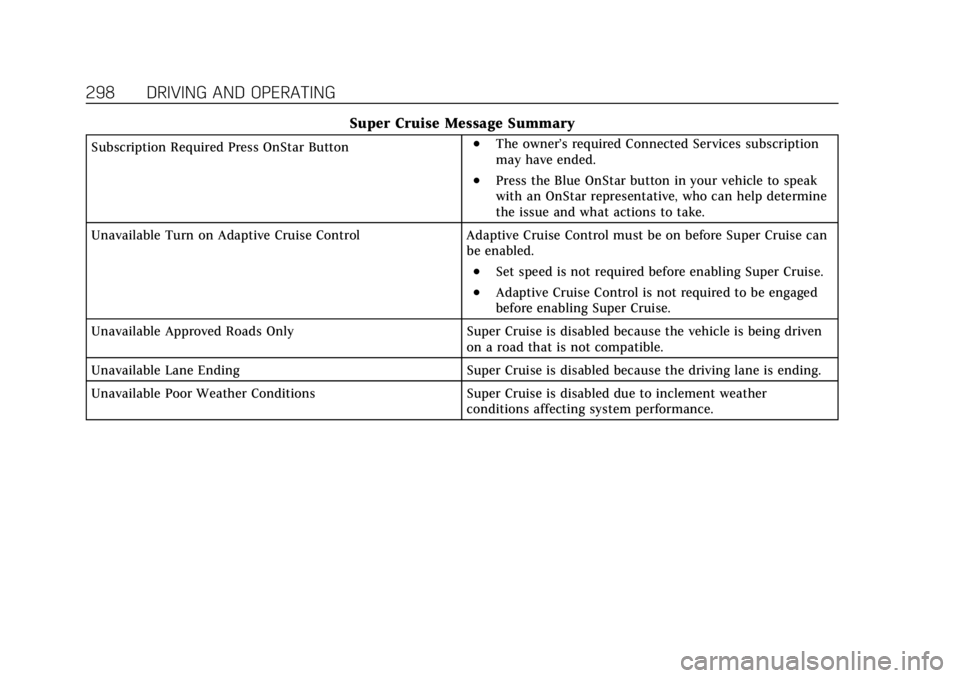
Super Cruise Message Summary
Subscription Required Press OnStar Button.The owner’s required Connected Services subscription
may have ended.
.Press the Blue OnStar button in your vehicle to speak
with an OnStar representative, who can help determine
the issue and what actions to take.
Unavailable Turn on Adaptive Cruise Control Adaptive Cruise Control must be on before Super Cruise can
be enabled.
.Set speed is not required before enabling Super Cruise.
.Adaptive Cruise Control is not required to be engaged
before enabling Super Cruise.
Unavailable Approved Roads Only Super Cruise is disabled because the vehicle is being driven
on a road that is not compatible.
Unavailable Lane Ending Super Cruise is disabled because the driving lane is ending.
Unavailable Poor Weather Conditions Super Cruise is disabled due to inclement weather
conditions affecting system performance.