infotainment CADILLAC ESCALADE 2022 Owner's Manual
[x] Cancel search | Manufacturer: CADILLAC, Model Year: 2022, Model line: ESCALADE, Model: CADILLAC ESCALADE 2022Pages: 508, PDF Size: 9.18 MB
Page 132 of 508

Cadillac Escalade Owner Manual (GMNA-Localizing-U.S./Canada/Mexico-
15567102) - 2022 - CRC - 11/18/21
INSTRUMENTS AND CONTROLS 131
stack, below the infotainment screen.
It provides information about tire
pressures and the TPMS.
When the Light Is On Steady
This indicates that one or more of the
tires are significantly underinflated.
A Driver Information Center (DIC) tire
pressure message may also display.
Stop as soon as possible, and inflate
the tires to the pressure value shown
on the Tire and Loading Information
label. SeeTire Pressure 0409.
When the Light Flashes First and
Then Is On Steady
If the light flashes for about a minute
and then stays on, there may be a
problem with the TPMS. If the
problem is not corrected, the light will
come on every time the vehicle is
started. See Tire Pressure Monitor
Operation 0412.Engine Oil Pressure Light
Caution
Lack of proper engine oil
maintenance can damage the
engine. Driving with the engine oil
low can also damage the engine.
The repairs would not be covered
by the vehicle warranty. Check the
oil level as soon as possible. Add oil
if required, but if the oil level is
within the operating range and the
oil pressure is still low, have the
vehicle serviced. Always follow the
maintenance schedule for changing
engine oil.
This light should come on briefly as
the engine is started. If it does not
come on, have the vehicle serviced by
your dealer. If the light comes on and stays on, it
means that oil is not flowing through
the engine properly. The vehicle could
be low on oil and might have some
other system problem. See your dealer.
Low Fuel Warning Light
A Low Fuel Warning Light near the
fuel gauge comes on briefly when the
ignition is turned on as a check to
show it is working.
It also comes on when the fuel gauge
indicator nears empty. The light turns
off when fuel is added. If it does not,
have the vehicle serviced.
Page 135 of 508
Cadillac Escalade Owner Manual (GMNA-Localizing-U.S./Canada/Mexico-
15567102) - 2022 - CRC - 11/18/21
134 INSTRUMENTS AND CONTROLS
infotainment display. SeeSettings
0 205 or
Vehicle Information 0136.
If the vehicle has a diesel engine, see
the Duramax diesel supplement for
more information.
DIC Information Displays
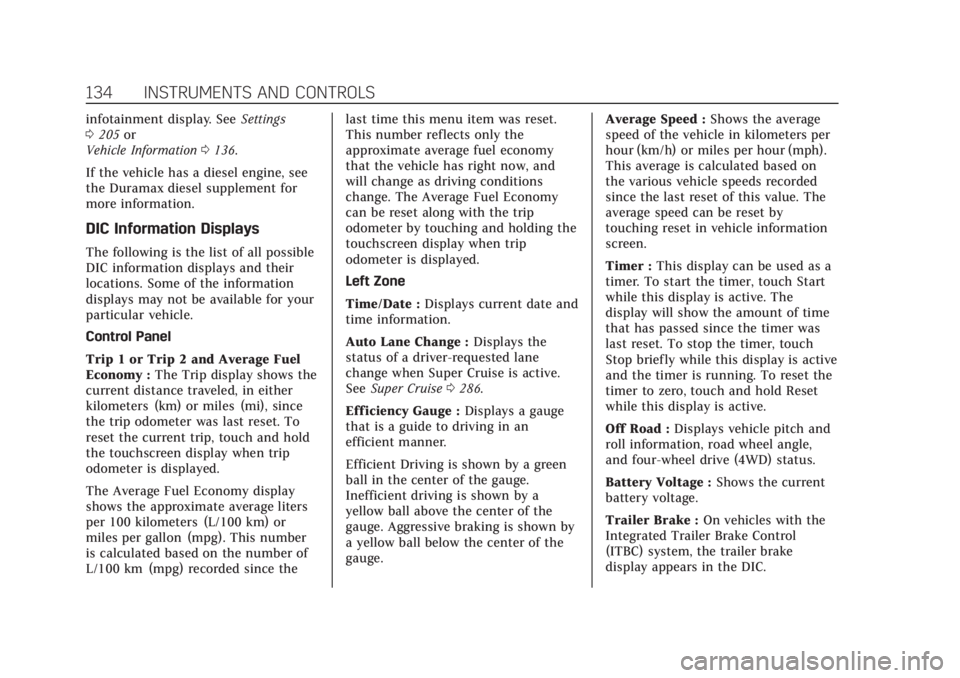
The following is the list of all possible
DIC information displays and their
locations. Some of the information
displays may not be available for your
particular vehicle.
Control Panel
Trip 1 or Trip 2 and Average Fuel
Economy : The Trip display shows the
current distance traveled, in either
kilometers (km) or miles (mi), since
the trip odometer was last reset. To
reset the current trip, touch and hold
the touchscreen display when trip
odometer is displayed.
The Average Fuel Economy display
shows the approximate average liters
per 100 kilometers (L/100 km) or
miles per gallon (mpg). This number
is calculated based on the number of
L/100 km (mpg) recorded since the last time this menu item was reset.
This number reflects only the
approximate average fuel economy
that the vehicle has right now, and
will change as driving conditions
change. The Average Fuel Economy
can be reset along with the trip
odometer by touching and holding the
touchscreen display when trip
odometer is displayed.
Left Zone
Time/Date :
Displays current date and
time information.
Auto Lane Change : Displays the
status of a driver-requested lane
change when Super Cruise is active.
See Super Cruise 0286.
Eff iciency Gauge : Displays a gauge
that is a guide to driving in an
efficient manner.
Efficient Driving is shown by a green
ball in the center of the gauge.
Inefficient driving is shown by a
yellow ball above the center of the
gauge. Aggressive braking is shown by
a yellow ball below the center of the
gauge. Average Speed :
Shows the average
speed of the vehicle in kilometers per
hour (km/h) or miles per hour (mph).
This average is calculated based on
the various vehicle speeds recorded
since the last reset of this value. The
average speed can be reset by
touching reset in vehicle information
screen.
Timer : This display can be used as a
timer. To start the timer, touch Start
while this display is active. The
display will show the amount of time
that has passed since the timer was
last reset. To stop the timer, touch
Stop briefly while this display is active
and the timer is running. To reset the
timer to zero, touch and hold Reset
while this display is active.
Off Road : Displays vehicle pitch and
roll information, road wheel angle,
and four-wheel drive (4WD) status.
Battery Voltage : Shows the current
battery voltage.
Trailer Brake : On vehicles with the
Integrated Trailer Brake Control
(ITBC) system, the trailer brake
display appears in the DIC.
Page 137 of 508

Cadillac Escalade Owner Manual (GMNA-Localizing-U.S./Canada/Mexico-
15567102) - 2022 - CRC - 11/18/21
136 INSTRUMENTS AND CONTROLS
Off :Allows for no information to be
displayed in the cluster info display
areas.
Right Zone
Audio Now Playing : Displays the
actively playing audio.
Navigation : Displays a variety of
navigation information.
Audio and Navigation : Displays both
audio and navigation information
together.
Off : Allows for no information to be
displayed in the cluster info display
areas.
Vehicle Information
The following are all possible vehicle
information features.
To access the vehicle information
menu, press
Ton the Multi
Function Controller (MFC) or touch
Tfrom the list of home page icons
displayed on the left side of the
infotainment display.
The Vehicle Information App will
display 3 cards per page. The currently displayed page of cards
is remembered from the last ignition
cycle.
The menu may contain the following
cards:
.Notifications
.Oil Life
.Tire Pressure
.Fuel Economy
.Average Speed
.Timer
.Diesel Exhaust Fluid
.Fuel Filter Life
.Off-Road
.Engine Hours
.Battery Voltage
.Oil Pressure
.Trailer Brake
.Coolant Temperature
.Transmission Fluid Temp
.Air Filter Life
.Brake Pad Life
.Traction and Stability
.Time and Date
.Efficiency Gauge
Head-Up Display (HUD)
{Warning
If the HUD image is too bright or
too high in your field of view, it
may take you more time to see
things you need to see when it is
dark outside. Be sure to keep the
HUD image dim and placed low in
your field of view.
If equipped with HUD, some
information about the operation of
the vehicle is projected onto the
windshield. The image is projected
through the HUD lens on top of the
instrument panel. The information
appears as an image focused out
toward the front of the vehicle.
Caution
If you try to use the HUD image as
a parking aid, you may misjudge
the distance and damage your
vehicle. Do not use the HUD image
as a parking aid.
Page 138 of 508

Cadillac Escalade Owner Manual (GMNA-Localizing-U.S./Canada/Mexico-
15567102) - 2022 - CRC - 11/18/21
INSTRUMENTS AND CONTROLS 137
The HUD information can be
displayed in various languages. The
speedometer reading and other
numerical values can be displayed in
either English or metric units.
The language selection is changed
through the radio, and the units of
measurement is changed through the
instrument cluster. SeeSettings0205.
HUD Display on the Windshield
Depending on how the vehicle is
equipped, the HUD may display some
of the following vehicle information
and vehicle messages or alerts:
.Speed
.Audio
.Phone
.Navigation
.Driver Assistance Features
.Vehicle Messages
Some vehicle messages or alerts
displayed in the HUD may be cleared
by using the steering wheel controls.
The HUD control is on a touchscreen
to the left of the instrument cluster.
HUD controls are also available on the
infotainment screen. See Settings
0 205. To adjust the HUD image:
1. Adjust the driver seat.
2. Start the engine.
3. Touch HUD on the touchscreen to the left of the instrument cluster.
4. Touch the icons above and below Height and Brightness to adjust
the HUD.
The HUD image will automatically
dim and brighten to compensate for
outside lighting. Adjust as needed.
The HUD image can temporarily light
up depending on the angle and
position of sunlight on the HUD
display. This is normal.
Polarized sunglasses could make the
HUD image harder to see.
Head-Up Display (HUD) Rotation
Option
If equipped, this feature under the
HUD Options menu of the
infotainment screen allows for
adjusting the angle of the HUD image.
See Settings 0205.
Page 141 of 508

Cadillac Escalade Owner Manual (GMNA-Localizing-U.S./Canada/Mexico-
15567102) - 2022 - CRC - 11/18/21
140 INSTRUMENTS AND CONTROLS
on, or displays repeatedly, the vehicle
should be taken to your dealer for
service as soon as possible.
Under certain operating conditions,
propulsion will be disabled. Try
restarting after the ignition has been
off for two minutes.
Vehicle Speed Messages
SPEED LIMITED TO
XXX KM/H (MPH)
This message shows that the vehicle
speed has been limited to the speed
displayed. The limited speed is a
protection for various propulsion and
vehicle systems, such as lubrication,
thermal, brakes, suspension, Teen
Driver if equipped, or tires.
(If equipped with a diesel engine, see
the Duramax Diesel supplement.)–
For Diesel
Vehicle Personalization
The following are all possible vehicle
personalization features. Depending
on the vehicle, some may not be
available. For System and Search functions, see
Settings
0205.
To access the vehicle
personalization menu: 1. Touch the Settings icon on the Home Page of the infotainment
display.
2. Touch Vehicle to display a list of available options.
3. Touch to select the desired feature setting.
4. Touch the options on the infotainment display to disable or
enable a setting.
The menu may contain the following:
Valet Mode
This will lock the infotainment system
and steering wheel controls. It may
also limit access to vehicle storage
locations, if equipped.
To enable valet mode: 1. Enter a four-digit code on the keypad.
2. Select Enter to go to the confirmation screen.
3. Re-enter the four-digit code. Touch Lock or Unlock to lock or
unlock the system. Touch Back to go
back to the previous menu.
Teen Driver
See
Teen Driver 0209.
Rear Seat Reminder
This allows for a chime and a message
when the rear door has been opened
before or during operation of the
vehicle.
Touch Off or On.
Buckle to Drive
This feature can prevent shifting out
of Park when the driver, and if
applicable the front passenger, seat
belt is not buckled. See Buckle To Drive
0 59.
Touch Off or On.
The vehicle may need to be restarted
to activate this feature.
Super Cruise Lane Change
When on, the vehicle can change
lanes while Super Cruise is active. The
vehicle will only steer to change lanes
when traffic allows.
Page 142 of 508
Cadillac Escalade Owner Manual (GMNA-Localizing-U.S./Canada/Mexico-
15567102) - 2022 - CRC - 11/18/21
INSTRUMENTS AND CONTROLS 141
Touch Off, Turn Signal Activated,
or Automatic.
Driver Mode Customization
Touch and the following may display:
My Mode
.Engine Sound
.Steering
.Suspension
For information on the range of
settings, see “Driver Mode
Customization ”in Driver Mode Control
0 267.
Visualization
This setting shows handling and
performance settings on the
infotainment display when changing
drive modes.
Touch Off or On.
Climate
Touch and the following may display:
.Auto Fan Speed
.Auto Cooled Seats
.Auto Heated Seats
.Rear Climate On Startup
.Auto Defog
.Auto Rear Defog
.Auto Air Distribution
Auto Fan Speed
This setting controls the amount of
airf low when the climate control is set
to Auto.
Touch Low, Medium, or High.
Auto Cooled Seats
This feature will automatically turn on
seat cooling at vehicle start up when
the cabin temperature is significantly
warmer than desired. See Heated and
Ventilated Front Seats 048.
Touch Off or On.
Auto Heated Seats
This feature will automatically turn on
seat heating at vehicle start up when
the cabin temperature is significantly
cooler than desired. See Heated and
Ventilated Front Seats 048.
If equipped with Auto Heated Steering
Wheel, this feature will turn on when
the Auto Heated Seats turn on.
Touch Off or On. Rear Climate on Startup
This setting controls the rear climate
system behavior at vehicle startup.
Mimic Front will sync the rear
settings with the front driver climate
settings.
Touch Off or Mimic Front.
Auto Defog
This setting automatically directs air
to the windshield to assist in
defogging, based on temperature and
humidity conditions.
Touch Off or On.
Auto Rear Defog
This setting automatically turns on
the rear window defogger on based on
temperature and humidity conditions.
Touch Off or On.
Auto Air Distribution
This setting controls the way air flows
in the vehicle when using Auto
Climate Control.
Touch Direct Airflow, Normal Airflow,
or Diffuse Airflow.
Page 144 of 508

Cadillac Escalade Owner Manual (GMNA-Localizing-U.S./Canada/Mexico-
15567102) - 2022 - CRC - 11/18/21
INSTRUMENTS AND CONTROLS 143
Rear Camera Park Assist Symbols
This setting enables the Rear Camera
Park Assist Symbols. SeeAssistance
Systems for Parking or Backing 0303.
Touch Off or On.
Rear Cross Traffic Alert
This allows the Rear Cross Traffic
Alert feature to be turned on or off.
See Assistance Systems for Parking or
Backing 0303.
Touch Off or On.
Rear Pedestrian Detection
This setting specifies if alerts will
display when the vehicle detects
pedestrians behind when in
R (Reverse). See Rear Pedestrian Alert
0 318.
Touch Off, Alert, or Alert and Brake.
Comfort and Convenience
Touch and the following may display:
.Chime Volume
.Power Liftgate
.Hands Free Liftgate/Trunk Control
.Reverse Tilt Mirror
.Remote Mirror Folding
.Rain Sense Wipers
.Auto Wipe in Reverse Gear
.Extended Hill Start Assist
Chime Volume
This sets the chime volume level.
Touch the controls on the
infotainment display to adjust the
volume.
Power Liftgate
This allows the driver to decide what
happens when pressing the Power
Liftgate switch. .
Touch Open Fully, Open to Custom
Height, or Off.
Hands Free Liftgate/Trunk Control
This allows the liftgate to be operated
hands free. See Liftgate019.
Touch Off, Open and Close,
or Open Only.
Reverse Tilt Mirror
When on, the driver, passenger,
or both driver and passenger outside
mirrors will tilt downward when the
vehicle is shifted into R (Reverse) to
improve visibility of the ground near the rear wheels. They may move from
their tilted position when the vehicle
is shifted out of R (Reverse) or turned
off. See
Reverse Tilt Mirrors 033.
Touch Off, On - Driver and Passenger,
On - Driver, or On - Passenger.
Remote Mirror Folding
This allows the outside mirrors to be
folded in when the remote key
Q
button is pressed and held. Pressing
Kunfolds the mirrors. See Folding
Mirrors 032.
Touch Off or On.
Rain Sense Wipers
This setting automatically turns on
the windshield wipers when moisture
is detected and the wiper switch is in
intermittent mode.
Touch Disabled or Enabled.
Auto Wipe in Reverse Gear
This setting automatically turns on
the rear window wiper when the
vehicle is shifted to R (Reverse) and
moisture is detected.
Touch Off or On.
Page 157 of 508

Cadillac Escalade Owner Manual (GMNA-Localizing-U.S./Canada/Mexico-
15567102) - 2022 - CRC - 11/17/21
156 LIGHTING
If after signaling a turn or a lane
change the arrows flash rapidly or do
not come on, a signal bulb could be
burned out.
Replace any burned out bulbs. If a
bulb is not burned out, check the fuse.
SeeFuses and Circuit Breakers 0392.
Turn Signal On Chime
If the turn signal is left on for more
than 1.2 km (0.75 mi), a chime sounds
at each flash of the turn signal. The
message TURN SIGNAL ON will also
appear in the Driver Information
Center (DIC). To turn the chime and
message off, move the turn signal
lever to the off position.
Cornering Lamps
If equipped with cornering lamps, they
automatically come on when all of the
following occur:
.The low-beam headlamps are on.
.The turn signals are activated or the
steering wheel is at a turning angle.
.The vehicle speed is below 40 km/h
(25 mph).
Interior Lighting
Instrument Panel
Illumination Control
This feature adjusts the brightness of
all illuminated controls.
The display brightness automatically
adjusts based on outdoor lighting.
D: Move the thumbwheel up or
down to brighten or dim the lights.
The thumbwheel is functional at
night, or when the headlamps or
parking lamps are on.
Interior Lamps
Interior Ambient Lighting
If equipped, this feature allows the
color of the interior lighting in the
vehicle to be chosen.
To access, press
{on the
infotainment controls, then touch
AMBIENT LIGHTING to display the
settings screen.
Touch to select from the following:
OFF : Turns the feature off.
ON : Turns the feature on. Ambient
lighting provides the ability to
customize the color and intensity of
the interior accent lighting. Chose the
color on the display screen to make
change to interior lighting color.
DEMO MODE : When the shift lever
is in P (Park), touch to turn the
feature on in colors chosen by the
vehicle. When the shift lever is not in
P (Park) , the interior color will default
to the last active color selected.
LINK TO DRIVE MODE : The light
color is matched to the color being
used for the drive mode.
Page 161 of 508
Cadillac Escalade Owner Manual (GMNA-Localizing-U.S./Canada/Mexico-
15567102) - 2022 - CRC - 11/17/21
160 INFOTAINMENT SYSTEM
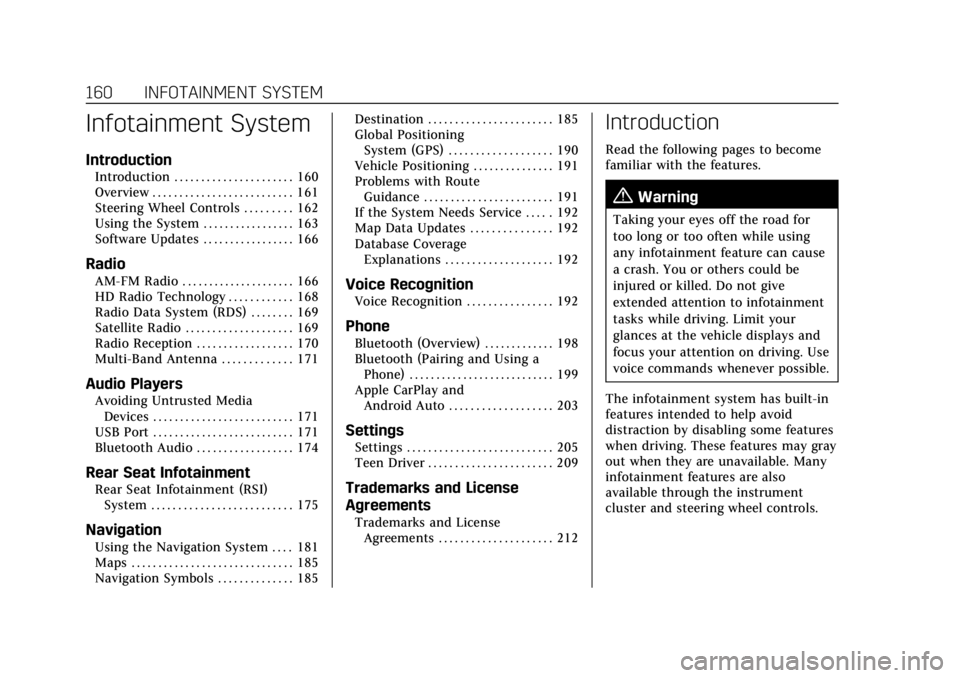
Infotainment System
Introduction
Introduction . . . . . . . . . . . . . . . . . . . . . . 160
Overview . . . . . . . . . . . . . . . . . . . . . . . . . . 161
Steering Wheel Controls . . . . . . . . . 162
Using the System . . . . . . . . . . . . . . . . . 163
Software Updates . . . . . . . . . . . . . . . . . 166
Radio
AM-FM Radio . . . . . . . . . . . . . . . . . . . . . 166
HD Radio Technology . . . . . . . . . . . . 168
Radio Data System (RDS) . . . . . . . . 169
Satellite Radio . . . . . . . . . . . . . . . . . . . . 169
Radio Reception . . . . . . . . . . . . . . . . . . 170
Multi-Band Antenna . . . . . . . . . . . . . 171
Audio Players
Avoiding Untrusted MediaDevices . . . . . . . . . . . . . . . . . . . . . . . . . . 171
USB Port . . . . . . . . . . . . . . . . . . . . . . . . . . 171
Bluetooth Audio . . . . . . . . . . . . . . . . . . 174
Rear Seat Infotainment
Rear Seat Infotainment (RSI) System . . . . . . . . . . . . . . . . . . . . . . . . . . 175
Navigation
Using the Navigation System . . . . 181
Maps . . . . . . . . . . . . . . . . . . . . . . . . . . . . . . 185
Navigation Symbols . . . . . . . . . . . . . . 185 Destination . . . . . . . . . . . . . . . . . . . . . . . 185
Global Positioning
System (GPS) . . . . . . . . . . . . . . . . . . . 190
Vehicle Positioning . . . . . . . . . . . . . . . 191
Problems with Route Guidance . . . . . . . . . . . . . . . . . . . . . . . . 191
If the System Needs Service . . . . . 192
Map Data Updates . . . . . . . . . . . . . . . 192
Database Coverage Explanations . . . . . . . . . . . . . . . . . . . . 192
Voice Recognition
Voice Recognition . . . . . . . . . . . . . . . . 192
Phone
Bluetooth (Overview) . . . . . . . . . . . . . 198
Bluetooth (Pairing and Using aPhone) . . . . . . . . . . . . . . . . . . . . . . . . . . . 199
Apple CarPlay and Android Auto . . . . . . . . . . . . . . . . . . . 203
Settings
Settings . . . . . . . . . . . . . . . . . . . . . . . . . . . 205
Teen Driver . . . . . . . . . . . . . . . . . . . . . . . 209
Trademarks and License
Agreements
Trademarks and LicenseAgreements . . . . . . . . . . . . . . . . . . . . . 212
Introduction
Read the following pages to become
familiar with the features.
{Warning
Taking your eyes off the road for
too long or too often while using
any infotainment feature can cause
a crash. You or others could be
injured or killed. Do not give
extended attention to infotainment
tasks while driving. Limit your
glances at the vehicle displays and
focus your attention on driving. Use
voice commands whenever possible.
The infotainment system has built-in
features intended to help avoid
distraction by disabling some features
when driving. These features may gray
out when they are unavailable. Many
infotainment features are also
available through the instrument
cluster and steering wheel controls.
Page 162 of 508
Cadillac Escalade Owner Manual (GMNA-Localizing-U.S./Canada/Mexico-
15567102) - 2022 - CRC - 11/17/21
INFOTAINMENT SYSTEM 161
Before driving:
.Become familiar with the operation,
center stack controls, steering wheel
controls, and infotainment display.
.Set up the audio by presetting
favorite stations, setting the tone,
and adjusting the speakers.
.Set up phone numbers in advance
so they can be called easily by
pressing a single control or by using
a single voice command.
See Distracted Driving 0231.
Overview
Infotainment System
The infotainment system is controlled
by using the infotainment display,
controls on the center console,
steering wheel controls, and voice
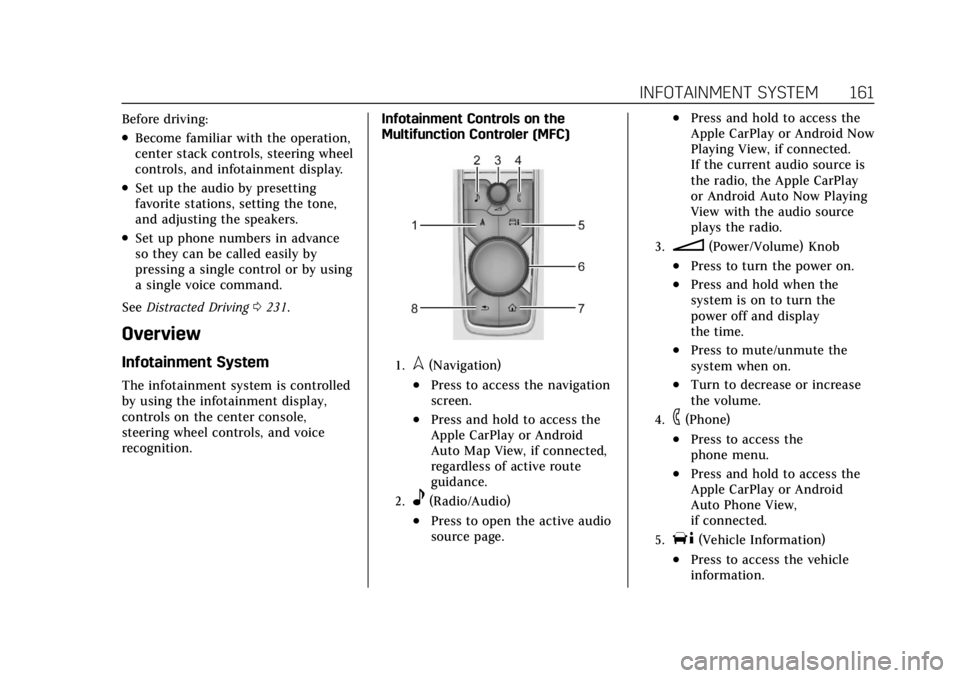
recognition. Infotainment Controls on the
Multifunction Controler (MFC)
1.l(Navigation)
.Press to access the navigation
screen.
.Press and hold to access the
Apple CarPlay or Android
Auto Map View, if connected,
regardless of active route
guidance.
2.e(Radio/Audio)
.Press to open the active audio
source page.
.Press and hold to access the
Apple CarPlay or Android Now
Playing View, if connected.
If the current audio source is
the radio, the Apple CarPlay
or Android Auto Now Playing
View with the audio source
plays the radio.
3.n(Power/Volume) Knob
.Press to turn the power on.
.Press and hold when the
system is on to turn the
power off and display
the time.
.Press to mute/unmute the
system when on.
.Turn to decrease or increase
the volume.
4.6(Phone)
.Press to access the
phone menu.
.Press and hold to access the
Apple CarPlay or Android
Auto Phone View,
if connected.
5.T(Vehicle Information)
.Press to access the vehicle
information.