USB port CADILLAC ESCALADE 2022 Owners Manual
[x] Cancel search | Manufacturer: CADILLAC, Model Year: 2022, Model line: ESCALADE, Model: CADILLAC ESCALADE 2022Pages: 508, PDF Size: 9.18 MB
Page 6 of 508

Cadillac Escalade Owner Manual (GMNA-Localizing-U.S./Canada/Mexico-
15567102) - 2022 - CRC - 11/17/21
INTRODUCTION 5
1.Driver Information Center (DIC)
0133.
2. Air Vents 0227.
3. Turn Signal Lever. See Turn and
Lane-Change Signals 0155.
Exterior Lamp Controls 0150.
4. Tap Shift Controls (If Equipped). See Manual Mode 0256.
5. Instrument Cluster 0115.
6. Driver Monitoring Camera. See Super Cruise 0286 (If Equipped).
7. Windshield Wiper/Washer 0106.
Rear Window Wiper/Washer 0108.
8. Infotainment. See Overview0161.
9. Light Sensor. See Automatic
Headlamp System 0154.
10. Dual Automatic Climate Control
System 0221.
Heated and Ventilated Front Seats
0 48 (If Equipped).
11. USB Ports. See USB Port0171.
12. Storage Compartment.
13. Infotainment Controls. See Overview 0161.
14. Hazard Warning Flashers 0155. 15.
Wireless Charging 0112.
16. Shift Lever. See Automatic
Transmission 0252.
17. Automatic Vehicle Hold (AVH) 0264
(Out of View).
Auto Stop Disable Switch. See Stop/
Start System 0249 (Out of View).
Lane Keep Assist (LKA) 0330 (If
Equipped) (Out of View).
18. ENGINE START/STOP Button. See Ignition Positions 0246.
19. Steering Wheel Controls 0105.
20. Horn 0105.
21. Steering Column Adjustment. See Steering Wheel Adjustment 0105.
22. Hood Release. See Hood0371.
23. Cruise Control 0273 (If Equipped).
Adaptive Cruise Control (Advanced)
0 275 (If Equipped).
Super Cruise 0286 (If Equipped).
Forward Collision Alert (FCA) System
0 319 (If Equipped).
Heated Steering Wheel 0105 (If
Equipped).
24. Instrument Panel Illumination
Control 0156. 25. Data Link Connector (DLC) (Out of
View). See Malfunction Indicator
Lamp (Check Engine Light) 0123.
26. Trailer Brake Control. See Towing
Equipment 0344 (If Equipped).
27. Electric Parking Brake 0262.
28. Four-Wheel Drive 0257 (If
Equipped).
Four Corner Air Suspension System
0 270 (If Equipped).
Driver Mode Control 0267
Page 100 of 508

Cadillac Escalade Owner Manual (GMNA-Localizing-U.S./Canada/Mexico-
15567102) - 2022 - CRC - 11/17/21
STORAGE 99
Rear Cupholders
If equipped with cupholders in the
back center console, press the cover
and release to access. There may be
two USB ports, two HDMI ports, and a
power outlet on the back of the center
console.
If equipped, the second row seat
armrest may have cupholders. Pull the
armrest down to access the
cupholders.
Armrest Storage
For vehicles with a rear seat armrest,
pull the loop at the top of the armrest
down to access the cupholders.
Rear Storage
There is storage in the floor of the
rear cargo area. Lift the handle to
access.
Page 101 of 508
Cadillac Escalade Owner Manual (GMNA-Localizing-U.S./Canada/Mexico-
15567102) - 2022 - CRC - 11/17/21
100 STORAGE
Center Console Storage
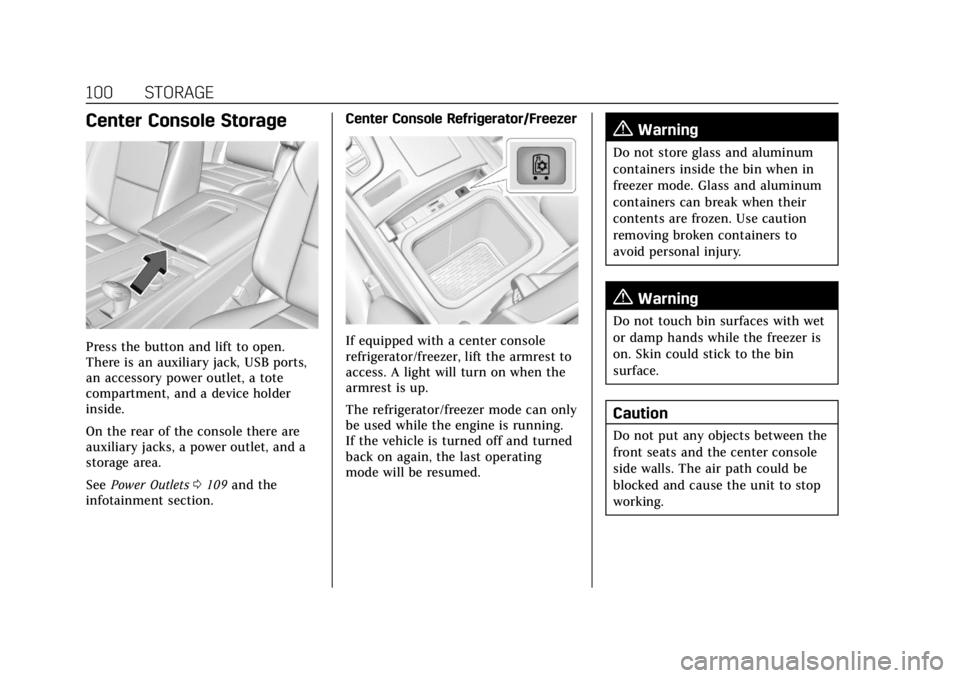
Press the button and lift to open.
There is an auxiliary jack, USB ports,
an accessory power outlet, a tote
compartment, and a device holder
inside.
On the rear of the console there are
auxiliary jacks, a power outlet, and a
storage area.
SeePower Outlets 0109 and the
infotainment section. Center Console Refrigerator/FreezerIf equipped with a center console
refrigerator/freezer, lift the armrest to
access. A light will turn on when the
armrest is up.
The refrigerator/freezer mode can only
be used while the engine is running.
If the vehicle is turned off and turned
back on again, the last operating
mode will be resumed.
{Warning
Do not store glass and aluminum
containers inside the bin when in
freezer mode. Glass and aluminum
containers can break when their
contents are frozen. Use caution
removing broken containers to
avoid personal injury.
{Warning
Do not touch bin surfaces with wet
or damp hands while the freezer is
on. Skin could stick to the bin
surface.
Caution
Do not put any objects between the
front seats and the center console
side walls. The air path could be
blocked and cause the unit to stop
working.
Page 102 of 508
Cadillac Escalade Owner Manual (GMNA-Localizing-U.S./Canada/Mexico-
15567102) - 2022 - CRC - 11/17/21
STORAGE 101
To use in refrigerator mode, press the
button once. One light on the button
will be lit. The operating temperature
is 5°C (41°F).
To use in freezer mode, press the
button twice. Two lights on the button
will be lit. The operating temperature
is -5°C (23°F).
To turn off the refrigerator or freezer,
press the button until its lights are off.
The bin light can turn on when the
refrigerator/freezer is off.
The bottom mat is removable. Clean
with water and mild soap.
Clean the refrigerator/freezer bin while
the vehicle and the feature are turned
off. Use a damp, soft rag and wipe the
bin carefully. Do not scratch or
puncture the bin surfaces.Rear Console Storage
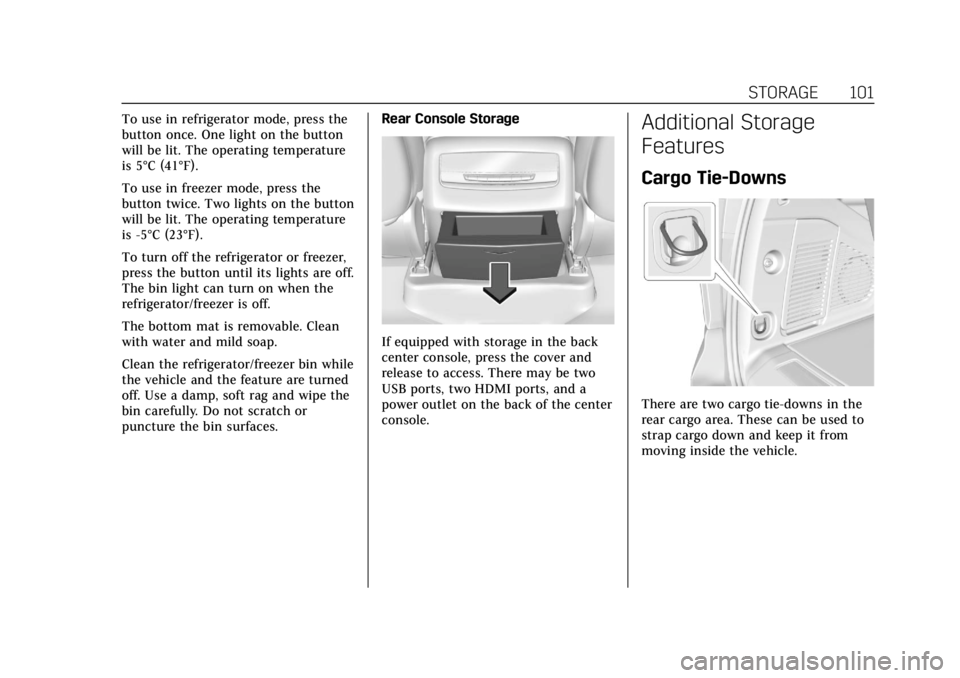
If equipped with storage in the back
center console, press the cover and
release to access. There may be two
USB ports, two HDMI ports, and a
power outlet on the back of the center
console.
Additional Storage
Features
Cargo Tie-Downs
There are two cargo tie-downs in the
rear cargo area. These can be used to
strap cargo down and keep it from
moving inside the vehicle.
Page 112 of 508

Cadillac Escalade Owner Manual (GMNA-Localizing-U.S./Canada/Mexico-
15567102) - 2022 - CRC - 11/18/21
INSTRUMENTS AND CONTROLS 111
With Refrigerator/Freezer
StandardWhen the ignition is on, power to the
110/120 Volt outlet is enabled after
the
-button is pressed. A green
indicator light on the
-button
indicates when the outlet is enabled.
110 Volts is supplied to the outlet
when it is enabled and electrical
equipment is plugged into that outlet.
One power outlet can be used with
electrical equipment that uses a
maximum of 400 watts.
Ensure that all connected devices do
not exceed 400 watts. The power
outlet can be turned off by pressing
the
-button.
An indicator light on the outlet
illuminates when the outlet is enabled
and no system fault is detected. The
outlet will not provide power when
the ignition is off, the
-button is
not pressed, or the plug is not fully
seated into the outlet. The outlet does
not operate while the engine is
starting. If a USB powered streaming
device is being used, it is suggested to
use a USB port for power. See USB
Port 0171. If uninterrupted power supply is
required while driving, disable the
Auto Engine Stop/Start System by
pressing the Auto Stop disable switch.
See
Stop/Start System 0249.
If equipment is connected using more
than 400 watts or a system fault is
detected, a protection circuit shuts off
the power supply and the indicator
light will flash.
Do not use a power outlet with a
missing or damaged cover.
The power outlet is not designed for
the following, and may not work
properly if they are plugged in:
.Equipment with high initial peak
wattage, such as compressor-driven
refrigerators and electric power
tools
.Other equipment requiring an
extremely stable power supply, such
as microcomputer-controlled
electric blankets and touch sensor
lamps
.Medical equipment.
Page 161 of 508
Cadillac Escalade Owner Manual (GMNA-Localizing-U.S./Canada/Mexico-
15567102) - 2022 - CRC - 11/17/21
160 INFOTAINMENT SYSTEM
Infotainment System
Introduction
Introduction . . . . . . . . . . . . . . . . . . . . . . 160
Overview . . . . . . . . . . . . . . . . . . . . . . . . . . 161
Steering Wheel Controls . . . . . . . . . 162
Using the System . . . . . . . . . . . . . . . . . 163
Software Updates . . . . . . . . . . . . . . . . . 166
Radio
AM-FM Radio . . . . . . . . . . . . . . . . . . . . . 166
HD Radio Technology . . . . . . . . . . . . 168
Radio Data System (RDS) . . . . . . . . 169
Satellite Radio . . . . . . . . . . . . . . . . . . . . 169
Radio Reception . . . . . . . . . . . . . . . . . . 170
Multi-Band Antenna . . . . . . . . . . . . . 171
Audio Players
Avoiding Untrusted MediaDevices . . . . . . . . . . . . . . . . . . . . . . . . . . 171
USB Port . . . . . . . . . . . . . . . . . . . . . . . . . . 171
Bluetooth Audio . . . . . . . . . . . . . . . . . . 174
Rear Seat Infotainment
Rear Seat Infotainment (RSI) System . . . . . . . . . . . . . . . . . . . . . . . . . . 175
Navigation
Using the Navigation System . . . . 181
Maps . . . . . . . . . . . . . . . . . . . . . . . . . . . . . . 185
Navigation Symbols . . . . . . . . . . . . . . 185 Destination . . . . . . . . . . . . . . . . . . . . . . . 185
Global Positioning
System (GPS) . . . . . . . . . . . . . . . . . . . 190
Vehicle Positioning . . . . . . . . . . . . . . . 191
Problems with Route Guidance . . . . . . . . . . . . . . . . . . . . . . . . 191
If the System Needs Service . . . . . 192
Map Data Updates . . . . . . . . . . . . . . . 192
Database Coverage Explanations . . . . . . . . . . . . . . . . . . . . 192
Voice Recognition
Voice Recognition . . . . . . . . . . . . . . . . 192
Phone
Bluetooth (Overview) . . . . . . . . . . . . . 198
Bluetooth (Pairing and Using aPhone) . . . . . . . . . . . . . . . . . . . . . . . . . . . 199
Apple CarPlay and Android Auto . . . . . . . . . . . . . . . . . . . 203
Settings
Settings . . . . . . . . . . . . . . . . . . . . . . . . . . . 205
Teen Driver . . . . . . . . . . . . . . . . . . . . . . . 209
Trademarks and License
Agreements
Trademarks and LicenseAgreements . . . . . . . . . . . . . . . . . . . . . 212
Introduction
Read the following pages to become
familiar with the features.
{Warning
Taking your eyes off the road for
too long or too often while using
any infotainment feature can cause
a crash. You or others could be
injured or killed. Do not give
extended attention to infotainment
tasks while driving. Limit your
glances at the vehicle displays and
focus your attention on driving. Use
voice commands whenever possible.
The infotainment system has built-in
features intended to help avoid
distraction by disabling some features
when driving. These features may gray
out when they are unavailable. Many
infotainment features are also
available through the instrument
cluster and steering wheel controls.
Page 164 of 508
Cadillac Escalade Owner Manual (GMNA-Localizing-U.S./Canada/Mexico-
15567102) - 2022 - CRC - 11/17/21
INFOTAINMENT SYSTEM 163
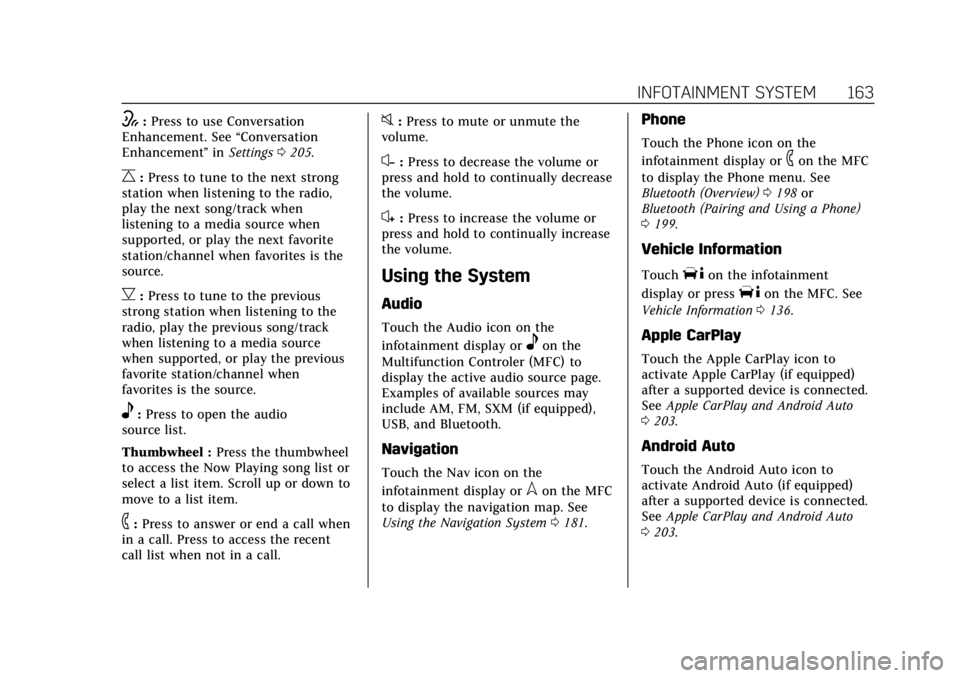
w:Press to use Conversation
Enhancement. See “Conversation
Enhancement ”in Settings 0205.
C:Press to tune to the next strong
station when listening to the radio,
play the next song/track when
listening to a media source when
supported, or play the next favorite
station/channel when favorites is the
source.
B: Press to tune to the previous
strong station when listening to the
radio, play the previous song/track
when listening to a media source
when supported, or play the previous
favorite station/channel when
favorites is the source.
e: Press to open the audio
source list.
Thumbwheel : Press the thumbwheel
to access the Now Playing song list or
select a list item. Scroll up or down to
move to a list item.
6: Press to answer or end a call when
in a call. Press to access the recent
call list when not in a call.
0: Press to mute or unmute the
volume.
x− :Press to decrease the volume or
press and hold to continually decrease
the volume.
x+ : Press to increase the volume or
press and hold to continually increase
the volume.
Using the System
Audio
Touch the Audio icon on the
infotainment display or
eon the
Multifunction Controler (MFC) to
display the active audio source page.
Examples of available sources may
include AM, FM, SXM (if equipped),
USB, and Bluetooth.
Navigation
Touch the Nav icon on the
infotainment display or
lon the MFC
to display the navigation map. See
Using the Navigation System 0181.
Phone
Touch the Phone icon on the
infotainment display or
6on the MFC
to display the Phone menu. See
Bluetooth (Overview) 0198 or
Bluetooth (Pairing and Using a Phone)
0 199.
Vehicle Information
TouchTon the infotainment
display or press
Ton the MFC. See
Vehicle Information 0136.
Apple CarPlay
Touch the Apple CarPlay icon to
activate Apple CarPlay (if equipped)
after a supported device is connected.
See Apple CarPlay and Android Auto
0 203.
Android Auto
Touch the Android Auto icon to
activate Android Auto (if equipped)
after a supported device is connected.
See Apple CarPlay and Android Auto
0 203.
Page 172 of 508
Cadillac Escalade Owner Manual (GMNA-Localizing-U.S./Canada/Mexico-
15567102) - 2022 - CRC - 11/17/21
INFOTAINMENT SYSTEM 171
especially around tall buildings or
hills, causing the sound to fade in
and out.
AM
The range for most AM stations is
greater than for FM, especially at
night. The longer range can cause
station frequencies to interfere with
each other. Static can also occur when
things like storms and power lines
interfere with radio reception. When
this happens, try reducing the treble
on the radio.
SiriusXM Satellite Radio Service
If equipped, SiriusXM Satellite Radio
Service provides digital radio
reception. Tall buildings or hills can
interfere with satellite radio signals,
causing the sound to fade in and out.
In addition, traveling or standing
under heavy foliage, bridges, garages,
or tunnels may cause loss of the
SiriusXM signal for a period of time.
Some cellular services may interfere
with SXM reception causing loss of
signal.
Mobile Device Usage
Mobile device usage, such as making
or receiving calls, charging, or just
having the mobile device on may
cause static interference in the radio.
Unplug the mobile device or turn it
off if this happens.
Multi-Band Antenna
The roof antenna may be used for
radio, navigation, and OnStar,
depending on the equipped options.
Keep clear of obstructions for clear
reception. If the vehicle has a sunroof,
and it is open, reception can also be
affected.
Audio Players
Avoiding Untrusted Media
Devices
When using media devices such as SD
cards, USB devices, and mobile
devices, consider the source.
Untrusted media devices could
contain files that affect systemoperation or performance. Avoid use if
the content or origin cannot be
trusted.
USB Port
Audio stored on a USB device may be
listened to.
The vehicle may be equipped with two
USB ports in the center console under
the armrest and another two on the
center stack. These ports are for data
and charging. There may also be two
USB ports at the rear of the center
console and a USB port on each side
of the third row seats for
charging only.
Caution
To avoid vehicle damage, unplug all
accessories and disconnect all
accessory cables from the vehicle
when not in use. Accessory cables
left plugged into the vehicle,
unconnected to a device, could be
damaged or cause an electrical
short if the unconnected end comes
(Continued)
Page 173 of 508
Cadillac Escalade Owner Manual (GMNA-Localizing-U.S./Canada/Mexico-
15567102) - 2022 - CRC - 11/17/21
172 INFOTAINMENT SYSTEM
Caution (Continued)
in contact with liquids or another
power source such as the accessory
power outlet.
Playing from a USB
A USB mass storage device can be
connected to the USB port.
Audio extensions supported by the
USB may include:
.MP3
.AAC
.OGG
.3GP
Gracenote
When plugging in a USB device,
Gracenote service builds voice tags for
music. Voice tags allow artists, albums
with hard to pronounce names, and
nicknames to be used to play music
through voice recognition, if equipped.
While indexing, infotainment features
may be available. My Media Library
MyMedia is only available when more
than one indexed device is connected.
It allows access to content from all
indexed media sources. MyMedia will
show as an available source in the
Source page.
USB MP3 Player and USB Devices
The USB MP3 players and USB devices
connected must comply with the USB
Mass Storage Class specification
(USB MSC).
To play a USB device:
1. Connect the USB.
2. Touch Audio from the Home Page.
3. Touch the More option and then touch the USB device.
Use the following when playing an
active USB source:
p: Touch to play the current media
source.
j: Touch to pause playback of the
current media source.
7:
.Touch to seek the beginning of the
current or previous track.
.Touch and hold to reverse quickly
through playback. Release to return
to playing speed. Elapsed time
displays.
6:
.Touch to seek the next track.
.Touch and hold to advance quickly
through playback. Release to return
to playing speed. Elapsed time
displays.
Shuff le : Touch the shuffle icon to
play music in random order.
USB Sound Menu
See “Infotainment System Sound
Menu ”under AM-FM Radio 0166.
USB Browse Menu
When a list of songs, albums, artists,
or other types of media displays, the
up and down arrows and A-Z appear
on the left side. Select A-Z to view a
display that will show all letters of the
alphabet and select the letter to go to.
Page 174 of 508
Cadillac Escalade Owner Manual (GMNA-Localizing-U.S./Canada/Mexico-
15567102) - 2022 - CRC - 11/17/21
INFOTAINMENT SYSTEM 173
Touch the up and down arrows to
move the list up and down.
Touch Browse and the following may
display:
Playlists:1. Touch to view the playlists stored on the USB.
2. Touch a playlist to view the list of all songs in that playlist.
3. Touch a song from the list to begin playback.
Supported playlist extensions are m3u
and pls.
Artists: 1. Touch to view the list of artists stored on the USB.
2. Touch an artist name to view a list of all albums by the artist.
3. To select a song, touch All Songs or touch an album and then touch a
song from the list.
Songs: 1. Touch to display a list of all songs on the USB.
2. To begin playback, touch a song from the list. Albums:
1. Touch to view the albums on the USB.
2. Touch the album to view a list of all songs on the album.
3. Touch a song from the list to begin playback.
Genres: 1. Touch to view the genres on the USB.
2. Touch a genre to view a list of artists.
3. Touch an artist to view albums by that artist.
4. Touch an album to view songs on the album.
5. Touch a song to start playback.
Composers: 1. Touch to view the composers on the USB.
2. Touch a Composer to view a list of albums by that composer.
3. Touch an album or All Songs to view a list of songs.
4. Touch a song from the list to begin playback. Folders:
1. Touch to view the directories on the USB.
2. Touch a folder to view a list of all files.
3. Touch a file from the list to begin playback.
Podcasts : Touch to view the podcasts
on the connected Apple device and
get a list of podcast episodes.
Audiobooks:
1. Touch to view the audiobooks stored on the Apple device.
2. Touch an audiobook to get a list of chapters.
3. Touch the chapter from the list to begin playback.
File System and Naming
File systems supported by the USB
may include:
.FAT32
.NTFS
.HFS+
The songs, artists, albums, and genres
are taken from the file’s song
information and are only displayed if