overhead CADILLAC ESCALADE 2023 User Guide
[x] Cancel search | Manufacturer: CADILLAC, Model Year: 2023, Model line: ESCALADE, Model: CADILLAC ESCALADE 2023Pages: 461, PDF Size: 7.99 MB
Page 143 of 461
Cadillac Escalade Owner Manual (GMNA-Localizing-U.S./Canada/Mexico-
16417396) - 2023 - CRC - 5/9/22
Lighting 141
To access, press{on the infotainment
controls, then touch AMBIENT LIGHTING to
display the settings screen.
Touch to select from the following:
OFF : Turns the feature off.
ON : Turns the feature on. Ambient lighting
provides the ability to customize the color
and intensity of the interior accent lighting.
Chose the color on the display screen to
make change to interior lighting color.
DEMO MODE : When the shift lever is in
P (Park), touch to turn the feature on in
colors chosen by the vehicle. When the shift
lever is not in P (Park) , the interior color
will default to the last active color selected.
LINK TO DRIVE MODE : The light color is
matched to the color being used for the
drive mode.Dome Lamps
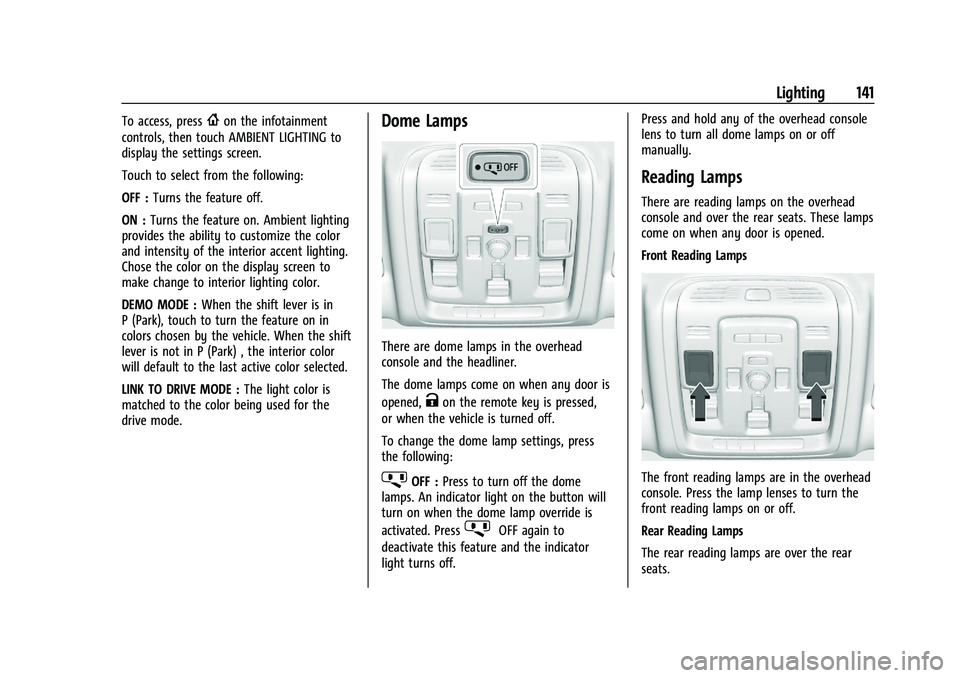
There are dome lamps in the overhead
console and the headliner.
The dome lamps come on when any door is
opened,
Kon the remote key is pressed,
or when the vehicle is turned off.
To change the dome lamp settings, press
the following:
jOFF : Press to turn off the dome
lamps. An indicator light on the button will
turn on when the dome lamp override is
activated. Press
jOFF again to
deactivate this feature and the indicator
light turns off. Press and hold any of the overhead console
lens to turn all dome lamps on or off
manually.
Reading Lamps
There are reading lamps on the overhead
console and over the rear seats. These lamps
come on when any door is opened.
Front Reading Lamps
The front reading lamps are in the overhead
console. Press the lamp lenses to turn the
front reading lamps on or off.
Rear Reading Lamps
The rear reading lamps are over the rear
seats.
Page 278 of 461
Cadillac Escalade Owner Manual (GMNA-Localizing-U.S./Canada/Mexico-
16417396) - 2023 - CRC - 5/11/22
276 Driving and Operating
Touch the camera view buttons along the
bottom of the infotainment display to
access each view (if equipped):
1. Front/Rear Standard View
Displays an image of the area in front
or behind the vehicle. To select, touch
Front/Rear Standard View on the
infotainment display when a camera
view is active.
When the hitch guidance is selected,
Rear Standard View will remain visible
across gear changes, otherwise the
view will toggle between Front and
Rear Standard View based on gear
position.
If equipped, the front view camera
also displays when the Park Assist
system detects an object within
30 cm (12 in).
To access this view when in a forward
gear above 12 km/h (8 mph), select
CAMERA on the infotainment display
and select Rear Standard View. The
view will close after 8 seconds and
can be closed early by selecting X,
Home or Back.
2. Front/Rear Top-Down View
Displays a front or rear overhead view
of the vehicle. To view, select Front/
Rear Top-Down View on the
infotainment display when the camera
app is active.
3. Front/Rear side View
Displays a view that shows objects
next to the front or rear sides of the
vehicle. To select, touch Front/Rear
Side View on the infotainment display
when a camera view is active. Touch
the button to toggle between front
and rear camera views. Park Assist and
RCTA overlays are not available when
Front/Rear Side View is active.
4. Hitch View
Displays a zoomed-in view of the hitch
area to assist with aligning the
vehicle’s hitch ball with the trailer
coupler and monitoring the trailer
connection. To view, select Hitch View
on the infotainment display when the
Camera App is active. To access this
view when in a forward gear above
12 km/h (8 mph), select CAMERA on
the infotainment display and select
Hitch View. The view will close after
eight seconds and can be closed earlyby selecting X, Home or Back. Shifting
into P (Park) while in this view will
automatically engage the Electric
Parking Brake (EPB).
5. Surround View
Displays an image of the area
surrounding the vehicle. Surround
View is displayed alongside the
currently selected view when below 12
kph (8 mph). Surround View is
disabled when above 12 kph (8 mph).
6. Camera App Guidance Lines
The Camera App supports three
possible guidance modes: No
Guidance, Vehicle Guidance and
Trailering Guidance. To change
guidance mode, select the appropriate
guidance icon. Depending on the
guidance mode and view selected,
different guidance lines may appear.
A grayed-out icon indicates that
guidance lines are not available.
Certain views do not support Guidance
lines.
.Standard Guidance Lines are
available in Front/Rear Standard
Views, Front/Rear Top-Down Views
and Surround View when the