radio controls CADILLAC ESCALADE 2023 User Guide
[x] Cancel search | Manufacturer: CADILLAC, Model Year: 2023, Model line: ESCALADE, Model: CADILLAC ESCALADE 2023Pages: 461, PDF Size: 7.99 MB
Page 152 of 461
Cadillac Escalade Owner Manual (GMNA-Localizing-U.S./Canada/Mexico-
16417396) - 2023 - CRC - 5/9/22
150 Infotainment System
Software Updates
Over-the-Air Software Updates
If equipped, see“Updates”underSettings
0 184 for details on software updates.
Radio
AM-FM Radio
Playing the Radio
From the Home Page, touch the Audio icon
to display the active audio source page.
Choose from the list at the left side of the
display. Examples of available sources may
include AM, FM, SiriusXM (if equipped) and
Bluetooth.
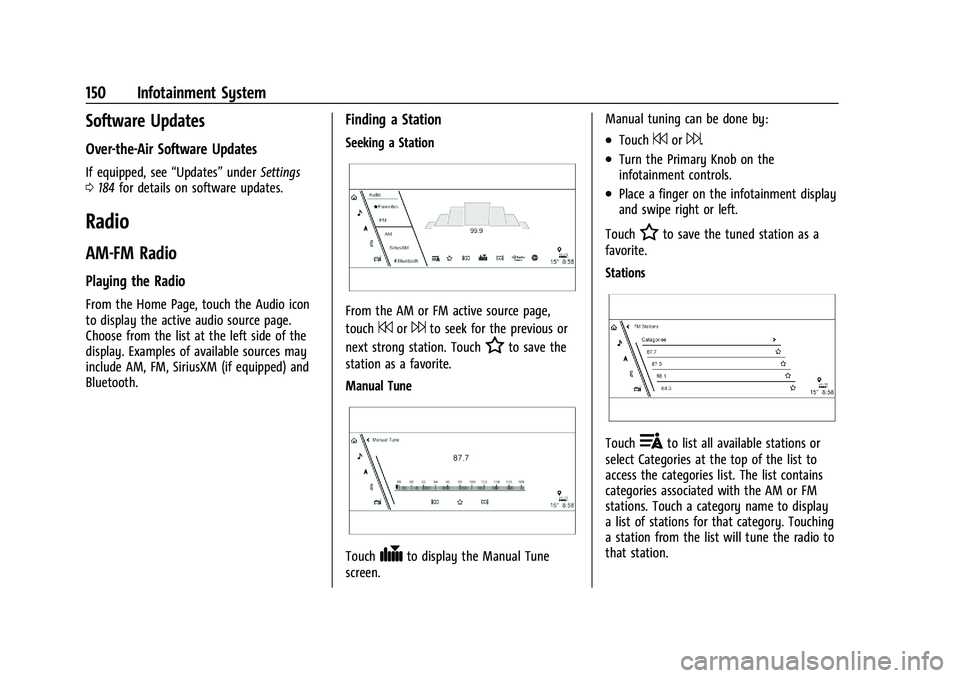
Finding a Station
Seeking a Station
From the AM or FM active source page,
touch
7or6to seek for the previous or
next strong station. Touch
Hto save the
station as a favorite.
Manual Tune
Touch#to display the Manual Tune
screen. Manual tuning can be done by:
.Touch7or6.
.Turn the Primary Knob on the
infotainment controls.
.Place a finger on the infotainment display
and swipe right or left.
Touch
Hto save the tuned station as a
favorite.
Stations
Touch!to list all available stations or
select Categories at the top of the list to
access the categories list. The list contains
categories associated with the AM or FM
stations. Touch a category name to display
a list of stations for that category. Touching
a station from the list will tune the radio to
that station.
Page 153 of 461
Cadillac Escalade Owner Manual (GMNA-Localizing-U.S./Canada/Mexico-
16417396) - 2023 - CRC - 5/9/22
Infotainment System 151
TouchHto save the selected station as a
favorite.
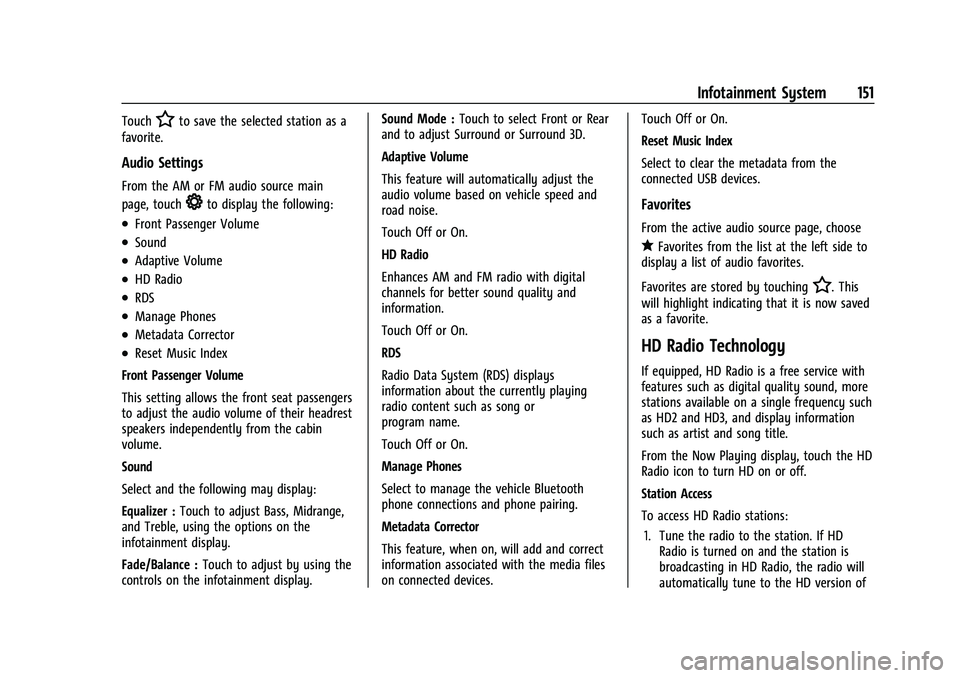
Audio Settings
From the AM or FM audio source main
page, touch
*to display the following:
.Front Passenger Volume
.Sound
.Adaptive Volume
.HD Radio
.RDS
.Manage Phones
.Metadata Corrector
.Reset Music Index
Front Passenger Volume
This setting allows the front seat passengers
to adjust the audio volume of their headrest
speakers independently from the cabin
volume.
Sound
Select and the following may display:
Equalizer : Touch to adjust Bass, Midrange,
and Treble, using the options on the
infotainment display.
Fade/Balance : Touch to adjust by using the
controls on the infotainment display. Sound Mode :
Touch to select Front or Rear
and to adjust Surround or Surround 3D.
Adaptive Volume
This feature will automatically adjust the
audio volume based on vehicle speed and
road noise.
Touch Off or On.
HD Radio
Enhances AM and FM radio with digital
channels for better sound quality and
information.
Touch Off or On.
RDS
Radio Data System (RDS) displays
information about the currently playing
radio content such as song or
program name.
Touch Off or On.
Manage Phones
Select to manage the vehicle Bluetooth
phone connections and phone pairing.
Metadata Corrector
This feature, when on, will add and correct
information associated with the media files
on connected devices. Touch Off or On.
Reset Music Index
Select to clear the metadata from the
connected USB devices.
Favorites
From the active audio source page, choose
qFavorites from the list at the left side to
display a list of audio favorites.
Favorites are stored by touching
H. This
will highlight indicating that it is now saved
as a favorite.
HD Radio Technology
If equipped, HD Radio is a free service with
features such as digital quality sound, more
stations available on a single frequency such
as HD2 and HD3, and display information
such as artist and song title.
From the Now Playing display, touch the HD
Radio icon to turn HD on or off.
Station Access
To access HD Radio stations:
1. Tune the radio to the station. If HD Radio is turned on and the station is
broadcasting in HD Radio, the radio will
automatically tune to the HD version of
Page 159 of 461
Cadillac Escalade Owner Manual (GMNA-Localizing-U.S./Canada/Mexico-
16417396) - 2023 - CRC - 5/9/22
Infotainment System 157
Volume and song selection may be
controlled by using the infotainment
controls or the mobile device. If Bluetooth is
selected and no volume is present, check the
volume setting on the infotainment system.
Music can be launched by touching
Bluetooth from the recent sources list on
the left of the display or by touching the
More option and then touching the
Bluetooth device.
To play music via Bluetooth:1. Power on the device, and pair to connect the device.
2. Once paired, touch Audio from the Home Page, then touch Bluetooth from the
recent sources list on the left of the
display.
Bluetooth Sound Menu
See “Infotainment System Sound Menu”
under AM-FM Radio 0150.
Manage Bluetooth Devices
From the Home Page: 1. Touch Audio.
2. Touch Devices to add or delete devices. When touching Bluetooth, the radio may
not be able to launch the audio player on
the connected device to start playing. When
the vehicle is not moving, use the mobile
device to begin playback.
All devices launch audio differently. When
selecting Bluetooth as a source, the radio
may show as paused on the display. Press
play on the device or touch
pon the
vehicle display to begin playback.
Browse functionality will be provided where
supported by the Bluetooth device. This
media content will not be part of the
MyMedia source mode.
Some smartphones support sending
Bluetooth music information to display on
the radio. When the radio receives this
information, it will check to see if any is
available and display it. For more
information about supported Bluetooth
features, visit your brand website. See
Online Account 0429 for details.
See Radio Frequency Statement 0435.
Rear Seat Infotainment
Rear Seat Infotainment (RSI)
System
If equipped, the system includes two HDMI
ports, two Bluetooth headphones, and video
touchscreen displays in back of the driver
and passenger seats.
The RSI system may not operate properly
until the temperature is above −20 °C (−4 °F)
and below 55 °C (131 °F).
System Operation
To use:
1. Double-tap anywhere on either screen to power on and view the Home screen.
2. Touch
}on the status bar to turn the
screen off.
The screens can be turned on and off
through each individual touchscreen,
independently from the other, and through
front seat control.
Playback of any media playing through that
specific screen is paused when the screen is
turned off.
Page 176 of 461
Cadillac Escalade Owner Manual (GMNA-Localizing-U.S./Canada/Mexico-
16417396) - 2023 - CRC - 5/9/22
174 Infotainment System
Once voice recognition is started, both the
infotainment display and instrument cluster
show the selections and visual dialog
content. These displays can be turned on or
off in the Tutorial Mode underSettings
0 184.
There are three voice prompt modes
supported:
.Informative verbal prompts: This type of
prompt will provide more information
regarding the supported actions.
.Short prompts: This type of prompt will
provide simple instructions about what
can be stated.
.Auto informative prompts: This type of
prompt plays during the first few speech
sessions, then automatically switches to
the short prompt after some experience
has been gained through using the
system.
If a command is not spoken, the voice
recognition system says a help prompt.
Prompts and Infotainment Displays
While a voice recognition session is active,
there may be corresponding options
showing on the displays. A selection can be
made by manually touching the option,
or by speaking the number for the option to select. Manual interaction in the voice
recognition session is permitted. Interaction
during a voice session may be completed
entirely using voice commands while some
manual commands may expedite a task. If a
selection is made using a manual control,
the voice recognition dialog will progress in
the same way as if the selection were made
using a voice command. Once the system
completes the task, or the session is
terminated, the voice recognition dialog
stops.
An example of this type of manual
intervention is touching an entry of a
displayed number list instead of speaking
the number associated with the entry
desired.
Canceling Voice Recognition
.Touch or say
“Cancel”or“Exit” to
terminate the voice recognition session
and show the display where voice
recognition was initiated.
.Press any MFC button or pressg,C,B,
e,6,0, or the thumbwheel on the
steering wheel controls to terminate the
voice recognition session and show the
display where voice recognition was
initiated. Natural Language Commands
Most languages do not support natural
language commands in sentence form. For
those languages, use direct commands like
the examples shown on the display.
Helpful Hints for Speaking Commands
Voice recognition can understand commands
that are naturally stated in sentence form or
direct commands that state the application
and the task.
For best results:
.Listen for the prompt before saying a
command or reply.
.Speak the command naturally, not too
fast, not too slow.
.Use direct commands without a lot of
extra words. For example,
“Call
at work,” “Play” followed by the artist or
song name, or “Tune”followed by the
radio station number.
.Navigation destinations can be made in a
single command using keywords. A few
examples are: “I want directions to an
address,” “I need to find a place of
interest or (POI),” or“Find contact.”
Page 180 of 461

Cadillac Escalade Owner Manual (GMNA-Localizing-U.S./Canada/Mexico-
16417396) - 2023 - CRC - 5/9/22
178 Infotainment System
“Call
Mobile,”or“On Other” :Initiate a call to a
stored contact and location at home, at
work, on mobile device, or on another
phone.
“Call
to a cell phone number of seven digits, 10
digits, or three digit emergency numbers.
“Pair Phone” :Begin the Bluetooth pairing
process. Follow the instructions on the
infotainment display.
“Redial” :Initiate a call to the last dialed
number.
“Switch Phone” :Select a different
connected cell phone for outgoing calls.
“Voice Keypad” :Begin a dialog to enter
special numbers like international numbers.
The numbers can be entered in groups of
digits with each group of digits being
repeated back by the system. If the group
of digits is not correct, the command
“Delete” will remove the last group of digits
and allow them to be re-entered. Once the
entire number has been entered, the
command “Call”will start dialing the
number.Phone Assistant Voice Recognition
Press and holdgon the steering wheel
controls to pass through and launch Google
phone assistant or Siri.
For the low radio, whether connected by
Bluetooth or phone projection, the only
available voice recognition is either Siri
(iPhone) or the Google Assistant (Android).
Phone
Bluetooth (Overview)
The Bluetooth-capable system can interact
with many mobile devices, allowing:
.Placement and receipt of calls in a
hands-free mode.
.Sharing of the device’s address book or
contact list with the vehicle.
To minimize driver distraction, before
driving, and with the vehicle parked:
.Become familiar with the features of the
mobile device. Organize the phone book
and contact lists clearly and delete
duplicate or rarely used entries.
If possible, program speed dial or other
shortcuts.
.Review the controls and operation of the
infotainment system.
.Pair mobile device(s) to the vehicle. The
system may not work with all mobile
devices. See “Pairing”later in this section.
Vehicles with a Bluetooth system can use a
Bluetooth-capable mobile device with a
Hands-Free Profile to make and receive
phone calls. The infotainment system and
voice recognition are used to control the
system. The system can be used while the
ignition is on or in accessory mode. The
range of the Bluetooth system can be up to
9.1 m (30 ft). Not all mobile devices support
all functions and not all mobile devices work
with the Bluetooth system. See
my.cadillac.com for more information about
compatible mobile devices.
Controls
Use the controls on the center stack and the
steering wheel to operate the Bluetooth
system.
Steering Wheel Controls
g: Press and hold to start voice recognition
on the connected Bluetooth mobile device.
6: Press to answer, end or switch between
calls.
Page 201 of 461
Cadillac Escalade Owner Manual (GMNA-Localizing-U.S./Canada/Mexico-
16417396) - 2023 - CRC - 5/9/22
Climate Controls 199
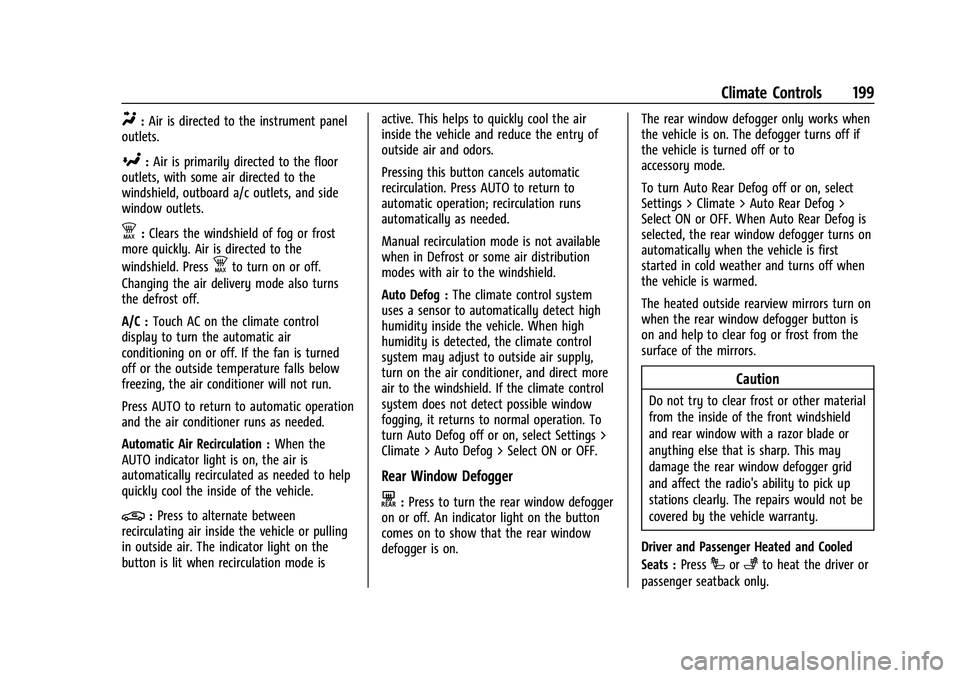
Y:Air is directed to the instrument panel
outlets.
[: Air is primarily directed to the floor
outlets, with some air directed to the
windshield, outboard a/c outlets, and side
window outlets.
d: Clears the windshield of fog or frost
more quickly. Air is directed to the
windshield. Press
dto turn on or off.
Changing the air delivery mode also turns
the defrost off.
A/C : Touch AC on the climate control
display to turn the automatic air
conditioning on or off. If the fan is turned
off or the outside temperature falls below
freezing, the air conditioner will not run.
Press AUTO to return to automatic operation
and the air conditioner runs as needed.
Automatic Air Recirculation : When the
AUTO indicator light is on, the air is
automatically recirculated as needed to help
quickly cool the inside of the vehicle.
@: Press to alternate between
recirculating air inside the vehicle or pulling
in outside air. The indicator light on the
button is lit when recirculation mode is active. This helps to quickly cool the air
inside the vehicle and reduce the entry of
outside air and odors.
Pressing this button cancels automatic
recirculation. Press AUTO to return to
automatic operation; recirculation runs
automatically as needed.
Manual recirculation mode is not available
when in Defrost or some air distribution
modes with air to the windshield.
Auto Defog :
The climate control system
uses a sensor to automatically detect high
humidity inside the vehicle. When high
humidity is detected, the climate control
system may adjust to outside air supply,
turn on the air conditioner, and direct more
air to the windshield. If the climate control
system does not detect possible window
fogging, it returns to normal operation. To
turn Auto Defog off or on, select Settings >
Climate > Auto Defog > Select ON or OFF.
Rear Window Defogger
K: Press to turn the rear window defogger
on or off. An indicator light on the button
comes on to show that the rear window
defogger is on. The rear window defogger only works when
the vehicle is on. The defogger turns off if
the vehicle is turned off or to
accessory mode.
To turn Auto Rear Defog off or on, select
Settings > Climate > Auto Rear Defog >
Select ON or OFF. When Auto Rear Defog is
selected, the rear window defogger turns on
automatically when the vehicle is first
started in cold weather and turns off when
the vehicle is warmed.
The heated outside rearview mirrors turn on
when the rear window defogger button is
on and help to clear fog or frost from the
surface of the mirrors.
Caution
Do not try to clear frost or other material
from the inside of the front windshield
and rear window with a razor blade or
anything else that is sharp. This may
damage the rear window defogger grid
and affect the radio's ability to pick up
stations clearly. The repairs would not be
covered by the vehicle warranty.
Driver and Passenger Heated and Cooled
Seats : Press
Ior+to heat the driver or
passenger seatback only.
Page 208 of 461
Cadillac Escalade Owner Manual (GMNA-Localizing-U.S./Canada/Mexico-
16417396) - 2023 - CRC - 5/11/22
206 Driving and Operating
Fuels in Foreign Countries . . . . . . . . . . . . . 302
Fuel Additives . . . . . . . . . . . . . . . . . . . . . . . . . 303
Filling the Tank . . . . . . . . . . . . . . . . . . . . . . . 303
Filling a Portable Fuel Container . . . . . . 304
Trailer Towing
General Towing Information . . . . . . . . . . . 305
Driving Characteristics andTowing Tips . . . . . . . . . . . . . . . . . . . . . . . . . 305
Trailer Towing . . . . . . . . . . . . . . . . . . . . . . . . 309
Towing Equipment . . . . . . . . . . . . . . . . . . . . . 313
Trailer Sway Control (TSC) . . . . . . . . . . . . . 322
Trailering App . . . . . . . . . . . . . . . . . . . . . . . . . 324
Conversions and Add-Ons
Add-On Electrical Equipment . . . . . . . . . . . 334
Driving Information
Driving for Better Fuel Economy
Driving habits can affect fuel mileage. Here
are some driving tips to get the best fuel
economy possible:
.Set the climate controls to the desired
temperature after the engine is started,
or turn them off when not required.
.Avoid fast starts and accelerate smoothly.
.Brake gradually and avoid abrupt stops.
.Avoid idling the engine for long periods
of time.
.When road and weather conditions are
appropriate, use cruise control.
.Always follow posted speed limits or
drive more slowly when conditions
require.
.Keep vehicle tires properly inflated.
.Combine several trips into a single trip.
.Replace the vehicle's tires with the same
TPC Spec number molded into the tire's
sidewall near the size.
.Follow recommended scheduled
maintenance.
Distracted Driving
Distraction comes in many forms and can
take your focus from the task of driving.
Exercise good judgment and do not let other
activities divert your attention away from
the road. Many local governments have
enacted laws regarding driver distraction.
Become familiar with the local laws in
your area.
To avoid distracted driving, keep your eyes
on the road, keep your hands on the
steering wheel, and focus your attention on
driving.
.Do not use a phone in demanding driving
situations. Use a hands-free method to
place or receive necessary phone calls.
.Watch the road. Do not read, take notes,
or look up information on phones or
other electronic devices.
.Designate a front seat passenger to
handle potential distractions.
.Become familiar with vehicle features
before driving, such as programming
favorite radio stations and adjusting
climate control and seat settings. Program
all trip information into any navigation
device prior to driving.
Page 458 of 461

Cadillac Escalade Owner Manual (GMNA-Localizing-U.S./Canada/Mexico-
16417396) - 2023 - CRC - 5/9/22
456 Index
S
SafetyLocks . . . . . . . . . . . . . . . . . . . . . . . . . . . . . . . . . . . 19
Safety Defects Reporting Canadian Government . . . . . . . . . . . . . . . . . 436
General Motors . . . . . . . . . . . . . . . . . . . . . . . . 436
U.S. Government . . . . . . . . . . . . . . . . . . . . . . . 435
Safety System Check . . . . . . . . . . . . . . . . . . . . . 62
Satellite Radio . . . . . . . . . . . . . . . . . . . . . . . . . . . . 152
Scheduling Appointments . . . . . . . . . . . . . . . . 432
Seat Belts . . . . . . . . . . . . . . . . . . . . . . . . . . . . . . . . . .55 Buckle To Drive . . . . . . . . . . . . . . . . . . . . . . . . . 56
Care . . . . . . . . . . . . . . . . . . . . . . . . . . . . . . . . . . . . 63
Extender . . . . . . . . . . . . . . . . . . . . . . . . . . . . . . . . 62
How to Wear Seat Belts Properly . . . . . . . 57
Lap-Shoulder Belt . . . . . . . . . . . . . . . . . . . . . . . 59
Reminders . . . . . . . . . . . . . . . . . . . . . . . . . . . . . . 112
Replacing after a Crash . . . . . . . . . . . . . . . . . 63
Use During Pregnancy . . . . . . . . . . . . . . . . . . 62
Seats Head Restraints . . . . . . . . . . . . . . . . . . . . . . . . . 39
Heated and Ventilated, Front . . . . . . . . . . . 47
Heated, Rear . . . . . . . . . . . . . . . . . . . . . . . . . . . . 52
Lumbar Adjustment, Front . . . . . . . . . . . . . . 43
Massage . . . . . . . . . . . . . . . . . . . . . . . . . . . . . . . . 44
Memory . . . . . . . . . . . . . . . . . . . . . . . . . . . . . . . . 44
Power Adjustment, Front . . . . . . . . . . . . . . . 42
Rear . . . . . . . . . . . . . . . . . . . . . . . . . . . . . . . . . . . . 48 Seats (cont'd)
Reclining Seatbacks . . . . . . . . . . . . . . . . . . . . . 42
Second Row . . . . . . . . . . . . . . . . . . . . . . . . . . . . 48
Third Row Seat . . . . . . . . . . . . . . . . . . . . . . . . . 53
Second Row Seats . . . . . . . . . . . . . . . . . . . . . . . . 48
Securing Child Restraints . . . . . . . . . . . . . . 87, 89
Security Light . . . . . . . . . . . . . . . . . . . . . . . . . . . . . . . . . . . 122
OnStar . . . . . . . . . . . . . . . . . . . . . . . . . . . . . . . . . 440
Vehicle . . . . . . . . . . . . . . . . . . . . . . . . . . . . . . . . . 27
Vehicle Alarm . . . . . . . . . . . . . . . . . . . . . . . . . . . 27
Service . . . . . . . . . . . . . . . . . . . . . . . . . . . . . . . . . . . 204
Accessories and Modifications . . . . . . . . . 336
Doing Your Own Work . . . . . . . . . . . . . . . . . 336
Electric Parking Brake Light . . . . . . . . . . . . . 116
Maintenance Records . . . . . . . . . . . . . . . . . . 422
Maintenance, General Information . . . . . 414
Parts Identification . . . . . . . . . . . . . . . . . . . . . 423
Scheduling Appointments . . . . . . . . . . . . . . 432
Services Special Application . . . . . . . . . . . . . . . . . . . . . 418
Servicing System . . . . . . . . . . . . . . . . . . . . . . . . . 173
Servicing the Airbag . . . . . . . . . . . . . . . . . . . . . . .72
Settings . . . . . . . . . . . . . . . . . . . . . . . . . . . . . . . . . . 184
Shifting Into Park . . . . . . . . . . . . . . . . . . . . . . . . . . . . . . 223
Out of Park . . . . . . . . . . . . . . . . . . . . . . . . . . . . 224
Side Blind Zone Alert (SBZA) . . . . . . . . . . . . . 294 Signals, Turn and Lane-Change . . . . . . . . . . . 140
Software Updates . . . . . . . . . . . . . . . . . . . . . . . . 150
Special Application Services . . . . . . . . . . . . . . 418
Specifications and Capacities . . . . . . . . . . . . . 424
Speedometer . . . . . . . . . . . . . . . . . . . . . . . . . . . . 108
StabiliTrak
OFF Light . . . . . . . . . . . . . . . . . . . . . . . . . . . . . . . 119
Start Assist, Hill . . . . . . . . . . . . . . . . . . . . . . . . . . 237
Start Vehicle, Remote . . . . . . . . . . . . . . . . . . . . . .14
Starting the Engine . . . . . . . . . . . . . . . . . . . . . . . 221
Steering . . . . . . . . . . . . . . . . . . . . . . . . . . . . . . . . . 208 Column Lock . . . . . . . . . . . . . . . . . . . . . . . . . . . . 29
Heated Wheel . . . . . . . . . . . . . . . . . . . . . . . . . . 98
Wheel Adjustment . . . . . . . . . . . . . . . . . . . . . . 98
Wheel Controls . . . . . . . . . . . . . . . . . . . . . . . . 146
Steps
Power Assist . . . . . . . . . . . . . . . . . . . . . . . . . . . . 27
Stop/Start System . . . . . . . . . . . . . . . . . . . . . . . 222
Storage Armrest . . . . . . . . . . . . . . . . . . . . . . . . . . . . . . . . . 93
Center Console . . . . . . . . . . . . . . . . . . . . . . . . . 94
Compartments . . . . . . . . . . . . . . . . . . . . . . . . . . 92
Convenience Net . . . . . . . . . . . . . . . . . . . . . . . . 95
Cupholders . . . . . . . . . . . . . . . . . . . . . . . . . . . . . 92
Glove Box . . . . . . . . . . . . . . . . . . . . . . . . . . . . . . 92
Rear . . . . . . . . . . . . . . . . . . . . . . . . . . . . . . . . . . . . 93
Roof Rack System . . . . . . . . . . . . . . . . . . . . . . . 95