steering wheel CADILLAC ESCALADE 2023 User Guide
[x] Cancel search | Manufacturer: CADILLAC, Model Year: 2023, Model line: ESCALADE, Model: CADILLAC ESCALADE 2023Pages: 461, PDF Size: 7.99 MB
Page 117 of 461

Cadillac Escalade Owner Manual (GMNA-Localizing-U.S./Canada/Mexico-
16417396) - 2023 - CRC - 5/9/22
Instruments and Controls 115
If the light is flashing :A malfunction has
been detected that could damage the
emission control system and increase vehicle
emissions. Diagnosis and service may be
required.
To help prevent damage, reduce vehicle
speed and avoid hard accelerations and
uphill grades. If towing a trailer, reduce the
amount of cargo being hauled as soon as
possible.
If the light continues to flash, find a safe
place to park. Turn the vehicle off and wait
at least 10 seconds before restarting the
engine. If the light is still flashing, follow
the previous guidelines and see your dealer
for service as soon as possible.
If the light is on steady : A malfunction has
been detected. Diagnosis and service may be
required.
Check the following:
.If fuel has been added to the vehicle
using the capless fuel funnel adapter,
make sure that it has been removed. See
“Filling the Tank with a Portable Gas Can”
under Filling the Tank 0303. The
diagnostic system can detect if the
adapter has been left installed in the
vehicle, allowing fuel to evaporate into the atmosphere. A few driving trips with
the adapter removed may turn off the
light.
.Poor fuel quality can cause inefficient
engine operation and poor driveability,
which may go away once the engine is
warmed up. If this occurs, change the fuel
brand. It may require at least one full
tank of the proper fuel to turn the light
off. See
Recommended Fuel 0302.
If the light remains on, see your dealer.
Emissions Inspection and Maintenance
Programs
If the vehicle requires an Emissions
Inspection/Maintenance test, the test
equipment will likely connect to the
vehicle's Data Link Connector (DLC).
The DLC is under the instrument panel to
the left of the steering wheel. Connecting
devices that are not used to perform an
Emissions Inspection/Maintenance test or to service the vehicle may affect vehicle
operation. See
Add-On Electrical Equipment
0 334. See your dealer if assistance is
needed.
The vehicle may not pass inspection if:
.The light is on when the engine is
running.
.The light does not come on when the
ignition is in Service Mode.
.Critical emission control systems have not
been completely diagnosed. If this
happens, the vehicle would not be ready
for inspection and might require
several days of routine driving before the
system is ready for inspection. This can
happen if the 12-volt battery has recently
been replaced or run down, or if the
vehicle has been recently serviced.
See your dealer if the vehicle will not pass
or cannot be made ready for the test.
Brake System Warning Light
MetricEnglish
Page 120 of 461

Cadillac Escalade Owner Manual (GMNA-Localizing-U.S./Canada/Mexico-
16417396) - 2023 - CRC - 5/9/22
118 Instruments and Controls
.Green: Appears when LKA is turned on
and ready to assist. LKA will gently turn
the steering wheel if the vehicle
approaches a detected lane marking.
.Amber: Appears when LKA is active. The
light flashes amber as a Lane Departure
Warning (LDW) alert to indicate that the
lane marking has been unintentionally
crossed. If the system detects you are
steering intentionally (to pass or change
lanes), the LDW alert may not display.
LKA will not assist or alert if the turn signal
is active in the direction of lane departure,
or if LKA detects that you are accelerating,
braking, or actively steering. See Lane Keep
Assist (LKA) 0298.
Automatic Emergency Braking
(AEB) Disabled Light
This indicator displays when you turn off
Automatic Emergency Braking (AEB) or Front
Pedestrian Braking (FPB). This indicator will also display if AEB or FPB
is unavailable due to malfunction, weather
conditions, or if the windshield is not clean.
See
Automatic Emergency Braking (AEB)
0 289.
See Front Pedestrian Braking (FPB) System
0 290.
Vehicle Ahead Indicator
If equipped, this indicator will display green
when a vehicle is detected ahead and amber
when you are following a vehicle ahead
much too closely.
See Forward Collision Alert (FCA) System
0 287.
Pedestrian Ahead Indicator
If equipped, this indicator will display amber
when a nearby pedestrian is detected in
front of the vehicle.
See Front Pedestrian Braking (FPB) System
0 290.
Traction Off Light
This light comes on briefly when the vehicle
is turned on to show that the light is
working. If it does not come on then, have
it fixed so it will be ready to warn you if
there is a problem.
Page 130 of 461

Cadillac Escalade Owner Manual (GMNA-Localizing-U.S./Canada/Mexico-
16417396) - 2023 - CRC - 5/9/22
128 Instruments and Controls
Caution
If you try to use the HUD image as a
parking aid, you may misjudge the
distance and damage your vehicle. Do not
use the HUD image as a parking aid.
The HUD information can be displayed in
various languages. The speedometer reading
and other numerical values can be displayed
in either English or metric units.
The language selection is changed through
the radio, and the units of measurement are
changed through the instrument cluster. See
Settings 0184.
HUD Display on the Windshield Depending on how the vehicle is equipped,
the HUD may display some of the following
vehicle information and vehicle messages or
alerts:
.Speed
.Audio
.Phone
.Navigation
.Driver Assistance Features
.Vehicle Messages
Some vehicle messages or alerts displayed in
the HUD may be cleared by using the
steering wheel controls.
The HUD control is on a touchscreen to the
left of the instrument cluster. HUD controls
are also available on the infotainment
screen. See Settings0184.
To adjust the HUD image: 1. Adjust the driver seat.
2. Start the engine.
3. Touch HUD on the touchscreen to the left of the instrument cluster.
4. Touch the icons above and below Height and Brightness to adjust the HUD.
The HUD image will automatically dim and
brighten to compensate for outside lighting.
Adjust as needed.
The HUD image can temporarily light up
depending on the angle and position of
sunlight on the HUD display. This is normal.
Polarized sunglasses could make the HUD
image harder to see.
Head-Up Display (HUD) Rotation Option
If equipped, this feature under the HUD
Options menu of the infotainment screen
allows for adjusting the angle of the HUD
image. See Settings0184.
Page 140 of 461

Cadillac Escalade Owner Manual (GMNA-Localizing-U.S./Canada/Mexico-
16417396) - 2023 - CRC - 5/9/22
138 Lighting
There is a delay in the transition between
the daytime and nighttime operation of the
automatic headlamp system so that driving
under bridges or bright overhead street
lights does not affect the system. The
automatic headlamp system is only affected
when the light sensor detects a change in
lighting lasting longer than the delay.
If the vehicle is started in a dark garage, the
automatic headlamp system will come on
immediately. Once the vehicle leaves the
garage, there is a slight delay for the
automatic headlamp system to change if it
is bright enough outside. During that delay,
the instrument cluster may not be as bright
as usual. Make sure the instrument panel
brightness control is in the full bright
position. SeeInstrument Panel Illumination
Control 0140.
To idle the vehicle with the automatic
headlamp system off, turn the control to
the off position.
The headlamps will also stay on after you
exit the vehicle.
The regular headlamp system can be turned
on when needed.Lights On with Wipers
If the windshield wipers are activated in
daylight with the engine on, and the
exterior lamp control is in AUTO, the
headlamps, parking lamps, and other
exterior lamps come on. The transition time
for the lamps coming on varies based on
wiper speed. When the wipers are not
operating, these lamps turn off. Move the
exterior lamp control to
Por;to
disable this feature.
Adaptive Forward Lighting (AFL)
If equipped with the AFL system, the
high-beam headlamps move horizontally
while turning the steering wheel to provide
greater road illumination around curves.
To activate AFL, set the exterior lamp
control to the Auto or
2position, and
Adaptive Headlight system is active. See
Exterior Lamp Controls 0134. To adjust the AFL setting, go to the
infotainment home screen and select
Settings > Vehicle > Lighting.
Moving the exterior lamp controls out of the
Auto or
2position will deactivate the
system. The high-beam headlamps can move
horizontally when the vehicle speed is
greater than 3 km/h (2 mph). Headlamps will
not move horizontally when the
transmission is in R (Reverse).
If equipped, the AFL system automatically
modifies the low-beam lighting patterns to
the situation to enable optimal light
performance for the driver. Light distribution
and intensity of low-beam light are
controlled based on exterior lighting
conditions, vehicle location, and driving
situations.
Town Light
If equipped, the town light activates
automatically at a speed of 30 km/h
(18 mph) up to 55 km/h (34 mph).
Page 142 of 461
Cadillac Escalade Owner Manual (GMNA-Localizing-U.S./Canada/Mexico-
16417396) - 2023 - CRC - 5/9/22
140 Lighting
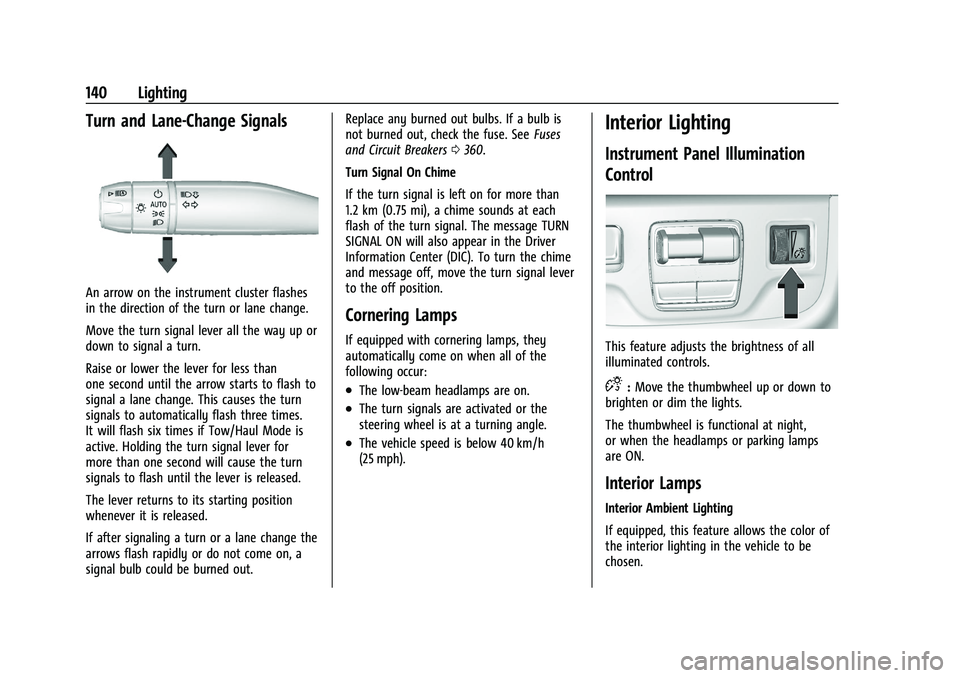
Turn and Lane-Change Signals
An arrow on the instrument cluster flashes
in the direction of the turn or lane change.
Move the turn signal lever all the way up or
down to signal a turn.
Raise or lower the lever for less than
one second until the arrow starts to flash to
signal a lane change. This causes the turn
signals to automatically flash three times.
It will flash six times if Tow/Haul Mode is
active. Holding the turn signal lever for
more than one second will cause the turn
signals to flash until the lever is released.
The lever returns to its starting position
whenever it is released.
If after signaling a turn or a lane change the
arrows flash rapidly or do not come on, a
signal bulb could be burned out.Replace any burned out bulbs. If a bulb is
not burned out, check the fuse. See
Fuses
and Circuit Breakers 0360.
Turn Signal On Chime
If the turn signal is left on for more than
1.2 km (0.75 mi), a chime sounds at each
flash of the turn signal. The message TURN
SIGNAL ON will also appear in the Driver
Information Center (DIC). To turn the chime
and message off, move the turn signal lever
to the off position.
Cornering Lamps
If equipped with cornering lamps, they
automatically come on when all of the
following occur:
.The low-beam headlamps are on.
.The turn signals are activated or the
steering wheel is at a turning angle.
.The vehicle speed is below 40 km/h
(25 mph).
Interior Lighting
Instrument Panel Illumination
Control
This feature adjusts the brightness of all
illuminated controls.
D: Move the thumbwheel up or down to
brighten or dim the lights.
The thumbwheel is functional at night,
or when the headlamps or parking lamps
are ON.
Interior Lamps
Interior Ambient Lighting
If equipped, this feature allows the color of
the interior lighting in the vehicle to be
chosen.
Page 146 of 461
Cadillac Escalade Owner Manual (GMNA-Localizing-U.S./Canada/Mexico-
16417396) - 2023 - CRC - 5/9/22
144 Infotainment System
Infotainment System
Introduction
Introduction . . . . . . . . . . . . . . . . . . . . . . . . . . . 144
Overview . . . . . . . . . . . . . . . . . . . . . . . . . . . . . . 145
Steering Wheel Controls . . . . . . . . . . . . . . . 146
Using the System . . . . . . . . . . . . . . . . . . . . . . 147
Software Updates . . . . . . . . . . . . . . . . . . . . . 150
Radio
AM-FM Radio . . . . . . . . . . . . . . . . . . . . . . . . . . 150
HD Radio Technology . . . . . . . . . . . . . . . . . . 151
Radio Data System (RDS) . . . . . . . . . . . . . . 152
Satellite Radio . . . . . . . . . . . . . . . . . . . . . . . . . 152
Radio Reception . . . . . . . . . . . . . . . . . . . . . . . 154
Multi-Band Antenna . . . . . . . . . . . . . . . . . . . 154
Audio Players
Avoiding Untrusted Media Devices . . . . . 154
USB Port . . . . . . . . . . . . . . . . . . . . . . . . . . . . . . . 154
Bluetooth Audio . . . . . . . . . . . . . . . . . . . . . . . 156
Rear Seat Infotainment
Rear Seat Infotainment (RSI) System . . . 157
Navigation
Using the Navigation System . . . . . . . . . . 163
Maps . . . . . . . . . . . . . . . . . . . . . . . . . . . . . . . . . . 166
Navigation Symbols . . . . . . . . . . . . . . . . . . . 167
Destination . . . . . . . . . . . . . . . . . . . . . . . . . . . . 167
Global Positioning System (GPS) . . . . . . . 171Vehicle Positioning . . . . . . . . . . . . . . . . . . . . . 172
Problems with Route Guidance . . . . . . . . 172
If the System Needs Service . . . . . . . . . . . 173
Map Data Updates . . . . . . . . . . . . . . . . . . . . . 173
Database Coverage Explanations . . . . . . . 173
Voice Recognition
Voice Recognition . . . . . . . . . . . . . . . . . . . . . . 173
Phone
Bluetooth (Overview) . . . . . . . . . . . . . . . . . . 178
Bluetooth (Pairing and Using a
Phone) . . . . . . . . . . . . . . . . . . . . . . . . . . . . . . . 179
Apple CarPlay and Android Auto . . . . . . . 182
Settings
Settings . . . . . . . . . . . . . . . . . . . . . . . . . . . . . . . 184
Teen Driver . . . . . . . . . . . . . . . . . . . . . . . . . . . . 187
Trademarks and License Agreements
Trademarks and License Agreements . . . . . . . . . . . . . . . . . . . . . . . . . 190
Introduction
Read the following pages to become familiar
with the features.
{Warning
Taking your eyes off the road for too
long or too often while using any
infotainment feature can cause a crash.
You or others could be injured or killed.
Do not give extended attention to
infotainment tasks while driving. Limit
your glances at the vehicle displays and
focus your attention on driving. Use voice
commands whenever possible.
The infotainment system has built-in
features intended to help avoid distraction
by disabling some features when driving.
These features may gray out when they are
unavailable. Many infotainment features are
also available through the instrument cluster
and steering wheel controls.
Before driving:
.Become familiar with the operation,
center stack controls, steering wheel
controls, and infotainment display.
Page 147 of 461
Cadillac Escalade Owner Manual (GMNA-Localizing-U.S./Canada/Mexico-
16417396) - 2023 - CRC - 5/9/22
Infotainment System 145
.Set up the audio by presetting favorite
stations, setting the tone, and adjusting
the speakers.
.Set up phone numbers in advance so they
can be called easily by pressing a single
control or by using a single voice
command.
See Distracted Driving 0206.
Overview
Infotainment System
The infotainment system is controlled by
using the infotainment display, controls on
the center console, steering wheel controls,
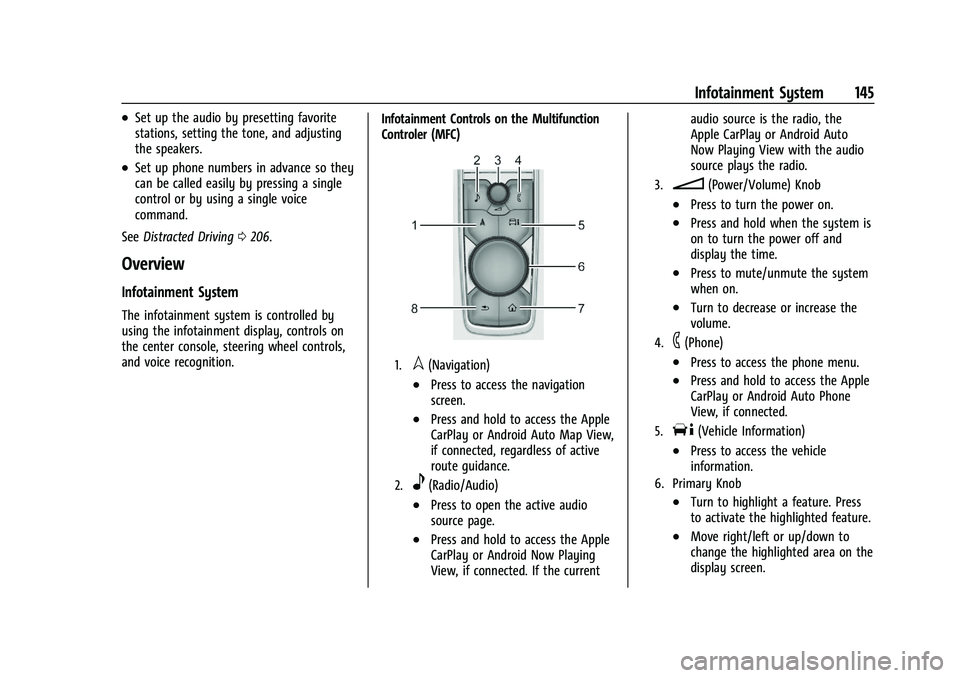
and voice recognition. Infotainment Controls on the Multifunction
Controler (MFC)
1.l(Navigation)
.Press to access the navigation
screen.
.Press and hold to access the Apple
CarPlay or Android Auto Map View,
if connected, regardless of active
route guidance.
2.e(Radio/Audio)
.Press to open the active audio
source page.
.Press and hold to access the Apple
CarPlay or Android Now Playing
View, if connected. If the currentaudio source is the radio, the
Apple CarPlay or Android Auto
Now Playing View with the audio
source plays the radio.
3.n(Power/Volume) Knob
.Press to turn the power on.
.Press and hold when the system is
on to turn the power off and
display the time.
.Press to mute/unmute the system
when on.
.Turn to decrease or increase the
volume.
4.6(Phone)
.Press to access the phone menu.
.Press and hold to access the Apple
CarPlay or Android Auto Phone
View, if connected.
5.T(Vehicle Information)
.Press to access the vehicle
information.
6. Primary Knob
.Turn to highlight a feature. Press
to activate the highlighted feature.
.Move right/left or up/down to
change the highlighted area on the
display screen.
Page 148 of 461
Cadillac Escalade Owner Manual (GMNA-Localizing-U.S./Canada/Mexico-
16417396) - 2023 - CRC - 5/9/22
146 Infotainment System
7.{(Home Page)
.Press to access the Home Page.
See“Home Page” later in this
section.
.Press and hold to access the Apple
CarPlay or Android Auto Phone
Home screen, if connected.
8.0(Back)
.Press to return to the previous
display in a menu.
Home Page
The Home Page is where vehicle application
icons or cards are accessed. Some
applications are disabled when the vehicle is
moving.
Swipe left or right across the display or use
the MFC to move the home page. Move the
knob right/left to change the page or touch
on one of the page count indicators at the
bottom of the screen to jump to a
specific page.
Managing Home Page Icons/Cards
1. Touch and hold any of the Home Page icons/cards to enter edit mode. Edit
mode is not available when the vehicle is
moving. 2. Continue holding the icon/card and drag
it to the desired position.
3. Release your finger to drop the icon in the desired position.
4. To move an application to another page, drag the icon to the edge of the display
toward the desired page. Cards must
stay on the first page.
5. Continue dragging and dropping application icons as desired.
6. Application cards on the first page can be replaced, moved or deleted based on
user preference while in edit mode.
7. Touch Done to save changes or Cancel to not save and exit edit mode.
There will always be 10 icons per page
except on the last page. If an icon is moved
from the first page to the second, then that
icon from the second page will replace the
one removed from the first.
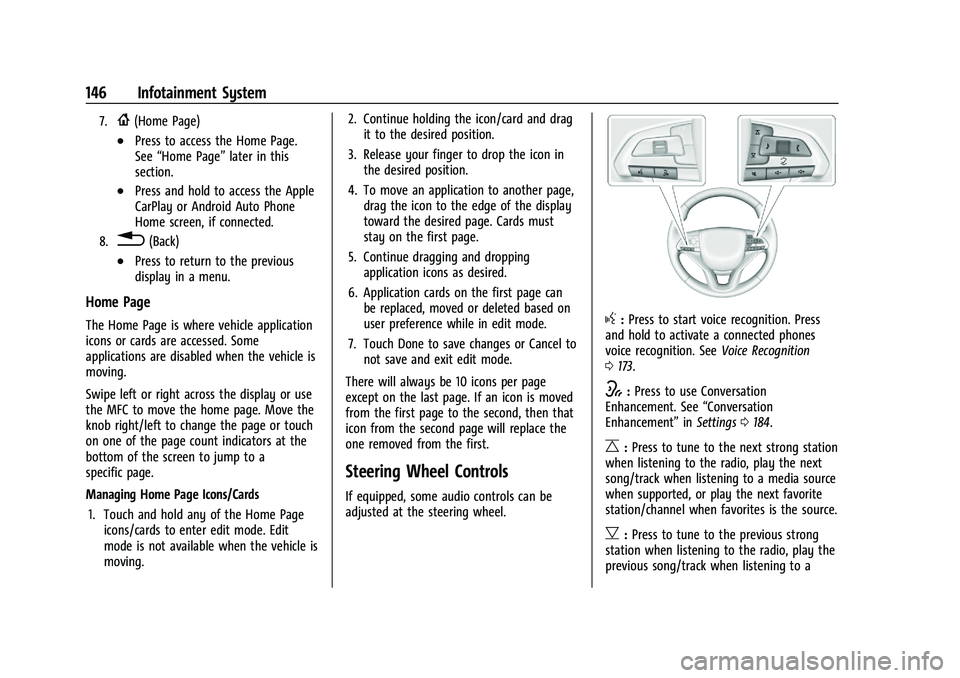
Steering Wheel Controls
If equipped, some audio controls can be
adjusted at the steering wheel.
g: Press to start voice recognition. Press
and hold to activate a connected phones
voice recognition. See Voice Recognition
0 173.
w:Press to use Conversation
Enhancement. See “Conversation
Enhancement” inSettings 0184.
C:Press to tune to the next strong station
when listening to the radio, play the next
song/track when listening to a media source
when supported, or play the next favorite
station/channel when favorites is the source.
B: Press to tune to the previous strong
station when listening to the radio, play the
previous song/track when listening to a
Page 158 of 461
Cadillac Escalade Owner Manual (GMNA-Localizing-U.S./Canada/Mexico-
16417396) - 2023 - CRC - 5/9/22
156 Infotainment System
2. Touch an artist name to view a list of allalbums by the artist.
3. To select a song, touch All Songs or touch an album and then touch a song
from the list.
Songs: 1. Touch to display a list of all songs on the USB.
2. To begin playback, touch a song from the list.
Albums: 1. Touch to view the albums on the USB.
2. Touch the album to view a list of all songs on the album.
3. Touch a song from the list to begin playback.
Genres: 1. Touch to view the genres on the USB.
2. Touch a genre to view a list of artists.
3. Touch an artist to view albums by that artist.
4. Touch an album to view songs on the album.
5. Touch a song to start playback. Composers:
1. Touch to view the composers on the USB.
2. Touch a Composer to view a list of albums by that composer.
3. Touch an album or All Songs to view a list of songs.
4. Touch a song from the list to begin playback.
Folders: 1. Touch to view the directories on the USB.
2. Touch a folder to view a list of all files.
3. Touch a file from the list to begin playback.
Podcasts : Touch to view the podcasts on
the connected Apple device and get a list of
podcast episodes.
Audiobooks:
1. Touch to view the audiobooks stored on the Apple device.
2. Touch an audiobook to get a list of chapters.
3. Touch the chapter from the list to begin playback. File System and Naming
File systems supported by the USB may
include:
.FAT32
.NTFS
.HFS+
The songs, artists, albums, and genres are
taken from the file’s song information and
are only displayed if present. The radio
displays the file name as the track name if
the song information is not available.
Supported Apple Devices
To view supported devices, see
my.cadillac.com/learn.
Media Playback and Mute
USB playback will be paused if the system is
muted. If the steering wheel mute control is
pressed again, playback will resume.
If the source is changed while in mute,
playback resumes and audio will unmute.
Bluetooth Audio
Music may be played from a paired
Bluetooth device. See Bluetooth (Overview)
0 178 orBluetooth (Pairing and Using a
Phone) 0179 for help pairing a device.
Page 167 of 461
Cadillac Escalade Owner Manual (GMNA-Localizing-U.S./Canada/Mexico-
16417396) - 2023 - CRC - 5/9/22
Infotainment System 165
.Navigation Privacy: See“Personalized
Navigation (If Equipped)” previously in
this section.
.About
To exit a list, touch
Sin the upper left
corner to go back to the main map view
Make sure to set up preferences before
setting a destination and starting active
guidance.
Map Preferences
Touch to choose between basic map feature
configurations:
Map Colors
.Day (Light)
.Night (Dark)
.Auto –Touch to automatically change
modes based on lighting conditions.
3D Landmark (Default is On) : Touch On or
Off. When turned on, the system will
display all 3D Landmarks on the map
depending on the zoom level.
3D Buildings (Default is Off) : Touch On or
Off. When turned on, the system will
display all of the possible 3D building shapes
on the map depending on the zoom level. Show Terrain in 3D (Default is Off) :
If equipped, touch On or Off. When turned
on, the system will display terrain
information on the map in 3D view.
Auto-Zoom (Default is On) :
Touch On or
Off. When turned on, the system will
automatically adjust the zoom level when
the vehicle is approaching a turn. After the
turn is completed, the system automatically
brings the zoom back to the originally set
level. If the vehicle is approaching a turn
with the next turn occurring shortly after,
the Auto-Zoom will remain on until both
turns are completed.
Preferred Route
To access, touch Settings, then More
Settings, and then Preferred Route.
Choose from two different route options:
Fastest or Eco-Friendly.
.Fastest would be the route with the
shortest drive time.
.Eco-Friendly would be the most
fuel-efficient route.
Avoid on Route
To access, touch Settings, and then Avoid on
Route. Choose any of the road features to avoid
while on route:
.Highways
.Unpaved Roads
.Ferries
.Carpool Lanes
.Toll Roads
.Tunnels
.Country Borders
Navigation Voice Control
Touch to access the voice control setting
display.
.Navigation Volume –To adjust the
volume level, use the sliding bar on the
Navigation screen. If the voice guidance
prompt is being heard, volume can also
be adjusted using the knob on the center
stack or the volume switch on the
steering wheel.
.Directional Navigation Prompts –Allows
prompts to play on the left or right side
of the vehicle depending on the direction
of the upcoming turn. This can be turned
on or off.
.Navigation Voice Prompt Level during a
Call. Options available are:
‐ Full Prompt (Selected by default)