SD card location CADILLAC ESCALADE 2023 Owners Manual
[x] Cancel search | Manufacturer: CADILLAC, Model Year: 2023, Model line: ESCALADE, Model: CADILLAC ESCALADE 2023Pages: 461, PDF Size: 7.99 MB
Page 166 of 461
Cadillac Escalade Owner Manual (GMNA-Localizing-U.S./Canada/Mexico-
16417396) - 2023 - CRC - 5/9/22
164 Infotainment System
.Local map content updating.
Personalized Navigation can also be enabled
or disabled at a later time. Select Settings,
then Navigation Privacy, and then change
setting for Collect Data with Profile
Information. See Settings0184.
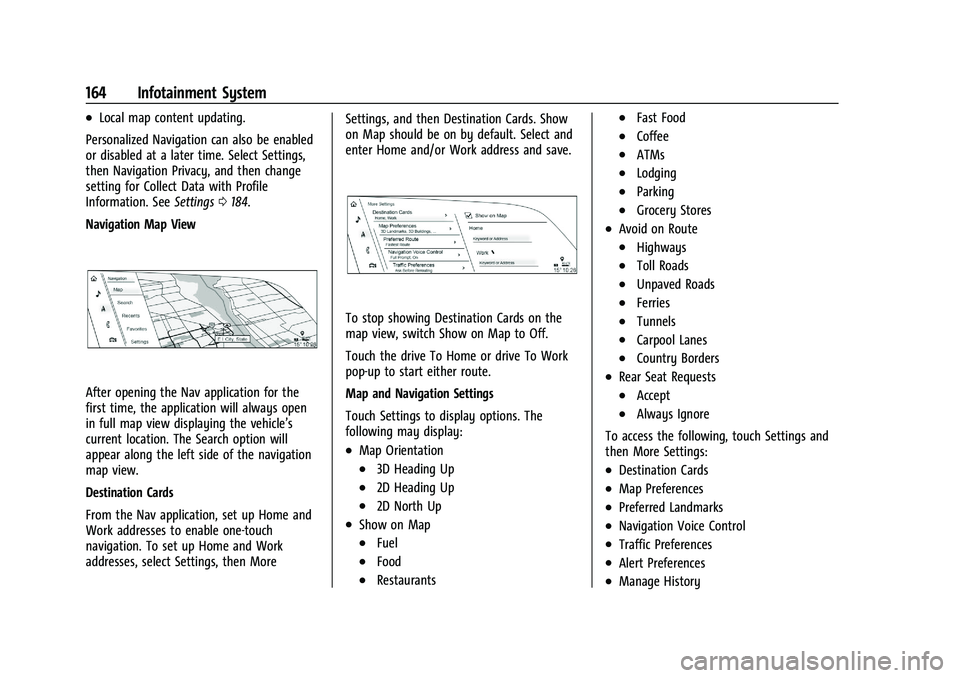
Navigation Map View
After opening the Nav application for the
first time, the application will always open
in full map view displaying the vehicle’s
current location. The Search option will
appear along the left side of the navigation
map view.
Destination Cards
From the Nav application, set up Home and
Work addresses to enable one-touch
navigation. To set up Home and Work
addresses, select Settings, then More Settings, and then Destination Cards. Show
on Map should be on by default. Select and
enter Home and/or Work address and save.
To stop showing Destination Cards on the
map view, switch Show on Map to Off.
Touch the drive To Home or drive To Work
pop-up to start either route.
Map and Navigation Settings
Touch Settings to display options. The
following may display:
.Map Orientation
.3D Heading Up
.2D Heading Up
.2D North Up
.Show on Map
.Fuel
.Food
.Restaurants
.Fast Food
.Coffee
.ATMs
.Lodging
.Parking
.Grocery Stores
.Avoid on Route
.Highways
.Toll Roads
.Unpaved Roads
.Ferries
.Tunnels
.Carpool Lanes
.Country Borders
.Rear Seat Requests
.Accept
.Always Ignore
To access the following, touch Settings and
then More Settings:
.Destination Cards
.Map Preferences
.Preferred Landmarks
.Navigation Voice Control
.Traffic Preferences
.Alert Preferences
.Manage History
Page 175 of 461
Cadillac Escalade Owner Manual (GMNA-Localizing-U.S./Canada/Mexico-
16417396) - 2023 - CRC - 5/9/22
Infotainment System 173
a location that is safe and has a clear view
of the sky and away from large
obstructions.
If the System Needs Service
If the navigation system needs service, see
your dealer.
Map Data Updates
The map data in the vehicle is the most
up-to-date information available when the
vehicle was produced.
See www.gmnavdisc.com for details on
ordering, purchasing, and installing a new or
replacement SD card. Features are subject to
change. For more information on this
feature, see my.cadillac.com/learn.
Database Coverage Explanations
Coverage areas vary with respect to the
level of map detail available for any given
area. Some areas feature greater levels of
detail than others. If this happens, it does
not mean there is a problem with the
system. As the map data is updated, more
detail can become available for areas that
previously had limited detail. SeeMap Data
Updates 0173.
Voice Recognition
If equipped, voice recognition allows for
hands-free operation within the navigation,
audio, and phone. This feature can be
started by pressing
gon the steering
wheel.
However, not all features within these areas
are supported by voice commands.
Generally, only complex tasks that require
multiple manual interactions to complete
are supported by voice commands.
For example, tasks that take more than one
or two touches, such as a song or artist to
play from a media device, would be
supported by voice commands. Other tasks,
like adjusting the volume or seeking up or
down, are audio features that are easily
performed by touching one or two options,
and are not supported by voice commands.
In general there are flexible ways to speak
commands for completing the tasks.
If your language supports it, try stating a
one-shot command, such as “Directions to
address
while stating the address during the
command. Another example of a one-shot Destination Entry command is,
“Directions to
Place of Interest at
commands do not work, try saying, “Take
me to Place of Interest” or“Find address”
and the system will walk you through by
asking additional questions.
Hybrid Speech Recognition
If equipped, this feature helps distinguish
words by using Internet-based information
along with the system’s voice recognition
database. This allows you to speak more
naturally when using voice recognition.
Using Voice Recognition
Voice recognition becomes available once
the system has been initialized. This begins
when the ignition is turned on. Initialization
may take a few moments.
1. Press
gon the steering wheel controls
to activate voice recognition.
2. The audio system mutes and the system plays a prompt.
3. Clearly speak one of the commands described in this section.
A voice recognition system prompt can
be interrupted while it is playing by
pressing
gagain.
Page 189 of 461
Cadillac Escalade Owner Manual (GMNA-Localizing-U.S./Canada/Mexico-
16417396) - 2023 - CRC - 5/9/22
Infotainment System 187
Search
Enter a setting keyword to find a specific
setting.
Teen Driver
If equipped, this allows multiple keys to be
registered for beginner drivers to encourage
safe driving habits. When the vehicle is
started with a Teen Driver key, it will
automatically activate certain safety
systems, allow setting of some features, and
limit the use of others. The Report Card will
record vehicle data about driving behavior
that can be viewed later. When the vehicle
is started with a registered key, the Driver
Information Center (DIC) displays a message
that Teen Driver is active.
To access:1. Touch Settings on the Home Page, then touch Vehicle, and then Teen Driver.
2. Create a Personal Identification Number (PIN) by choosing a four-digit PIN.
Re-enter the PIN to confirm. To change
the PIN, touch Change PIN.
The PIN is required to:
.Set up/Add or remove keys.
.Change Teen Driver settings.
.Change or clear the Teen Driver PIN.
.Access or delete Report Card data.
Set up/Add keys to activate Teen Driver and
assign restrictions to the key:
Any vehicle key can be registered, up to a
maximum of eight keys. Label the key to
tell it apart from the other keys.
For a pushbutton start system: 1. Start the vehicle.
2. For automatic transmissions, the vehicle must be in P (Park). For manual
transmissions, the vehicle must be
stopped with the parking brake set.
3. From the Settings menu, touch Vehicle and then Teen Driver.
4. Enter the PIN.
5. Place the remote key you wish to register in the transmitter pocket. The
key does not need to be the one that
started the vehicle. See Remote Key
Operation 08for transmitter pocket
location.
6. From the Teen Driver menu, touch Setup Keys or Add/Remove Teen Driver Keys.
.If the remote key has not previously
been registered, the option to add
the key displays. Touch Add and a confirmation message displays. Teen
Driver restrictions will be applied
whenever this remote key is used to
operate the vehicle.
.If the remote key has already been
registered, the option to remove the
key displays. If Remove is touched,
the remote key is no longer
registered. A confirmation message
displays, and Teen Driver restrictions
will not be applied if this remote key
is used to operate the vehicle.
In vehicles with a pushbutton start system,
if a Teen Driver and a non-Teen Driver key
are both present at start up, the vehicle will
recognize the non-Teen Driver key to start
the vehicle. The Teen Driver settings will not
be active.
For a keyed ignition system: 1. Start the vehicle.
2. For automatic transmissions, the vehicle must be in P (Park). For manual
transmissions, the vehicle must be
stopped with the parking brake set.
3. From the Settings menu, touch Vehicle and then Teen Driver.
4. Enter the PIN.
Page 432 of 461

Cadillac Escalade Owner Manual (GMNA-Localizing-U.S./Canada/Mexico-
16417396) - 2023 - CRC - 5/9/22
430 Customer Information
H:Manage your profile and payment
information. View your GM Rewards Card
earnings and My Cadillac Rewards points.
F: Chat with online help representatives.
Visit cadillac.com and create an account
today.
Cadillac Owner Centre (Canada)
mycadillac.ca
Visit the Cadillac Owner Centre at
mycadillac.ca (English) or my.cadillac.ca
(French) to access similar benefits to the
U.S. site.
GM Mobility Reimbursement
Program
This program is available to qualified
applicants for cost reimbursement, up to
certain limits, of eligible aftermarket adaptive equipment required for the vehicle,
such as hand controls or a wheelchair/
scooter lift for the vehicle.
To learn about the GM Mobility program,
see www.gmmobility.com or call the GM
Mobility Assistance Center at 1-800-323-9935.
Text Telephone (TTY) users, call
1-800-833-9935.
General Motors of Canada also has a
Mobility program. See cadillaccanada.ca,
or call 1-800-GM-DRIVE (800-463-7483) for
details. TTY users call 1-800-263-3830.
Roadside Assistance Program
U.S.: 1-800-224-1400.
Canada: 1-800-882-1112.
Text Telephone (TTY) Users (U.S. Only):
1-888-889-2438.
Service is available 24 hours a day, 365 days
a year.
Calling for Assistance
When calling Roadside Assistance, have the
following information ready:
.Your name, home address, and home
telephone number
.Telephone number of your location
.Location of the vehicle
.Model, year, color, and license plate
number of the vehicle
.Odometer reading, Vehicle Identification
Number (VIN), and delivery date of the
vehicle
.Description of the problem
Coverage
Services are provided for the duration of the
vehicle’s powertrain warranty.
In the U.S., anyone driving the vehicle is
covered. In Canada, a person driving the
vehicle without permission from the owner
is not covered.
Roadside Assistance is not a part of the New
Vehicle Limited Warranty. General Motors
North America and Cadillac reserve the right
to make any changes or discontinue the
Roadside Assistance program at any time
without notification.
General Motors North America and Cadillac
reserve the right to limit services or
payment to an owner or driver if they
decide the claims are made too often, or the
same type of claim is made many times.