service CADILLAC ESCALADE ESV 2010 Service Manual
[x] Cancel search | Manufacturer: CADILLAC, Model Year: 2010, Model line: ESCALADE ESV, Model: CADILLAC ESCALADE ESV 2010Pages: 620, PDF Size: 7.4 MB
Page 247 of 620

Black plate (55,1)Cadillac Escalade/Escalade ESV Owner Manual - 2010
SERVICE STABILITRAK If your vehicle has StabiliTrak ®
and this message
displays, it means there may be a problem with the
StabiliTrak system. If you see this message, try to
reset the system. Stop; turn off the engine for at least
15 seconds; then start the engine again. If this message
still comes on, it means there is a problem. You should
see your dealer for service. The vehicle is safe to drive,
however, you do not have the benefit of StabiliTrak, so
reduce your speed and drive accordingly.
SERVICE SUSPENSION SYSTEM This message displays when the Road Sensing
Suspension (RSS) system is not operating properly.
Have your vehicle serviced by your dealer.
SERVICE THEFT DETERRENT SYSTEM This message displays when there is a problem with
the theft-deterrent system. The vehicle may or may
not restart so you may want to take the vehicle to
your dealer before turning off the engine. See
PASS-Key ®
III+ Electronic Immobilizer Operation on
page 3 ‑ 24
for more information. SERVICE TIRE MONITOR SYSTEM On vehicles with the Tire Pressure Monitor System
(TPMS), this message displays if a part on the TPMS is
not working properly. The tire pressure light also flashes
and then remains on during the same ignition cycle.
See Tire Pressure Light on page 4 ‑ 35 . Several
conditions may cause this message to appear. See Tire
Pressure Monitor Operation
on page 7 ‑ 68 for more
information. If the warning comes on and stays on,
there may be a problem with the TPMS. See your
dealer.
SERVICE TRACTION CONTROL If your vehicle has StabiliTrak, this message displays
when there is a problem with the Traction Control
System (TCS). When this message displays, the
system will not limit wheel spin. Adjust your driving
accordingly. See your dealer for service. See
StabiliTrak ®
System on page 6 ‑ 6 for more
information.
SIDE BLIND ZONE ALERT
SYSTEM OFF If your vehicle has the Side Blind Zone Alert (SBZA)
system, this message displays when the SBZA system
has been turned off. See Side Blind Zone Alert (SBZA)
on page 3 ‑ 48 and DIC Operation and Displays on
page 4 ‑ 42 for more information.
4-55
Page 248 of 620

Black plate (56,1)Cadillac Escalade/Escalade ESV Owner Manual - 2010
SIDE BLIND ZONE SYSTEM
UNAVAILABLE If your vehicle has the Side Blind Zone Alert (SBZA)
system, this message displays when the SBZA system
is disabled because the sensor is blocked and cannot
detect vehicles in your blind zone. The sensor may be
blocked by mud, dirt, snow, ice, or slush. This message
may also display during heavy rain or due to road spray.
It may also come on when driving in isolated areas with
no guardrails, trees, or road signs and light traffic.
Your vehicle does not need service. For cleaning
instructions, see Washing Your Vehicle
on page 7 ‑ 103 .
See Side Blind Zone Alert (SBZA) on page 3 ‑ 48 for
more information.
STABILITRAK OFF If your vehicle has StabiliTrak, this message displays
when you turn off StabiliTrak, or when the stability
control has been automatically disabled. To limit wheel
spin and realize the full benefits of the stability
enhancement system, you should normally leave
StabiliTrak on. However, you should turn StabiliTrak off
if your vehicle gets stuck in sand, mud, ice, or snow and
you want to rock your vehicle to attempt to free it, or if you are driving in extreme off-road conditions and
require more wheel spin. See If Your Vehicle is Stuck in
Sand, Mud, Ice, or Snow
on page 6 ‑ 30 . To turn the
StabiliTrak system on or off, see StabiliTrak ®
System
on page 6 ‑ 6 .
There are several conditions that can cause this
message to appear. .
One condition is overheating, which could occur if
StabiliTrak activates continuously for an extended
period of time. .
The message also displays if the brake system
warning light is on. See Brake System Warning
Light on page 4 ‑ 33 . .
The message could display if the stability system
takes longer than usual to complete its diagnostic
checks due to driving conditions. .
The message displays if an engine or vehicle
related problem has been detected and the vehicle
needs service. See your dealer.
The message turns off as soon as the conditions that
caused the message to be displayed are no longer
present.
4-56
Page 267 of 620

Black plate (75,1)Cadillac Escalade/Escalade ESV Owner Manual - 2010
3. Say the name tag of the person to call. .
If the system clearly recognizes the name tag it
responds with “ OK, calling,
dials the number. .
If the system is unsure it recognizes the right
name tag, it confirms the name tag followed by
a tone. If the name tag is correct, say “ Yes ” .
The system responds with “ OK, calling,
not correct, say “ No ” . The system will ask for
the name tag to be re ‐ entered.
Once connected, the person called will be heard
through the audio speakers.
Using the Re ‐ dial Command1. Press and hold
b g for two seconds. The system
responds with “ Ready ” followed by a tone.
2. After the tone, say “ Re ‐ dial ” . The system responds
with “ Re ‐ dial using
last number called from the connected Bluetooth
phone.
Once connected, the person called will be heard
through the audio speakers. Receiving a Call When an incoming call is received, the audio system
mutes and a ring tone is heard in the vehicle. .
Press
b g and begin speaking to answer the call. .
Press
c x to ignore a call.
Call Waiting Call waiting must be supported on the Bluetooth phone
and enabled by the wireless service carrier to work. .
Press
b g to answer an incoming call when
another call is active. The original call is placed
on hold. .
Press
b g again to return to the original call. .
To ignore the incoming call, continue with the
original call with no action. .
Press
c x to disconnect the current call and
switch to the call on hold.
4-75
Page 268 of 620

Black plate (76,1)Cadillac Escalade/Escalade ESV Owner Manual - 2010
Three ‐ Way CallingThree ‐ Way Calling must be supported on the Bluetooth
phone and enabled by the wireless service carrier
to work.
1. While on a call press
b g . The system responds
with “ Ready ” followed by a tone.
2. Say “ Three ‐ way call ” . The system responds with
“ Three ‐ way call, please say dial or call ” .
3. Use the dial or call command to dial the number of
the third party to be called.
4. Once the call is connected, press
b g to link all
the callers together.
Ending a Call Press
c x to end a call.
Muting a Call During a call, all sounds from inside the vehicle can be
muted so that the person on the other end of the call
cannot hear them. To Mute a call 1. Press
b g . The system responds with “ Ready ”
followed by a tone.
2. Say “ Mute Call ” . The system responds with
“ Call muted ” .
To Cancel Mute 1. Press
b g . The system responds with “ Ready ”
followed by a tone.
2. After the tone, say “ Mute Call ” . The system
responds with “ Resuming call ” .
Transferring a Call Audio can be transferred between the in ‐ vehicle
Bluetooth system and the cell phone.
To Transfer Audio to the Cell Phone During a call with the audio in the vehicle:
1. Press
b g . The system responds with “ Ready ”
followed by a tone.
2. Say “ Transfer Call. ” The system responds with
“ Transferring call ” and the audio will switch from
the vehicle to the cell phone.
4-76
Page 300 of 620

Black plate (108,1)Cadillac Escalade/Escalade ESV Owner Manual - 2010
Music Navigator Screen To enter the music navigator screen, press and
release
¨ while on the main audio screen. While using
the music navigator screen, the track currently playing
continues to play until the next track is selected.
To move up or down the list of tracks or folders: .
Press and release
w or
x to highlight one track
or folder at a time. .
Press and hold
w or
x to scroll through the list.
To select the highlighted track or folder press and
release
¨ .
To move back to the previous folder, press and hold
¨ .
Radio Reception Frequency interference and static can occur during
normal radio reception if items such as cell phone
chargers, vehicle convenience accessories, and
external electronic devices are plugged into the
accessory power outlet. If there is interference or static,
unplug the item from the accessory power outlet. AM The range for most AM stations is greater than for FM,
especially at night. The longer range can cause station
frequencies to interfere with each other. For better radio
reception, most AM radio stations boost the power
levels during the day, and then reduce these levels
during the night. Static can also occur when things like
storms and power lines interfere with radio reception.
When this happens, try reducing the treble on the radio.
FM Stereo FM signals only reach about 10 to 40 miles
(16 to 65 km). Although the radio has a built-in electronic
circuit that automatically works to reduce interference,
some static can occur, especially around tall buildings
or hills, causing the sound to fade in and out.
XM ™ Satellite Radio Service XM Satellite Radio Service gives digital radio reception
from coast-to-coast in the 48 contiguous United States,
and in Canada. Just as with FM, tall buildings or hills
can interfere with satellite radio signals, causing the
sound to fade in and out. In addition, traveling or
standing under heavy foliage, bridges, garages,
or tunnels may cause loss of the XM signal for a period
of time.
4-108
Page 303 of 620
Black plate (1,1)Cadillac Escalade/Escalade ESV Owner Manual - 2010
Section 5 Navigation SystemOverview . . . . . . . . . . . . . . . . . . . . . . . . . . . . . . . . . . . . . . . . . . . 5-2
Navigation System Overview . . . . . . . . . . . . . . . . . . . . 5-2
Getting Started . . . . . . . . . . . . . . . . . . . . . . . . . . . . . . . . . . 5-4
Cleaning the Display . . . . . . . . . . . . . . . . . . . . . . . . . . . 5-11
Features and Controls . . . . . . . . . . . . . . . . . . . . . . . . . . . 5-12
Using the Navigation System . . . . . . . . . . . . . . . . . . 5-12
Maps . . . . . . . . . . . . . . . . . . . . . . . . . . . . . . . . . . . . . . . . . . 5-14
Symbols . . . . . . . . . . . . . . . . . . . . . . . . . . . . . . . . . . . . . . . 5-17
Destination . . . . . . . . . . . . . . . . . . . . . . . . . . . . . . . . . . . . 5-24
Configure Menu . . . . . . . . . . . . . . . . . . . . . . . . . . . . . . . 5-42
Global Positioning System (GPS) . . . . . . . . . . . . . . 5-57 Vehicle Positioning . . . . . . . . . . . . . . . . . . . . . . . . . . . . 5-57
Problems with Route Guidance . . . . . . . . . . . . . . . . 5-58
If the System Needs Service . . . . . . . . . . . . . . . . . . . 5-59
Ordering Map DVDs . . . . . . . . . . . . . . . . . . . . . . . . . . . 5-59
Database Coverage Explanations . . . . . . . . . . . . . 5-59
Navigation Audio System . . . . . . . . . . . . . . . . . . . . . . . . 5-60
CD Player . . . . . . . . . . . . . . . . . . . . . . . . . . . . . . . . . . . . . 5-68
DVD Player . . . . . . . . . . . . . . . . . . . . . . . . . . . . . . . . . . . . 5-75
Care of Your CDs and DVDs . . . . . . . . . . . . . . . . . . . 5-84
Auxiliary Devices . . . . . . . . . . . . . . . . . . . . . . . . . . . . . . 5-85
Voice Recognition . . . . . . . . . . . . . . . . . . . . . . . . . . . . . . . . 5-86
5-1
Page 314 of 620
Black plate (12,1)Cadillac Escalade/Escalade ESV Owner Manual - 2010
Features and Controls Using the Navigation System This section presents basic information needed to
operate the navigation system.
Use the hard keys located on the navigation system
along with the available touch-sensitive screen buttons
on the navigation screen to operate the system. See
Navigation System Overview on page 5 ‑ 2 for more
information.
Once the vehicle is moving, various functions are
disabled to reduce driver distractions.
Hard Keys The following hard keys are located on the navigation
system:
O /
n (Power/Volume): Press to turn the system
on and off. Turn to increase or decrease the volume to
the audio system.
Press and hold for more than two seconds to turn off
the navigation system, the Rear Seat Entertainment
(RSE), and Rear Seat Audio (RSA). If the vehicle has
not been tuned off, the RSE and the RSA can be turned
back on by pressing this knob and continues play of the
last active source. w (Tune): Turn to go to the next or previous radio
station or disc track or chapter. See Navigation Audio
System on page 5 ‑ 60 , CD Player on page 5 ‑ 68 ,
or DVD Player
on page 5 ‑ 75 for more information.
Z (DVD Map Disc Eject): Press to eject the DVD
map disc. This button is located next to the upper disc
slot. See Maps on page 5 ‑ 14 for more information.
M (Load): Press to load CDs or audio/video DVDs. See
CD Player on page 5 ‑ 68 or DVD Player on page 5 ‑ 75
for more information.
Z (CD/DVD Eject): Press to eject CDs or audio/video
DVDs. This button is located under the load button. See
CD Player on page 5 ‑ 68 or DVD Player on page 5 ‑ 75
for more information.
M (Disc Up/Down): Press the up or down arrows to go
to the next or previous disc.
AUDIO: Press to access the full Audio screen to
change AM, FM, XM ™ Satellite Radio Service (if
equipped), CD/DVD, and auxiliary input. See “ Audio ”
under Navigation Audio System
on page 5 ‑ 60 for more
information.
FAV (Favorite): Press to access the preset stations.
See “ Storing Radio Station Presets ” under Navigation
Audio System on page 5 ‑ 60 for more information.
5-12
Page 316 of 620
Black plate (14,1)Cadillac Escalade/Escalade ESV Owner Manual - 2010
U (Space): Select to enter a space between
characters or the words of a name.
Backspace: Select if an incorrect character has been
entered.
To make name entries easier, the system only highlights
the characters that can follow the last one entered. For
example, if a Z is entered, a T may not be available for
selection.
If a name does not display after entry, it may need to be
entered differently or the map DVD disc may not contain
that information. See Database Coverage Explanations
on page 5 ‑ 59 for more information.
Maps This section includes basic information that you need to
know about the map database.
The maps are stored on a DVD. The United States,
Canada, and Puerto Rico are contained on one disc. Detailed Areas Road network attributes are contained in the map
database for detailed areas. Attributes include
information such as street names, street address, turn
restrictions, etc. A detailed area includes all major
highways, service roads, and residential roads. The
detailed areas include points of interest (POI) such
as: restaurants, airports, banks, hospitals, police
stations, gas stations, tourist attractions, historical
monuments, etc. The map database may not include
data for newly constructed areas or map database
corrections that are completed after the production of
the disc. The navigation system provides full route
guidance in the detailed map areas.
Limited Guidance Areas Any area that is not classified as detailed, is a limited
guidance area. Limited guidance streets are displayed
on the map but route guidance may not be given on
these streets. Some POI categories, such as the city
center POI category, and some street addresses are
included in the limited guidance areas.
The navigation system informs through voice prompts
when you are traveling into a limited guidance area
where route guidance is not available. The street maps
and the directional arrow displayed on the navigation
system can then be used to determine the remaining
route to your destination.
5-14
Page 336 of 620
Black plate (34,1)Cadillac Escalade/Escalade ESV Owner Manual - 2010
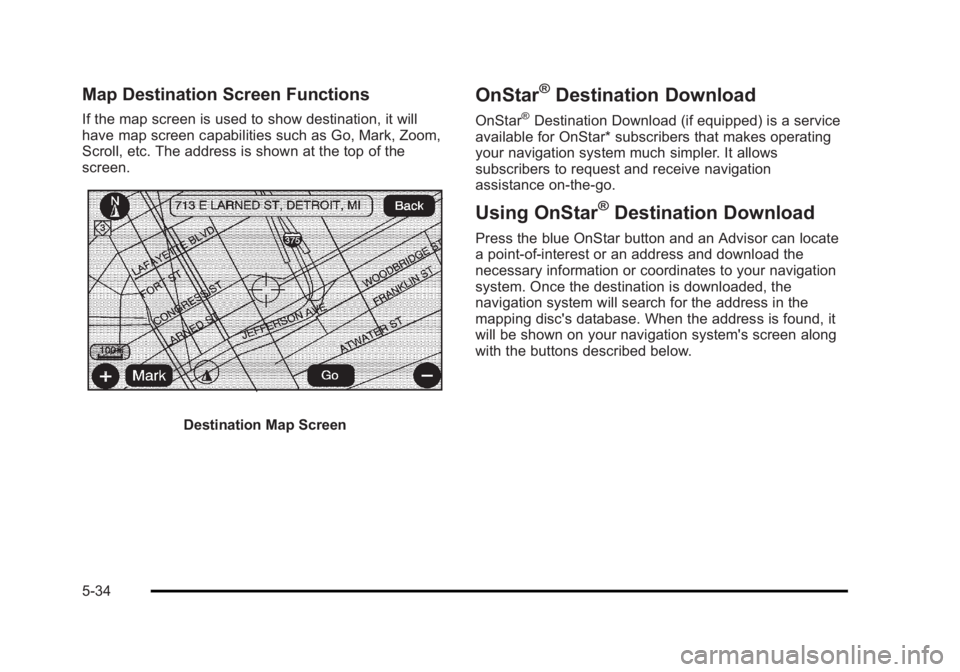
Map Destination Screen Functions If the map screen is used to show destination, it will
have map screen capabilities such as Go, Mark, Zoom,
Scroll, etc. The address is shown at the top of the
screen.
Destination Map Screen OnStar ®
Destination Download OnStar ®
Destination Download (if equipped) is a service
available for OnStar* subscribers that makes operating
your navigation system much simpler. It allows
subscribers to request and receive navigation
assistance on-the-go.
Using OnStar ®
Destination Download Press the blue OnStar button and an Advisor can locate
a point-of-interest or an address and download the
necessary information or coordinates to your navigation
system. Once the destination is downloaded, the
navigation system will search for the address in the
mapping disc's database. When the address is found, it
will be shown on your navigation system's screen along
with the buttons described below.
5-34
Page 349 of 620
Black plate (47,1)Cadillac Escalade/Escalade ESV Owner Manual - 2010
Traffic Options Read the following Options descriptions to understand
how the XM NavTraffic ™ operates.
XM NavTraffic ™ (USA and Canada)Vehicles with the navigation system have an XM
NavTraffic ™ receiver. XM NavTraffic ™ is a subscription
service provided via XM ™ Satellite Radio. XM
NavTraffic ™ provides real-time traffic information fully
integrated to the navigation system to display current
traffic conditions for a driver ’ s chosen route. XM
NavTraffic ™ allows drivers to make the most informed,
timesaving routing decisions.
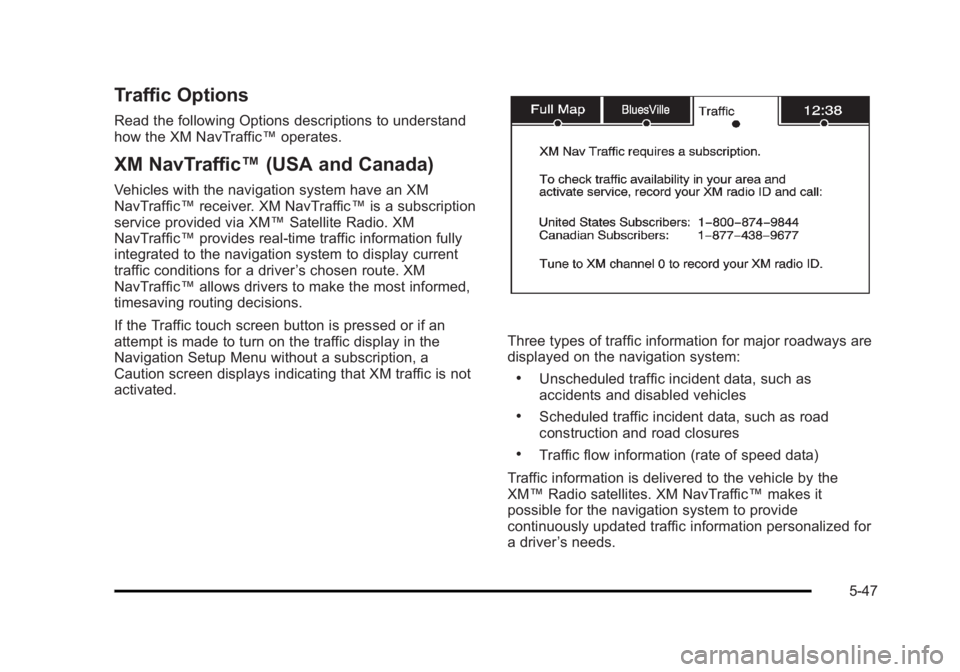
If the Traffic touch screen button is pressed or if an
attempt is made to turn on the traffic display in the
Navigation Setup Menu without a subscription, a
Caution screen displays indicating that XM traffic is not
activated. Three types of traffic information for major roadways are
displayed on the navigation system: .
Unscheduled traffic incident data, such as
accidents and disabled vehicles .
Scheduled traffic incident data, such as road
construction and road closures .
Traffic flow information (rate of speed data)
Traffic information is delivered to the vehicle by the
XM ™ Radio satellites. XM NavTraffic ™ makes it
possible for the navigation system to provide
continuously updated traffic information personalized for
a driver ’ s needs.
5-47