ignition CADILLAC ESCALADE EXT 2008 3.G Service Manual
[x] Cancel search | Manufacturer: CADILLAC, Model Year: 2008, Model line: ESCALADE EXT, Model: CADILLAC ESCALADE EXT 2008 3.GPages: 496, PDF Size: 7.02 MB
Page 210 of 496
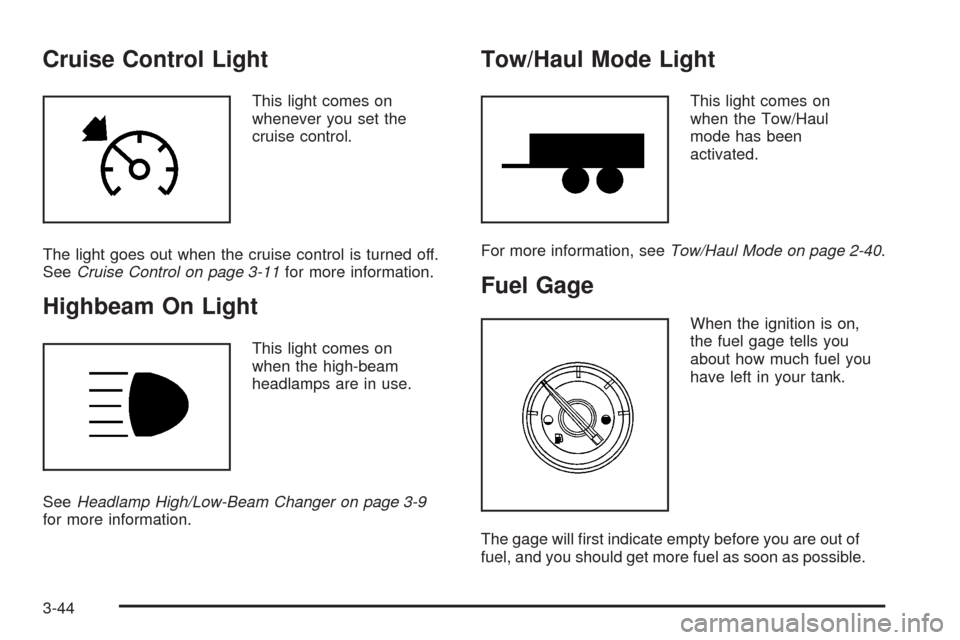
Cruise Control Light
This light comes on
whenever you set the
cruise control.
The light goes out when the cruise control is turned off.
SeeCruise Control on page 3-11for more information.
Highbeam On Light
This light comes on
when the high-beam
headlamps are in use.
SeeHeadlamp High/Low-Beam Changer on page 3-9
for more information.
Tow/Haul Mode Light
This light comes on
when the Tow/Haul
mode has been
activated.
For more information, seeTow/Haul Mode on page 2-40.
Fuel Gage
When the ignition is on,
the fuel gage tells you
about how much fuel you
have left in your tank.
The gage will rst indicate empty before you are out of
fuel, and you should get more fuel as soon as possible.
3-44
Page 211 of 496
Here are some situations you may experience with
your fuel gage. None of these indicate a problem with
the fuel gage.
At the gas station, the fuel pump shuts off before
the gage reads full.
It takes a little more or less fuel to ll up than the
fuel gage indicated. For example, the gage may
have indicated the tank was half full, but it actually
took a little more or less than half the tank’s
capacity to ll the tank.
The gage goes back to empty when you turn off
the ignition.
Driver Information Center (DIC)
Your vehicle has a Driver Information Center (DIC).
The DIC displays information about your vehicle.
It also displays warning messages if a system problem
is detected. The DIC also allows some features to
be customized. SeeDIC Vehicle Customization
on page 3-57for more information.All messages will appear in the DIC display located
in the center of the instrument panel cluster.
The DIC comes on when the ignition is on. After a
short delay, the DIC will display the information that
was last displayed before the engine was turned off.
SeeDIC Operation and Displays on page 3-45and
DIC Vehicle Customization on page 3-57for the
displays available.
DIC Operation and Displays
The DIC has different displays which can be accessed
by pressing the DIC buttons located on the instrument
panel, next to the steering wheel.
The DIC displays trip, fuel, and vehicle system
information, and warning messages if a system problem
is detected. A digital speedometer also appears at
the bottom of the DIC display. The digital speedometer
can be enabled or disabled. See “DISPLAY DIGITAL
SPEED” underDIC Vehicle Customization on page 3-57
for more information.
3-45
Page 213 of 496
Fuel Range
Press the trip/fuel button until FUEL RANGE displays.
This display shows the approximate number of
remaining miles (mi) or kilometers (km) the vehicle can
be driven without refueling. The display will show
LOW if the fuel level is low.
The fuel range estimate is based on an average of
the vehicle’s fuel economy over recent driving history
and the amount of fuel remaining in the fuel tank.
This estimate will change if driving conditions change.
For example, if driving in traffic and making frequent
stops, this display may read one number, but if
the vehicle is driven on a freeway, the number may
change even though the same amount of fuel is
in the fuel tank. This is because different driving
conditions produce different fuel economies.
Generally, freeway driving produces better fuel
economy than city driving. Fuel range cannot be reset.
Average Economy
Press the trip/fuel button until AVERAGE ECONOMY
displays. This display shows the approximate average
miles per gallon (mpg) or liters per 100 kilometers
(L/100 km). This number is calculated based on the
number of mpg (L/100 km) recorded since the last
time this menu item was reset. To reset AVERAGE
ECONOMY, press and hold the set/reset button.
Fuel Used
Press the trip/fuel button until FUEL USED displays.
This display shows the number of gallons (gal) or
liters (L) of fuel used since the last reset of this menu
item. To reset the fuel used information, press and hold
the set/reset button while FUEL USED is displayed.
Timer
Press the trip/fuel button until TIMER displays.
This display can be used as a timer.
To start the timer, press the set/reset button while
TIMER is displayed. The display will show the amount
of time that has passed since the timer was last
reset, not including time the ignition is off. Time will
continue to be counted as long as the ignition is
on, even if another display is being shown on the
DIC. The timer will record up to 99 hours, 59 minutes
and 59 seconds (99:59:59) after which the display
will return to zero.
To stop the timer, press the set/reset button briey
while TIMER is displayed.
To reset the timer to zero, press and hold the
set/reset button while TIMER is displayed.
3-47
Page 221 of 496
SERVICE SUSPENSION SYSTEM
This message displays when the Road Sensing
Suspension (RSS) system is not operating properly.
Have your vehicle serviced by your dealer/retailer.
SERVICE THEFT DETERRENT SYSTEM
This message displays when there is a problem with
the theft-deterrent system. The vehicle may or may not
restart so you may want to take the vehicle to your
dealer/retailer before turning off the engine. See
PASS-Key
®III+ Operation on page 2-29for more
information.
SERVICE TIRE MONITOR SYSTEM
This message displays if a part on the Tire Pressure
Monitor System (TPMS) is not working properly. The tire
pressure light also ashes and then remains on during
the same ignition cycle. SeeTire Pressure Light on
page 3-39. Several conditions may cause this message
to appear. SeeTire Pressure Monitor Operation on
page 5-64for more information. If the warning comes on
and stays on, there may be a problem with the TPMS.
See your dealer/retailer.
SERVICE TRACTION CONTROL
If your vehicle has StabiliTrak®, this message displays
when there is a problem with the Traction Control
System (TCS). When this message displays, the system
will not limit wheel spin. Adjust your driving accordingly.
See your dealer/retailer for service. SeeStabiliTrak
®
System on page 4-6for more information.
STABILITRAK OFF
If your vehicle has StabiliTrak®, this message displays
when you turn off StabiliTrak®, or when the stability
control has been automatically disabled. To limit
wheel spin and realize the full benets of the stability
enhancement system, you should normally leave
StabiliTrak
®on. However, you should turn StabiliTrak®
off if your vehicle gets stuck in sand, mud, ice, or
snow and you want to rock your vehicle to attempt to
free it, or if you are driving in extreme off-road conditions
and require more wheel spin. SeeIf Your Vehicle is
Stuck in Sand, Mud, Ice, or Snow on page 4-33. To turn
the StabiliTrak
®system on or off, seeStabiliTrak®
System on page 4-6.
3-55
Page 224 of 496
To change customization preferences, use the
following procedure.
Entering the Feature Settings Menu
1. Turn the ignition on and place the vehicle in
PARK (P).
To avoid excessive drain on the battery, it is
recommended that the headlamps are turned off.
2. Press the customization button to scroll through
the available customizable options.
Feature Settings Menu Items
The following are customization features that allow you
to program settings to the vehicle:
DISPLAY IN ENGLISH
This feature will only display if a language other than
English has been set. This feature allows you to change
the language in which the DIC messages appear to
English.
Press the customization button until the PRESS
VTO
DISPLAY IN ENGLISH screen appears on the DIC
display. Press the set/reset button once to display all
DIC messages in English.
DISPLAY LANGUAGE
This feature allows you to select the language in which
the DIC messages will appear.
Press the customization button until the DISPLAY
LANGUAGE screen appears on the DIC display.
Press the set/reset button once to access the settings
for this feature. Then press the customization button
to scroll through the following settings:
ENGLISH (default):All messages will appear in
English.
DEUTSCH:All messages will appear in German.
ITALIANO:All messages will appear in Italian.
FRANCAIS:All messages will appear in French.
ESPANOL:All messages will appear in Spanish.
ARABIC:All messages will appear in Arabic.
CHINESE:All messages will appear in Chinese.
NO CHANGE:No change will be made to this feature.
The current setting will remain.
To select a setting, press the set/reset button while the
desired setting is displayed on the DIC.
3-58
Page 225 of 496

AUTO DOOR LOCK
This feature allows you to select when the vehicle’s doors
will automatically lock. SeeProgrammable Automatic
Door Locks on page 2-11for more information.
Press the customization button until AUTO DOOR
LOCK appears on the DIC display. Press the set/reset
button once to access the settings for this feature.
Then press the customization button to scroll through
the following settings:
SHIFT OUT OF PARK (default):The doors, including
the tailgate, will automatically lock when the vehicle
is shifted out of PARK (P).
AT VEHICLE SPEED:The doors, including the tailgate,
will automatically lock when the vehicle speed is
above 8 mph (13 km/h) for three seconds.
NO CHANGE:No change will be made to this feature.
The current setting will remain.
To select a setting, press the set/reset button while the
desired setting is displayed on the DIC.
AUTO DOOR UNLOCK
This feature allows you to select whether or not to
turn off the automatic door unlocking feature. It also
allows you to select which doors and when the doors will
automatically unlock. SeeProgrammable Automatic
Door Locks on page 2-11for more information.Press the customization button until AUTO DOOR
UNLOCK appears on the DIC display. Press the
set/reset button once to access the settings for this
feature. Then press the customization button to scroll
through the following settings:
OFF:None of the doors will automatically unlock.
DRIVER AT KEY OUT:Only the driver’s door will
unlock when the key is taken out of the ignition.
DRIVER IN PARK:Only the driver’s door will unlock
when the vehicle is shifted into PARK (P).
ALL AT KEY OUT:All of the doors, including the
tailgate, will unlock when the key is taken out of the
ignition.
ALL IN PARK (default):All of the doors, including the
tailgate, will unlock when the vehicle is shifted into
PARK (P).
NO CHANGE:No change will be made to this feature.
The current setting will remain.
To select a setting, press the set/reset button while the
desired setting is displayed on the DIC.
3-59
Page 227 of 496

NO CHANGE:No change will be made to this feature.
The current setting will remain.
To select a setting, press the set/reset button while the
desired setting is displayed on the DIC.
DELAY DOOR LOCK
This feature allows you to select whether or not the
locking of the vehicle’s doors and tailgate will be delayed.
When locking the doors and tailgate with the power door
lock switch and a door or the tailgate is open, this feature
will delay locking the doors and tailgate until ve seconds
after the last door is closed. You will hear three chimes to
signal that the delayed locking feature is in use. The key
must be out of the ignition for this feature to work. You
can temporarily override delayed locking by pressing the
power door lock switch twice or the lock button on the
RKE transmitter twice. SeeDelayed Locking on
page 2-11for more information.
Press the customization button until DELAY DOOR
LOCK appears on the DIC display. Press the set/reset
button once to access the settings for this feature.
Then press the customization button to scroll through
the following settings:
OFF:There will be no delayed locking of the
vehicle’s doors.
ON (default):The doors will not lock until ve seconds
after the last door or the tailgate is closed.NO CHANGE:No change will be made to this feature.
The current setting will remain.
To select a setting, press the set/reset button while the
desired setting is displayed on the DIC.
EXIT LIGHTING
This feature allows you to select the amount of time you
want the exterior lamps to remain on when it is dark
enough outside. This happens after the key is turned
from ON/RUN to LOCK/OFF.
Press the customization button until EXIT LIGHTING
appears on the DIC display. Press the set/reset button
once to access the settings for this feature. Then
press the customization button to scroll through the
following settings:
OFF:The exterior lamps will not turn on.
30 SECONDS (default):The exterior lamps will stay
on for 30 seconds.
1 MINUTE:The exterior lamps will stay on for
one minute.
2 MINUTES:The exterior lamps will stay on for
two minutes.
NO CHANGE:No change will be made to this feature.
The current setting will remain.
To select a setting, press the set/reset button while
the desired setting is displayed on the DIC.
3-61
Page 230 of 496
EASY EXIT SEAT
This feature allows you to select your preference for the
automatic easy exit seat feature. SeeMemory Seat,
Mirrors, and Pedals on page 1-6for more information.
Press the customization button until EASY EXIT
SEAT appears on the DIC display. Press the set/reset
button once to access the settings for this feature.
Then press the customization button to scroll through
the following settings:
OFF (default):No automatic seat exit recall will occur.
ON:The driver’s seat will move back when the key
is removed from the ignition.
The automatic easy exit seat movement will only occur
one time after the key is removed from the ignition.
If the automatic movement has already occurred,
and you put the key back in the ignition and remove it
again, the seat will stay in the original exit position,
unless a memory recall took place prior to removing
the key again.
NO CHANGE:No change will be made to this feature.
The current setting will remain.
To select a setting, press the set/reset button while the
desired setting is displayed on the DIC.
MEMORY SEAT RECALL
This feature allows you to select your preference for
the remote memory seat recall feature. SeeMemory
Seat, Mirrors, and Pedals on page 1-6for more
information.
Press the customization button until MEMORY SEAT
RECALL appears on the DIC display. Press the set/reset
button once to access the settings for this feature.
Then press the customization button to scroll through
the following settings:
OFF (default):No remote memory seat recall will occur.
ON:The driver’s seat, and on some vehicles, the
outside mirrors will automatically move to the stored
driving position when the unlock button on the Remote
Keyless Entry (RKE) transmitter is pressed. On
some vehicles with the adjustable throttle and brake
pedal feature, the pedals will also automatically move.
See “Relearn Remote Key” underDIC Operation
and Displays on page 3-45for more information on
matching transmitters to driver ID numbers.
NO CHANGE:No change will be made to this feature.
The current setting will remain.
To select a setting, press the set/reset button while the
desired setting is displayed on the DIC.
3-64
Page 233 of 496
Set up your audio system by presetting your
favorite radio stations, setting the tone, and
adjusting the speakers. Then, when driving
conditions permit, you can tune to your favorite
radio stations using the presets and steering
wheel controls if the vehicle has them.
Notice:Before adding any sound equipment to
your vehicle, such as an audio system, CD player,
CB radio, mobile telephone, or two-way radio, make
sure that it can be added by checking with your
dealer/retailer. Also, check federal rules covering
mobile radio and telephone units. If sound
equipment can be added, it is very important to do
it properly. Added sound equipment may interfere
with the operation of your vehicle’s engine, radio, or
other systems, and even damage them. Your
vehicle’s systems may interfere with the operation
of sound equipment that has been added.
Notice:The chime signals related to safety belts,
parking brake, and other functions of your vehicle
operate through the radio/entertainment system.
If that equipment is replaced or additional equipment
is added to your vehicle, the chimes may not
work. Make sure that replacement or additional
equipment is compatible with your vehicle before
installing it. SeeAccessories and Modifications
on page 5-3.Your vehicle may have a feature called Retained
Accessory Power (RAP). With RAP, the audio system
can be played even after the ignition is turned off.
SeeRetained Accessory Power (RAP) on page 2-32for
more information.
Setting the Clock
1. Press thew(tune/select) knob (the passenger
side knob) to enter the main menu.
2. Turn the same knob until SET CLOCK displays.
3. Press this knob to select SET CLOCK.
4. Turn this knob to adjust the time.
5. Press the same knob to update the time.
VEHICLE TIME UPDATED displays.
If the CLOCK/RADIO DISP (display) is programmed into
one of the congurable keys, pressing the key switches
the display back to the clock set function. The time
and date always appears on the radio display.
See “Congurable Radio Display Keys” later in this
section for more information on conguring the keys.
3-67
Page 243 of 496
Using the Six-Disc CD Changer
The CD player can play the smaller 3 inch (8 cm)
single CDs with an adapter ring. Full-size CDs and
the smaller CDs are loaded in the same manner.
When a CD is inserted, the CD functions display
above the pushbuttons, in place of the preset stations,
if programmed.
M(Load):Press to load CDs into the CD player.
This CD player holds up to six CDs.
To insert one CD, do the following:
1. The ignition and the radio can be on or off.
2. Press and release the
Mbutton.
Please Wait displays.
3. When INSERT displays, insert a CD partway into
the slot, label side up. The player pulls the CD in.
When a CD is inserted, CD displays. The number of the
CD and the track number also displays if the radio is on.
If the radio is on, the CD begins to play automatically.
To insert multiple CDs, do the following:
1. The ignition and the radio can be on or off.
2. Press and hold the
Mbutton for two seconds.
Please Wait displays and a beep sounds.3. When INSERT displays, insert a CD partway into
the slot, label side up. The player pulls the CD in.
Do not load a CD until INSERT displays. The
CD player takes up to six CDs. Do not try to load
more than six. If you want to load less than six CDs,
load the desired amount. The CD player times
out when it does not receive any more CDs and the
last CD loaded begins to play.
If the radio is on, the last CD loaded begins to play
automatically.
Care of Your CDs
If playing a CD-R, the sound quality can be reduced
due to CD-R quality, the method of recording, the
quality of the music that has been recorded, and the
way the CD-R has been handled. Handle them carefully.
Store CD-R(s) in their original cases or other protective
cases and away from direct sunlight and dust. The
CD and DVD player scans the bottom surface of the
disc. If the surface of a CD is damaged, such as
cracked, broken, or scratched, the CD does not play
properly or not at all. Do not touch the bottom side of a
CD while handling it; this could damage the surface.
Pick up CDs by grasping the outer edges or the edge
of the hole and the outer edge.
If the surface of a CD is soiled, take a soft, lint free cloth
or dampen a clean, soft cloth in a mild, neutral detergent
solution mixed with water, and clean it. Make sure the
wiping process starts from the center to the edge.
3-77