audio CADILLAC ESCALADE EXT 2008 3.G Owners Manual
[x] Cancel search | Manufacturer: CADILLAC, Model Year: 2008, Model line: ESCALADE EXT, Model: CADILLAC ESCALADE EXT 2008 3.GPages: 496, PDF Size: 7.02 MB
Page 1 of 496
Seats and Restraint Systems........................... 1-1
Front Seats
............................................... 1-2
Rear Seats
..............................................1-10
Safety Belts
.............................................1-12
Child Restraints
.......................................1-32
Airbag System
.........................................1-56
Restraint System Check
............................1-72
Features and Controls..................................... 2-1
Keys
........................................................ 2-3
Doors and Locks
......................................2-10
Windows
.................................................2-24
Theft-Deterrent Systems
............................2-26
Starting and Operating Your Vehicle
...........2-30
Mirrors
....................................................2-46
Object Detection Systems
..........................2-54
OnStar
®System
......................................2-56
Universal Home Remote System
................2-60
Storage Areas
.........................................2-67
Sunroof
..................................................2-87
Instrument Panel............................................. 3-1
Instrument Panel Overview
.......................... 3-4
Climate Controls
......................................3-24
Warning Lights, Gages, and Indicators
........3-29
Driver Information Center (DIC)
..................3-45
Audio System(s)
.......................................3-66Driving Your Vehicle....................................... 4-1
Your Driving, the Road, and Your Vehicle
..... 4-2
Towing
...................................................4-42
Service and Appearance Care.......................... 5-1
Service
..................................................... 5-3
Fuel
......................................................... 5-5
Checking Things Under the Hood
...............5-10
All-Wheel Drive
........................................5-45
Rear Axle
...............................................5-46
Front Axle
...............................................5-47
Headlamp Aiming
.....................................5-48
Bulb Replacement
....................................5-51
Windshield Wiper Blade Replacement
.........5-53
Tires
......................................................5-54
Appearance Care
.....................................5-97
Vehicle Identication
...............................5-106
Electrical System
....................................5-107
Capacities and Specications
...................5-115
Maintenance Schedule..................................... 6-1
Maintenance Schedule
................................ 6-2
Customer Assistance Information.................... 7-1
Customer Assistance and Information
........... 7-2
Reporting Safety Defects
...........................7-14
Vehicle Data Recording and Privacy
...........7-16
Index................................................................ 1
2008 Cadillac Escalade EXT Owner ManualM
Page 110 of 496
Key In the Ignition
Never leave your vehicle with the keys inside, as it is
an easy target for joy riders or thieves. If you leave
the key in the ignition and park your vehicle, a chime
will sound, when you open the driver’s door. Always
remember to remove your key from the ignition and take
it with you. This will lock your ignition and transmission.
Also, always remember to lock the doors.
The battery could be drained if you leave the key in the
ignition while your vehicle is parked. You may not be
able to start your vehicle after it has been parked for an
extended period of time.
Retained Accessory Power (RAP)
The following vehicle accessories can be used for
up to 10 minutes after the engine is turned off:
Audio System
Power Windows
OnStar®System (if equipped)
Sunroof (if equipped)These features work when the key is in ON/RUN or
ACC/ACCESSORY. Once the key is turned from
ON/RUN to LOCK/OFF, the windows and sunroof
continue to work up to 10 minutes until any door
is opened. The radio continues to work for up to
10 minutes or until the driver’s door is opened.
Starting the Engine
Move your shift lever to PARK (P) or NEUTRAL (N).
Your engine will not start in any other position – this
is a safety feature. To restart when you are already
moving, use NEUTRAL (N) only.
Notice:Do not try to shift to PARK (P) if your
vehicle is moving. If you do, you could damage
the transmission. Shift to PARK (P) only when your
vehicle is stopped.
Starting Procedure
1. With your foot off the accelerator pedal, turn the
ignition key to START. When the engine starts,
let go of the key. The idle speed will go down as
your engine gets warm. Do not race the engine
immediately after starting it. Operate the engine
and transmission gently to allow the oil to warm up
and lubricate all moving parts.
2-32
Page 136 of 496
OnStar Hands-Free Calling
OnStar Hands-Free Calling allows eligible OnStar
subscribers to make and receive calls using voice
commands. Hands-Free Calling is fully integrated
into the vehicle, and can be used with OnStar Pre-Paid
Minute Packages. Hands-Free Calling may also be
linked to a Verizon Wireless service plan in the U.S.
or a Bell Mobility service plan in Canada, depending
on eligibility. To nd out more, refer to the OnStar
Owner’s Guide in the vehicle’s glove box, visit
www.onstar.com or www.onstar.ca, or speak with
an OnStar advisor by pressing the OnStar button or
calling 1-888-4-ONSTAR (1-888-466-7827).
OnStar Virtual Advisor
OnStar Virtual Advisor is a feature of OnStar
Hands-Free Calling that uses your minutes to access
location-based weather, local traffic reports, and
stock quotes. By pressing the phone button and
giving a few simple voice commands, you can
browse through the various topics. See the OnStar
Owner’s Guide for more information (Only available
in the continental U.S.).
OnStar Steering Wheel Controls
Your vehicle may have a Talk/Mute button that can
be used to interact with OnStar Hands-Free Calling.
SeeAudio Steering Wheel Controls on page 3-103
for more information.
On some vehicles, you may have to hold the button
for a few seconds and give the command “ONSTAR”
to activate the OnStar Hands-Free Calling.
On some vehicles, the mute button can be used to
dial numbers into voicemail systems, or to dial phone
extensions. See the OnStar Owner’s Guide for
more information.
How OnStar Service Works
Your vehicle’s OnStar system has the capability
of recording and transmitting vehicle information.
This information is automatically sent to an OnStar
Call Center at the time of an OnStar button press,
Emergency button press or if your airbags or
AACN system deploys. The vehicle information
usually includes your GPS location and, in the
event of a crash, additional information regarding
the accident that your vehicle has been involved in
2-58
Page 168 of 496
Malfunction Indicator Lamp.............................3-40
Oil Pressure Light.........................................3-42
Security Light...............................................3-43
Fog Lamp Light............................................3-43
Lights On Reminder......................................3-43
Cruise Control Light......................................3-44
Highbeam On Light.......................................3-44
Tow/Haul Mode Light....................................3-44
Fuel Gage...................................................3-44
Driver Information Center (DIC).......................3-45
DIC Operation and Displays...........................3-45
DIC Warnings and Messages.........................3-50
DIC Vehicle Customization.............................3-57Audio System(s).............................................3-66
Setting the Clock..........................................3-67
Radio(s)......................................................3-68
Using an MP3..............................................3-86
XM Radio Messages.....................................3-90
Navigation/Radio System...............................3-91
Rear Seat Entertainment (RSE) System...........3-91
Rear Seat Audio (RSA)................................3-101
Theft-Deterrent Feature................................3-102
Audio Steering Wheel Controls......................3-103
Radio Reception.........................................3-104
Fixed Mast Antenna....................................3-105
XM™ Satellite Radio Antenna System............3-105
Section 3 Instrument Panel
3-2
Page 171 of 496
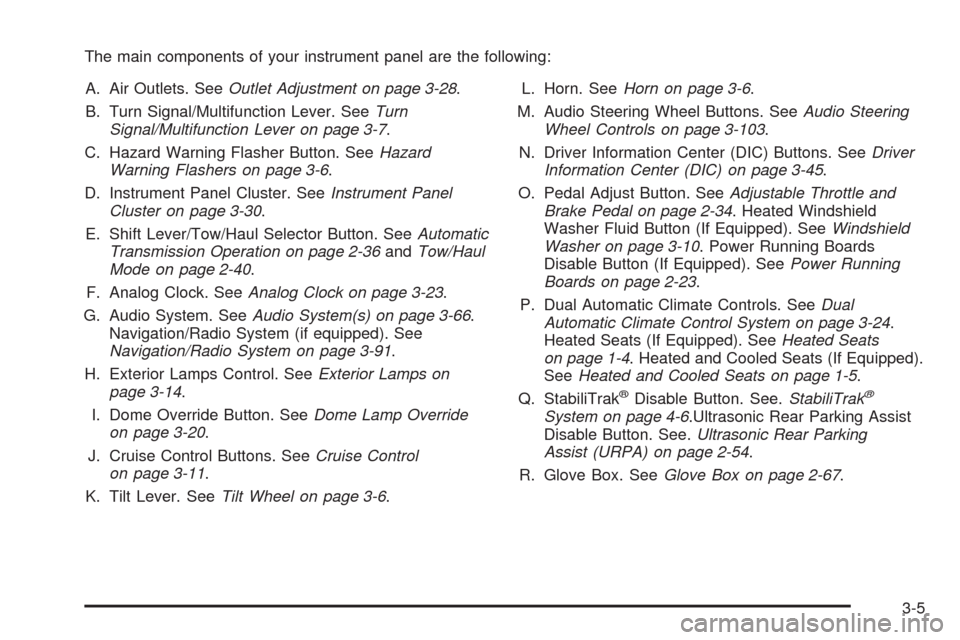
The main components of your instrument panel are the following:
A. Air Outlets. SeeOutlet Adjustment on page 3-28.
B. Turn Signal/Multifunction Lever. SeeTurn
Signal/Multifunction Lever on page 3-7.
C. Hazard Warning Flasher Button. SeeHazard
Warning Flashers on page 3-6.
D. Instrument Panel Cluster. SeeInstrument Panel
Cluster on page 3-30.
E. Shift Lever/Tow/Haul Selector Button. SeeAutomatic
Transmission Operation on page 2-36andTow/Haul
Mode on page 2-40.
F. Analog Clock. SeeAnalog Clock on page 3-23.
G. Audio System. SeeAudio System(s) on page 3-66.
Navigation/Radio System (if equipped). See
Navigation/Radio System on page 3-91.
H. Exterior Lamps Control. SeeExterior Lamps on
page 3-14.
I. Dome Override Button. SeeDome Lamp Override
on page 3-20.
J. Cruise Control Buttons. SeeCruise Control
on page 3-11.
K. Tilt Lever. SeeTilt Wheel on page 3-6.L. Horn. SeeHorn on page 3-6.
M. Audio Steering Wheel Buttons. SeeAudio Steering
Wheel Controls on page 3-103.
N. Driver Information Center (DIC) Buttons. SeeDriver
Information Center (DIC) on page 3-45.
O. Pedal Adjust Button. SeeAdjustable Throttle and
Brake Pedal on page 2-34. Heated Windshield
Washer Fluid Button (If Equipped). SeeWindshield
Washer on page 3-10. Power Running Boards
Disable Button (If Equipped). SeePower Running
Boards on page 2-23.
P. Dual Automatic Climate Controls. SeeDual
Automatic Climate Control System on page 3-24.
Heated Seats (If Equipped). SeeHeated Seats
on page 1-4. Heated and Cooled Seats (If Equipped).
SeeHeated and Cooled Seats on page 1-5.
Q. StabiliTrak
®Disable Button. See.StabiliTrak®
System on page 4-6.Ultrasonic Rear Parking Assist
Disable Button. See.Ultrasonic Rear Parking
Assist (URPA) on page 2-54.
R. Glove Box. SeeGlove Box on page 2-67.
3-5
Page 232 of 496
EXIT FEATURE SETTINGS
This feature allows you to exit the feature settings menu.
Press the customization button until PRESS
VTO EXIT
FEATURE SETTINGS appears in the DIC display.
Press the set/reset button once to exit the menu.
If you do not exit, pressing the customization button
again will return you to the beginning of the feature
settings menu.
Exiting the Feature Settings Menu
The feature settings menu will be exited when any of
the following occurs:
The vehicle is no longer in ON/RUN.
The trip/fuel or vehicle information DIC buttons
are pressed.
The end of the feature settings menu is reached
and exited.
A 40 second time period has elapsed with
no selection made.
Audio System(s)
Determine which radio your vehicle has and then read the
pages following to familiarize yourself with its features.
{CAUTION:
This system provides you with far greater
access to audio stations and song listings.
Giving extended attention to entertainment
tasks while driving can cause a crash and
you or others can be injured or killed.
Always keep your eyes on the road and
your mind on the drive — avoid engaging
in extended searching while driving.
Keeping your mind on the drive is important for safe
driving. SeeDefensive Driving on page 4-2. Here
are some ways in which you can help avoid distraction
while driving.
While your vehicle is parked:
Familiarize yourself with all of its controls.
Familiarize yourself with its operation.
3-66
Page 233 of 496
Set up your audio system by presetting your
favorite radio stations, setting the tone, and
adjusting the speakers. Then, when driving
conditions permit, you can tune to your favorite
radio stations using the presets and steering
wheel controls if the vehicle has them.
Notice:Before adding any sound equipment to
your vehicle, such as an audio system, CD player,
CB radio, mobile telephone, or two-way radio, make
sure that it can be added by checking with your
dealer/retailer. Also, check federal rules covering
mobile radio and telephone units. If sound
equipment can be added, it is very important to do
it properly. Added sound equipment may interfere
with the operation of your vehicle’s engine, radio, or
other systems, and even damage them. Your
vehicle’s systems may interfere with the operation
of sound equipment that has been added.
Notice:The chime signals related to safety belts,
parking brake, and other functions of your vehicle
operate through the radio/entertainment system.
If that equipment is replaced or additional equipment
is added to your vehicle, the chimes may not
work. Make sure that replacement or additional
equipment is compatible with your vehicle before
installing it. SeeAccessories and Modifications
on page 5-3.Your vehicle may have a feature called Retained
Accessory Power (RAP). With RAP, the audio system
can be played even after the ignition is turned off.
SeeRetained Accessory Power (RAP) on page 2-32for
more information.
Setting the Clock
1. Press thew(tune/select) knob (the passenger
side knob) to enter the main menu.
2. Turn the same knob until SET CLOCK displays.
3. Press this knob to select SET CLOCK.
4. Turn this knob to adjust the time.
5. Press the same knob to update the time.
VEHICLE TIME UPDATED displays.
If the CLOCK/RADIO DISP (display) is programmed into
one of the congurable keys, pressing the key switches
the display back to the clock set function. The time
and date always appears on the radio display.
See “Congurable Radio Display Keys” later in this
section for more information on conguring the keys.
3-67
Page 234 of 496
Setting the Date
1. Press thewknob (the passenger side knob)
to enter the main menu.
2. Turn the same knob until SET DATE displays.
3. Press this knob to select SET DATE.
4. Turn this knob to adjust the date.
5. Press the same knob to update the time.
VEHICLE DATE UPDATED displays.
If the DATE is programmed into one of the congurable
keys, pressing the key switches the display back to
the date set function. The time and date always appears
on the radio display. See “Congurable Radio Display
Keys” later in this section for more information on
conguring the keys.
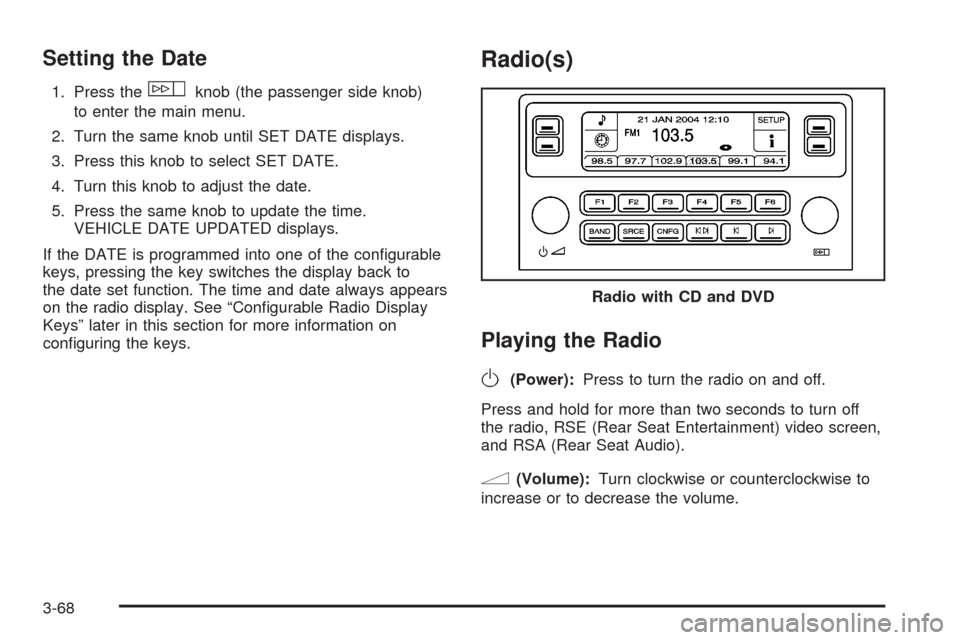
Radio(s)
Playing the Radio
O
(Power):Press to turn the radio on and off.
Press and hold for more than two seconds to turn off
the radio, RSE (Rear Seat Entertainment) video screen,
and RSA (Rear Seat Audio).
n(Volume):Turn clockwise or counterclockwise to
increase or to decrease the volume.Radio with CD and DVD
3-68
Page 235 of 496
SRCE (Source):Press to select a source, either radio,
CD, DVD, or auxiliary, if your vehicle has this feature.
The CD or DVD must be loaded to select the source and
to play. CD or DVD displays if a disc is loaded. If a
CD or DVD is not loaded, the display changes to the
auxiliary source, if your vehicle has this feature, or
continue to play the radio.
Vehicle Noise Compensation (VNC):Your vehicle has
a Bose
®audio system. It includes Bose AudioPilot®
noise compensation technology. When turned on,
AudioPilot®continuously adjusts the audio system
equalization, to compensate for background noise,
so that the audio always sounds the same at the set
volume level.
This feature is most effective at lower radio volume
settings where background noise can affect how well
the music is being heard through the audio system.
At higher volume settings, where the music is much
louder than the background noise, there might be little
or no adjustments by AudioPilot
®.
Turn the AudioPilot
®on by pressing thew(tune/
select) knob to enter the main menu. Then turn this
knob until VNC:AUDIOPILOT displays. Press this knob
to turn AudioPilot
®on and off. An X appears in the box
while it is on.To turn AudioPilot
®off, press thewknob to enter
the main menu, turn this knob until VNC:AUDIOPILOT
appears, and press this knob. The X in the box
disappears when it is turned off. For additional
information on AudioPilot
®, visit
www.bose.com/audiopilot.
Finding a Station
BAND:Press to select AM, FM1, FM2, or XM1
or XM2 (if equipped).
w(Tune/Select):Turn to select radio stations.
©¨(Seek):Press the left arrow to go to the previous
station and stay there. Press the right arrow to go to
the next station and stay there. The sound mutes while
seeking.
The radio only seeks stations with a strong signal that
are in the selected band.
©¨(Scan):Press the arrows to enter scan mode.
SCAN displays. Press the arrows to scan to the
next station. The radio goes to a station, plays for
ve seconds, and then goes on to the next station.
Press the arrows again to stop scanning.
3-69
Page 238 of 496
Setting the Tone
(Bass/Midrange/Treble)
To adjust the bass, midrange, and treble, perform the
following steps:
1. Press the
wknob to enter the main menu.
2. Turn this knob until BASS – MID – TREBLE
displays.
3. Press this knob to scroll through the settings.
4. Turn this knob again to increase or to decrease the
bass, midrange, or treble. If a station is weak or
has static, decrease the treble.
5. Press this knob to set the adjustment.
6. Press the BACK (F6) button to exit the display. To
return to the original display, repeatedly press the
BACK (F6) button or wait for the display to time out.
AUDIO EQUALIZER:This feature lets you select
customized equalization settings. To choose an
equalization setting (EQ0 through EQ5), perform the
following steps:
1. Press the
wknob to enter the main menu.
2. Turn this knob until EQUALIZER displays.
3. Press this knob again to set the equalization
setting. The equalization setting displays.4. Press the BACK (F6) button to exit the display. To
return to the original display, repeatedly press the
BACK (F6) button or wait for the display to time out.
The equalization settings are preset to EQ0 (Normal),
EQ1 (Pop), EQ2 (Rock), EQ3 (Jazz), EQ4 (Talk),
and EQ5 (Country).
Adjusting the Speakers (Balance/Fade)
To adjust the balance or fade, perform the following
steps:
1. Press the
wknob to enter the main menu.
2. Turn this knob until BALANCE – FADER displays.
3. Press this knob to enter the tone settings.
4. Press this knob again to scroll to BALANCE or
FADER.
5. Turn this knob to adjust the BALANCE to the right
or the left speakers and the FADER to the front or
the rear speakers.
6. Press this knob again to set the adjustment.
7. Press the BACK (F6) button to exit the display. To
return to the original display, repeatedly press the
BACK (F6) button or wait for the display to time out.
EQ0 does not display while in this mode.
3-72