steering wheel CADILLAC ESCALADE EXT 2009 3.G User Guide
[x] Cancel search | Manufacturer: CADILLAC, Model Year: 2009, Model line: ESCALADE EXT, Model: CADILLAC ESCALADE EXT 2009 3.GPages: 546, PDF Size: 4.43 MB
Page 162 of 546

Cruise Control Light......................................3-40
Highbeam On Light.......................................3-40
Tow/Haul Mode Light....................................3-41
Fuel Gage...................................................3-41
Driver Information Center (DIC).......................3-41
DIC Operation and Displays...........................3-42
DIC Compass..............................................3-46
DIC Warnings and Messages.........................3-48
DIC Vehicle Customization.............................3-56Audio System(s).............................................3-66
Bluetooth®...................................................3-66
Rear Seat Entertainment (RSE) System...........3-77
Rear Seat Audio (RSA).................................3-85
Theft-Deterrent Feature..................................3-87
Audio Steering Wheel Controls.......................3-88
Radio Reception...........................................3-89
Fixed Mast Antenna......................................3-90
XM™ Satellite Radio Antenna System.............3-90
Section 3 Instrument Panel
3-2
Page 165 of 546
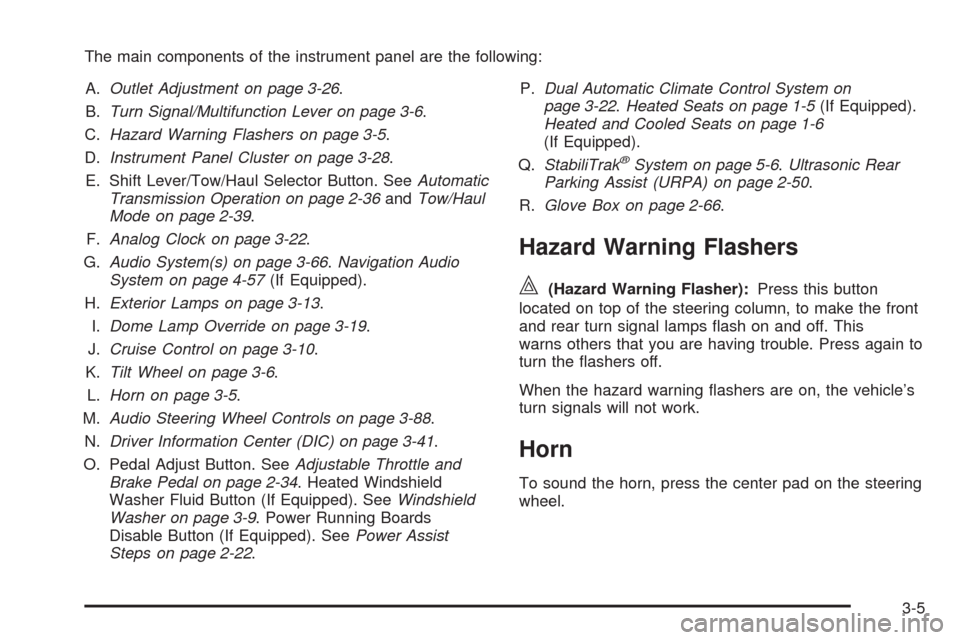
The main components of the instrument panel are the following:
A.Outlet Adjustment on page 3-26.
B.Turn Signal/Multifunction Lever on page 3-6.
C.Hazard Warning Flashers on page 3-5.
D.Instrument Panel Cluster on page 3-28.
E. Shift Lever/Tow/Haul Selector Button. SeeAutomatic
Transmission Operation on page 2-36andTow/Haul
Mode on page 2-39.
F.Analog Clock on page 3-22.
G.Audio System(s) on page 3-66.Navigation Audio
System on page 4-57(If Equipped).
H.Exterior Lamps on page 3-13.
I.Dome Lamp Override on page 3-19.
J.Cruise Control on page 3-10.
K.Tilt Wheel on page 3-6.
L.Horn on page 3-5.
M.Audio Steering Wheel Controls on page 3-88.
N.Driver Information Center (DIC) on page 3-41.
O. Pedal Adjust Button. SeeAdjustable Throttle and
Brake Pedal on page 2-34. Heated Windshield
Washer Fluid Button (If Equipped). SeeWindshield
Washer on page 3-9. Power Running Boards
Disable Button (If Equipped). SeePower Assist
Steps on page 2-22.P.Dual Automatic Climate Control System on
page 3-22.Heated Seats on page 1-5(If Equipped).
Heated and Cooled Seats on page 1-6
(If Equipped).
Q.StabiliTrak
®System on page 5-6.Ultrasonic Rear
Parking Assist (URPA) on page 2-50.
R.Glove Box on page 2-66.
Hazard Warning Flashers
|(Hazard Warning Flasher):Press this button
located on top of the steering column, to make the front
and rear turn signal lamps ash on and off. This
warns others that you are having trouble. Press again to
turn the ashers off.
When the hazard warning ashers are on, the vehicle’s
turn signals will not work.
Horn
To sound the horn, press the center pad on the steering
wheel.
3-5
Page 166 of 546
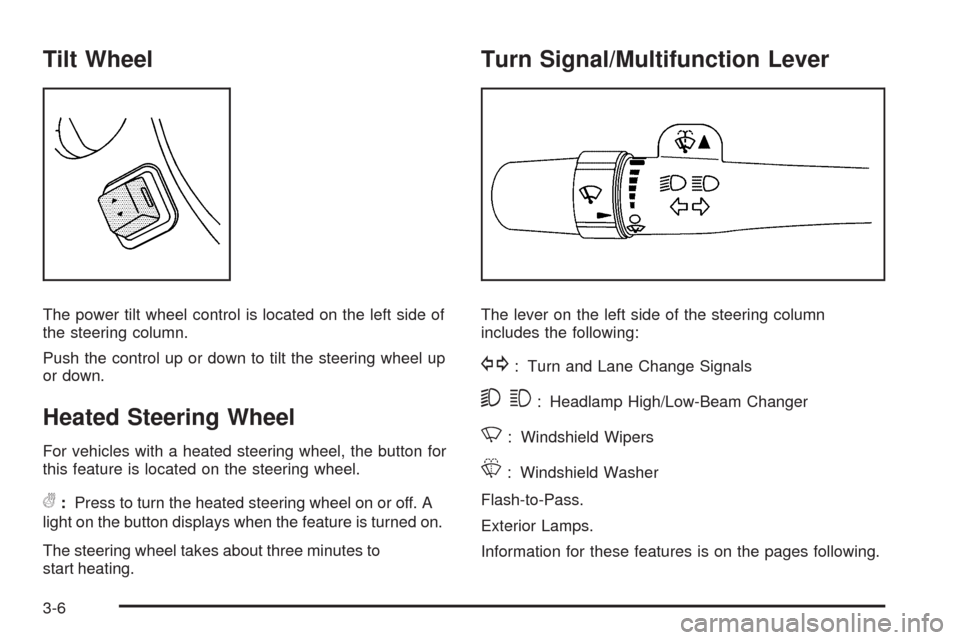
Tilt Wheel
The power tilt wheel control is located on the left side of
the steering column.
Push the control up or down to tilt the steering wheel up
or down.
Heated Steering Wheel
For vehicles with a heated steering wheel, the button for
this feature is located on the steering wheel.
(:Press to turn the heated steering wheel on or off. A
light on the button displays when the feature is turned on.
The steering wheel takes about three minutes to
start heating.
Turn Signal/Multifunction Lever
The lever on the left side of the steering column
includes the following:
G: Turn and Lane Change Signals
53: Headlamp High/Low-Beam Changer
N: Windshield Wipers
L: Windshield Washer
Flash-to-Pass.
Exterior Lamps.
Information for these features is on the pages following.
3-6
Page 171 of 546

The cruise control buttons are located on left side of the
steering wheel.
T(On/Off):Turns the system on or off. The indicator
light is on when cruise control is on and turns off
when cruise control is off.
+ RES (Resume/Accelerate):Press to make the
vehicle accelerate or resume to a previously set speed.
SET−(Set/Coast):Press to set the speed or make
the vehicle decelerate.
[(Cancel):Press to cancel cruise control without
erasing the set speed from memory.
Setting Cruise Control
Cruise control will not work if the parking brake is set, or
if the master cylinder brake uid level is low.
The cruise control light on the instrument panel cluster
comes on after the cruise control has been set to
the desired speed.
{CAUTION:
If you leave your cruise control on when you are
not using cruise, you might hit a button and go
into cruise when you do not want to. You could be
startled and even lose control. Keep the cruise
control switch off until you want to use cruise
control.
1. Press the
Ibutton.
2. Get up to the desired speed.
3. Press the SET−button located on the steering
wheel and release it.
4. Take your foot off the accelerator. Cruise Control shown
with Heated Steering
Wheel Button
(If Equipped)
3-11
Page 172 of 546
Resuming a Set Speed
If the cruise control is set at a desired speed and then
the brakes are applied, this shuts off the cruise
control. But it does not need to be reset.
Once the vehicle speed reaches about 25 mph
(40 km/h) or more, press the +RES button on the
steering wheel. The vehicle returns to the previously set
speed and stays there.
Increasing Speed While Using Cruise
Control
To increase the cruise speed while using cruise control:
Press and hold the +RES button on the steering
wheel until the desired speed is reached, then
release it.
To increase vehicle speed in small increments,
press the +RES button. Each time this is done,
the vehicle goes about 1 mph (1.6 km/h) faster.
Reducing Speed While Using Cruise
Control
To reduce the vehicle speed while using cruise control:
Press and hold the SET– button on the steering
wheel until the desired lower speed is reached,
then release it.
To slow down in very small amounts, press the
SET– button on the steering wheel briey. Each
time this is done, the vehicle goes about 1 mph
(1.6 km/h) slower.
Passing Another Vehicle While Using
Cruise Control
Use the accelerator pedal to increase the vehicle speed.
When you take your foot off the pedal, the vehicle will
slow down to the previous set cruise speed.
Using Cruise Control on Hills
How well the cruise control will work on hills depends
upon the vehicle speed, load, and the steepness of the
hills. When going up steep hills, you might have to step
on the accelerator pedal to maintain the vehicle’s speed.
When going downhill, you might have to brake or shift to
a lower gear to keep the vehicle’s speed down. When the
brakes are applied the cruise control turns off.
3-12
Page 173 of 546
Ending Cruise Control
There are three ways to end cruise control:
Step lightly on the brake pedal.
Press the[button on the steering wheel.
Press theIbutton on the steering wheel.
Erasing Speed Memory
The cruise control set speed memory is erased when
the cruise control or the ignition is turned off.
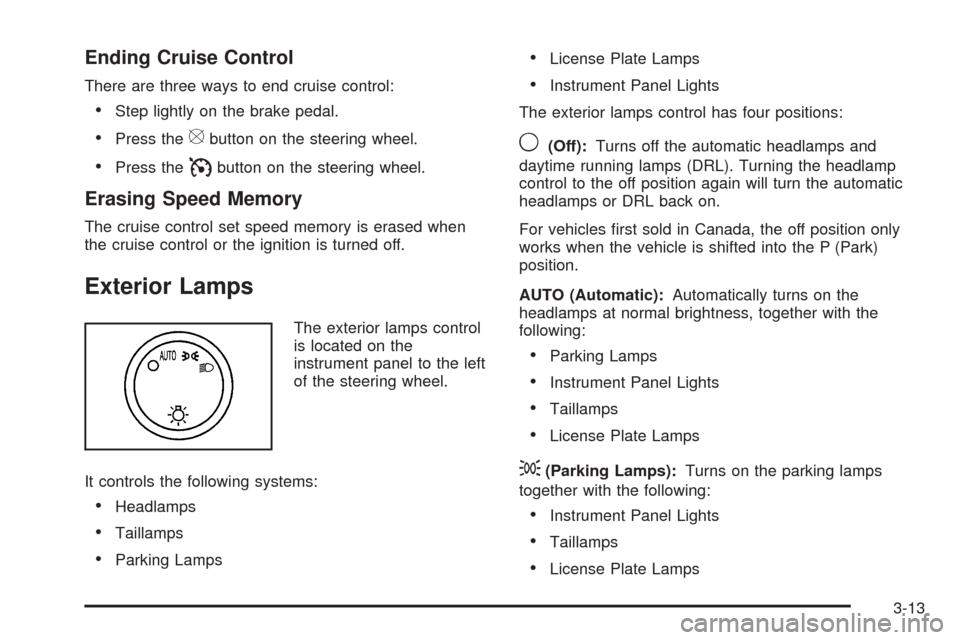
Exterior Lamps
The exterior lamps control
is located on the
instrument panel to the left
of the steering wheel.
It controls the following systems:
Headlamps
Taillamps
Parking Lamps
License Plate Lamps
Instrument Panel Lights
The exterior lamps control has four positions:
9(Off):Turns off the automatic headlamps and
daytime running lamps (DRL). Turning the headlamp
control to the off position again will turn the automatic
headlamps or DRL back on.
For vehicles rst sold in Canada, the off position only
works when the vehicle is shifted into the P (Park)
position.
AUTO (Automatic):Automatically turns on the
headlamps at normal brightness, together with the
following:
Parking Lamps
Instrument Panel Lights
Taillamps
License Plate Lamps
;(Parking Lamps):Turns on the parking lamps
together with the following:
Instrument Panel Lights
Taillamps
License Plate Lamps
3-13
Page 202 of 546

The DIC comes on when the ignition is on. After a short
delay, the DIC will display the information that was
last displayed before the engine was turned off.
SeeDIC Operation and Displays on page 3-42andDIC
Vehicle Customization on page 3-56for the displays
available.
DIC Operation and Displays
The DIC has different displays which can be accessed
by pressing the DIC buttons located on the instrument
panel, next to the steering wheel.
The DIC displays trip, fuel, and vehicle system
information, and warning messages if a system problem
is detected. A digital speedometer also appears at
the bottom of the DIC display. The digital speedometer
can be enabled or disabled. See “DISPLAY DIGITAL
SPEED” underDIC Vehicle Customization on page 3-56
for more information.
DIC Buttons
The buttons are the
trip/fuel, vehicle
information, customization,
and set/reset buttons.
The button functions are
detailed in the following
pages.
3(Trip/Fuel):Press this button to display the
odometer, trip odometer, fuel range, average economy,
fuel used, timer, and transmission temperature. The
compass and outside air temperature will also be shown
in the display. The temperature will be shown in °F or
°C depending on the units selected.
T(Vehicle Information):Press this button to display
the oil life, units, tire pressure readings for vehicles
with the Tire Pressure Monitor System (TPMS), Remote
Keyless Entry (RKE) transmitter programming,
compass zone setting, and compass recalibration.
3-42
Page 223 of 546

NO CHANGE:No change will be made to this feature.
The current setting will remain.
To select a setting, press the set/reset button while the
desired setting is displayed on the DIC.
EASY EXIT SETUP
If your vehicle has this feature, it allows you to select
which areas will recall with the automatic easy exit seat
feature. It also allows you to turn off the automatic
easy exit feature. SeeMemory Features on page 1-7
and “EASY EXIT RECALL” earlier for more information.
Press the customization button until EASY EXIT
SETUP appears on the DIC display. Press the set/reset
button once to access the settings for this feature.
Then press the menu up/down button to scroll through
the following settings:
OFF:No automatic seat exit will recall.
SEAT ONLY:The driver’s seat will recall.
TILT ONLY:The steering wheel tilt feature will recall.
ALL (default):The driver’s seat and the steering wheel
tilt will recall.
NO CHANGE:No change will be made to this feature.
The current setting will remain.
To select a setting, press the set/reset button while the
desired setting is displayed on the DIC.
MEMORY SEAT RECALL
This feature allows you to select your preference for the
remote memory seat recall feature. SeeMemory
Features on page 1-7for more information.
Press the customization button until MEMORY SEAT
RECALL appears on the DIC display. Press the set/reset
button once to access the settings for this feature.
Then press the customization button to scroll through
the following settings:
OFF (default):No remote memory seat recall will
occur.
ON:The driver’s seat, and on some vehicles, the
outside mirrors will automatically move to the stored
driving position when the unlock button on the Remote
Keyless Entry (RKE) transmitter is pressed. On
some vehicles with the adjustable throttle and brake
pedal feature, the pedals will also automatically move.
See “Relearn Remote Key” underDIC Operation
and Displays on page 3-42for more information on
matching transmitters to driver ID numbers.
NO CHANGE:No change will be made to this feature.
The current setting will remain.
To select a setting, press the set/reset button while the
desired setting is displayed on the DIC.
3-63
Page 227 of 546

Voice Recognition
The Bluetooth system uses voice recognition to interpret
voice commands to dial phone numbers and name tags.
Noise:Keep interior noise levels to a minimum. The
system may not recognize voice commands if there is
too much background noise.
When to Speak:A short tone sounds after the system
responds indicating when it is waiting for a voice
command. Wait until the tone and then speak.
How to Speak:Speak clearly in a calm and
natural voice.
Audio System
When using the in-vehicle Bluetooth system, sound
comes through the vehicle’s front audio system speakers
and overrides the audio system. Use the audio system
volume knob, during a call, to change the volume level.
The adjusted volume level remains in memory for later
calls. To prevent missed calls, a minimum volume level is
used if the volume is turned down too low.
Bluetooth Controls
Use the buttons located on the steering wheel to
operate the in-vehicle Bluetooth system. SeeAudio
Steering Wheel Controls on page 3-88for more
information.
bg(Push To Talk):Press to answer incoming calls,
to conrm system information, and to start speech
recognition.
cx(Phone On Hook):Press to end a call, reject a
call, or to cancel an operation.
Pairing
A Bluetooth enabled cell phone must be paired to the
in-vehicle Bluetooth system rst and then connected to
the vehicle before it can be used. See the cell phone
manufacturers user guide for Bluetooth functions before
pairing the cell phone. If a Bluetooth phone is not
connected, calls will be made using OnStar
®
Hands-Free Calling, if available. Refer to the OnStar
owner’s guide for more information.
Pairing Information:
Up to ve cell phones can be paired to the in-vehicle
Bluetooth system.
The pairing process is disabled when the vehicle is
moving.
3-67
Page 248 of 546

Audio Steering Wheel Controls
Vehicles with audio
steering wheel controls
could differ depending on
the vehicle’s options.
Some audio controls can
be adjusted at the steering
wheel.
w(Next):Press to go to the next radio station stored
as a favorite, or the next track if a CD/DVD is playing.
xc(Previous/End):Press to go to the previous
radio station stored as a favorite, the next track if
a CD/DVD is playing, to reject an incoming call, or end
a current call.
bg(Mute/Push to Talk):Press to silence the vehicle
speakers only. Press again to turn the sound on.
For vehicles with OnStar
®or Bluetooth systems press
and hold
bgfor longer than two seconds to
interact with those systems. SeeOnStar®System on
page 2-56andBluetooth®on page 3-66for more
information.
SRCE (Source/Voice Recognition):Press to switch
between the radio (AM, FM, XM), CD, and for vehicles
with, DVD, and rear auxiliary.
Press and hold this button for longer than one second
to initiate voice recognition. SeeVoice Recognition
on page 4-78for more information.
+
e−e(Volume): Press to increase or to decrease
the radio volume.
¨(Seek):Press to go to the next radio station while
in AM, FM, or XM™. Press
¨to go to the next
track or chapter while sourced to the CD or DVD slot.
Press the
¨if multiple discs are loaded to go to
the next disc while sourced to a CD player.
3-88